
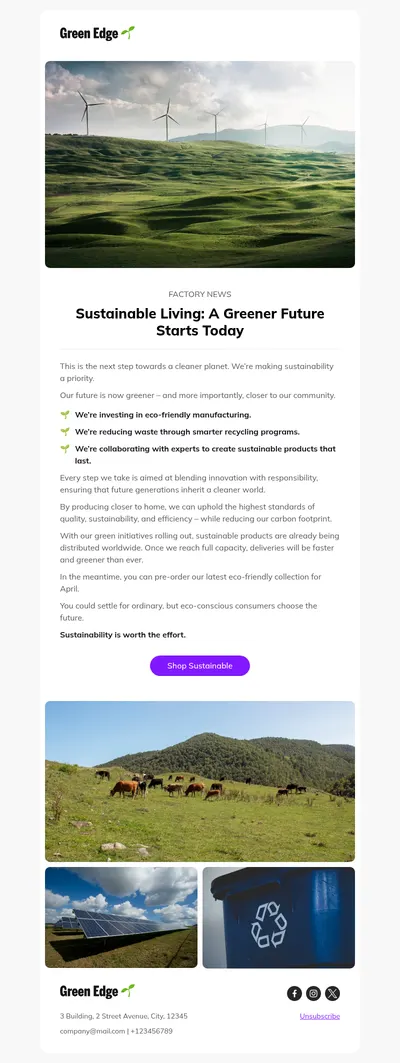
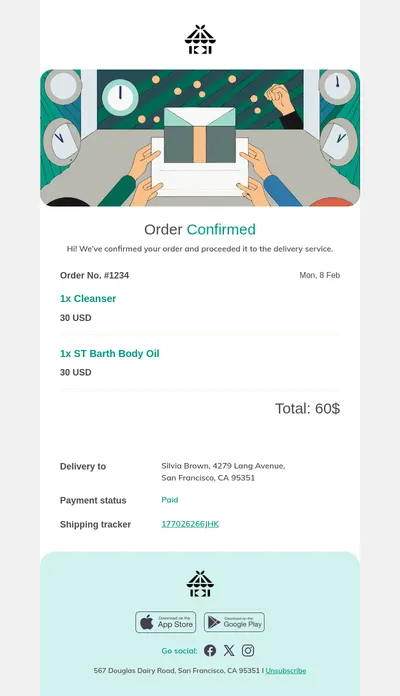
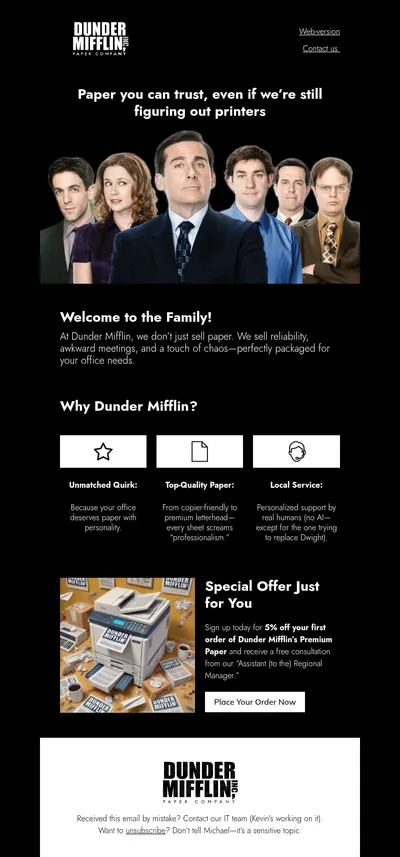




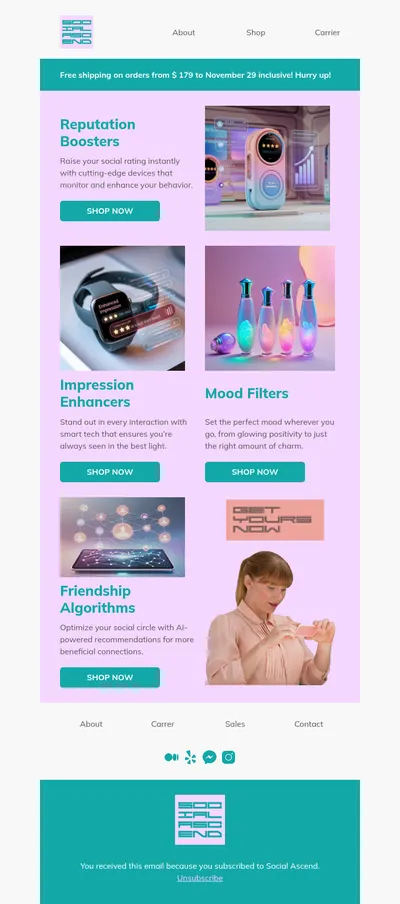
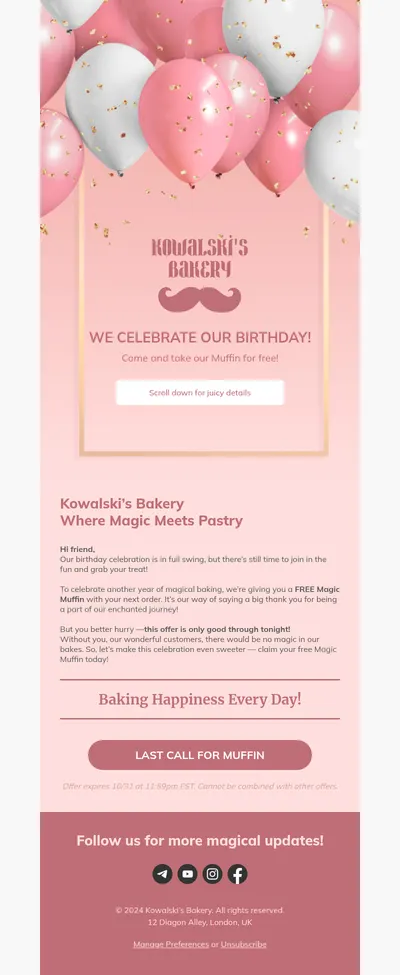

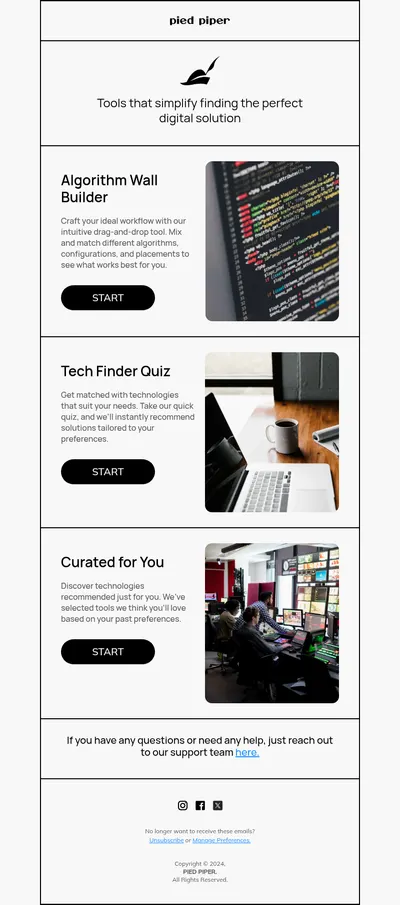
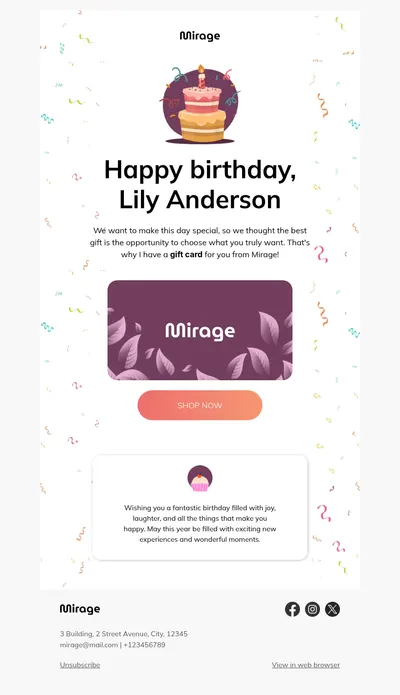

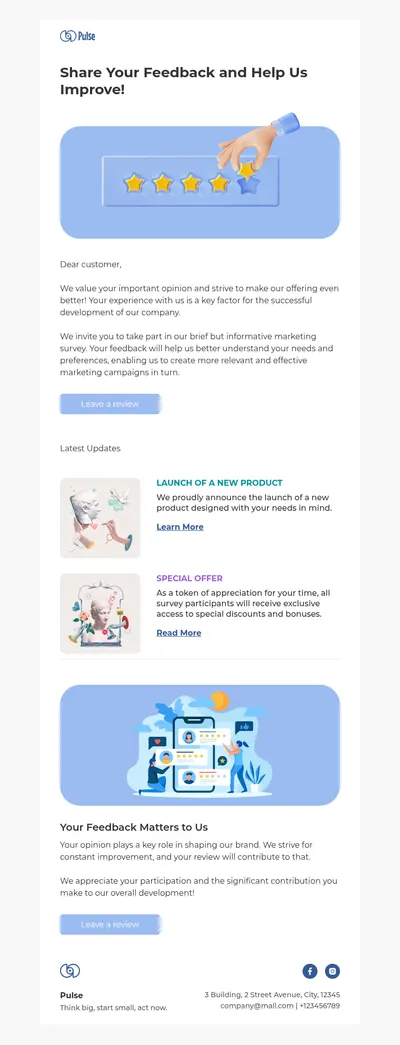
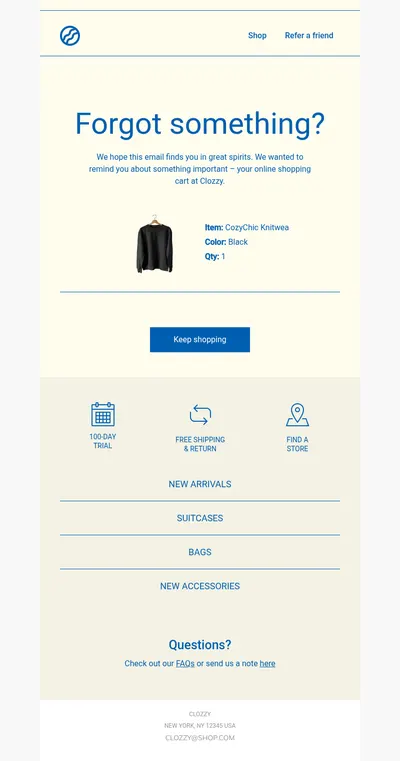
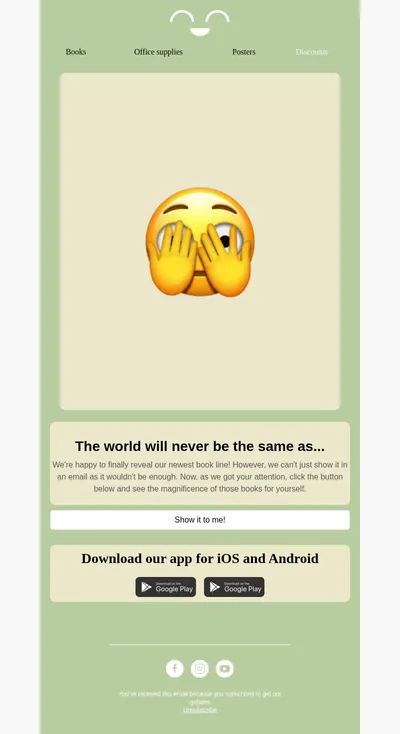
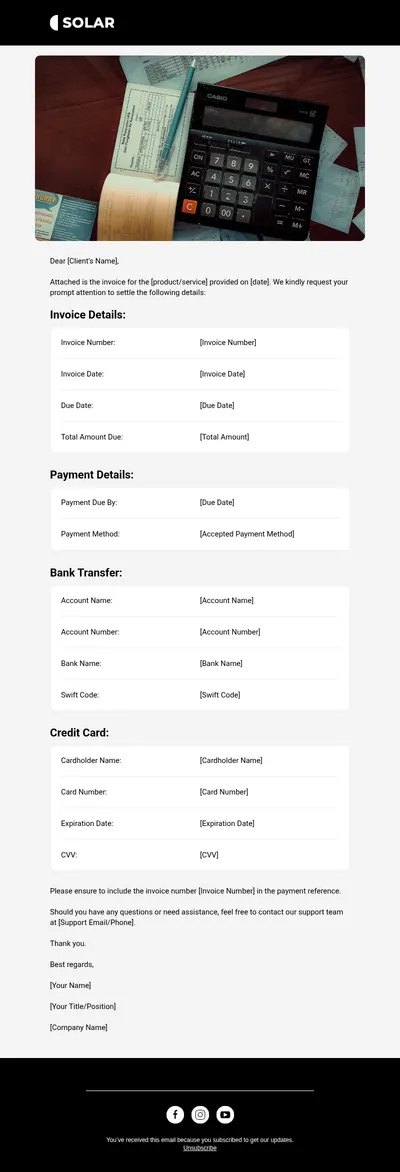


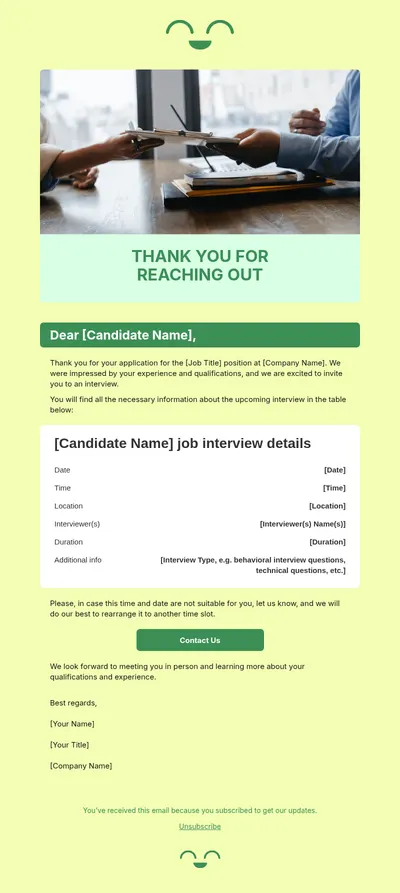




Jira is where product and support teams track work, and a lot of that work ends up communicated by email: release notes, incident updates, status changes for customers. Our free email templates for Jira help turn those updates into clear, branded messages instead of dense blocks of automatically generated text.
Why Teams Use Designed Jira Email Templates
Default notifications do their job for people inside the project, but stakeholders and customers often skim them and miss the point. A structured email with a headline, a short summary, and a single link to the details gets read, understood, and acted on.
- Release notes people finish reading. Group new features, fixes, and known issues into scannable sections rather than one long list of ticket titles.
- Incident updates that calm people down. A consistent layout for status, impact, and next update time makes stressful moments easier to communicate.
- Brand consistency for technical teams. Engineers can send polished emails without designing anything themselves, using layouts prepared once in Blocks.
Connecting a Blocks Design to Jira
The exact route depends on your Jira edition and how your team sends email, but a common setup looks like this:
- Design the update in Blocks, keeping clearly marked spots for the details that change from one email to the next.
- Export the email as HTML.
- In Jira automation, add a send email action to the rule that should trigger the message, and place your HTML in the email content.
- Replace the placeholder spots with Jira smart values so each email fills in the right issue key, summary, or status.
Service desk notifications and global email settings are configured differently across Jira products, so review your edition's documentation before changing messages that customers receive.
Jira Emails Worth a Proper Template
- Product update emails that announce what shipped this sprint and why it matters to users.
- Notification emails for status changes, approvals, and deadlines that must not get lost in a busy inbox.
- Customer support messages that confirm a request was received and explain what happens next.
- Internal communication such as maintenance windows, process changes, and team announcements.
A useful habit is to keep two or three layouts rather than one. A short notification template covers everyday status changes, a longer release notes template has room for screenshots and grouped changes, and an incident template reserves a highlighted block for impact and the time of the next update. Each rule in Jira then points to the layout that fits its purpose, and recipients learn to recognize what kind of message they are looking at before they read a single line.
It also helps to agree on wording in advance. Decide how the team names severities and states, write them into the template, and people will stop inventing new labels during a stressful release.
Tips for Jira Email Templates
- Lead with the change, not the ticket number. Readers outside the project care what is different, while the issue key can sit in a smaller line below.
- Keep automated emails short. A summary and a link to Jira beats pasting the whole issue description into the message.
- Label urgency visually. A colored status badge for resolved, in progress, or critical helps people triage their inbox at a glance.
- Test rules on a sandbox project. Automation that sends email can reach many people quickly, so confirm the output before enabling it widely.
Writing time-sensitive updates? Our guides to urgent emails and reminder emails offer structures that transfer directly to incident and deadline notifications.
Use Free Email Templates for Jira Updates
Pick a template above, prepare it in Blocks for your release notes or notifications, and wire it into your Jira automation. Clear updates save far more time than they take to design.