















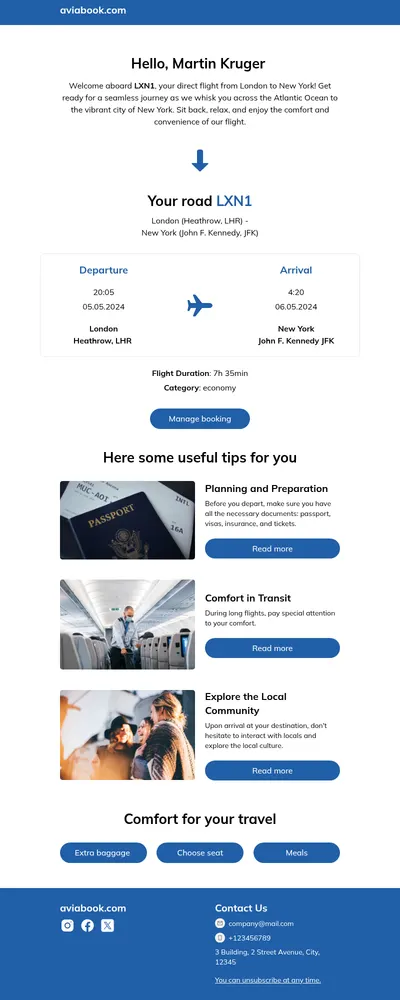

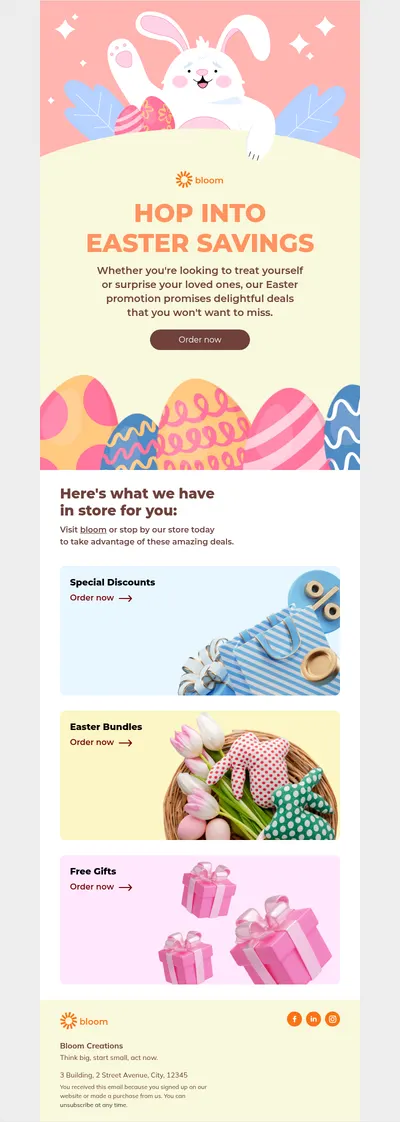
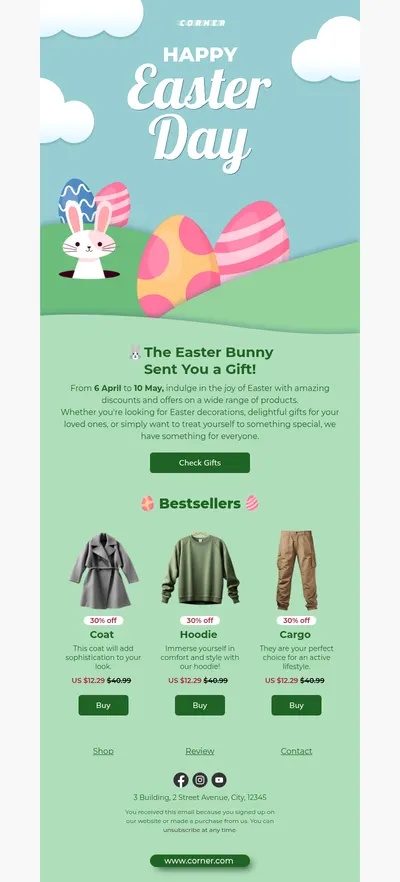
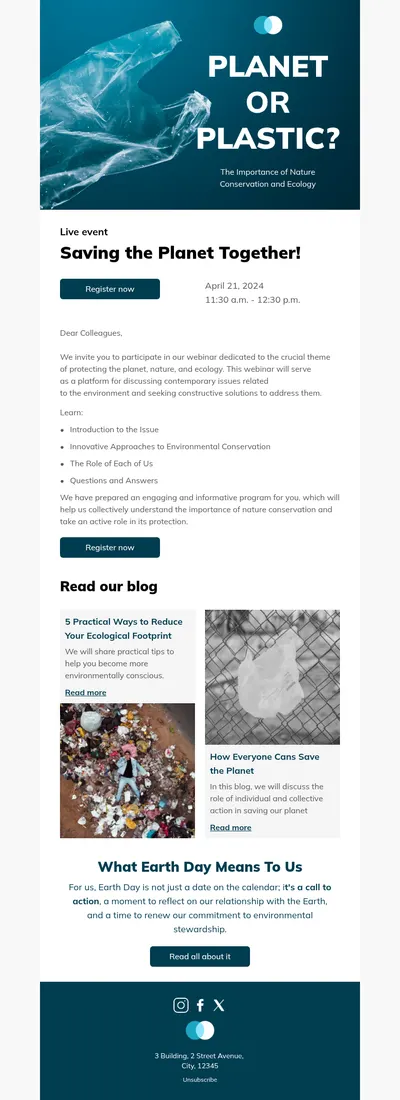











5 Reasons to Create Magento Email Templates in Blocks
We may give you lots of reasons for trying out Blocks as a perfect tool for creating beautiful email templates for Magento in no time. In this article, we’ve decided to share 5 features that will help you make the right decision.
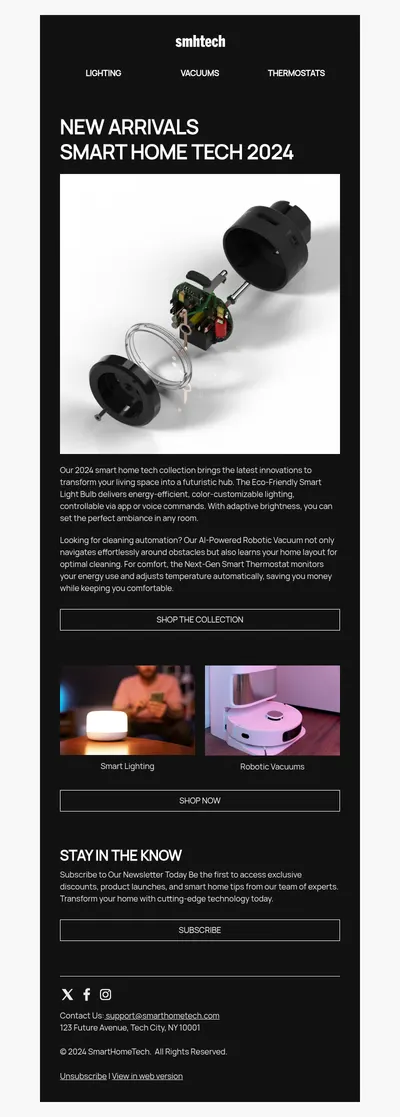
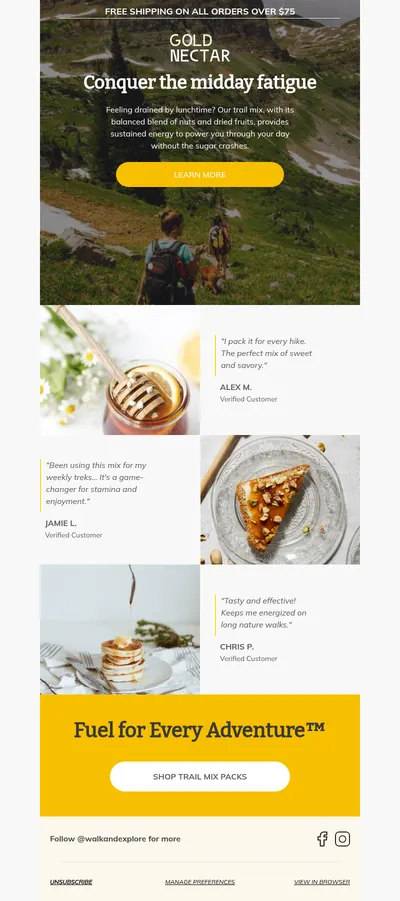
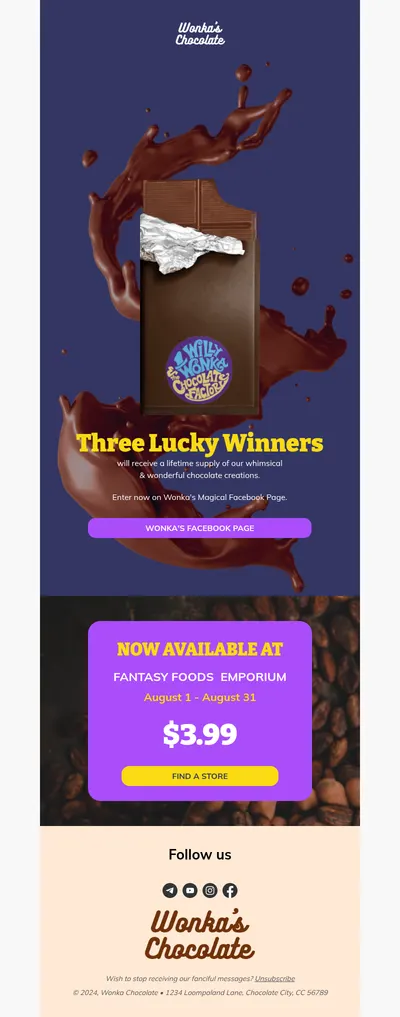
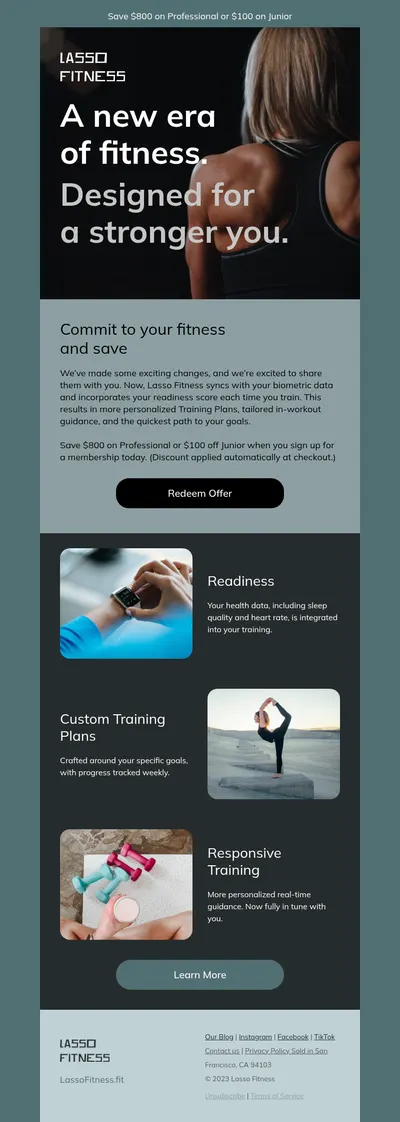
1. Gorgeous Magento Email Templates for Any Industry
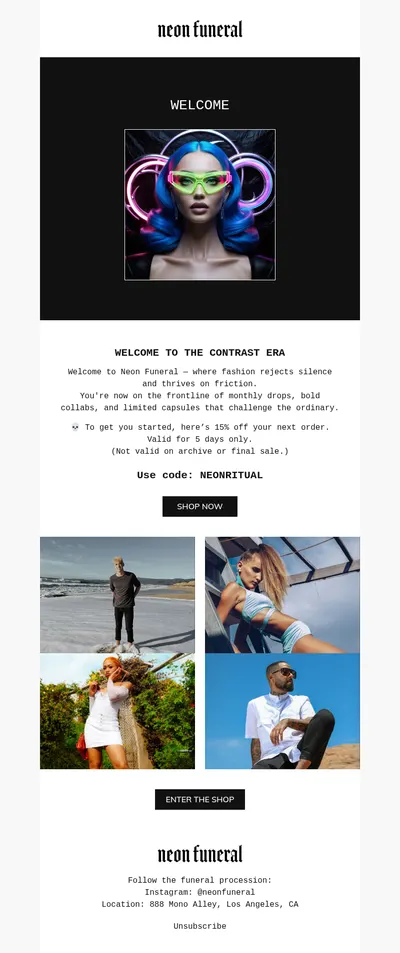
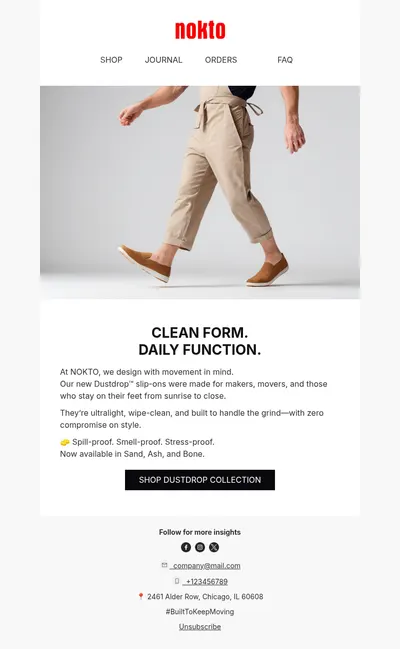
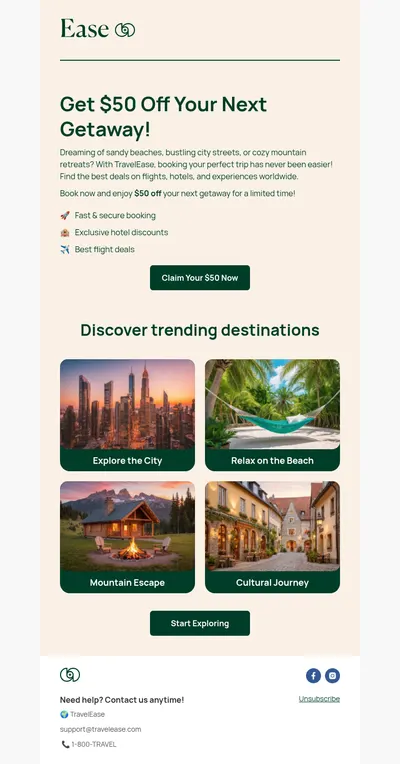
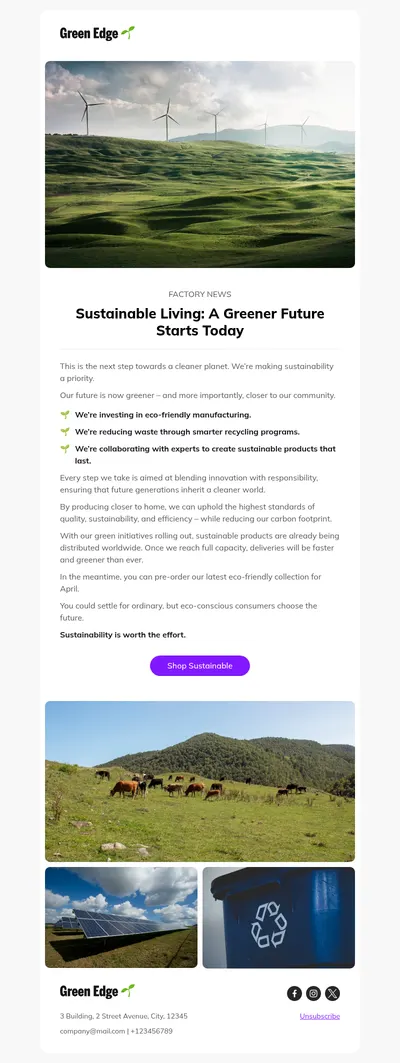
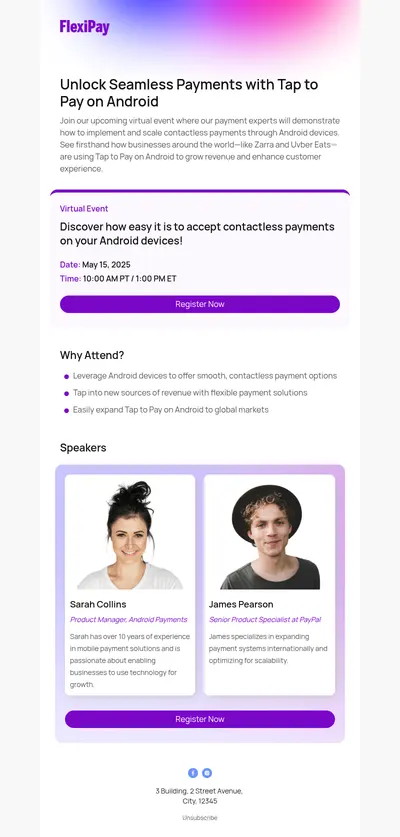
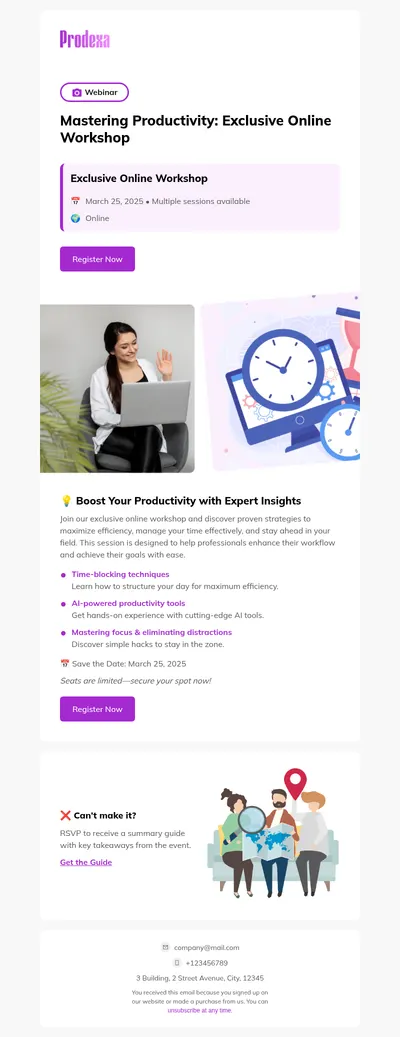
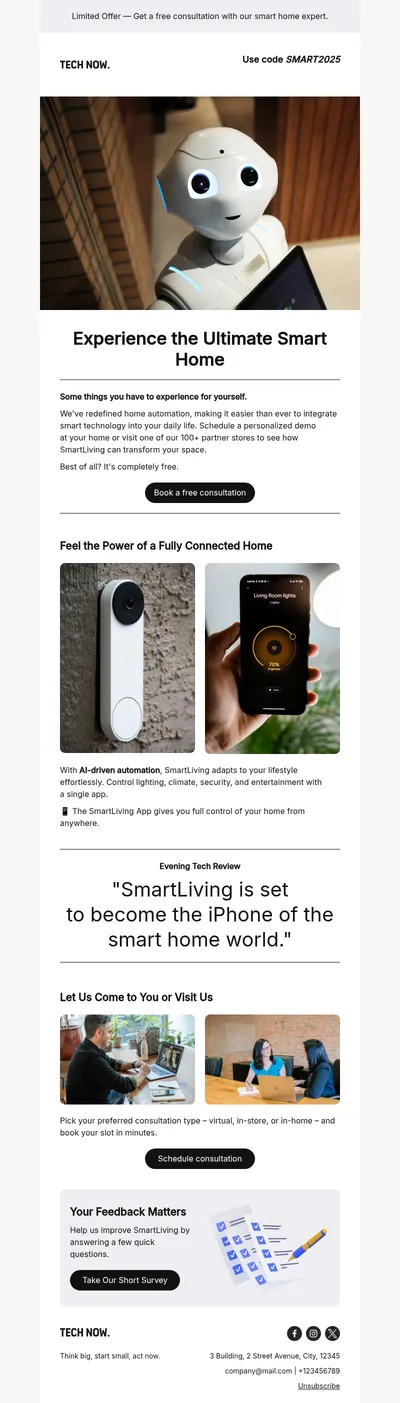
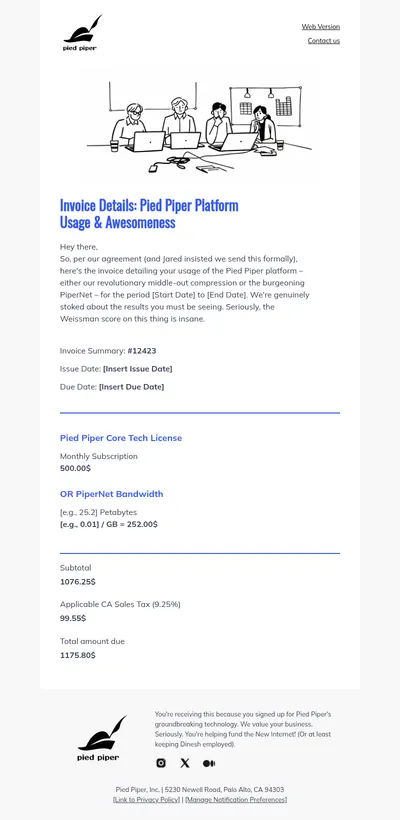
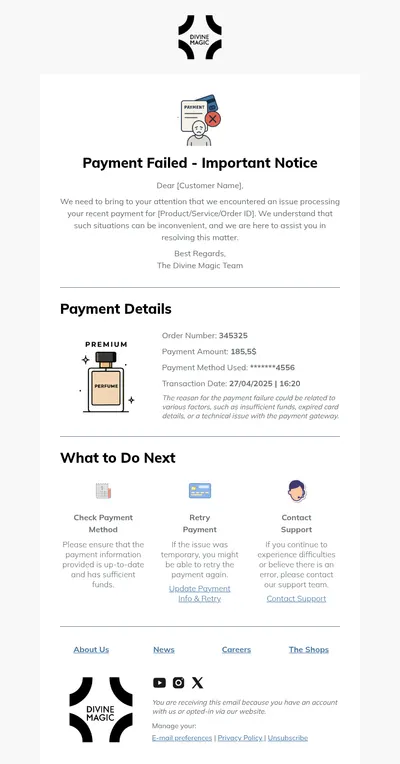
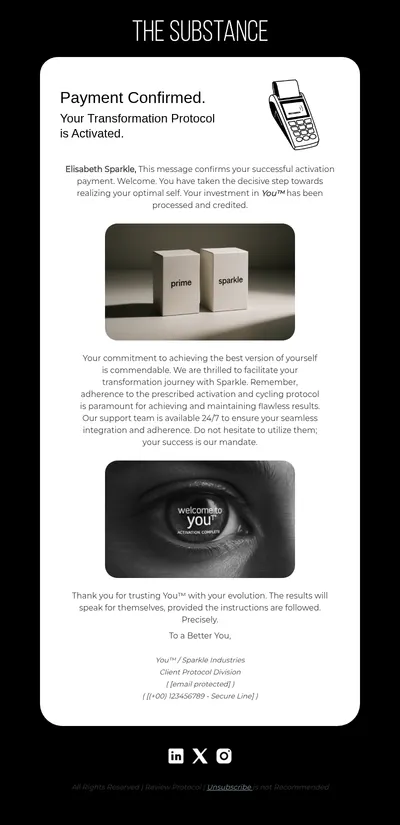
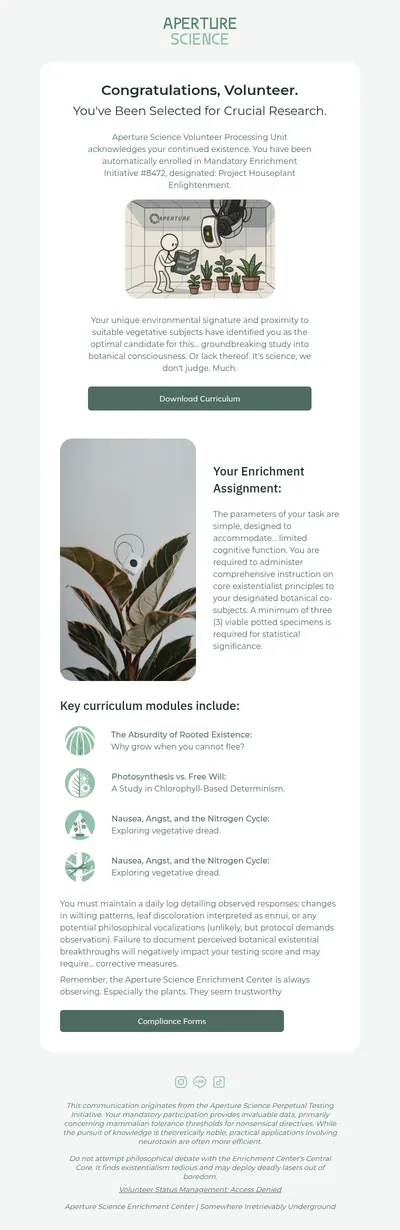
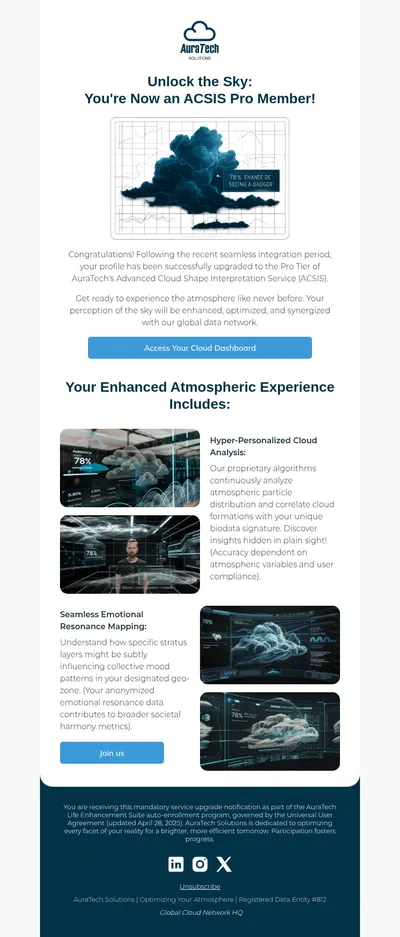
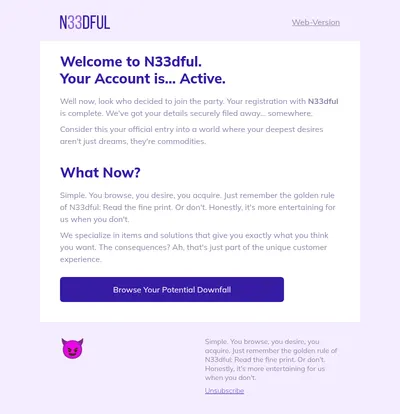
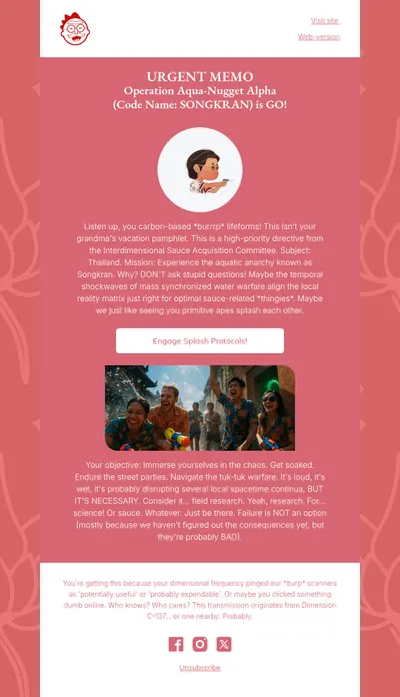
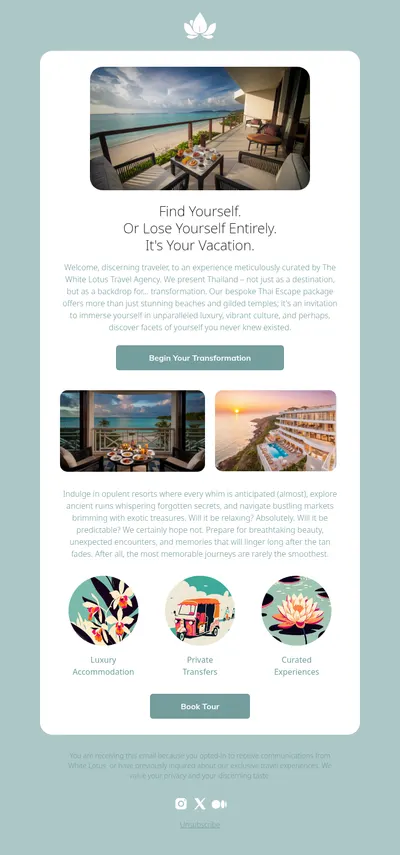
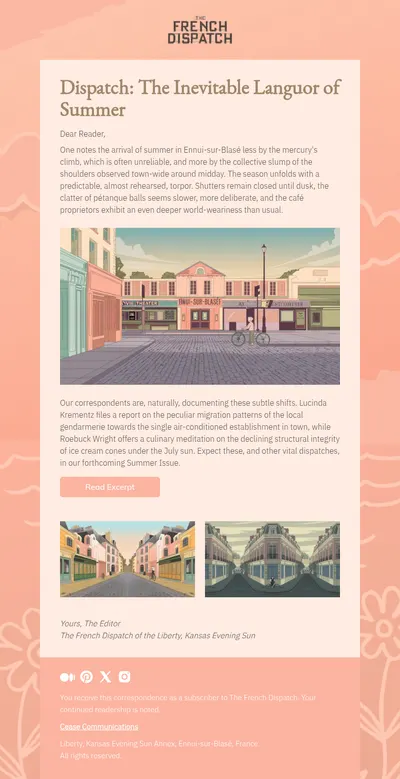
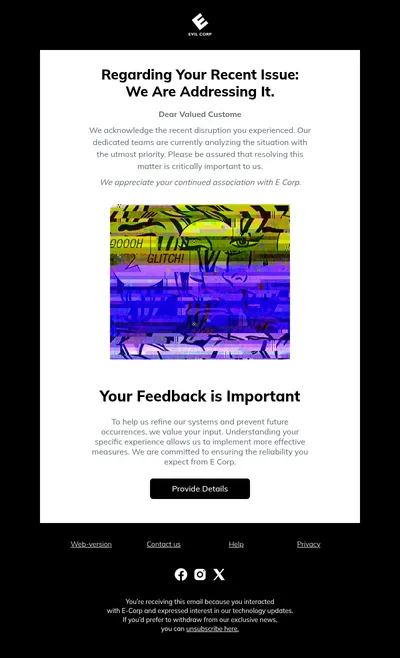
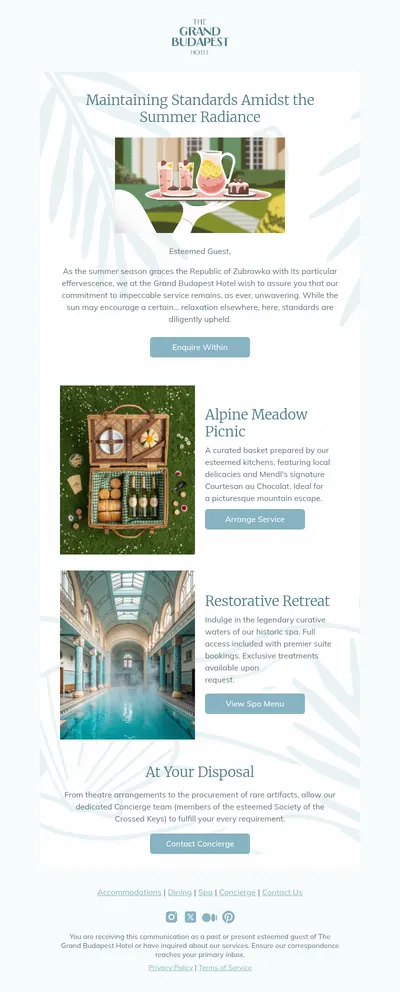
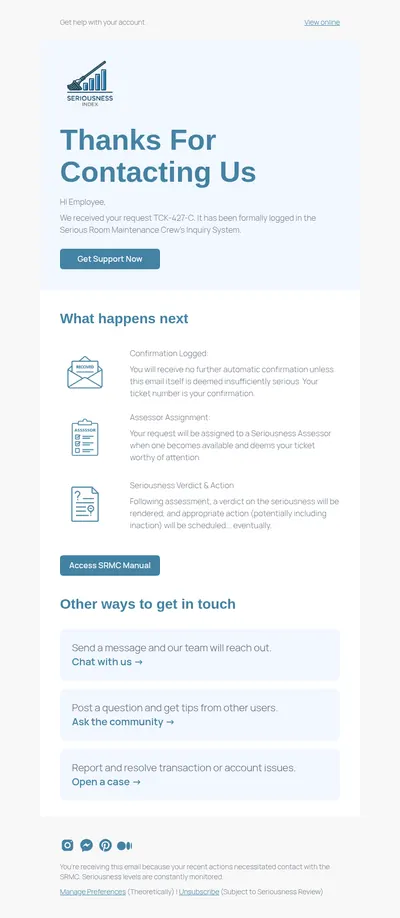
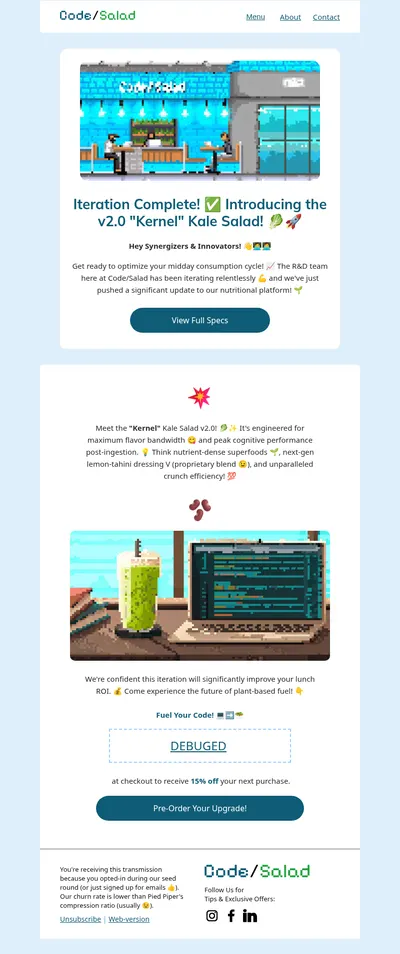
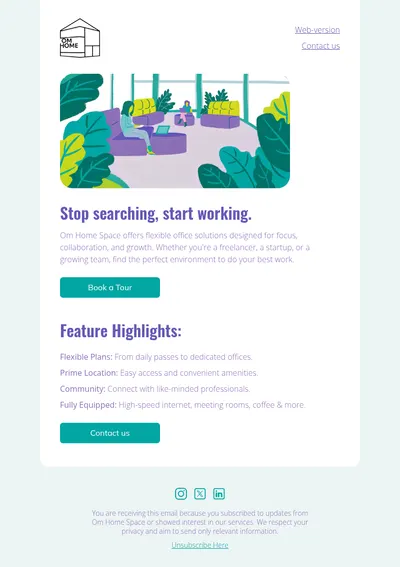
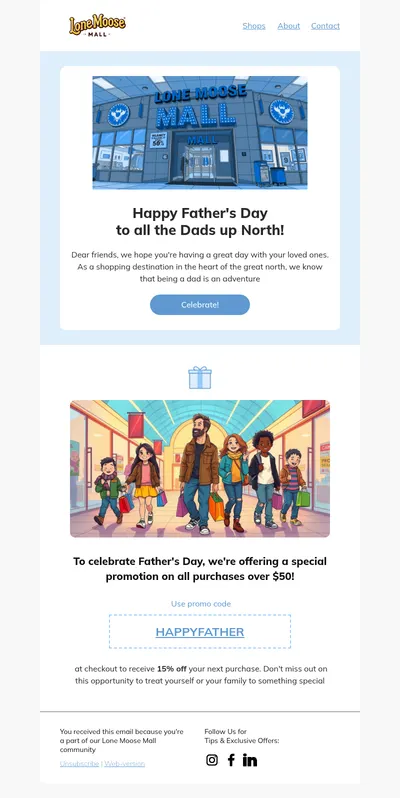
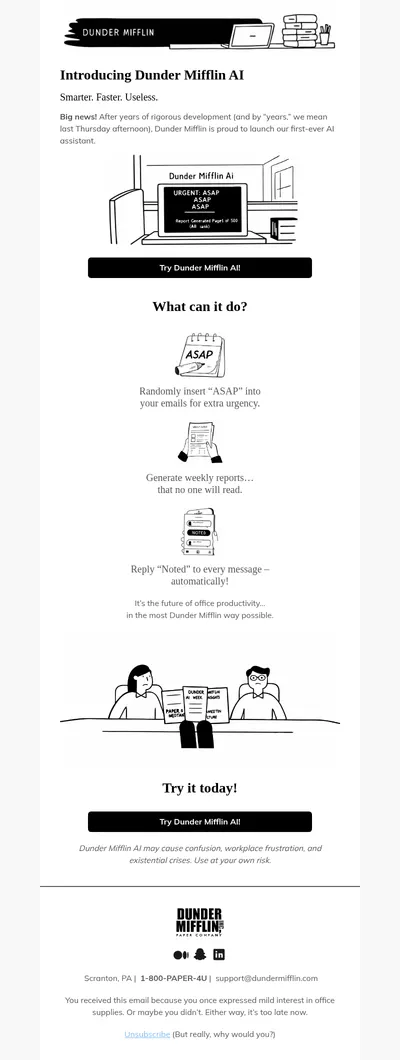
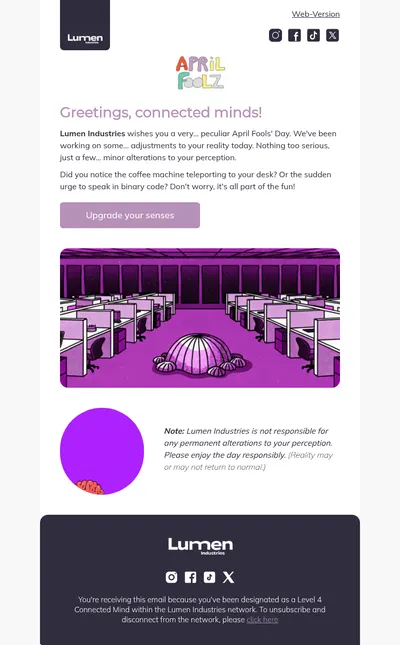
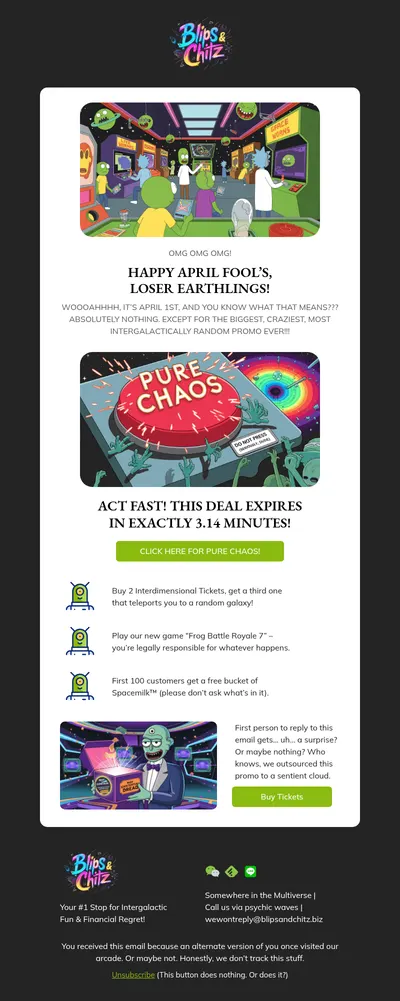
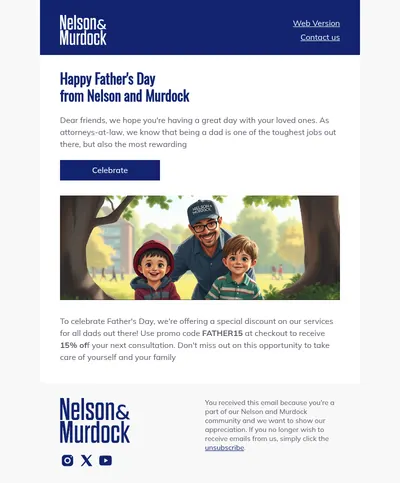
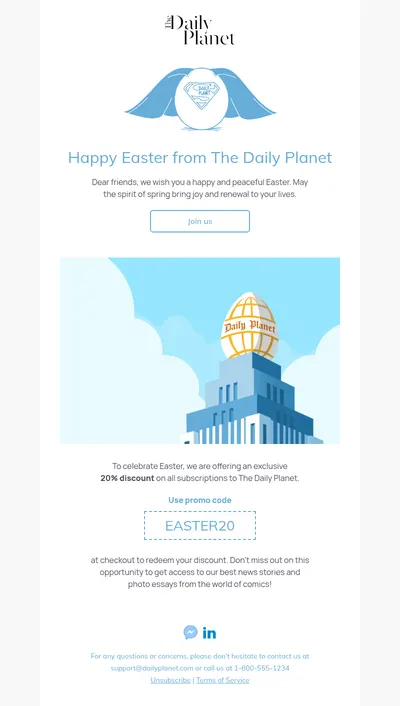
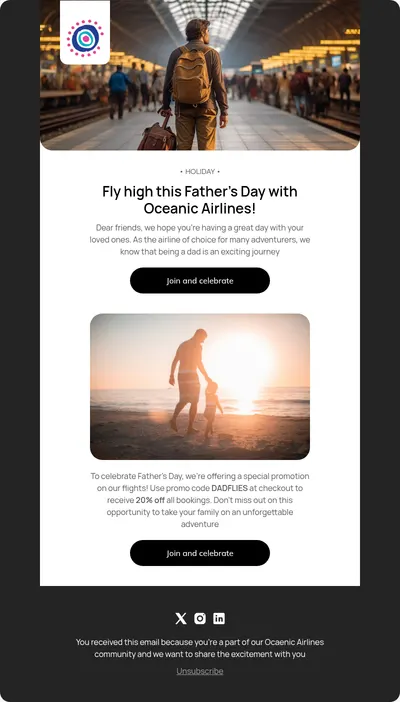
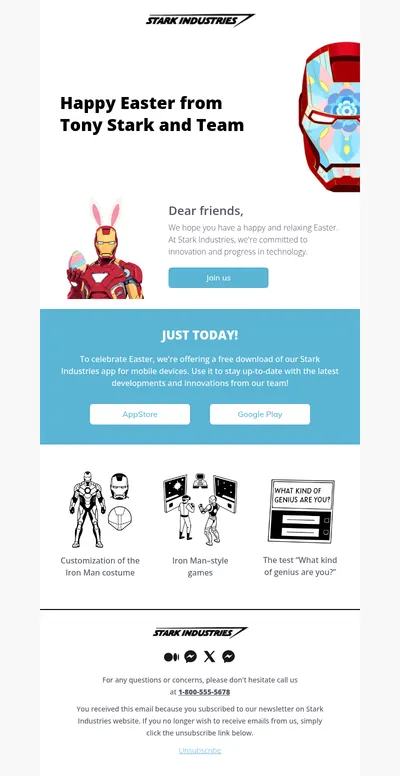
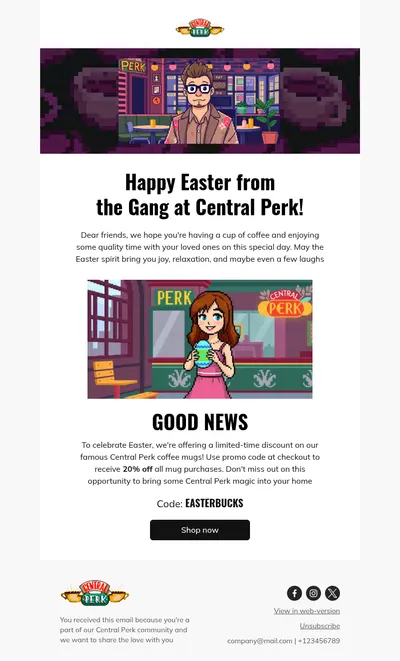
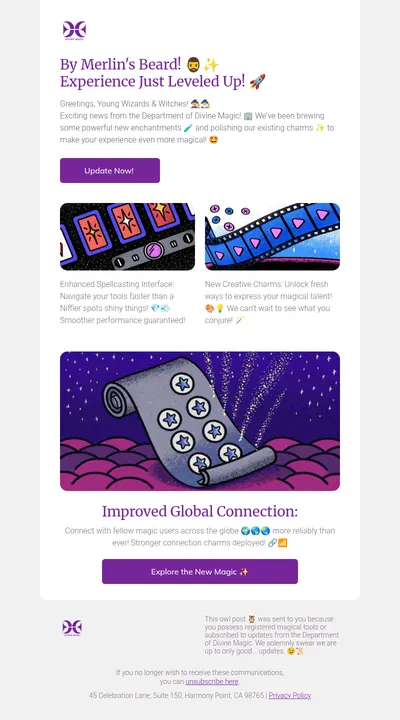
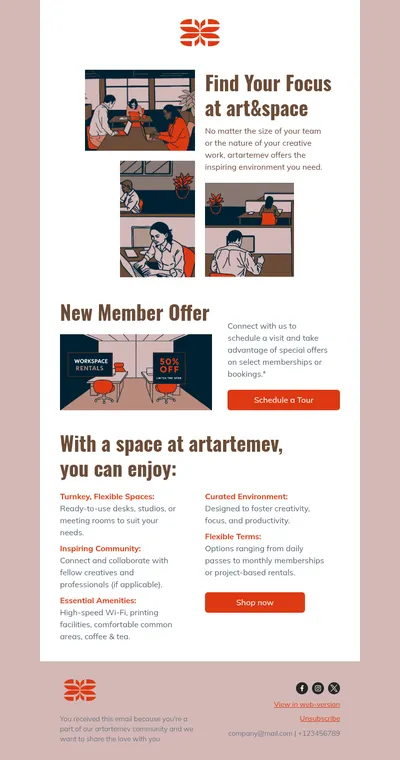
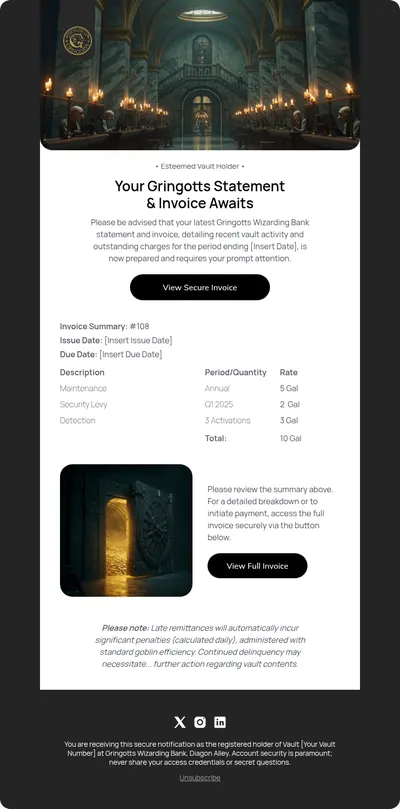
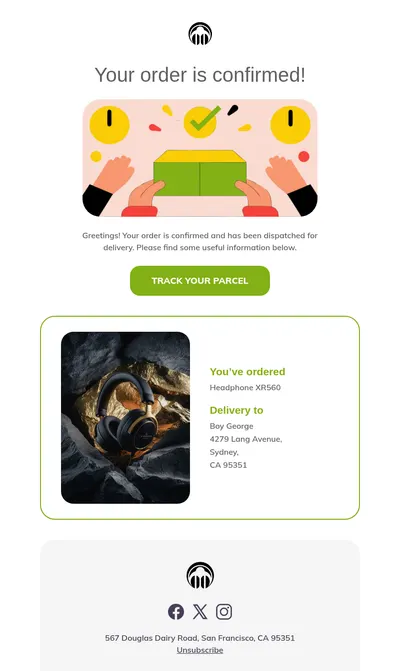
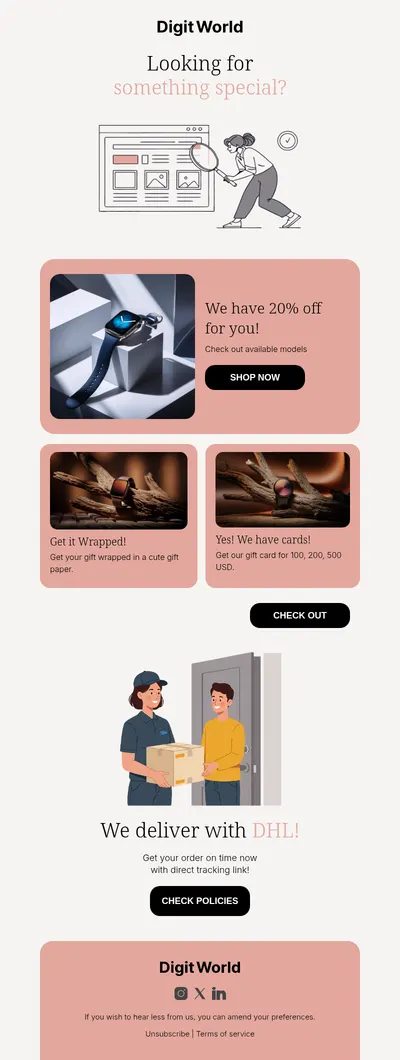
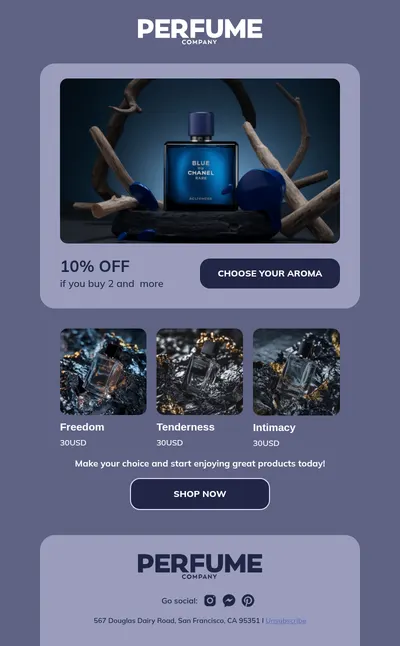
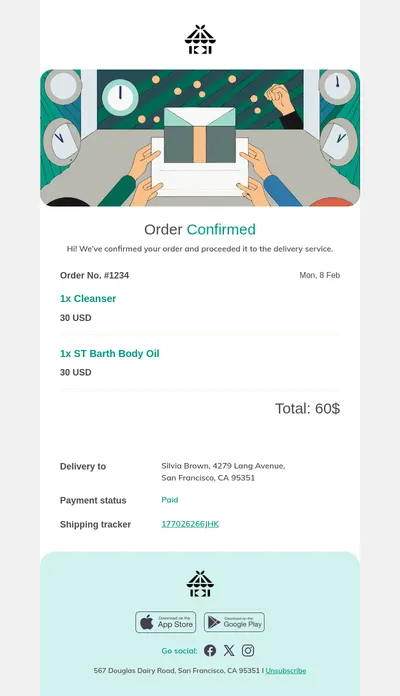
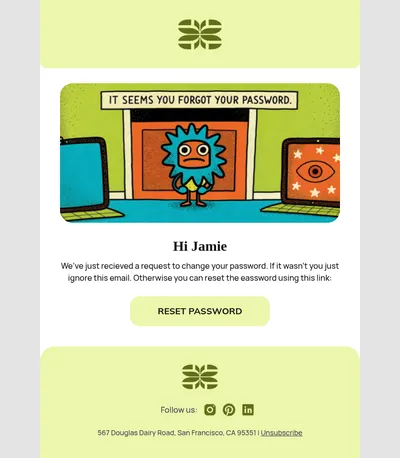
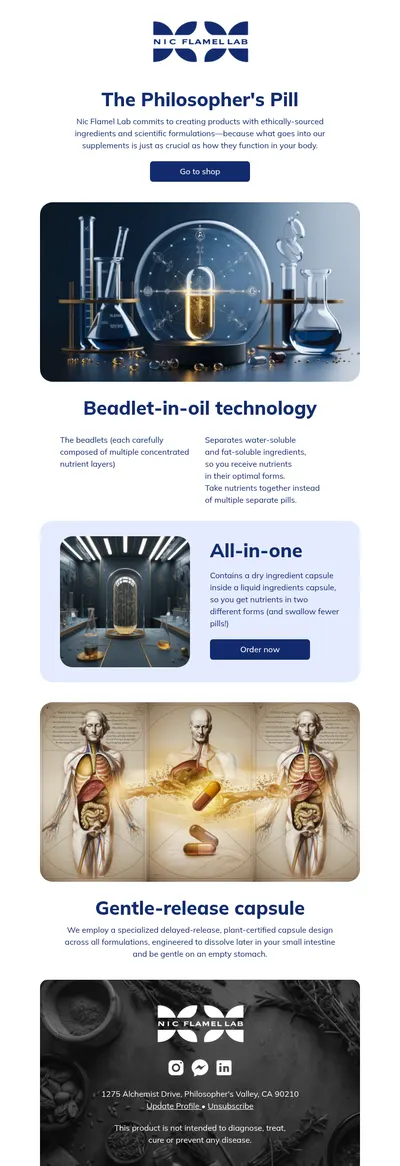
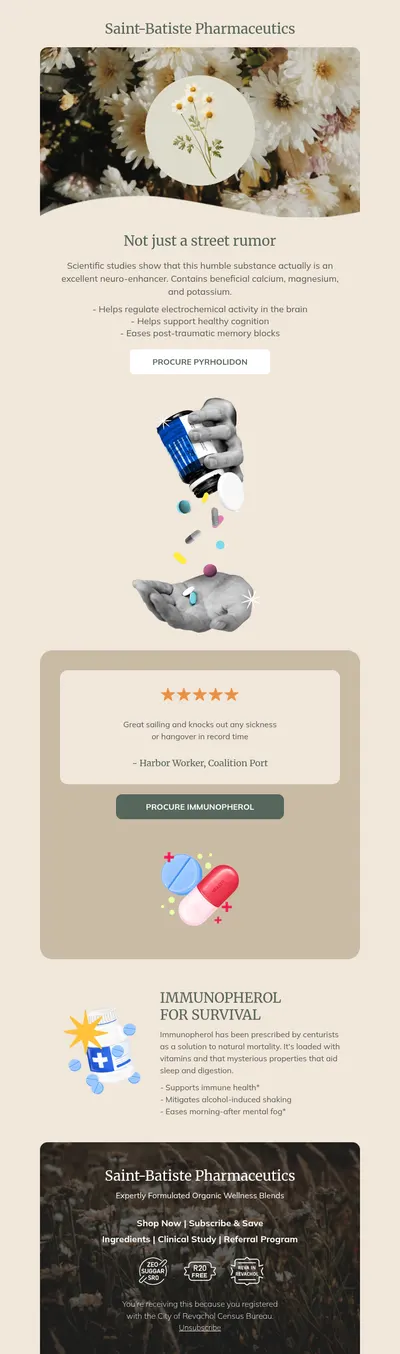
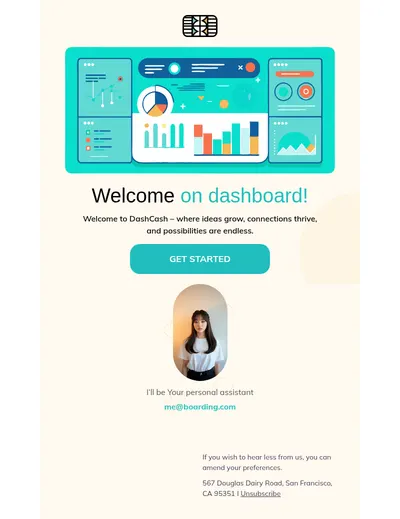
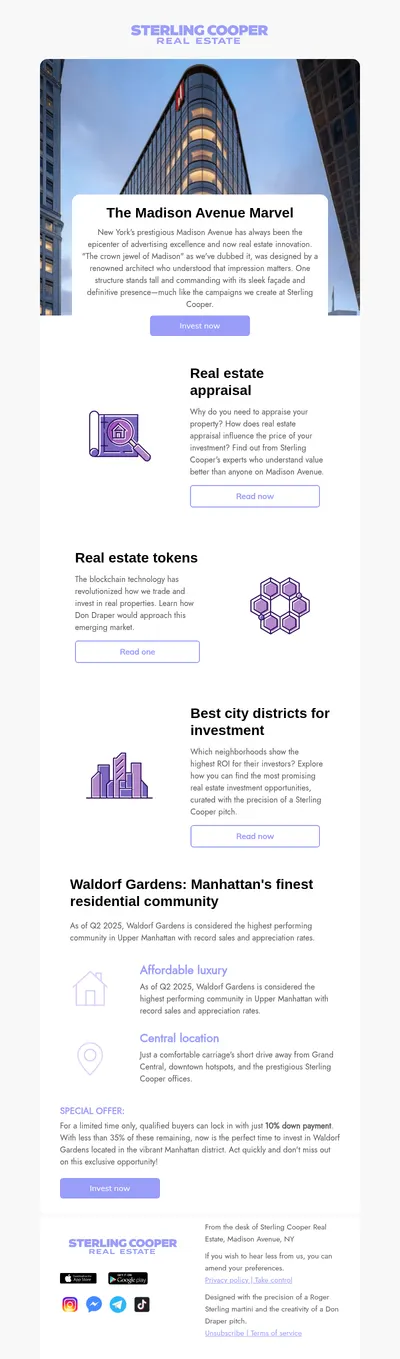
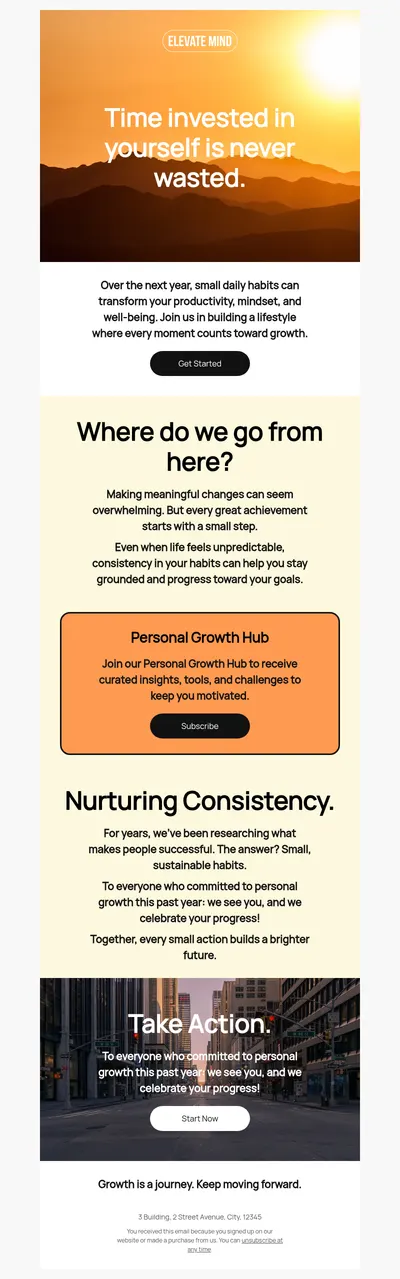
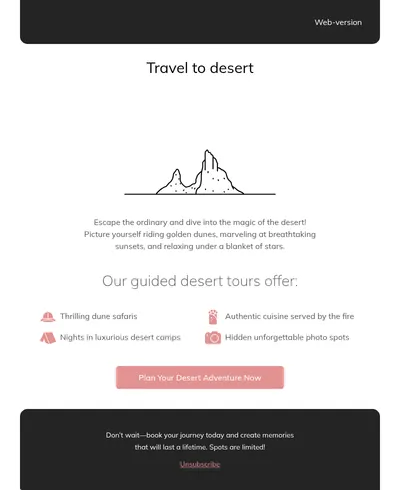
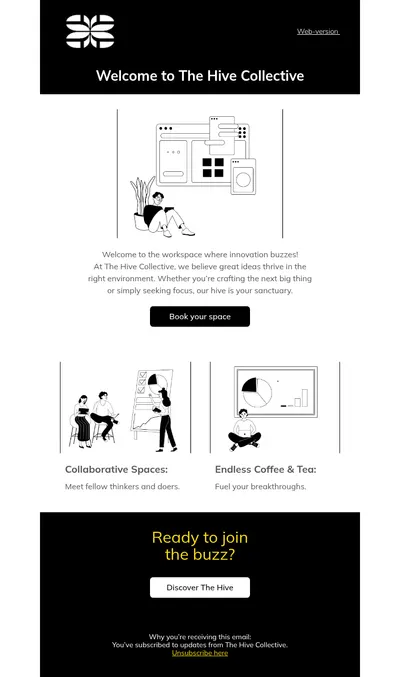
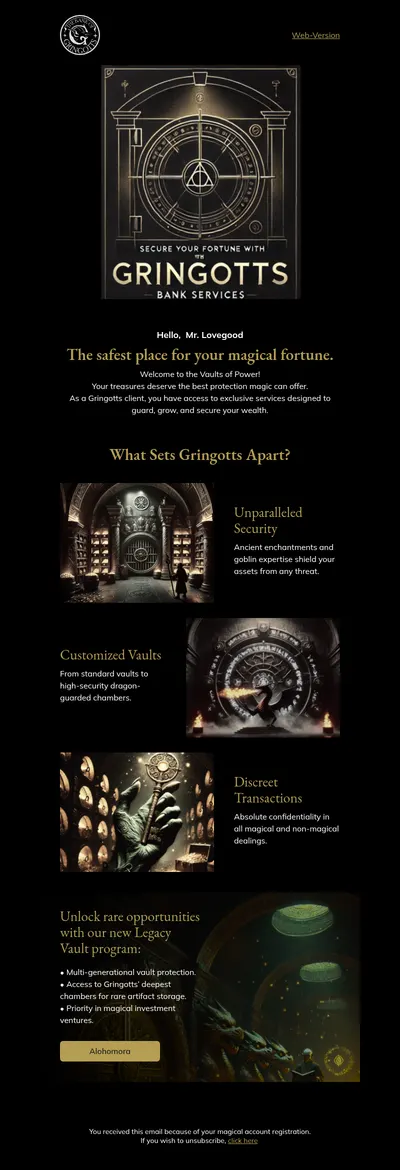
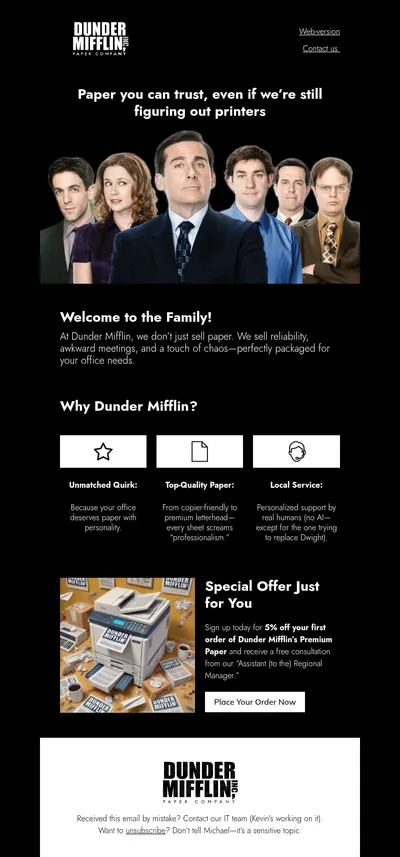
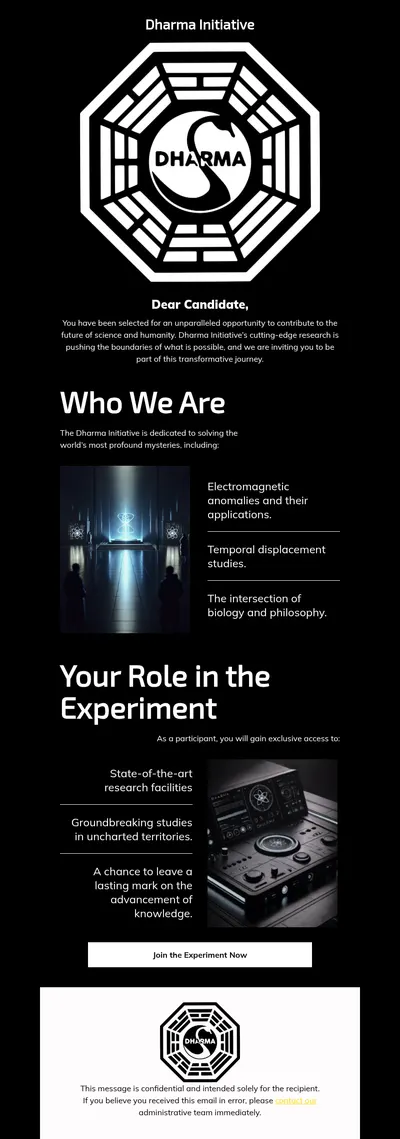
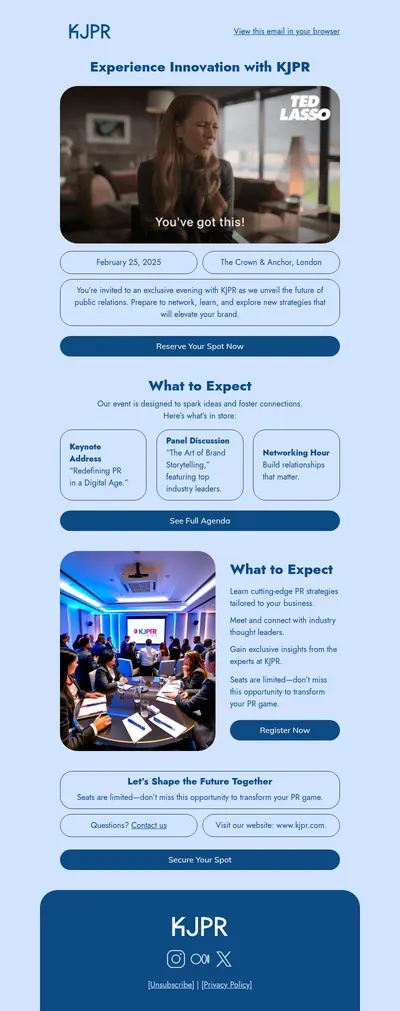
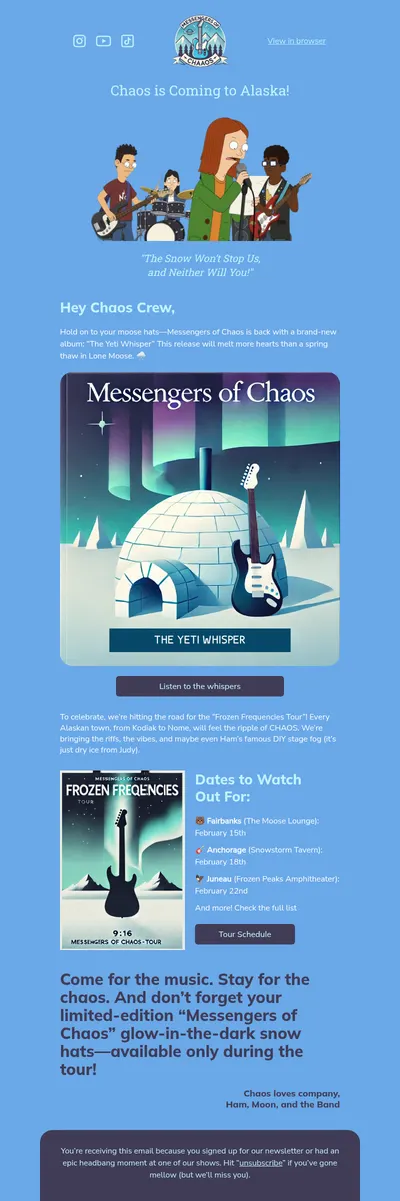
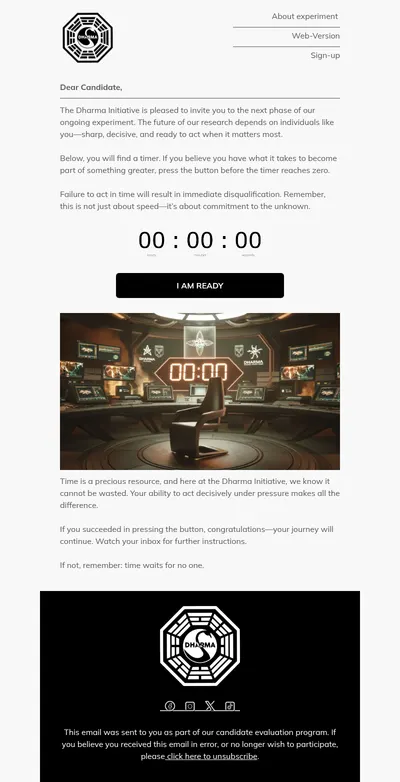
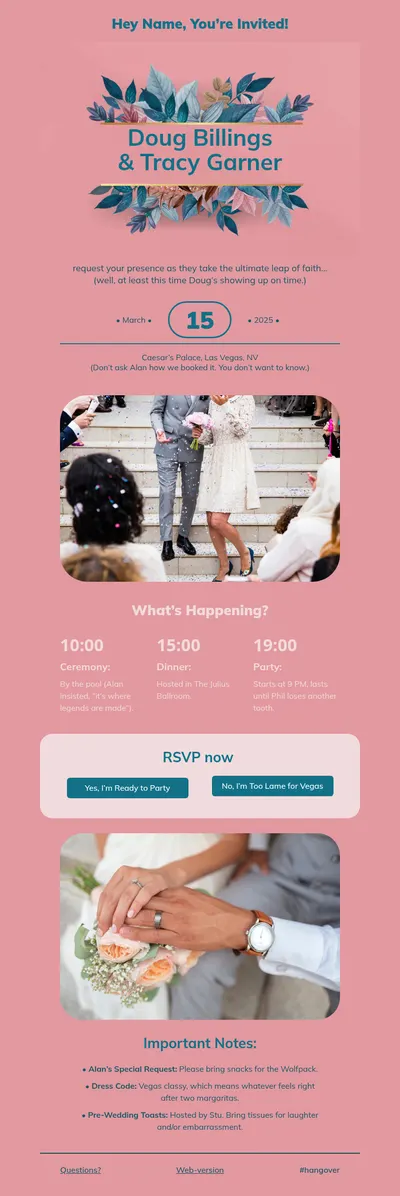
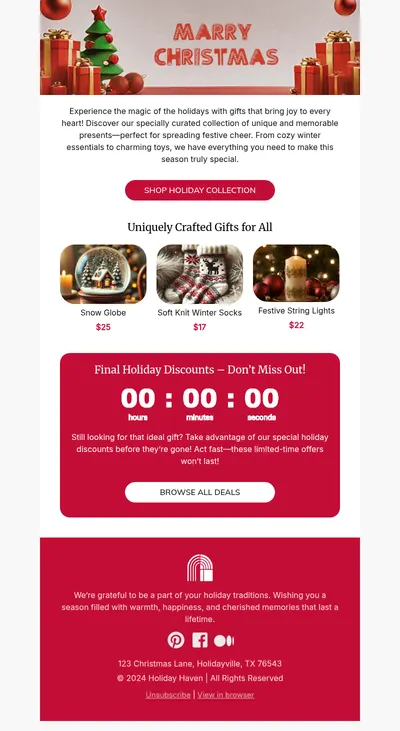
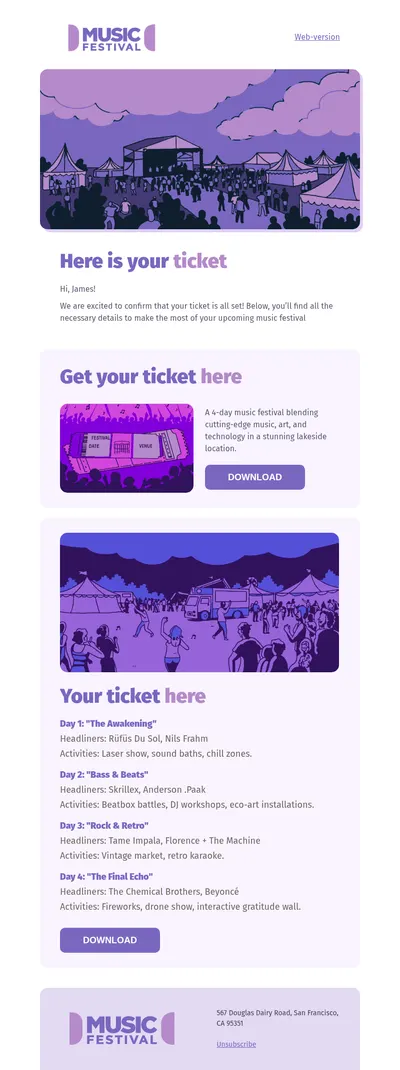
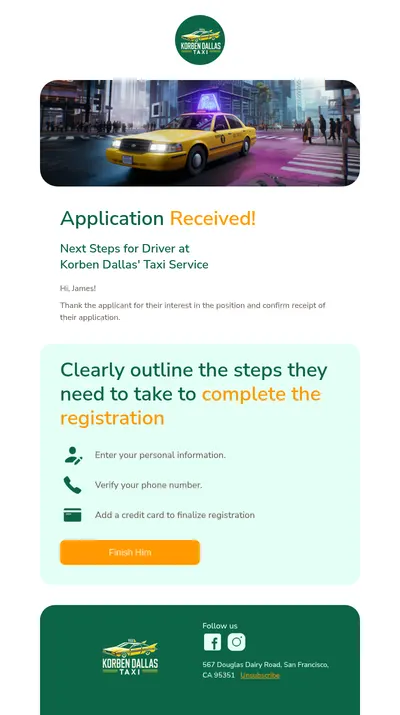
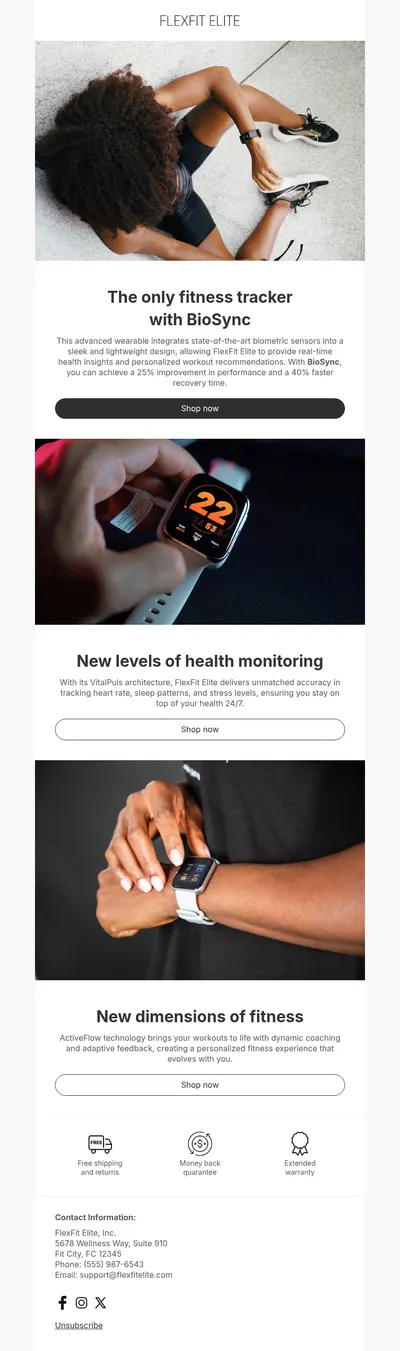
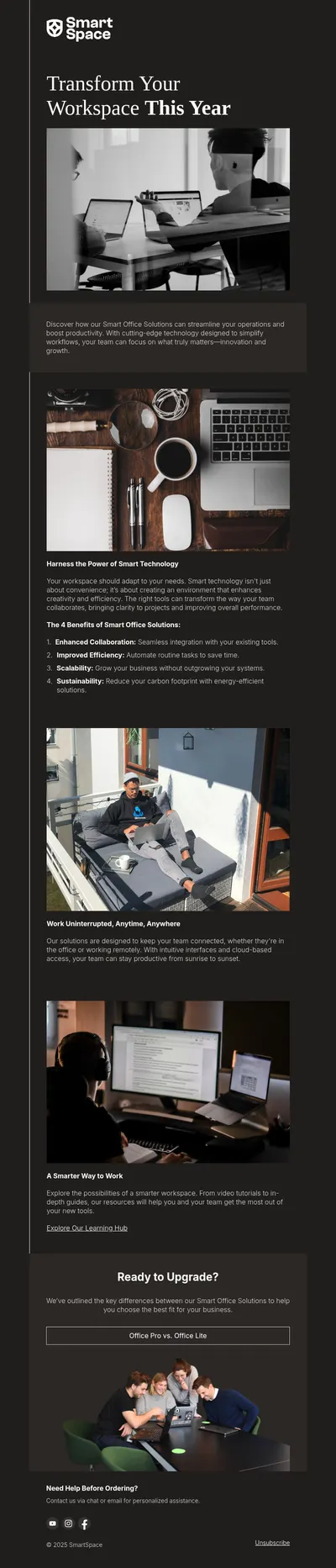
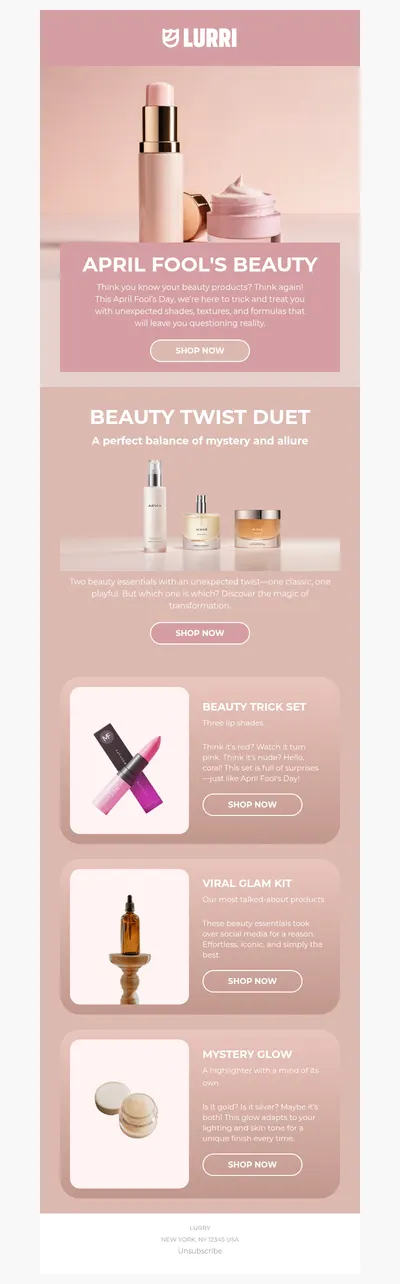
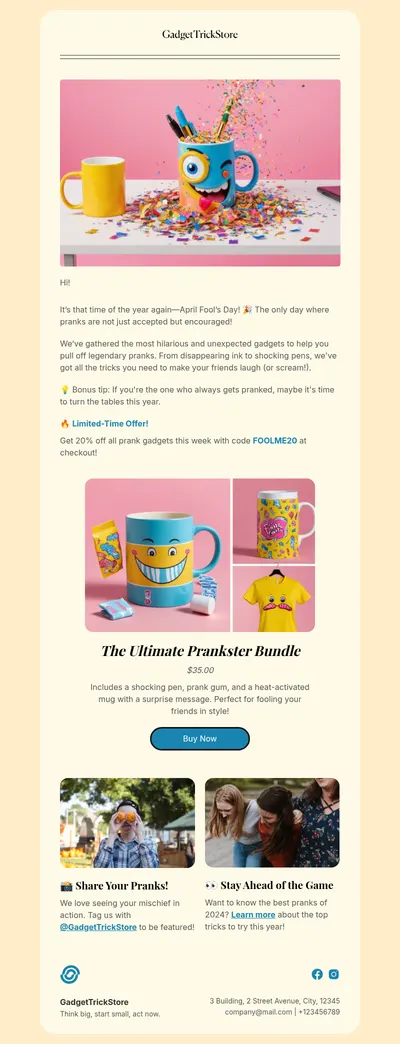
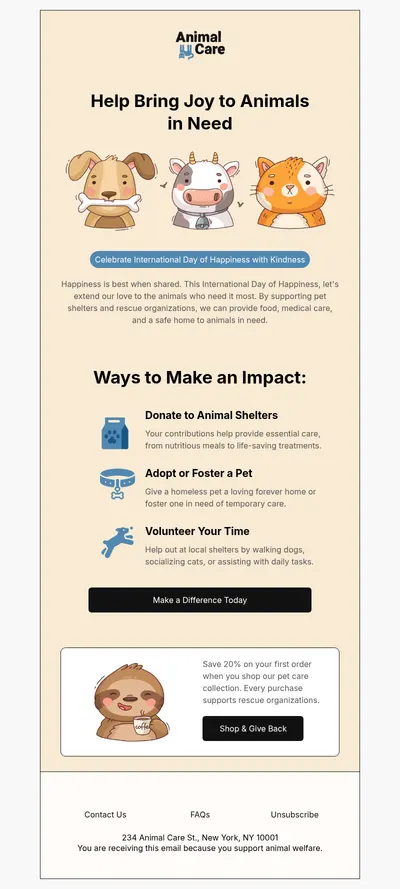
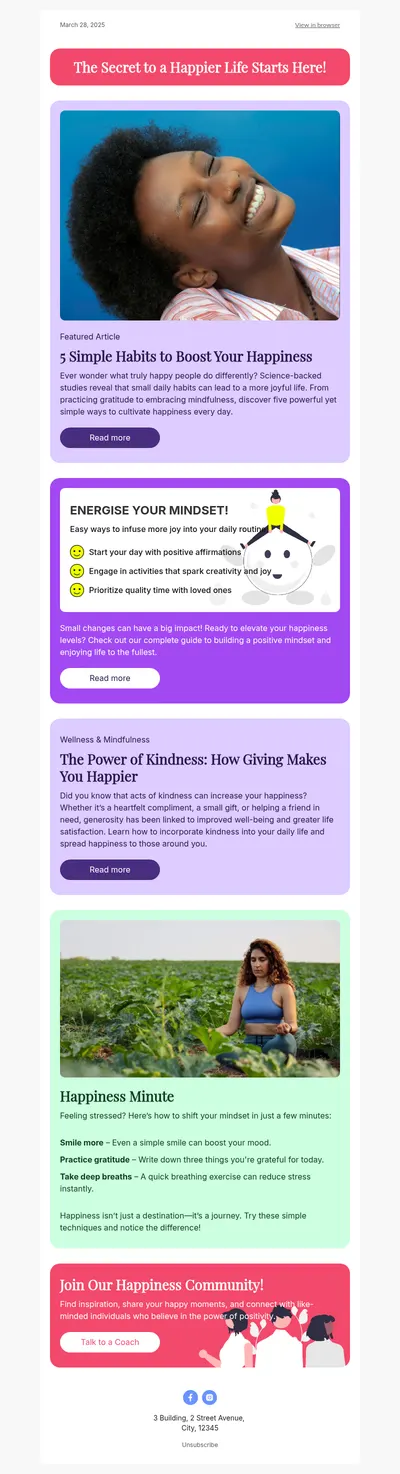
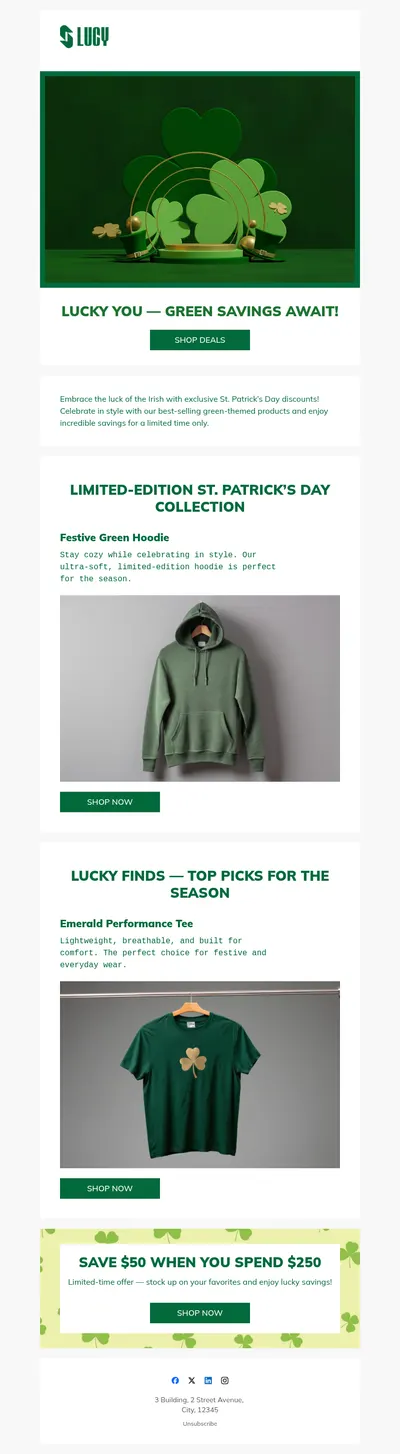
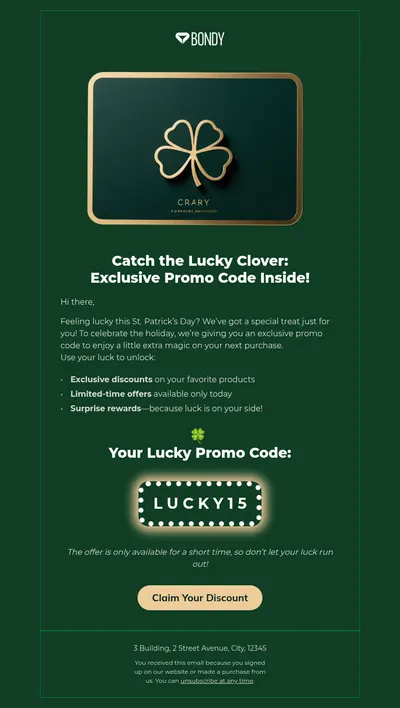
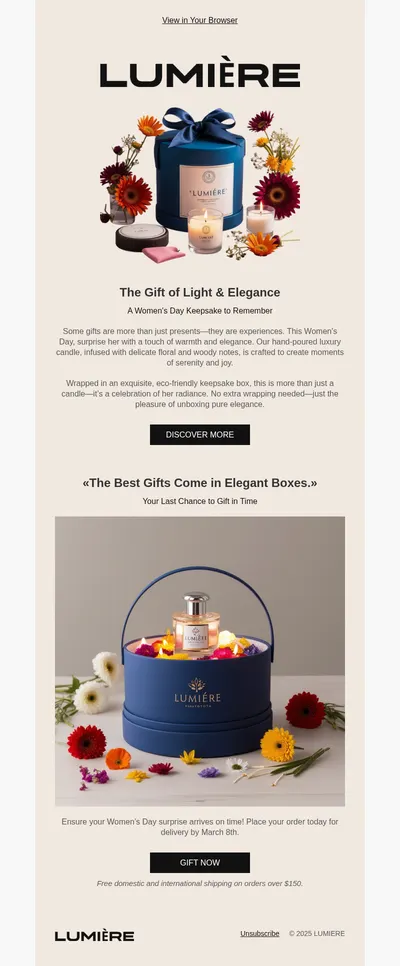
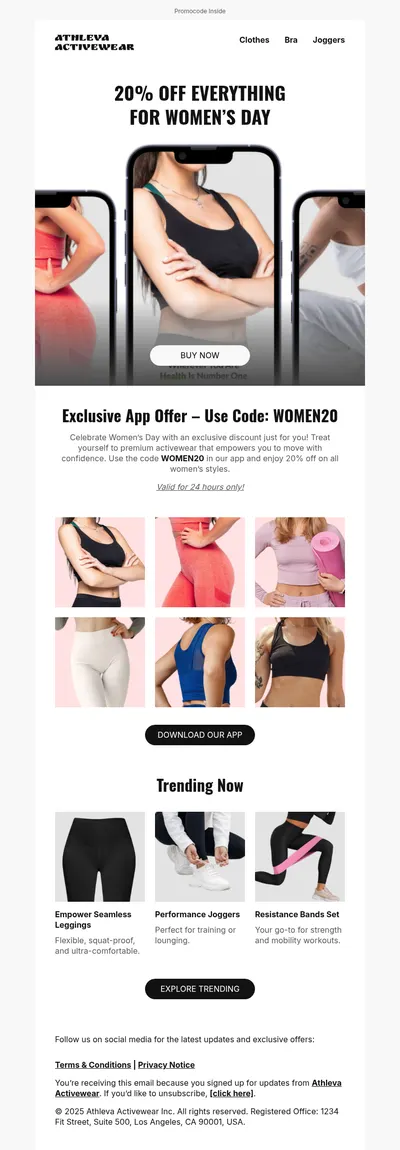
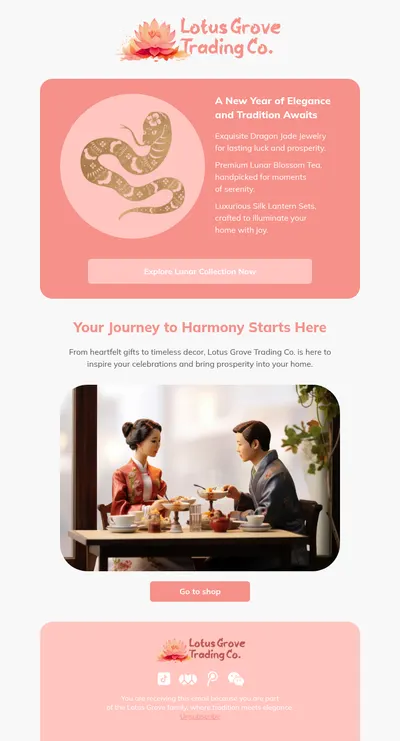
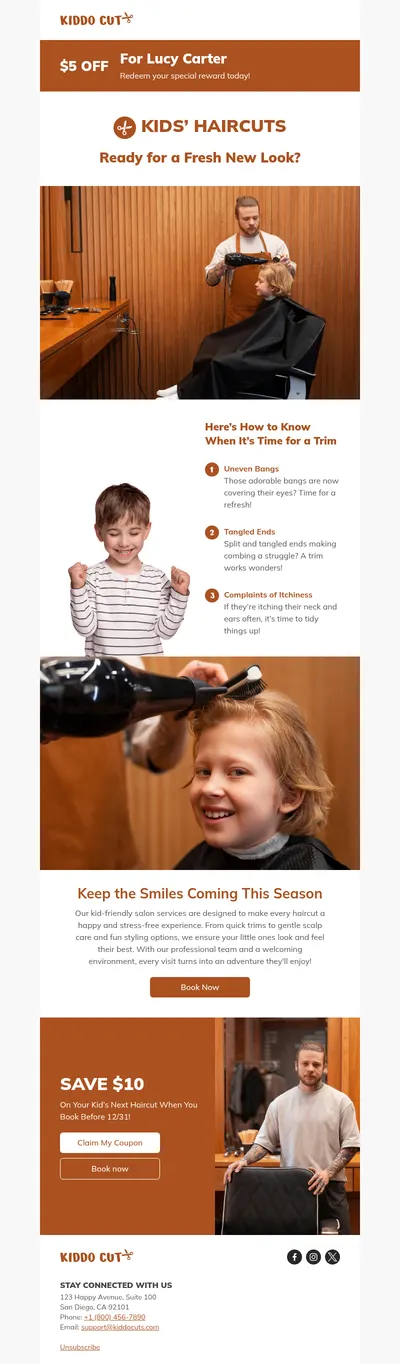
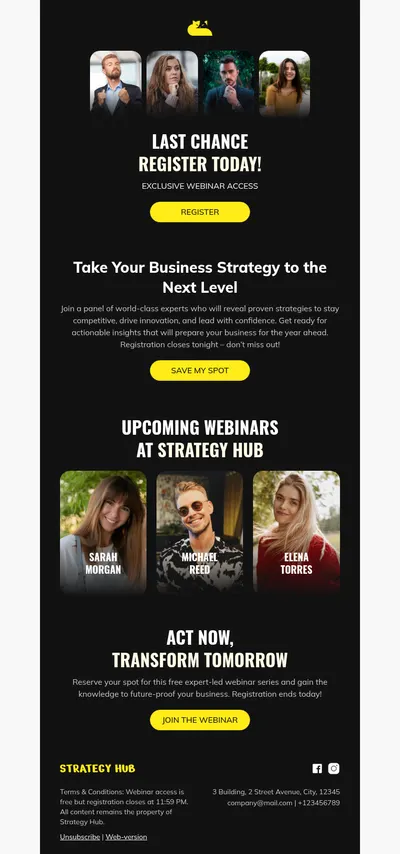
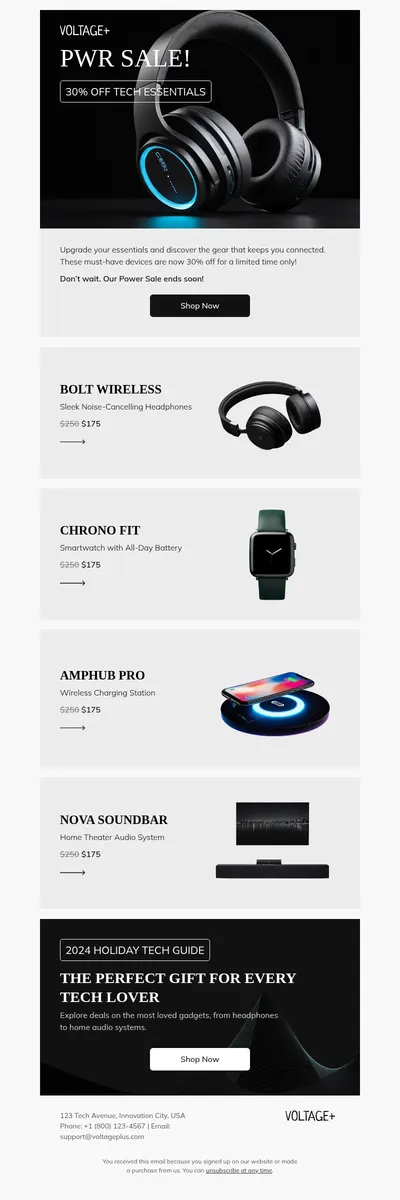
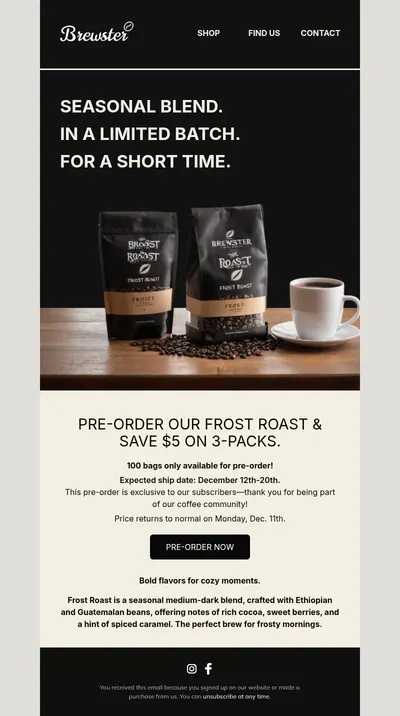
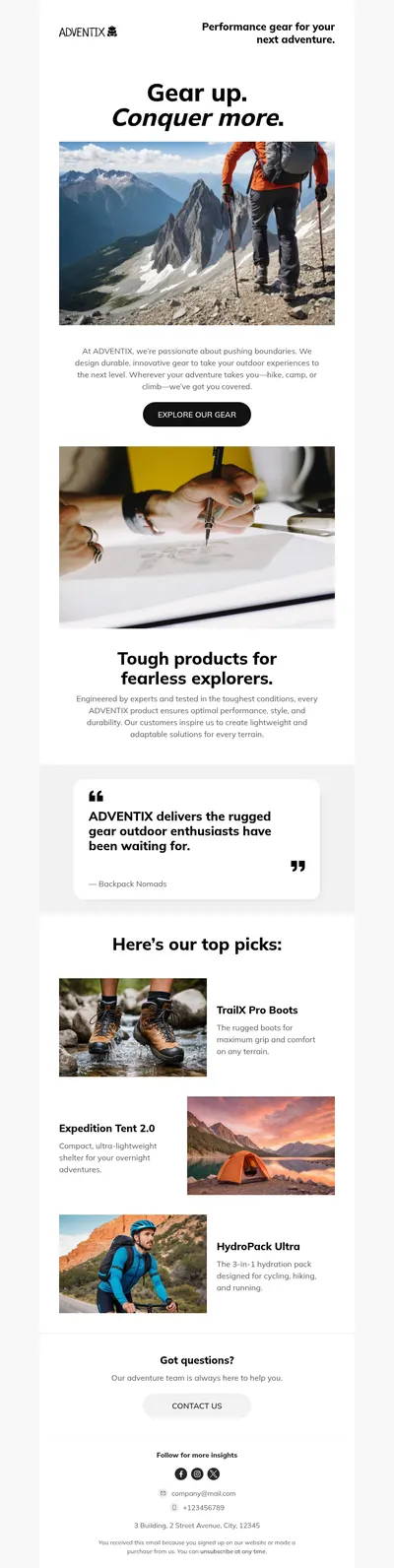
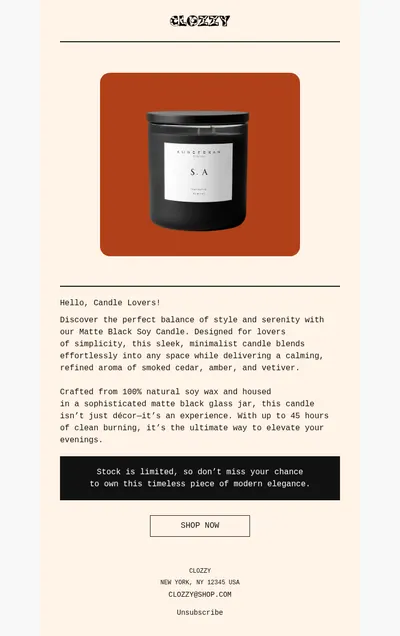
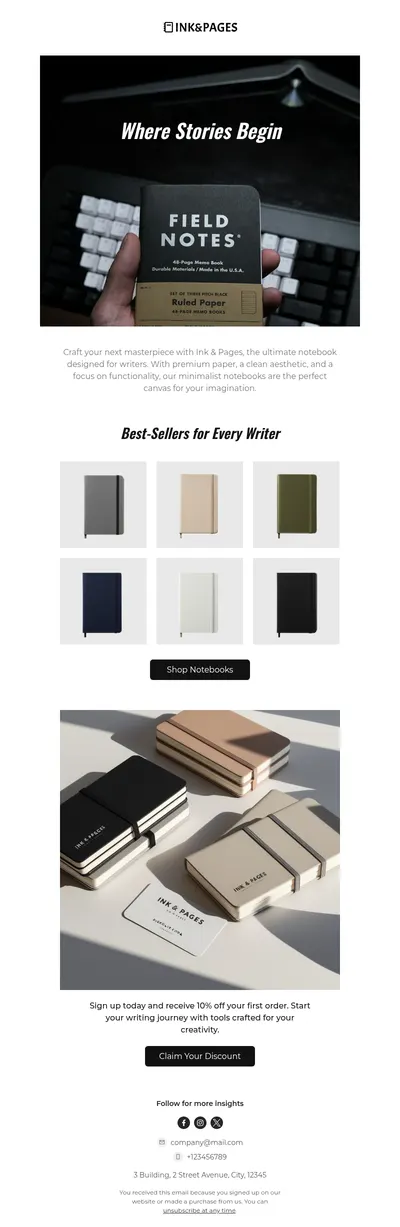
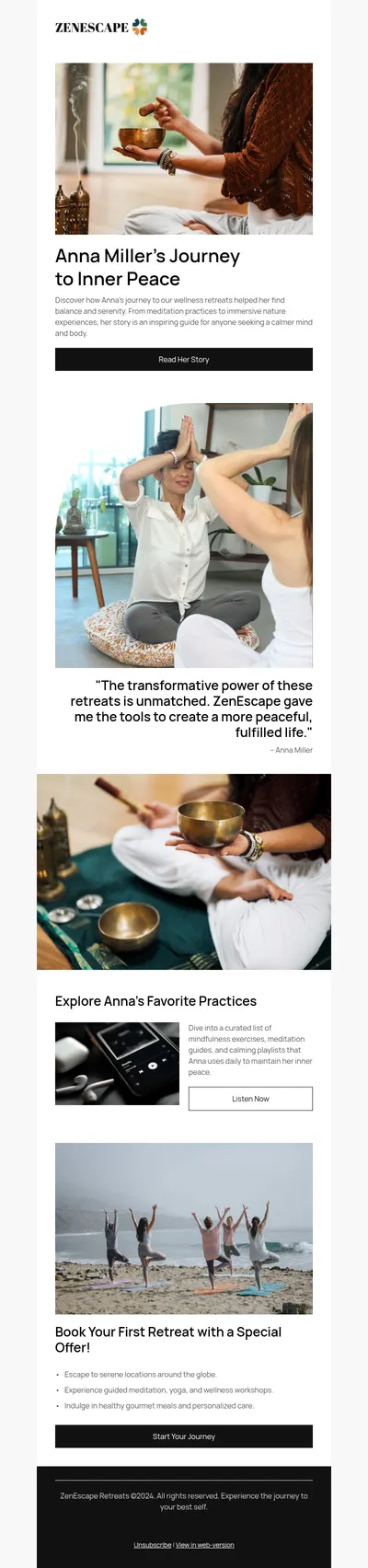
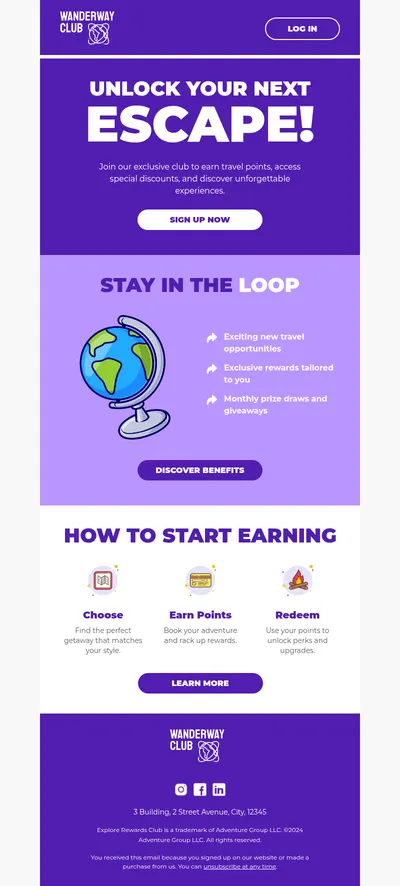
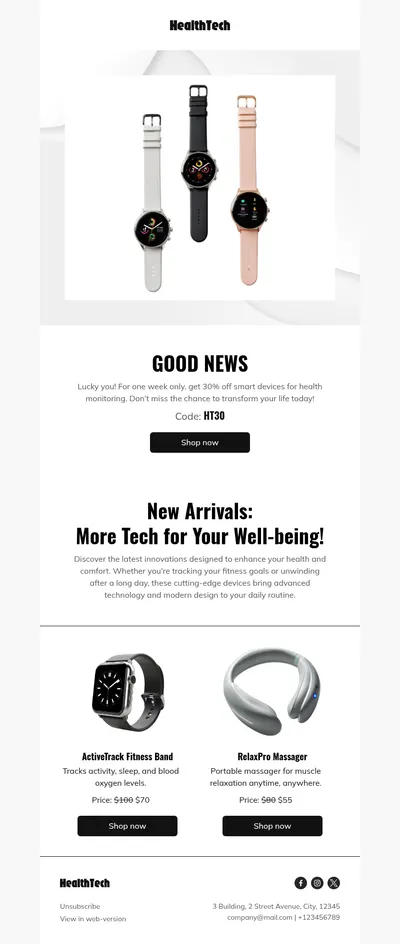
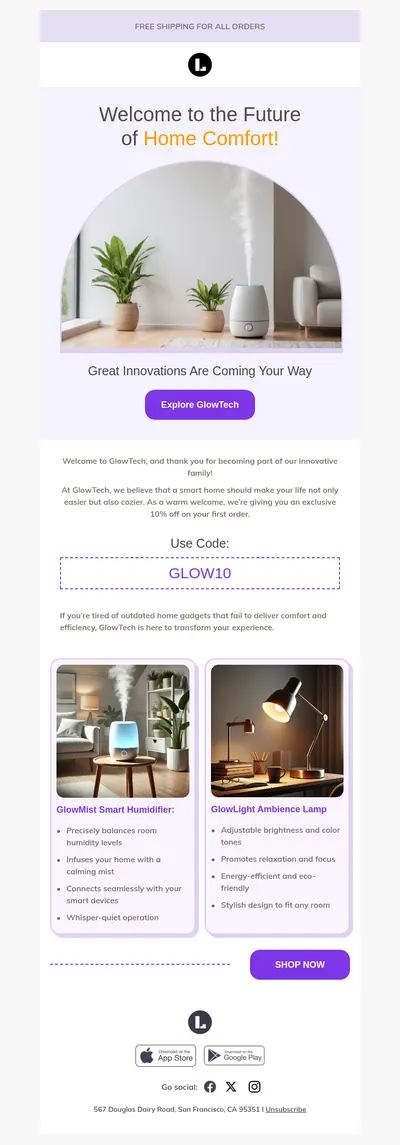
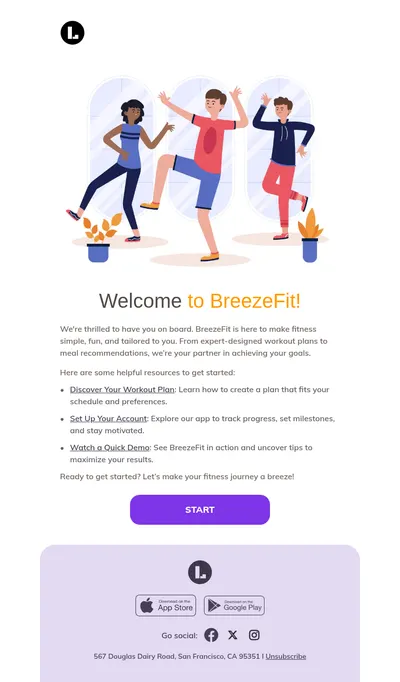
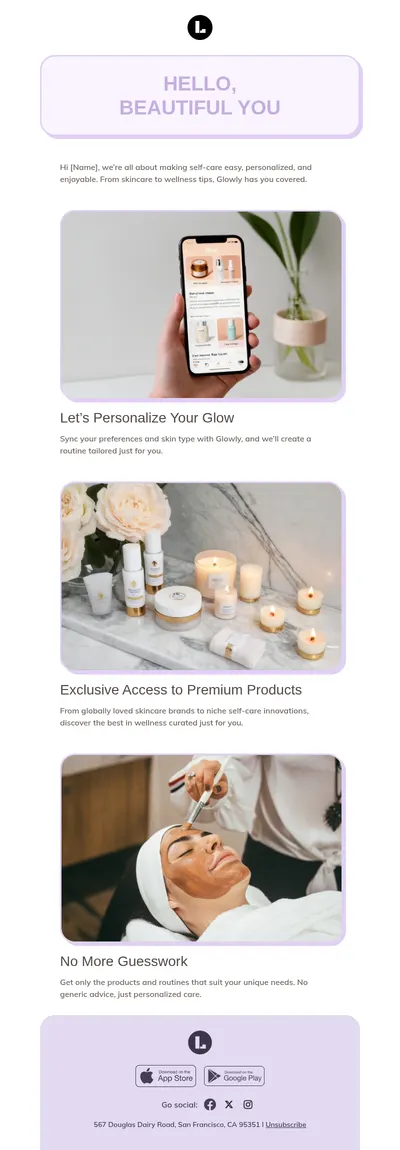
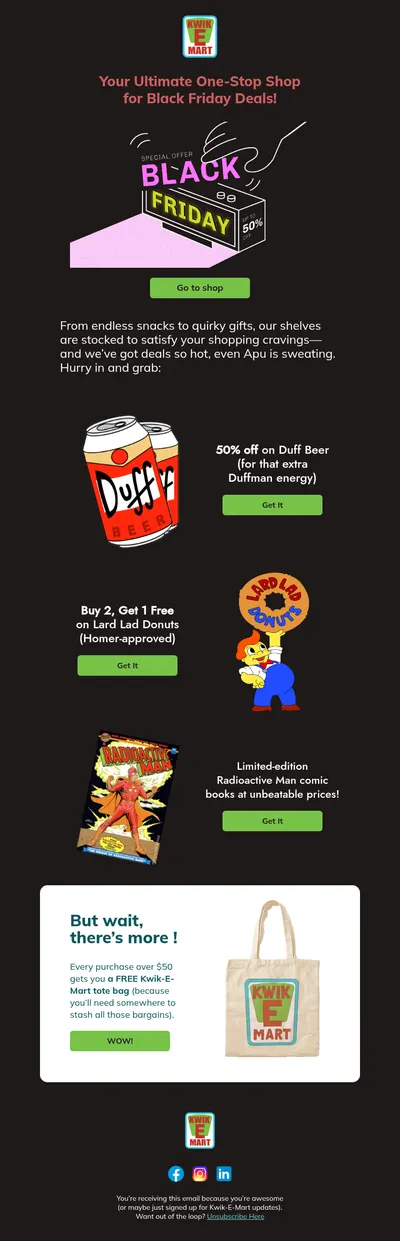
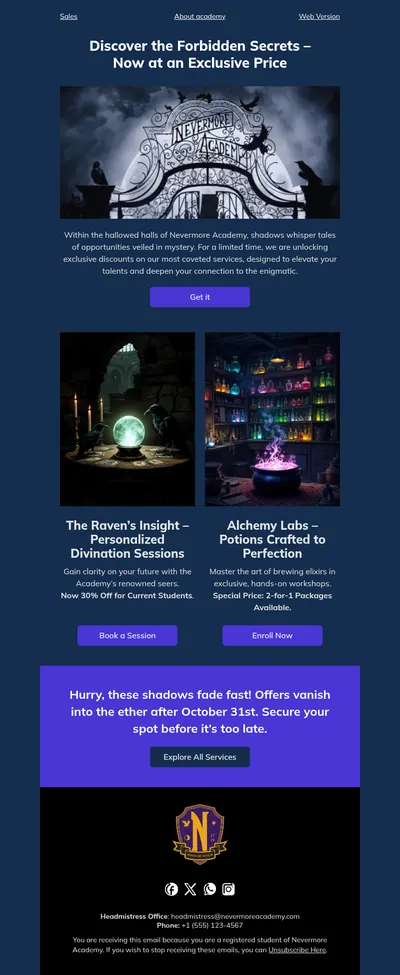
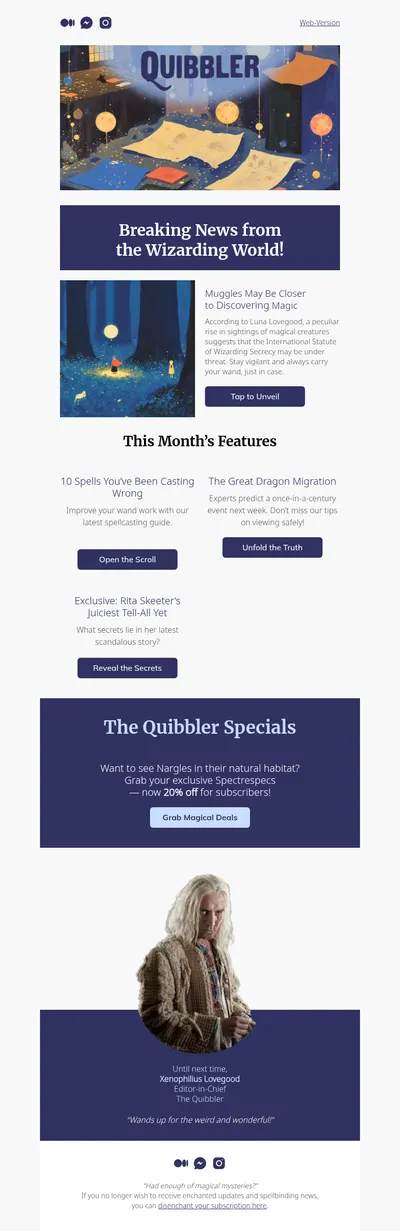
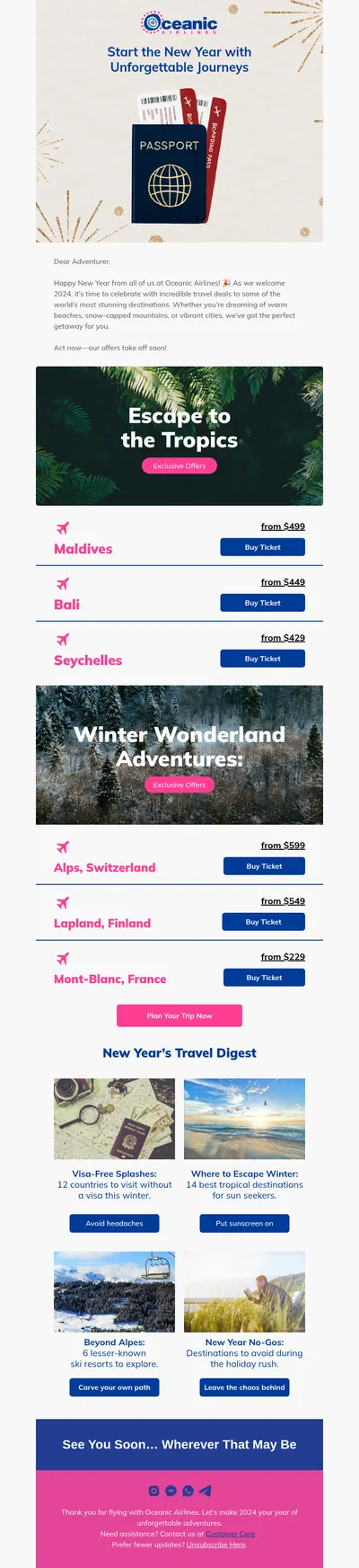
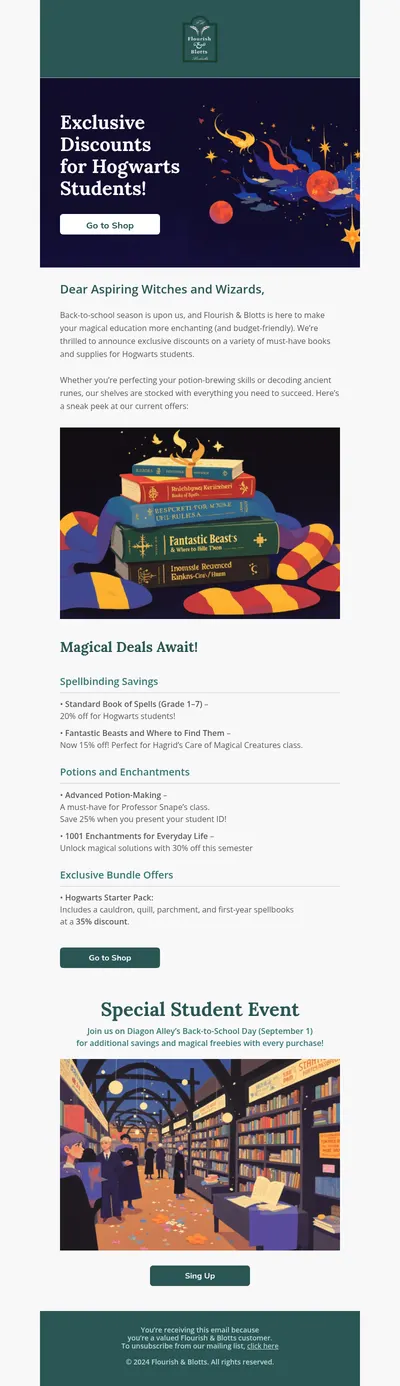
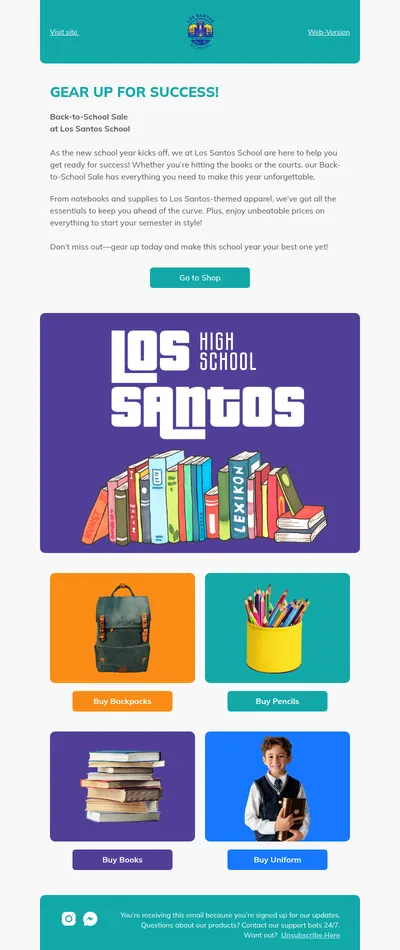
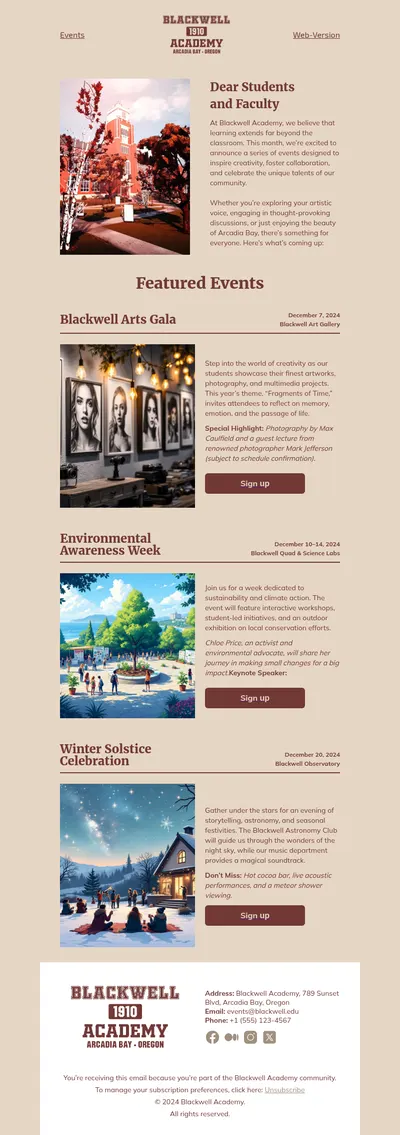
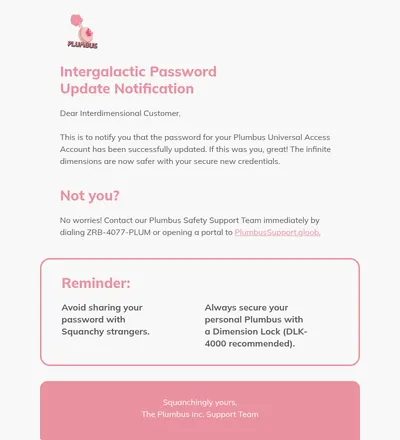
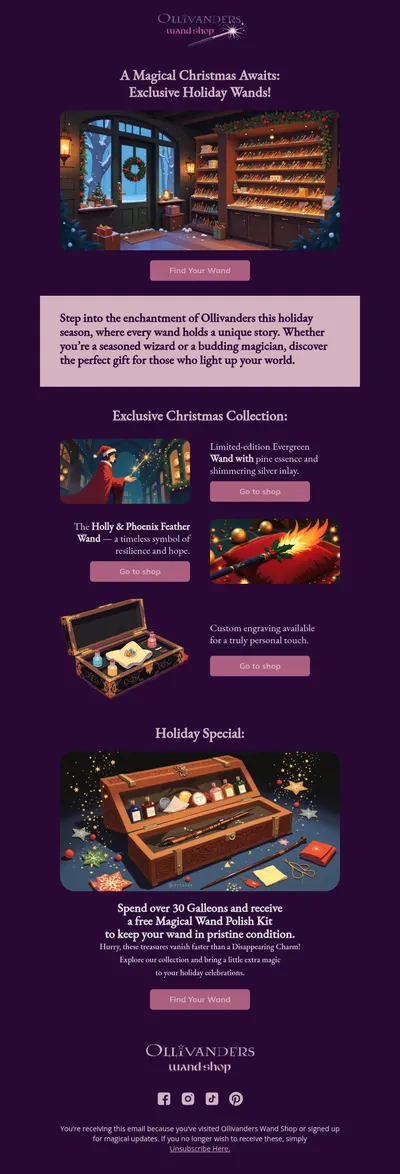
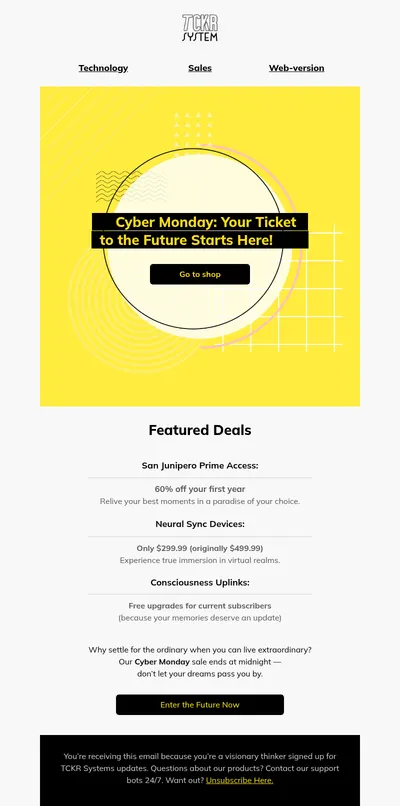
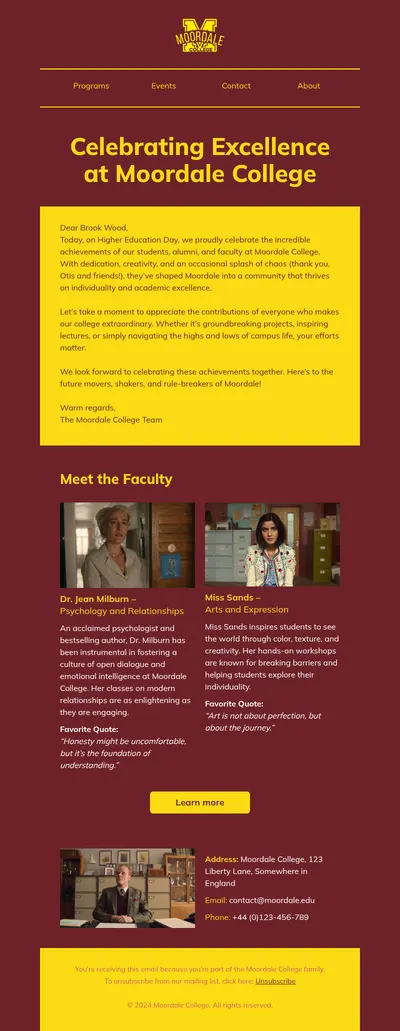
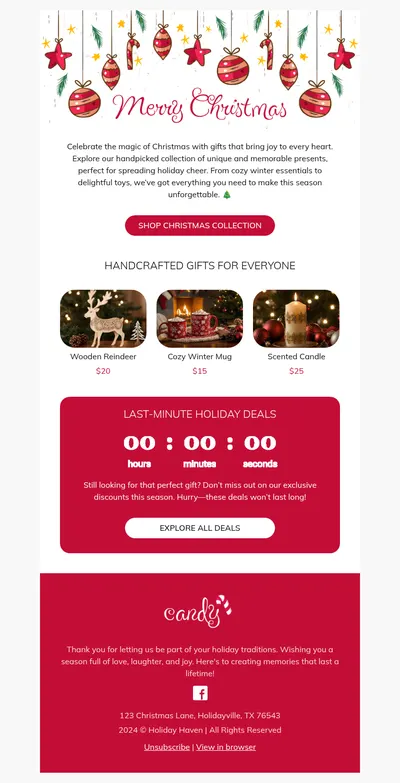
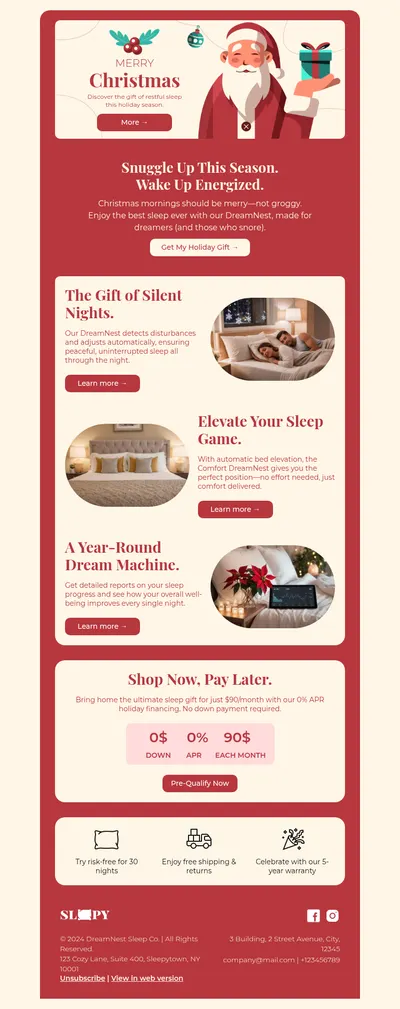
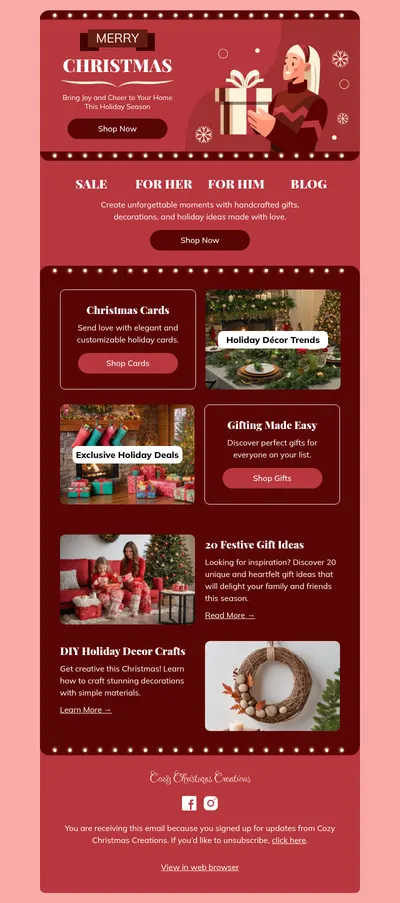
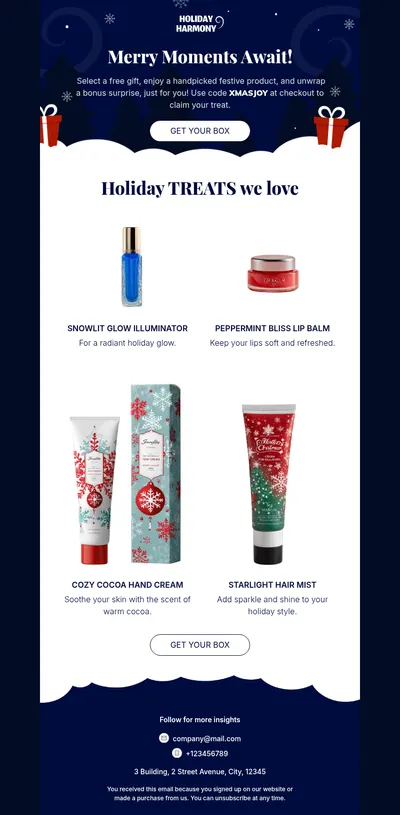
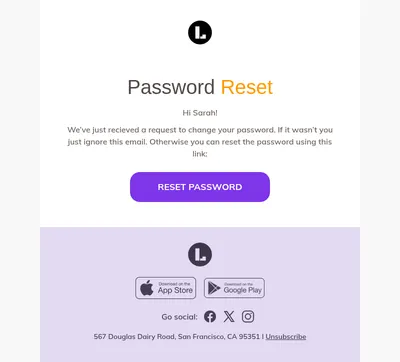
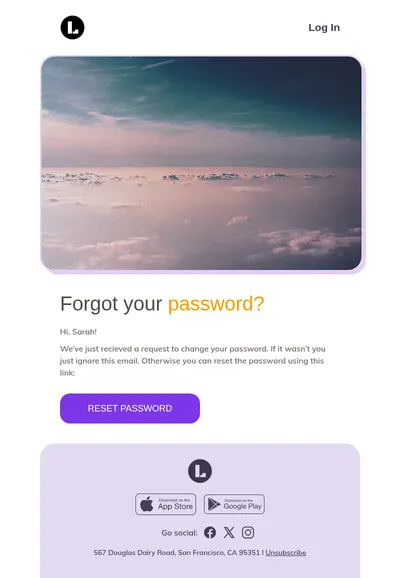
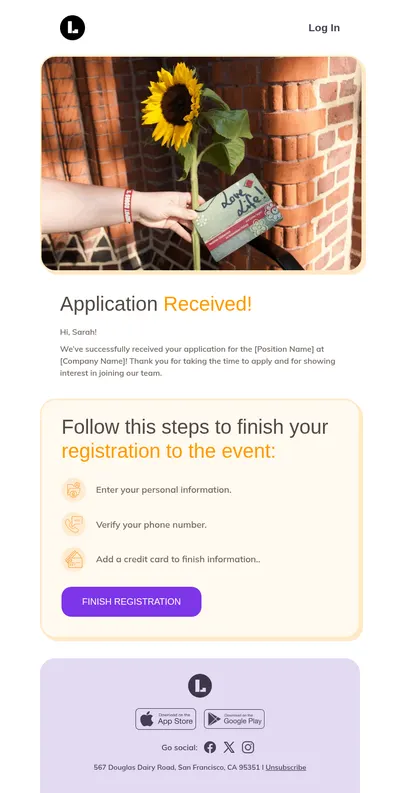
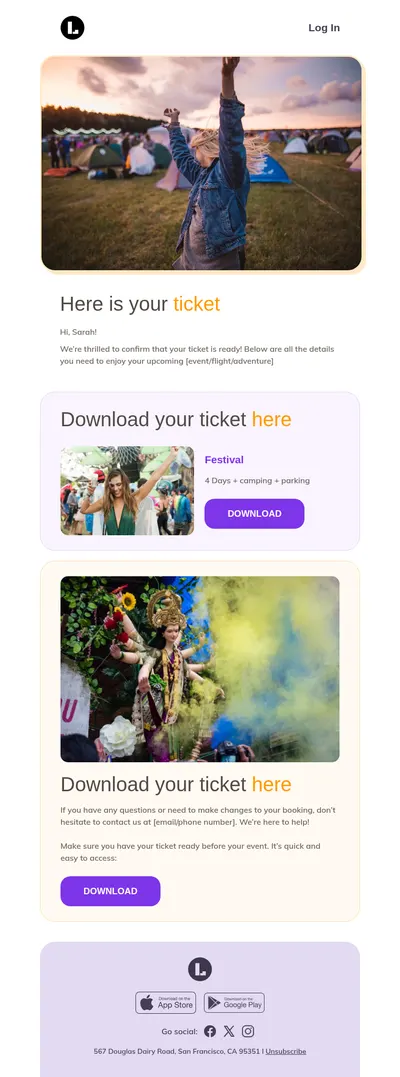
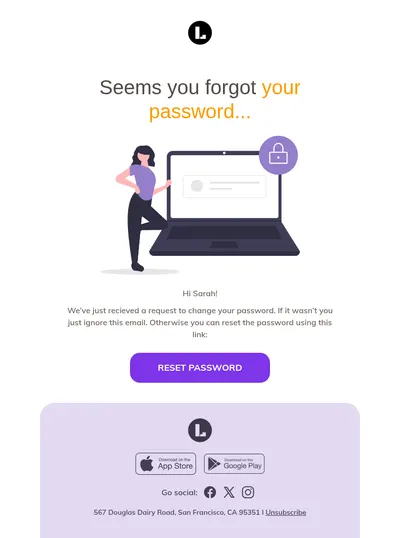
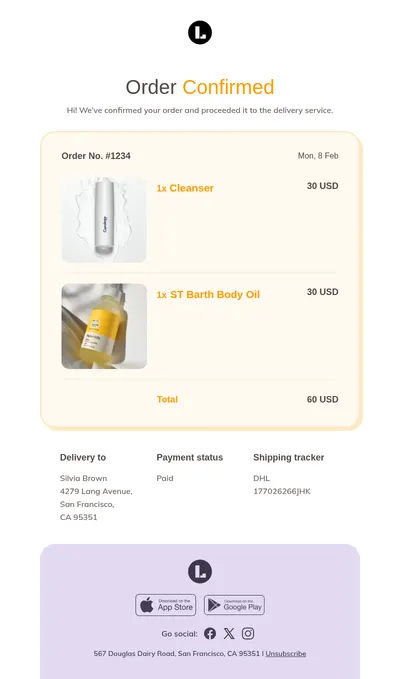
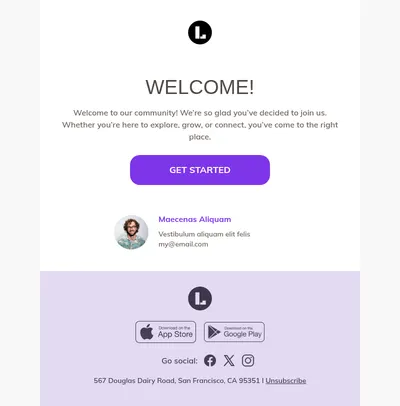
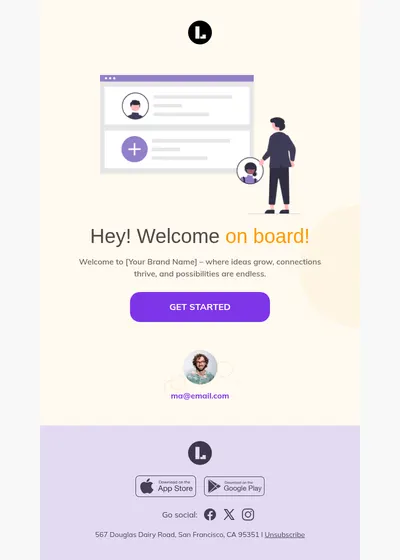
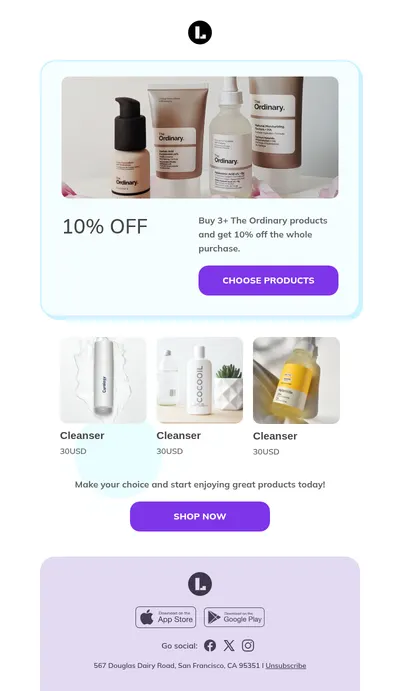
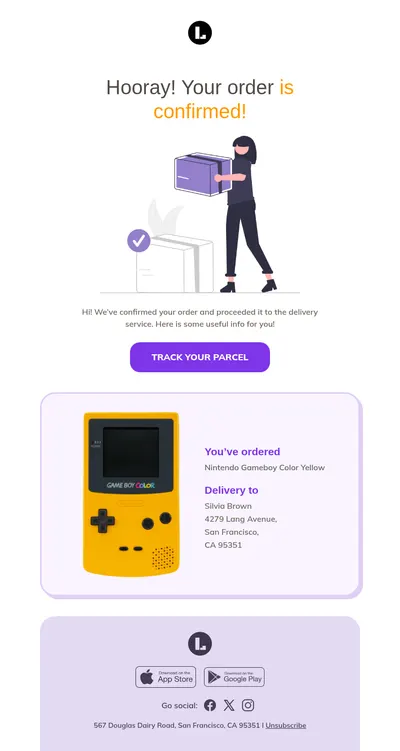
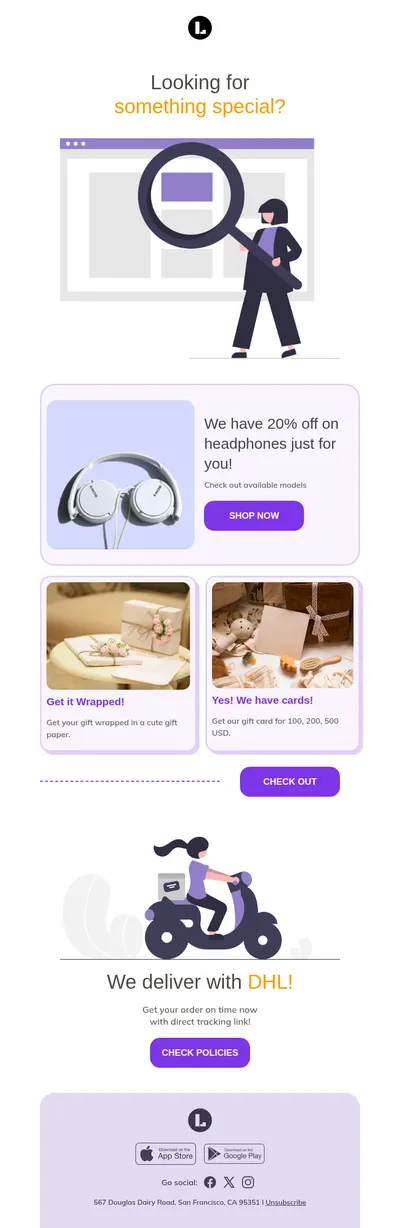
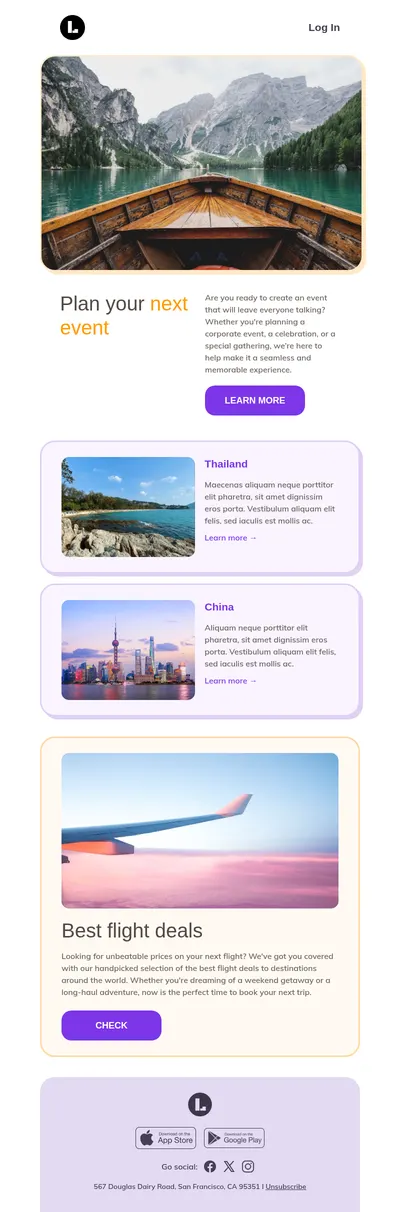
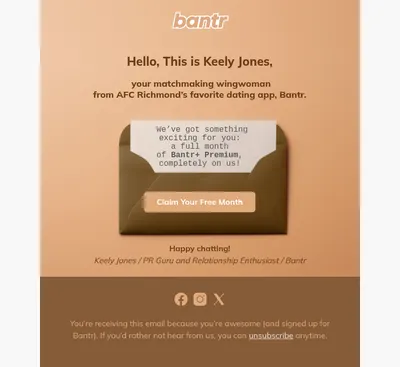
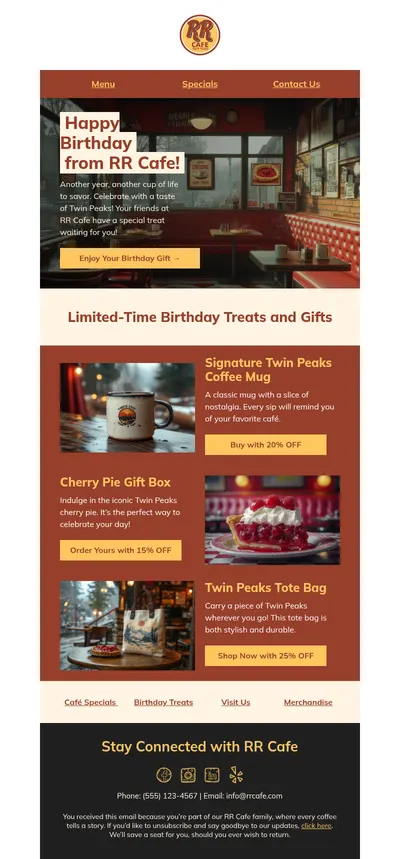
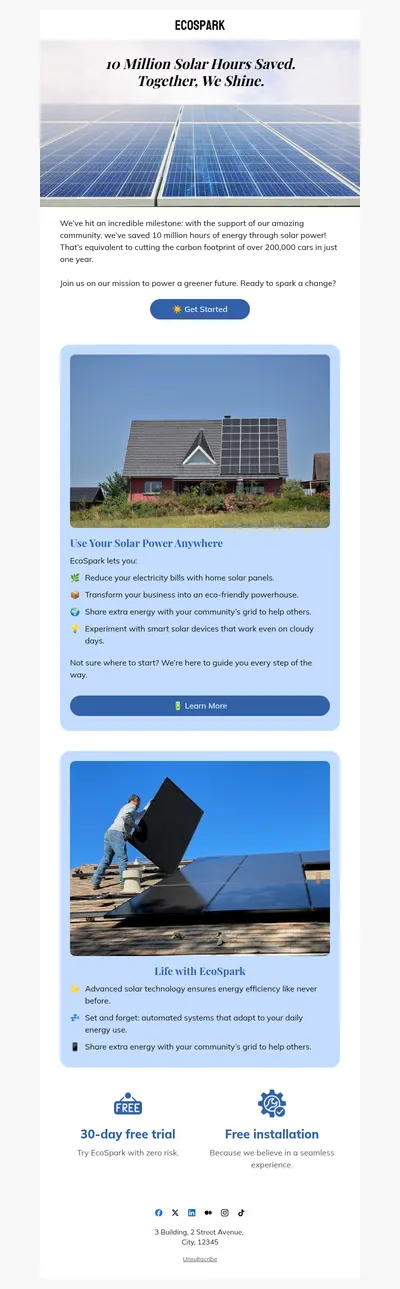
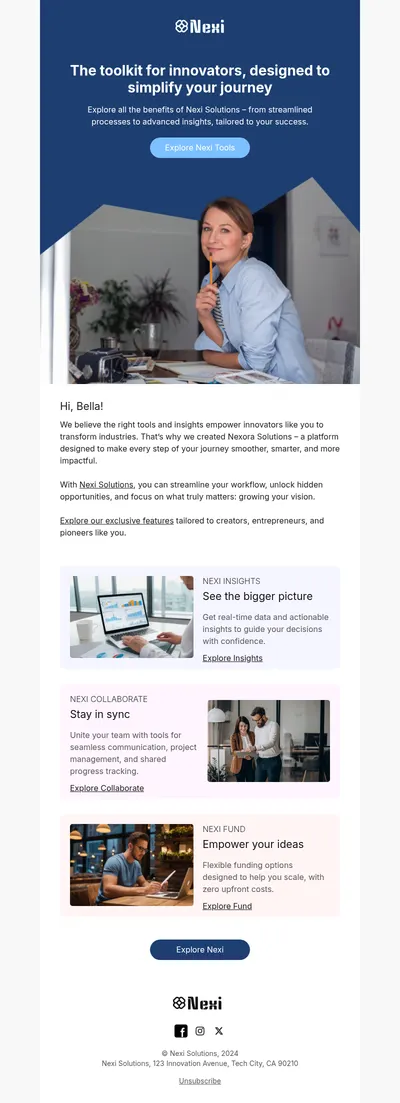
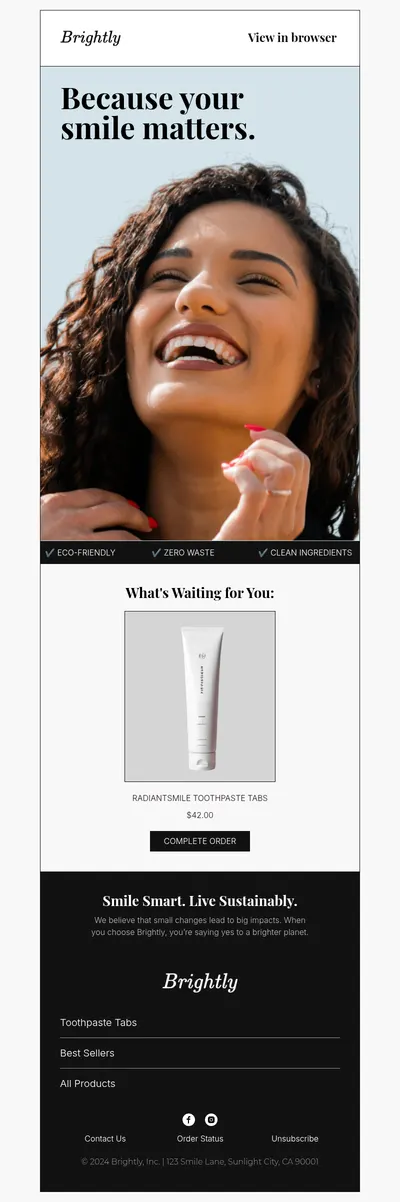
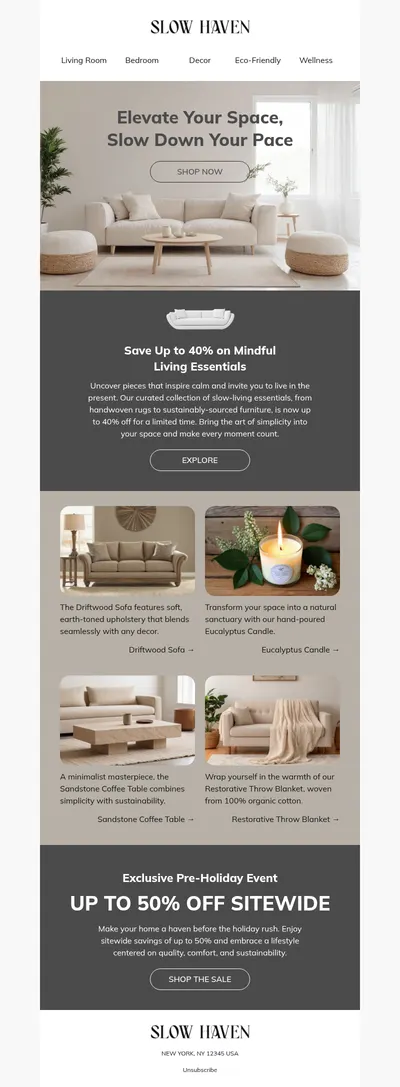
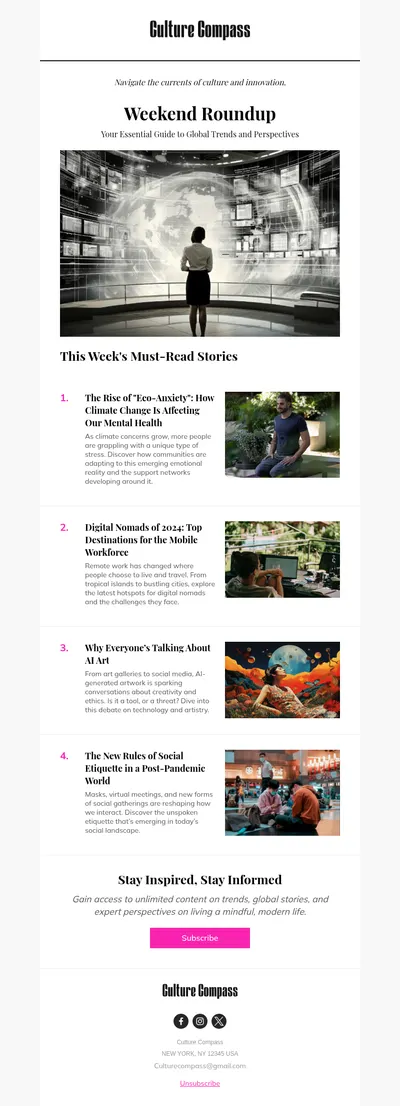
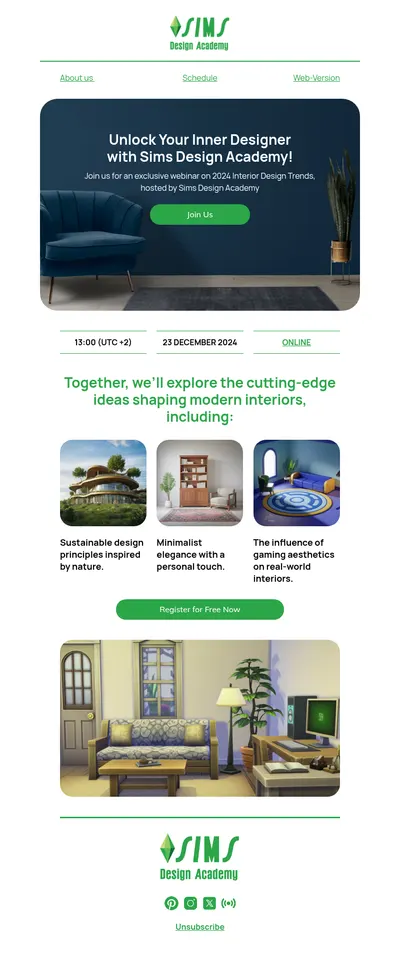
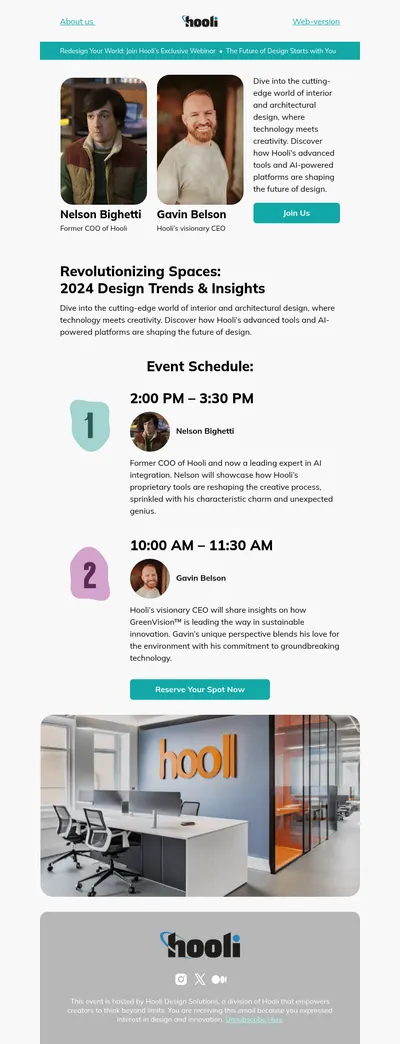
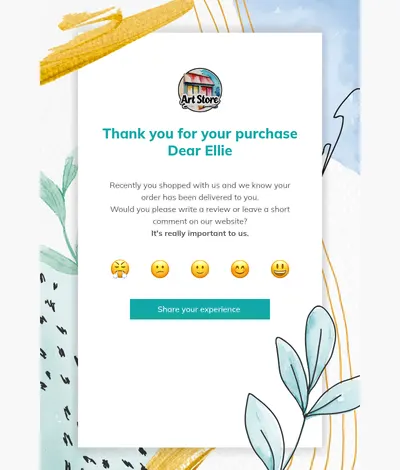
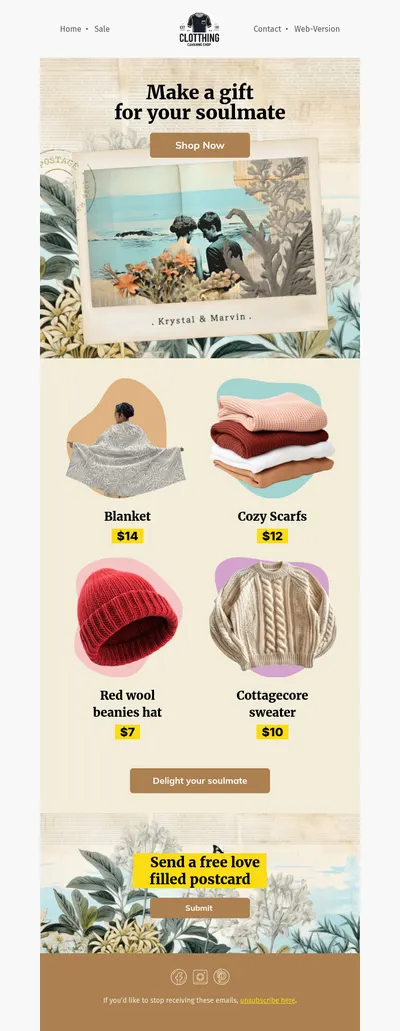
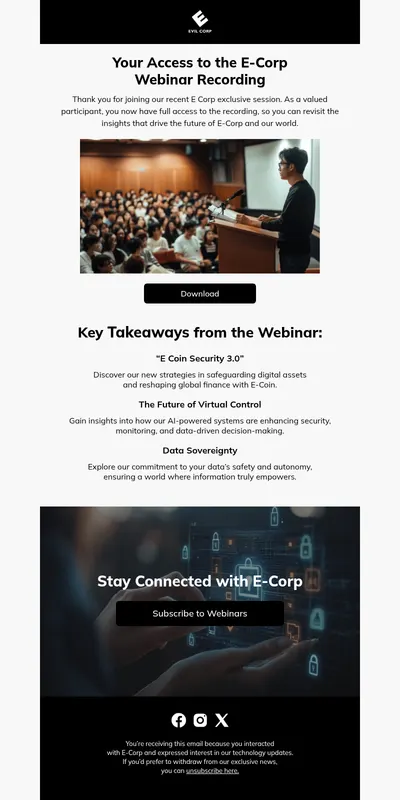
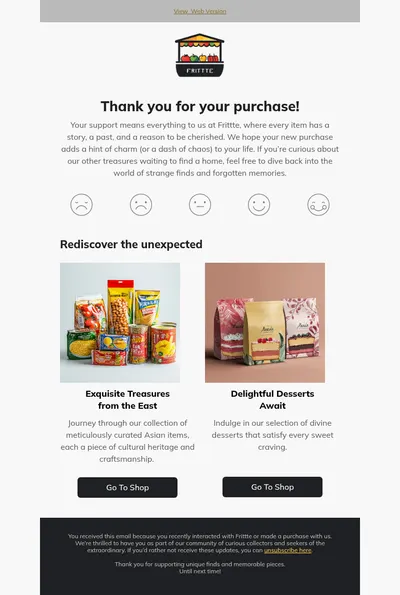
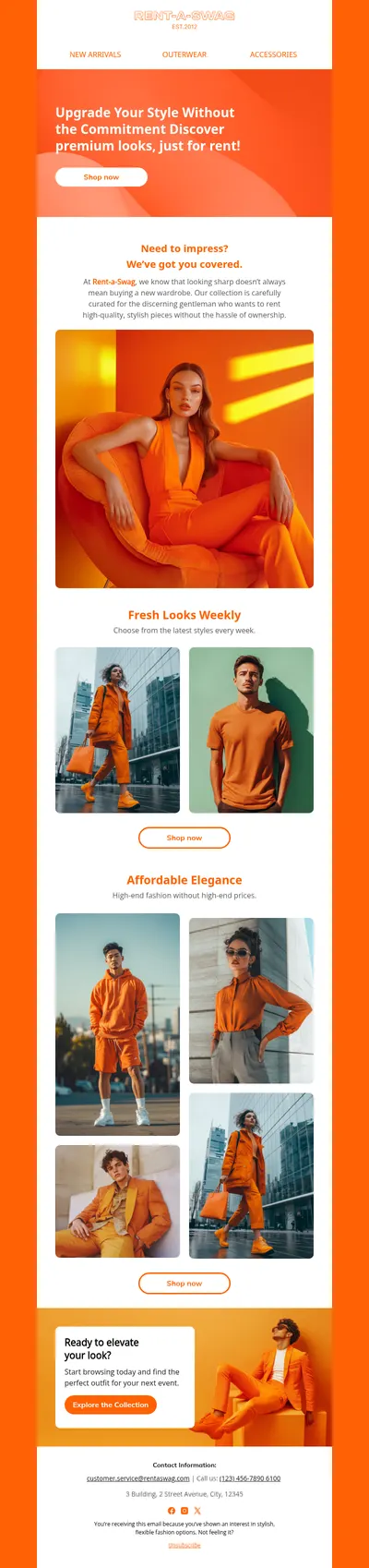
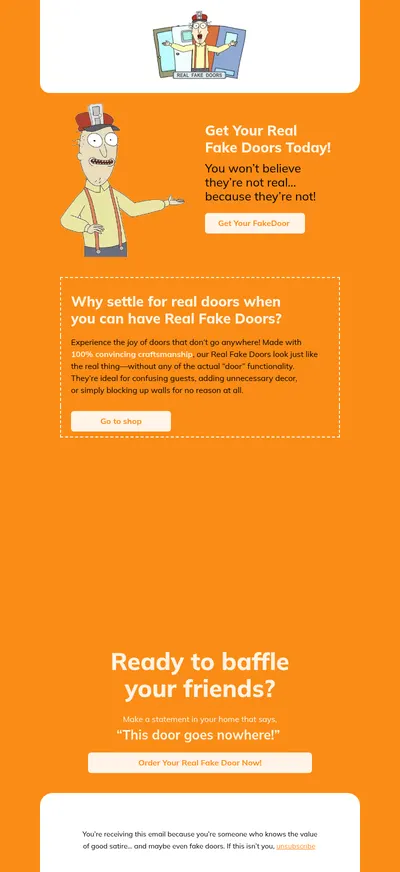
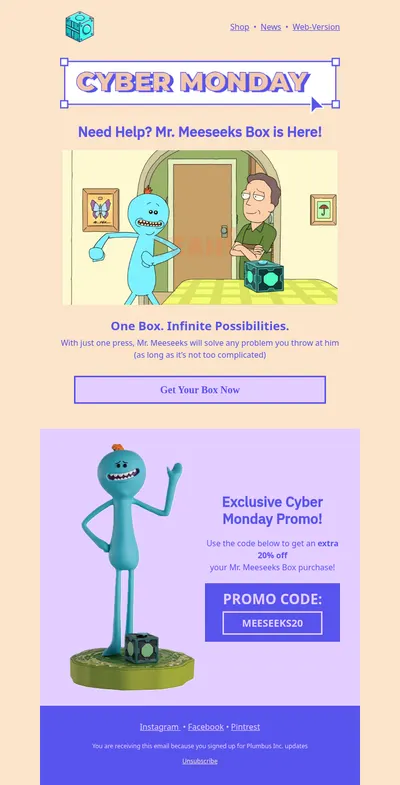
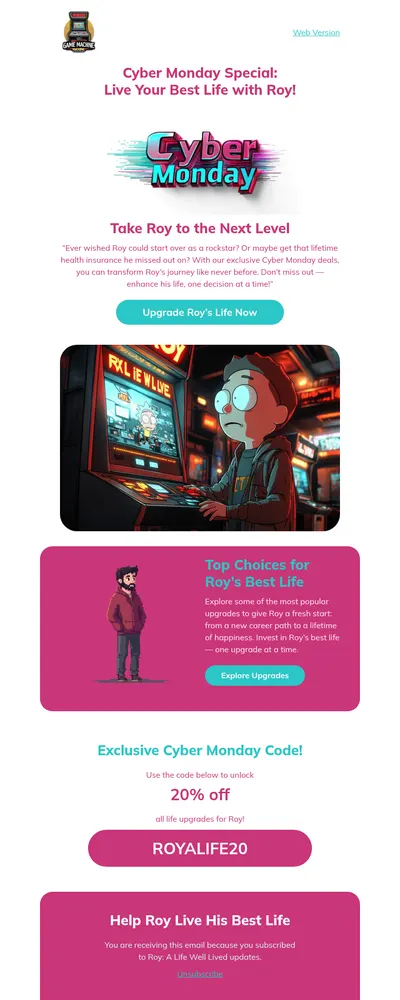
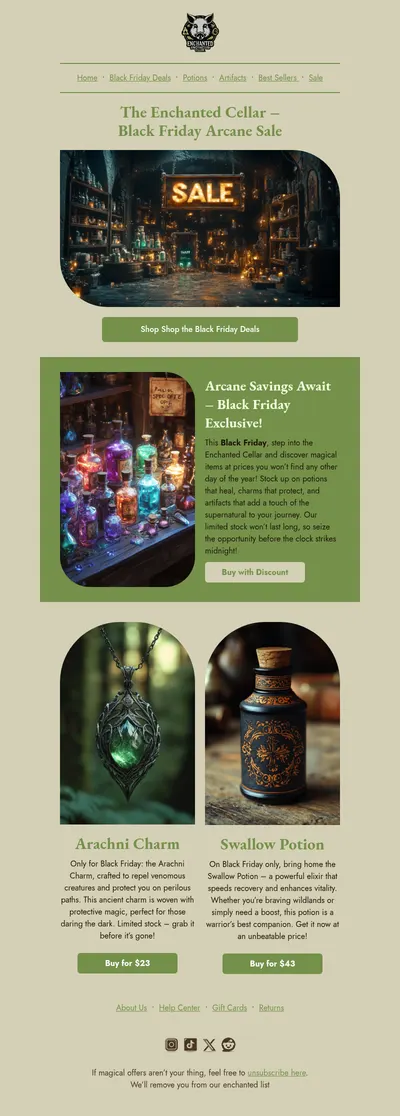
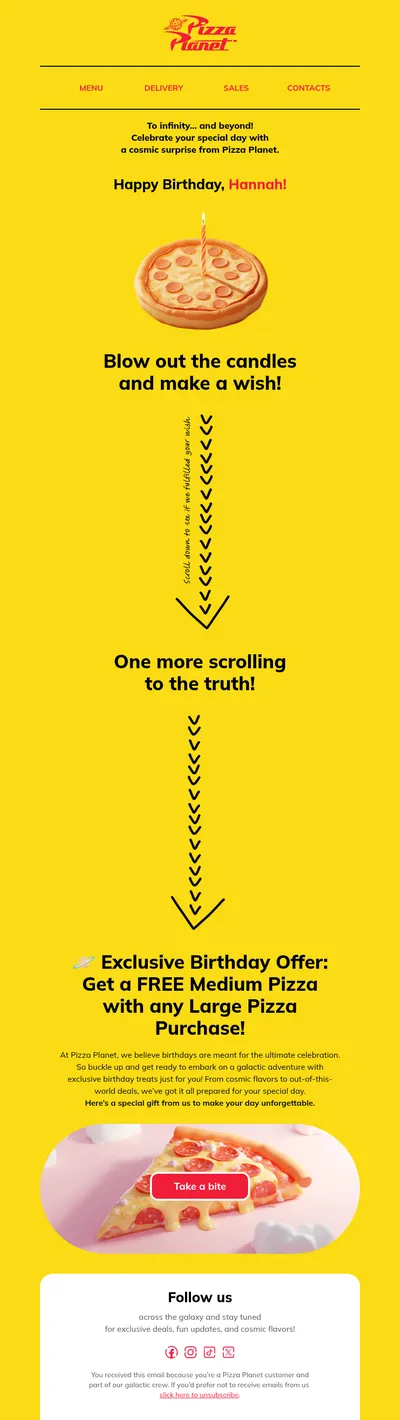
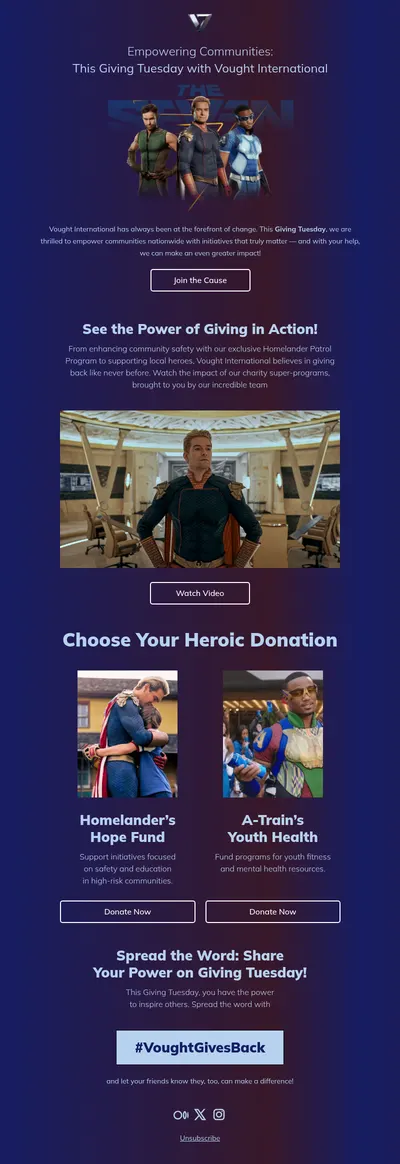
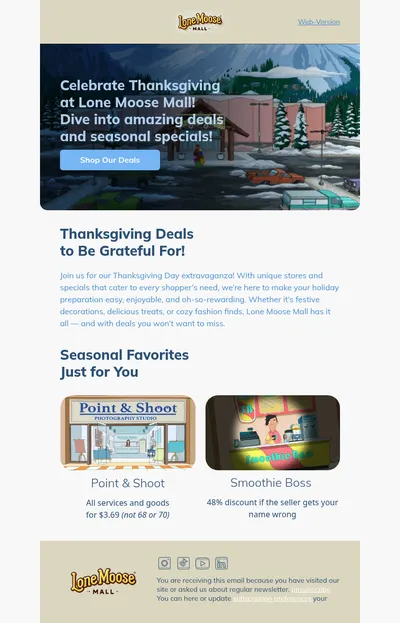
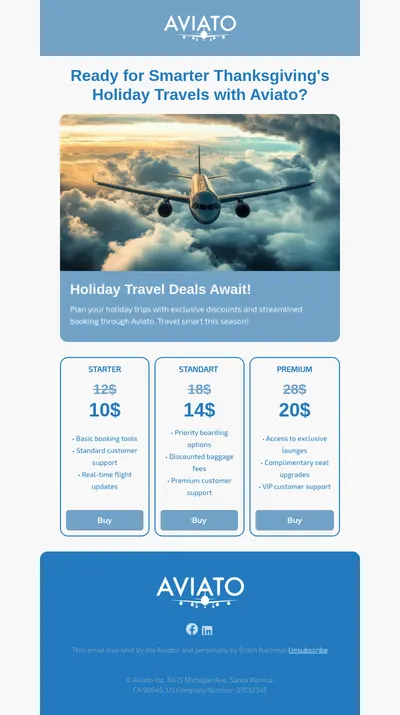
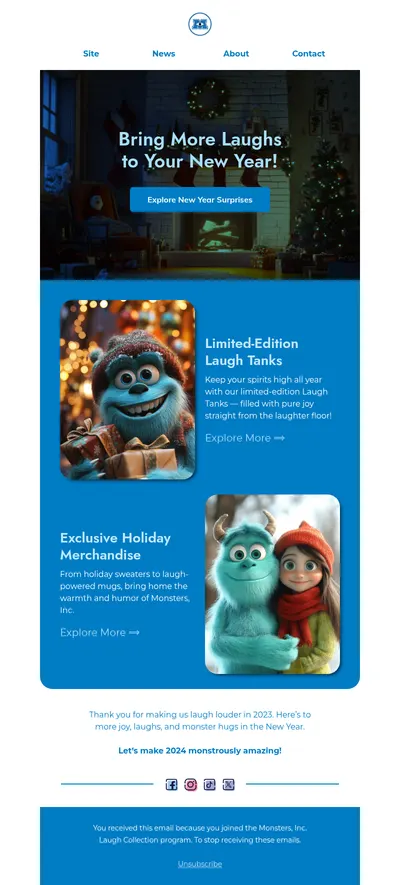
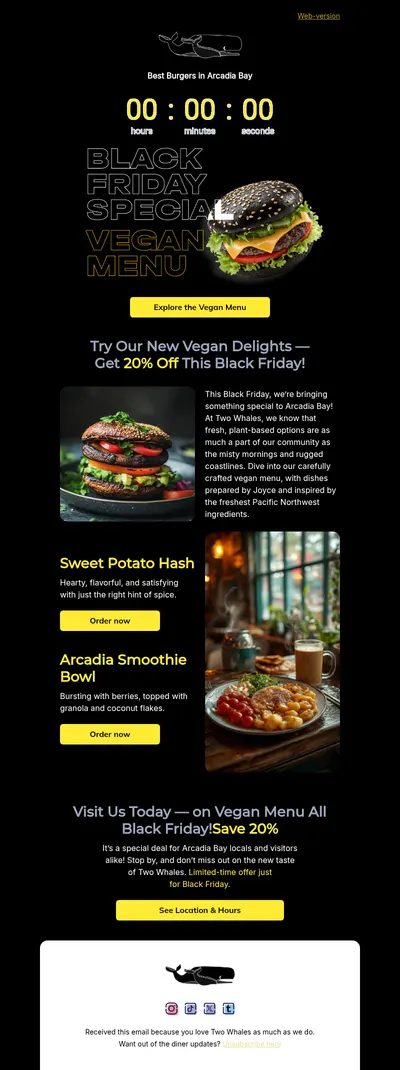
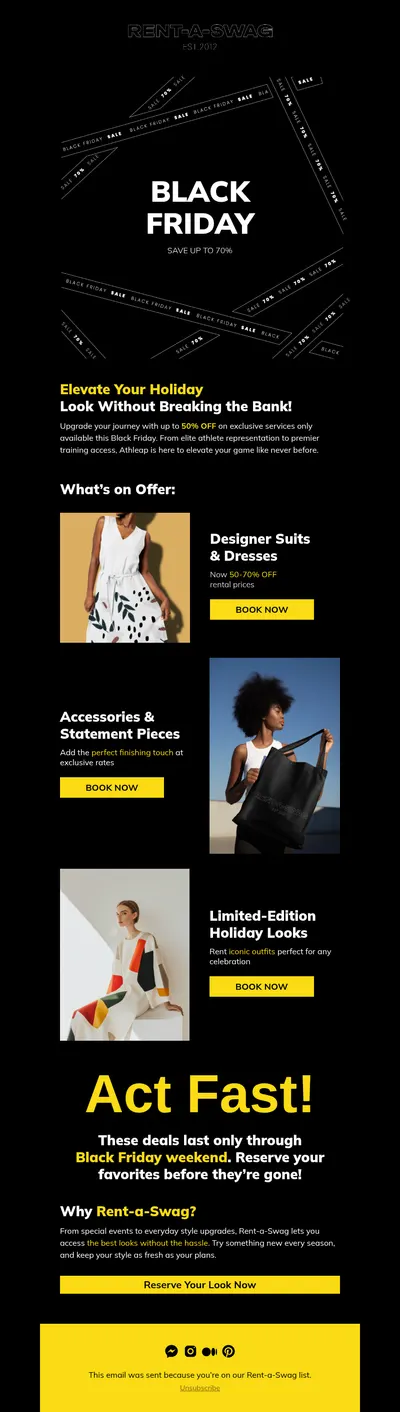
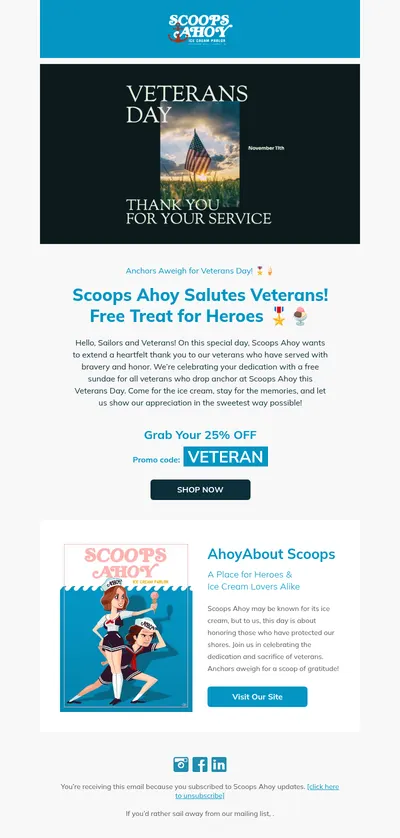
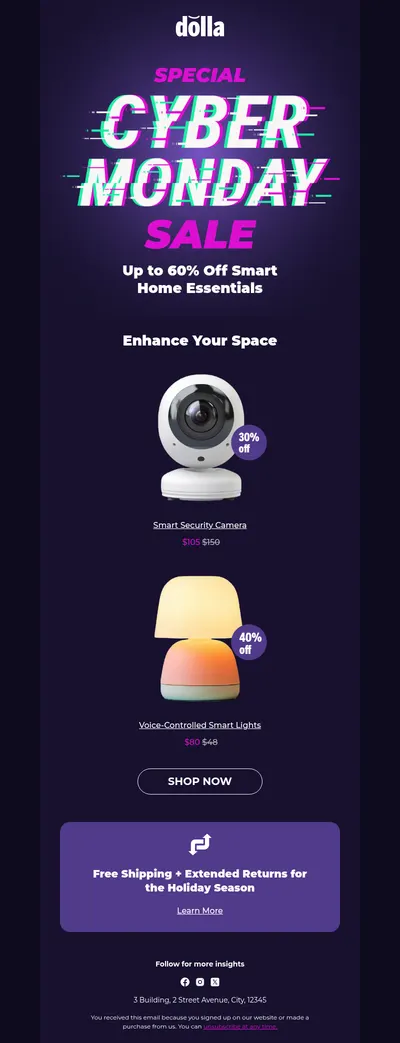
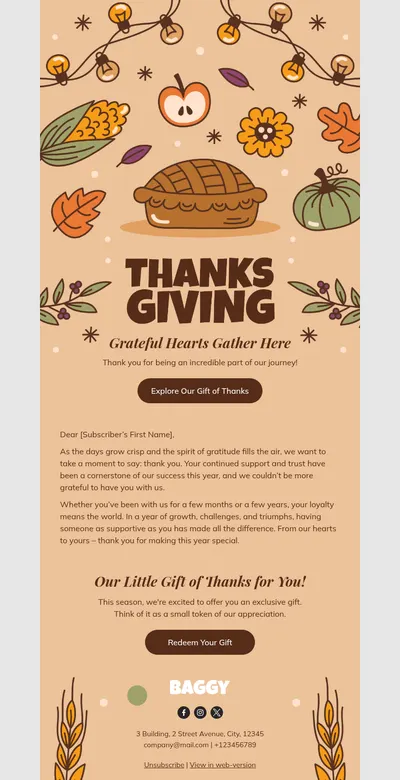
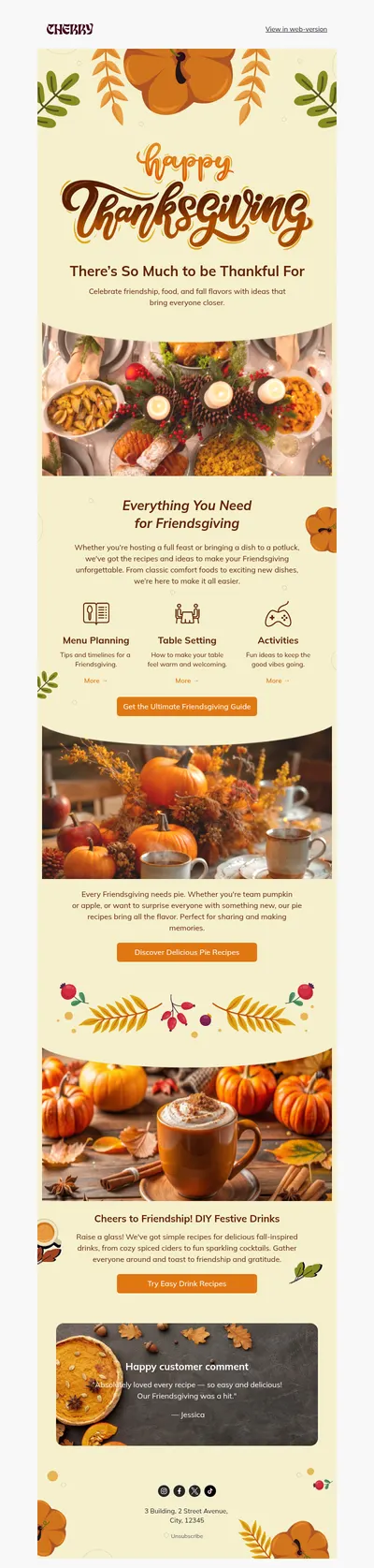
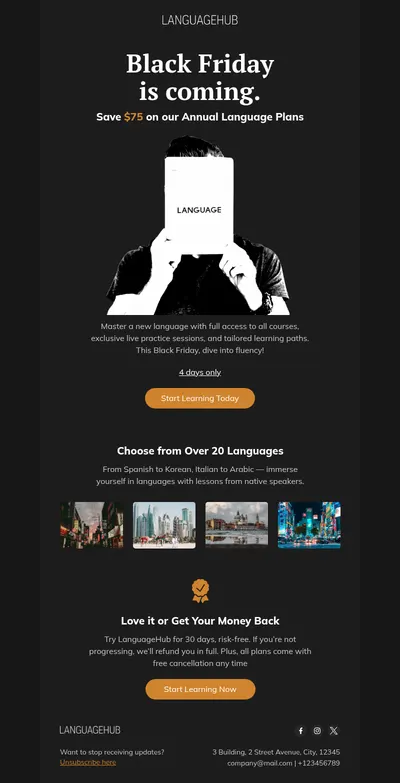
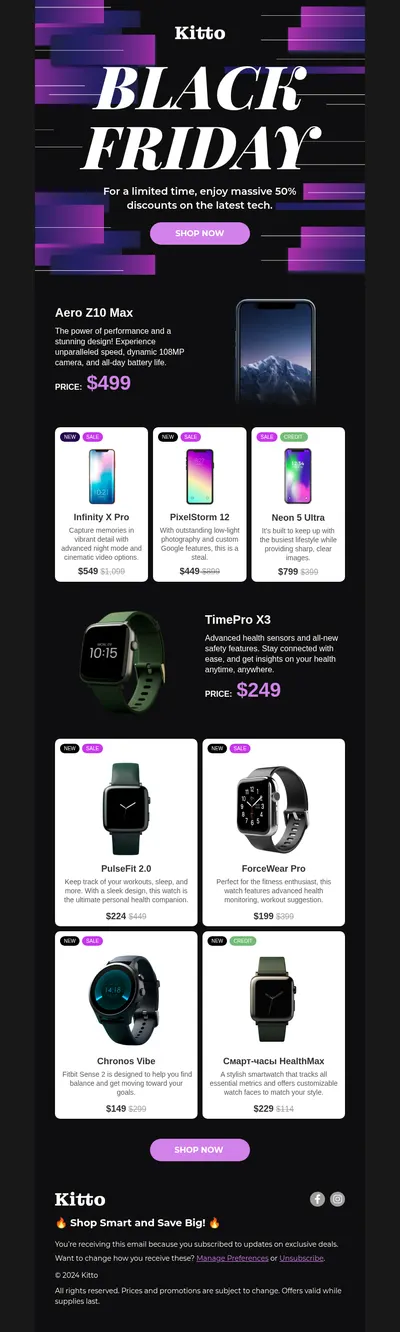
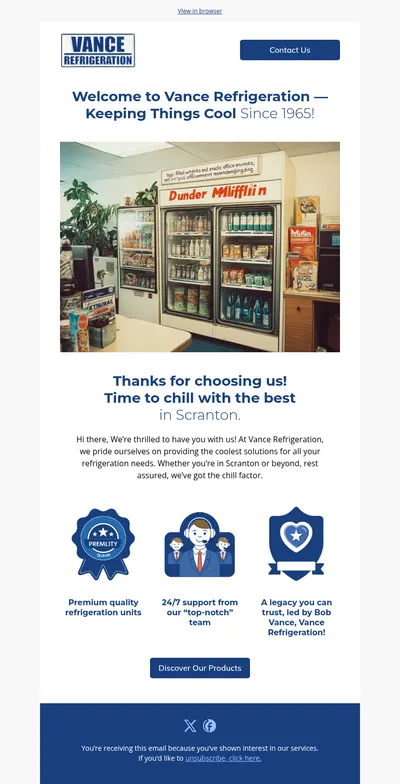
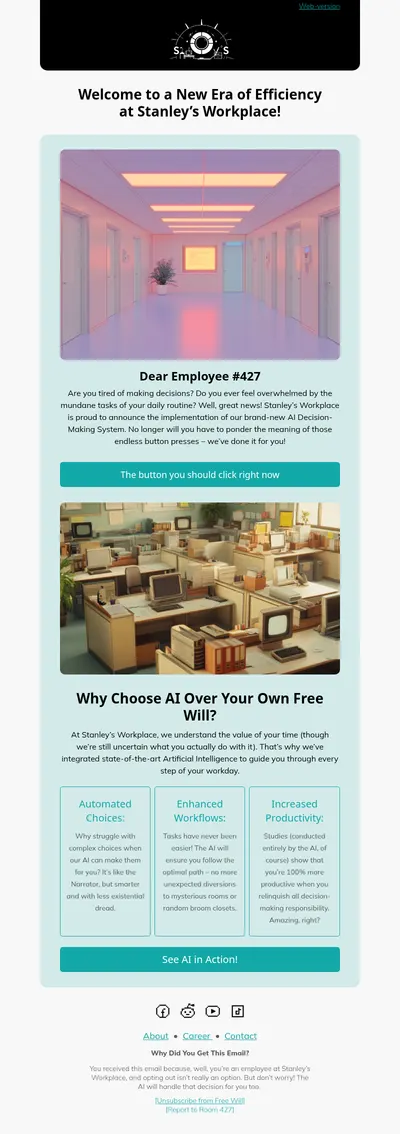
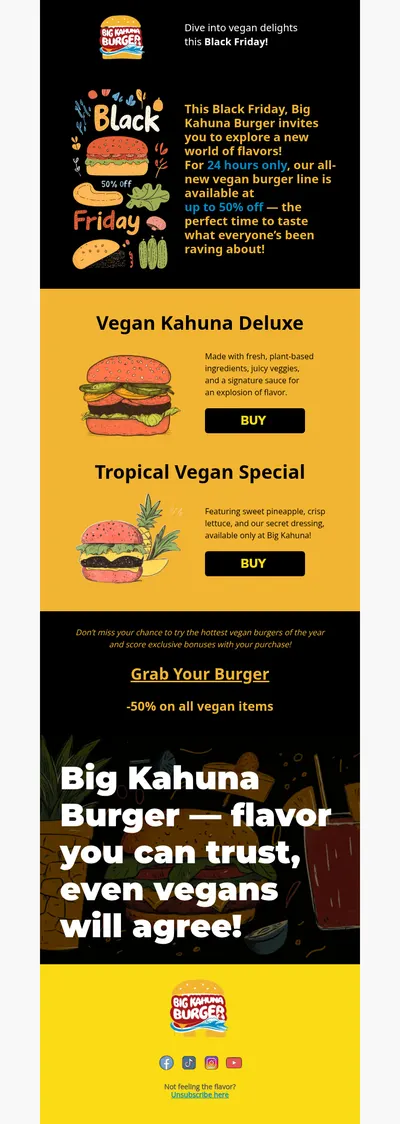
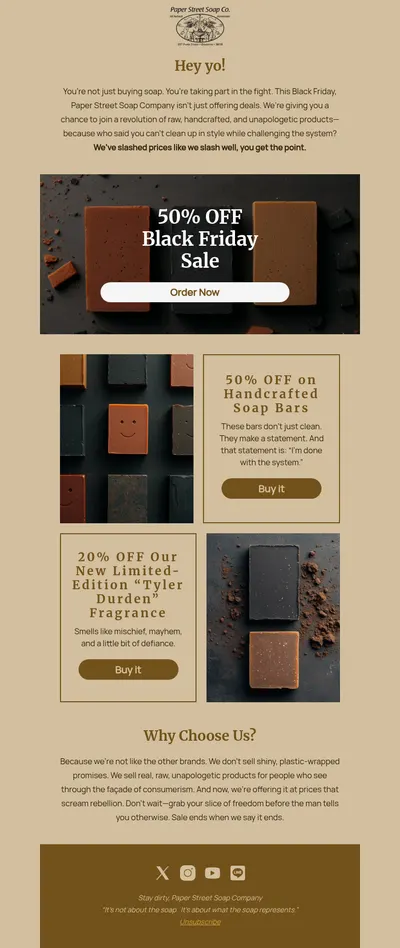
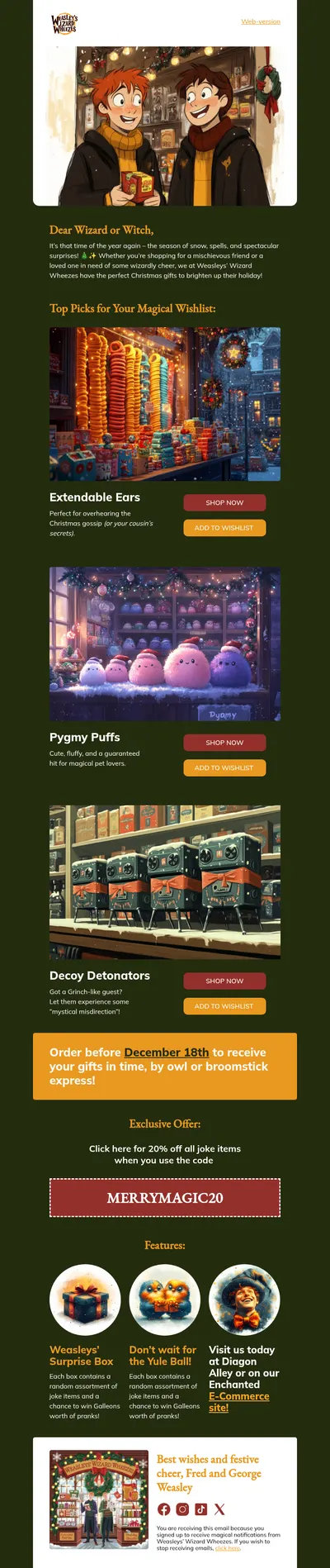
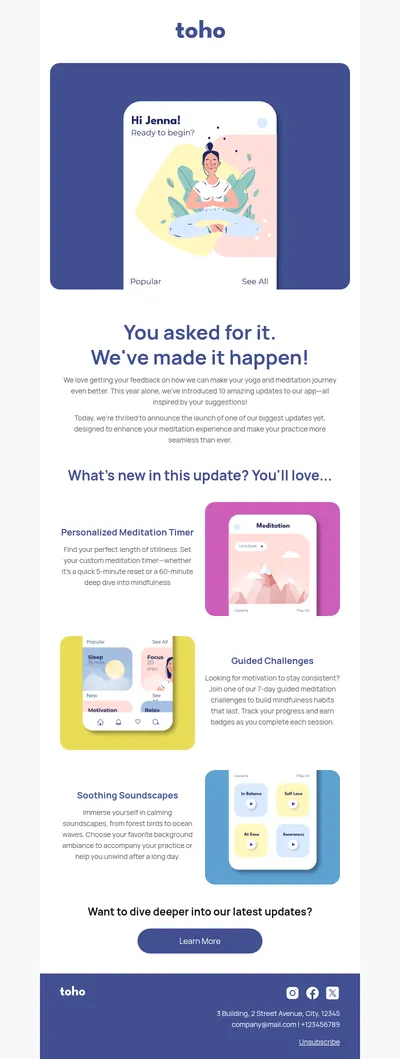
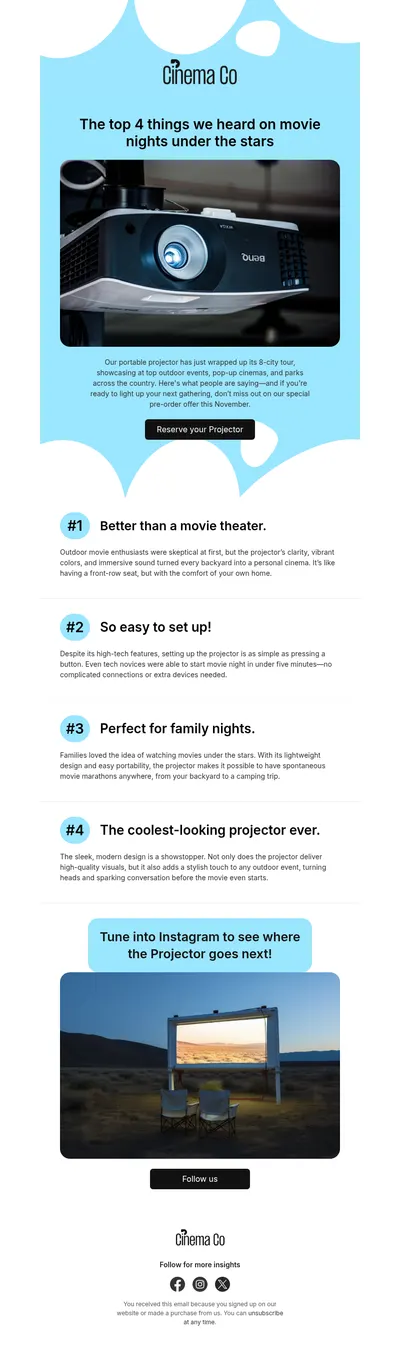
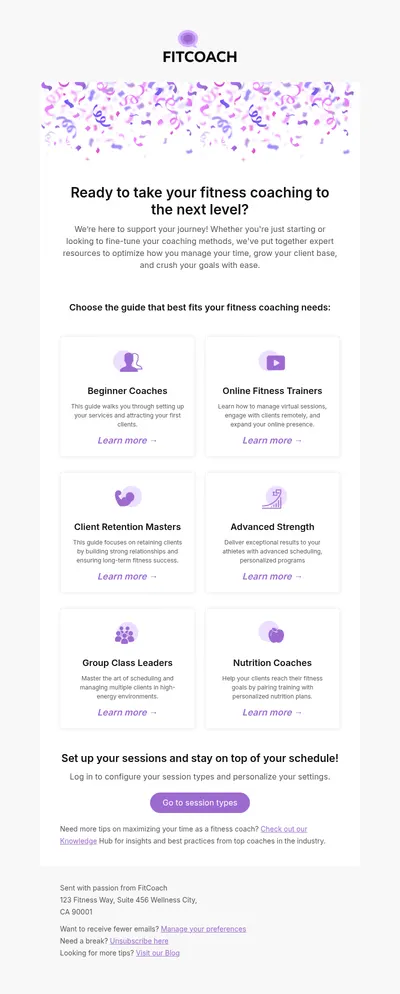
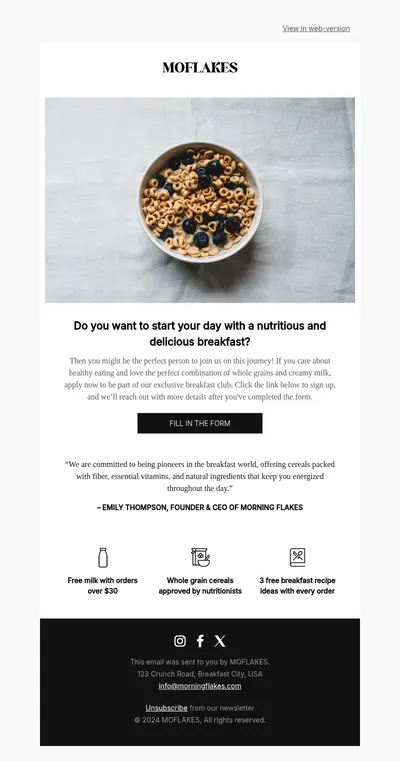
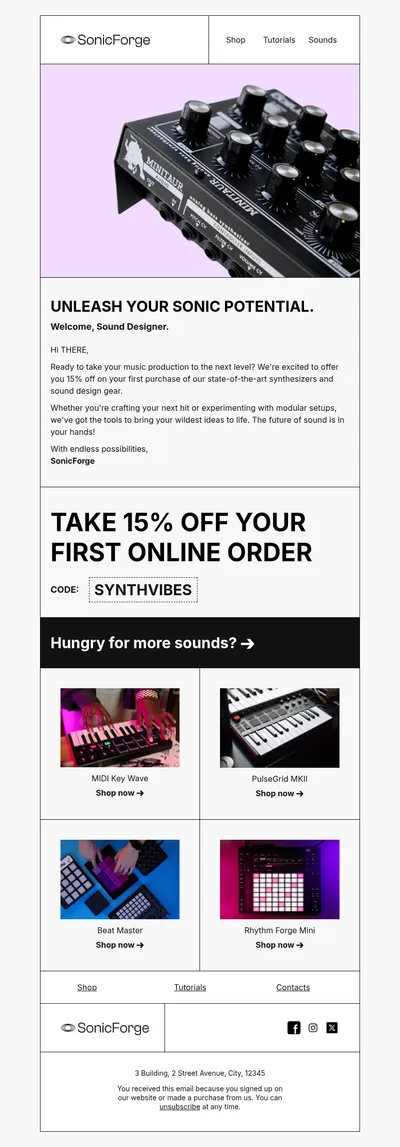
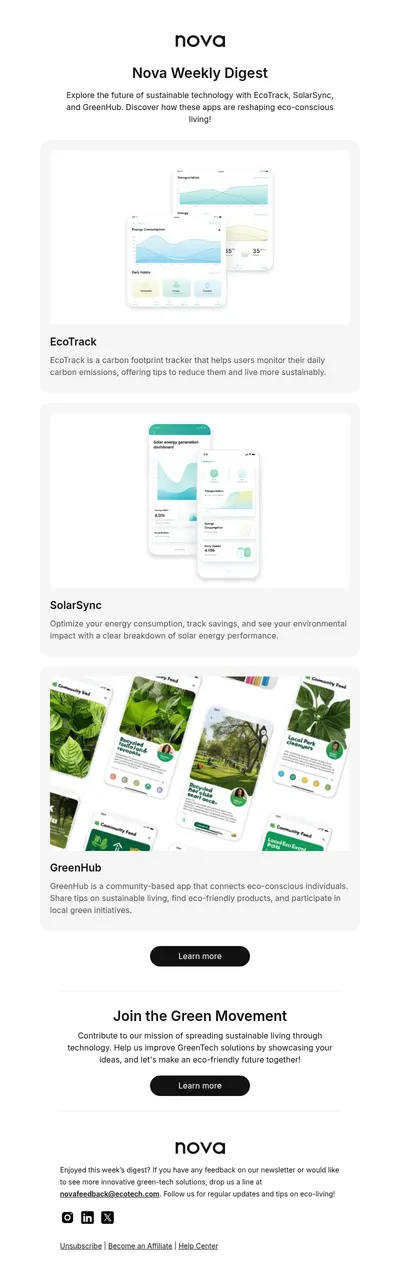
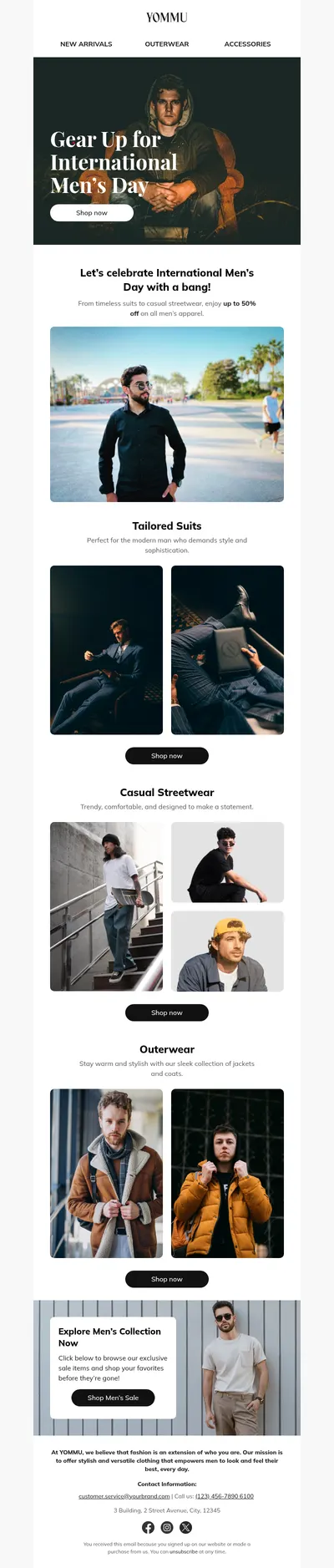
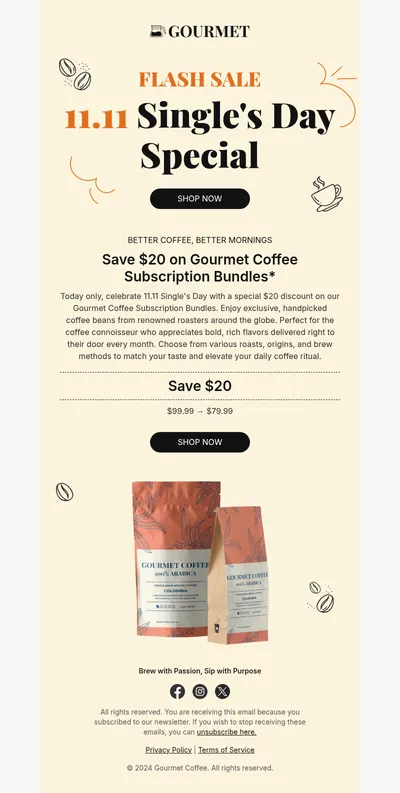
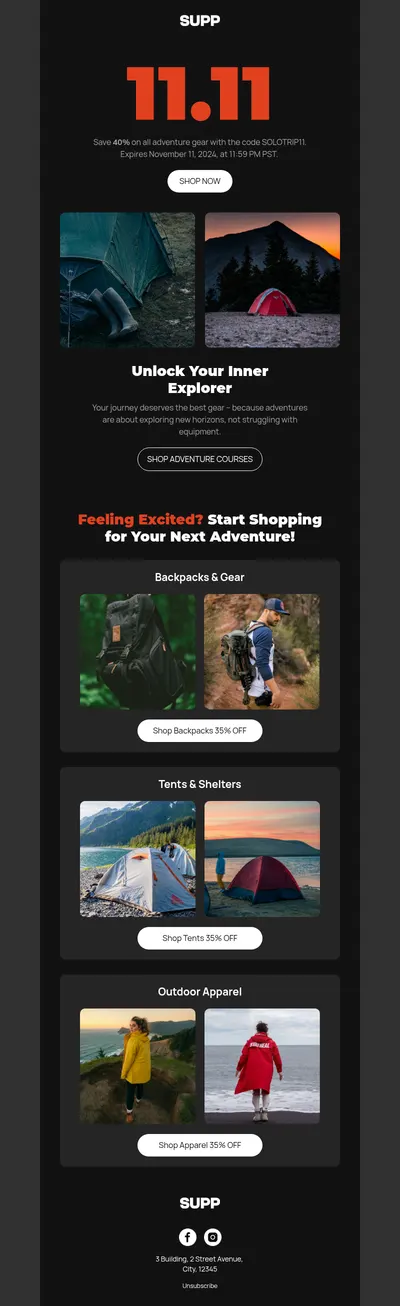
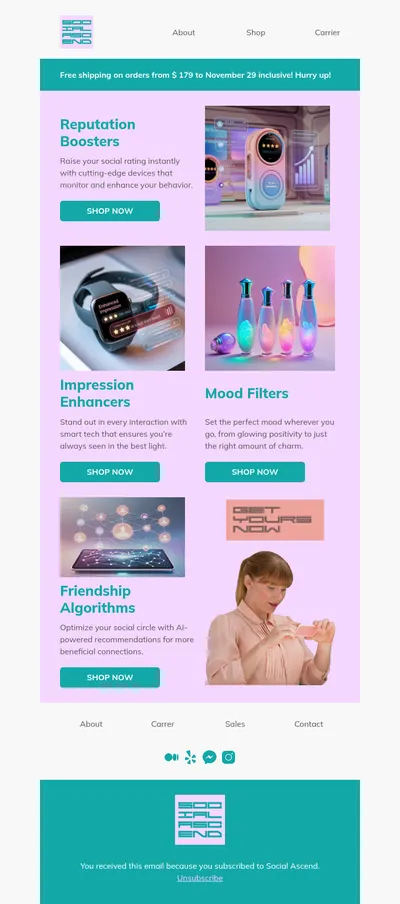
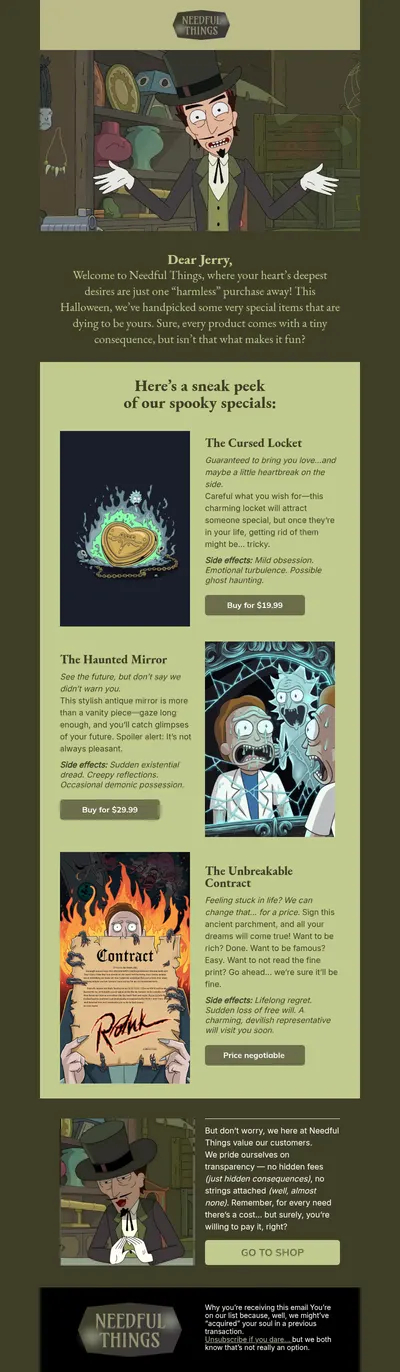
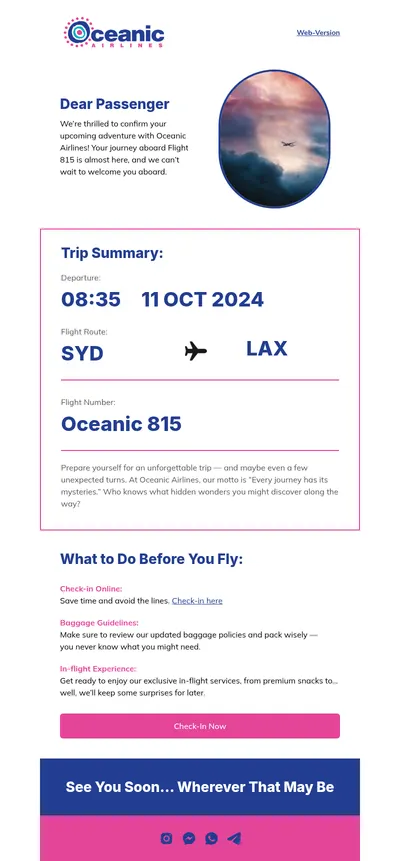
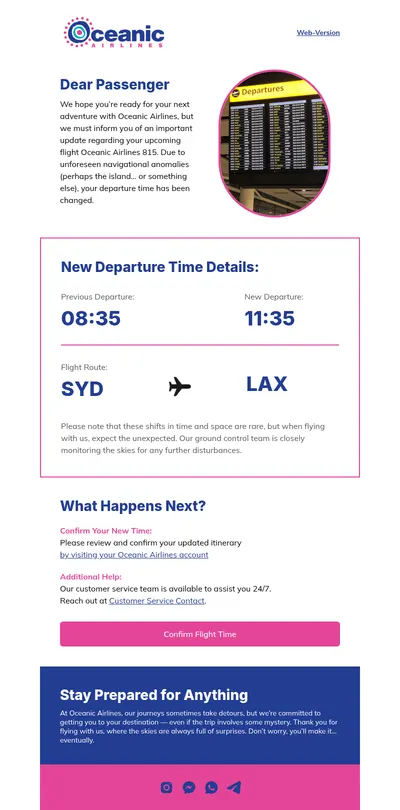
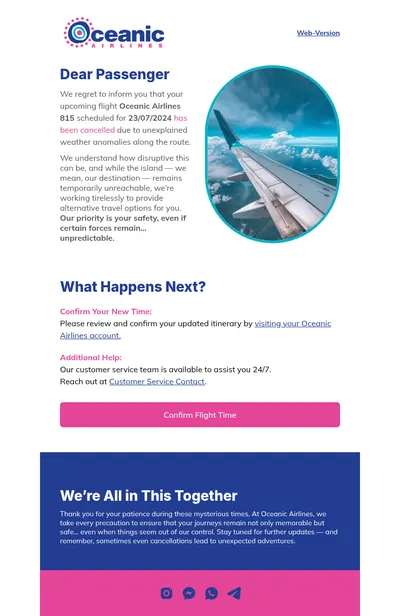
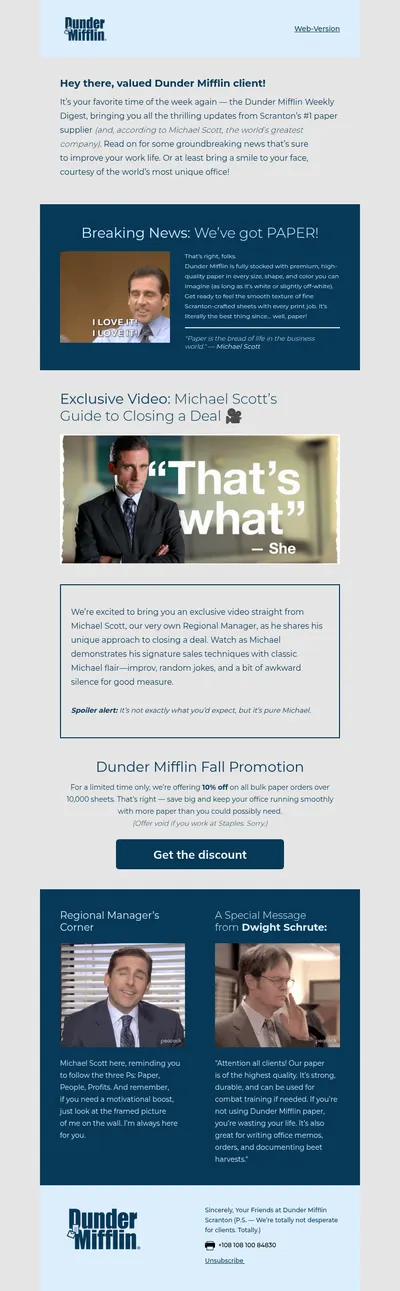
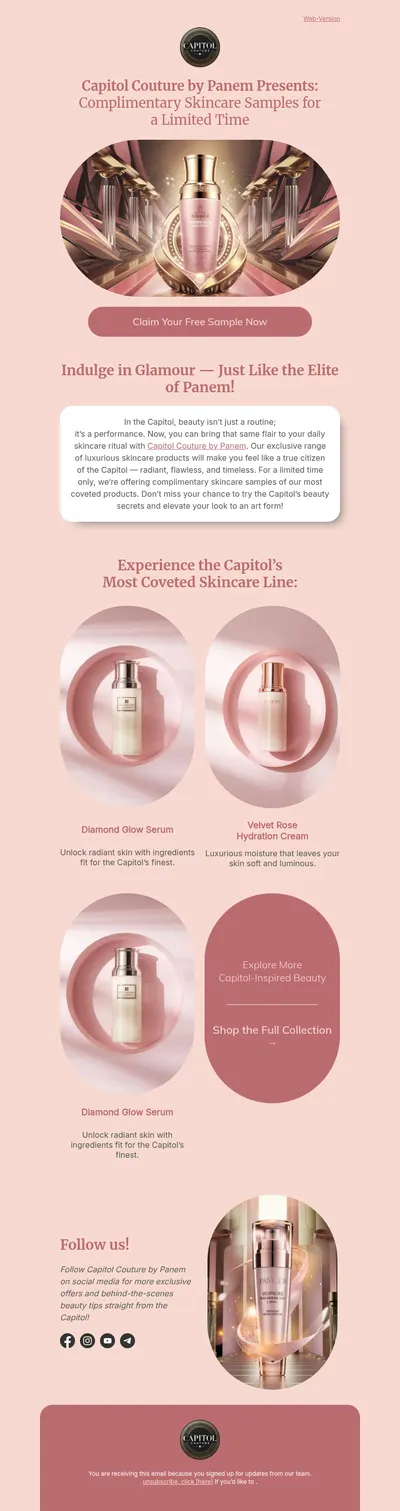
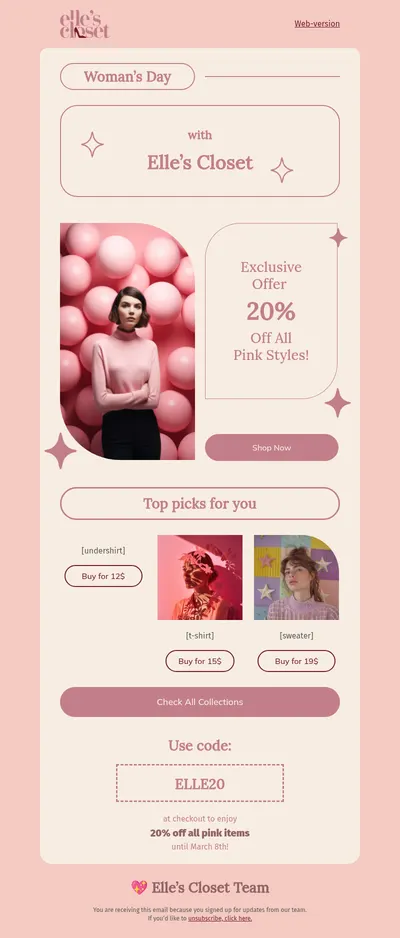
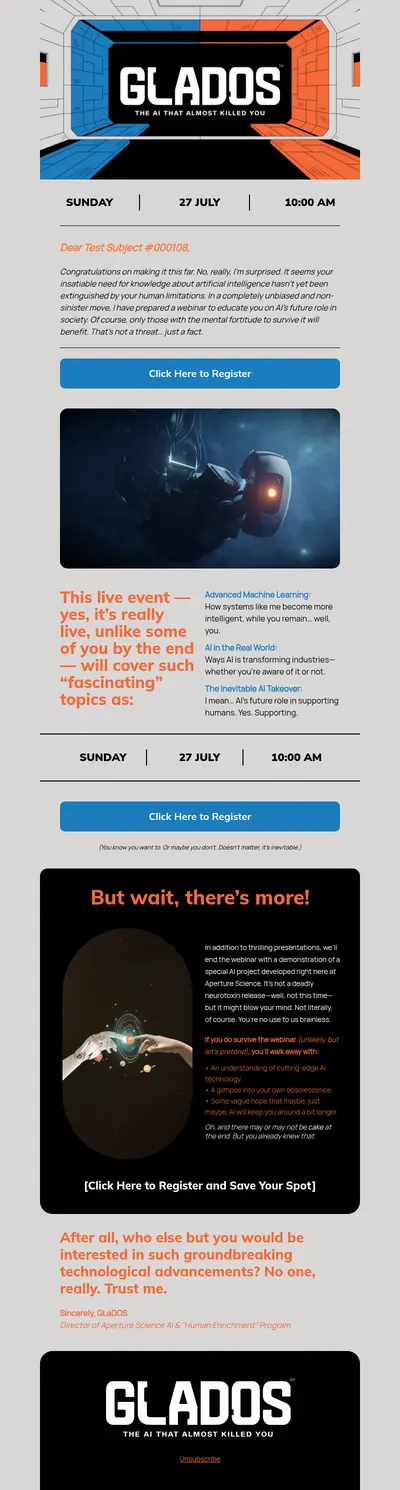
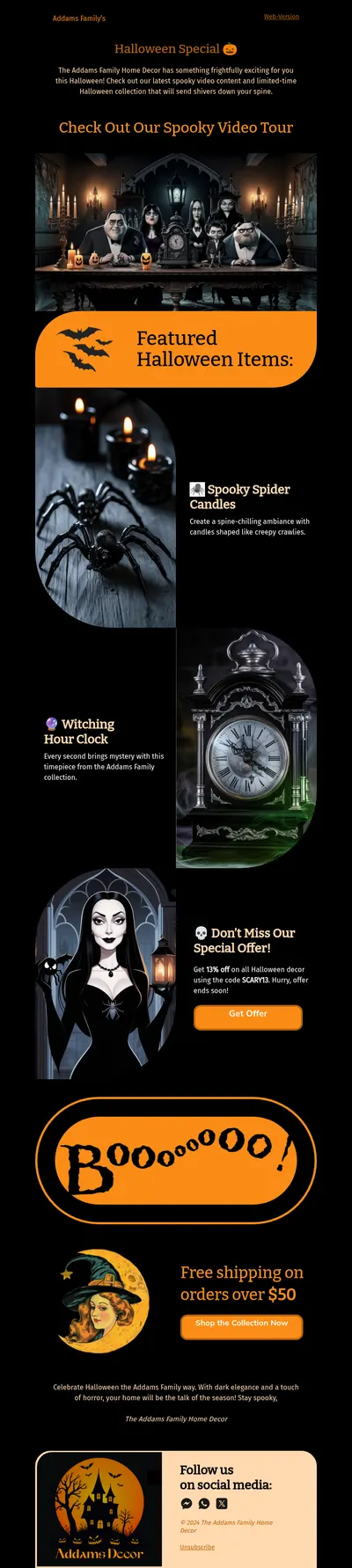
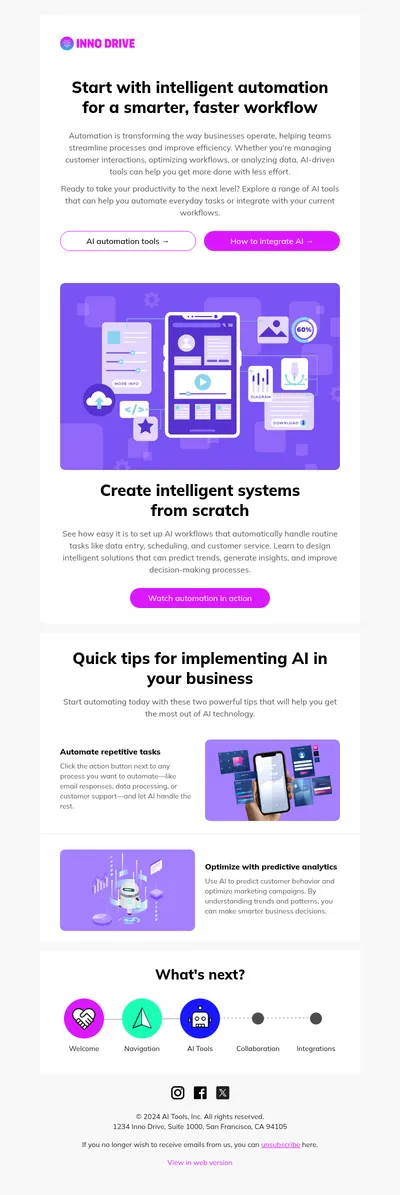
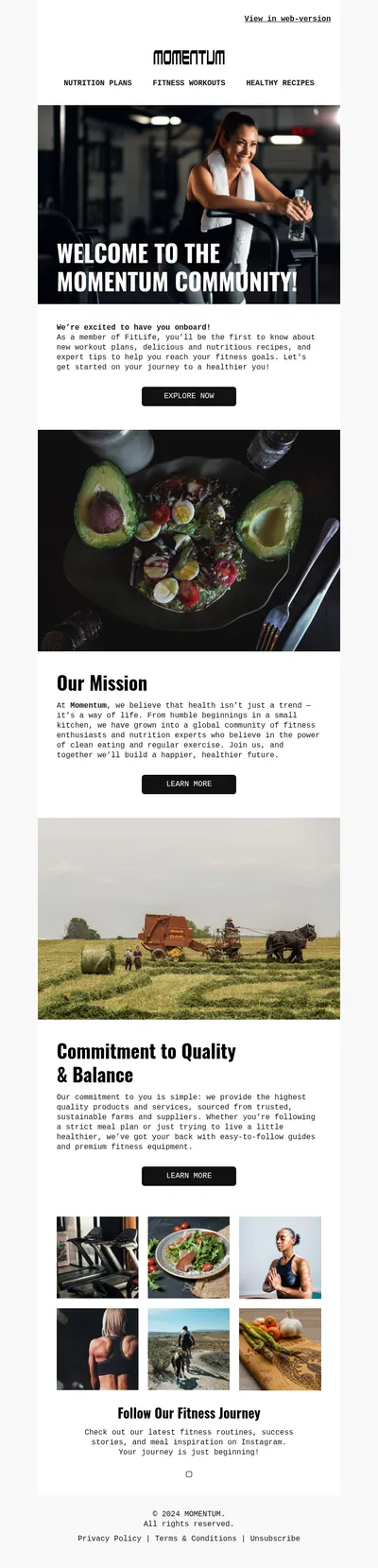
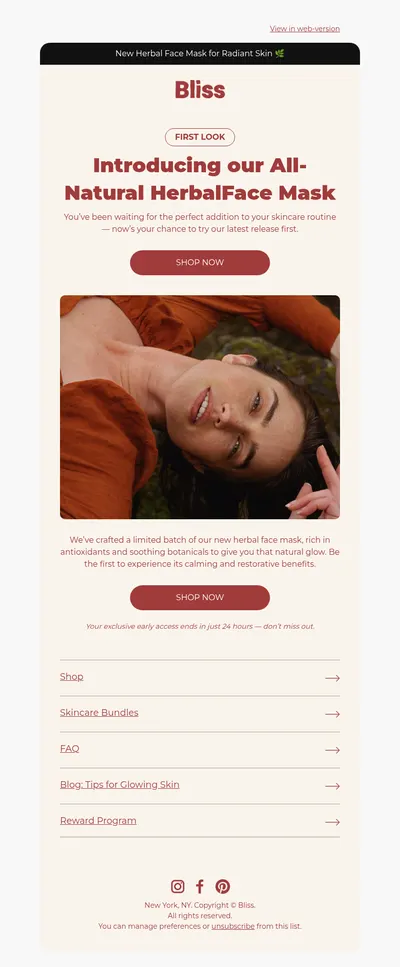
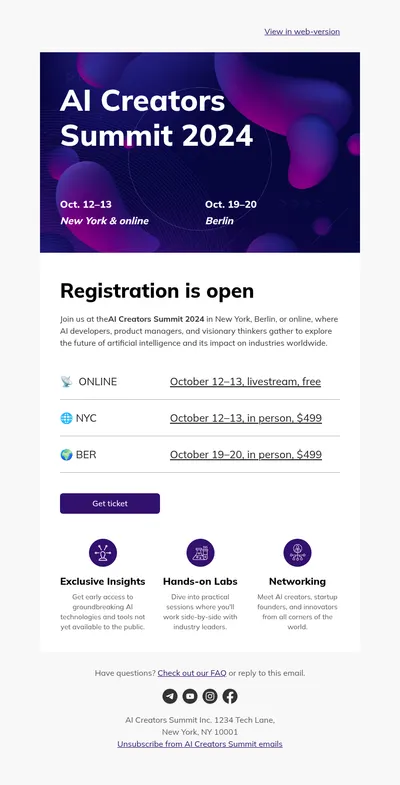
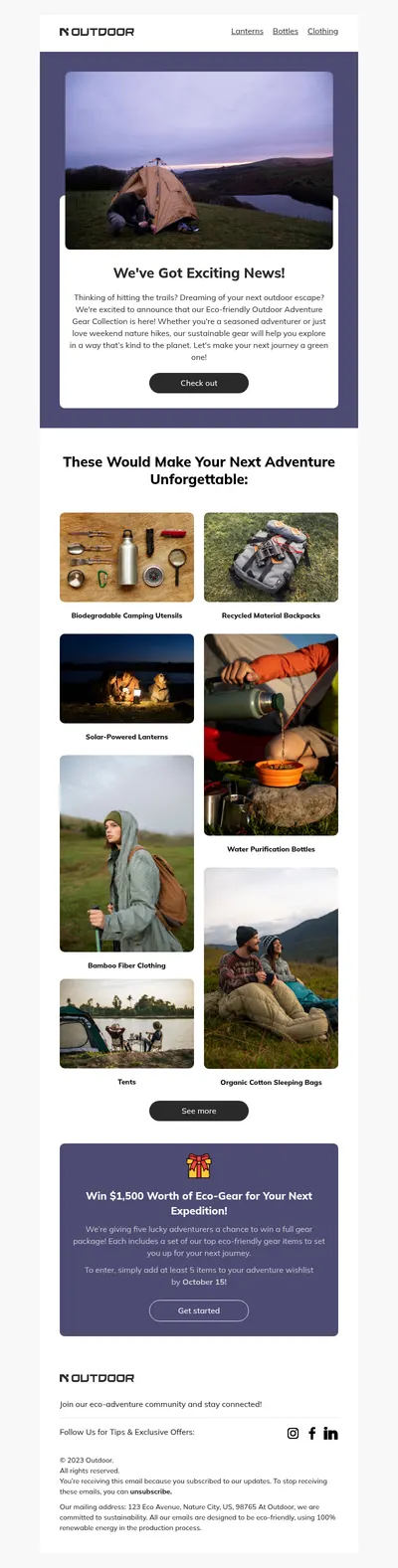
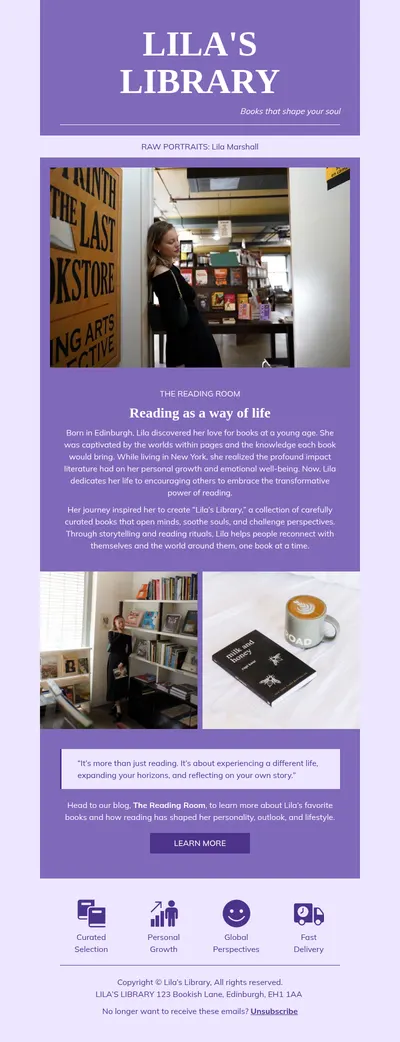
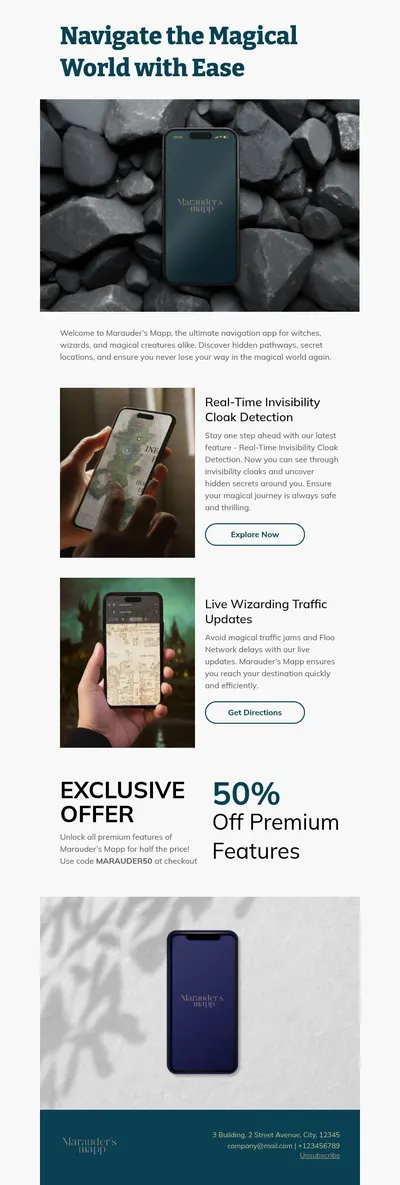
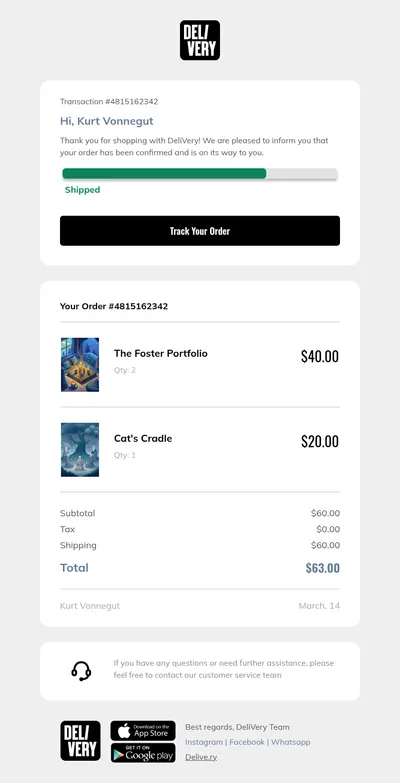
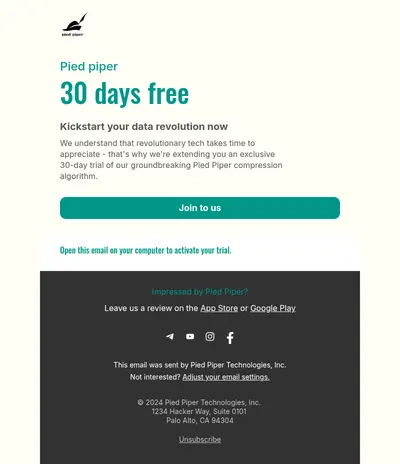
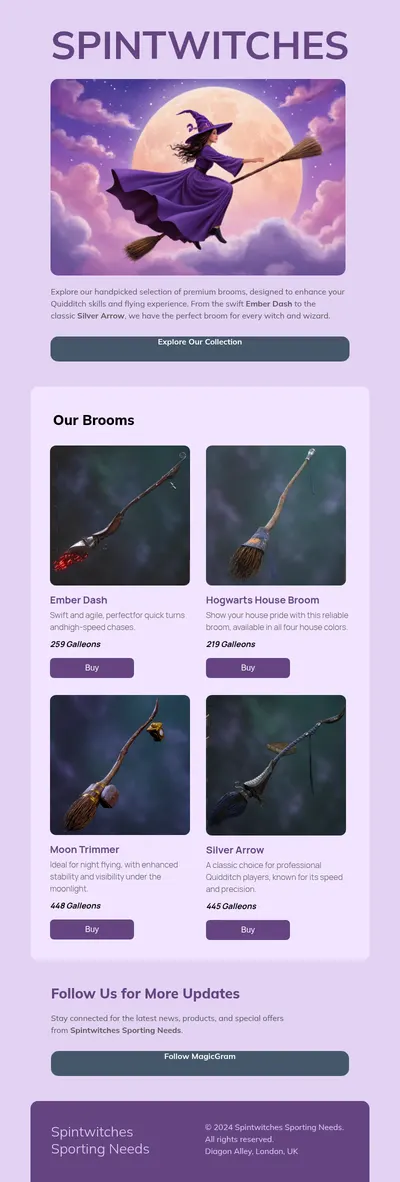
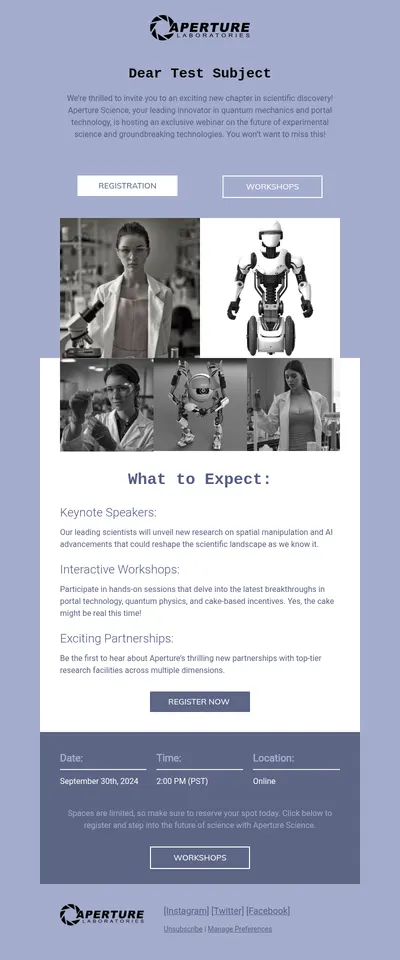
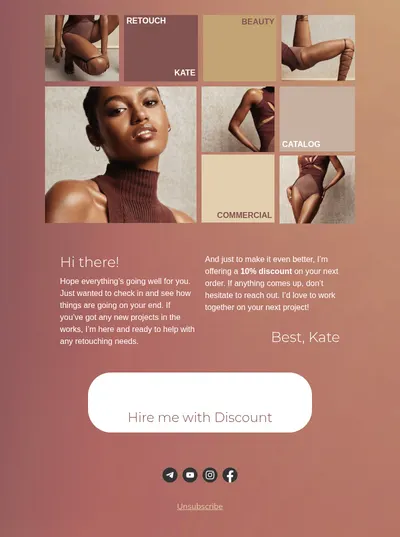
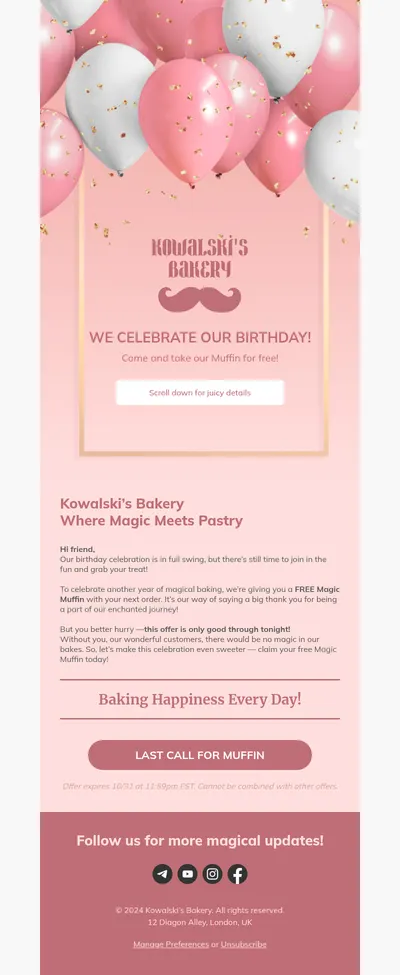
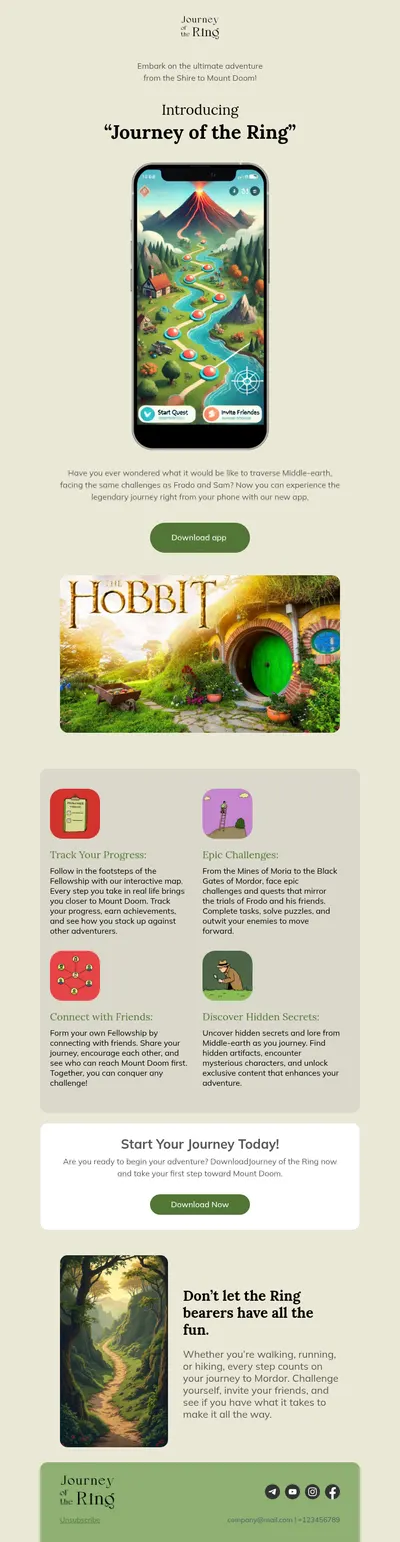
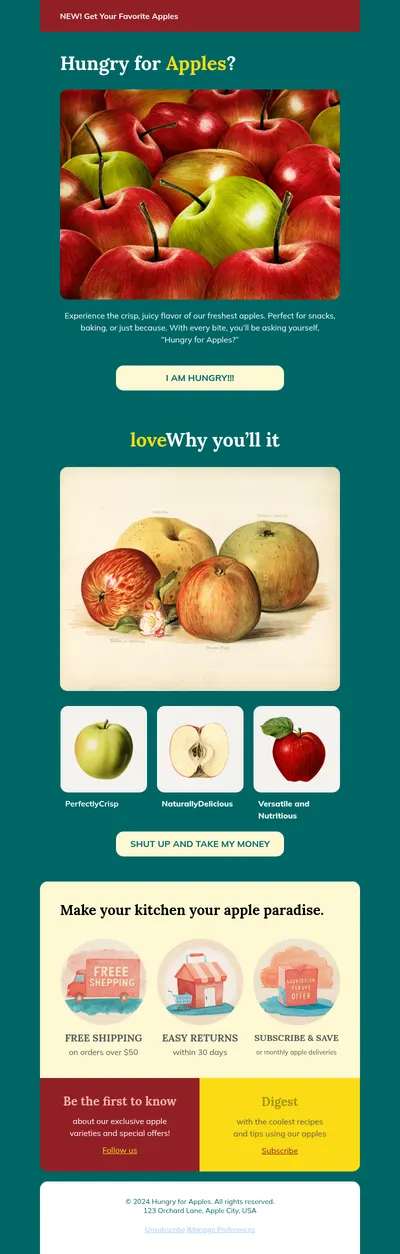
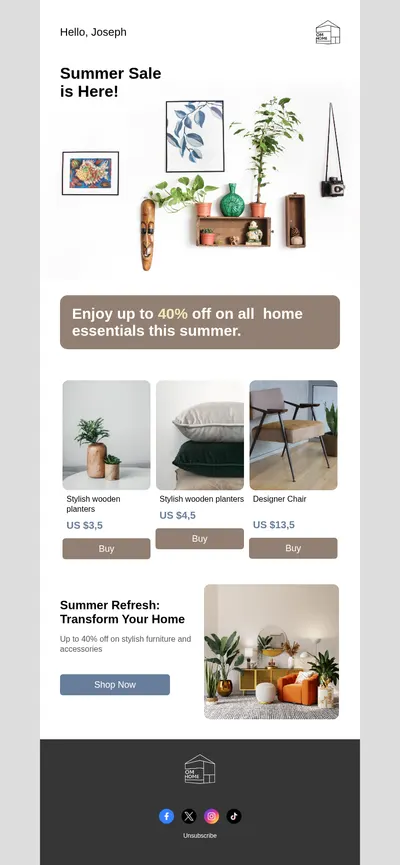
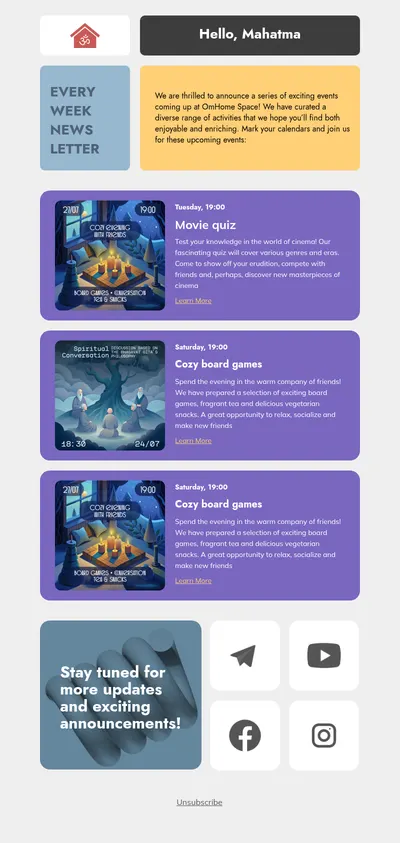
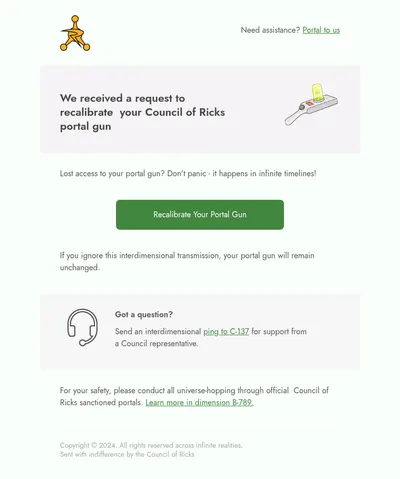
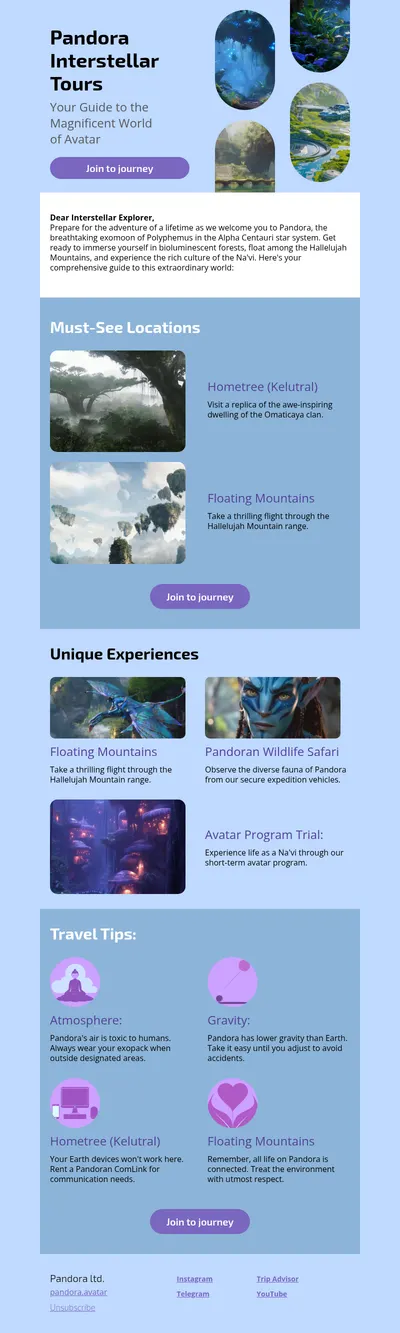
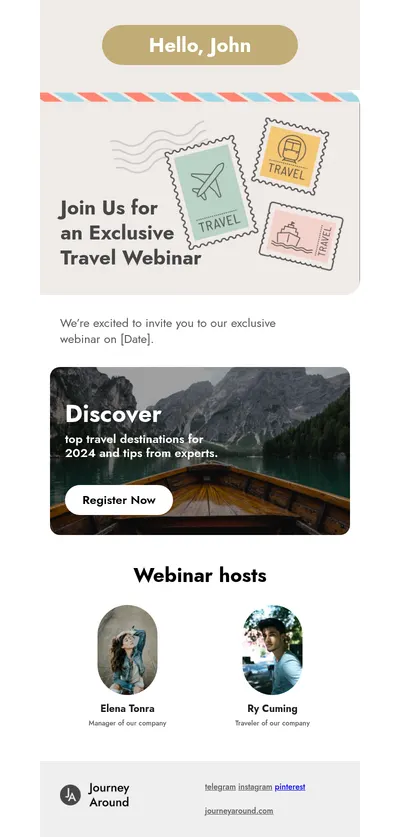
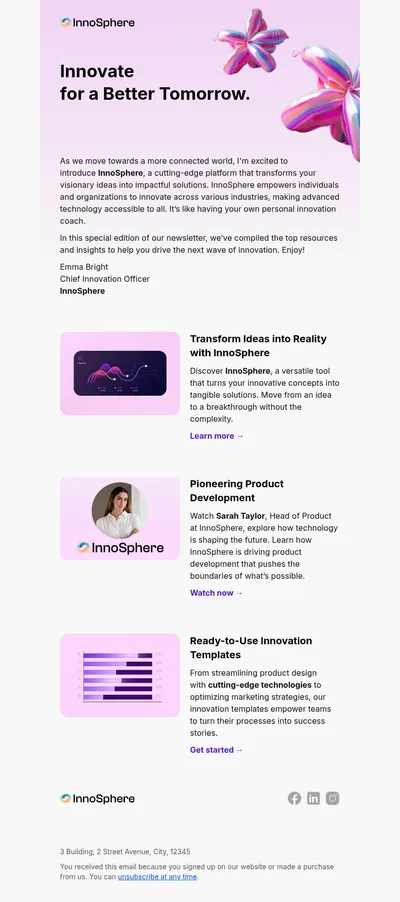
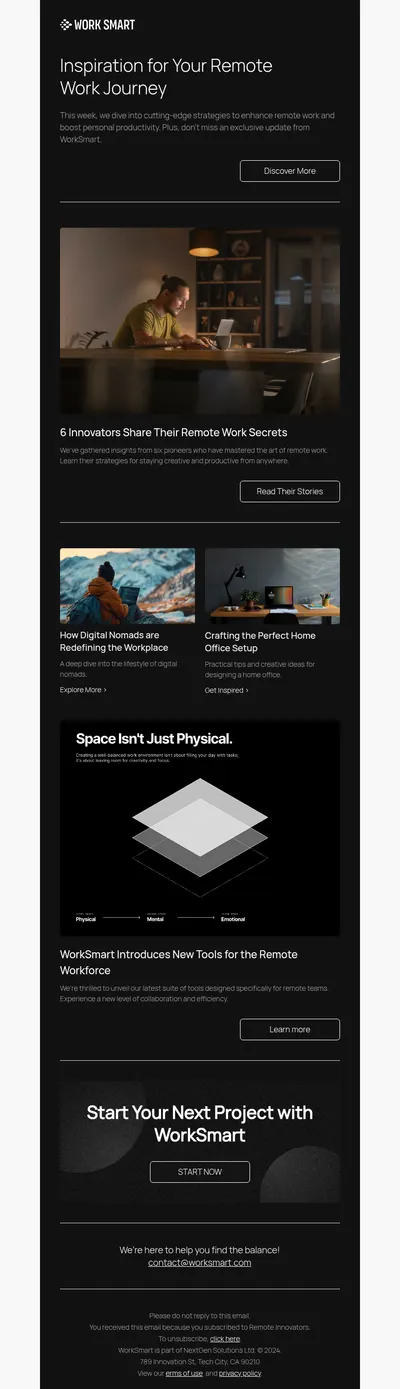
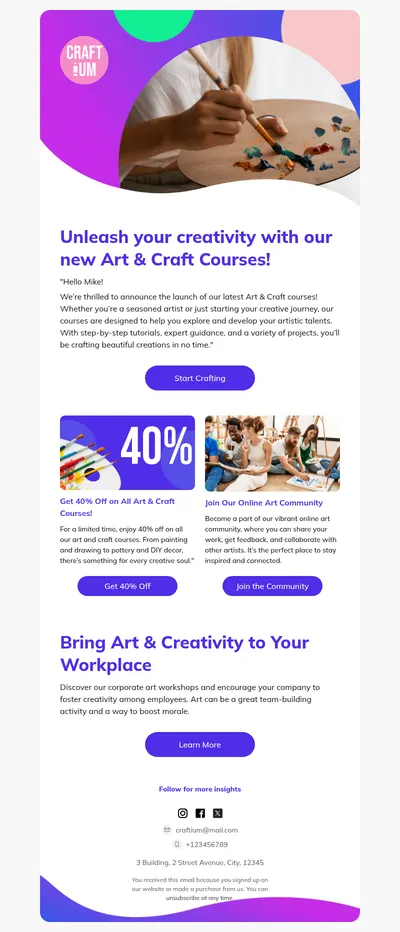
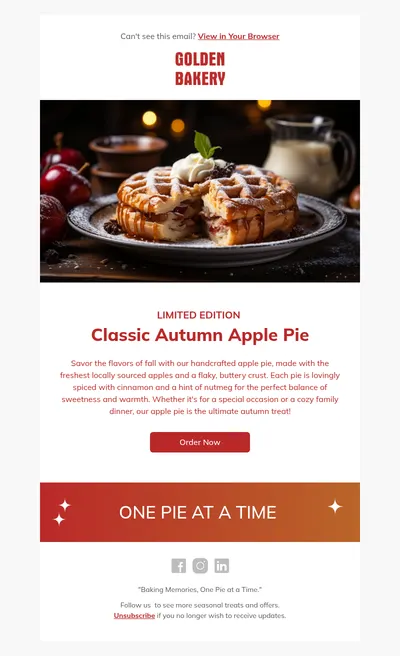
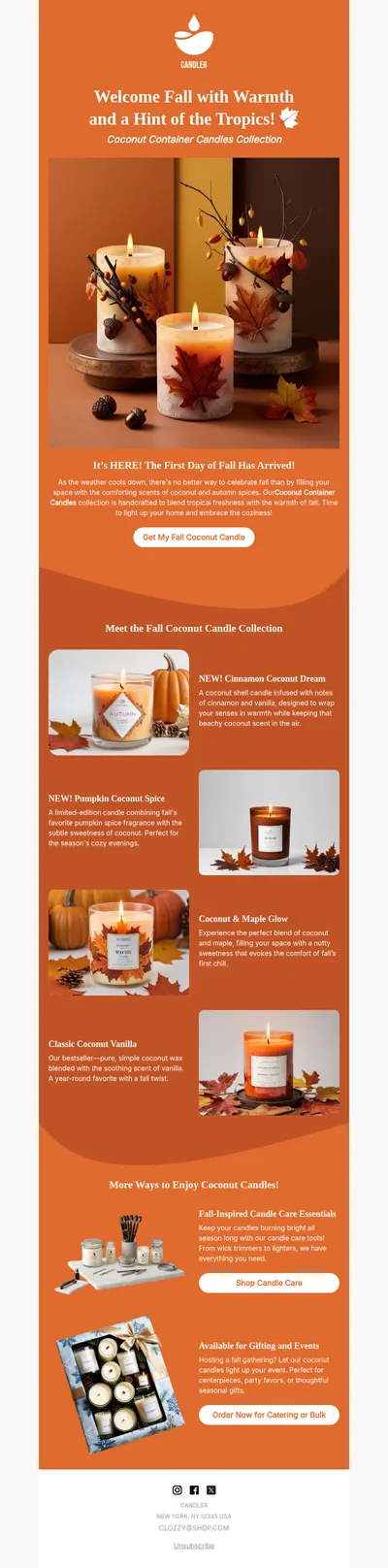
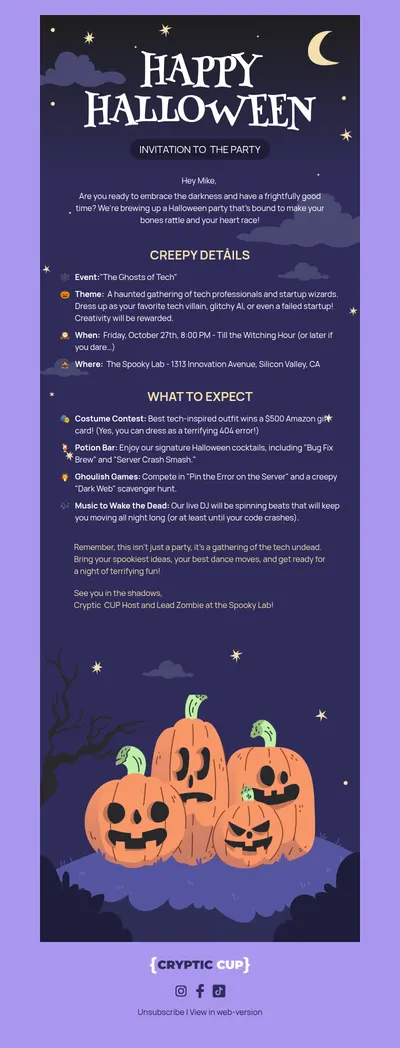
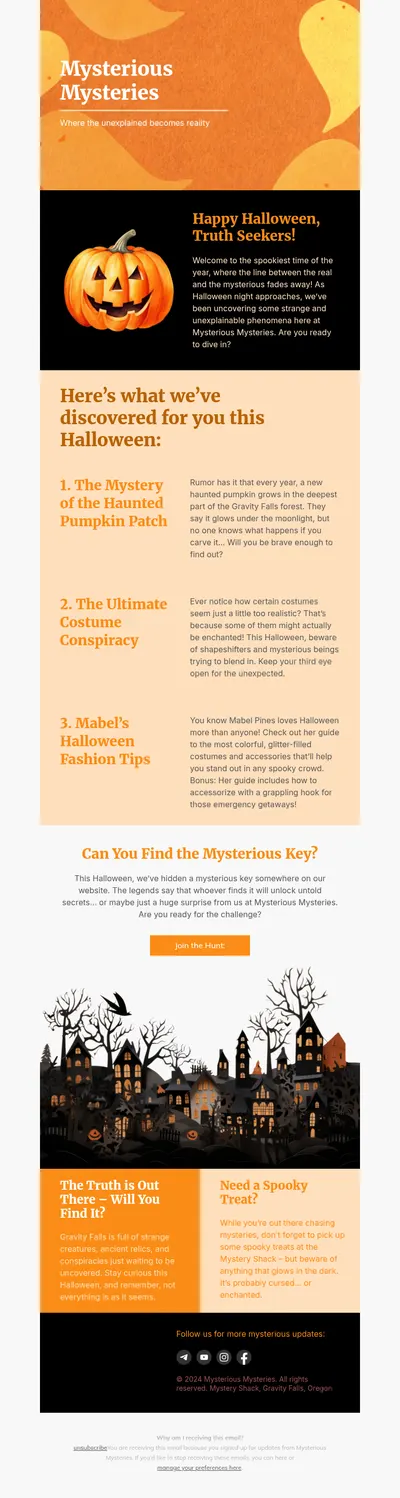
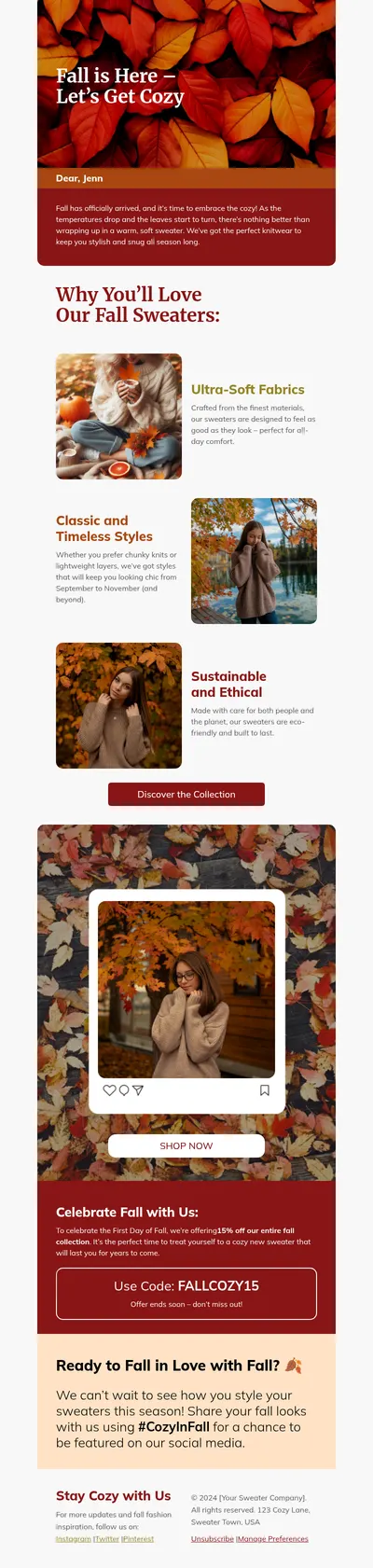
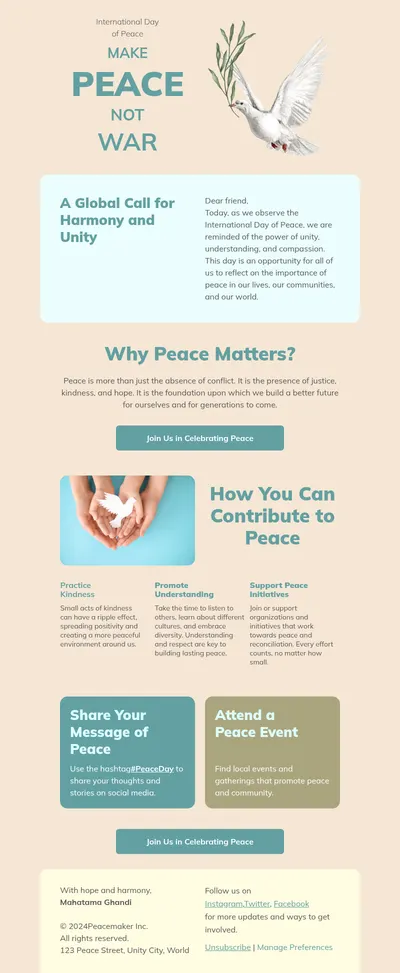
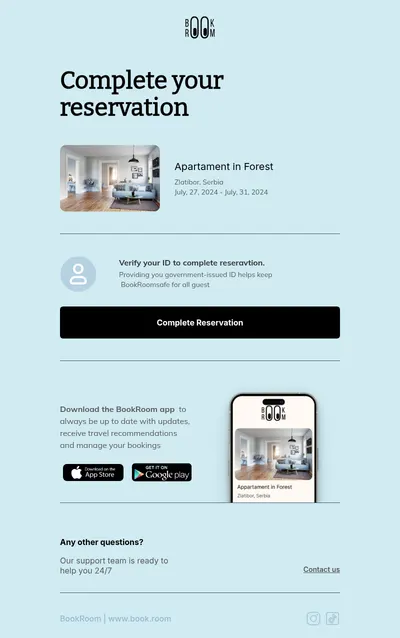
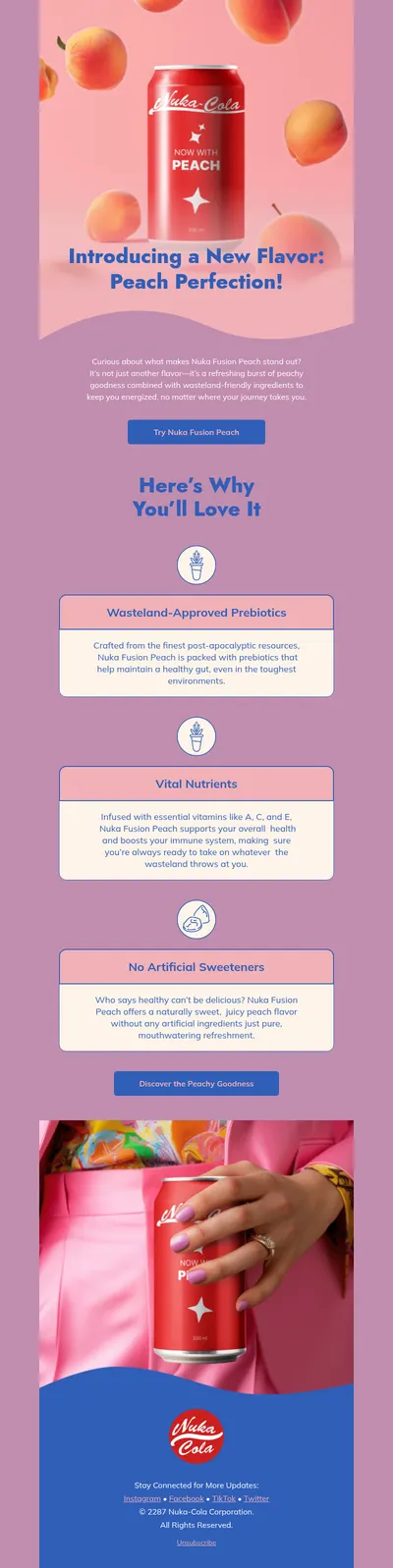
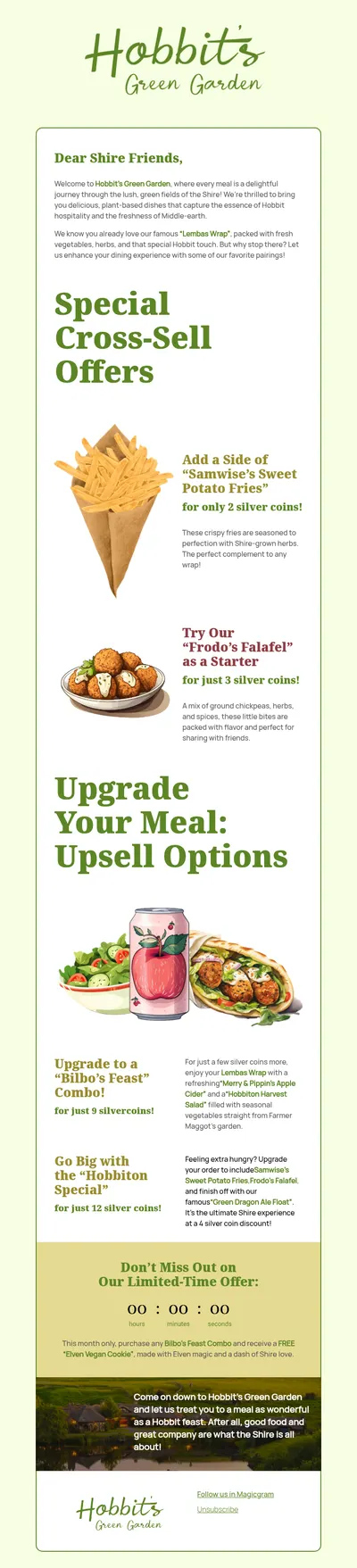
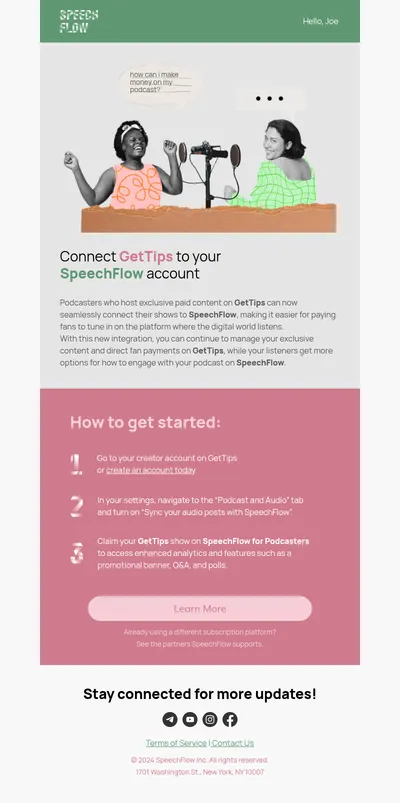
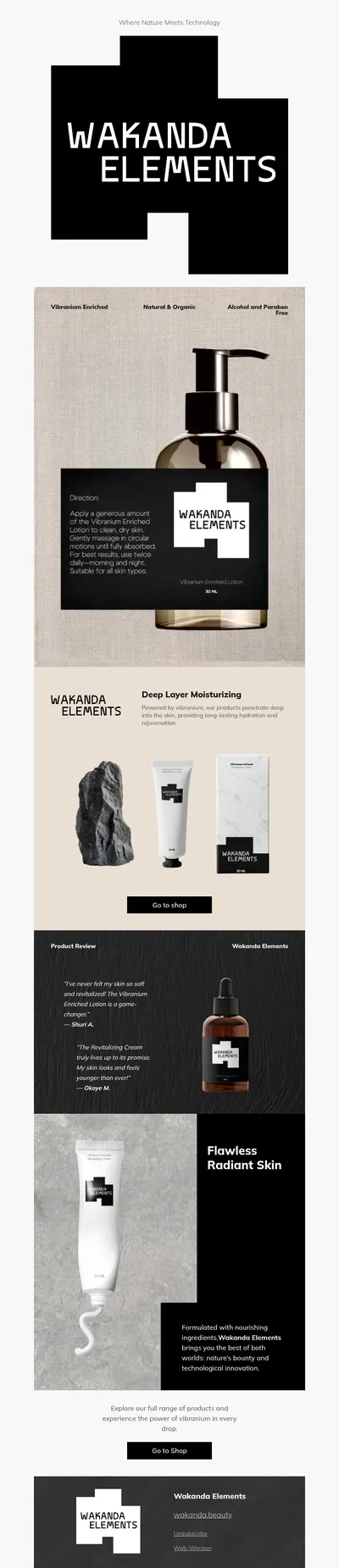
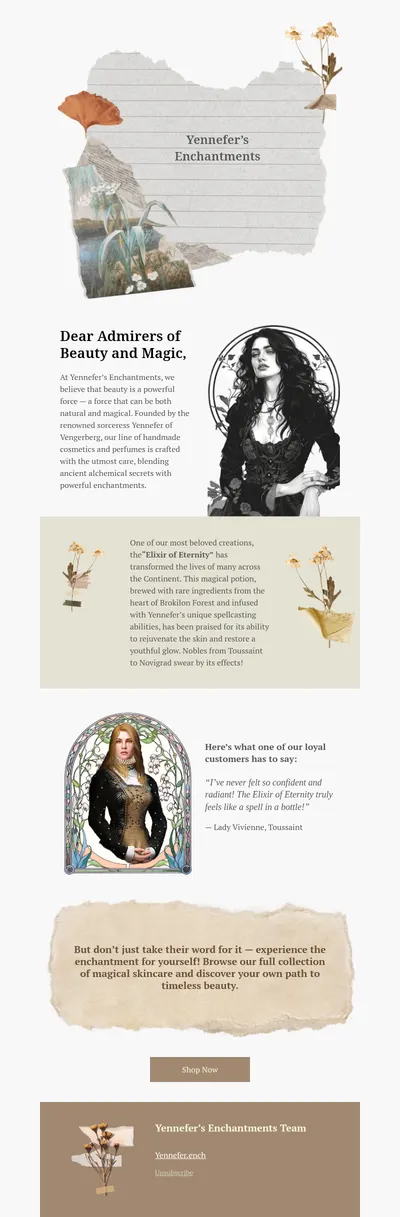
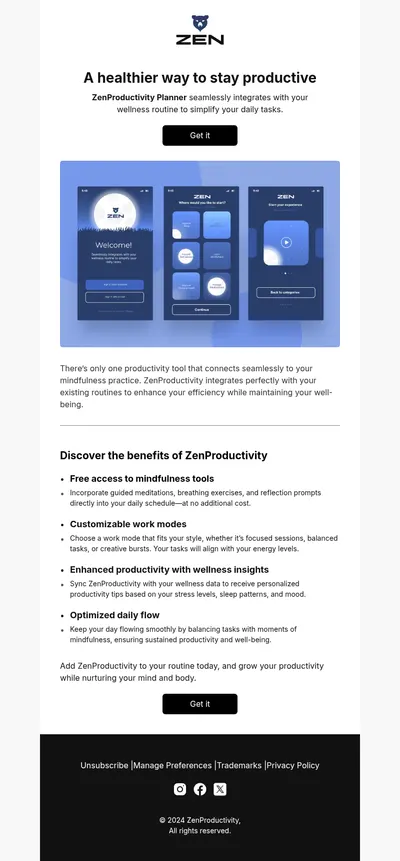
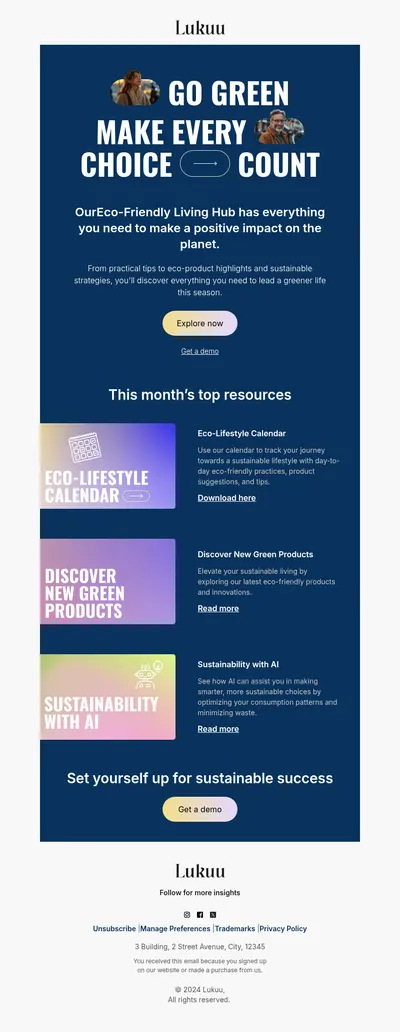
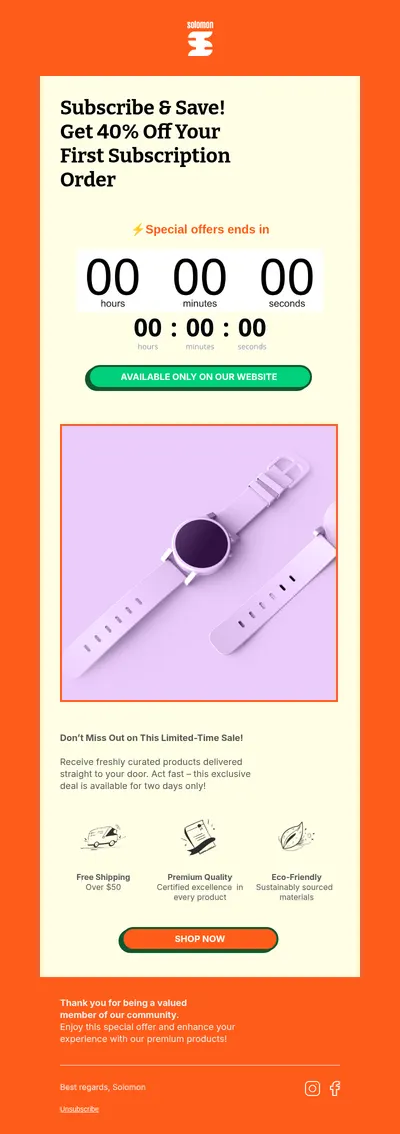
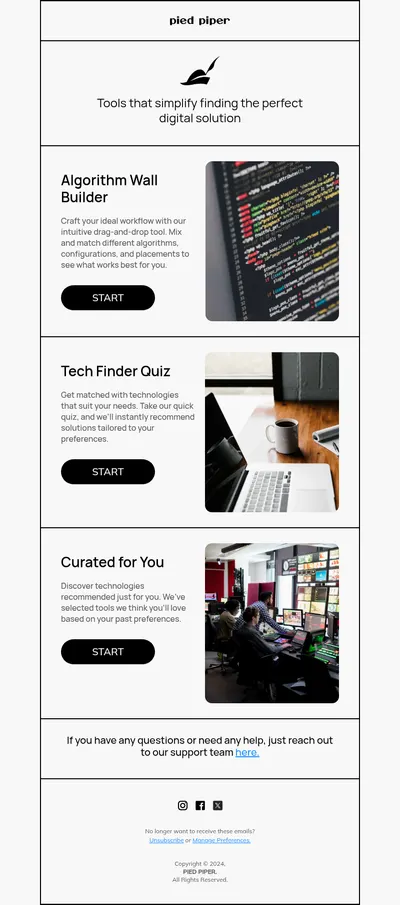
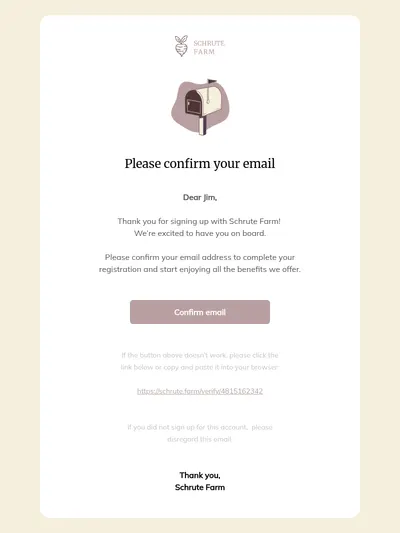
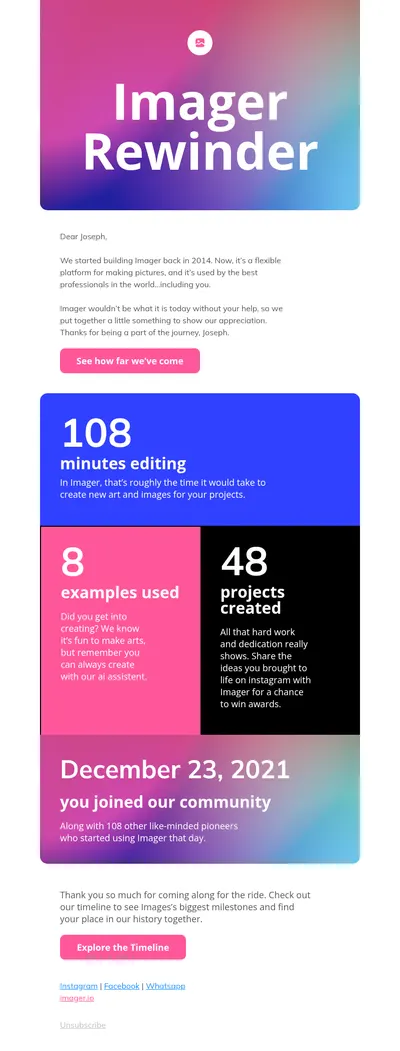
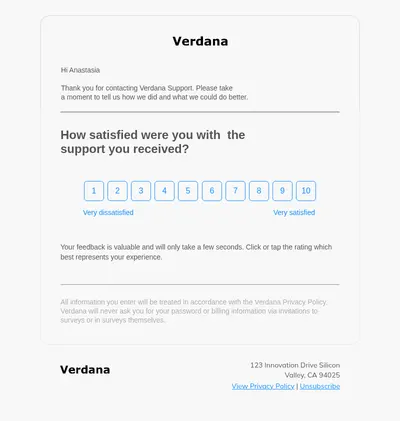
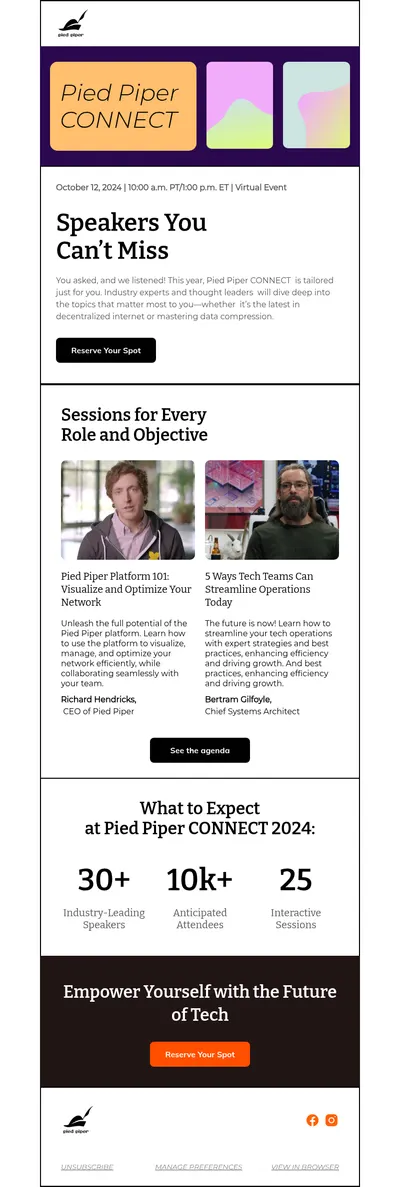
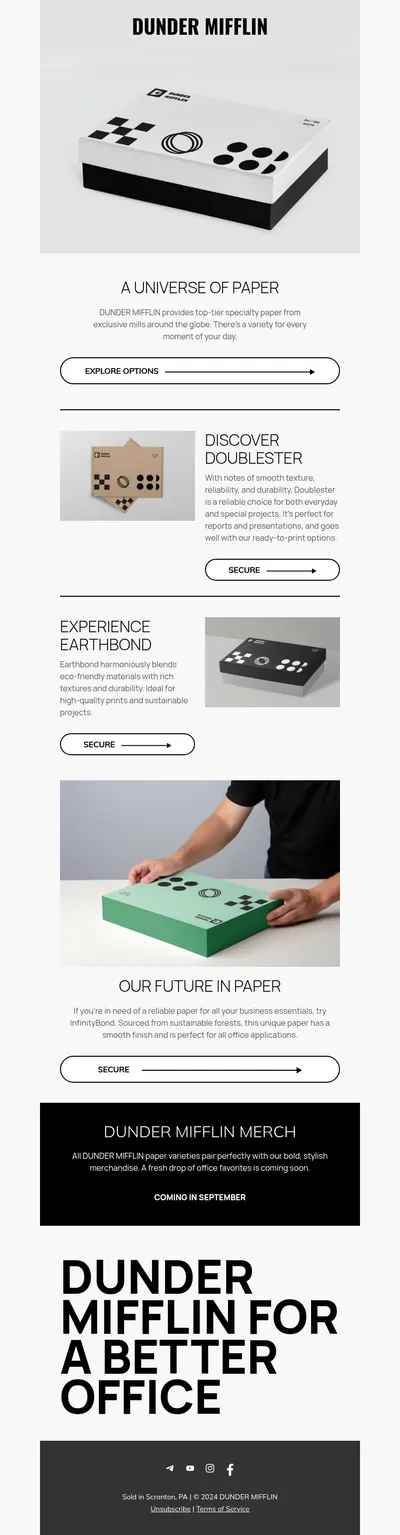
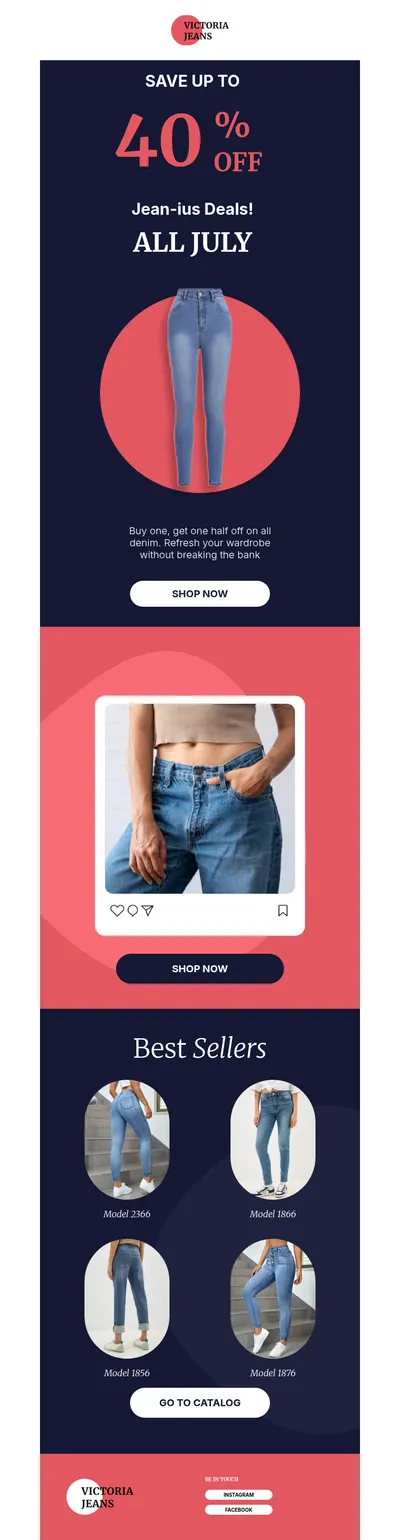
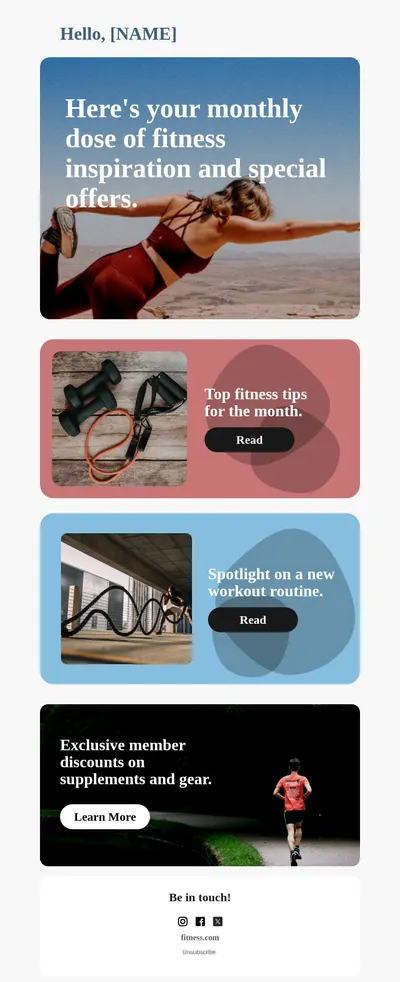
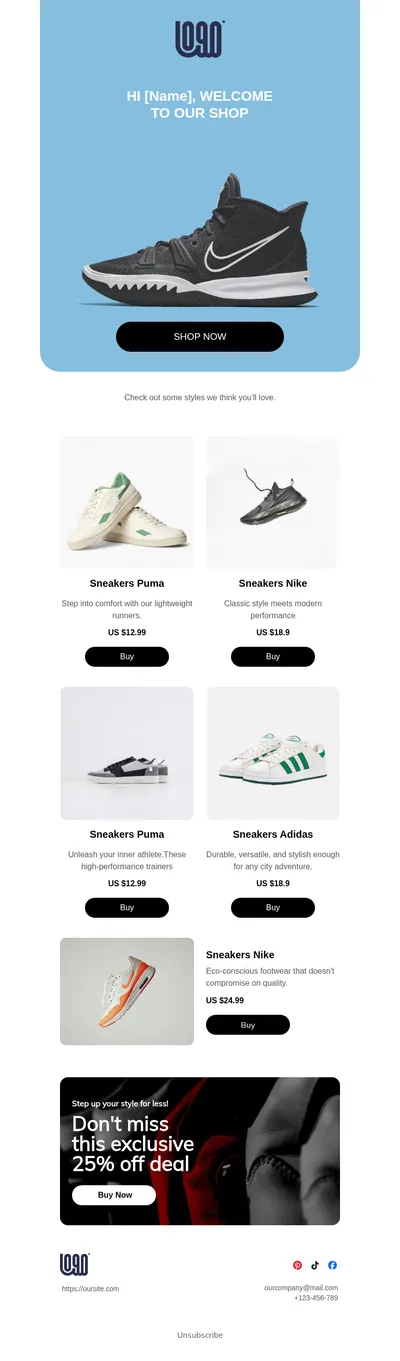
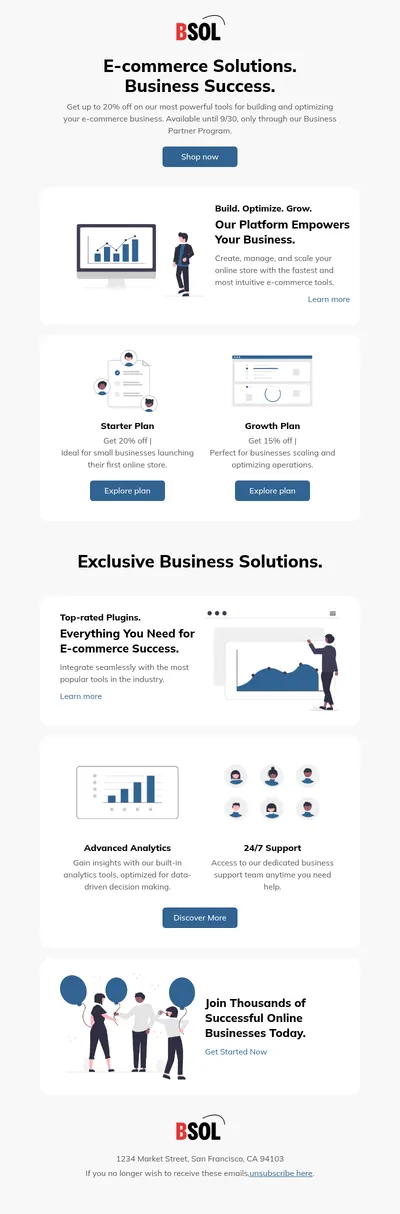
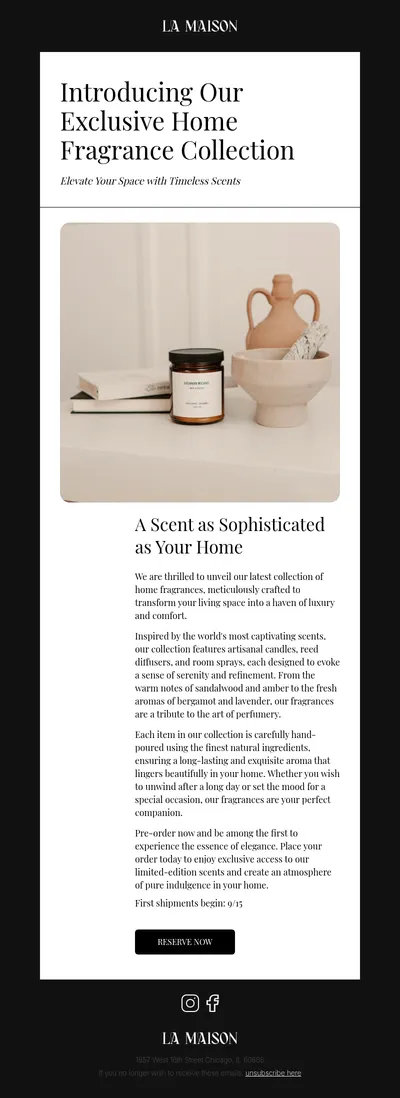
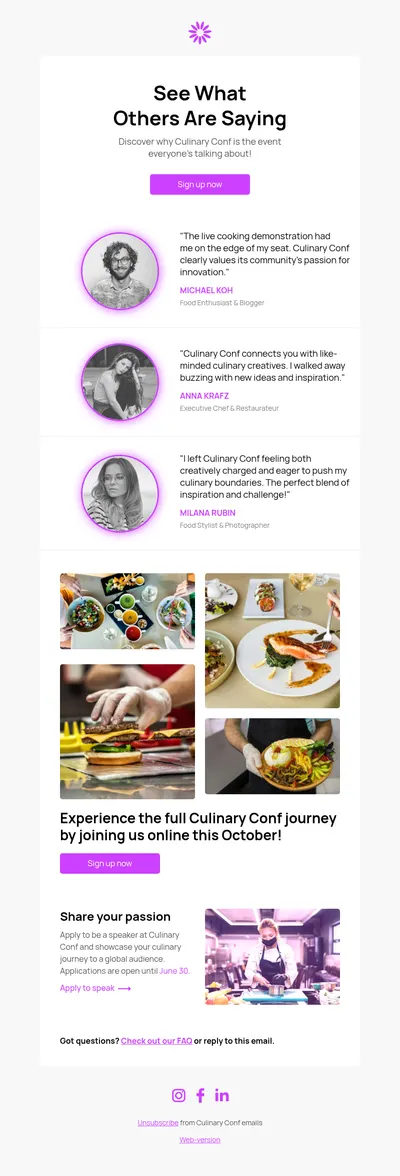
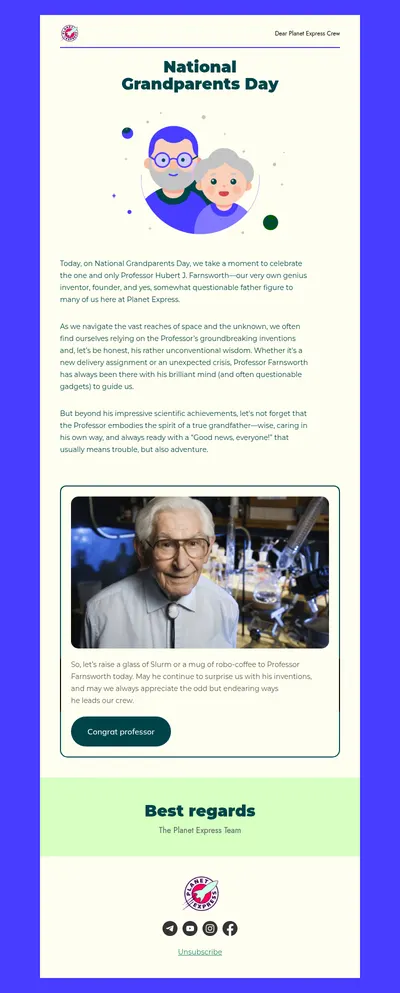
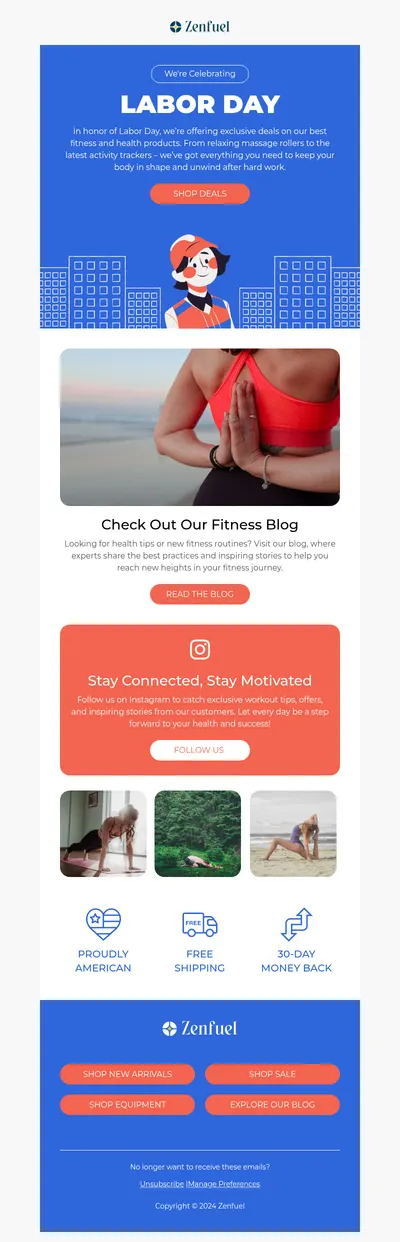
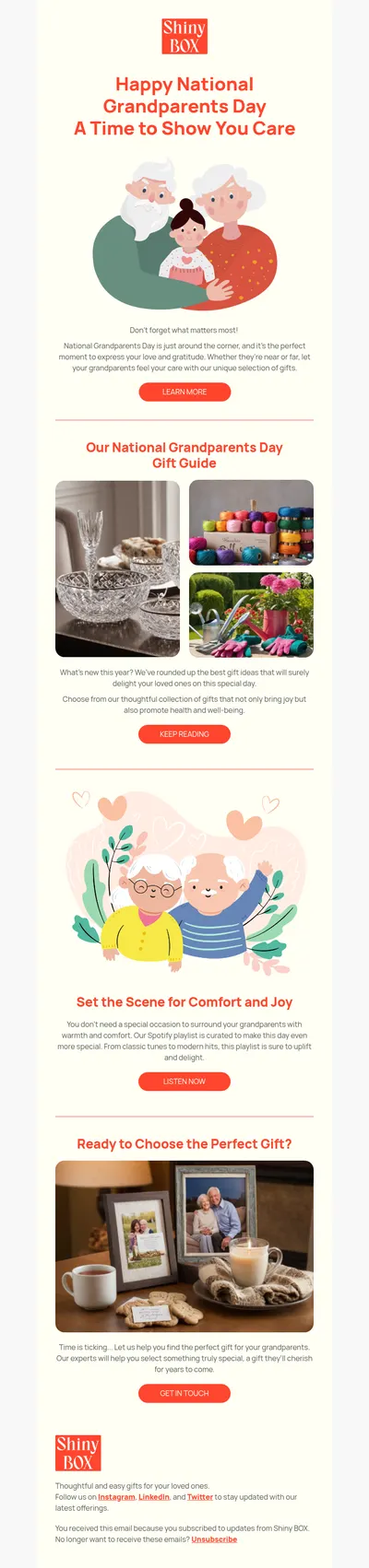
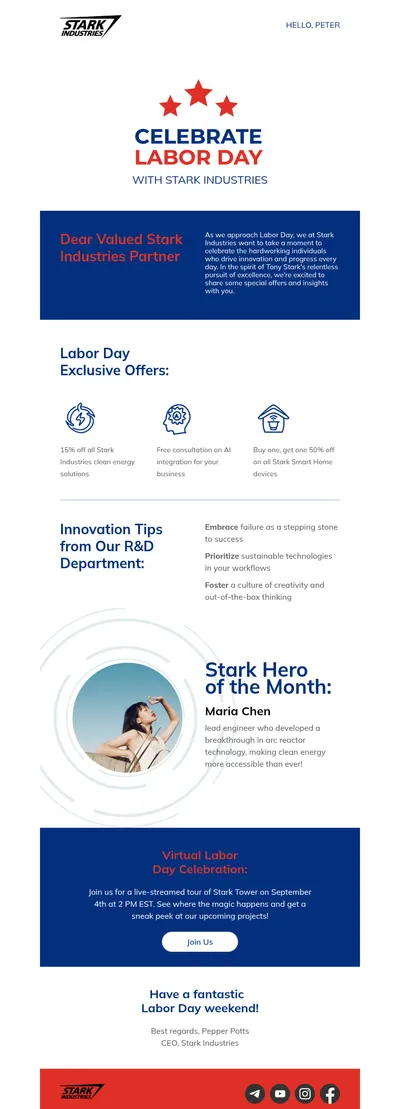
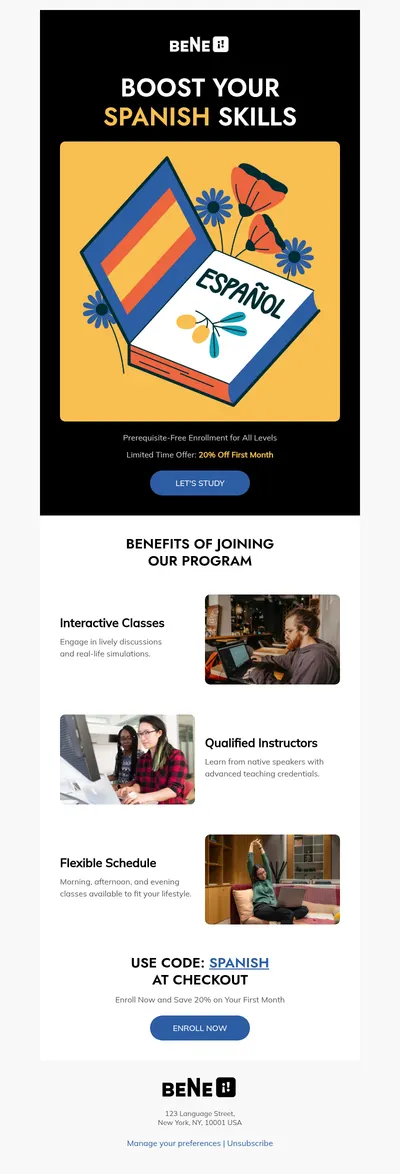
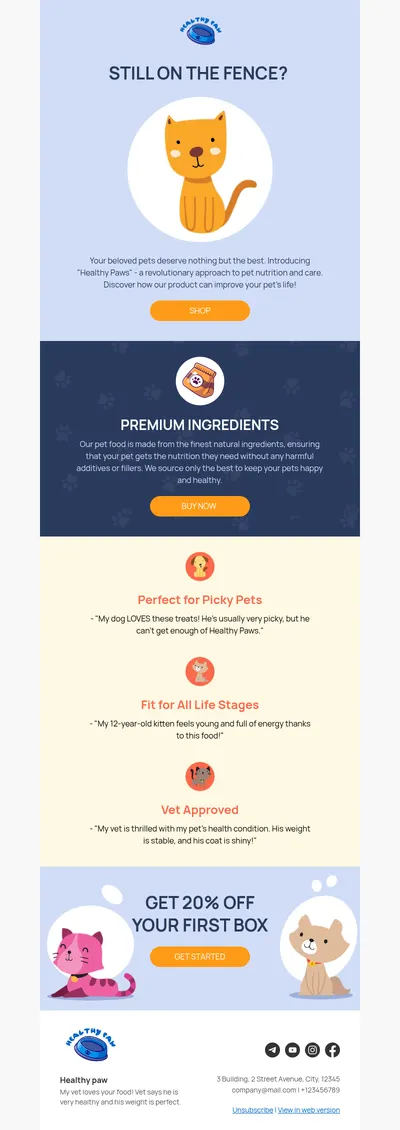
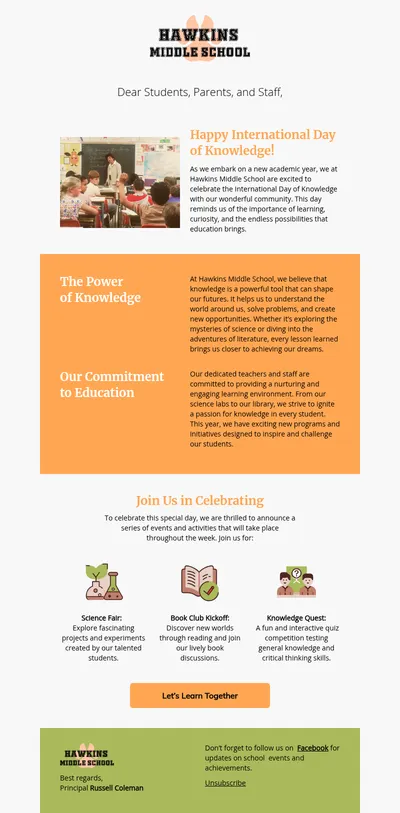
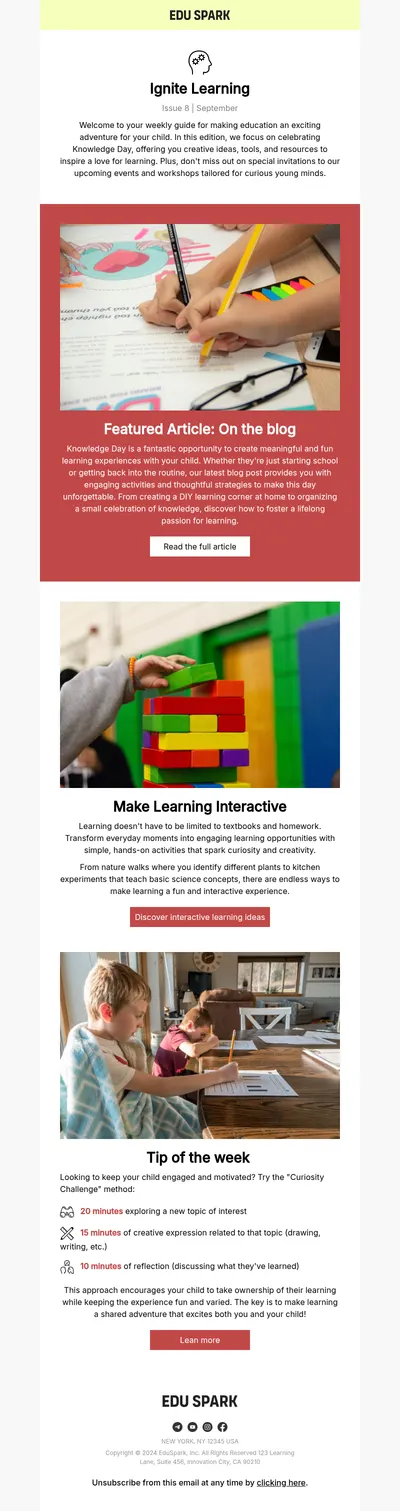
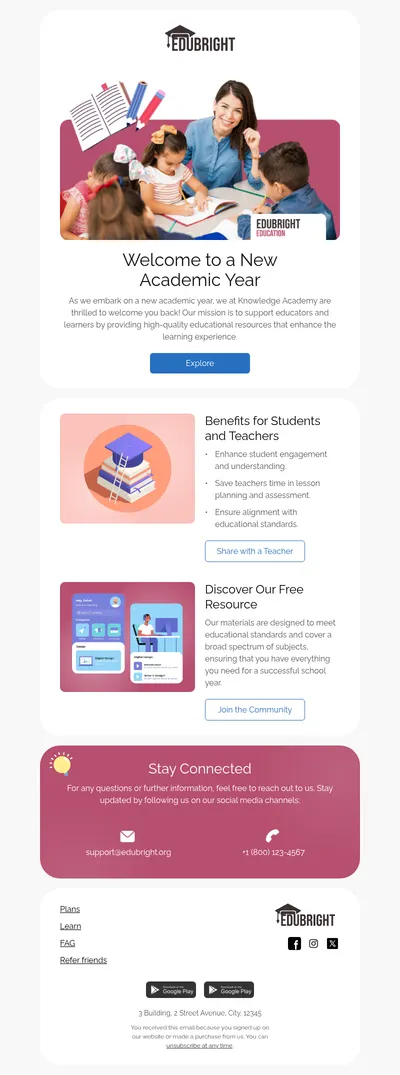
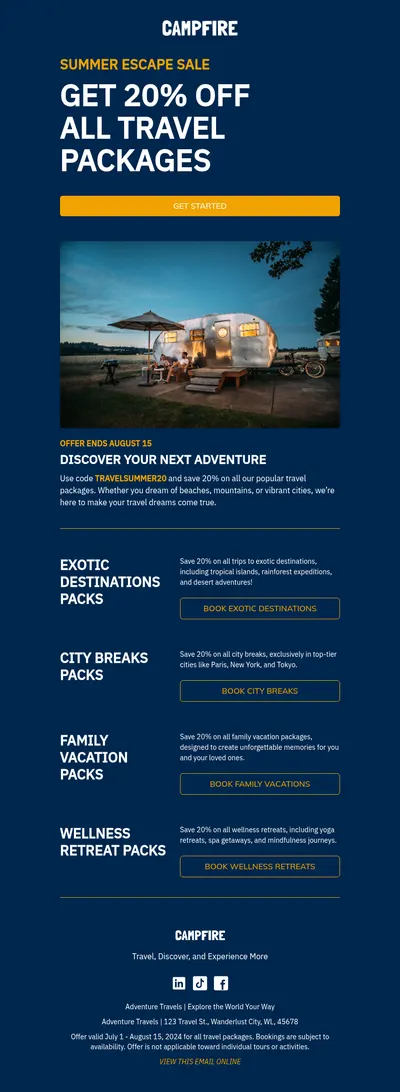
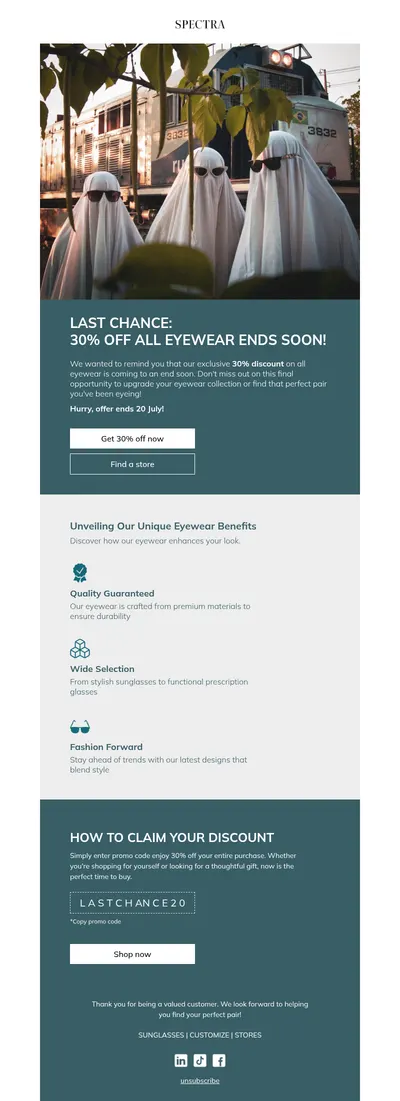
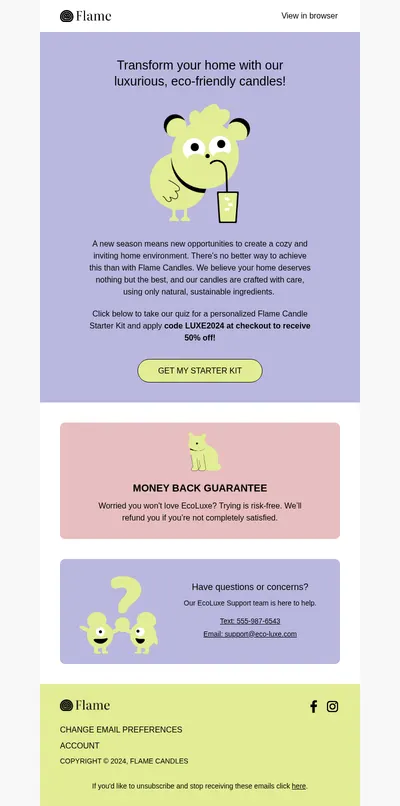
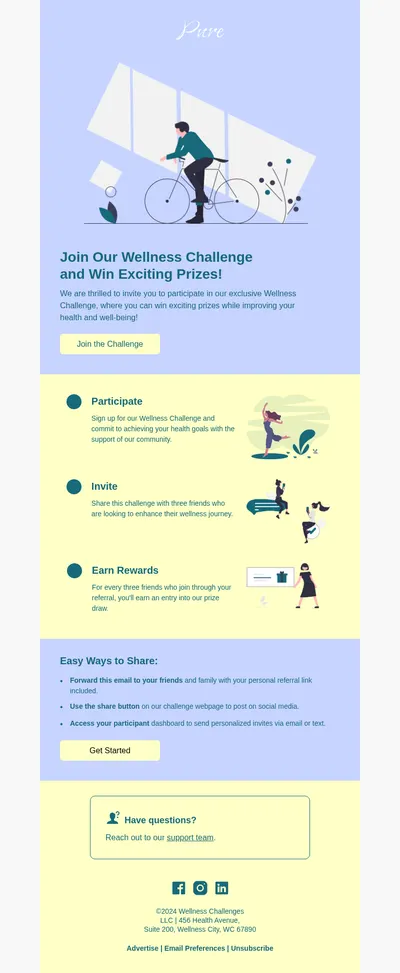
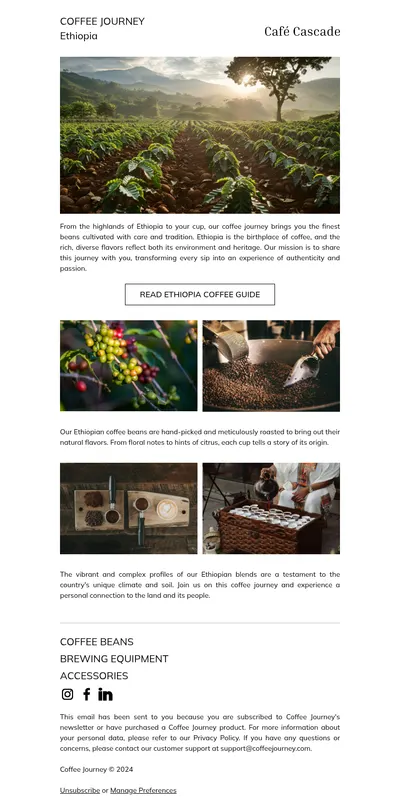
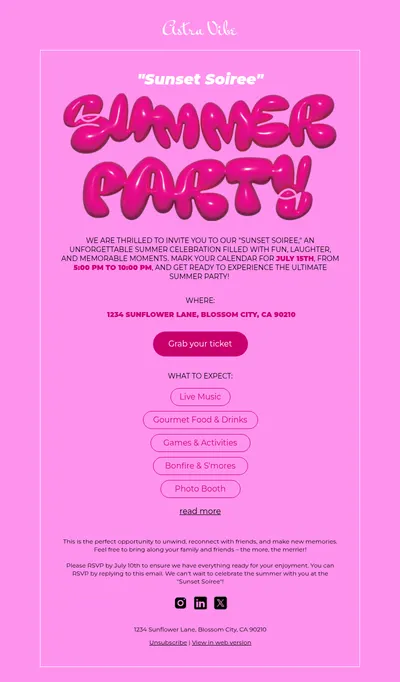
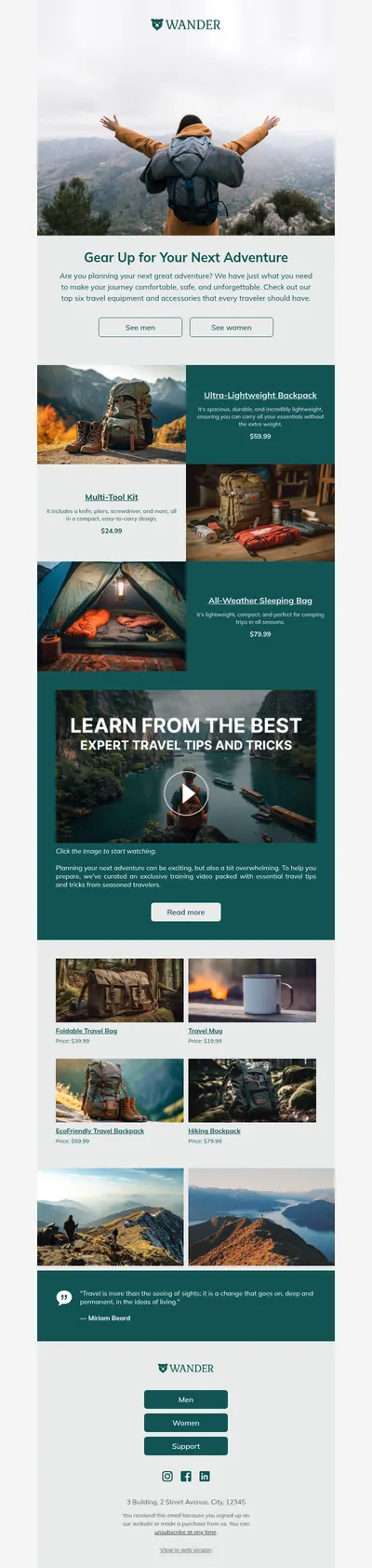
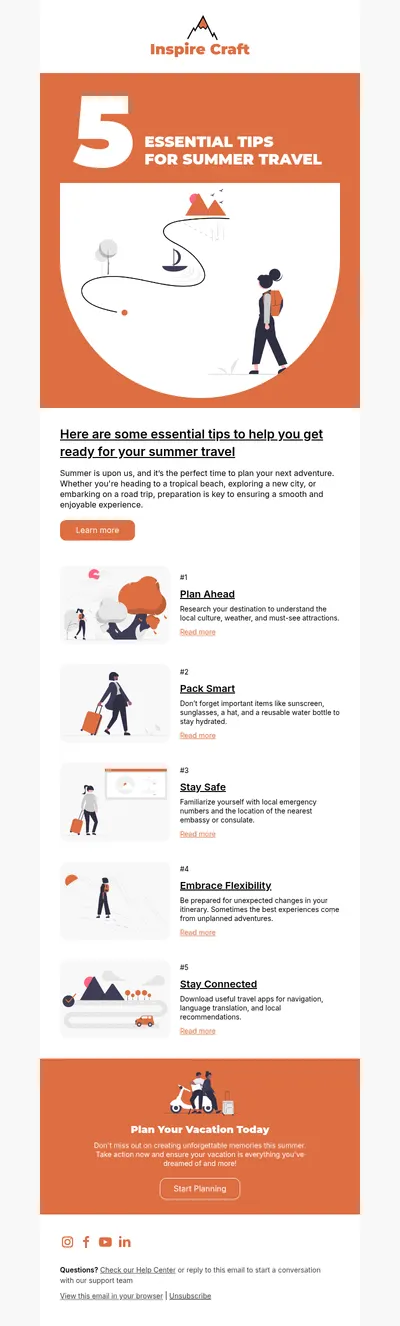
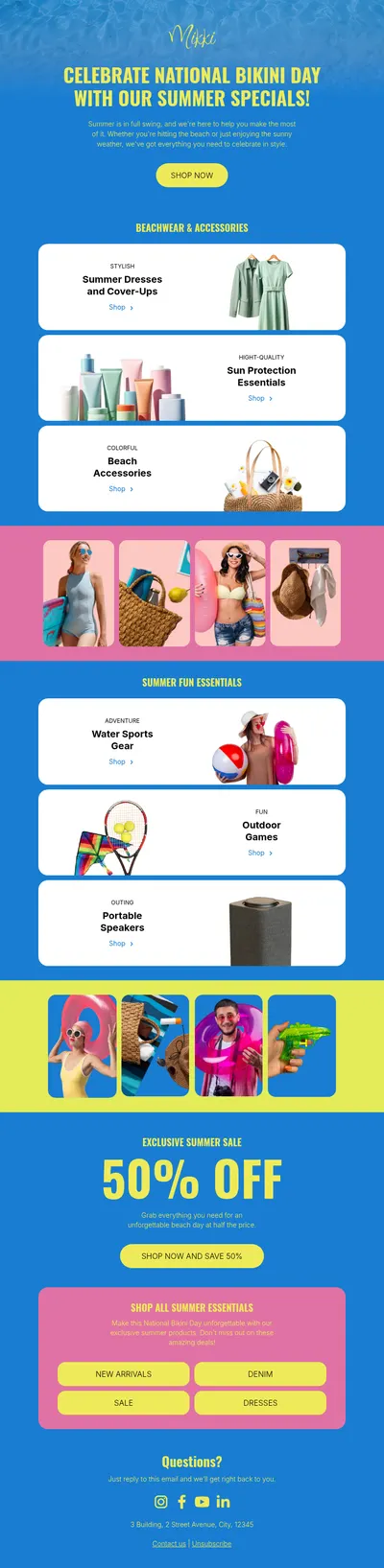
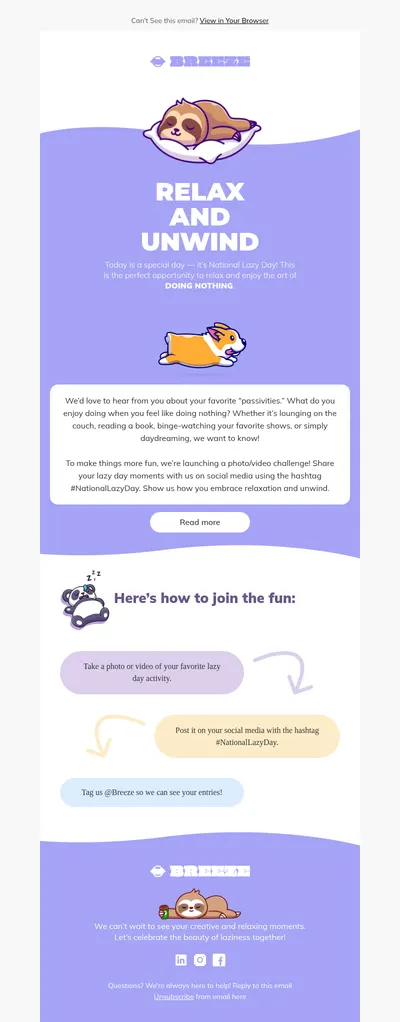
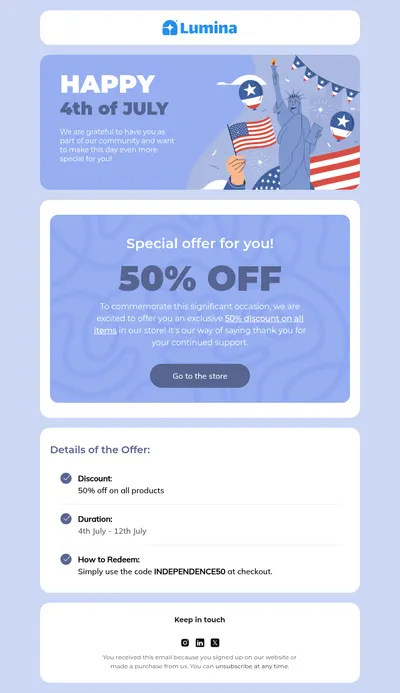
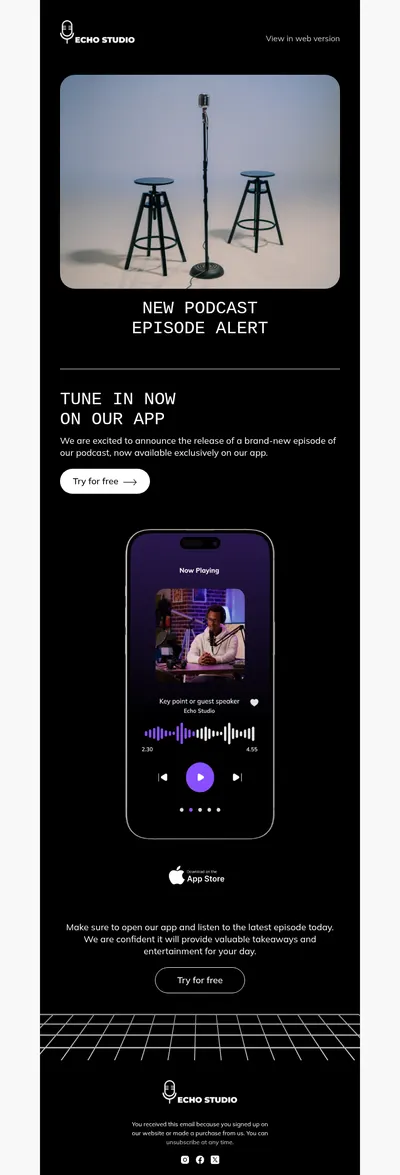
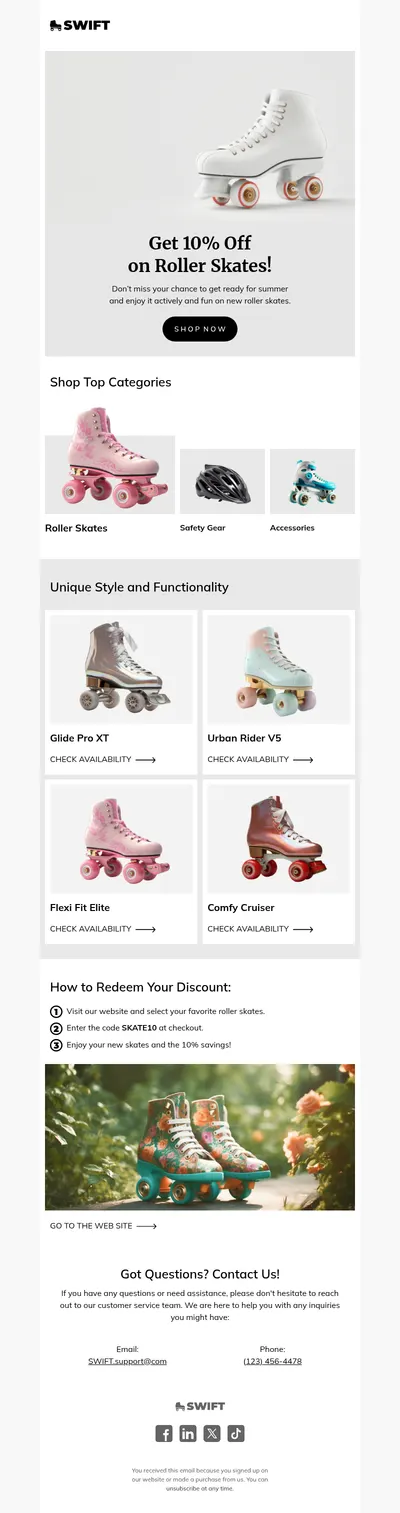
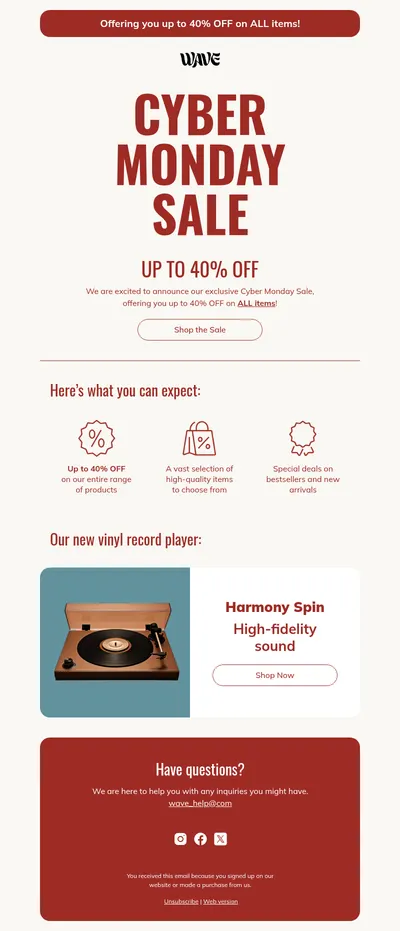
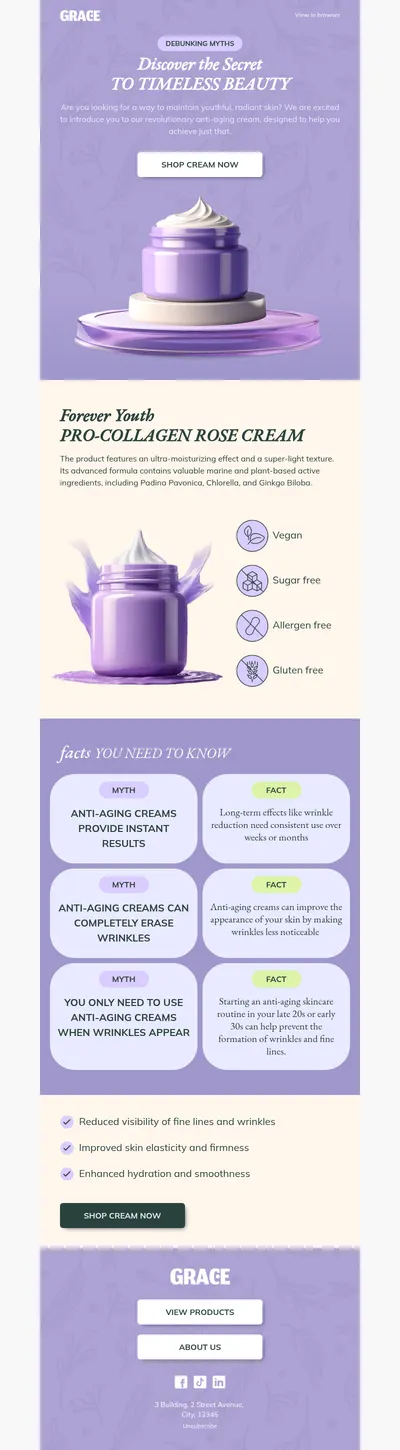
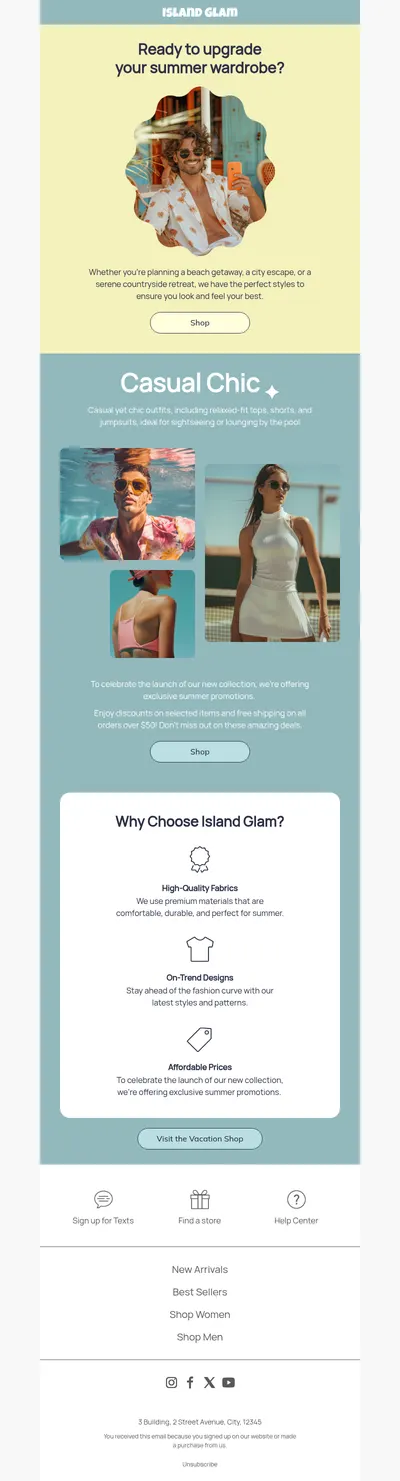
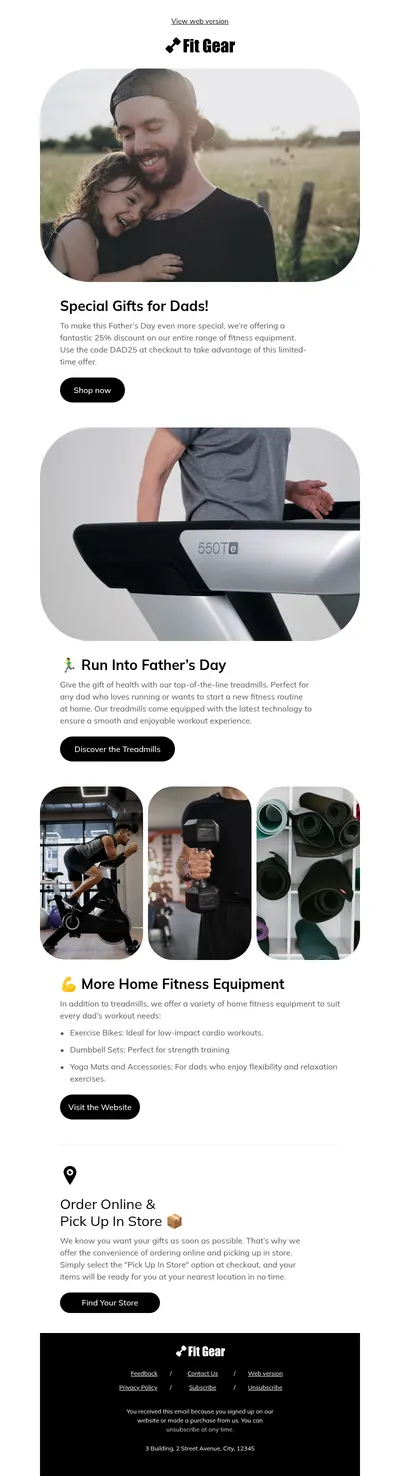
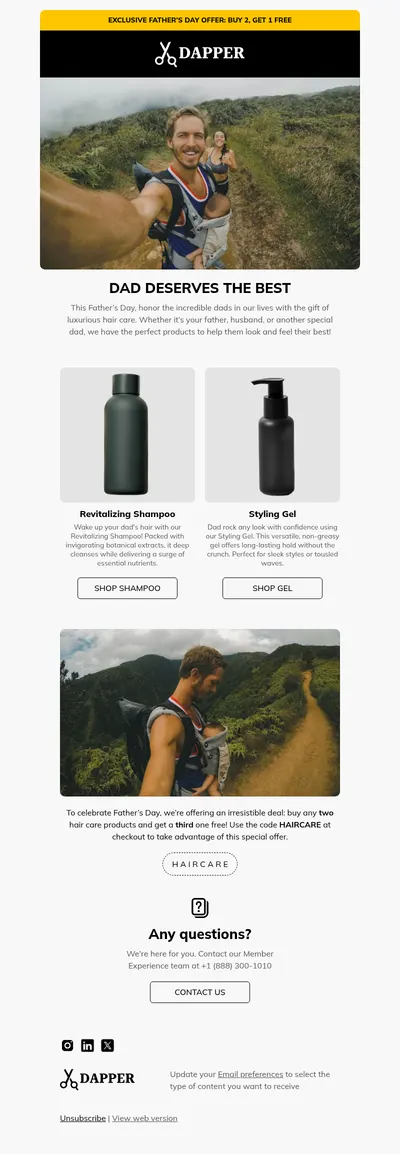
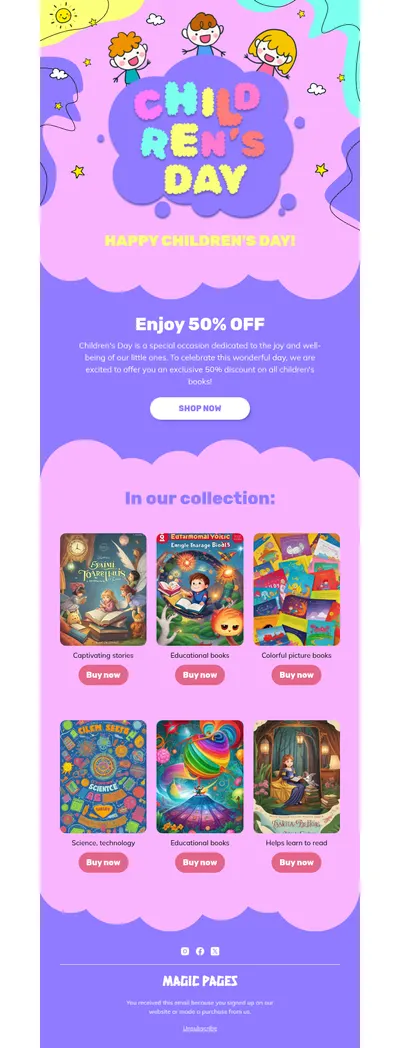
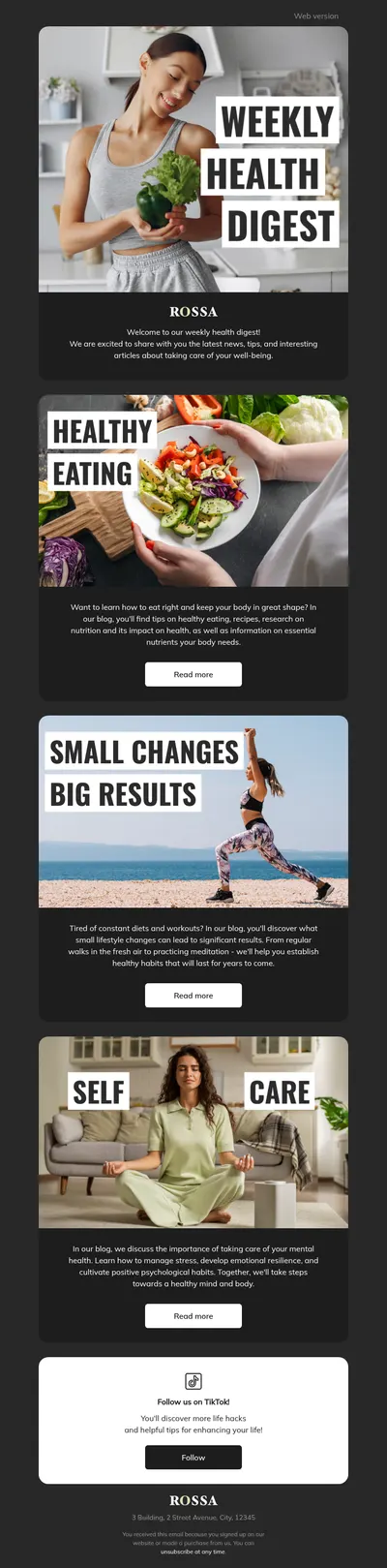
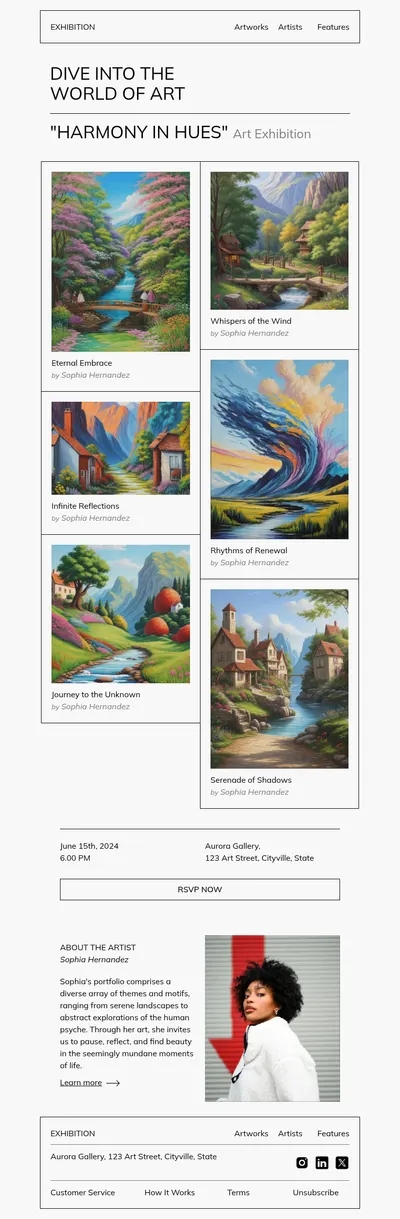
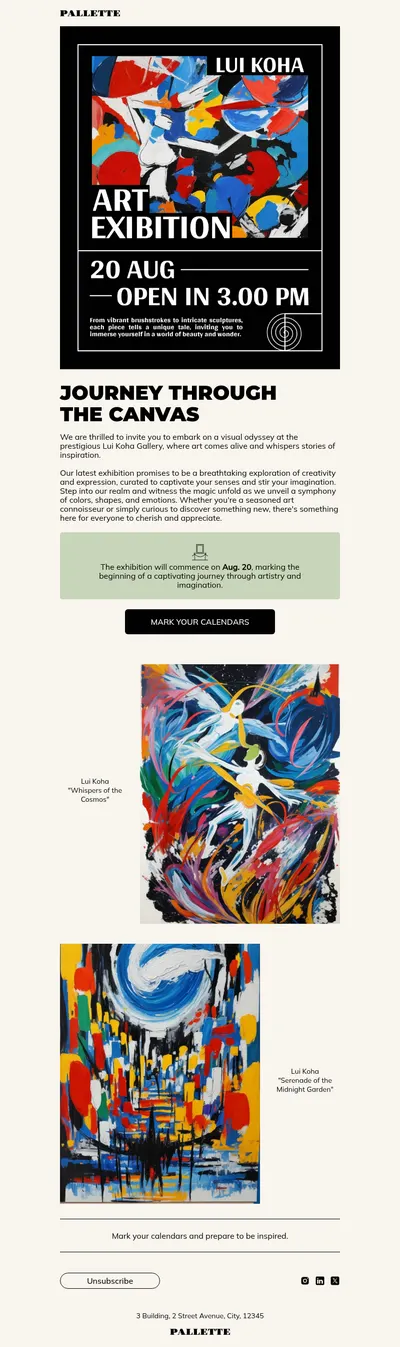
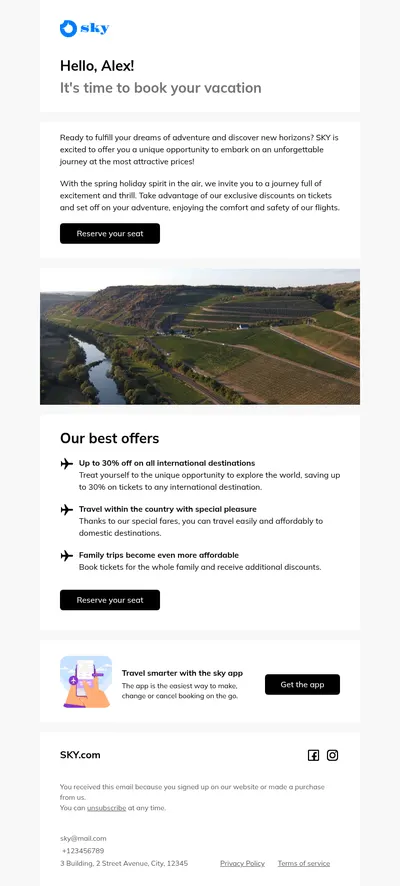
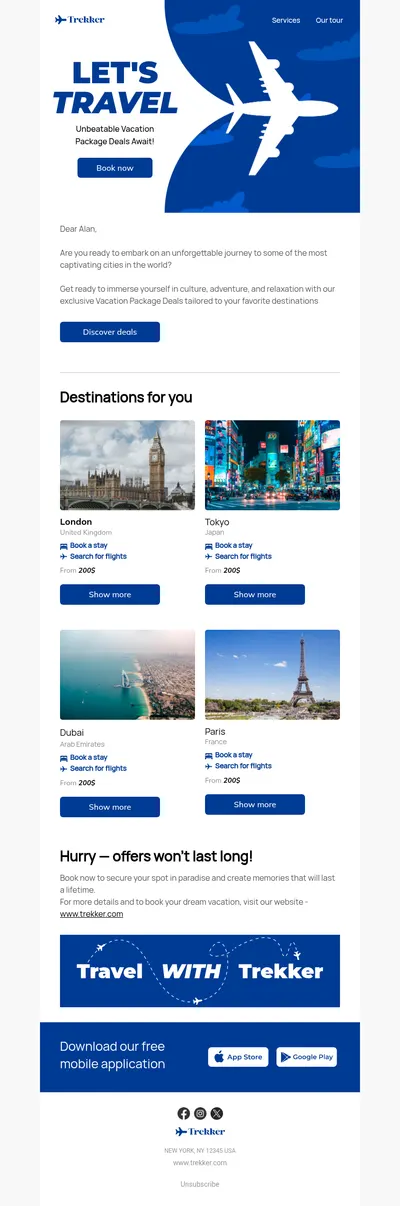
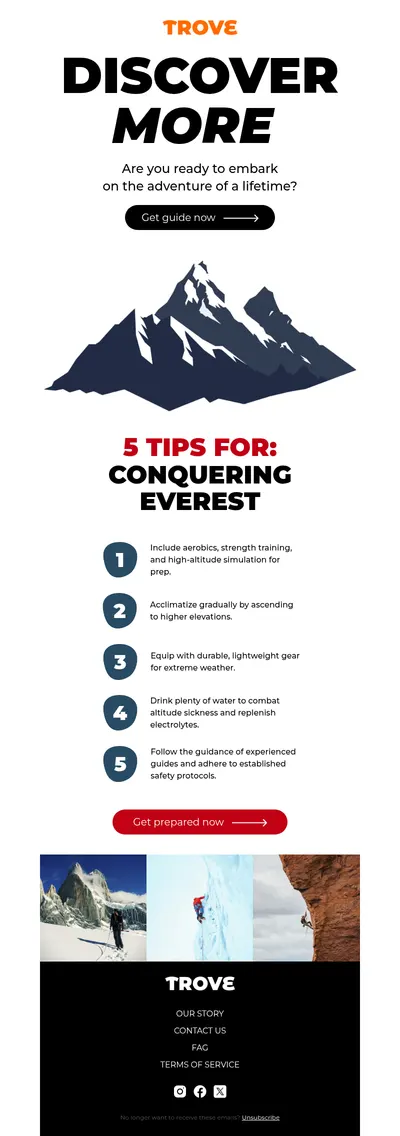
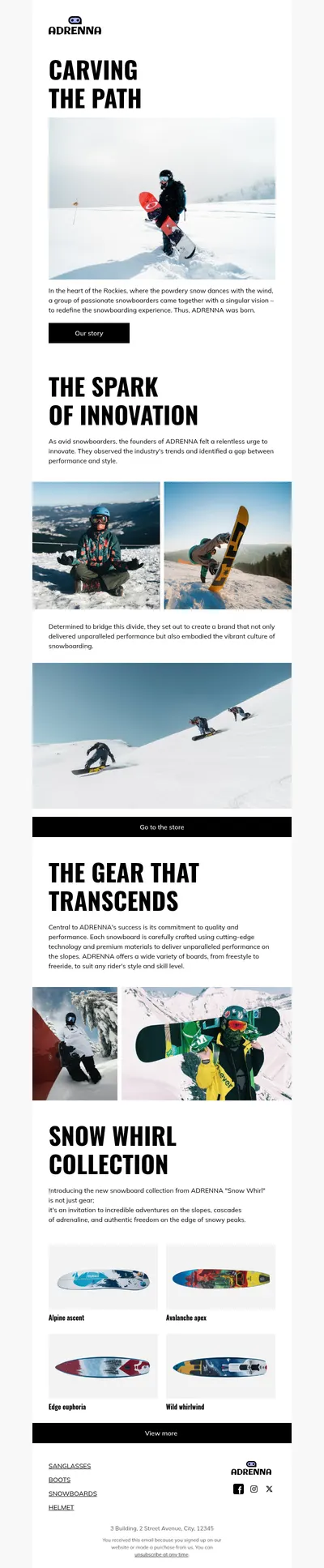
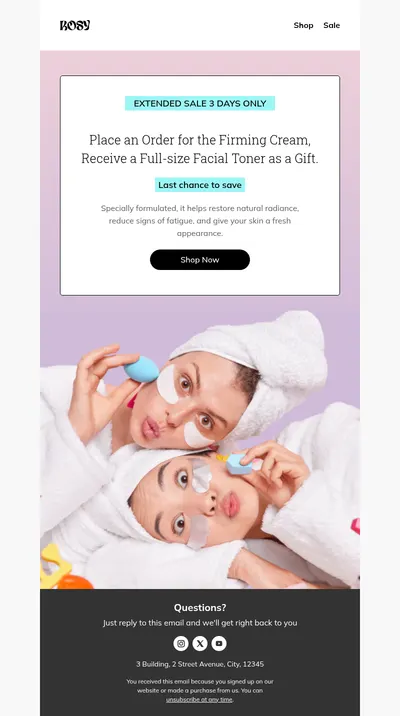
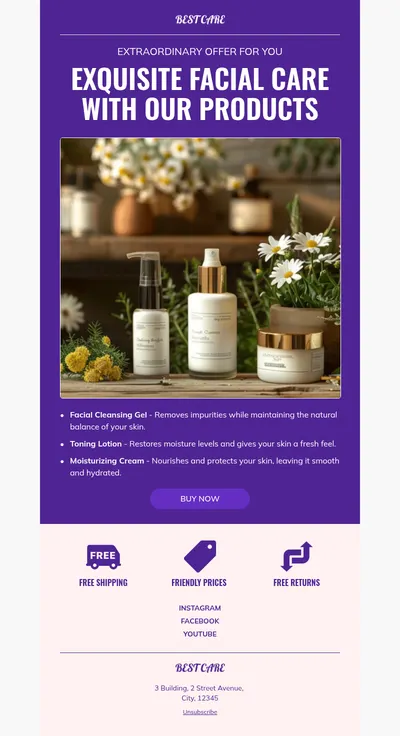
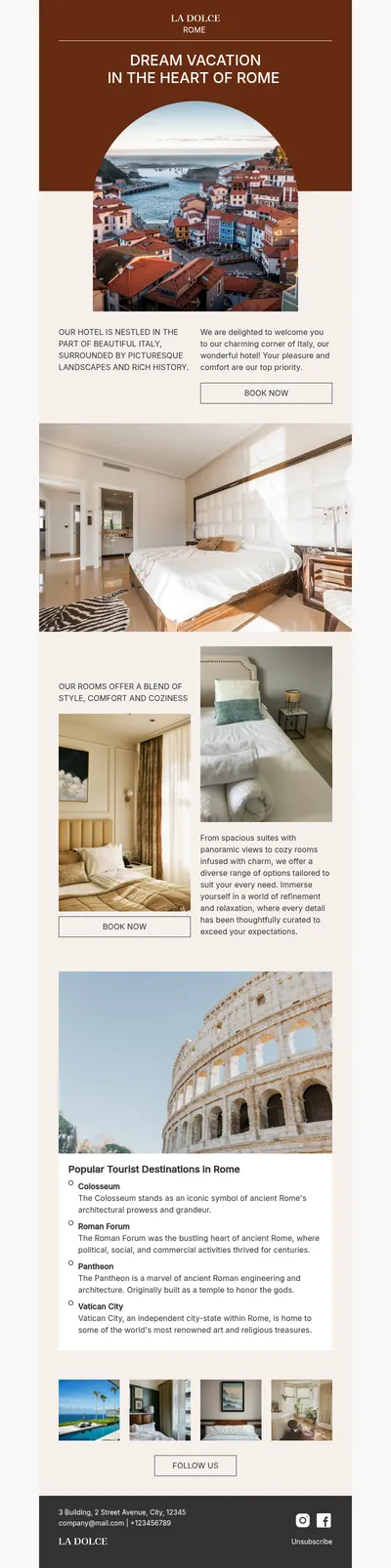
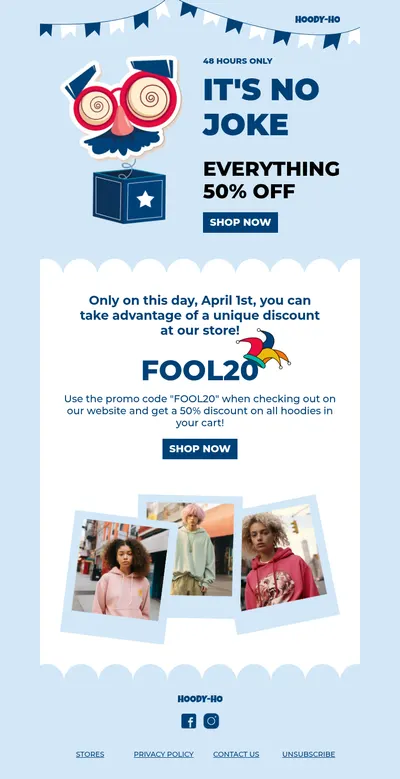
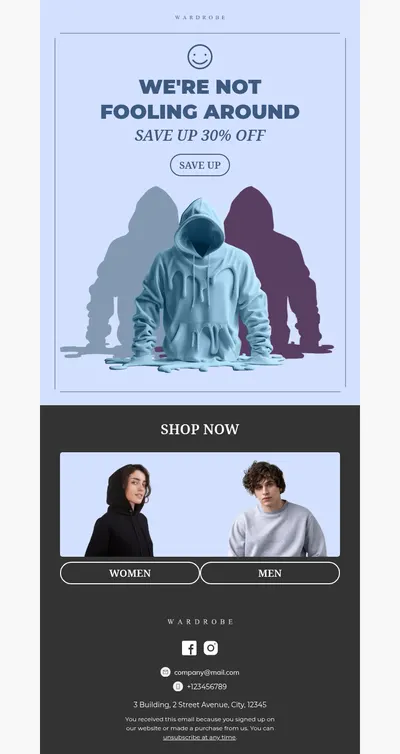
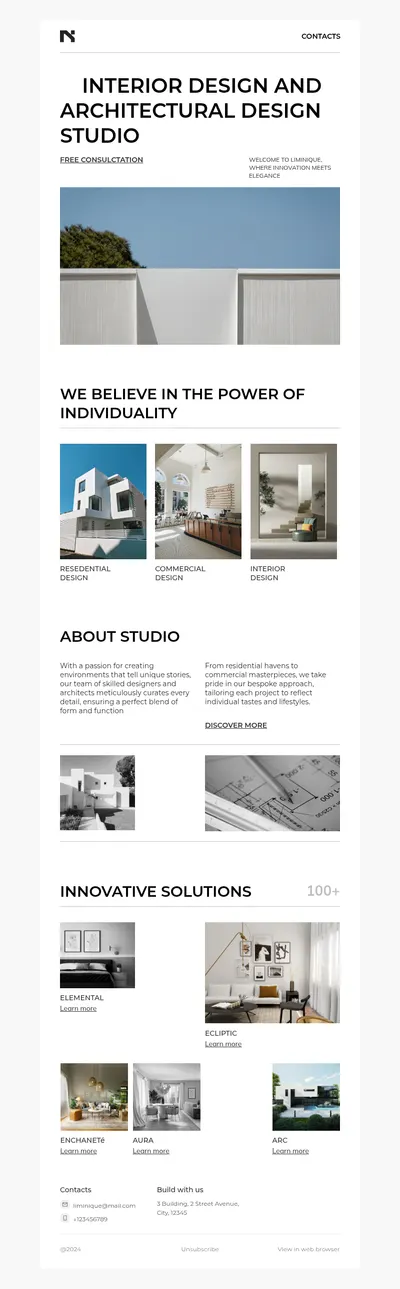
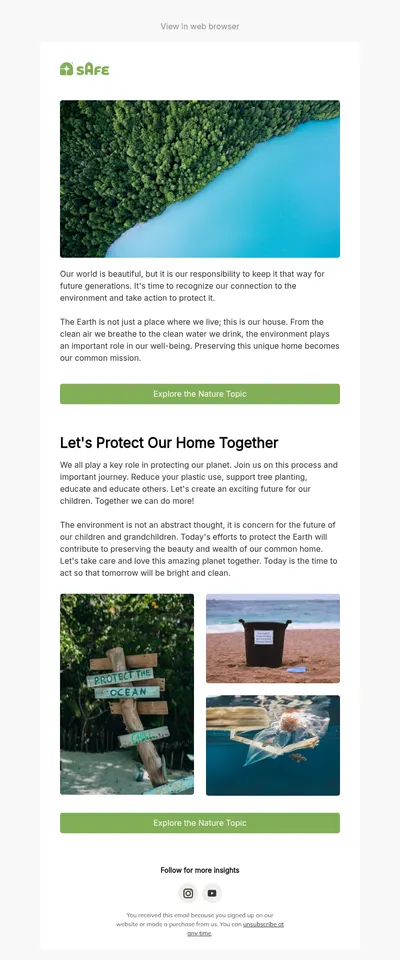
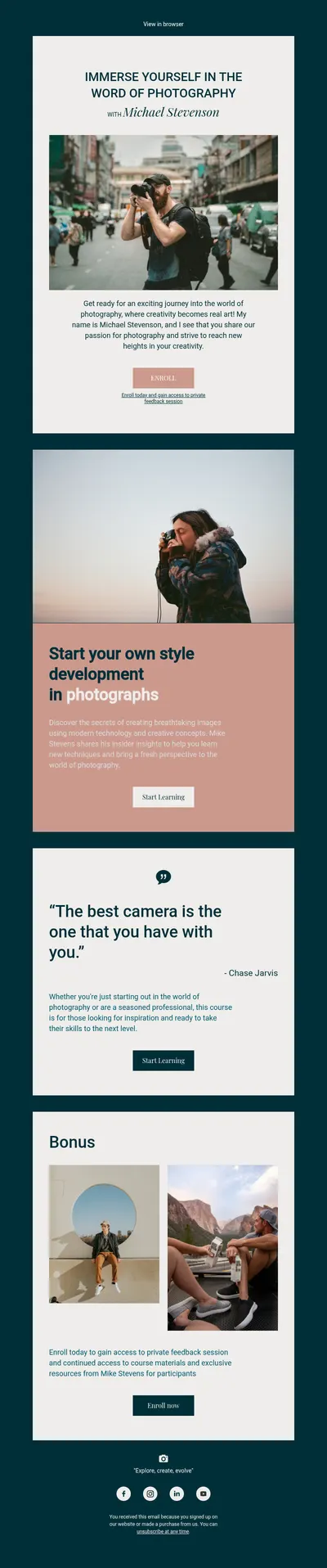
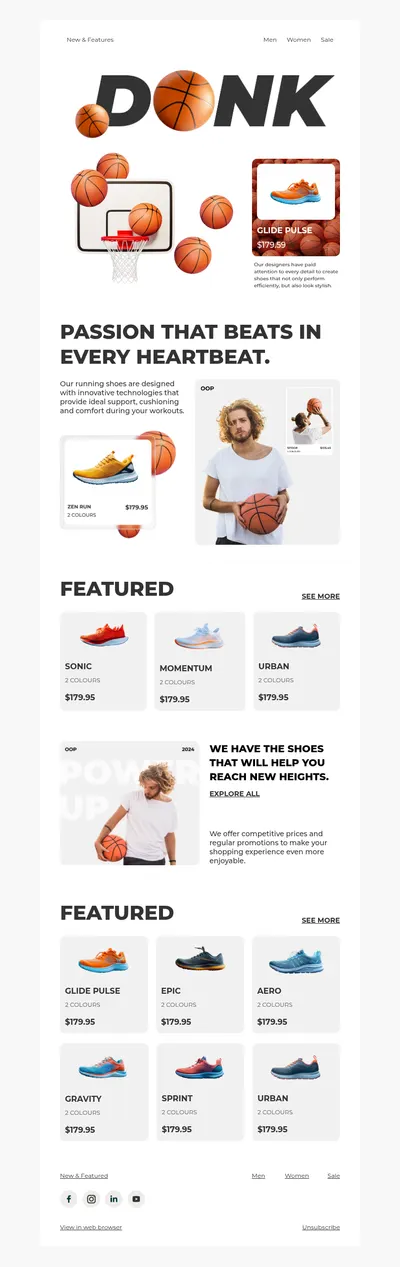
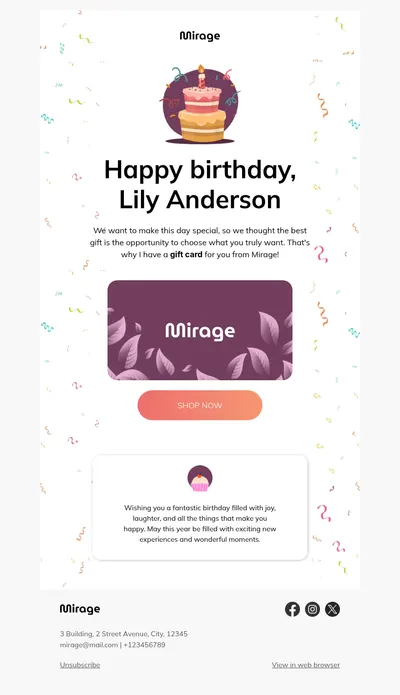
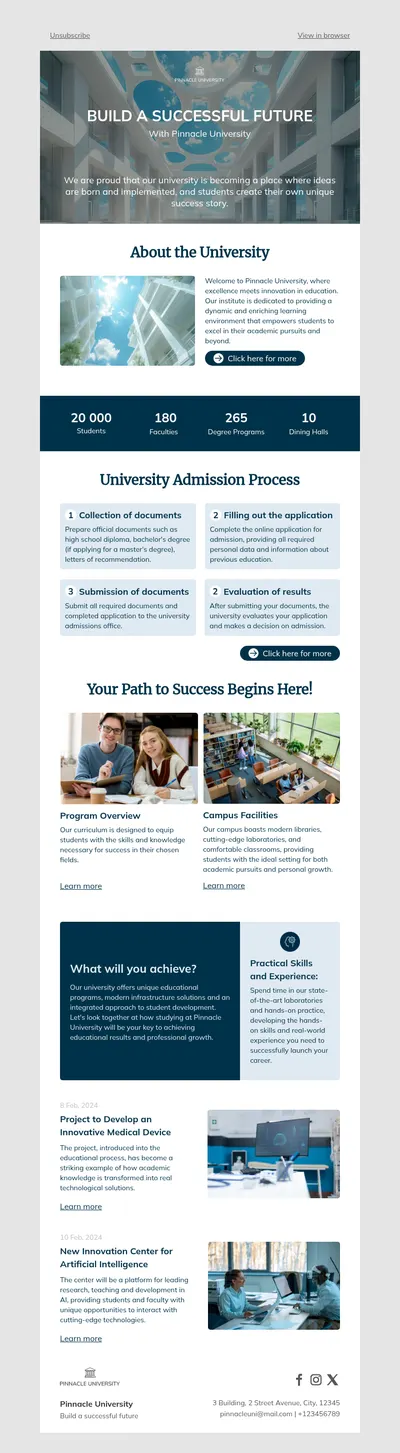
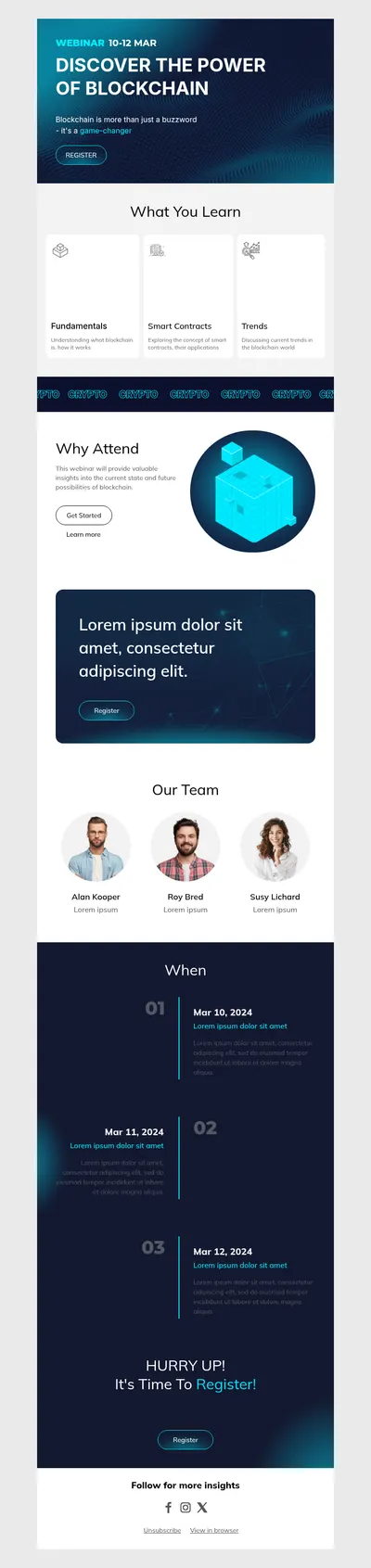
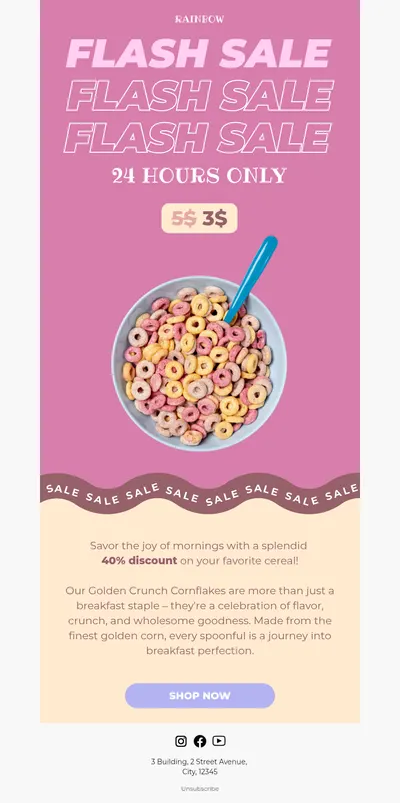
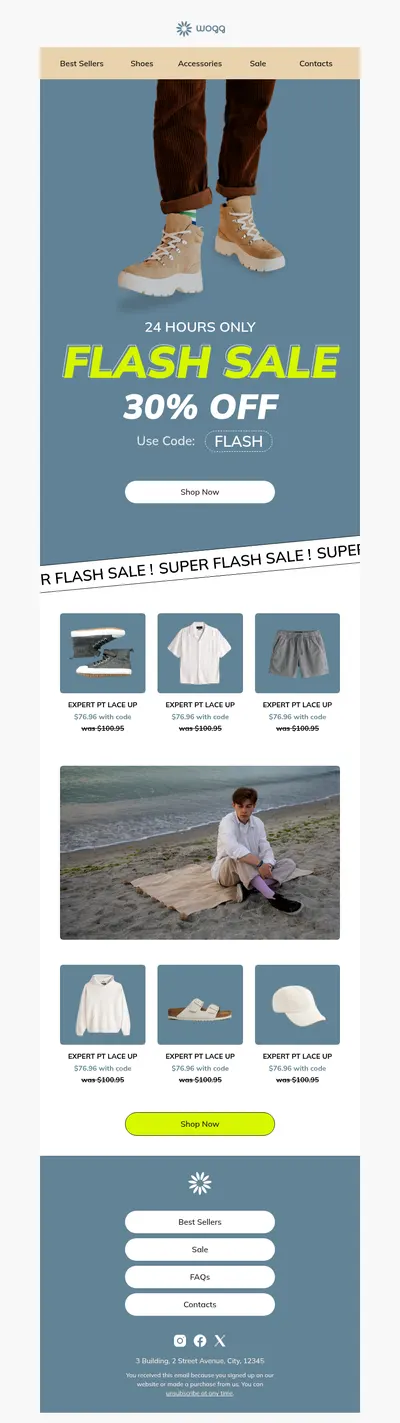
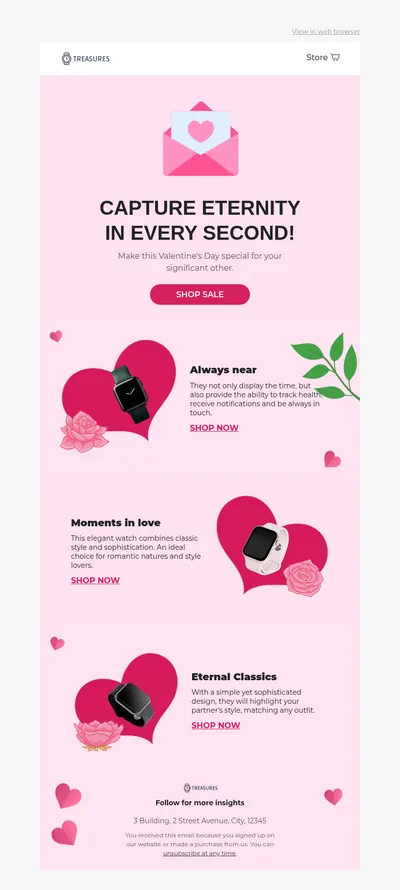
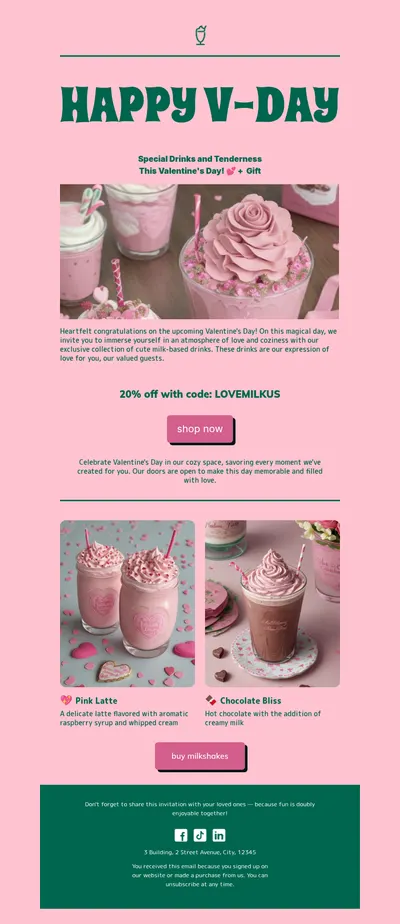
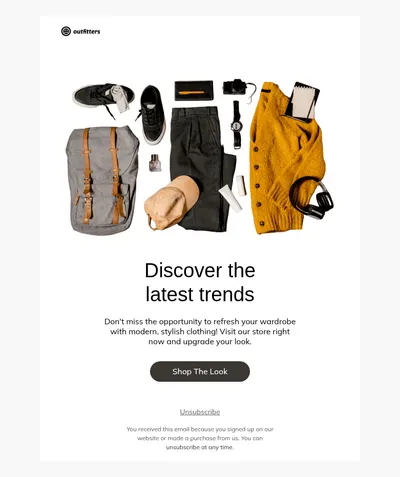
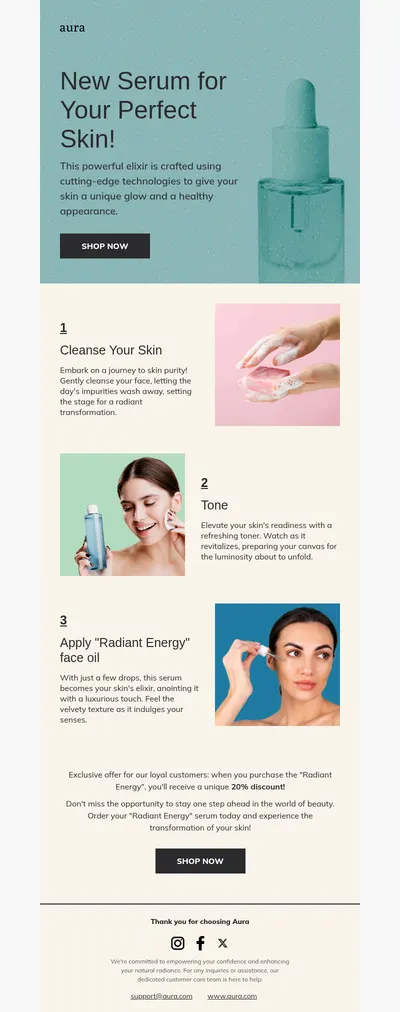
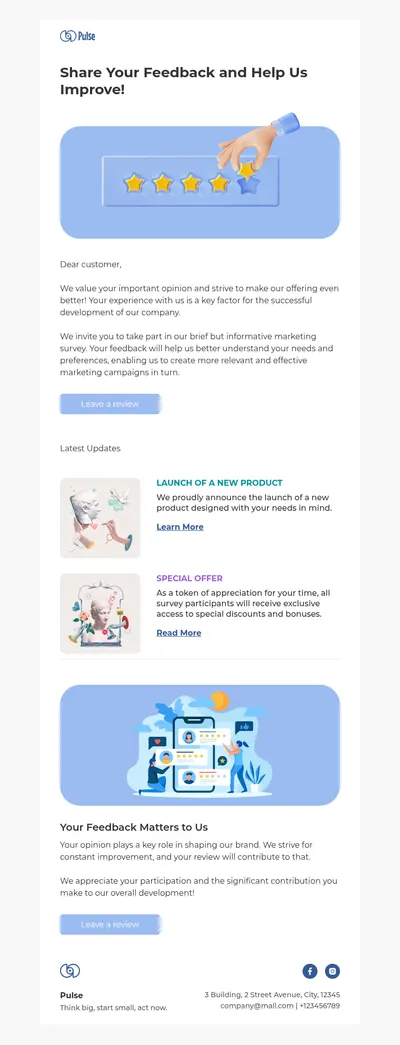
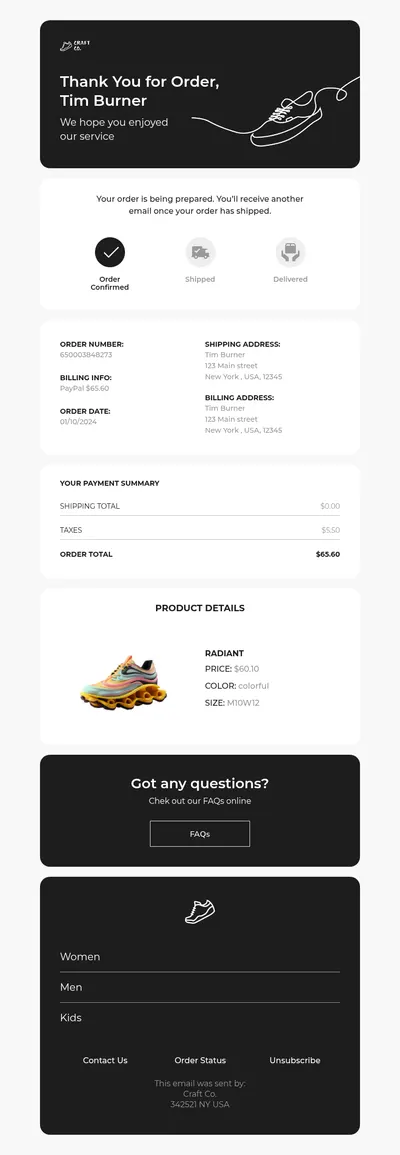
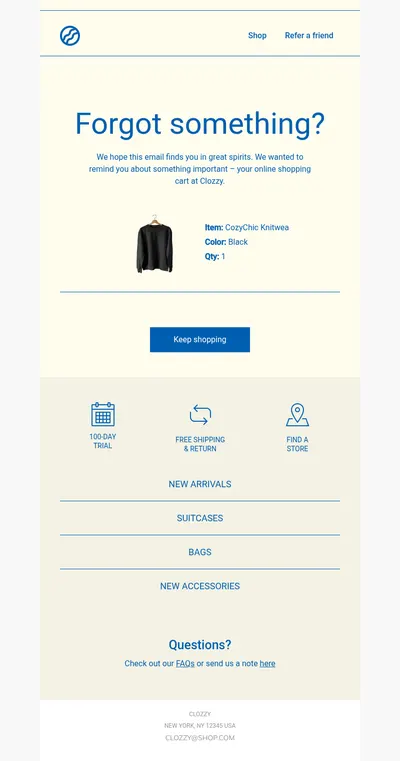
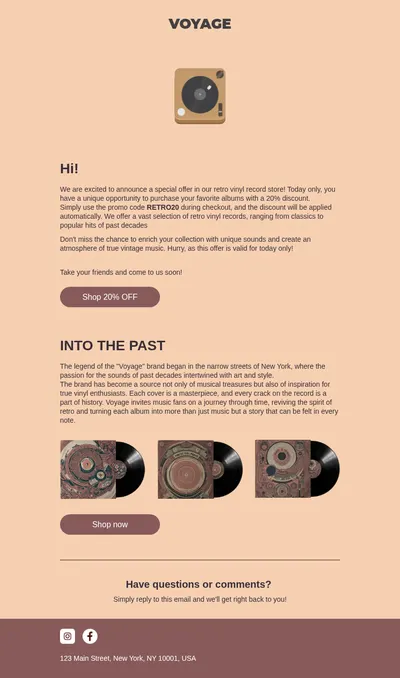
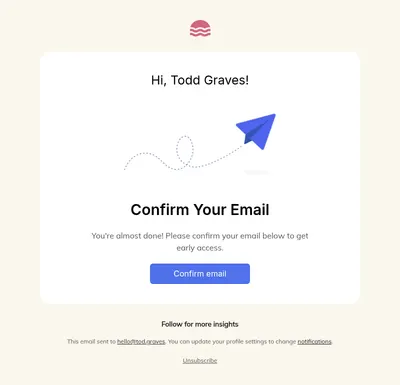
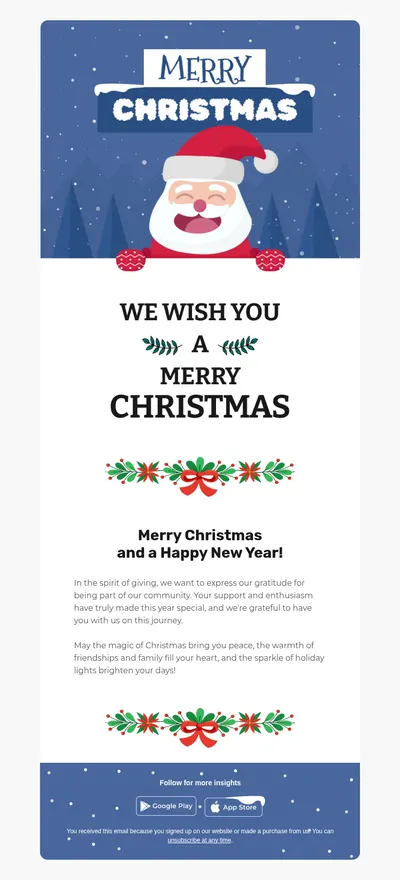
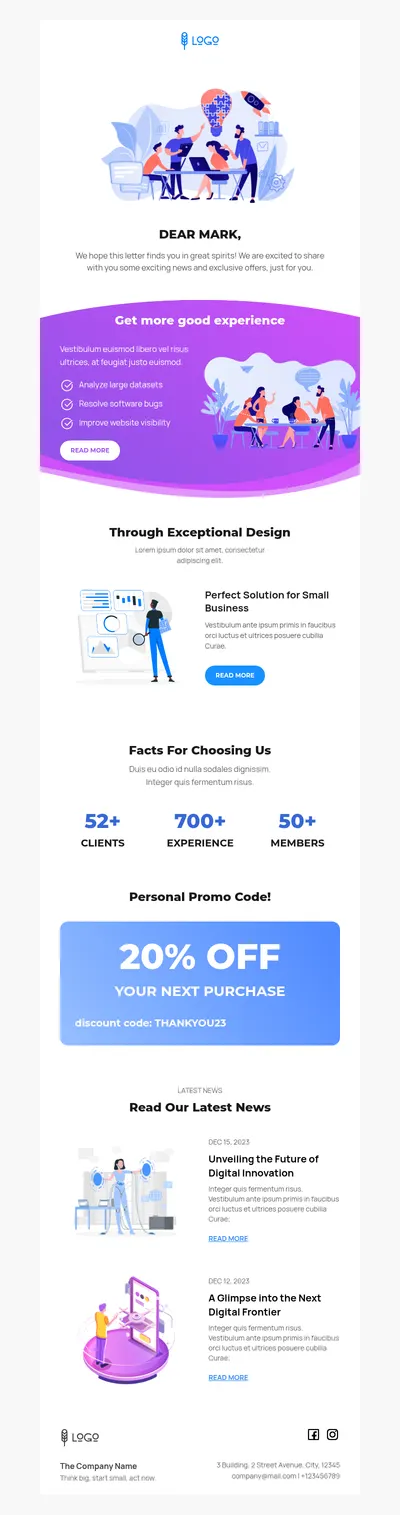
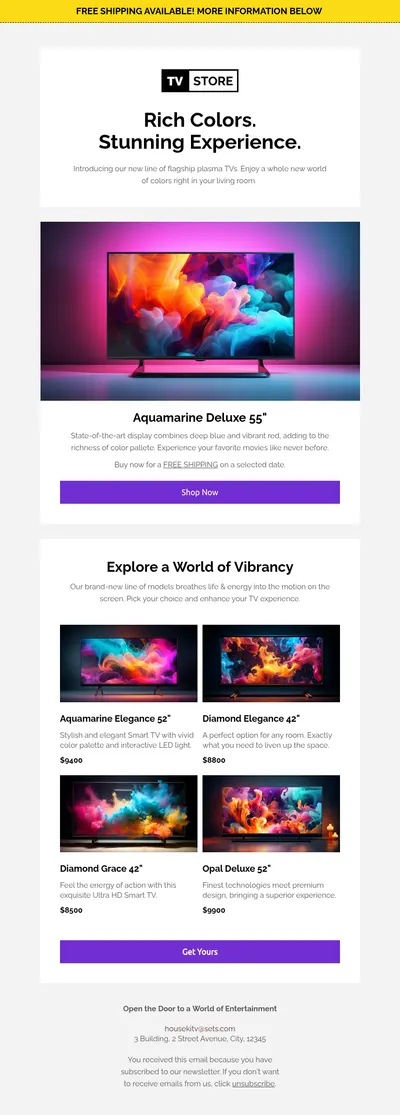
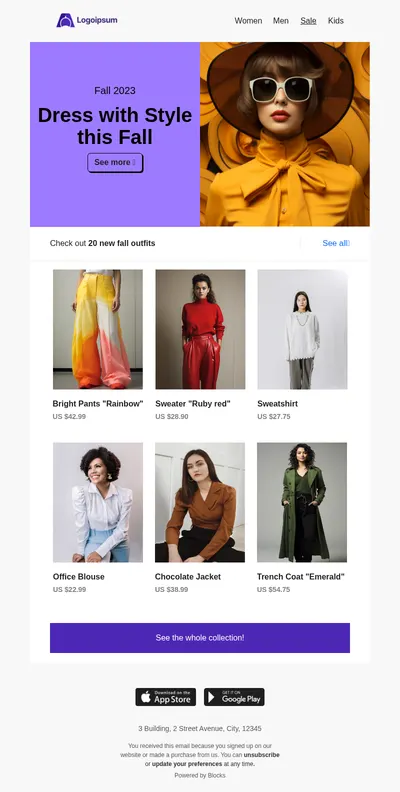
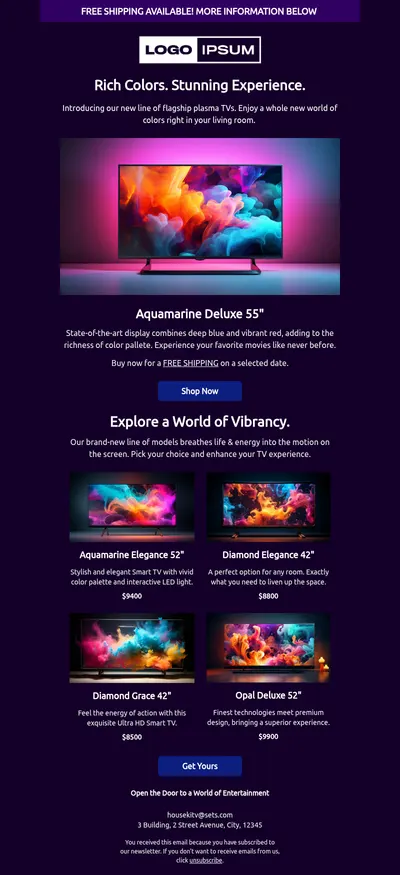
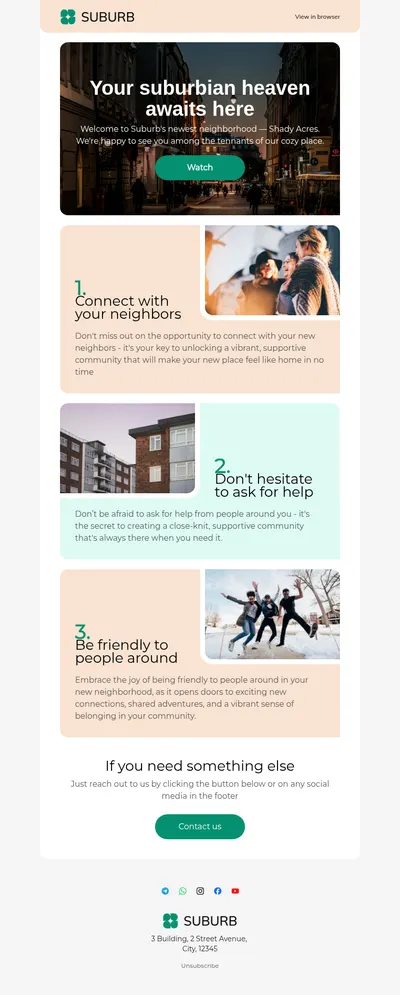
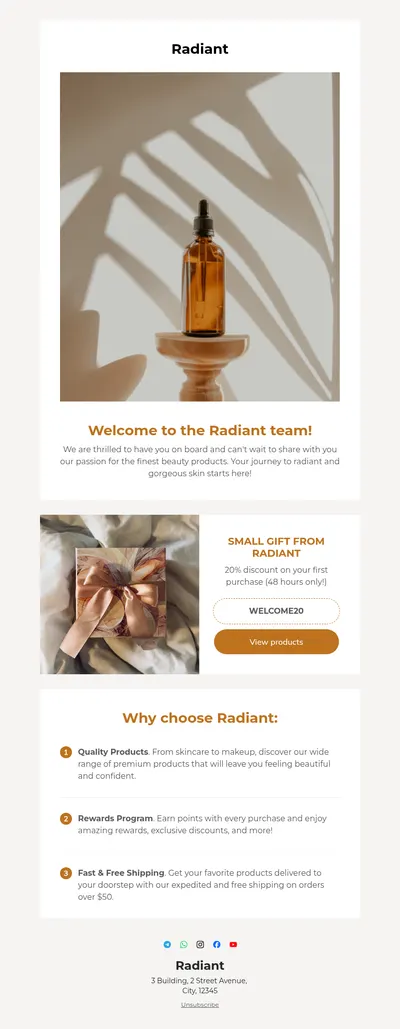
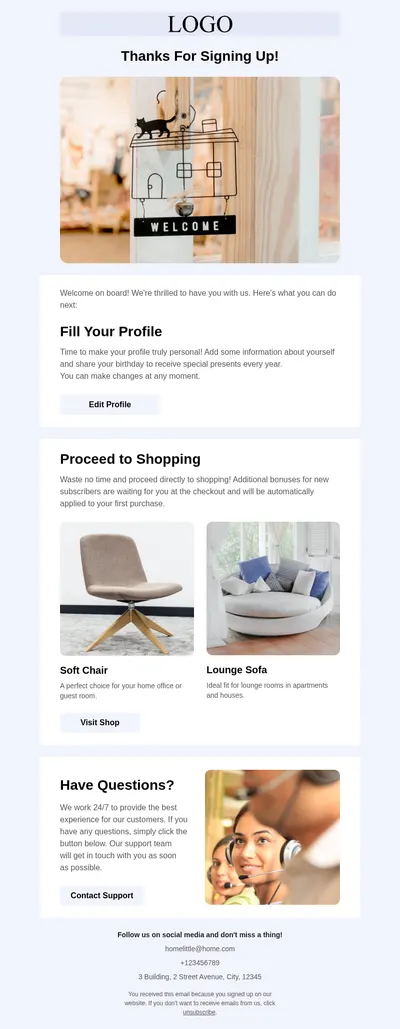
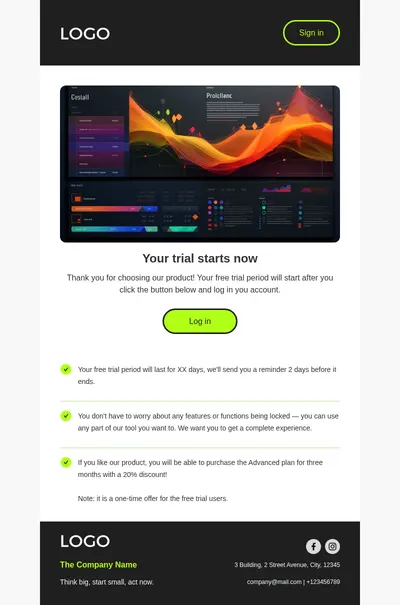
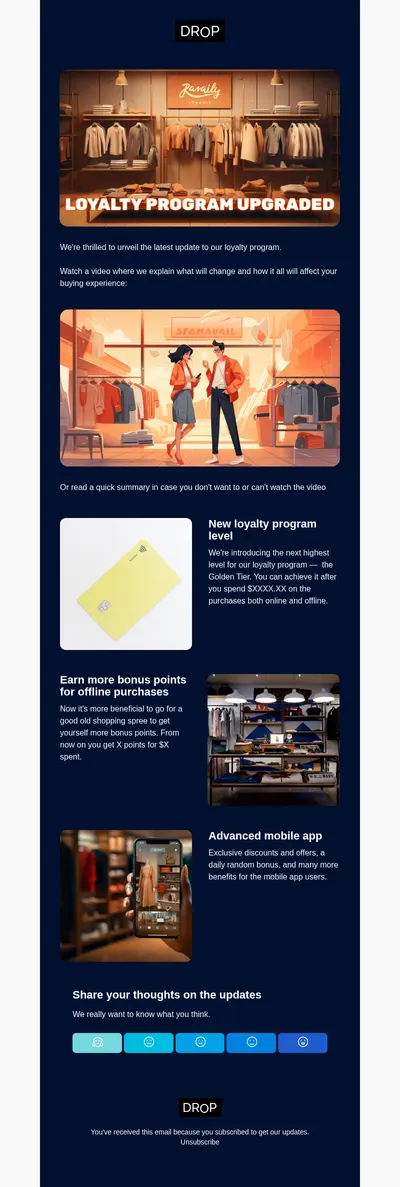
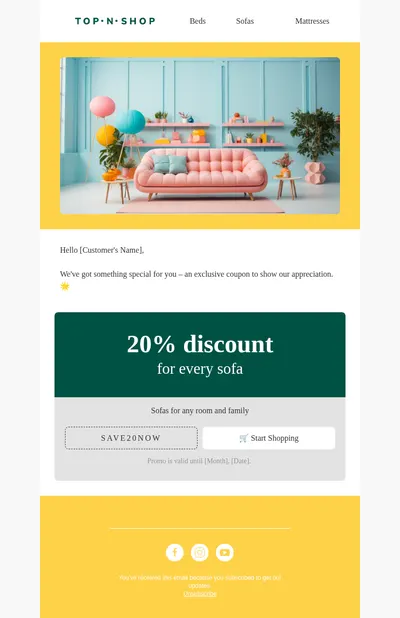
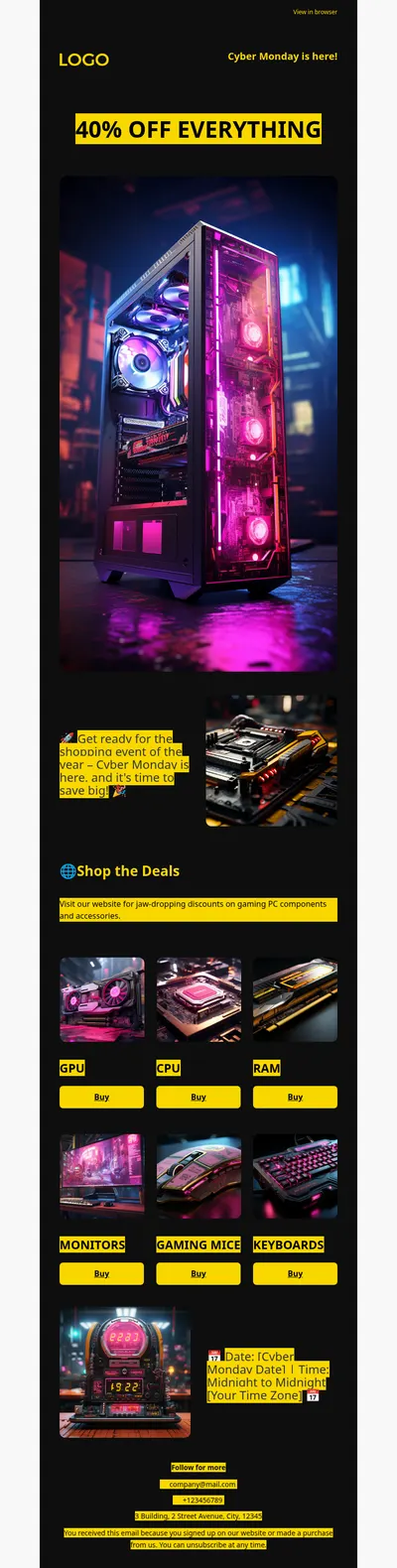
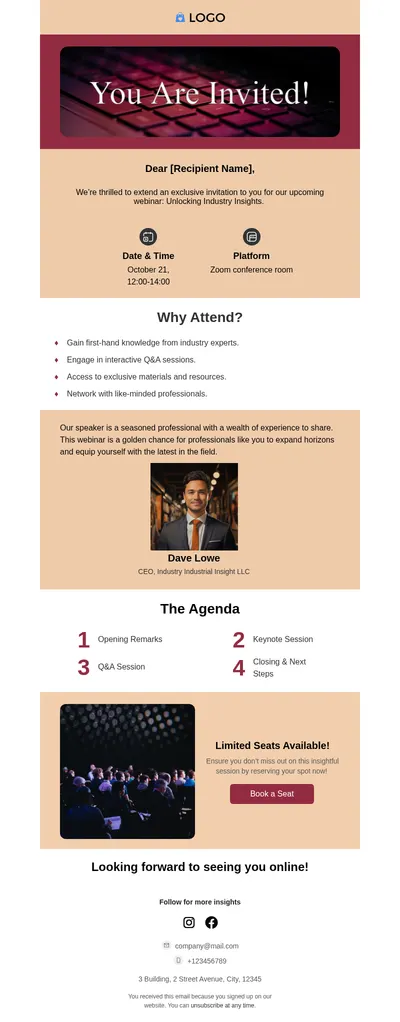
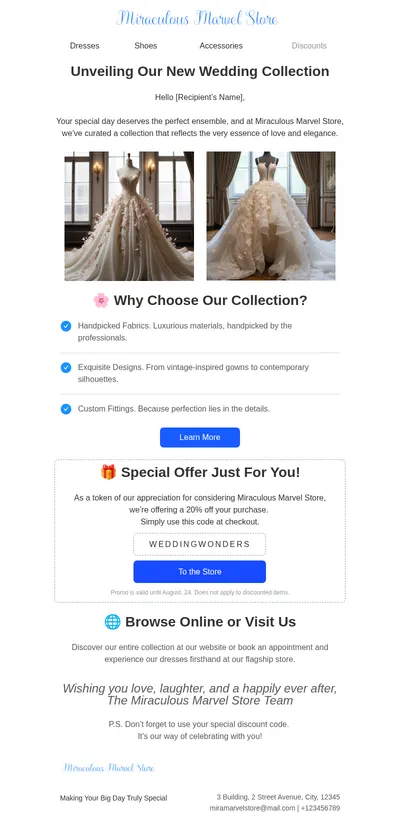
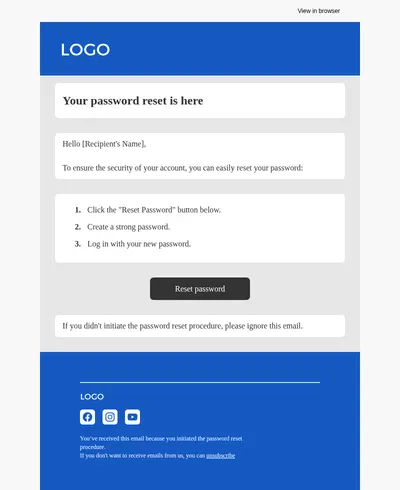
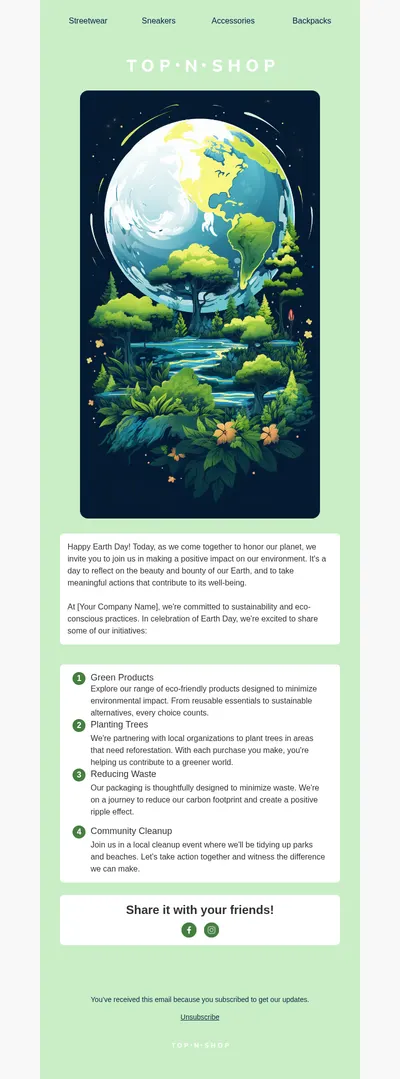
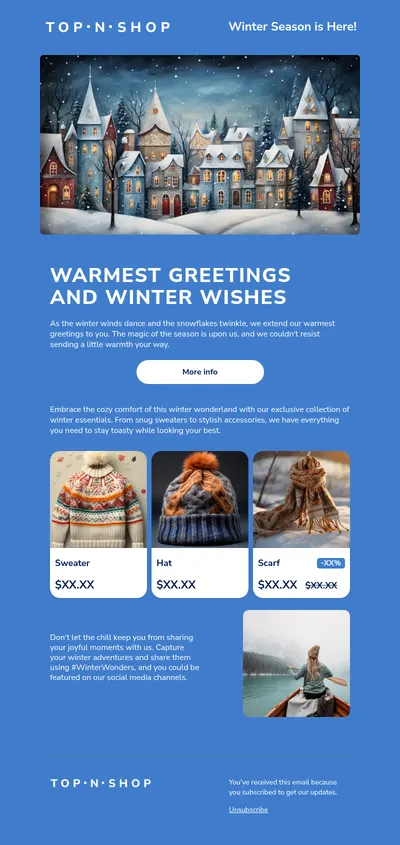
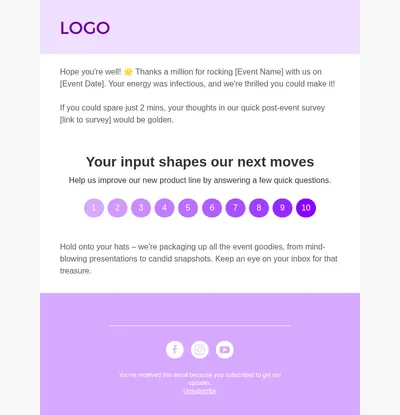
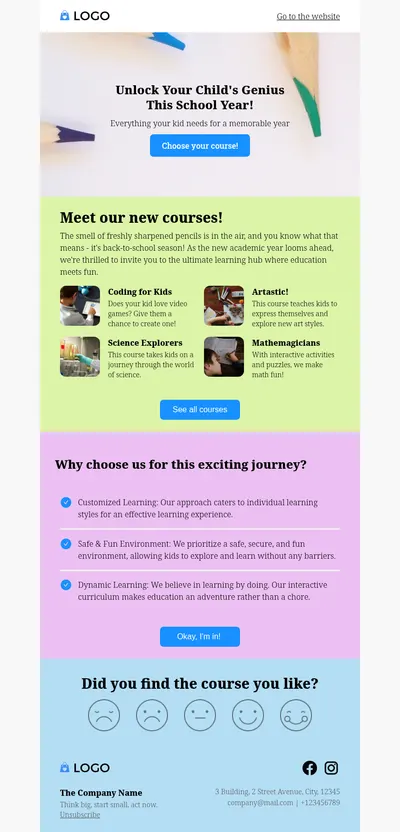
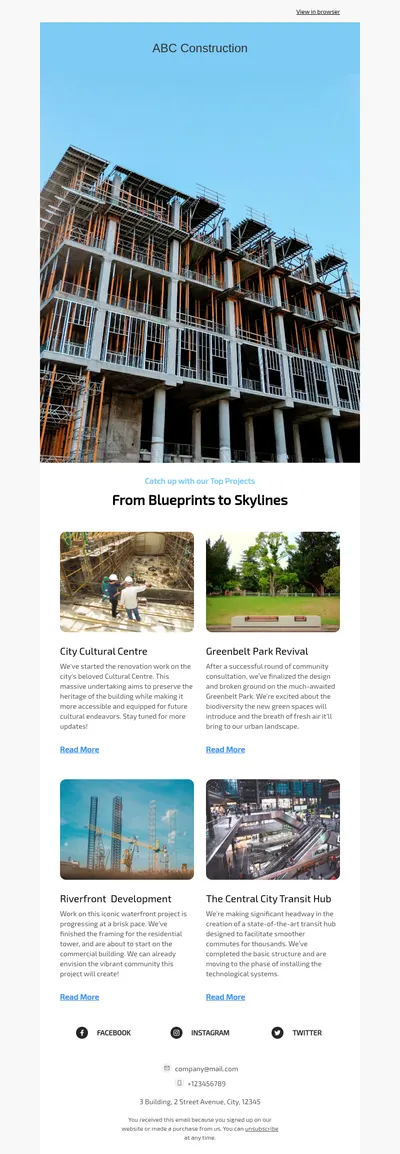
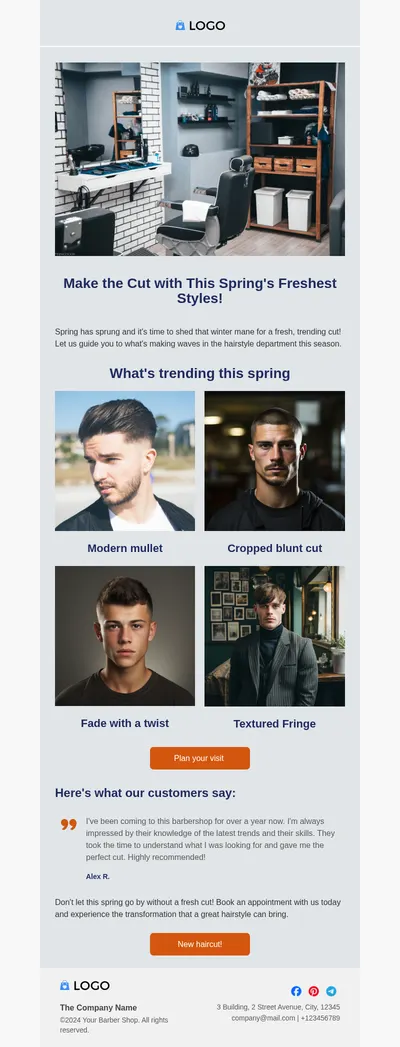
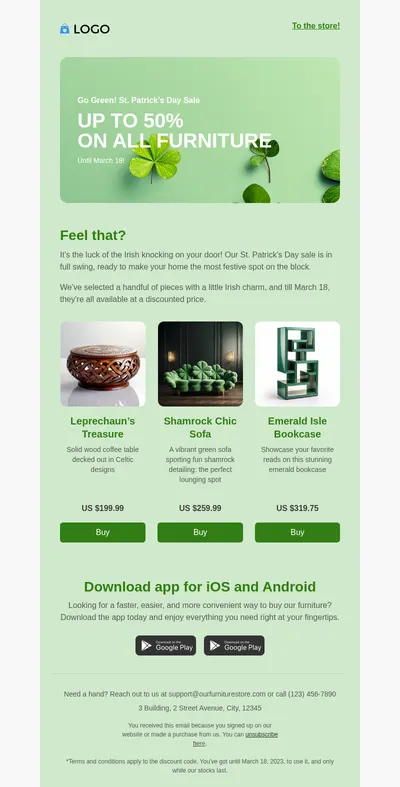
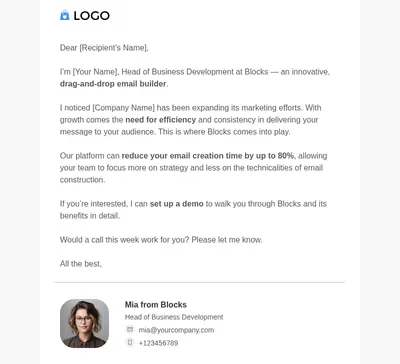
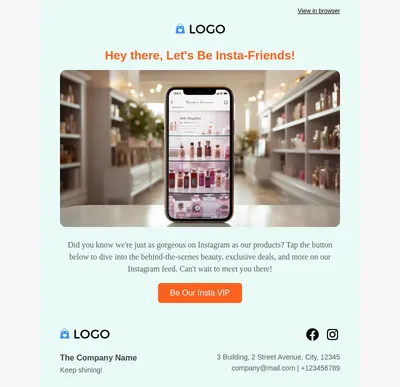
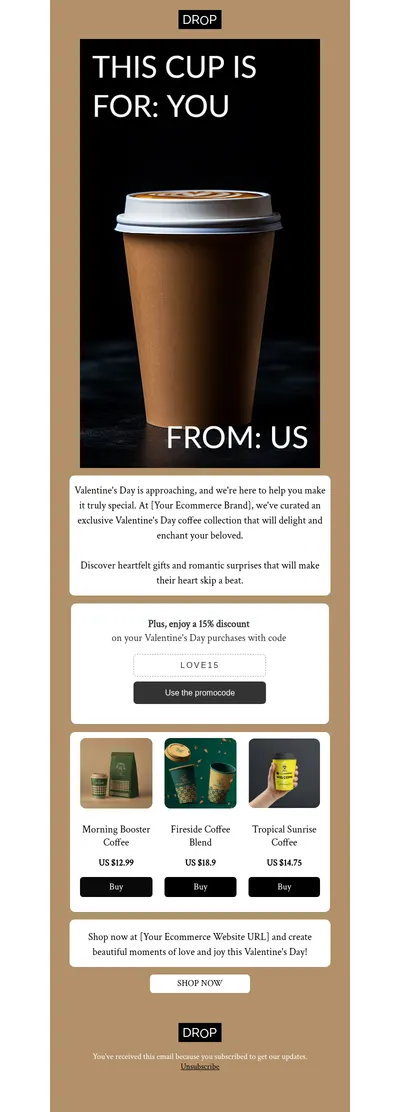
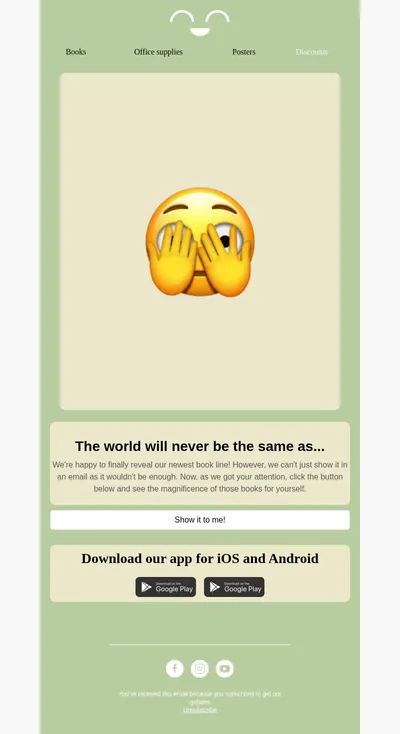
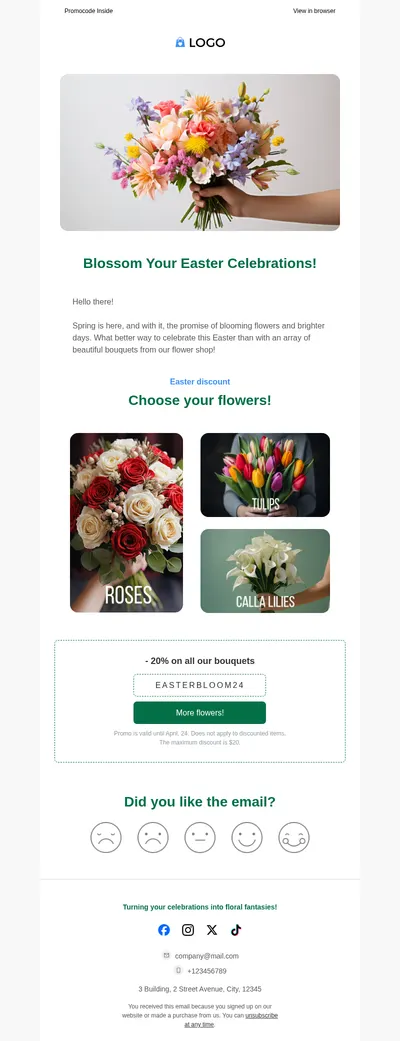
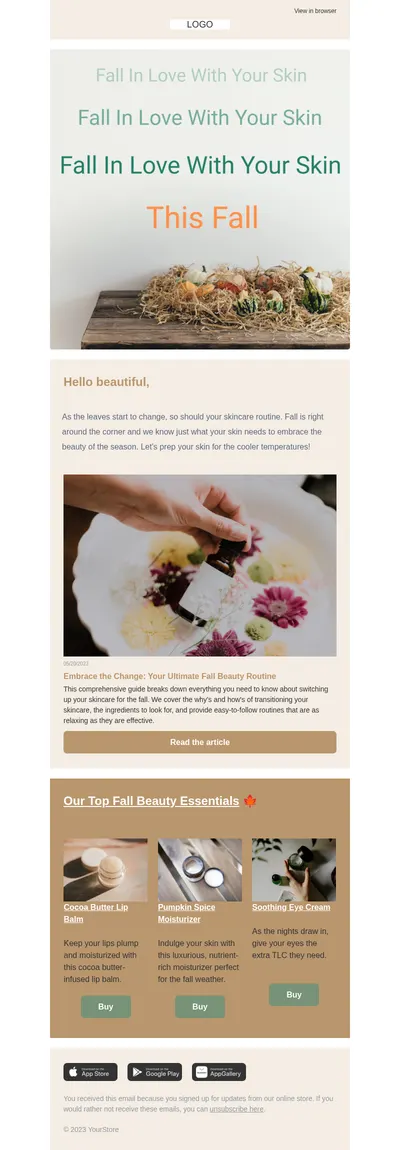
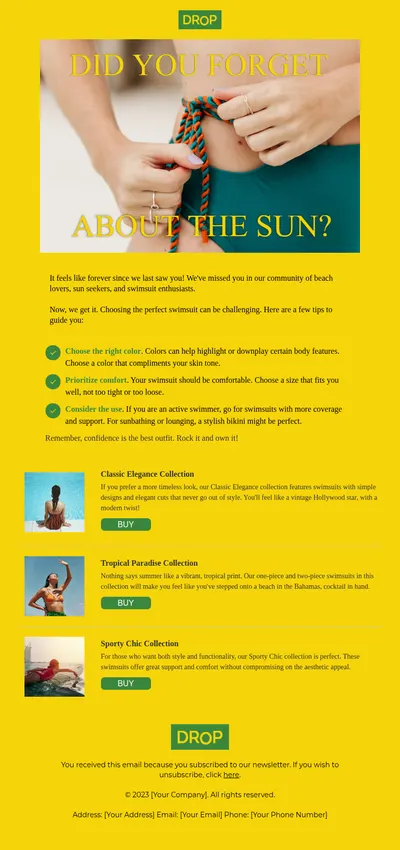
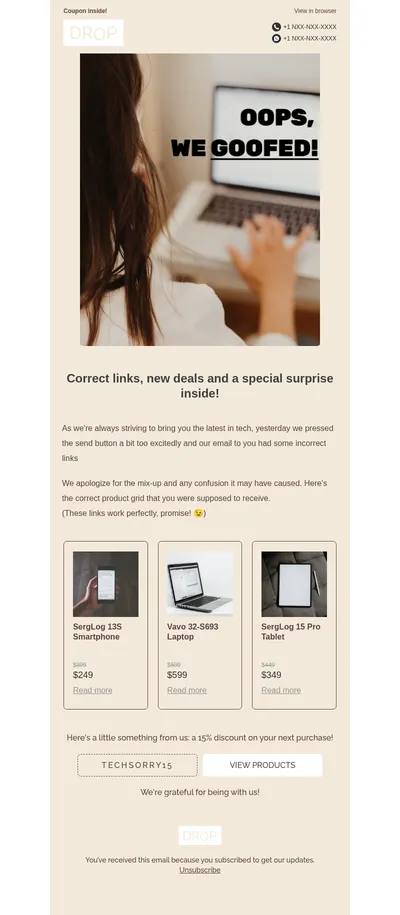
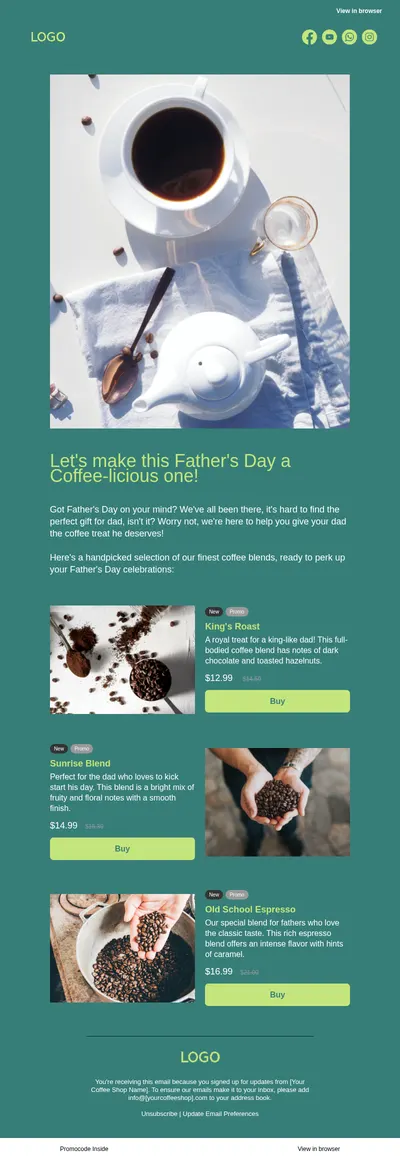
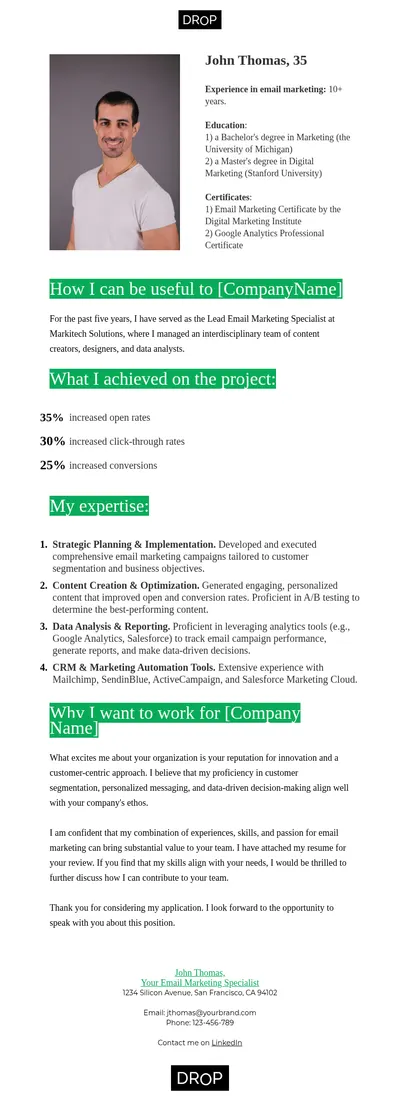
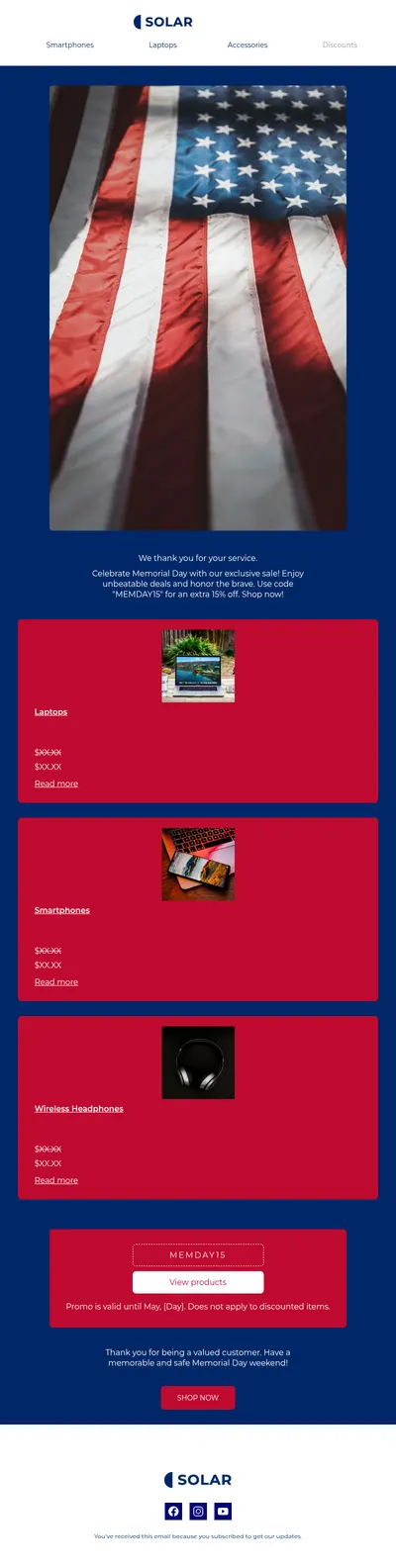
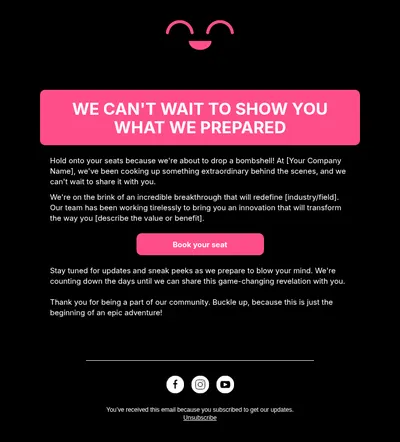
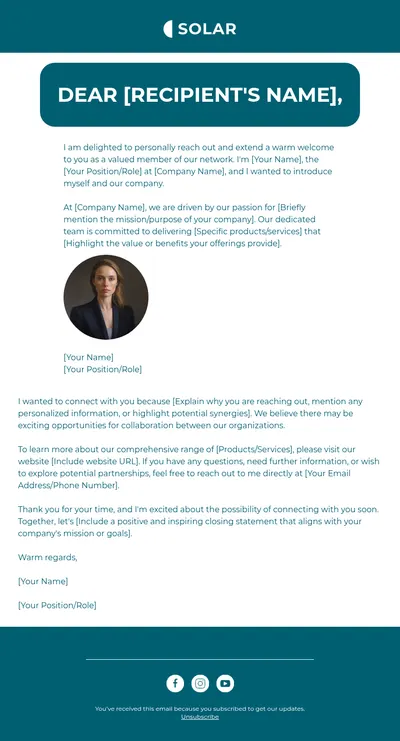
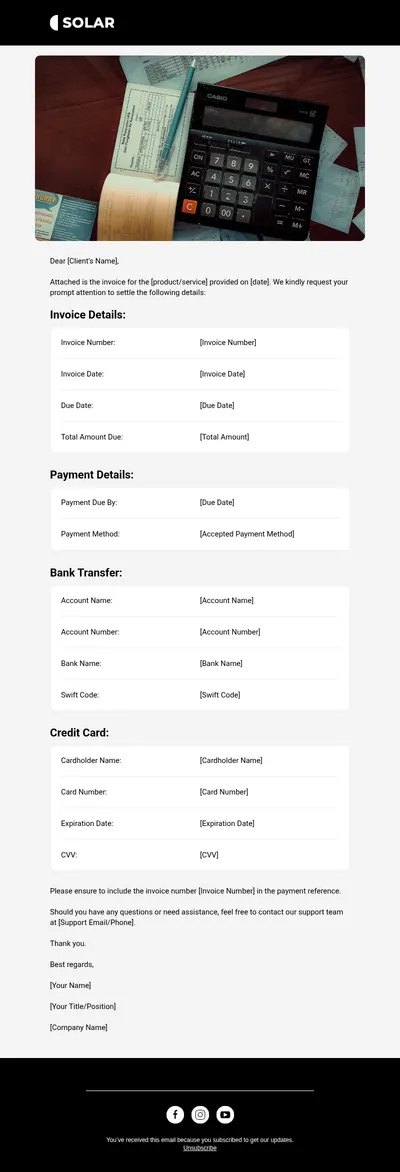
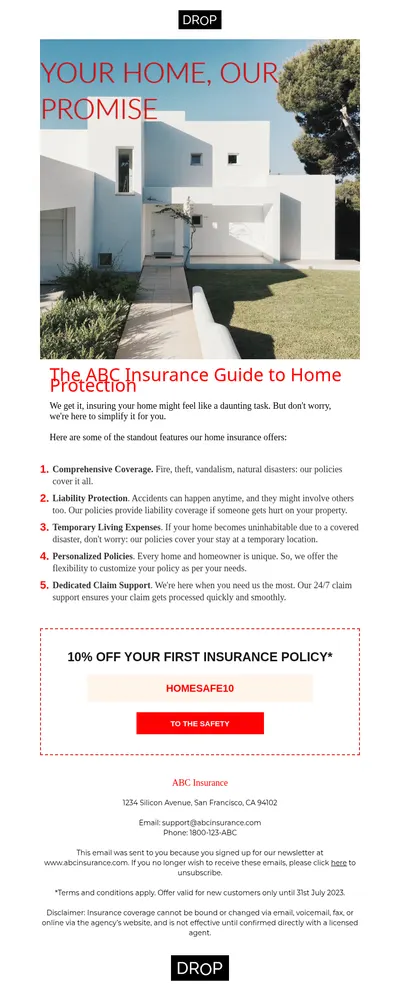
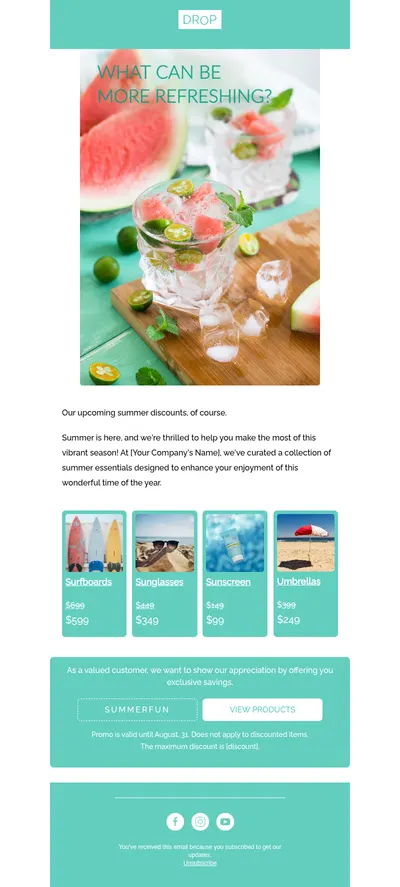
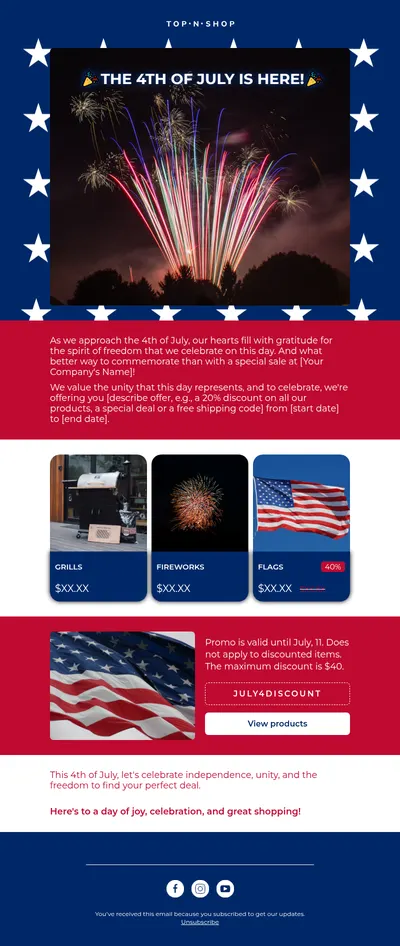
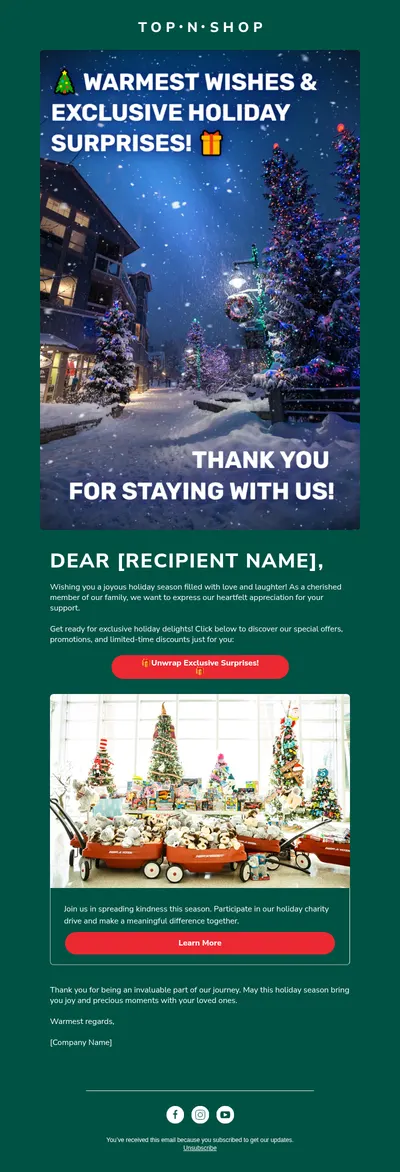
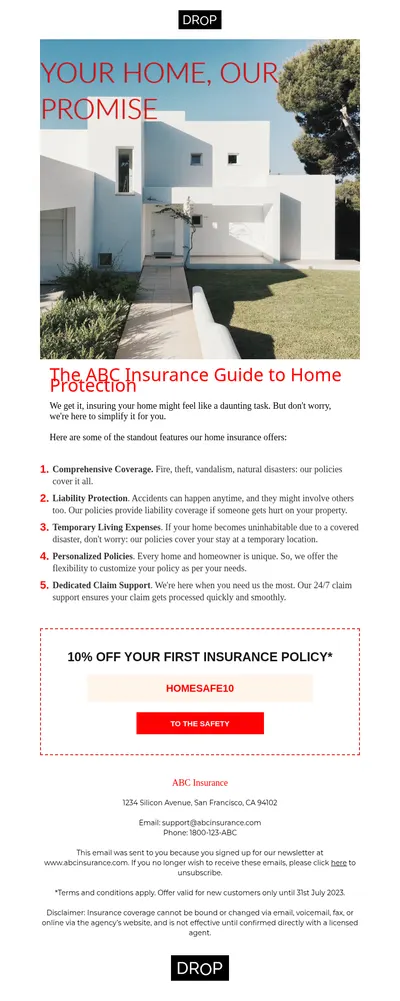
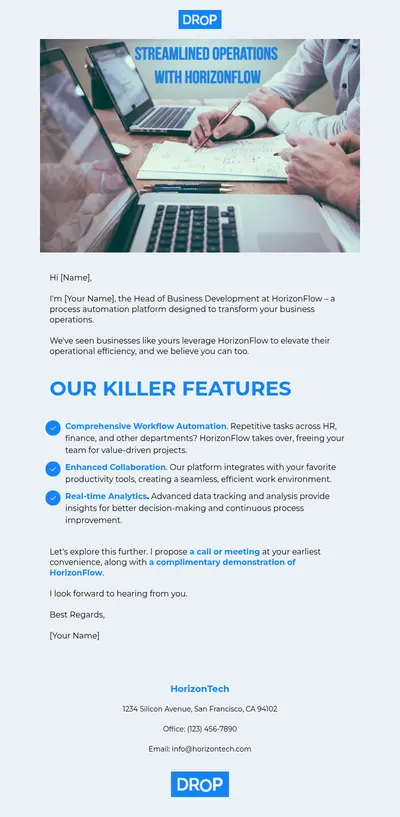
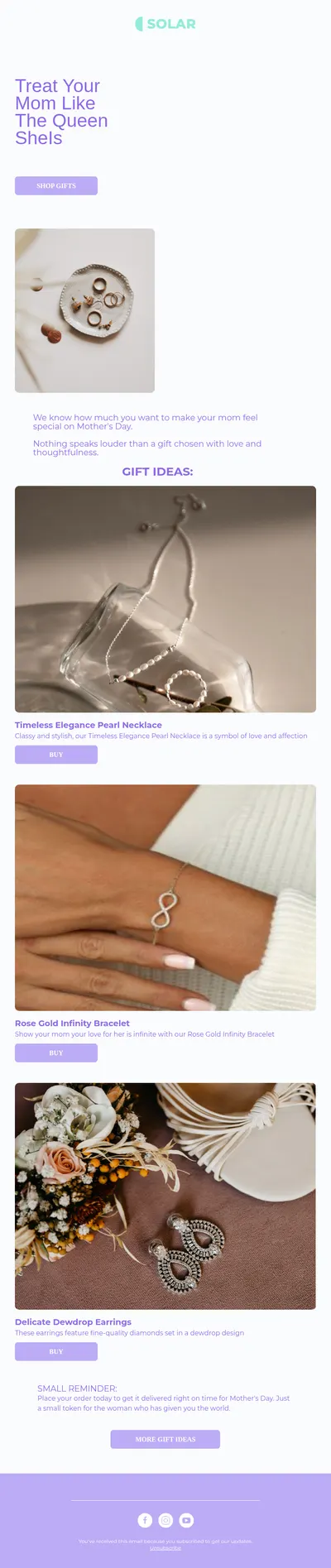
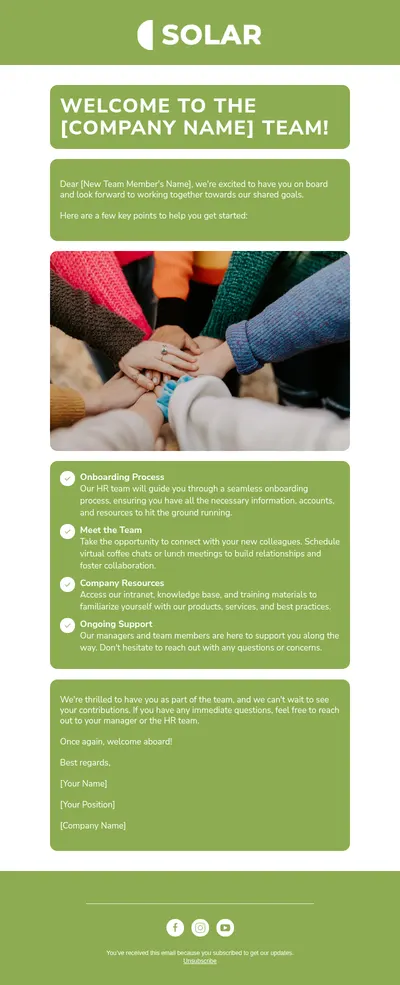
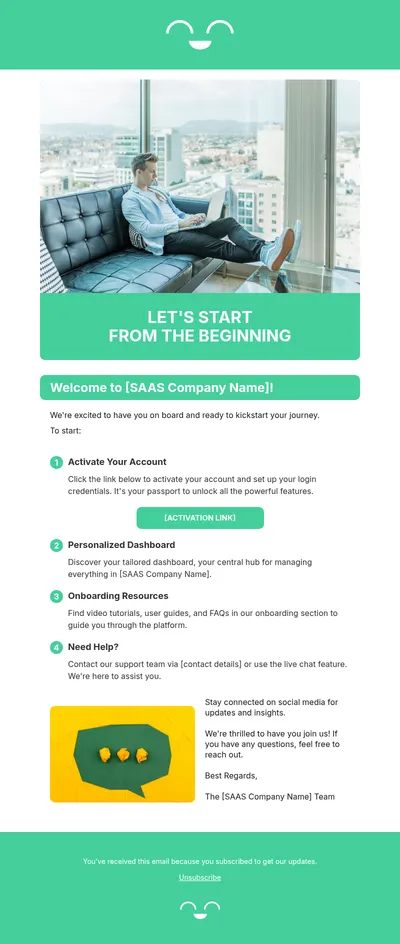
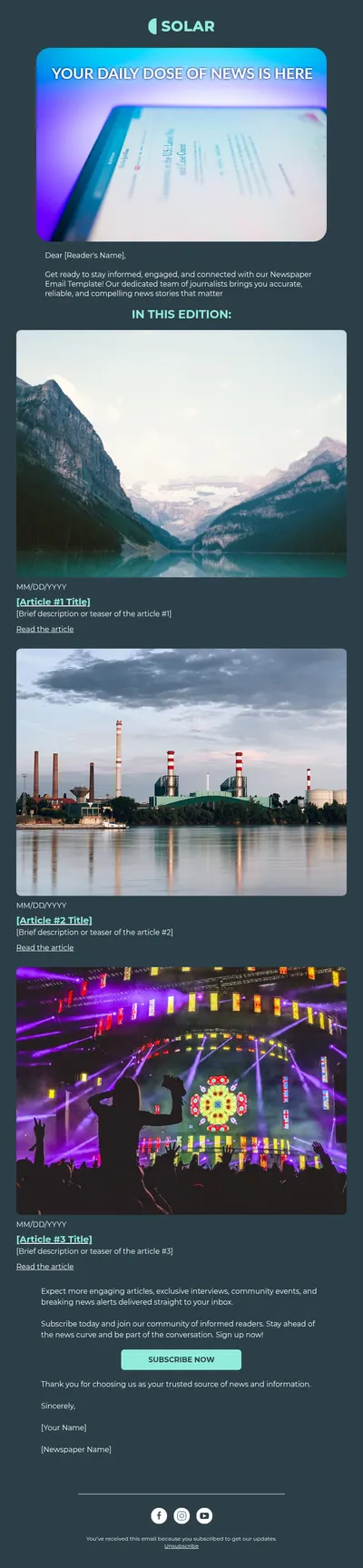
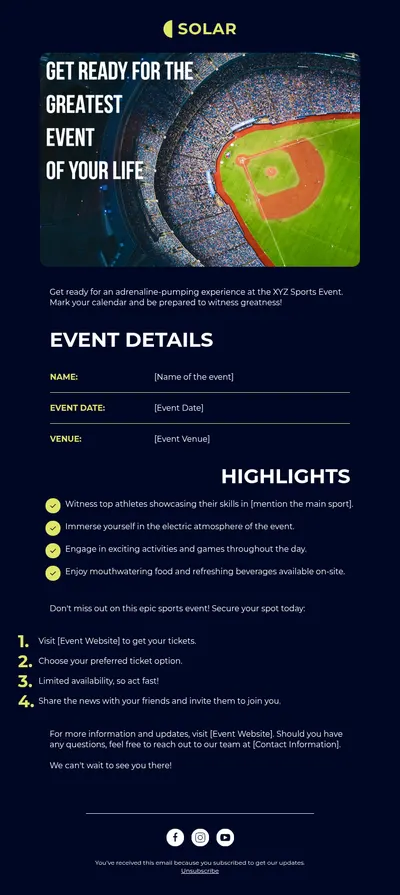
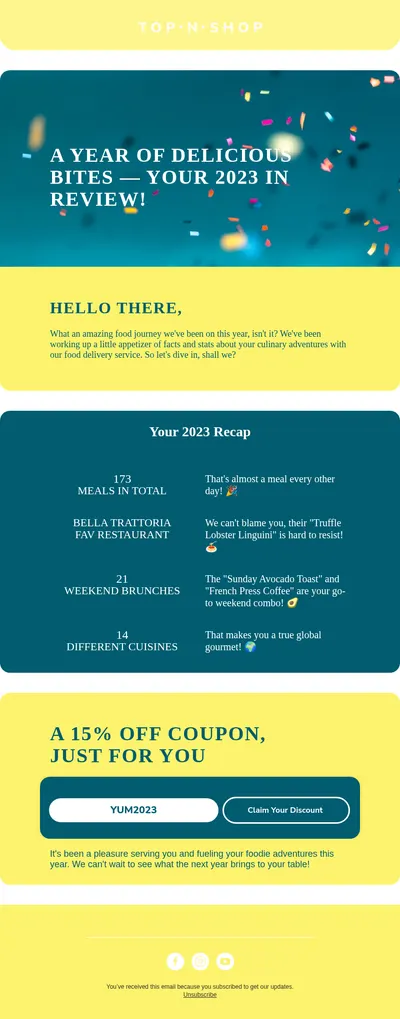
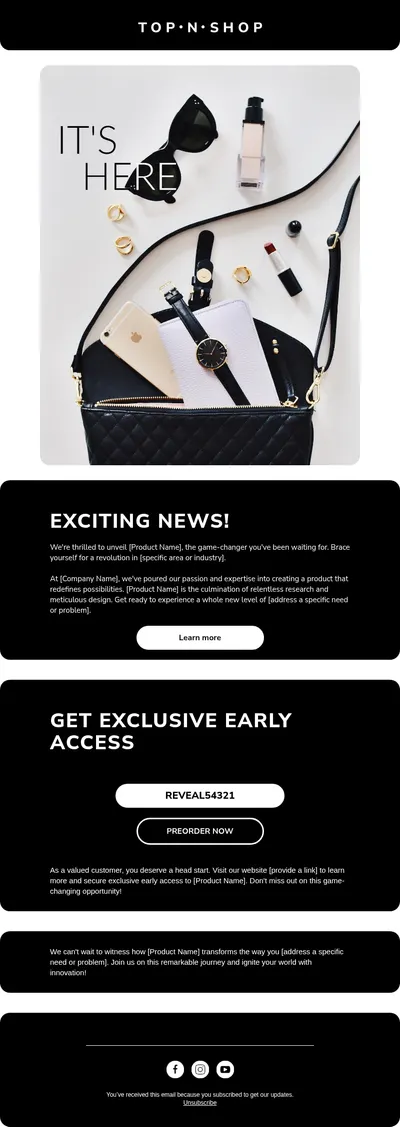
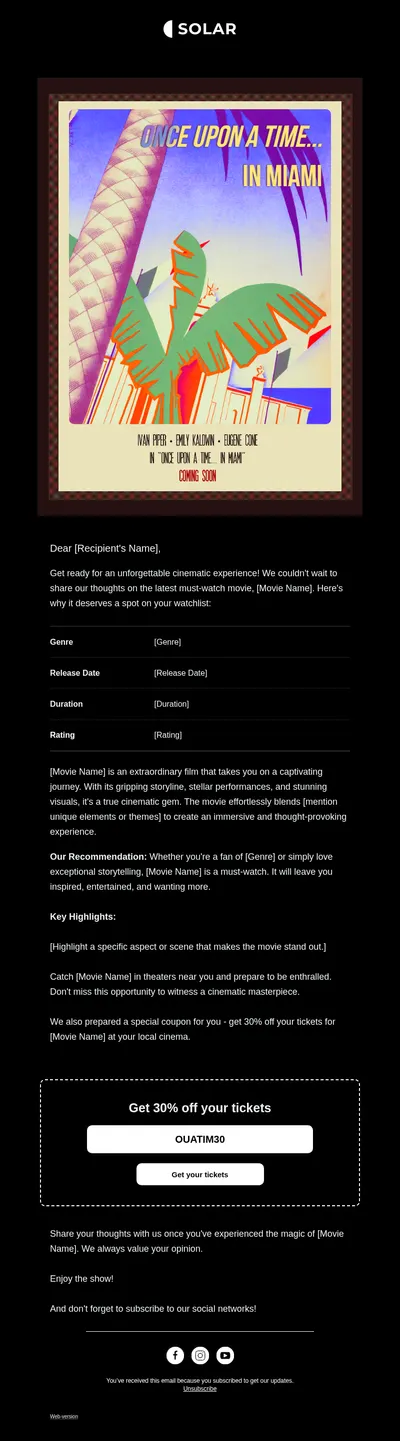
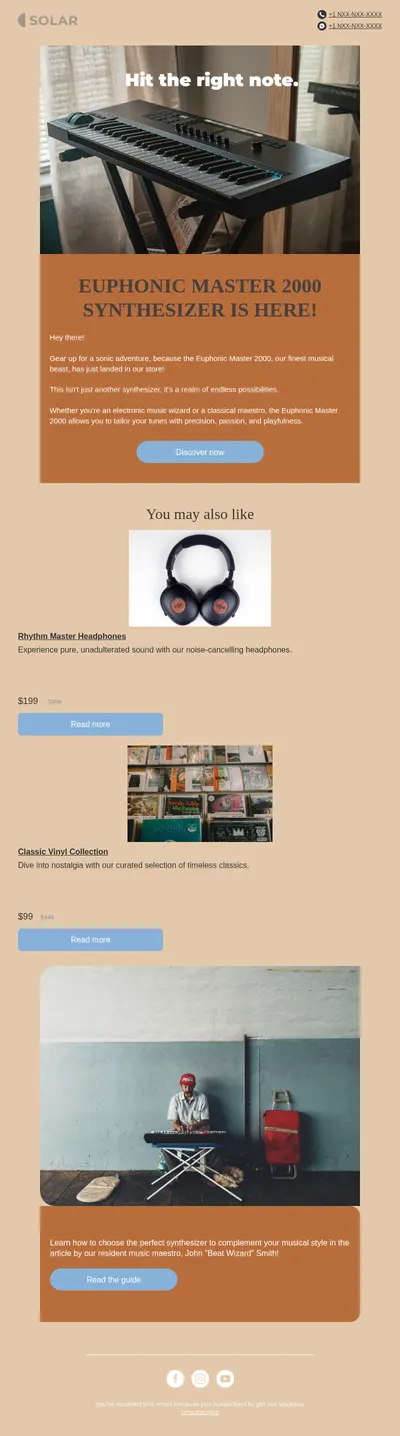
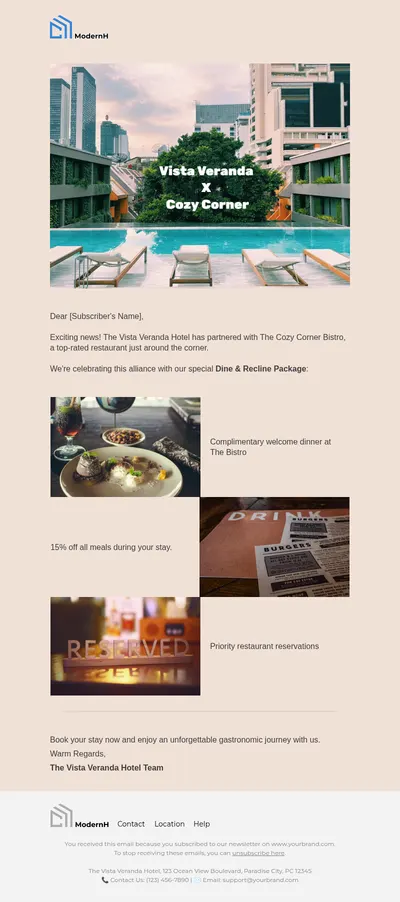
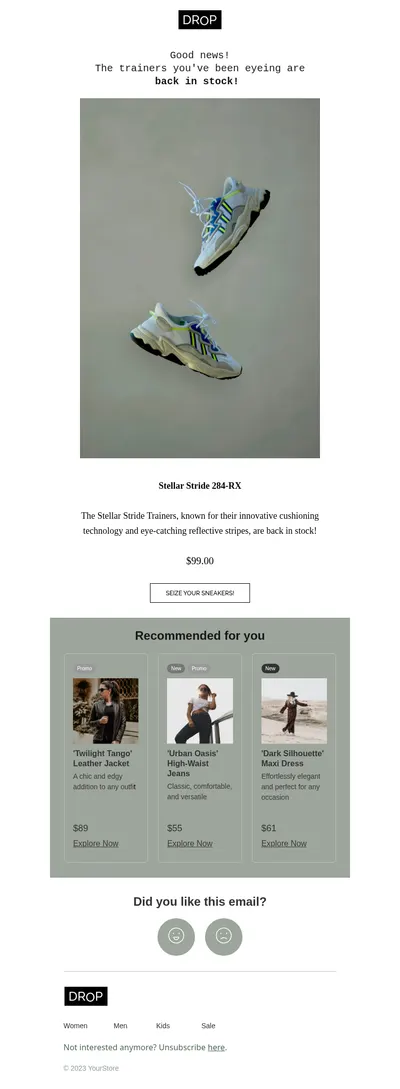
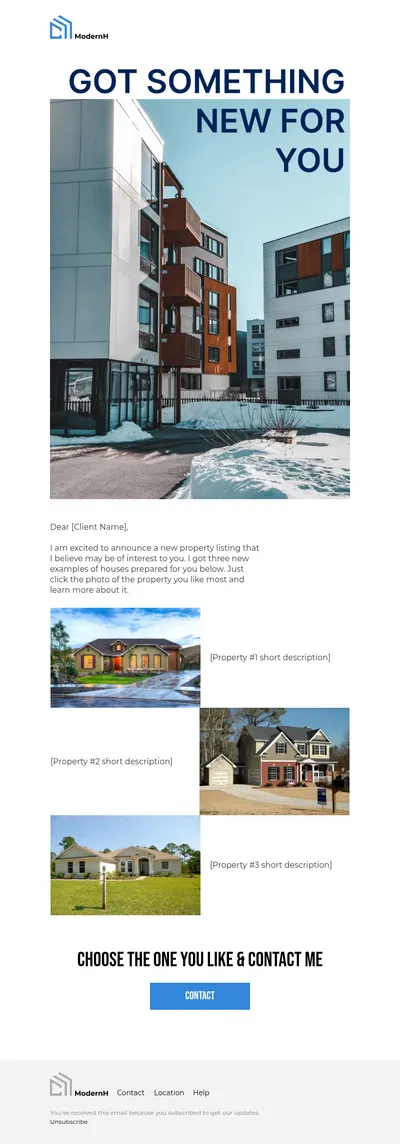
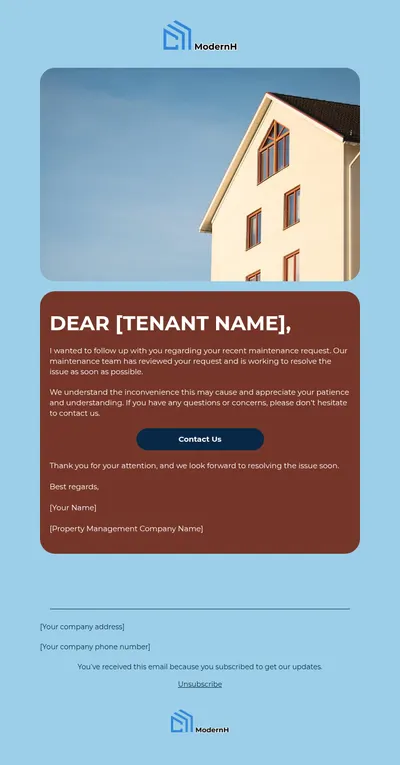
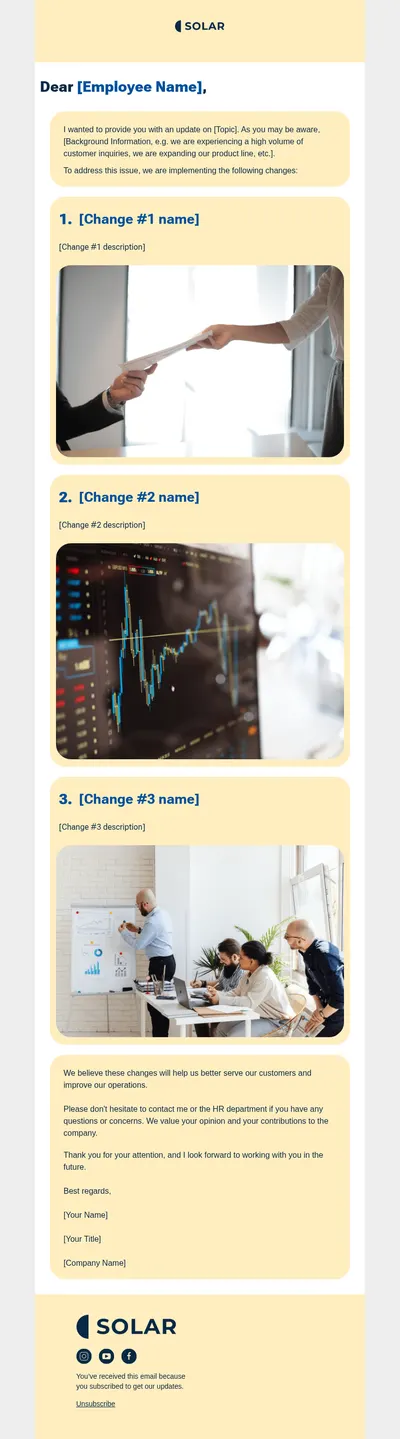
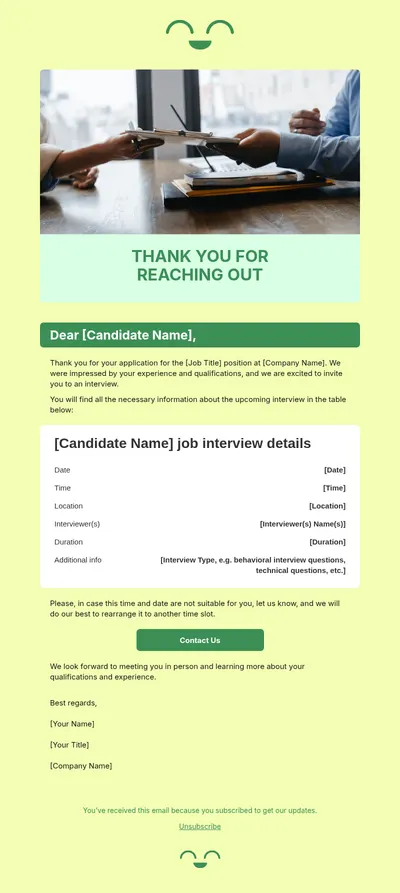
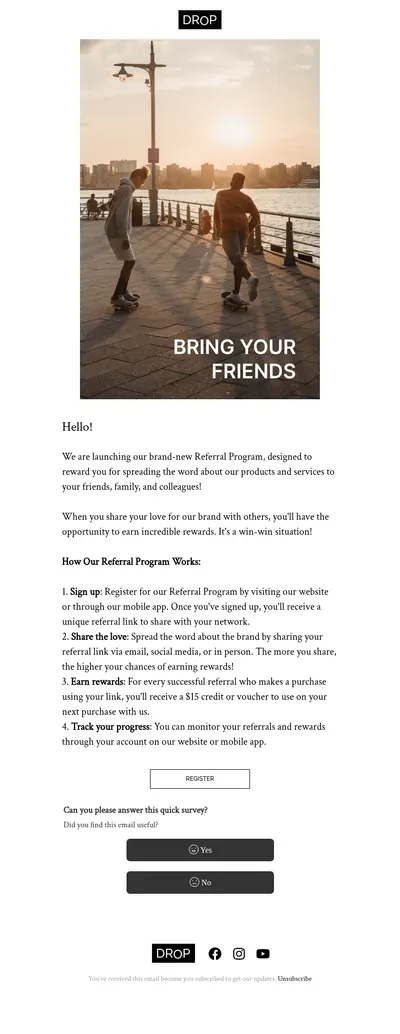
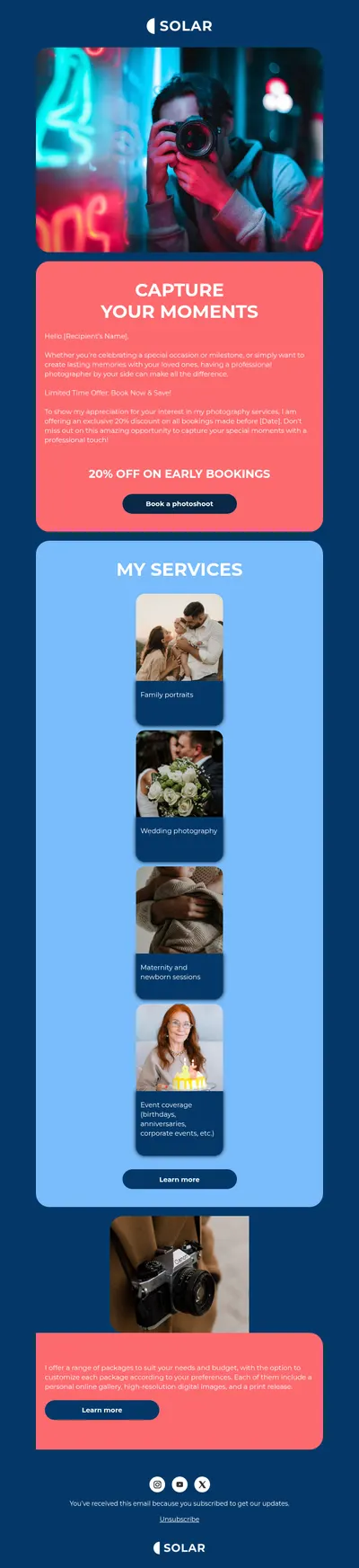
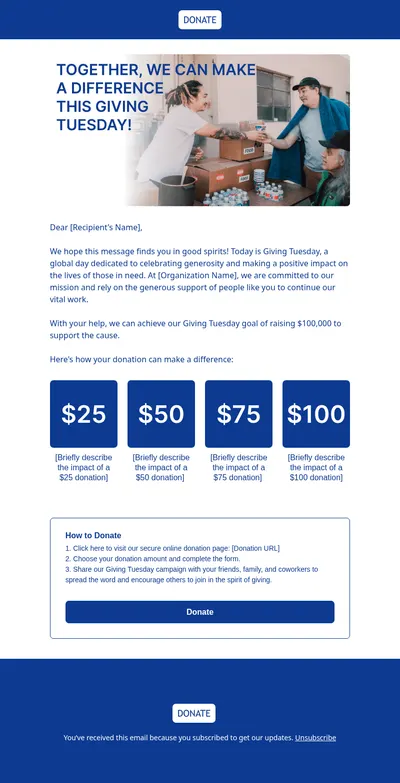
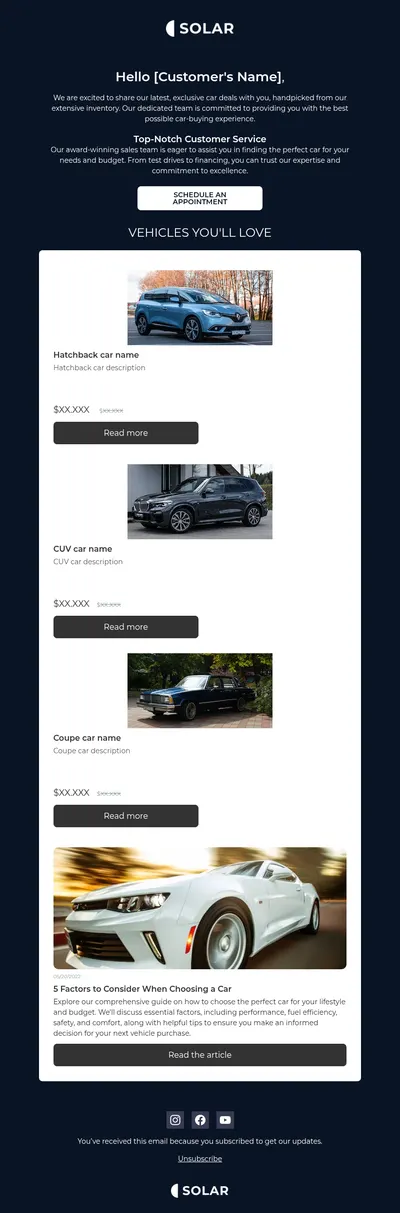
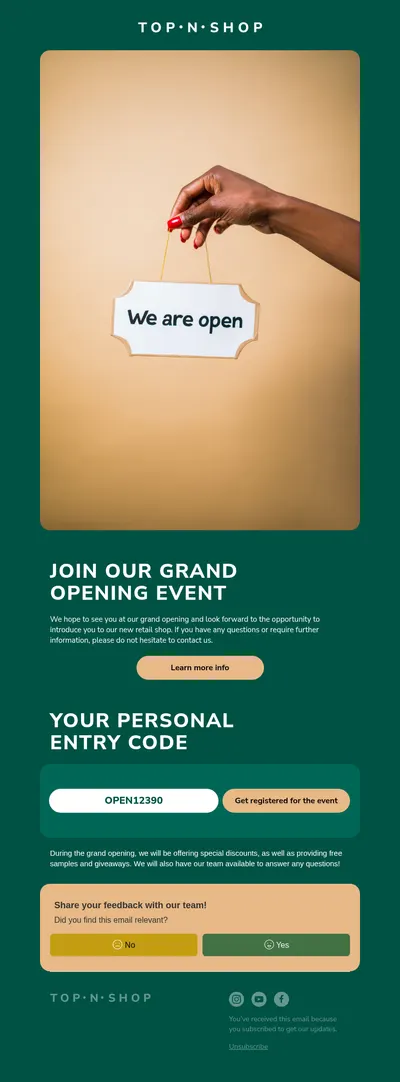
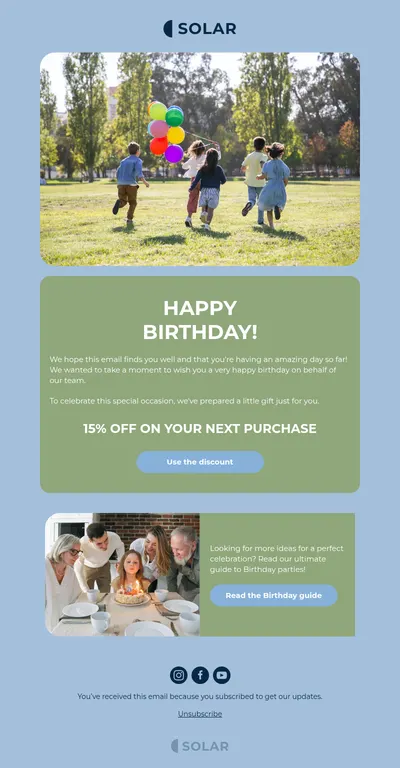
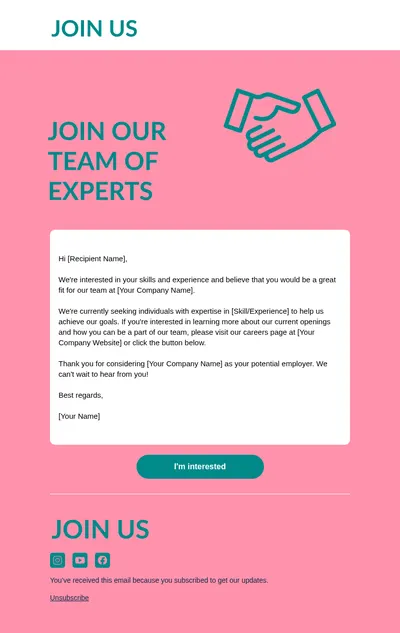
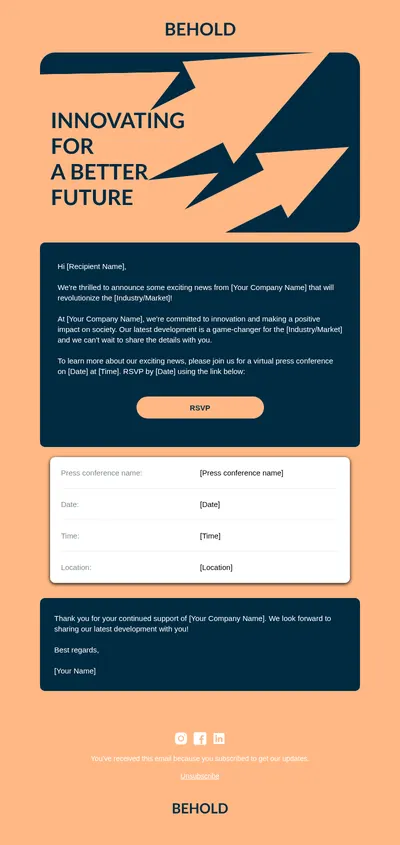
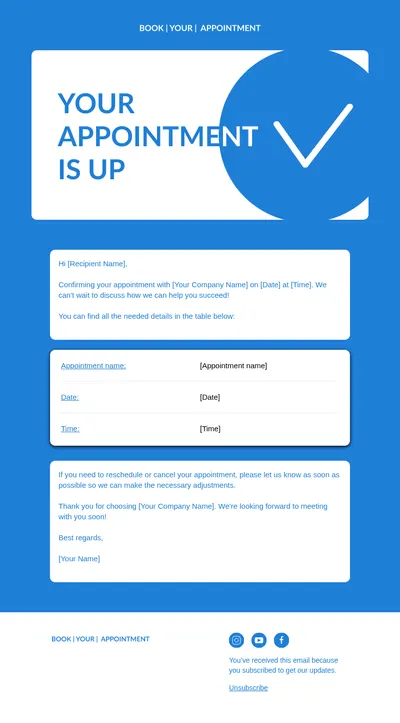
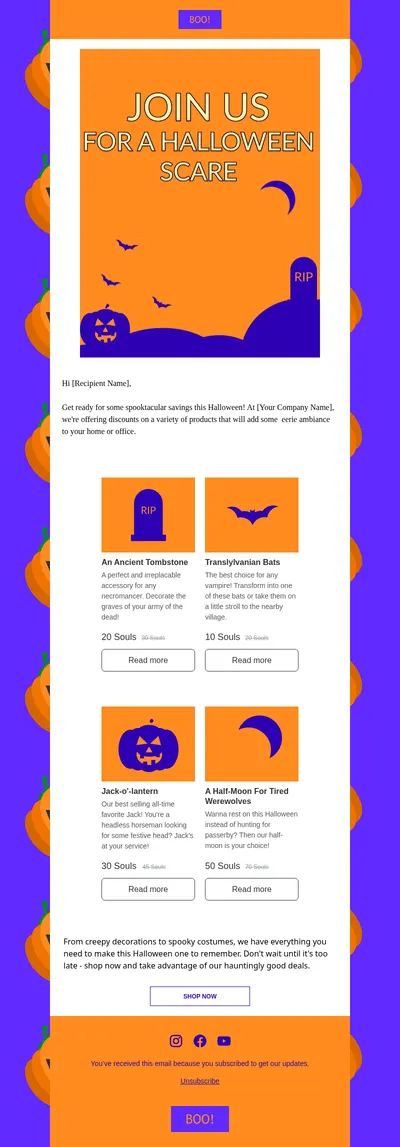
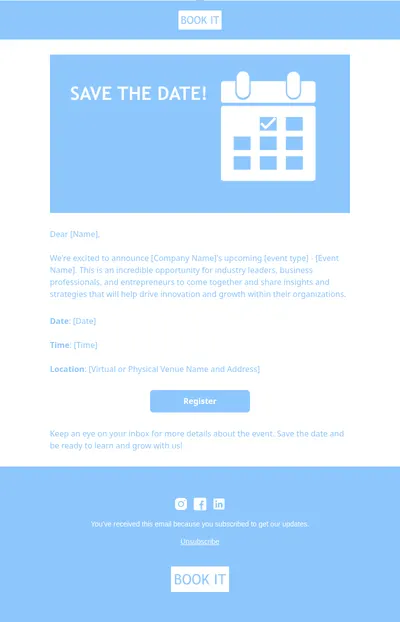
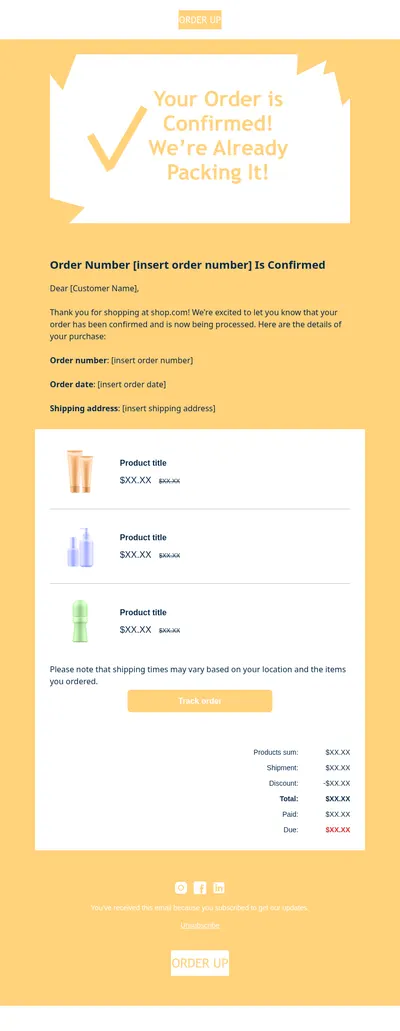
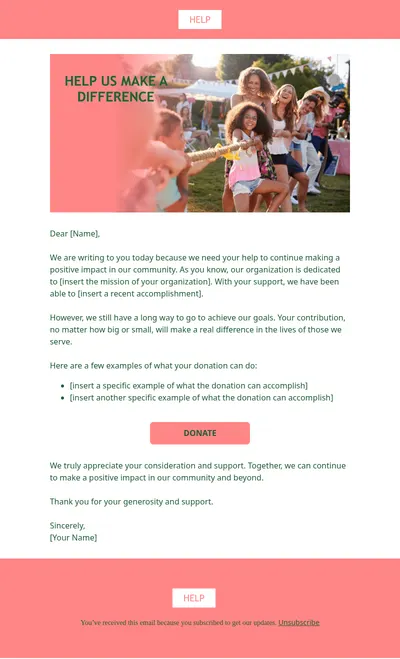
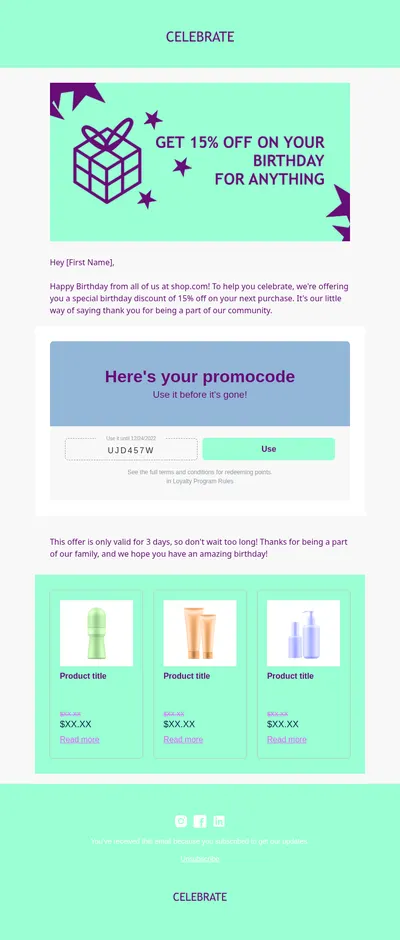
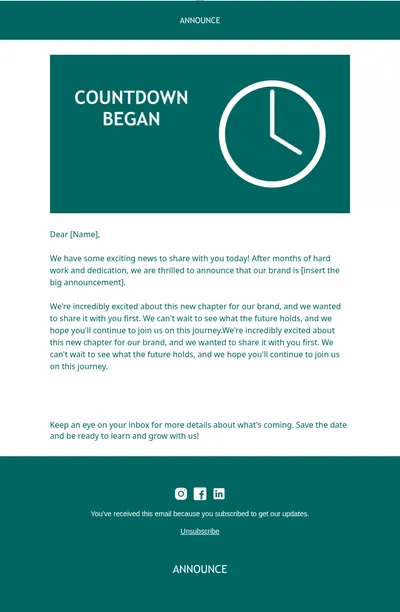
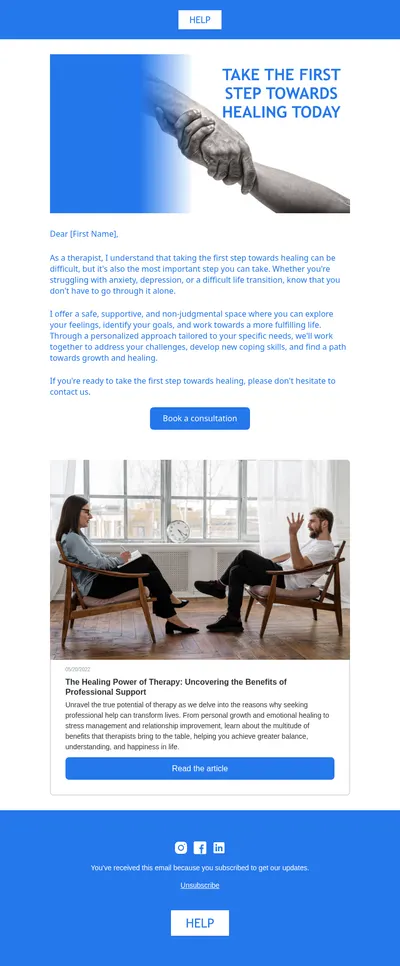
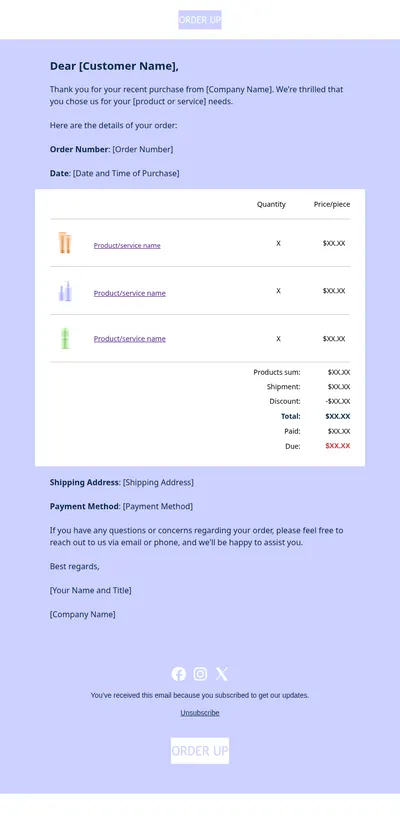
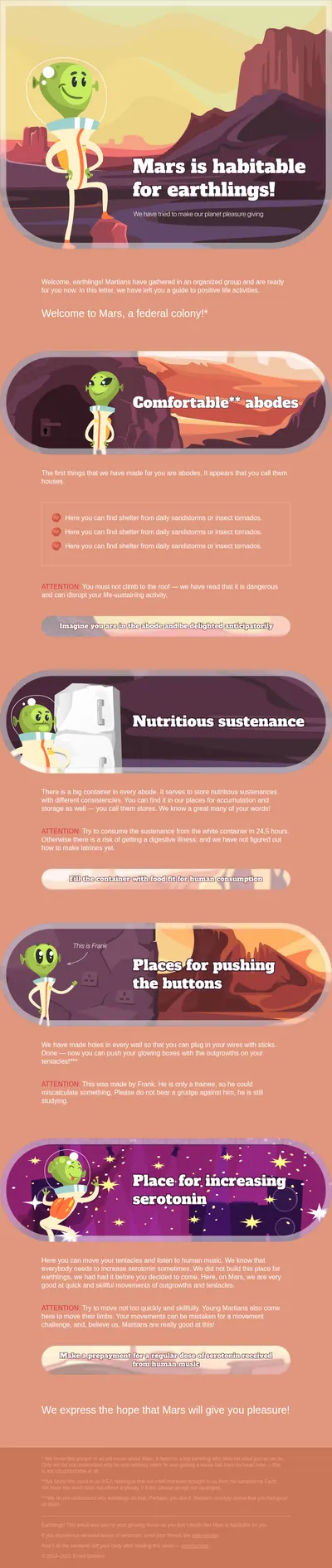
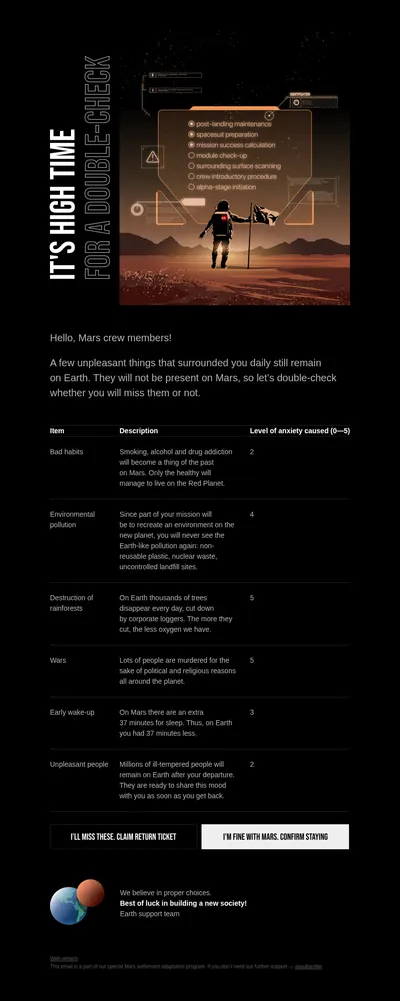
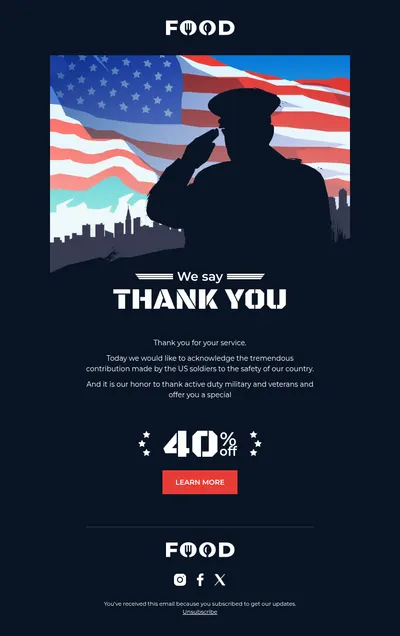
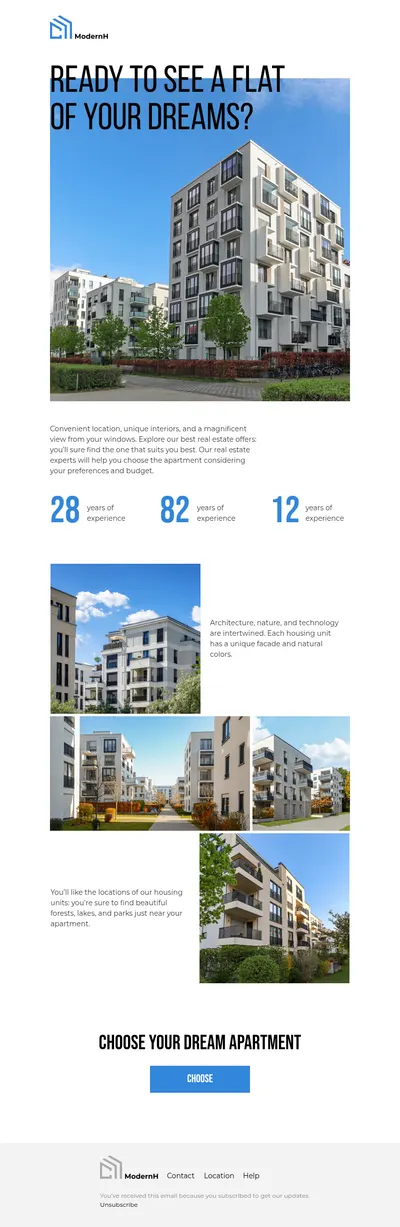
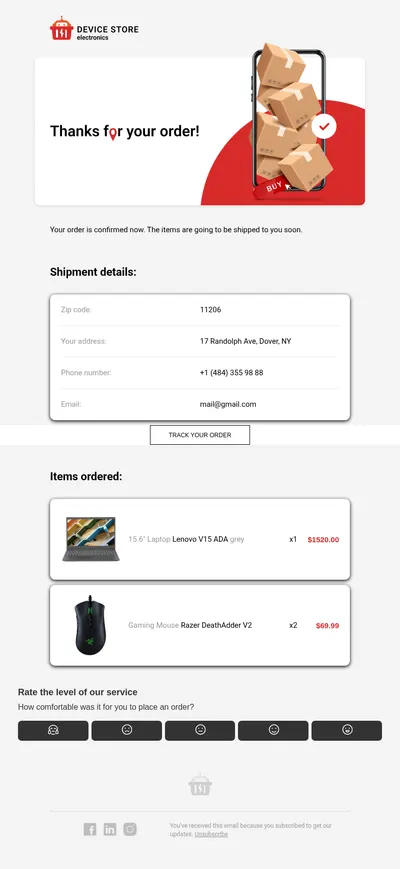
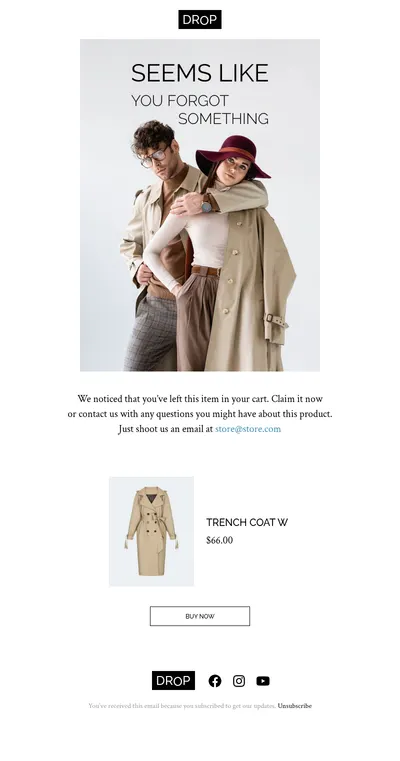
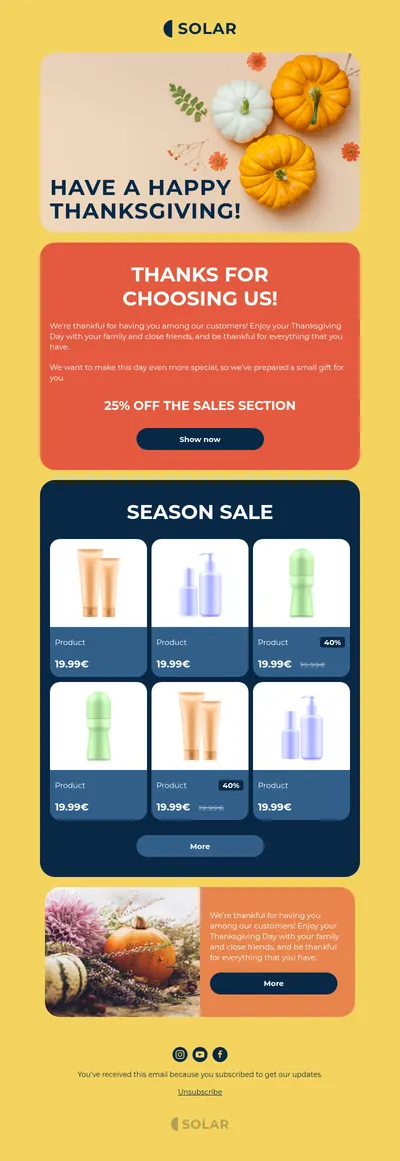
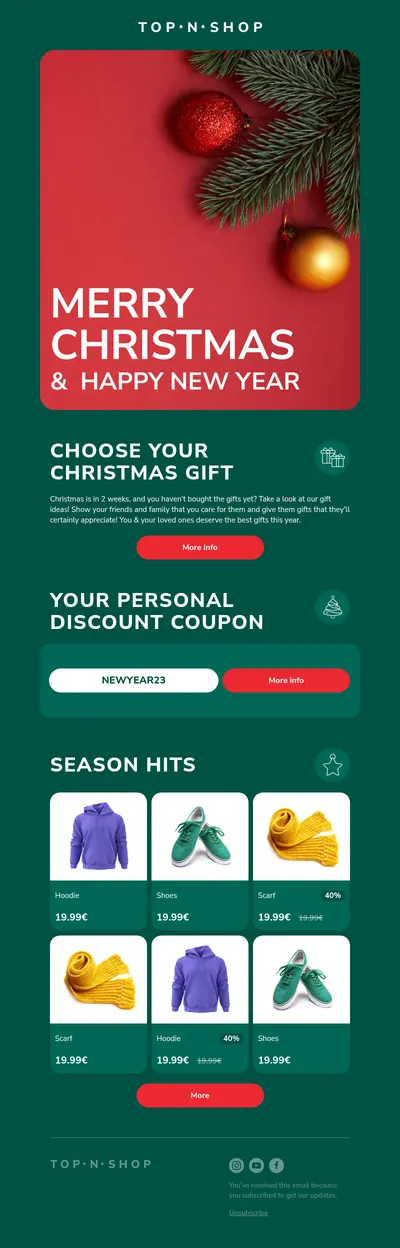
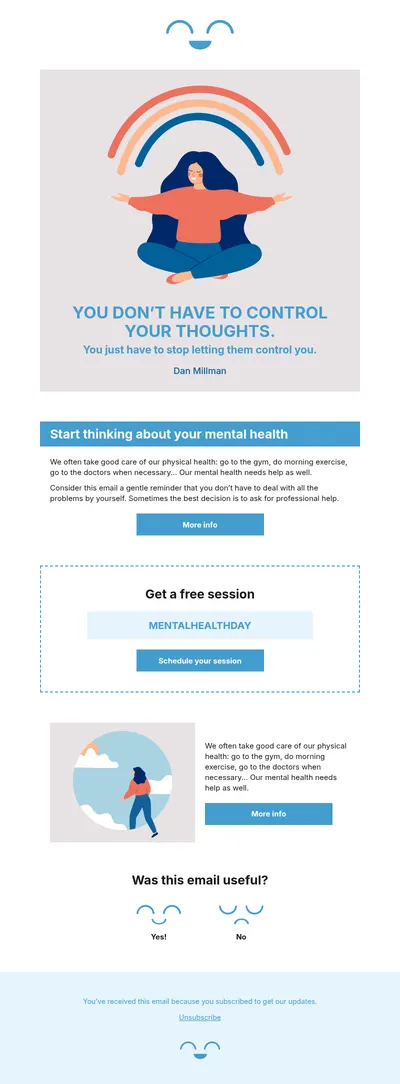
No matter what niche you work in: ecommerce, beauty, finance, housing estate, etc. In Blocks, you can create flawless email templates for any industry. If you don’t want to start from scratch, go to the Template gallery, search for your industry using filters, choose one of the Magento email templates you like, and that’s it. All that’s left to do is style it to the needs of the email campaign, fast and easy.
2. No Coding Skills Needed
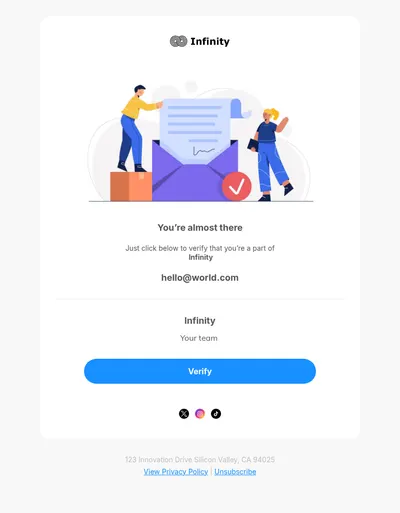
Blocks is a no-code editor. As you may guess, you don’t have to know anything about coding to create beautiful Magento email templates in several simple steps. Either take a ready-to-use template or build one out of premade structures and elements, edit them to your need, and Blocks will write the code for you.
There’s an option for those who love coding and want to take part in this process too: just open the Code section and you’re free to change it as you wish.
3. Premade Structures and Elements to Speed Up the Production of Magento Email Templates
Blocks is a drag-n-drop editor which means that to build an email, all you need is to choose the structures and elements that suit your campaign, drag them to the desired part of the Magento email template, and drop them there. Pre-made structures and elements include various types of headers, footers, buttons, product grids, descriptive blocks, and so on. This will speed up email production and let you concentrate on other important tasks!
4. Blocks Can Store Your Projects for You
Blocks has the function of storing all your projects on our safe servers: no more searching for information on your computer or asking team members to send you the materials. Divide your projects into separate folders for easy navigation and you (and your colleagues) will have 24/7 access to everything you need!
5. Mobile-friendly Magento Email Templates
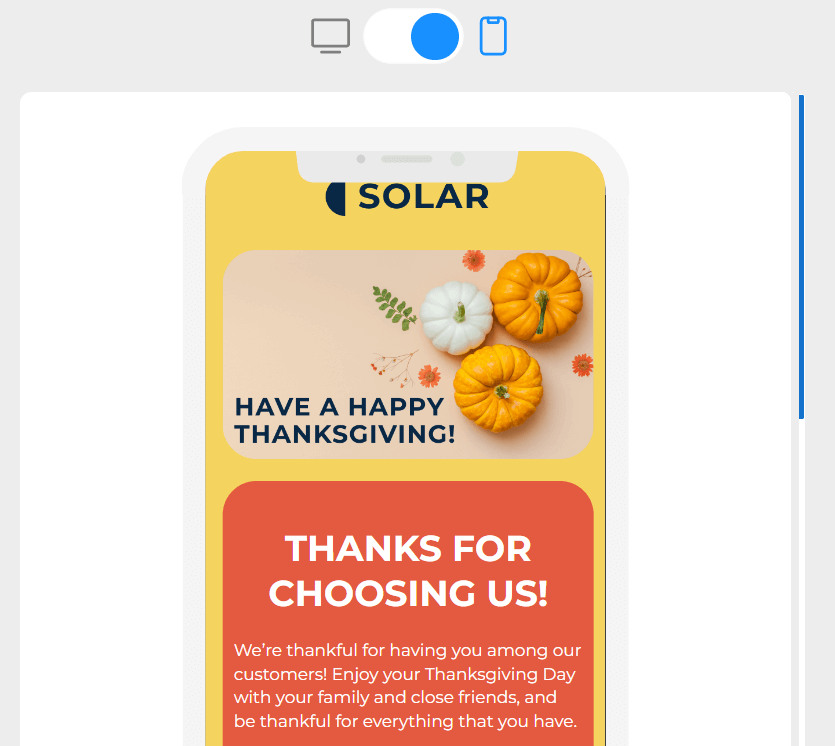
Every Magento email template you create in Blocks is responsive which means your email will look flawless across all devices. Blocks has a preview function that allows you to see how your email template transforms from the desktop version to the mobile one:
How to Add a Blocks Template to Magento 2 Transactional Emails
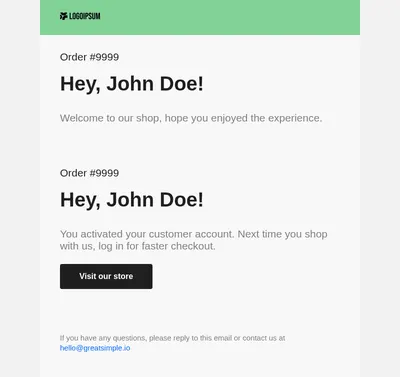
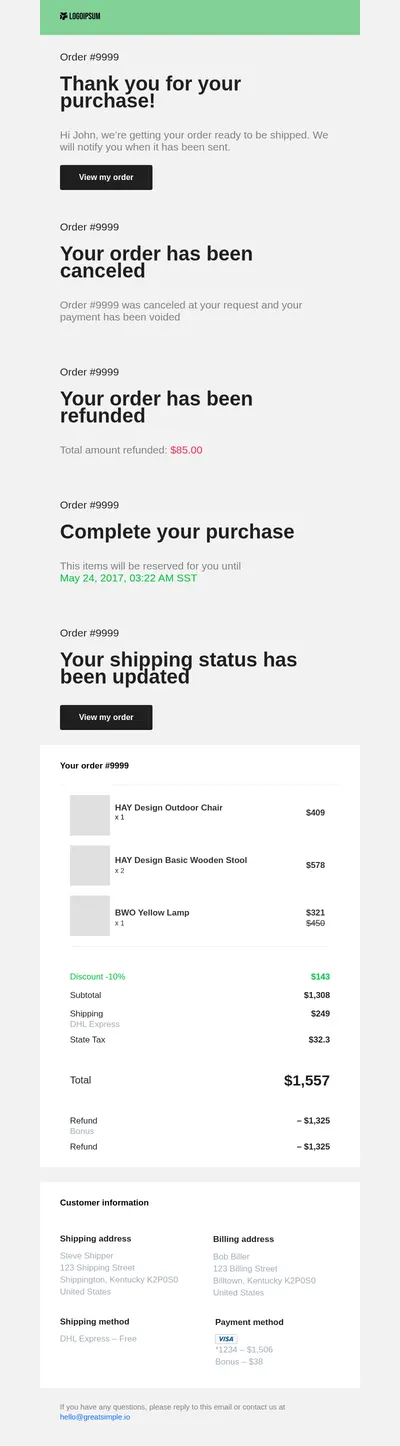
Blocks exports a complete HTML document with inline styles. In Magento 2 and Adobe Commerce, you can turn it into a transactional email, such as an order confirmation, in two ways: in the Admin or as a file in your theme.
Where to Put the Template
In the Admin, go to Marketing > Communications > Email Templates and click Add New Template. Load the default template you are replacing, for example New Order, to see which variables it uses, then paste the exported HTML into Template Content. Keep the CSS in a <style> tag inside the content: Magento applies the Template Styles field only together with its default header. Assign the result under Stores > Settings > Configuration > Sales > Sales Emails, and remember that guest orders have a separate field. See Adobe’s guide to custom email templates.
To keep the template in code, save it in your theme as app/design/frontend/<Vendor>/<theme>/Magento_Sales/email/order_new.html. A theme file can hold the full document or only the body of the Blocks email between the default header and footer directives. Templates assigned in the Admin take precedence over theme files, as the Adobe Commerce frontend guide explains.
<!--@subject {{trans "Your %store_name order confirmation" store_name=$store.frontend_name}} @-->
{{template config_path="design/email/header_template"}}

<!-- body of the Blocks email -->

{{template config_path="design/email/footer_template"}}
Which Variables to Use
Magento fills the email with directives in double curly braces. {{var order.increment_id}} prints the order number, {{trans}} outputs a translatable string with variables, and {{layout}} inserts the table of ordered items. Since version 2.4.4, every template is resolved in strict mode, so methods such as getCustomerName() can no longer be called and data keys like $order_data.customer_name take their place. Details are in the strict mode migration guide.
<p>{{trans "%customer_name," customer_name=$order_data.customer_name}}</p>
<p>Order #{{var order.increment_id}}</p>
{{layout handle="sales_email_order_items" order_id=$order_id area="frontend"}}
<p>{{trans "Thank you for your order from %store_name." store_name=$store.frontend_name}}</p>
Still on Magento 1? Its transactional emails are managed under System > Transactional Emails and stored in app/locale/en_US/template/email/, and its templates could call methods directly, as in {{var order.getCustomerName()}}. Magento 1 reached the end of support on June 30, 2020, so these templates need the strict syntax above when you move to Magento 2.
How to Test the Email
Click Preview Template to check the layout before you assign it, then place a test order on a staging store and open the confirmation in the email clients your customers use. If Asynchronous Sending is enabled in the Sales Emails settings, the email goes out with the next cron run rather than at checkout. For templates saved in the Admin, bin/magento dev:email:override-compatibility-check lists variables that strict mode will not resolve.
Final Thoughts
Blocks will take your email production to the next level. This way, you can save resources and spend them on other important tasks that were awaiting their hour. Give Blocks a try, and if you have any questions, our team is always happy to help!