
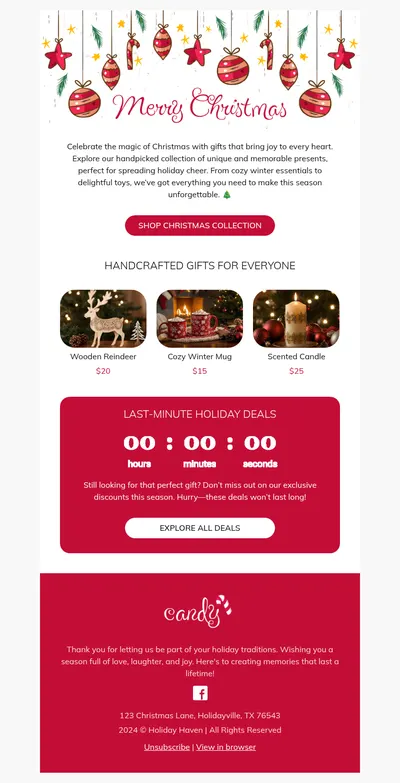
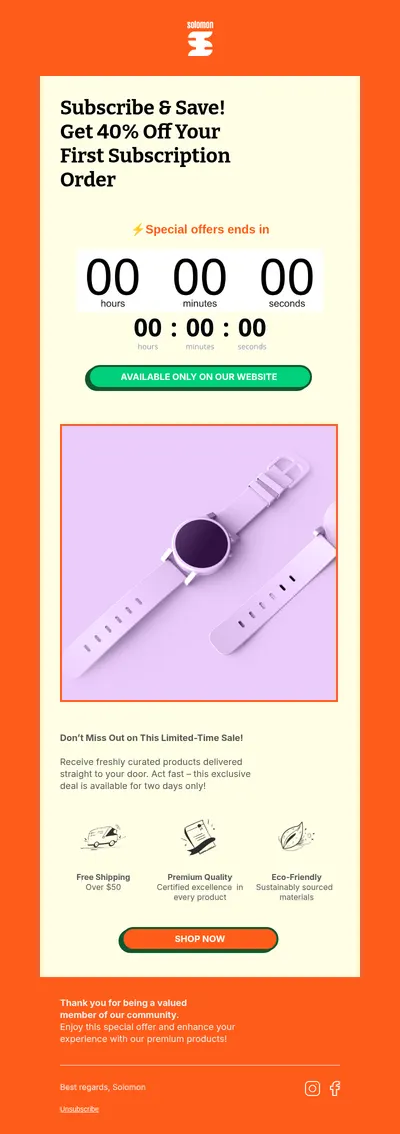
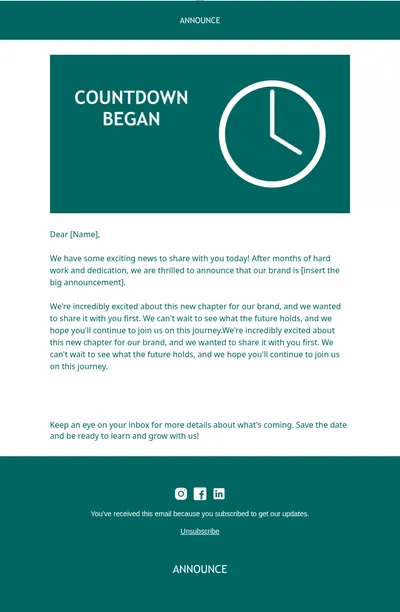
Deadlines move people. A sale that ends tonight or a webinar that starts in two days feels more real when readers can see the time running out. Our countdown email templates are designed around that idea, with layouts that give the timer pride of place and keep the offer, the deadline, and the call to action easy to find.
How Countdown Email Templates Work in Blocks
Blocks includes a countdown element you can drag into any email. Instead of a static picture of a clock, it inserts an animated timer image that is generated for the deadline you choose, so subscribers see the remaining time when they open the email.
- Set your own deadline. Pick the end date and time, along with the time zone that your campaign is planned around.
- Match your brand. Adjust fonts, sizes, colors, background, and the separator between numbers so the timer looks like part of the design.
- No code or external tools. The timer is configured in the editor's settings panel, next to the rest of your email.
Adding a Timer to Your Email
- Open a countdown template or any email in Blocks.
- Place an empty block where the timer should appear, then drag the countdown element from the elements tab into it.
- In the settings panel, set the expiration date and time and adjust the timer's style.
- Preview the email, save it, and export it or send it to your connected email platform.
For a step-by-step walkthrough with screenshots, read our guide on how to generate a countdown timer in Blocks.
When to Use a Countdown Timer
- Flash sales: short promotions from our flash sale templates where every hour counts.
- Last-chance reminders: last chance emails that tell subscribers an offer is about to expire.
- Seasonal peaks: Black Friday and holiday campaigns with a clear start or end time.
- Launches and events: coming soon announcements and webinar invitations that build anticipation.
Timers work best when the deadline is real. If an offer quietly continues after the clock hits zero, subscribers learn to ignore your countdowns, and the next genuine deadline loses its power.
Tips for Countdown Email Templates
- Place the timer near the top. The countdown should be visible without scrolling, right next to the headline that explains what is ending.
- State the deadline in words too. Some email clients show only the first frame of animated images, so add a line such as ends Friday at midnight.
- Keep the design readable. Large digits and strong contrast matter more than decorative fonts when people glance at a phone screen.
- Time the send carefully. A timer showing several days feels relaxed, while one showing a few hours creates real urgency.
- Pair urgency with value. A countdown cannot rescue a weak offer, so make sure the reward is worth hurrying for.
Want to write urgent emails that do not sound pushy? Our guide to urgent emails and the reminder emails guide explain how to balance time pressure with helpful, honest copy.
Countdowns also help after the fact. A follow-up email sent just after the deadline, thanking customers and hinting at the next opportunity, keeps the momentum going for subscribers who missed out.
If your audience lives in several time zones, decide which clock the deadline follows and say so in the email. Mentioning the time zone next to the date avoids disappointed customers who arrive an hour after the offer has closed.
Start with Free Countdown Email Templates
Pick a template above, add your offer, set the timer, and let the ticking clock do its job. A clear deadline is often the nudge subscribers need to act today rather than someday.