
HubSpot email builder for on-brand emails without code
Blocks is a drag-and-drop HubSpot email builder. Pick a template, change it by clicking, and export the finished email to your HubSpot account — it arrives as a draft marketing email, ready for you to review and send from HubSpot.
Sign up
How the email gets to HubSpot
-
Build it in Blocks
Start from a template, change it by clicking, no code.
-
Export → Email platforms → HubSpot Email
Name the email and add a subject line. Your HubSpot token is already saved in the project.
-
In your HubSpot account
A draft marketing email with your design. HubSpot adds its standard footer. Press “Open in HubSpot” to review it.
Why build HubSpot emails in Blocks
-
Edit by clicking
Every heading, image and button is a block. Change the email without touching code or waiting for a developer.
-
Ready for phones
The layout adapts to small screens on its own, so you don’t build a separate mobile version.
-
Connect once per project
Add your HubSpot token in the project settings once. Every export from that project lands in the same account.
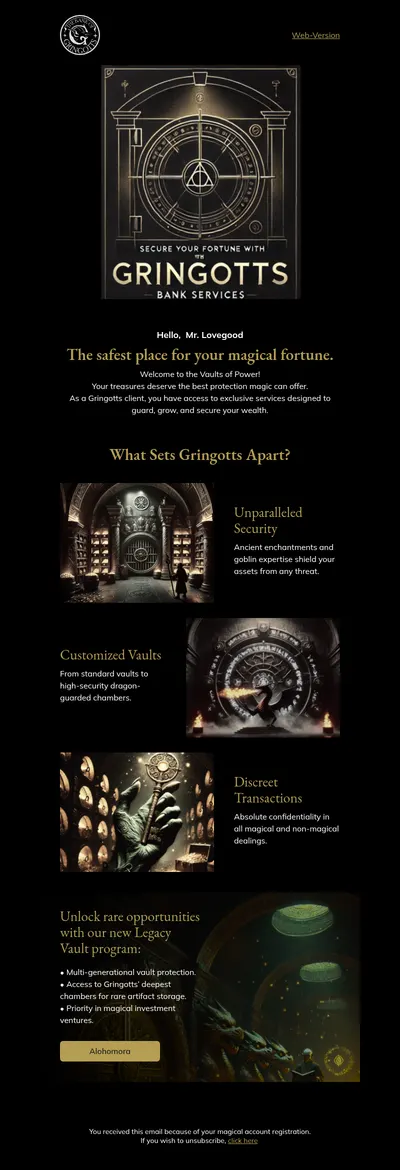
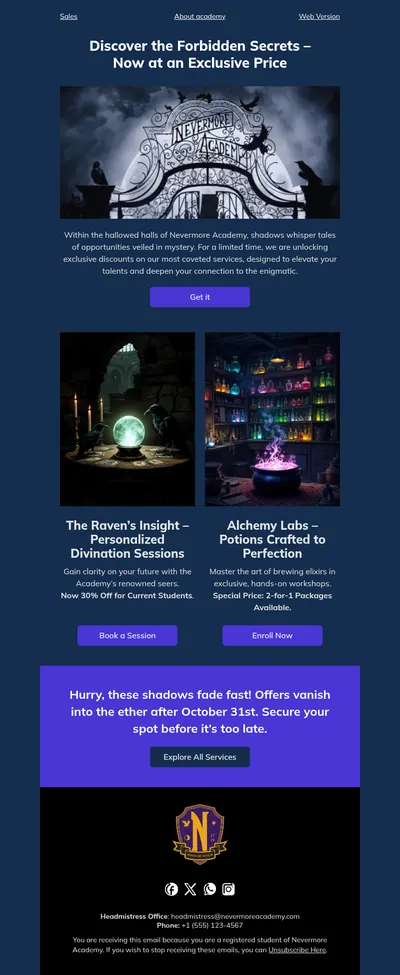
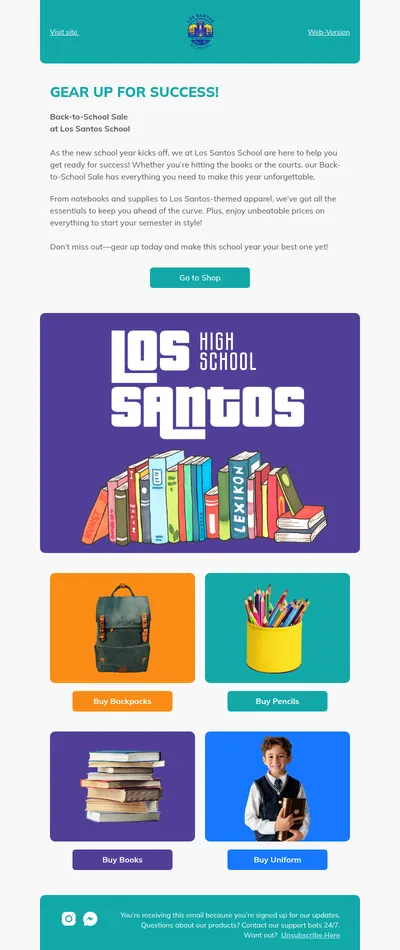
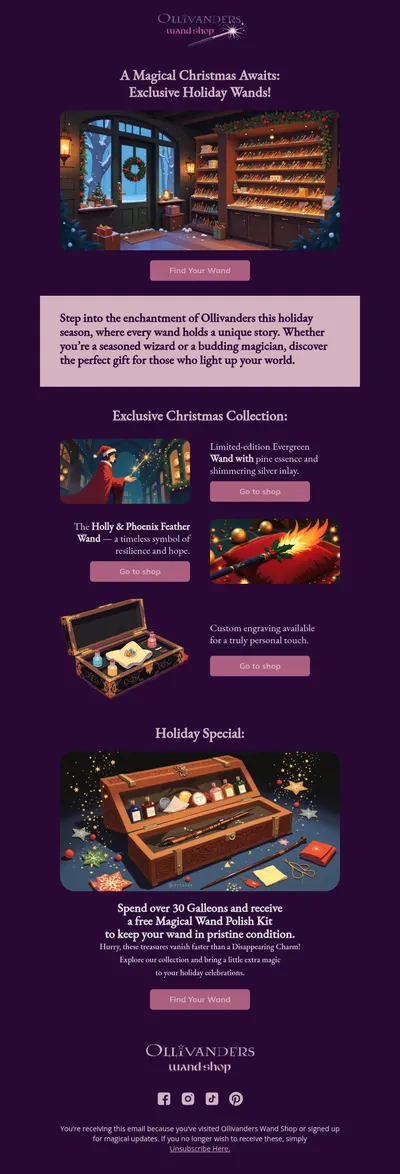
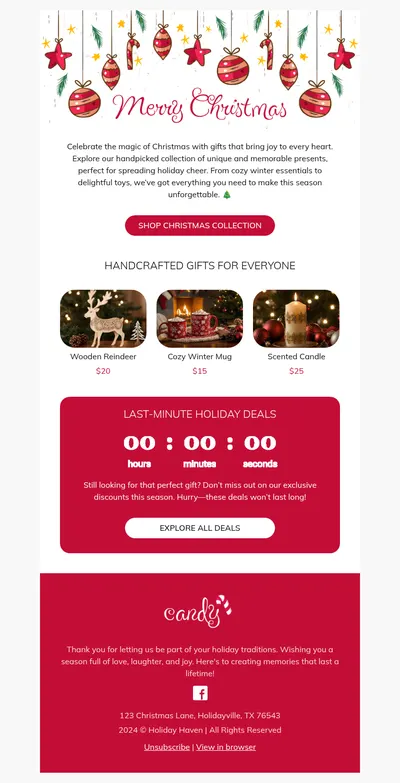
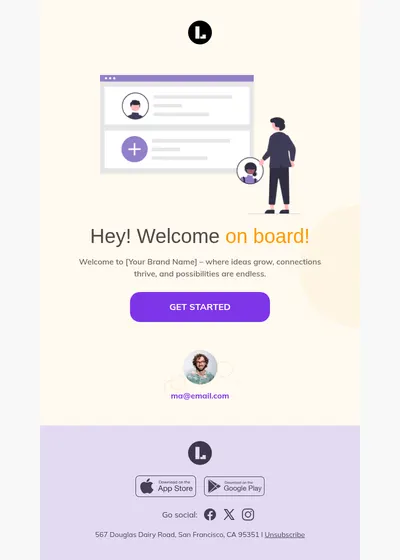
Templates to start from
Not on HubSpot?
Blocks exports straight to these platforms too.
- Klaviyo
- Campaign Monitor
- Constant Contact
- Bento
- Dotdigital
- GetResponse
- Brevo
- ActiveCampaign
- Salesforce
- HubSpot Email
- Mailchimp
 Klaviyo
  Campaign Monitor
  Constant Contact
  Bento
Bento  Dotdigital
  GetResponse
  Brevo
Brevo  ActiveCampaign
  Salesforce
  Mailchimp
 For any other platform, download the email as HTML or a ZIP archive and upload it there.
Frequently asked questions
- What does the export create in HubSpot?
- A draft marketing email with your design inside. HubSpot adds its standard footer with your company address and the unsubscribe link, as it does for every marketing email. Nothing goes out until you send it from HubSpot.
- What do I need to connect HubSpot?
- A private app access token and a sender address verified in HubSpot. You add them once in the project settings.
- If I edit the email again, does HubSpot update?
- No. Each export creates a new draft, so earlier versions stay as they were. Export again once the email is final.
- Can I use HubSpot personalisation tokens?
- There is no menu of HubSpot tokens in the editor, but you can type one into the text, such as {{ contact.firstname }}. Check it in HubSpot’s preview before you send.
- Where are the images stored?
- On Blocks’ image server. The email links to them, so there is nothing to upload to HubSpot.
- What about the preview text?
- Add it in HubSpot after the export. The subject line goes across; the preview text doesn’t.
Build your next HubSpot email in Blocks
Sign up, connect HubSpot in the project settings and export your first email.
Sign up