
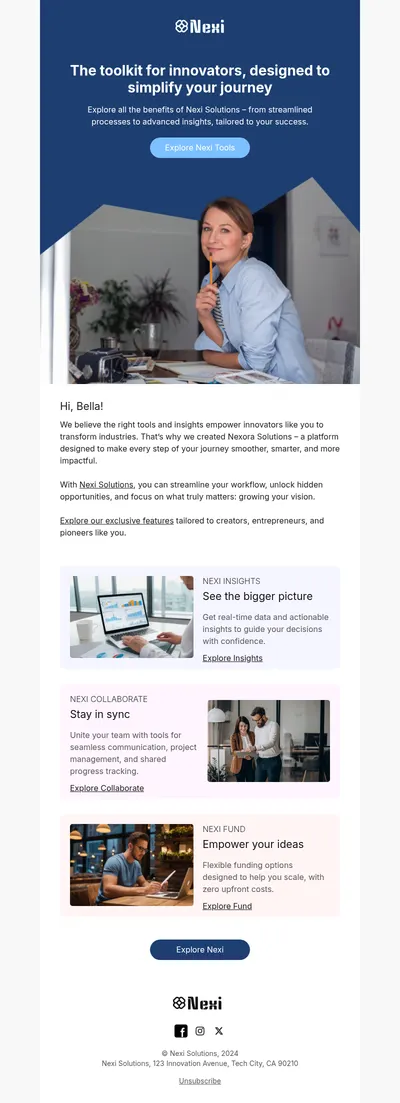
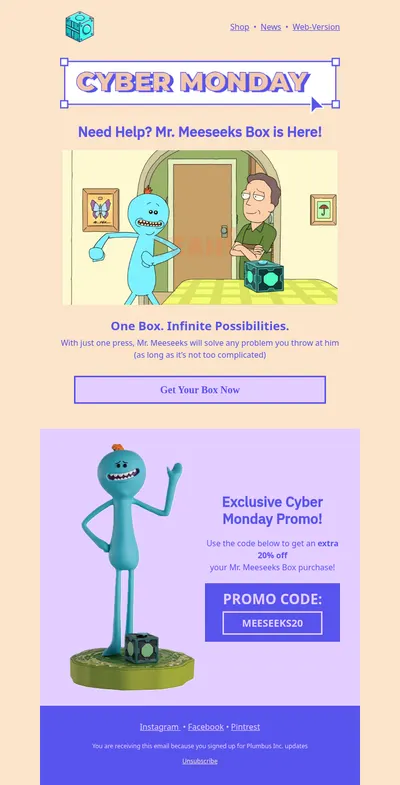
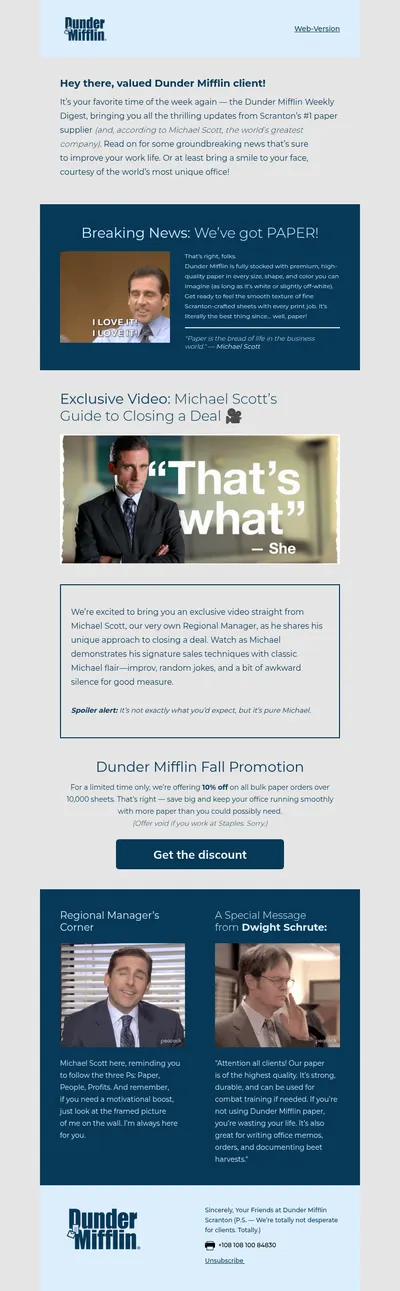
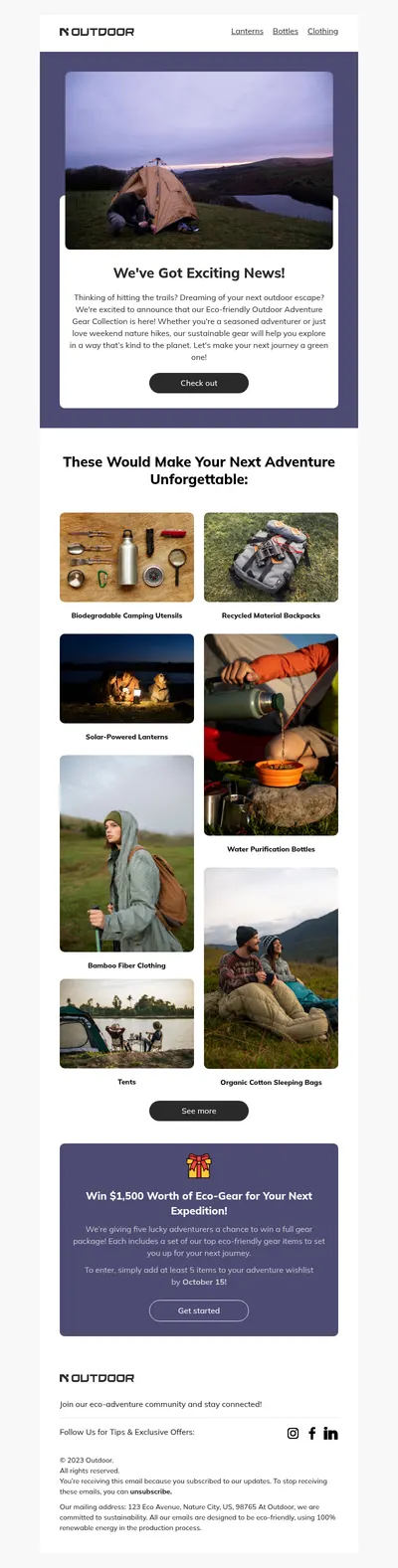
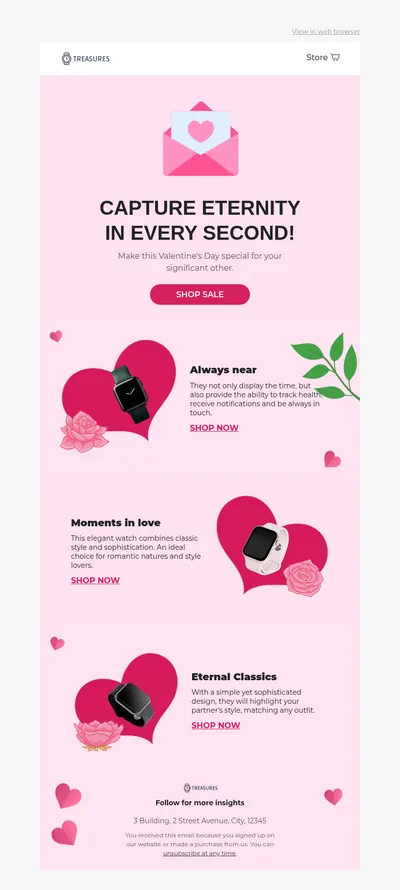

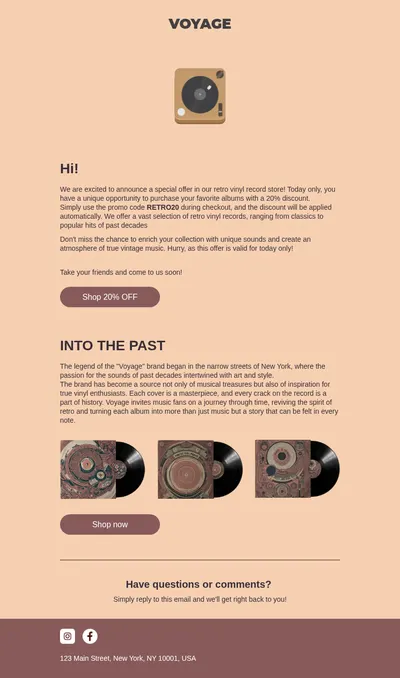
Animated GIFs are one of the easiest ways to add motion to an email. They can show a product from several angles, demonstrate a feature, or simply add a playful spark to a greeting. Our GIF email templates are built to make that motion count, placing animation where it supports the message instead of distracting from it.
Why Use GIF Email Templates
Most emails are static, so movement draws the eye immediately. Used with purpose, a GIF can explain something faster than a paragraph of text and give readers a reason to keep scrolling.
- Show instead of tell. A short animation of an app screen or a product in use communicates value in seconds.
- Highlight the offer. Gentle motion around a discount or a button guides attention to the most important part of the email.
- Add personality. Seasonal animations and playful illustrations make holiday campaigns feel festive and memorable.
Working with GIFs in Blocks
In Blocks, GIFs are added like any other image: upload the file or choose it from your image library, drop it into a block, and set its size, link, and alternative text in the settings. The rest of the template stays fully editable around it.
The editor also includes a countdown element that produces an animated timer image, a popular way to combine motion with urgency in sales emails.
Great Uses for Animated Emails
- Product launches: launch emails that reveal a new item with a short spin or unboxing loop.
- Fashion showcases: outfit changes and color variations from the fashion templates.
- Holiday greetings: falling snow, confetti, or hearts for Christmas and Valentine campaigns.
- Announcements: announcement emails where a subtle animated banner signals news worth reading.
Tips for GIF Email Templates
- Put the key message in the first frame. Some versions of Outlook display only the first frame of a GIF, so it must make sense on its own.
- Keep file sizes small. Limit colors, dimensions, and frame counts, since large GIFs load slowly on mobile connections.
- Use one main animation. Several competing GIFs make an email feel busy and dilute the call to action.
- Write alternative text. Describe what the animation shows for readers who have images turned off or use screen readers.
- Avoid rapid flashing. Fast, high-contrast flashing can be uncomfortable or harmful for some readers, so keep motion smooth.
Want to go deeper into motion design for email? Our guide to animated emails covers formats, sizes, and creative ideas, and the article on countdown timer GIFs shows one of the most practical animations in action.
Animation should always support a clear goal. Before adding a GIF, ask what it helps the reader understand or do. If the answer is not obvious, a well-chosen static image may serve the email better and load faster.
It also helps to plan animations with your brand guidelines in mind. Consistent motion styles, such as the same easing, colors, and loop length across campaigns, make animated emails feel like a recognizable part of your identity rather than random decorations.
When you create your own GIFs, export them at the exact width they will appear in the email rather than scaling a huge file down in the layout. Around a few seconds of looping animation is usually enough, and fewer frames often look smoother than you would expect while keeping the file light.
Get Free GIF Email Templates
Pick a template above, add your animation, and check the email on desktop and mobile before sending. A single well-placed GIF can turn an ordinary campaign into one people actually stop to watch.