
How To Generate a Countdown Timer for an Email in Blocks
A countdown timer creates a sense of urgency and motivates your email subscribers to buy. Don’t miss this opportunity: generate a countdown timer GIF for an email with Blocks! That’s how your email countdown timer might look:
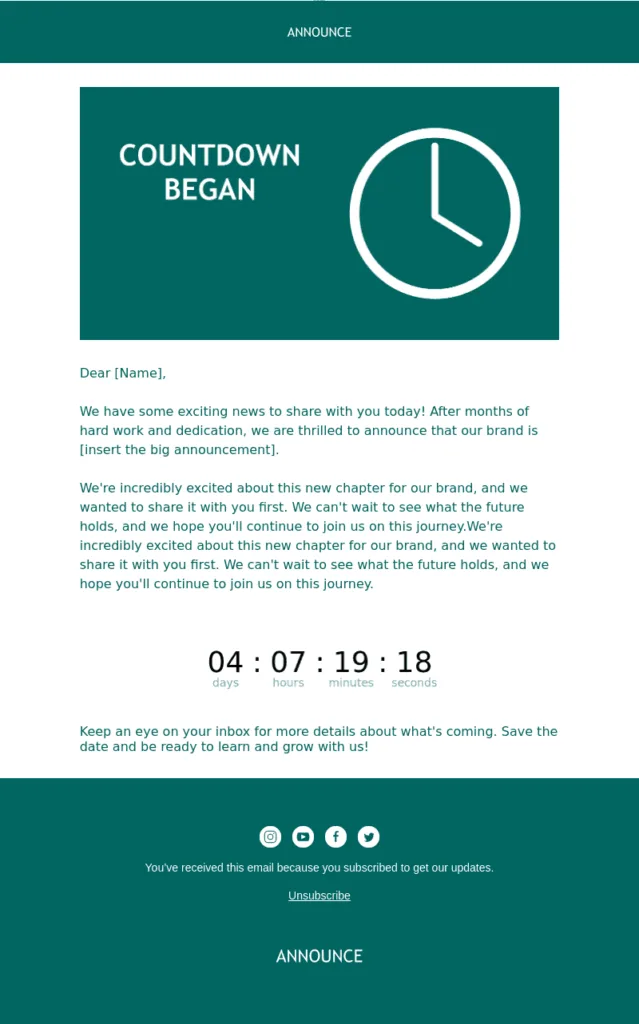
Blocks announcement email template with a countdown timer GIF
Here’s a quick guide to generating and adding a countdown timer to your emails in Blocks with the help of our generator. You’ll need to follow just 4 simple steps to create a countdown timer for your email: no coding or design skills required!
Step 1. Create an Email Template
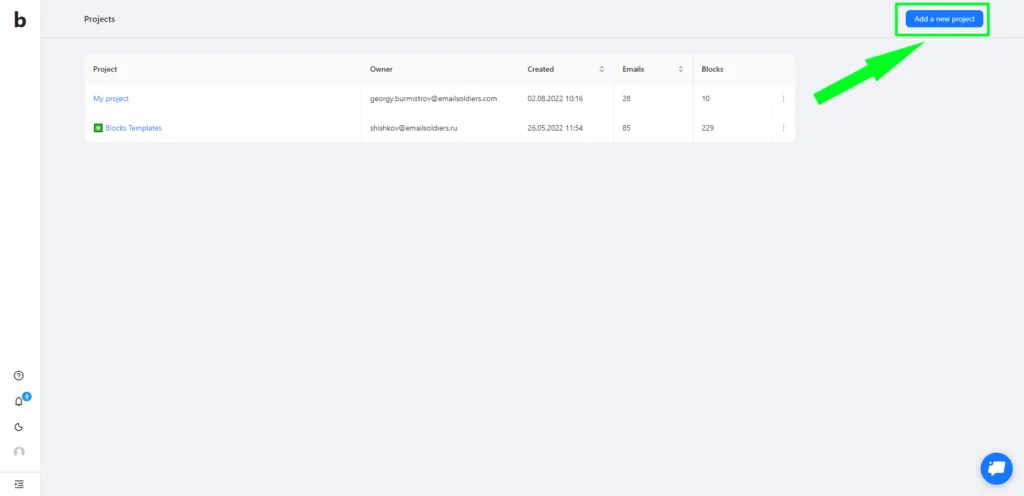
First, you need to open a project or create a new one. You can also migrate your email templates to Blocks and add a countdown timer to emails from other platforms.
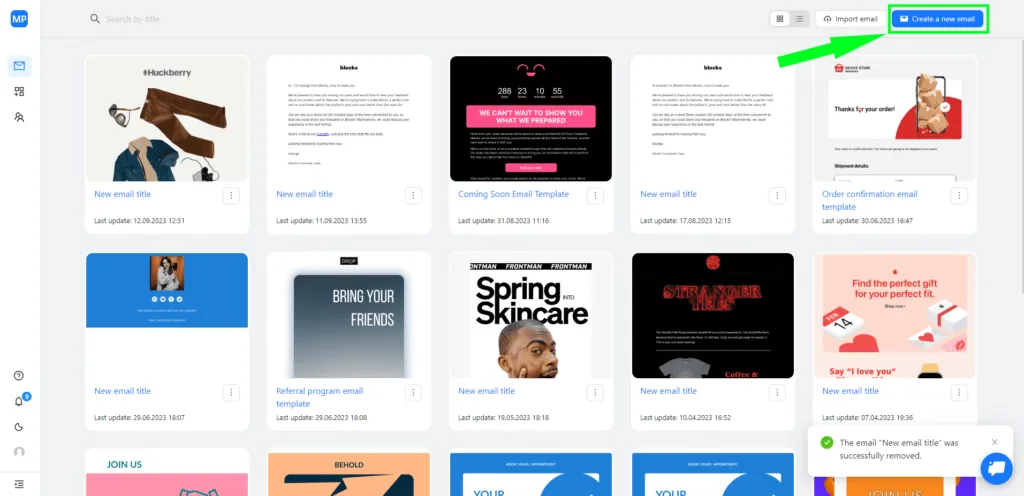
After that, create an email from scratch (or choose one from our template gallery). Later, you’ll be able to generate a countdown timer inside this email template with just a few clicks.
Step 2. Add an Empty Block for Your Countdown Timer
Go to the “Empty blocks” tab on the right.
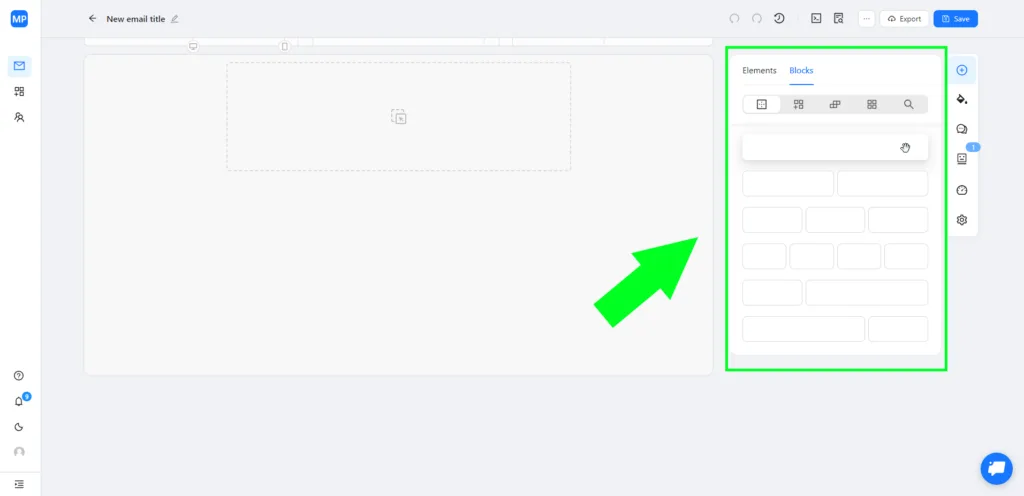
Pick the empty block that fits your purpose and drag it anywhere you want: this empty block will serve as a container for your countdown timer.
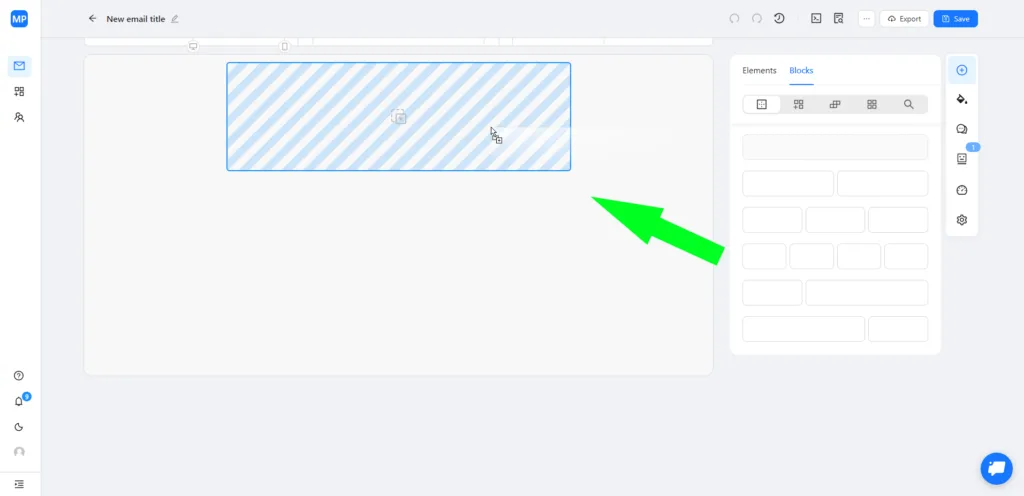
Step 3. Add a Countdown Timer to Your Email
First, go to the “Elements” tab on the right.
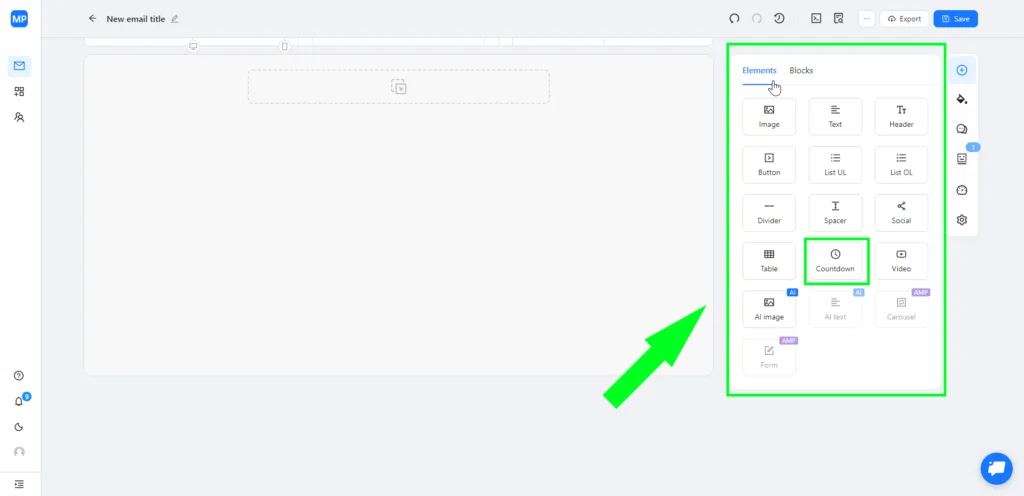
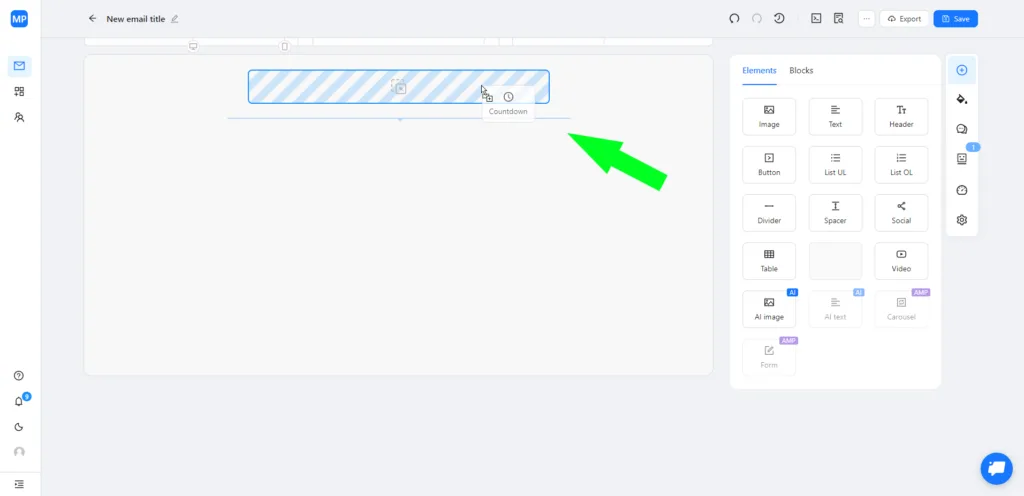
Choose the “Countdown” icon to use the countdown timer GIF generator and drag it into one of the cells in the empty block.
Step 4. Customize Your Countdown Timer
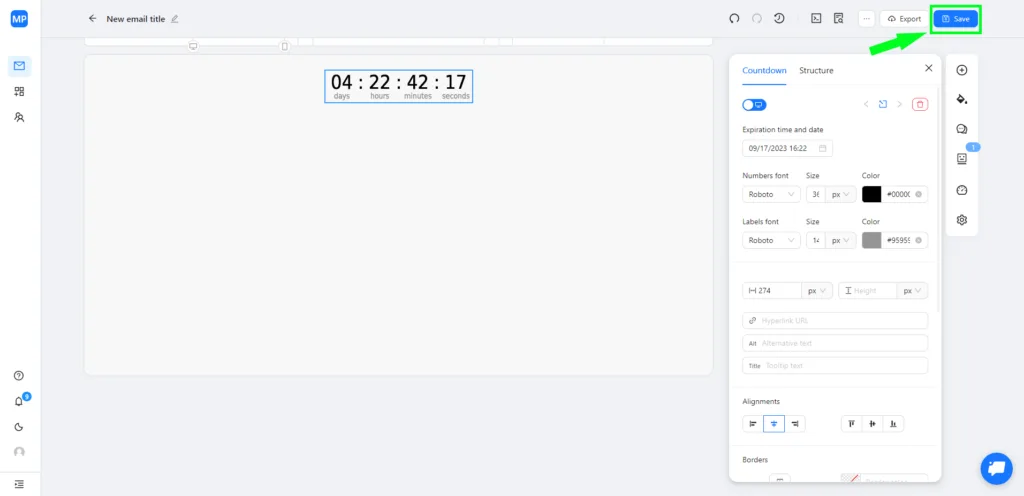
You can edit the countdown timer: change the font style, size, and color, set the expiration date, spacing, etc. The customization panel is on the right.
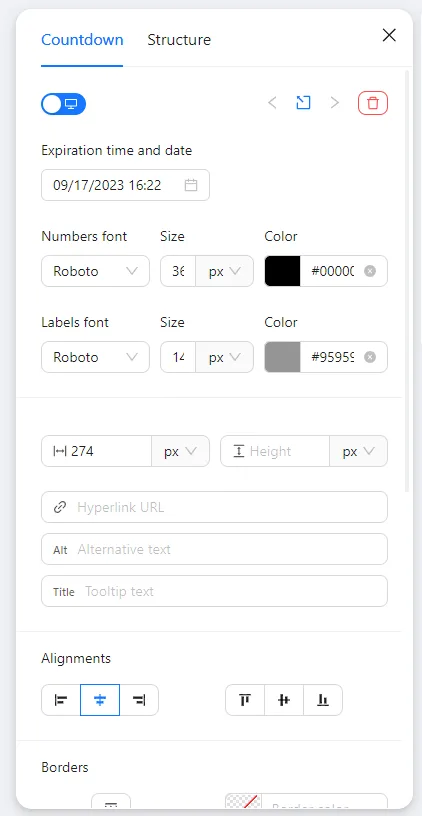
Don’t forget to save the changes by clicking the “Save” button in the upper right corner or by pressing Ctrl+S. You’re ready to go!
Don’t waste your time and go try our countdown timer GIF generator yourself in Blocks!