
Migrate Your Emails to Blocks From Any Other Platform
Migrating from one service to another is usually a rather time-consuming process: you have to gather all your assets from the previous platform, transfer them to a new one, and adjust everything there. However, it is not the case with Blocks.
In this article we will show you the process of moving your emails from other services to Blocks in detail.
Coming from Stripo or Beefree? See the step-by-step pages for Stripo and Beefree.
Important: you can migrate to Blocks from any email editor. However, the processes will be different for editors with email structures supported by Blocks and structures that are not supported yet. We’ll show you what to do in both cases.
Migrating to Blocks From a Builder With a Supported Structure
Some platforms have email structures supported by Blocks: you don’t have to tweak and tune anything after transferring your emails from these platforms. At this moment, Blocks supports structures of the following builders:
- Stripo
- Sendsay
- Beefree
- Mindbox
- Unlayer
- Postcards
- Topol.io
Let’s migrate an email to Blocks using the example of an email made in Stripo.
1. Export Your Email From the Current Email Editor in HTML File/Code Format
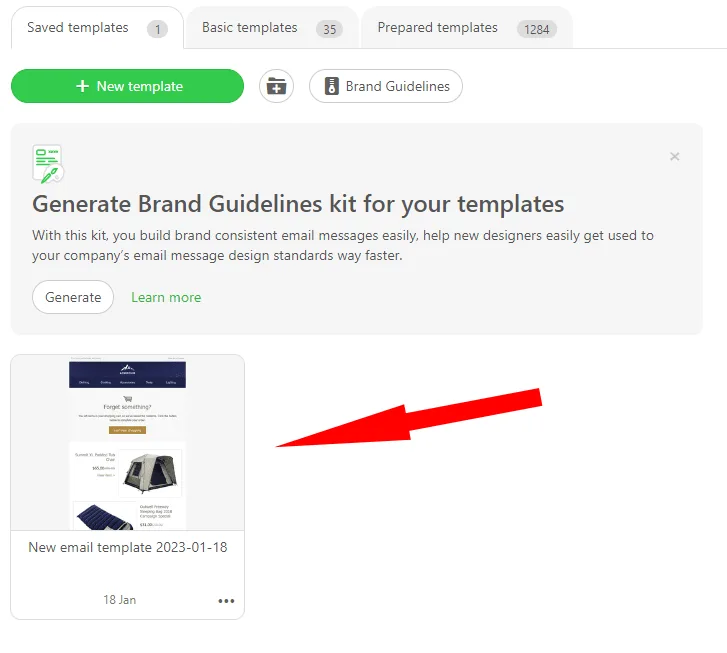
Go to your templates collection and pick the one you want to move to Blocks. Open it.
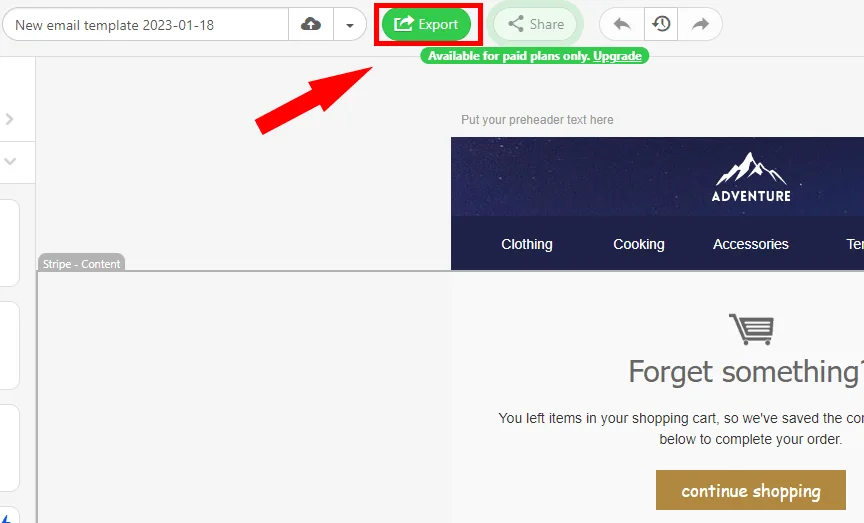
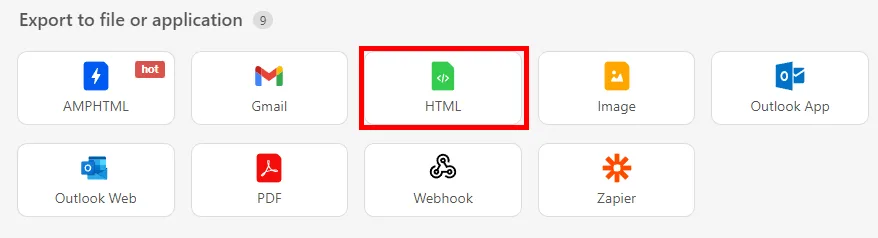
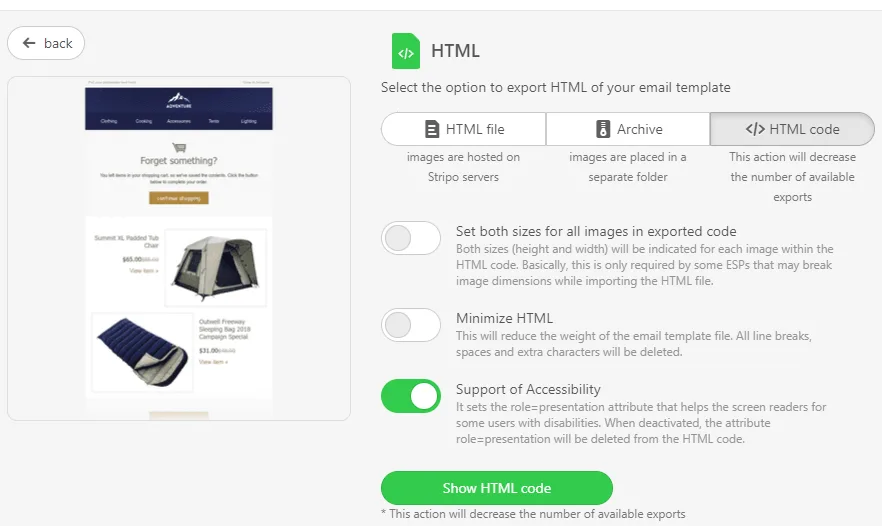
Click the “Export” button and export the template as an HTML file/code.
2. Import Your Email Into Blocks
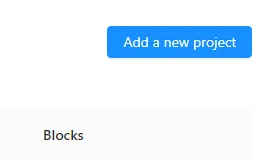
Go to Blocks and create a new project.
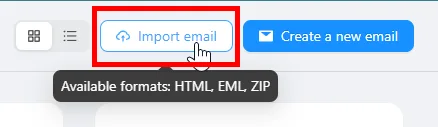
Click “Import email” in the upper right corner and upload the HTML file you exported. Blocks also accepts EML and ZIP files.
Importing emails and the Code mode are available on paid plans and during the free 14-day trial.
Then click the “Save” button in the upper right corner or use a Ctrl+S hotkey combination. That’s it, your email is transferred, Blocks will automatically divide it into blocks so you can use them later in this or other projects.
This is the algorithm for migration to Blocks from a platform with the supported structures. But what if you want to move from a platform that is not in the list?
Migrating to Blocks From a Builder Without a Supported Structure
What if you want to move from a platform that Blocks doesn’t support at the moment? Well, in this case the algorithm will not be so much different.
If you migrate from a builder not supported by Blocks, your emails will not be automatically divided into blocks. However, you can fix it by editing the code.
After you upload your email into Blocks, open the Code mode and add the following attribute to the <tr> tag of those parts you want to turn into blocks:
em="block"This is how the <tr> tag will look:
<tr em="block"></tr>
When this panel appears, it means that a part of an email became a block.
Summary
As you can see, moving to Blocks is easy. Of course, if you are moving from a platform that is not fully supported by Blocks, you will have to add a piece of code to it (you can always do it with the help of Ctrl+F combination and replacing plain <tr> tags with <tr em="block">).
The best part is that you don’t have to do it all by yourself. Leave a request on our migration page and we will help you move to our platform.