
How Does Billing Work? Step-by-Step Guide
Read this article to learn how to pay for a subscription plan, choose the payment method, and request a custom pricing plan.
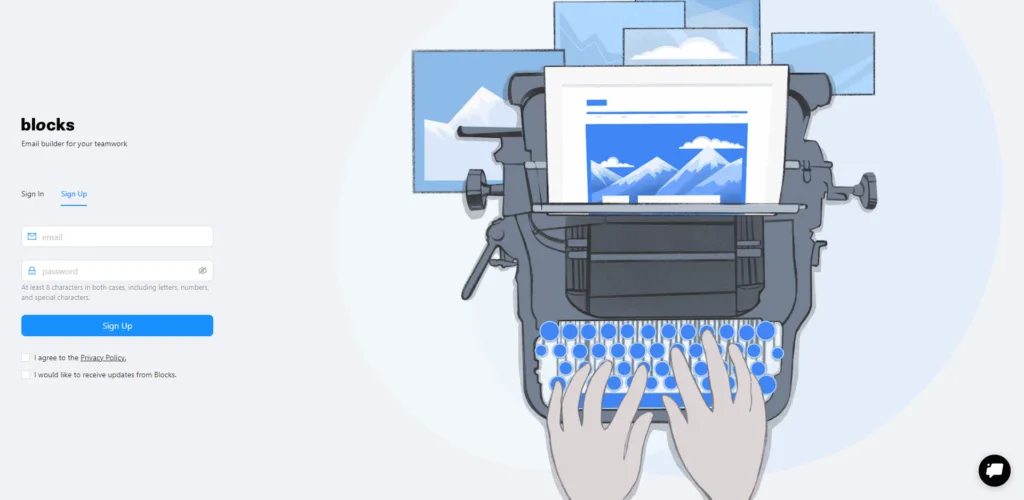
Step 1. Sign Up to Create an Account
First of all, you need to sign up or log in (if you already have an account). To create a new account, click Start for free in the upper-right corner of any page on https://useblocks.io/. If you already have one, go to the login page.
Step 2. Choose Your Pricing Plan on the Billing Page
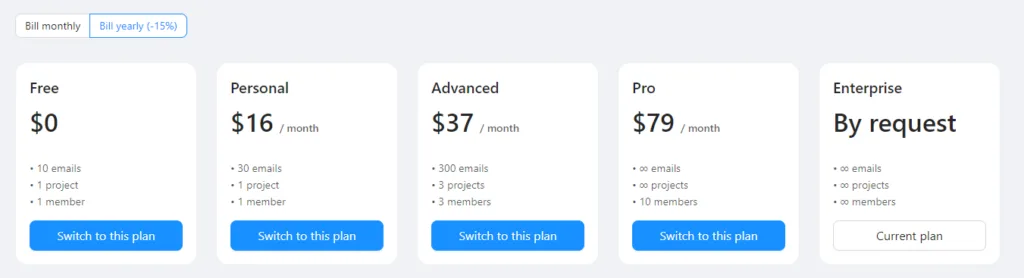
Go to the billing page to see what pricing plans we have to offer. Right now Blocks has four regular pricing plans, plus a custom Enterprise plan (see Step 2.1):
- Free plan. This plan will help you get around Blocks and see how its features can help you optimize your email workflow.
- Personal plan. Use this pricing plan if you have a small project and would like to work on it on your own.
- Advanced plan. Choose this pricing plan if you have a small team and several email design projects to work on.
- Pro plan. This pricing plan is designed for agencies and large teams who want to save their resources on email design and HTML coding.
Step 2.1. Claim a Custom Plan
If you work on large projects and want to include more features in your plan or get special support from Blocks experts, contact us for a custom plan for enterprise. We’ll show you how Blocks can help your business and optimize your time and expenses.
To claim a custom plan, click Contact us in the Enterprise section of the pricing page and fill out the form. One of the Blocks experts will contact you ASAP to work out the solution for you.
Step 3. Pay for a Pricing Plan
When you select the pricing plan and click Switch to this plan, you get to the payment page. You’ll be asked to fill in your card info and state your country or region. After that, click Subscribe and start designing your new emails in Blocks!
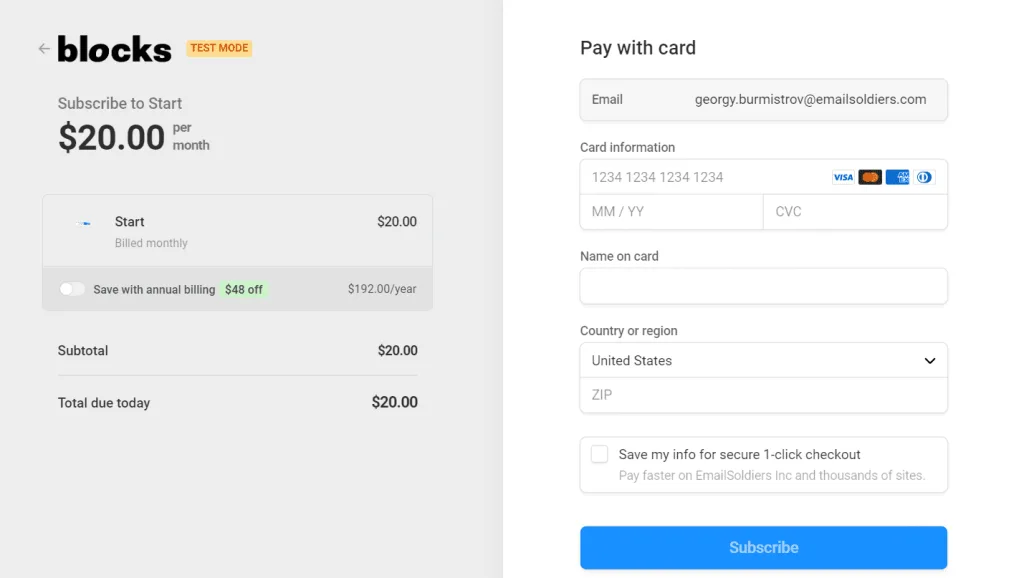
Note that you can save up to 15% if you make annual payments instead of monthly ones. For example, if you choose the Advanced plan, you can save $84 a year by paying annually. Quarterly payments save about 5%. Go to the billing page to learn about our discounts for other pricing plans and save even more money with Blocks!
How to Switch On/Off Recurring Payments?
If you’re going to design email templates in Blocks on a regular basis, it will be more convenient for you to switch on the recurring payments: this way, you won’t lose access to Blocks features and will work on your projects without interruptions – payments will be made automatically.
Of course, if you want to make a one-time payment, you’re free to do it. Simply open the Billing page and choose to switch on/off recurring payments using the toggle switch.
How to Pay for a Custom Pricing Plan for Enterprise
If you’re representing an enterprise company and would like to receive additional services like a larger number of user seats and personal customer support, you can request a custom pricing plan.
Simply click Contact us in the Enterprise section of the pricing page and fill out the short form. One of our experts will review your request and contact you for a consultation. Once we tailor a custom pricing plan to your needs, you’ll see your personal settings on the billing page and will be able to manage your custom plan just as the regular ones.
Still have some questions left? Contact our experts in the live chat on our website or drop us an email at support@useblocks.io.
You might find answers to some questions in other articles:
What’s the difference between pricing plans?
How do I manage my Blocks subscription?
Create an Email Template Within Minutes With Structures and Elements