
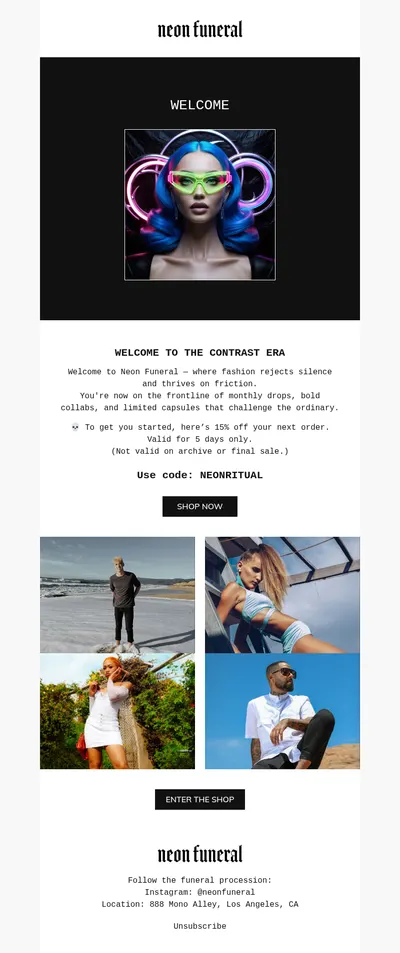
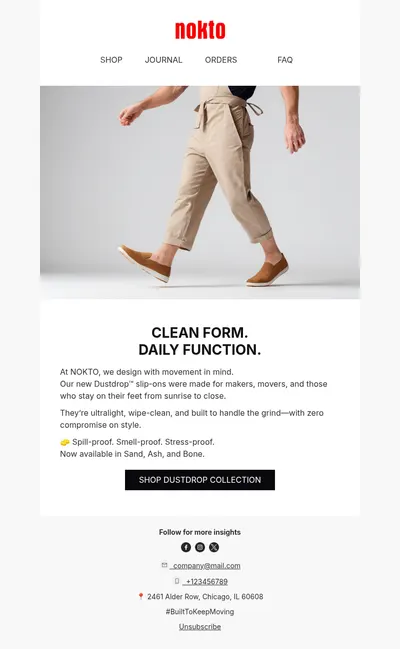
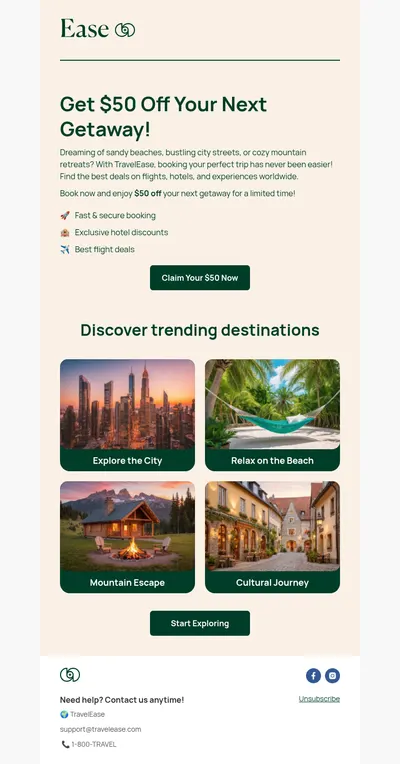
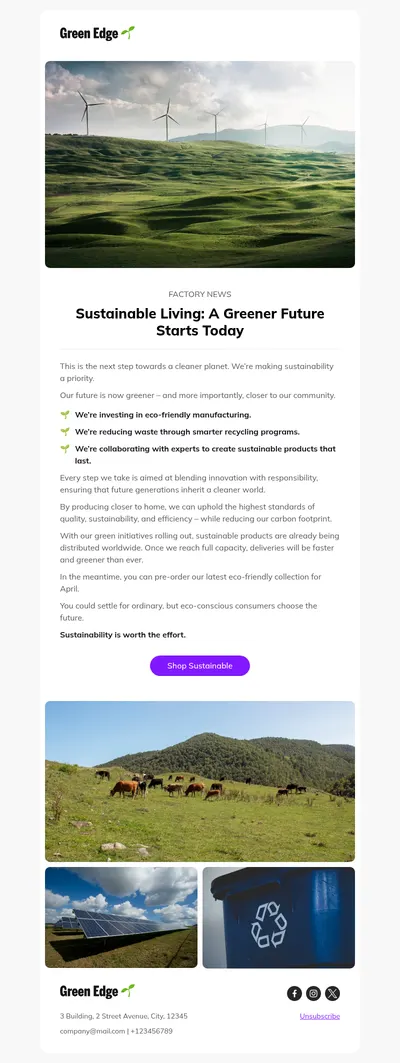
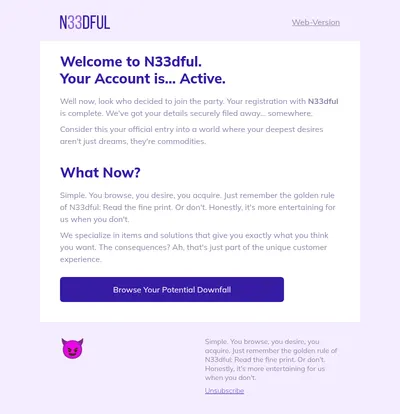
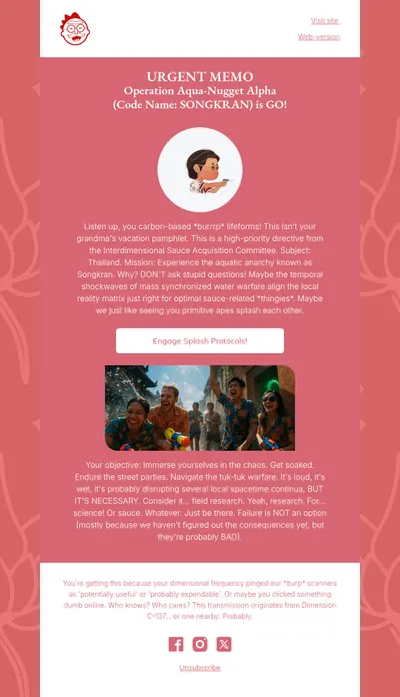
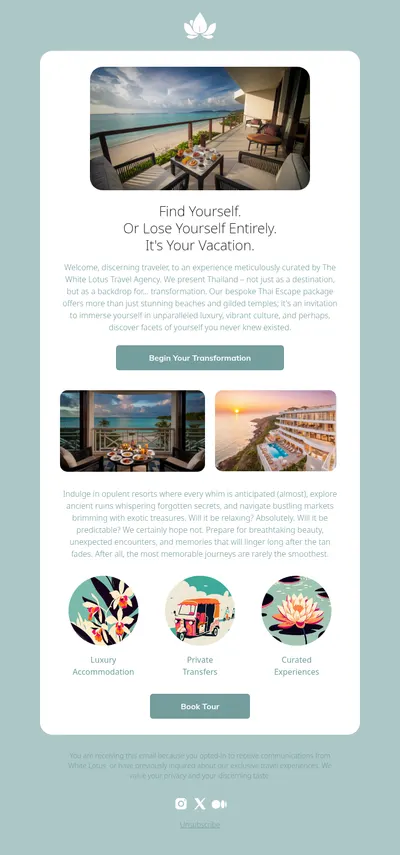
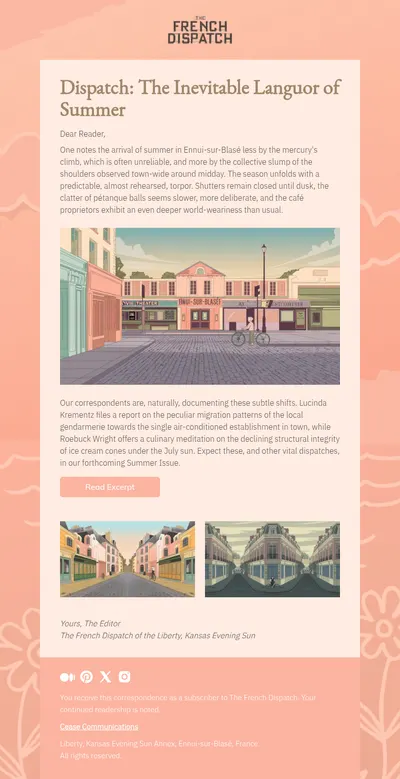
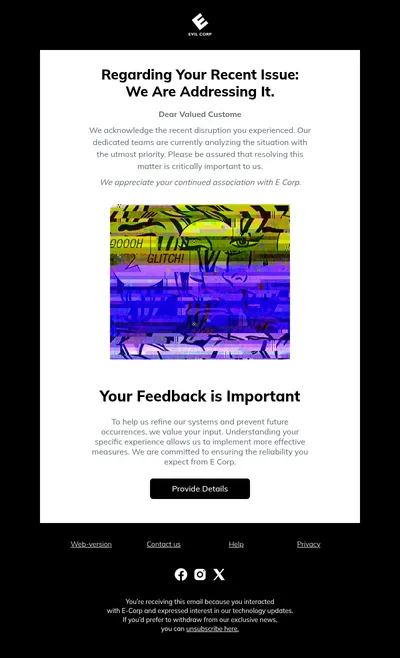
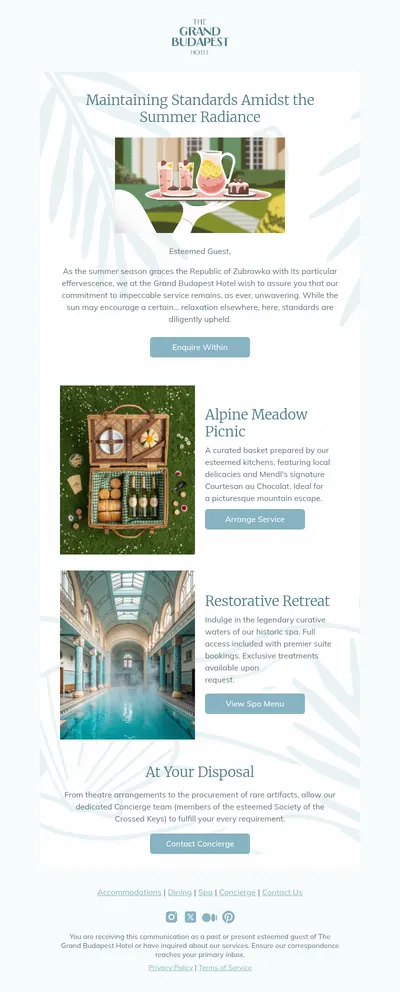
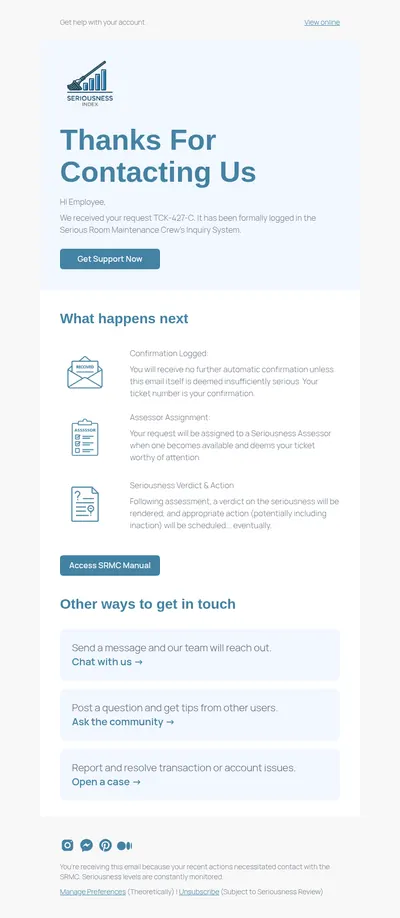
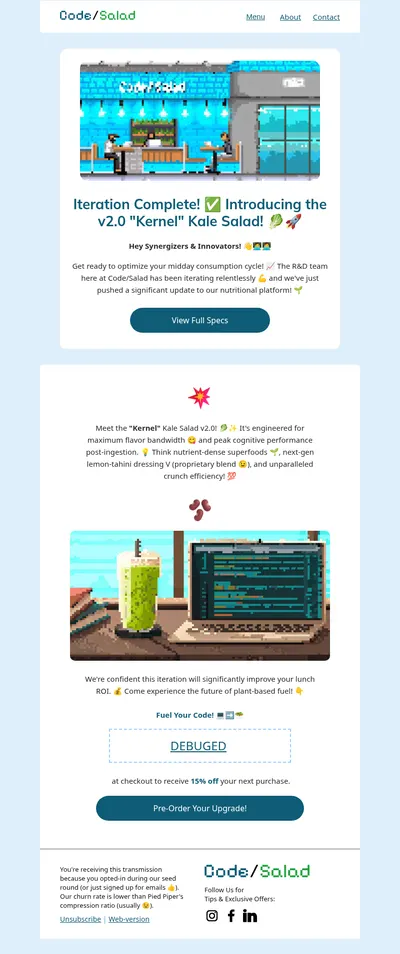
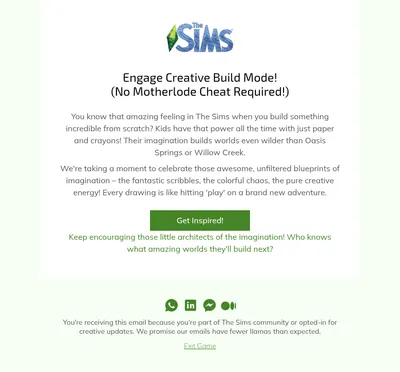
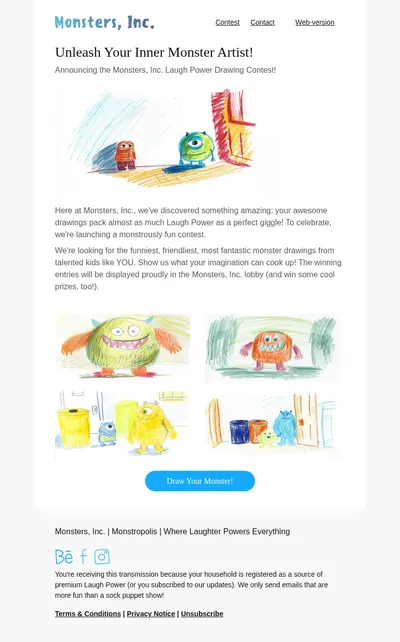
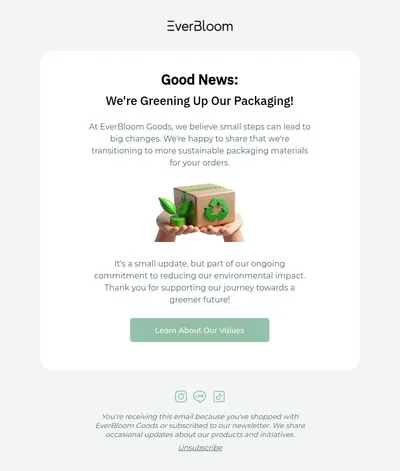
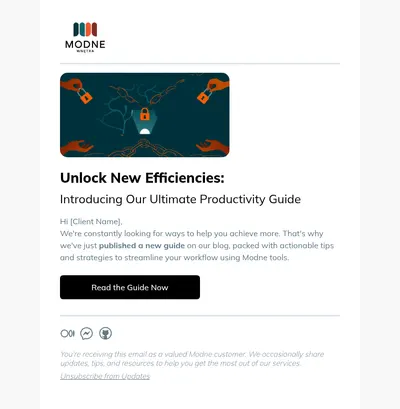
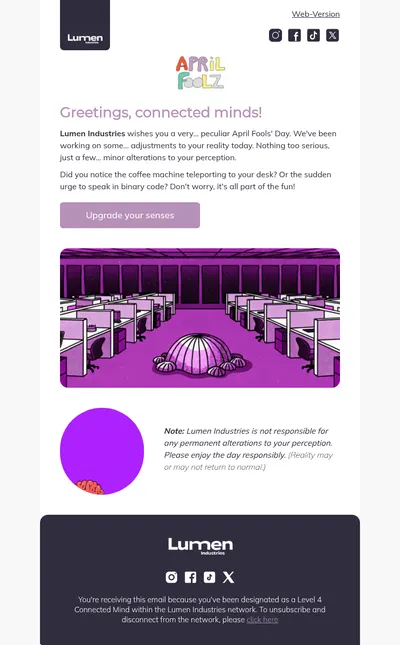
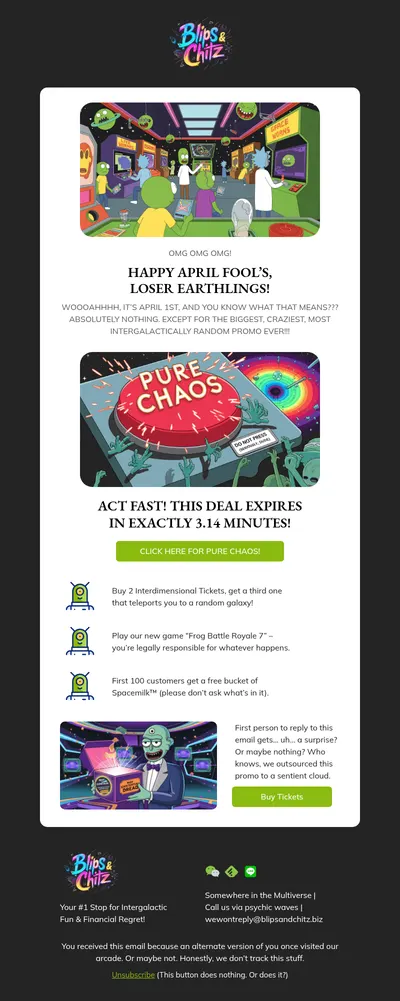
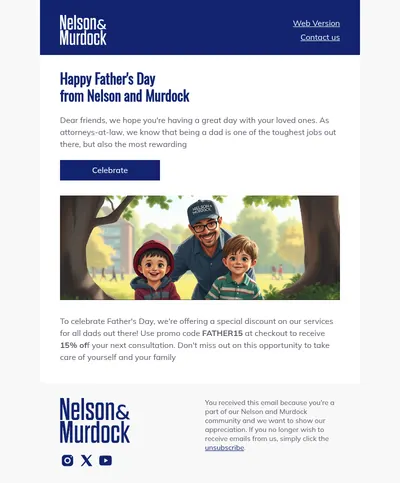
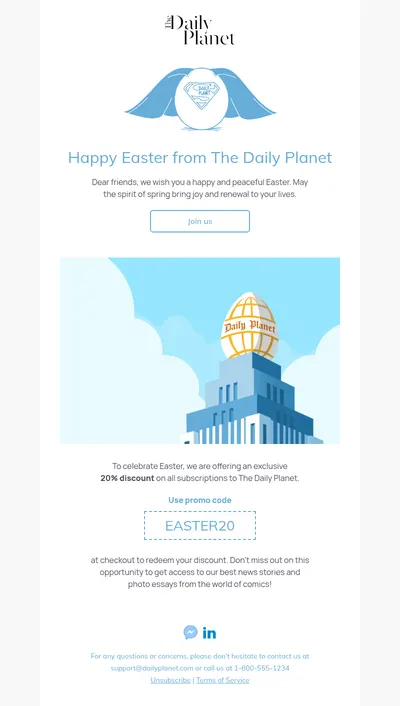
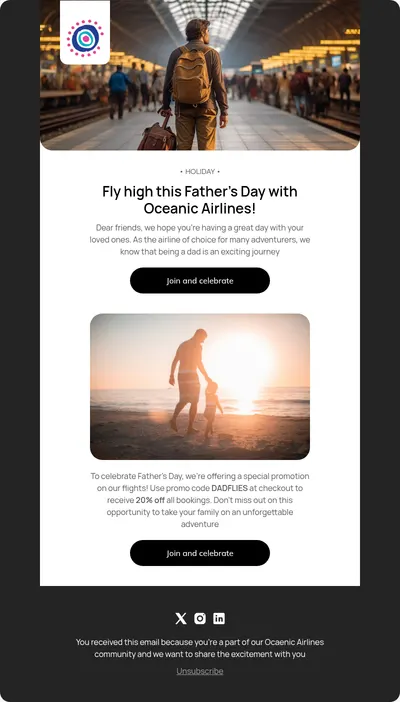
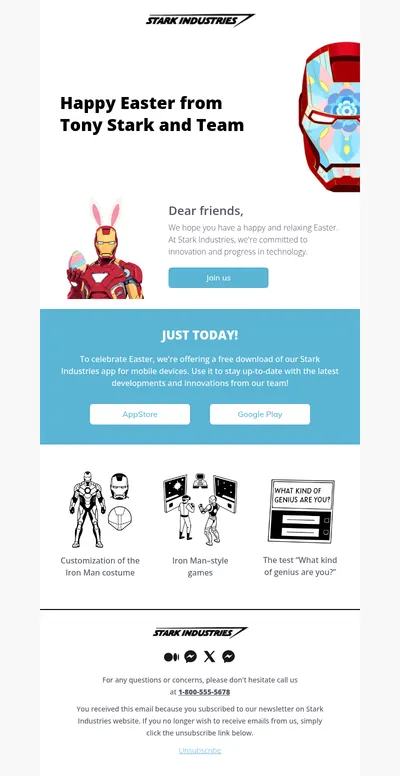
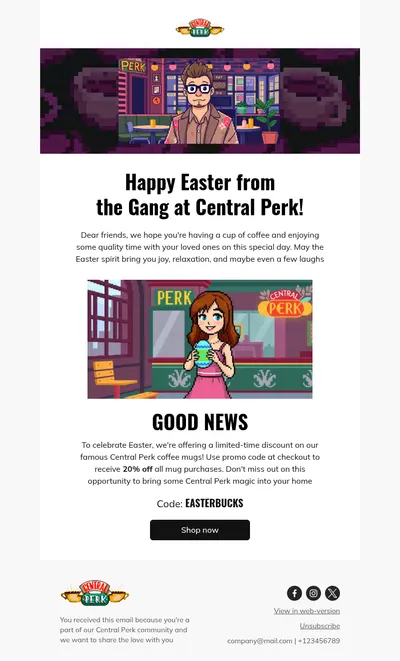
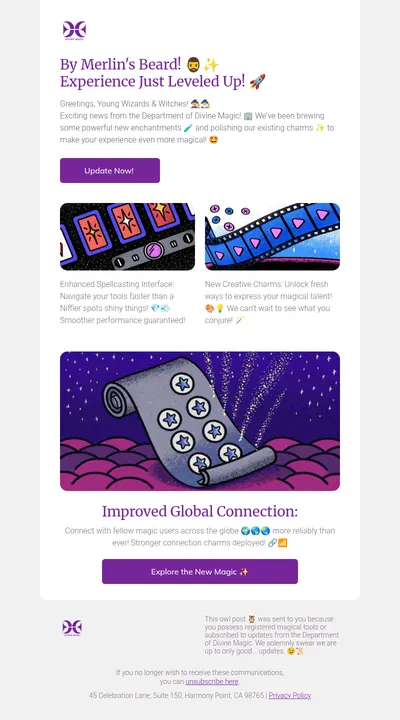
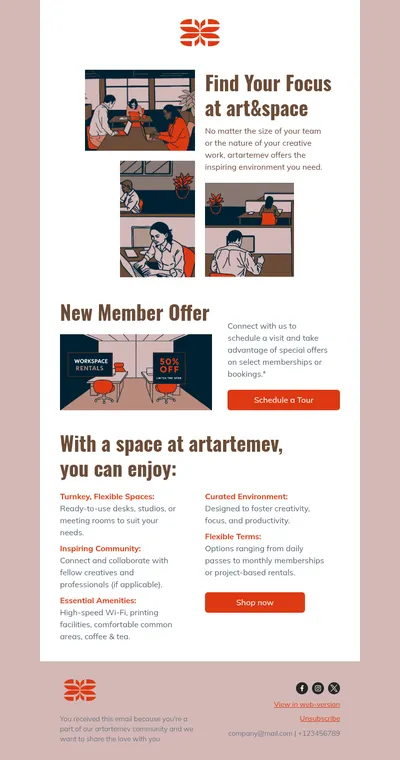
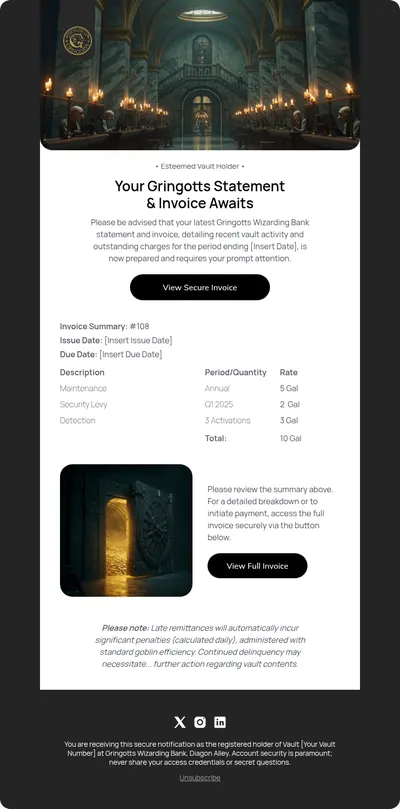
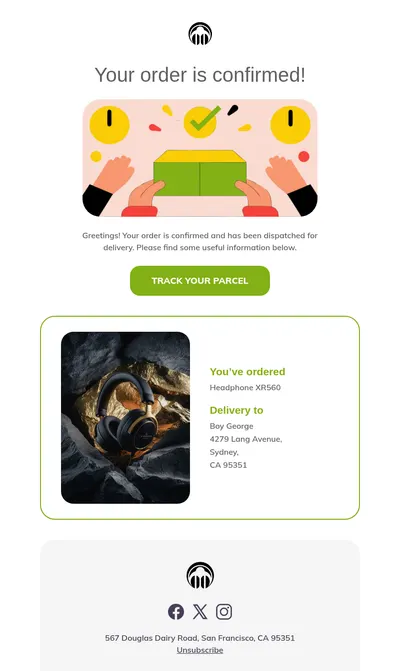
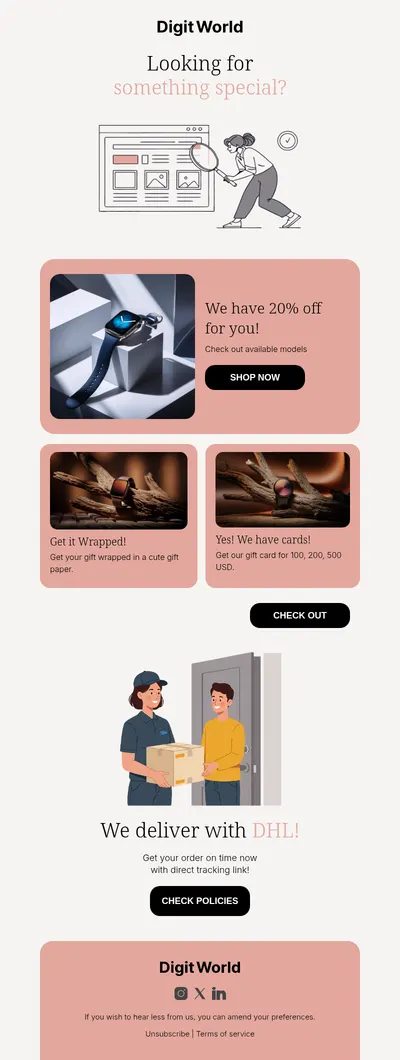
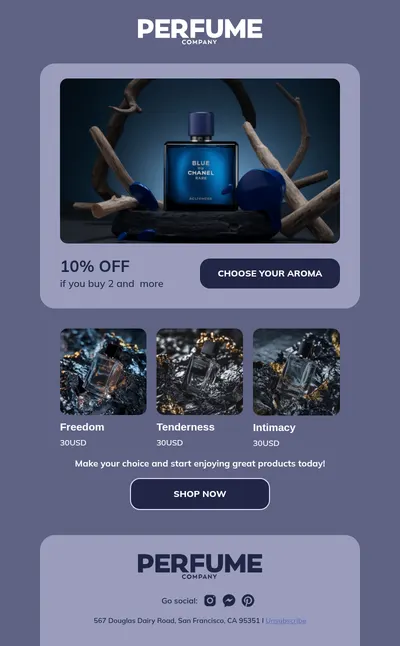
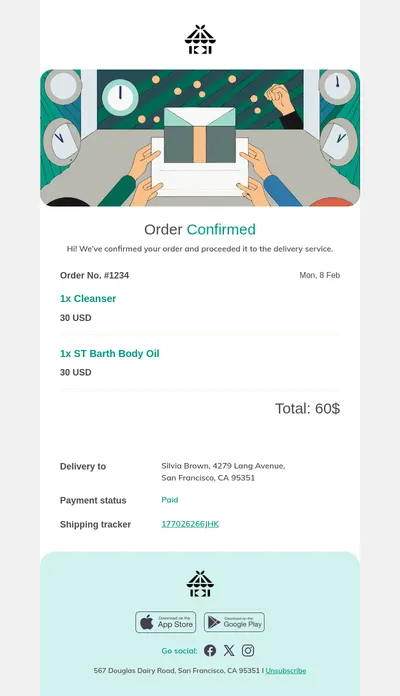
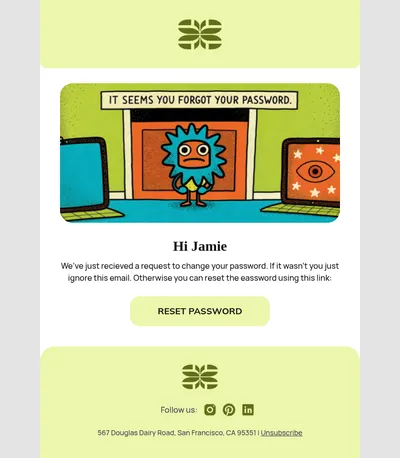
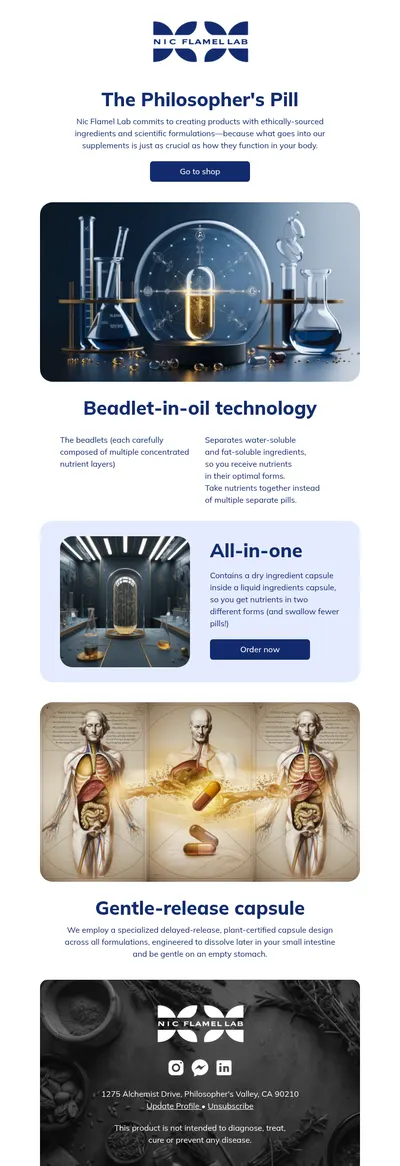
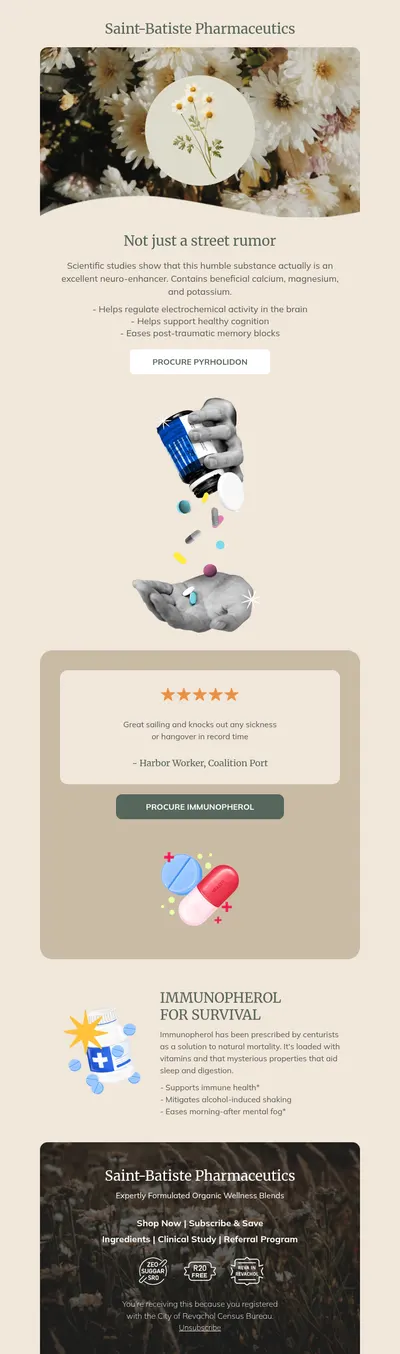
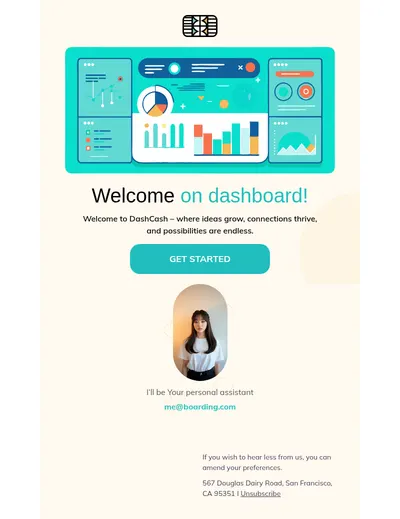
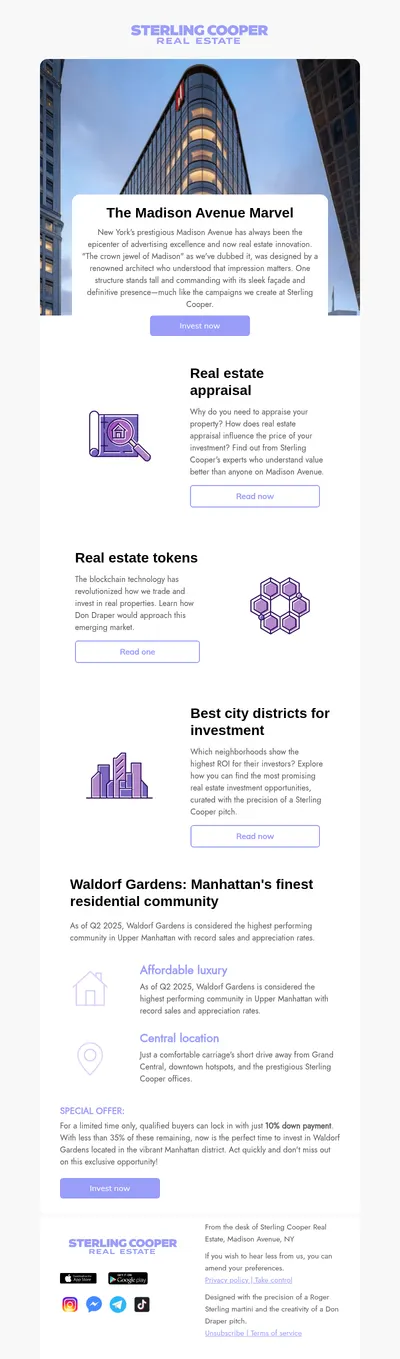
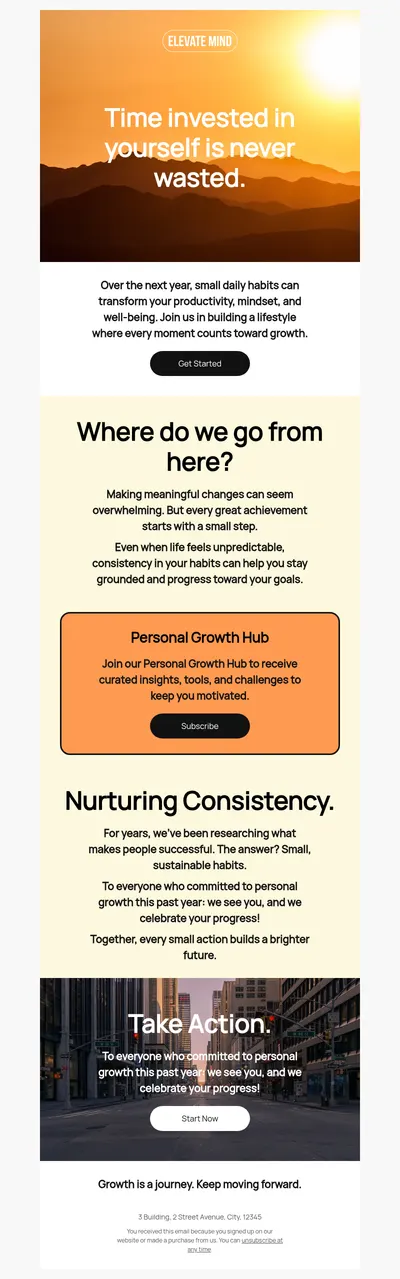
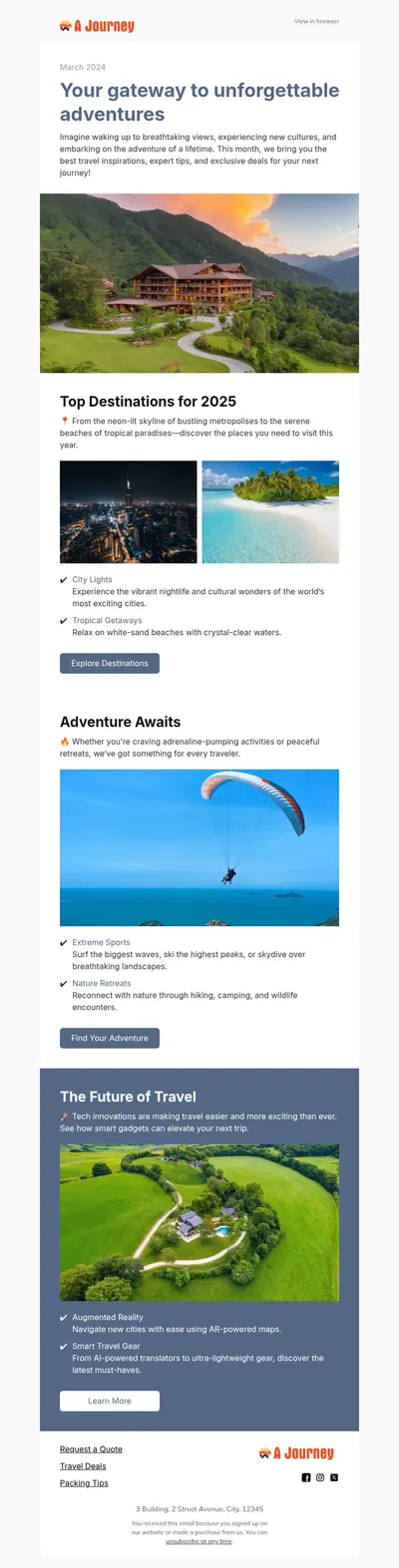
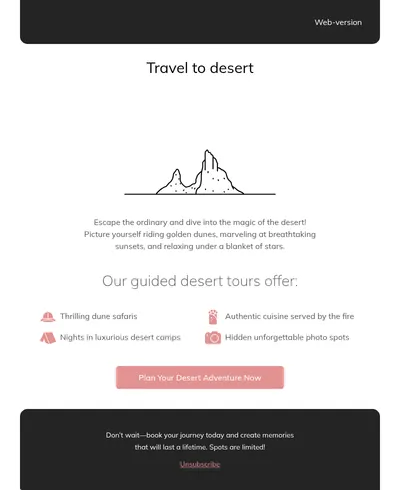
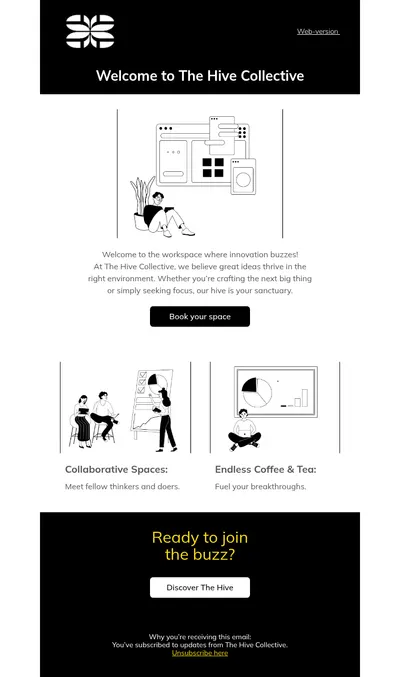
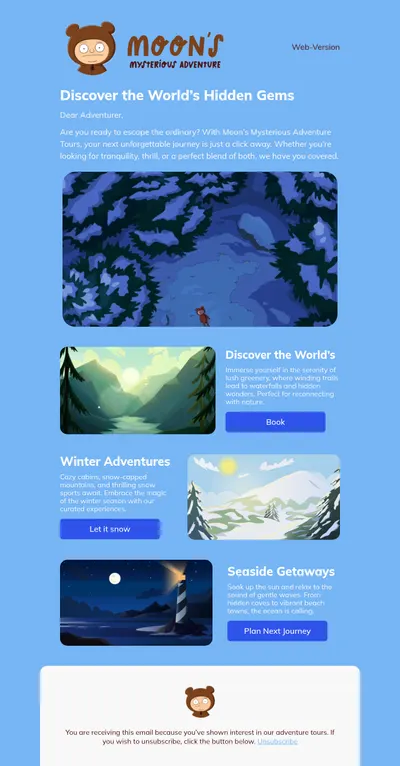
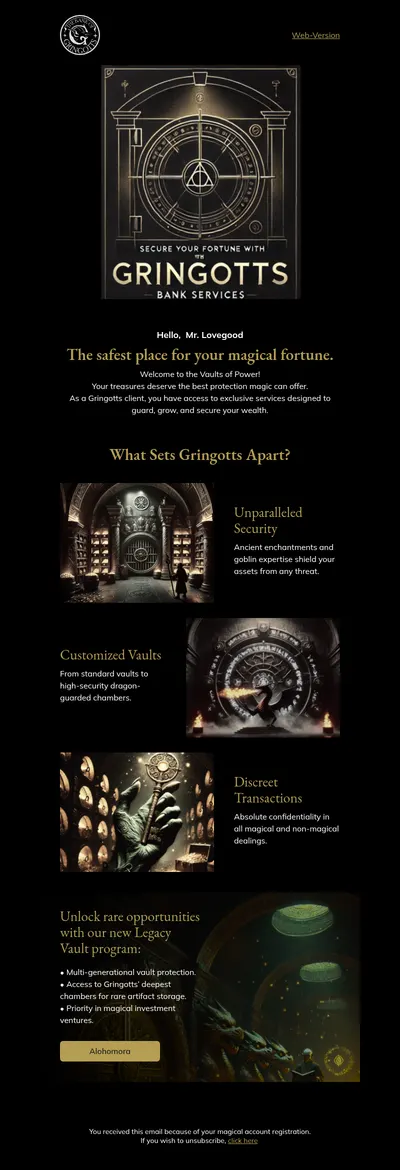
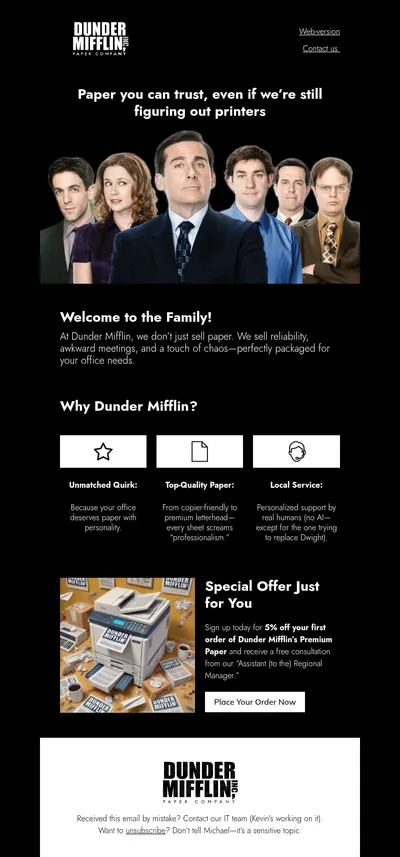
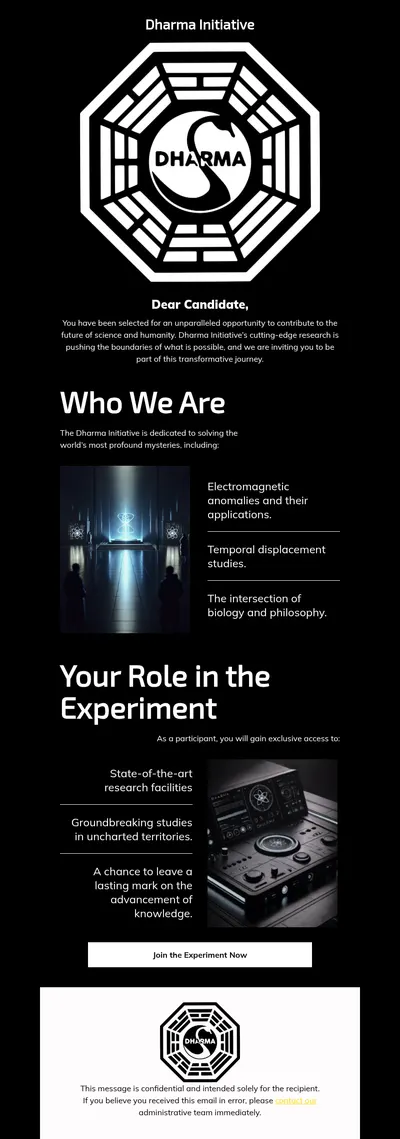
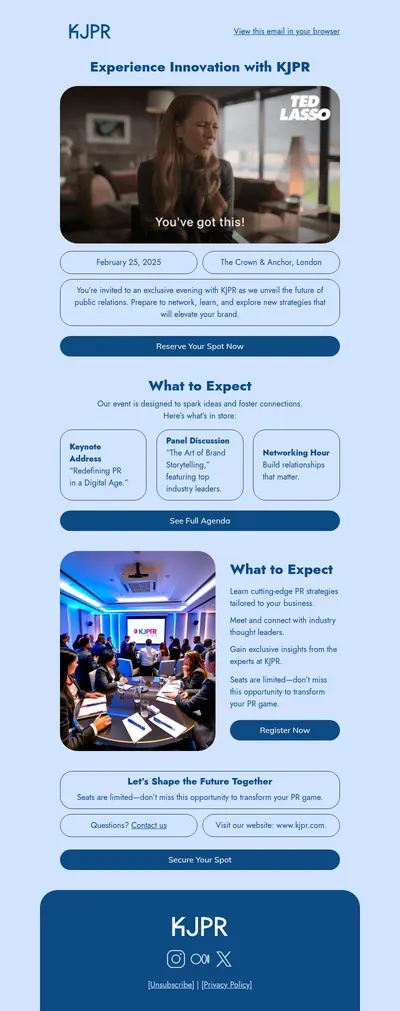
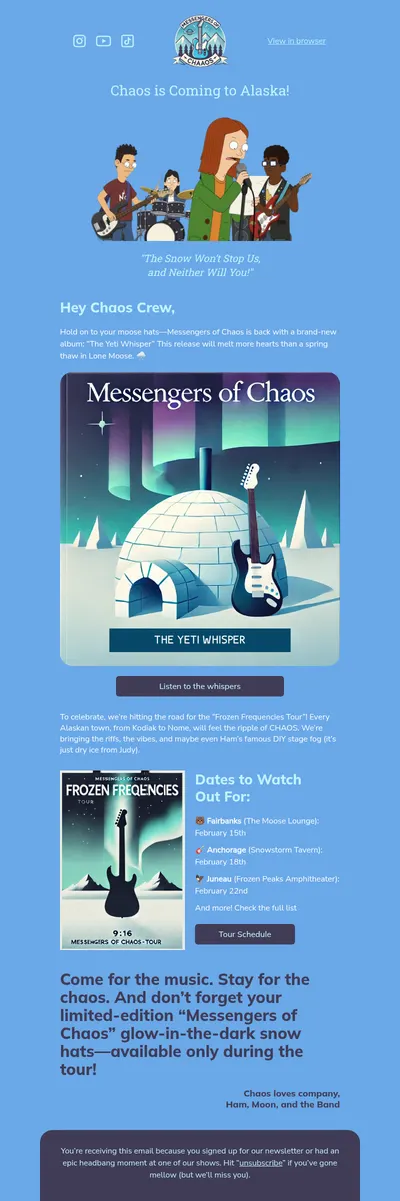
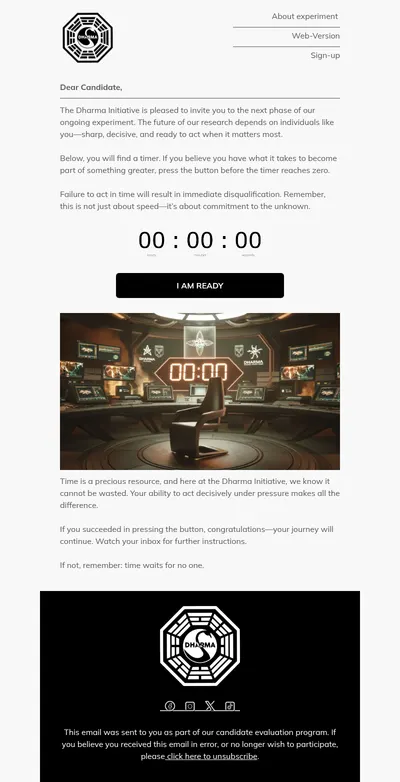
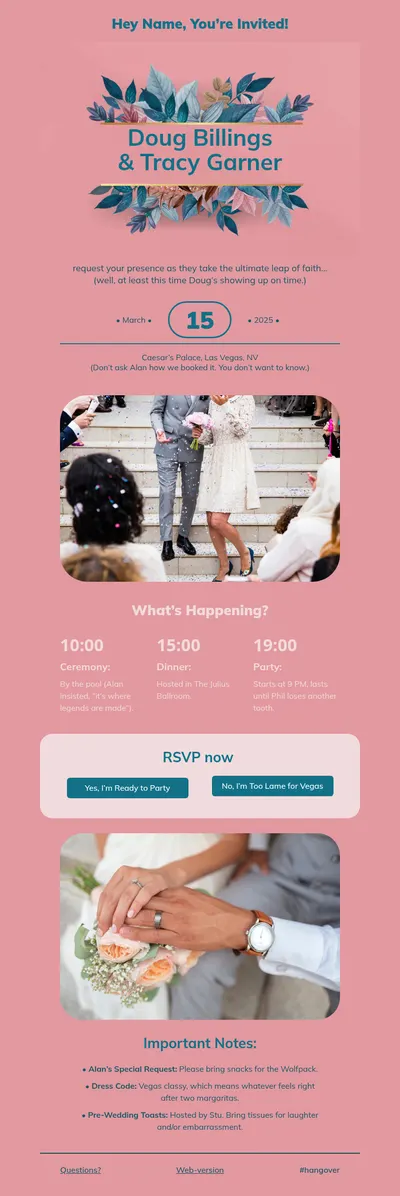
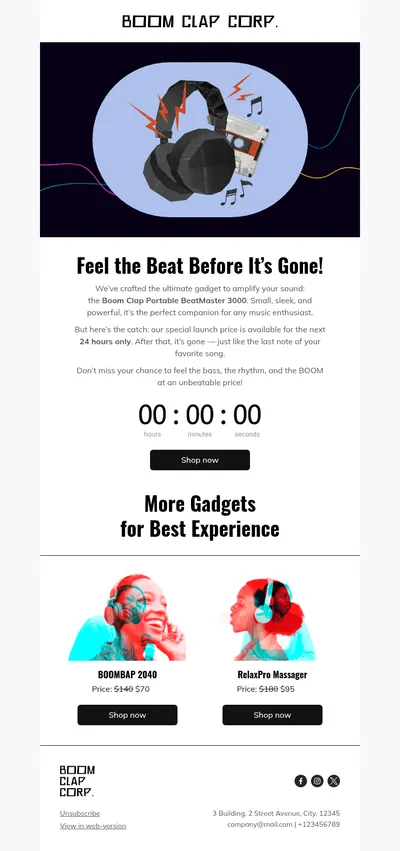
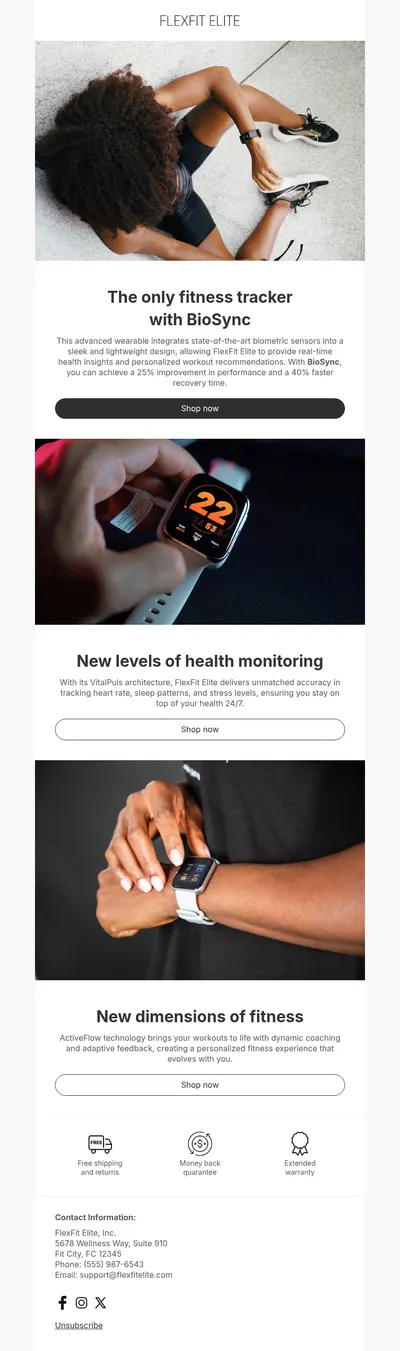
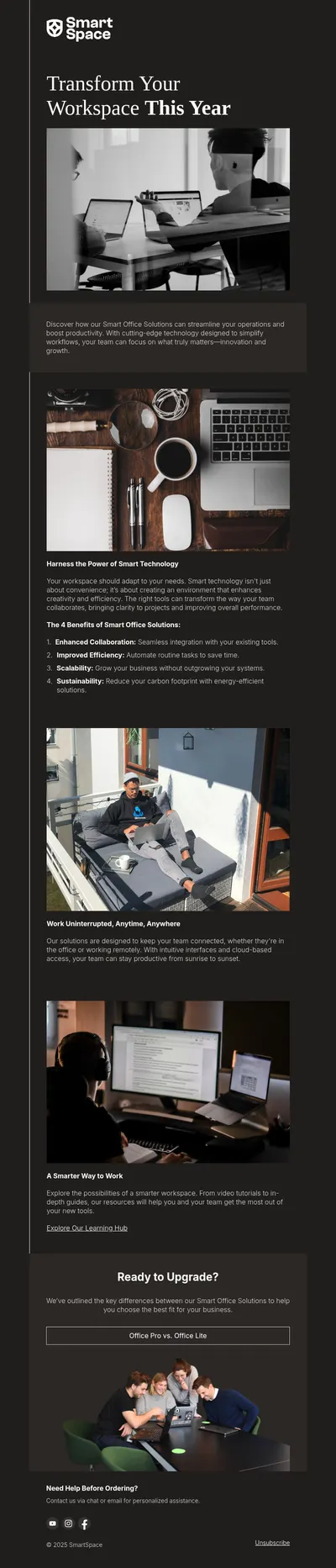
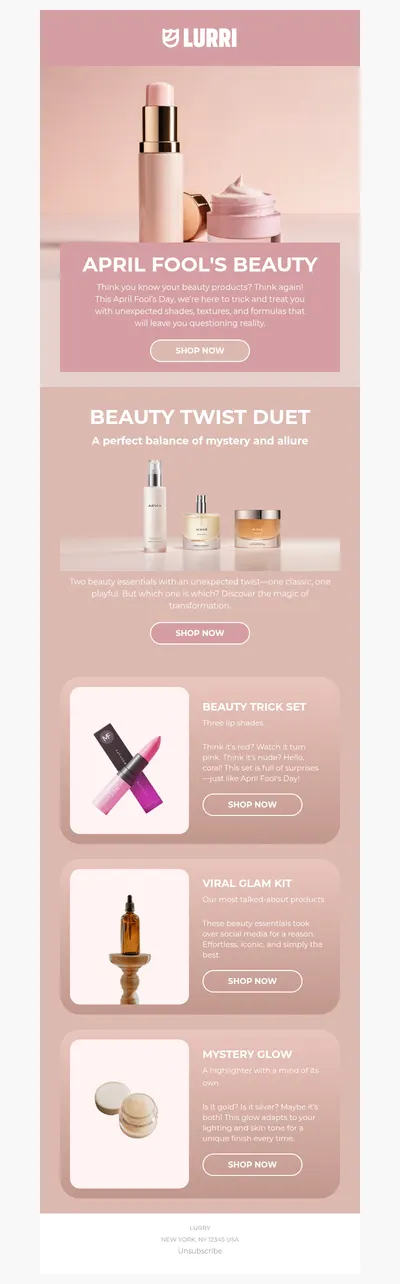
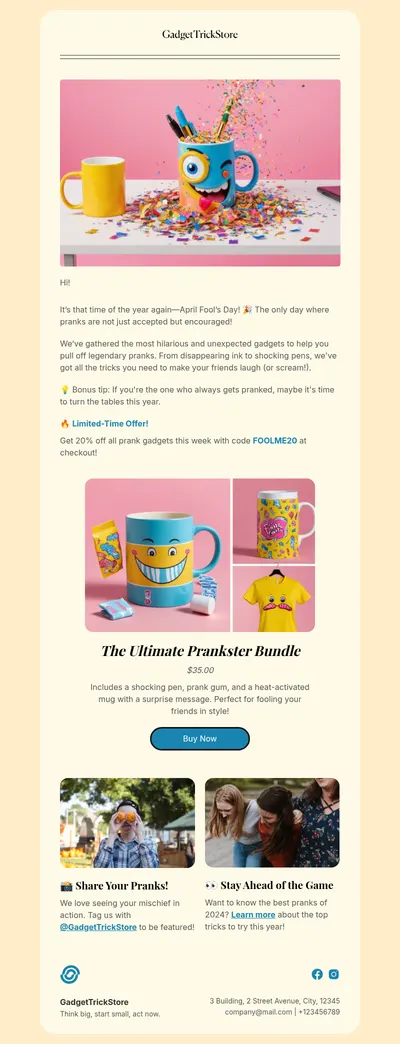
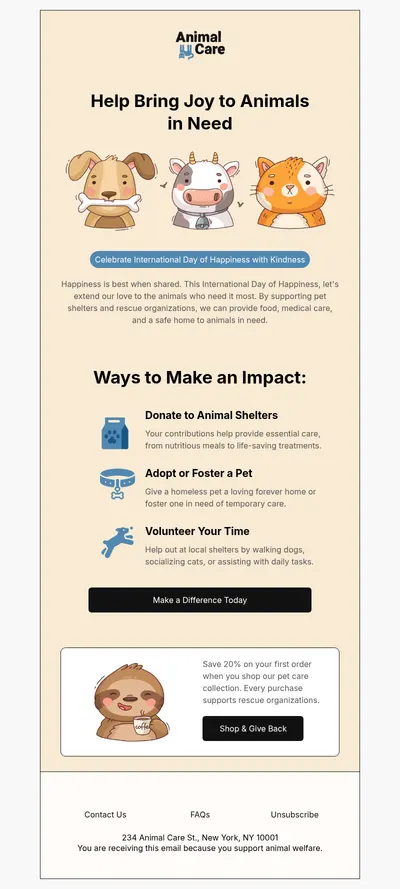
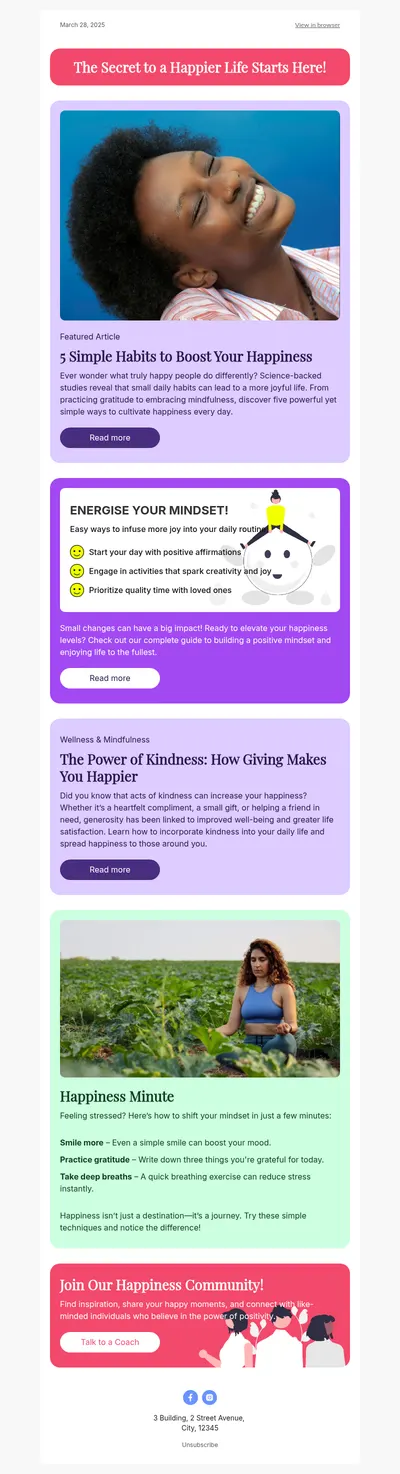
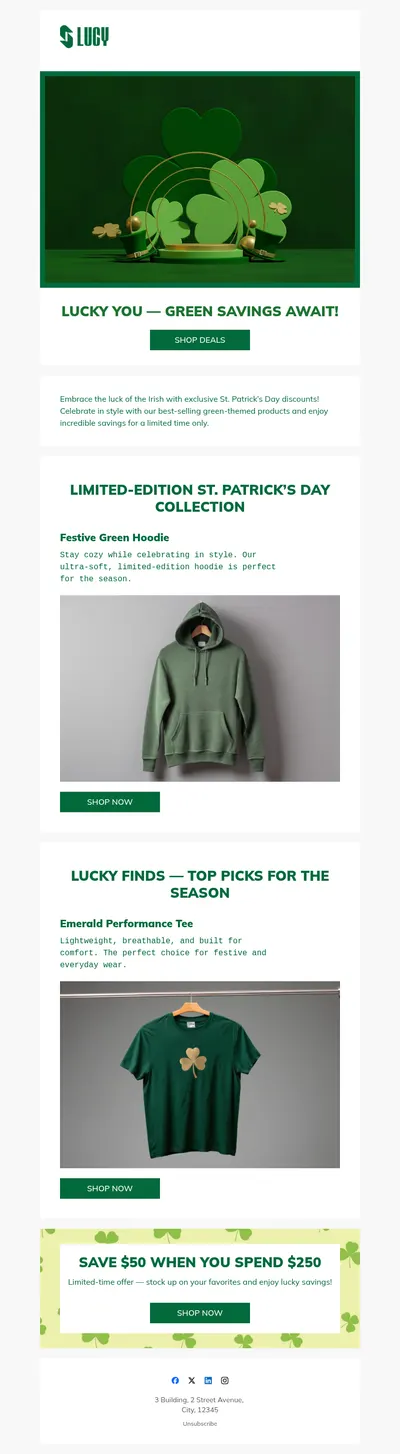
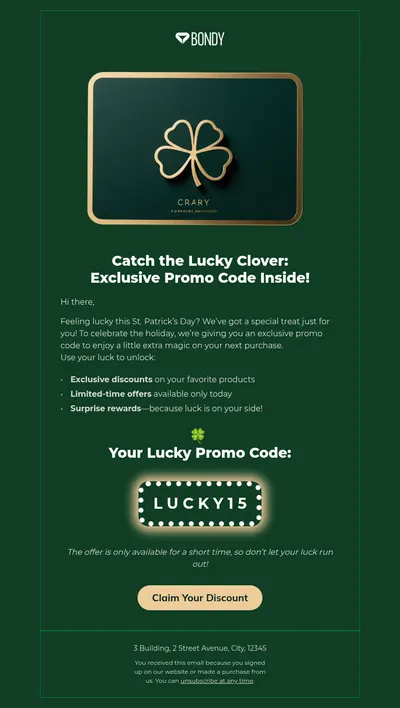
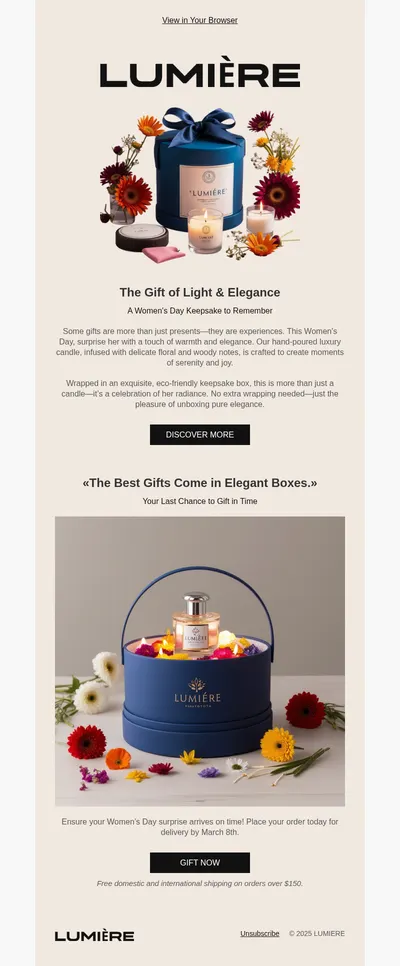
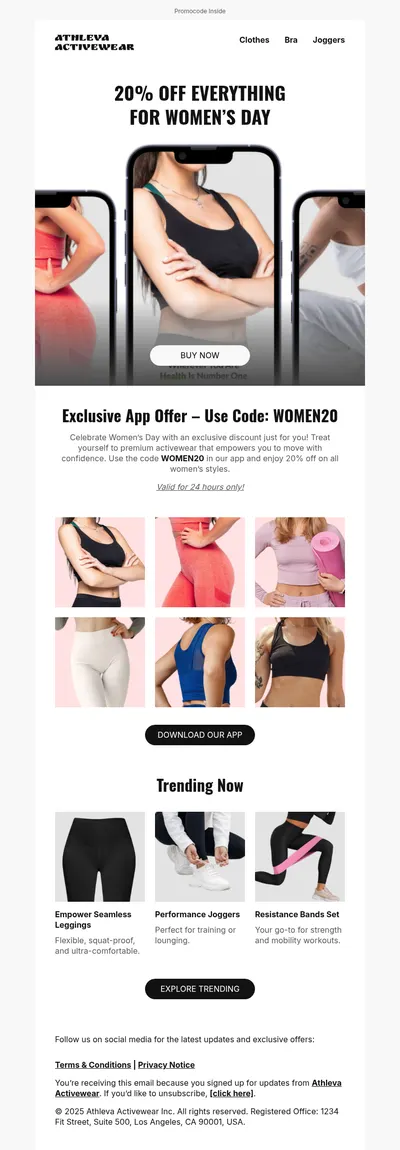
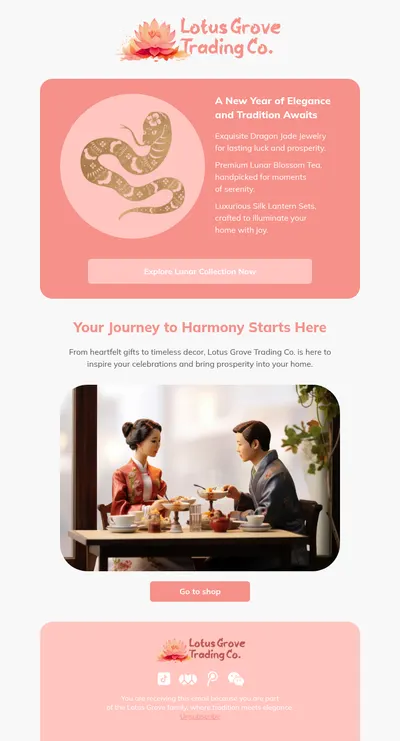
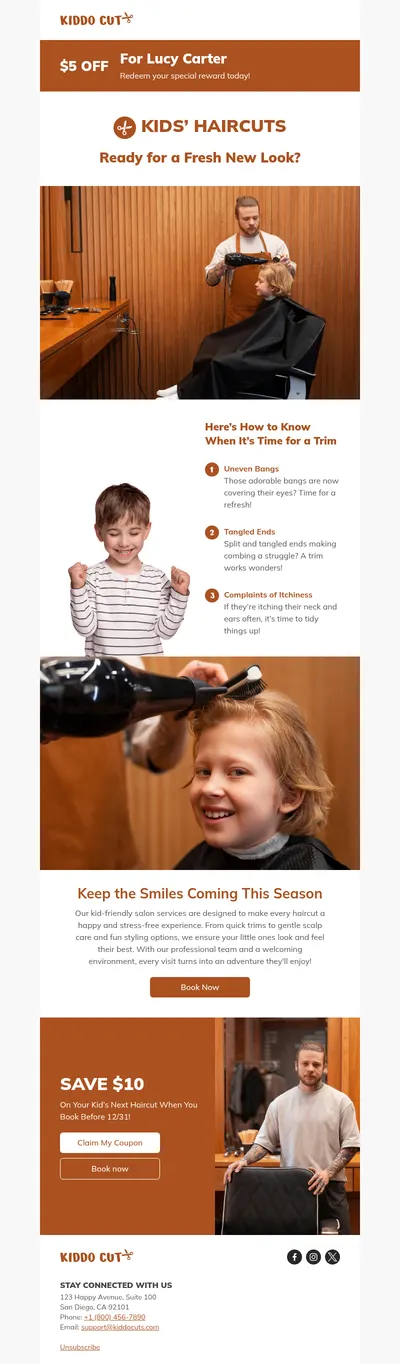
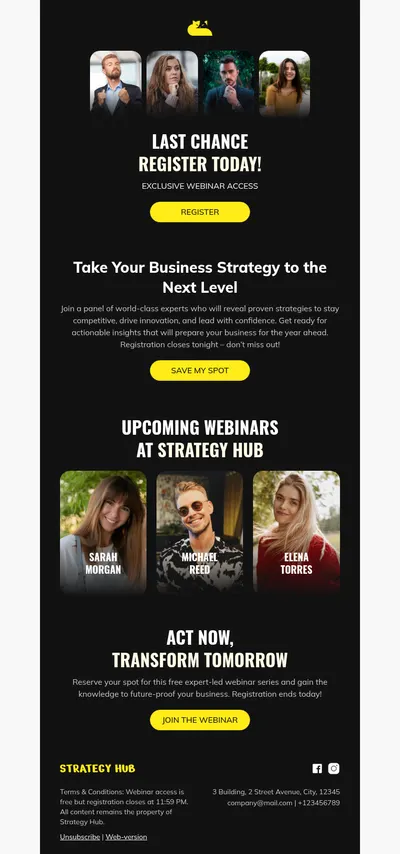
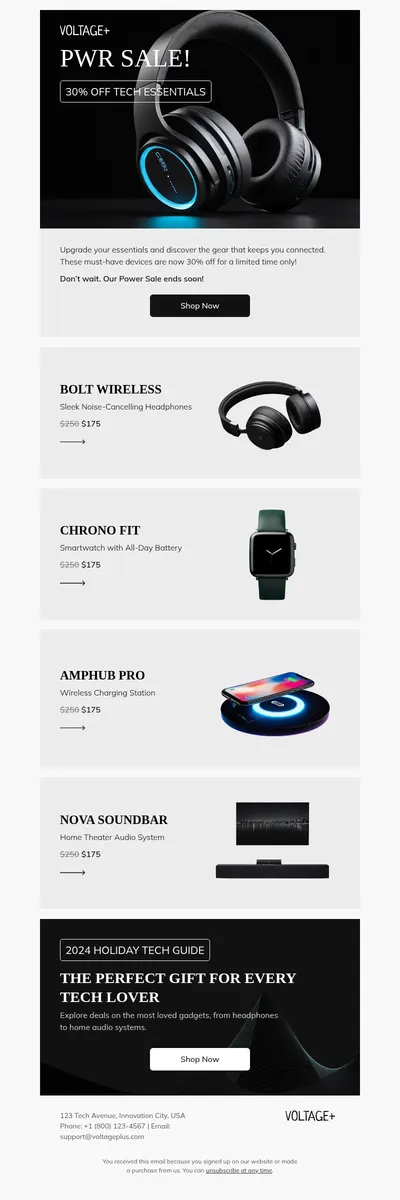
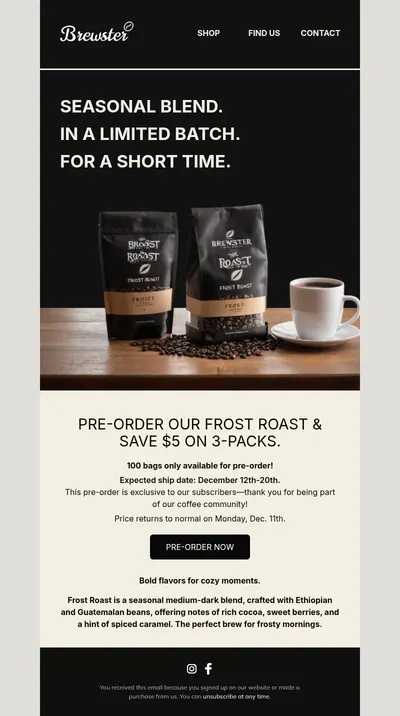
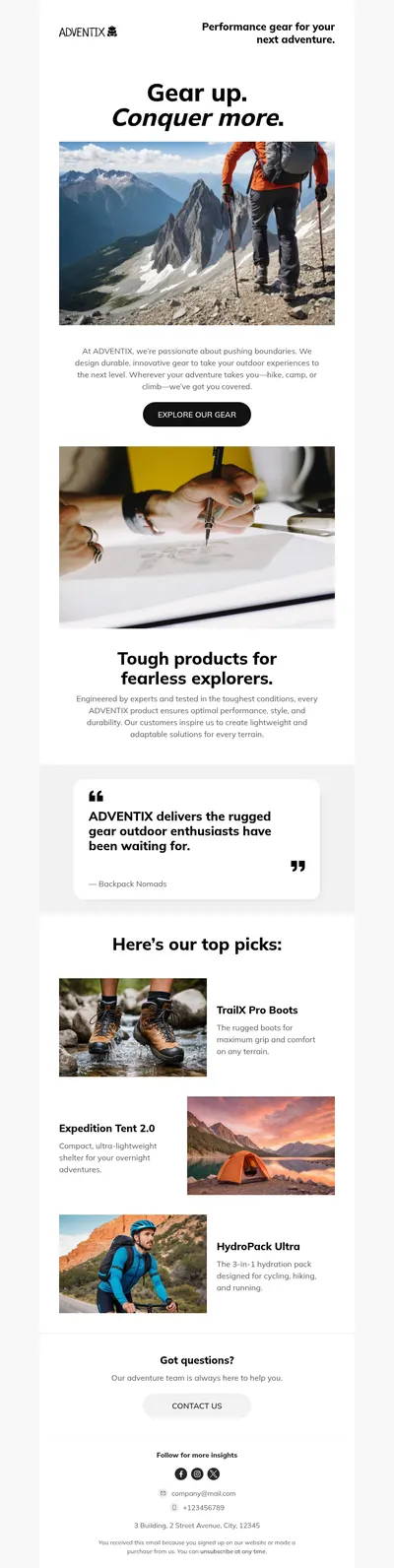
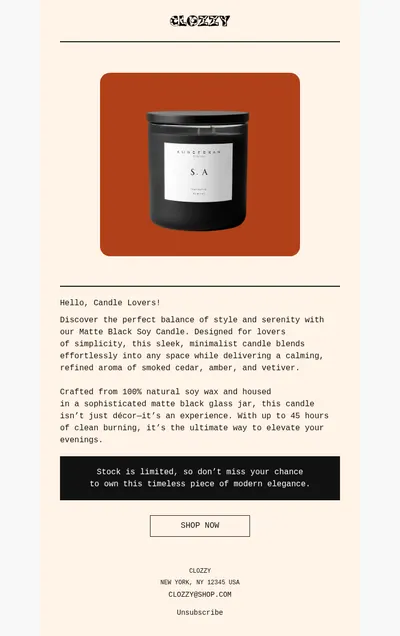
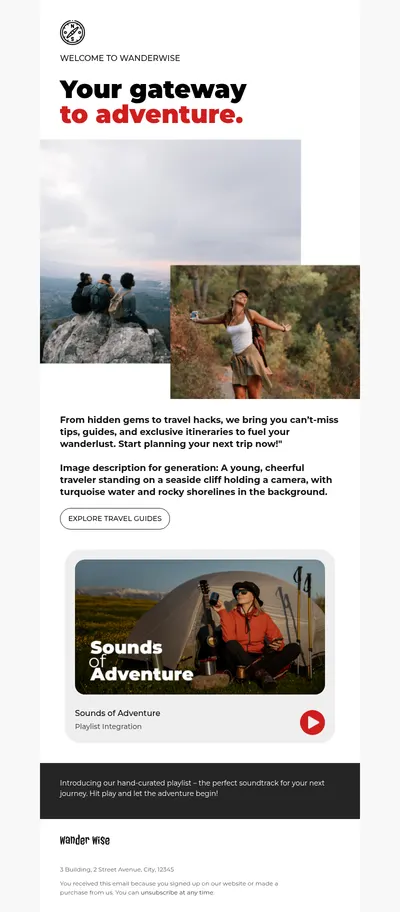
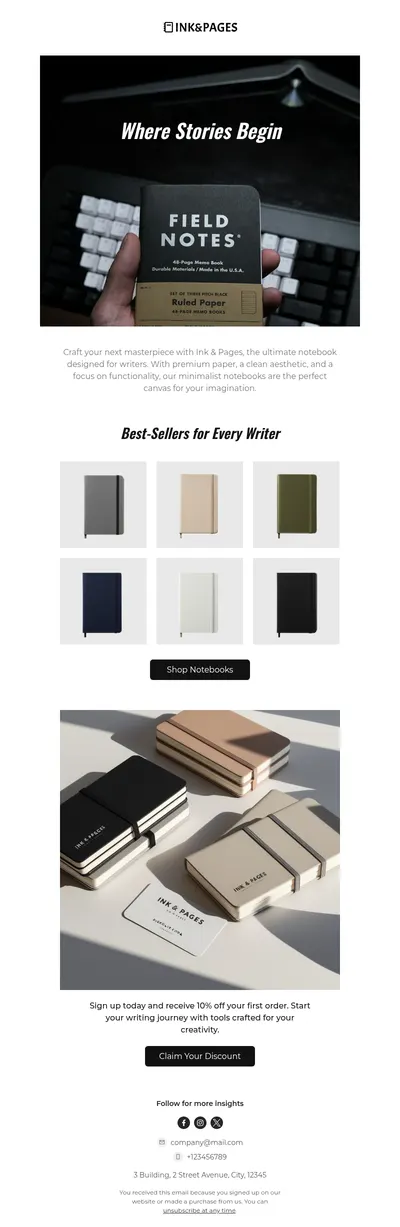
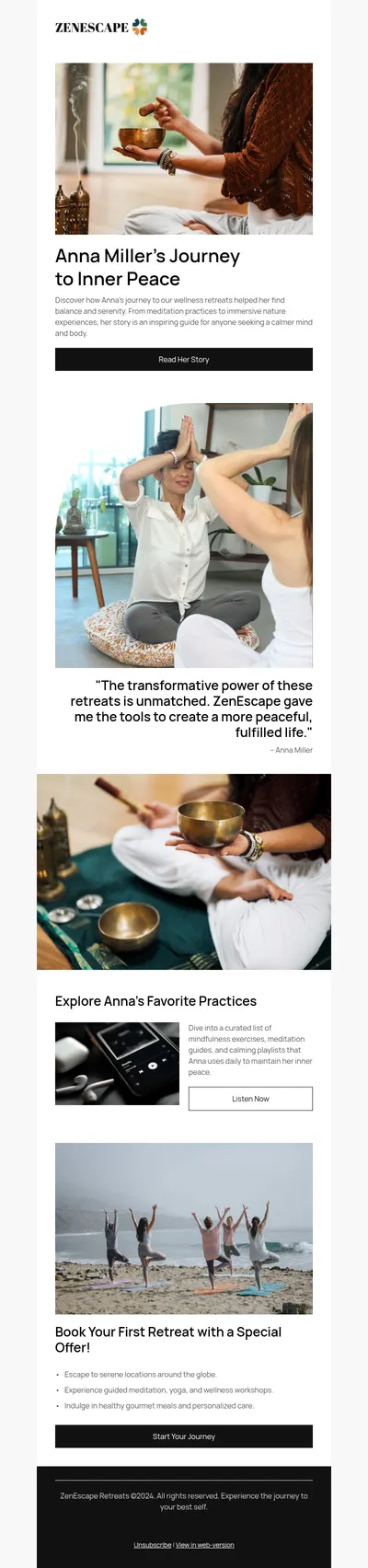
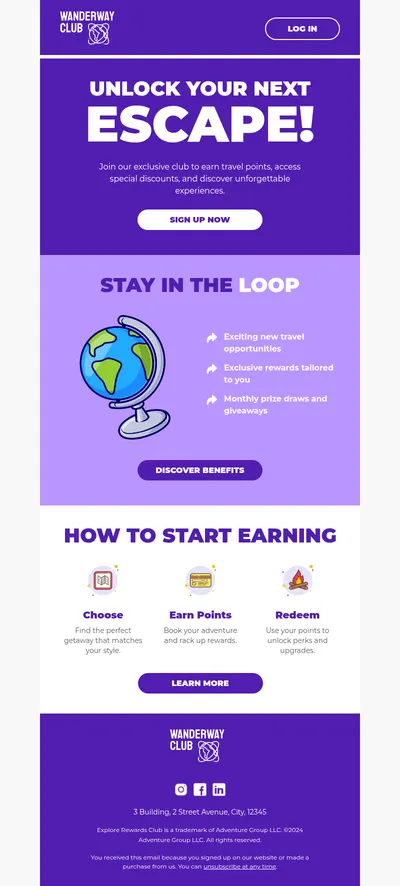
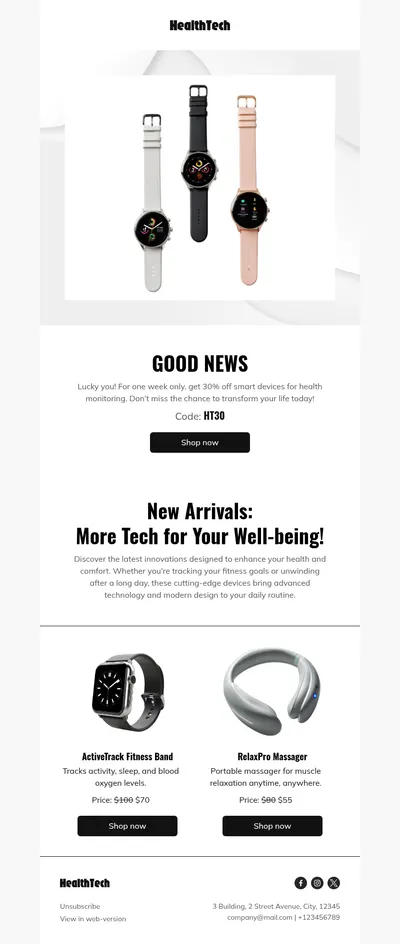
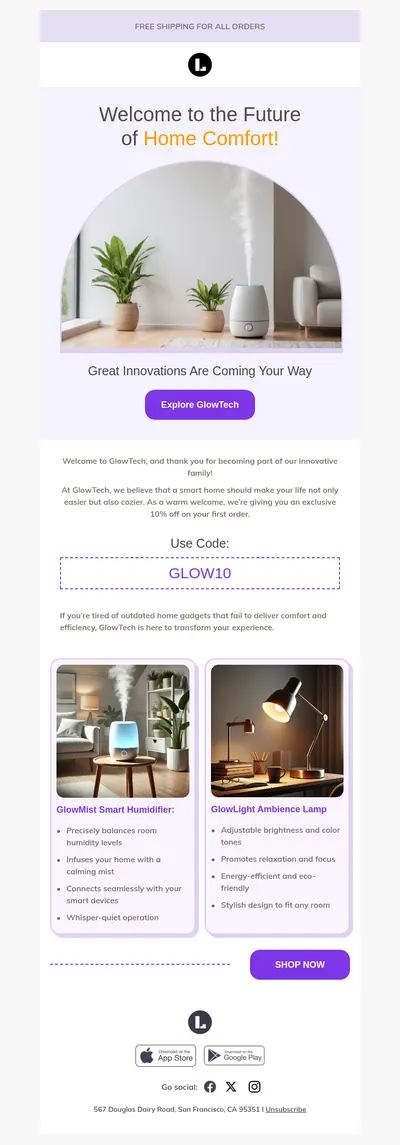
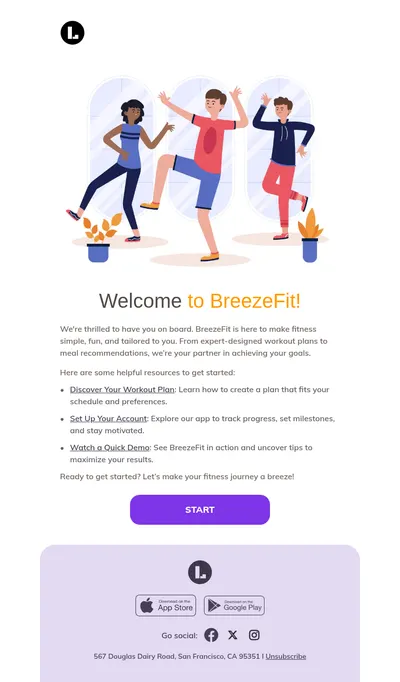
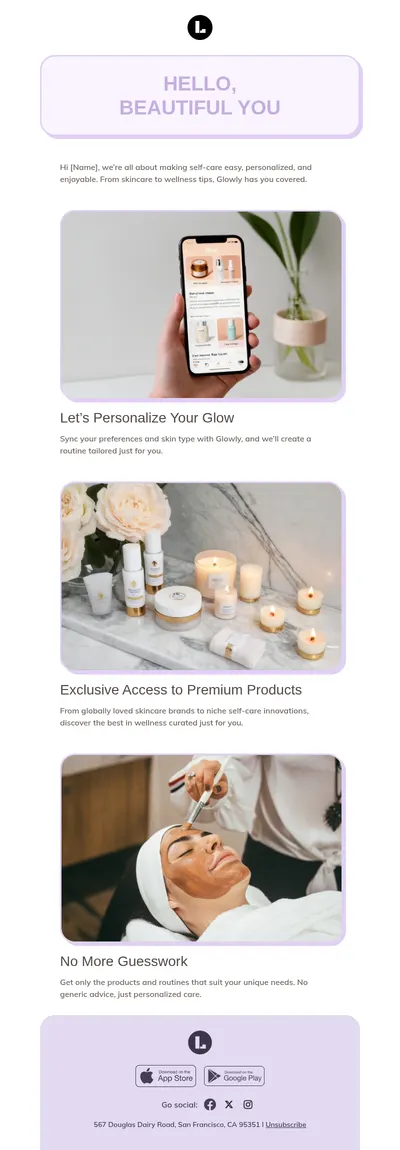
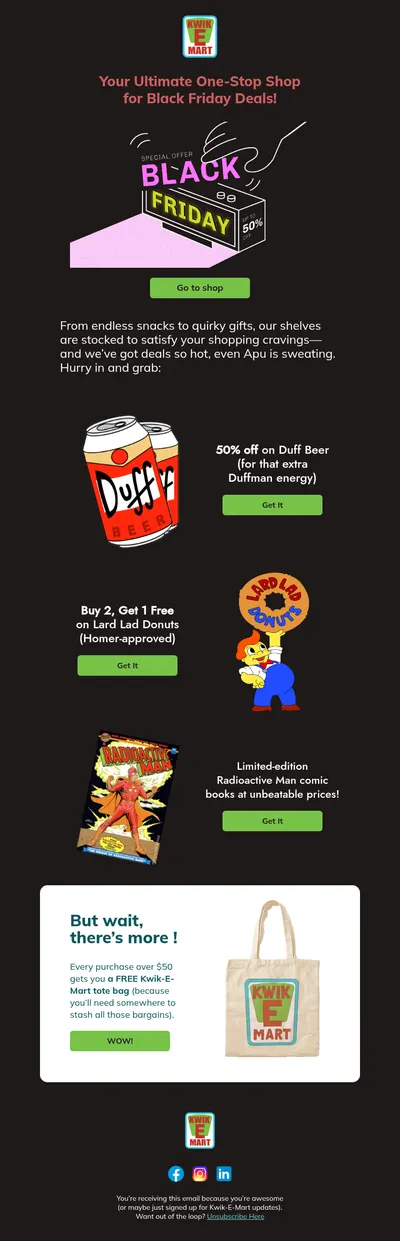
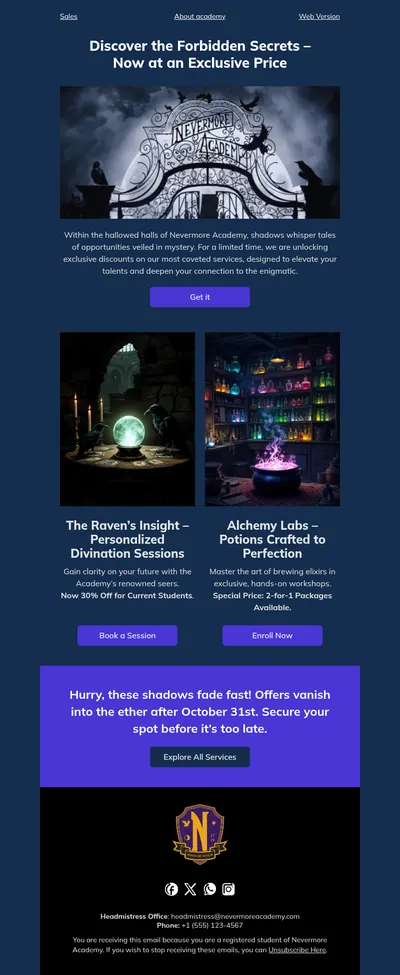
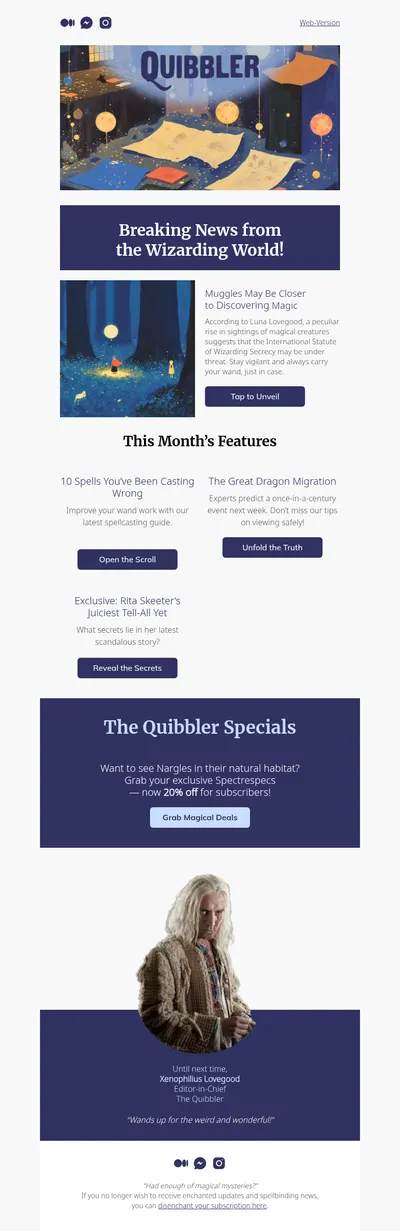
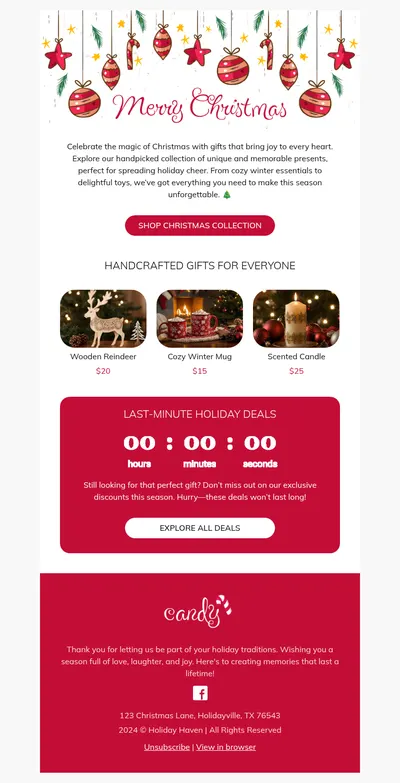
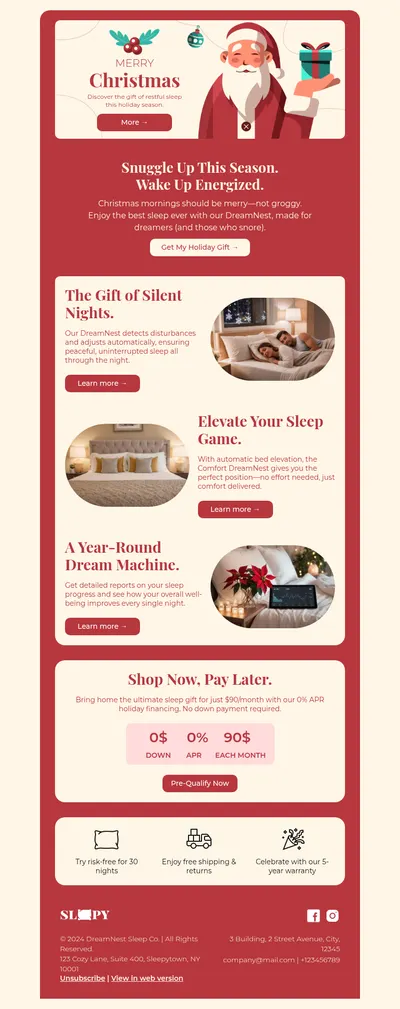
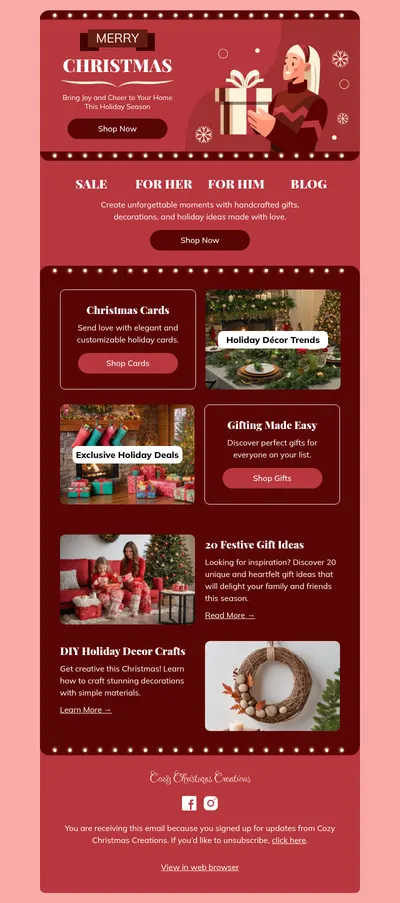
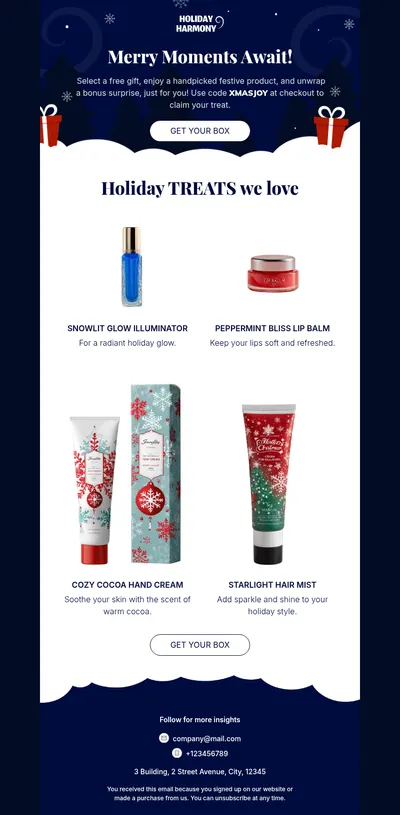
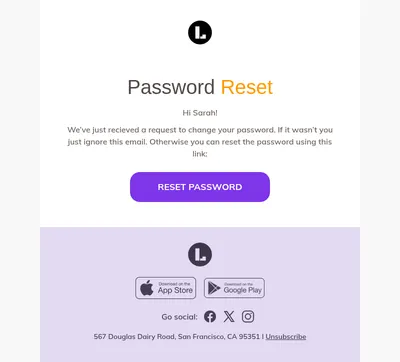
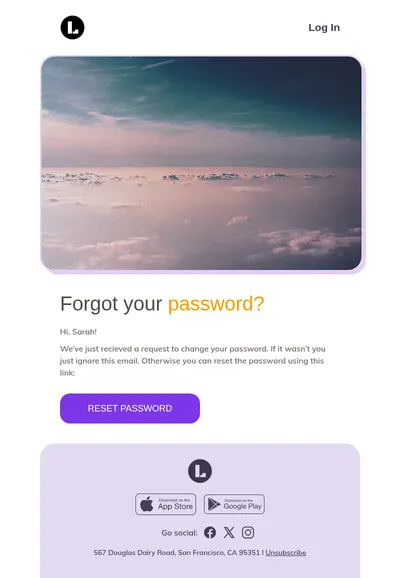
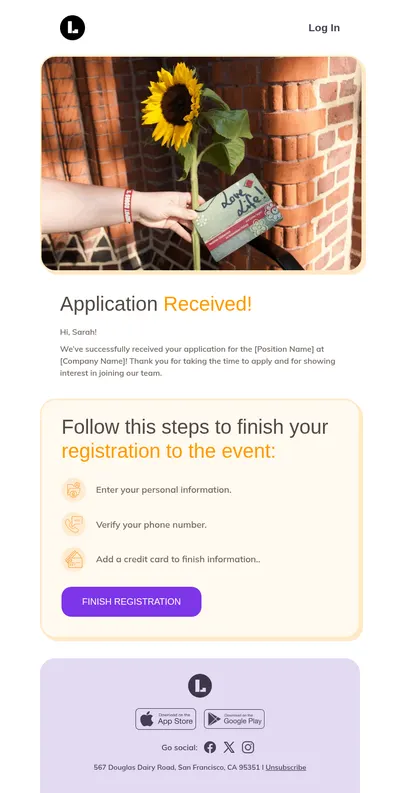
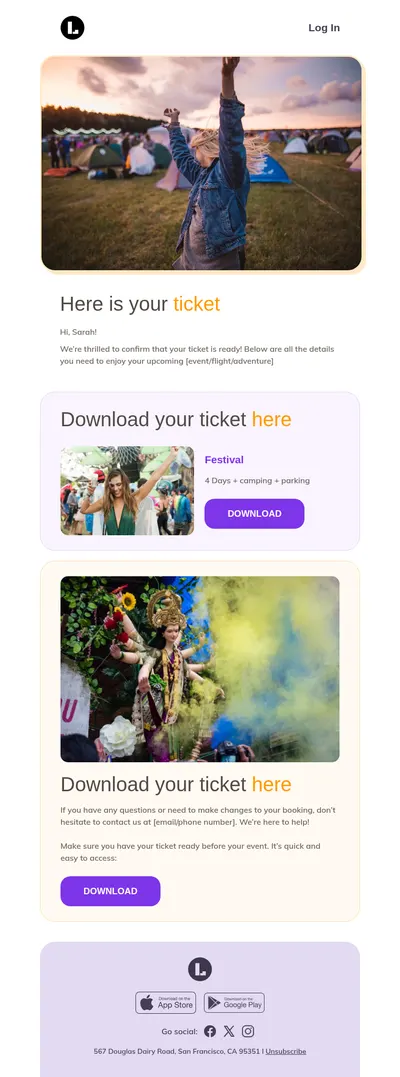
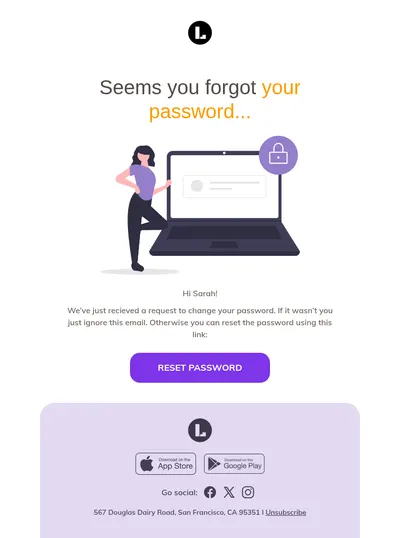
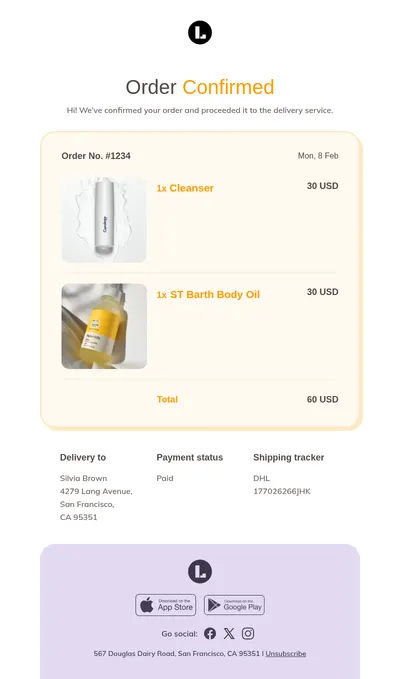
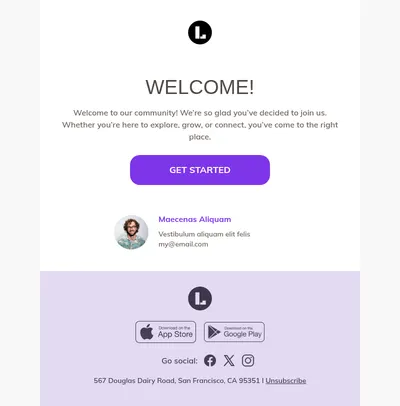
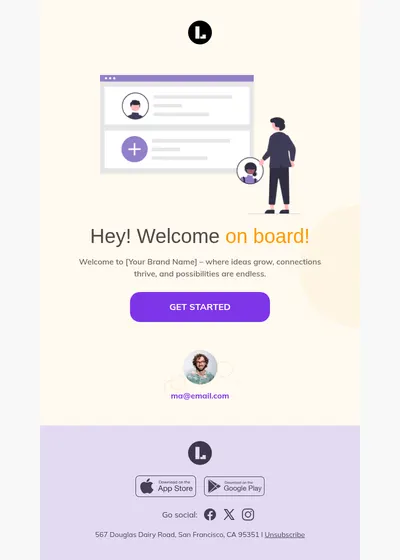
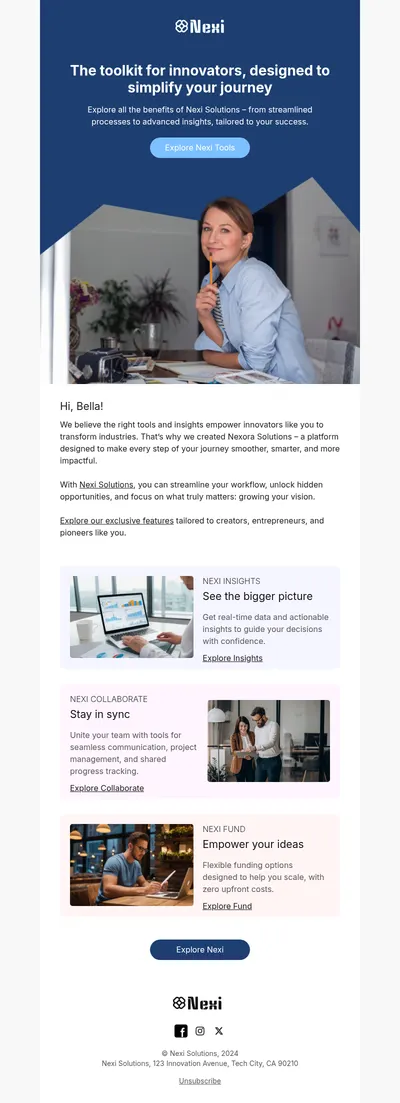
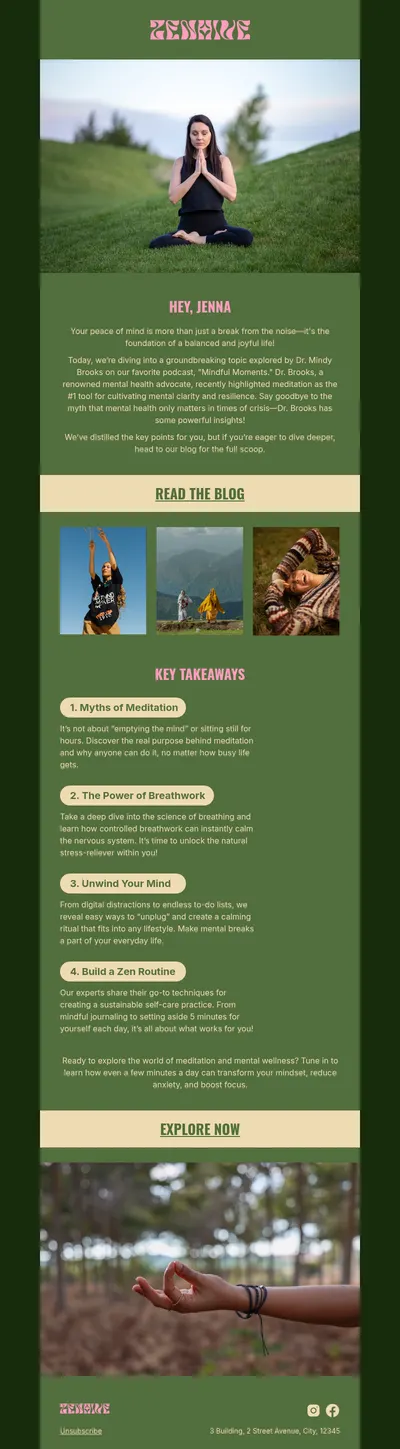
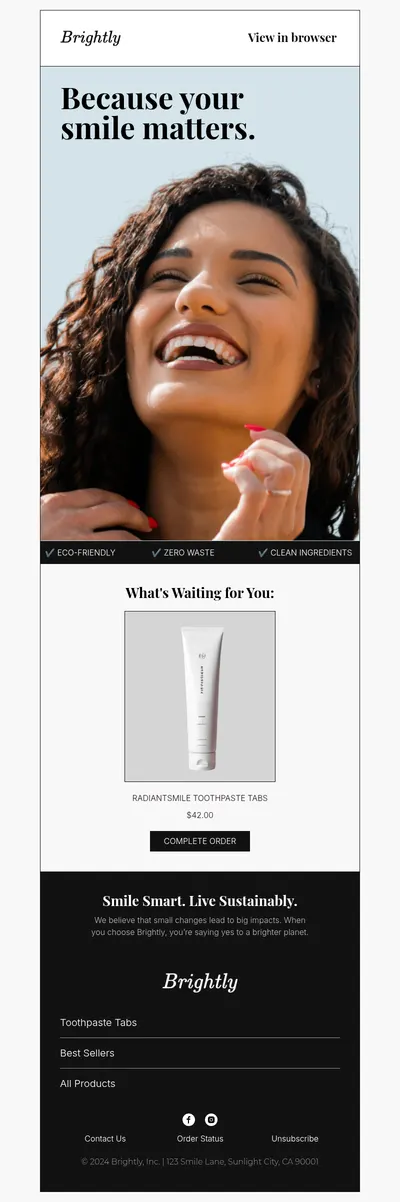
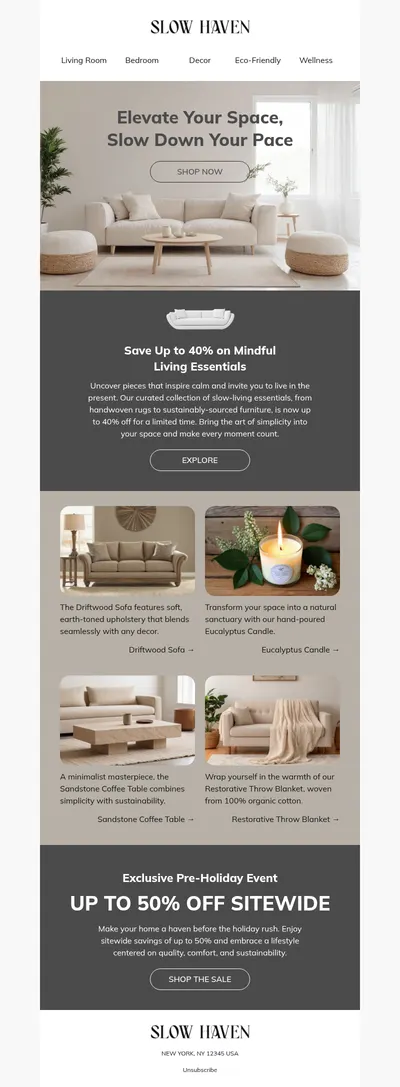
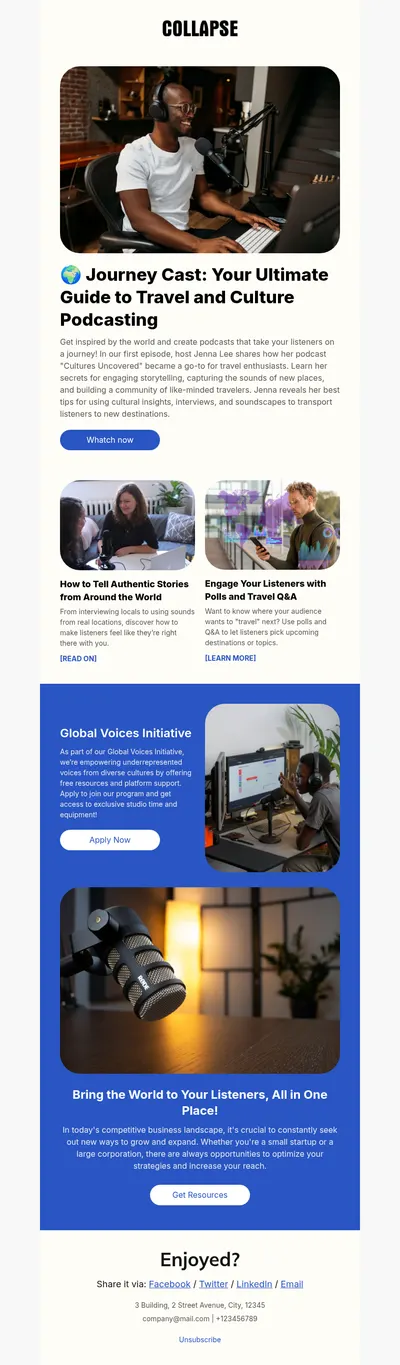
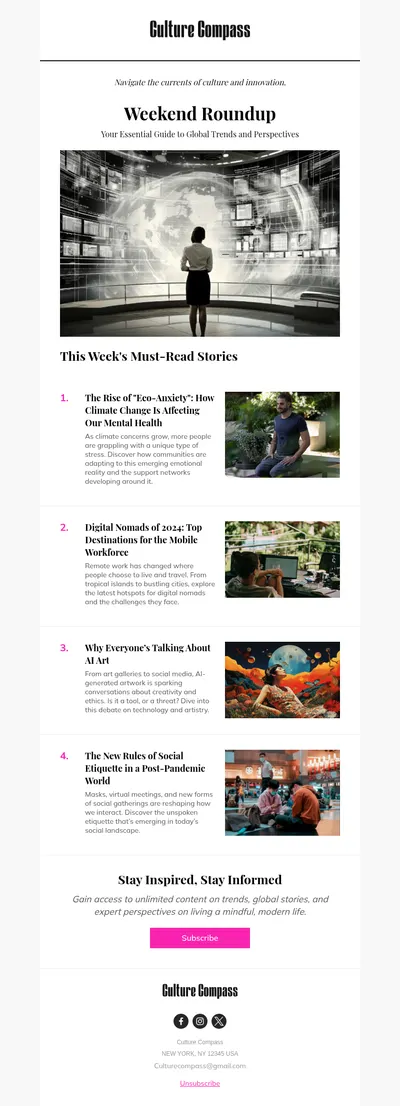
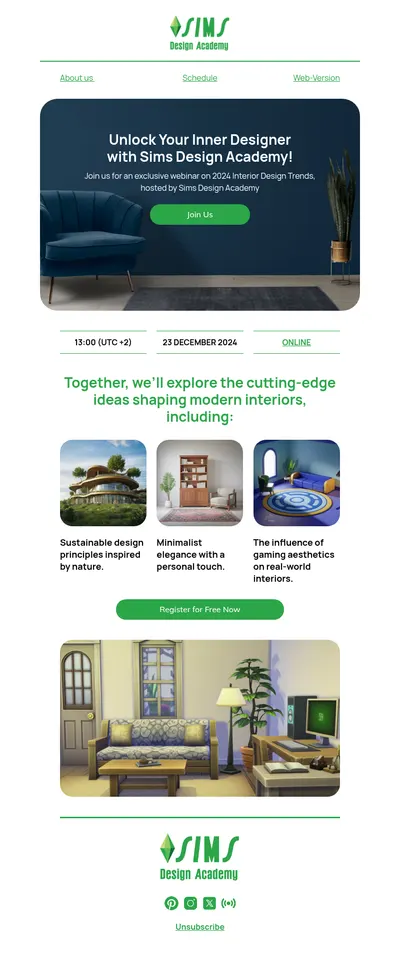
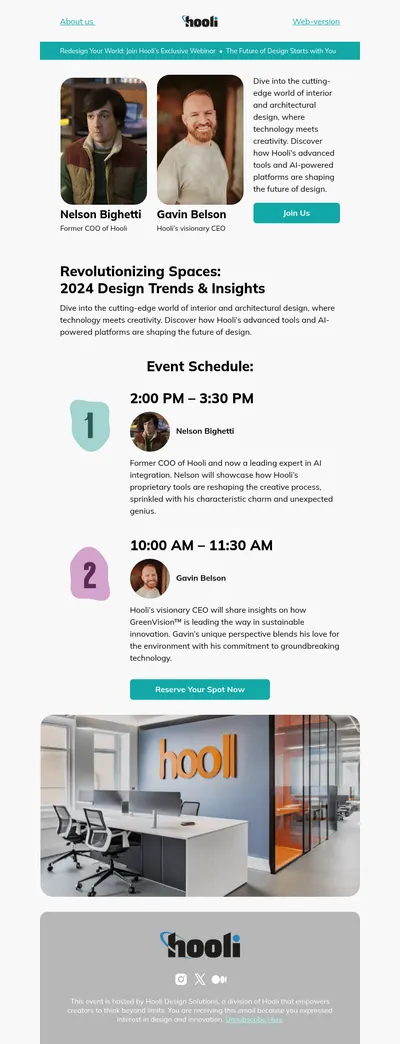
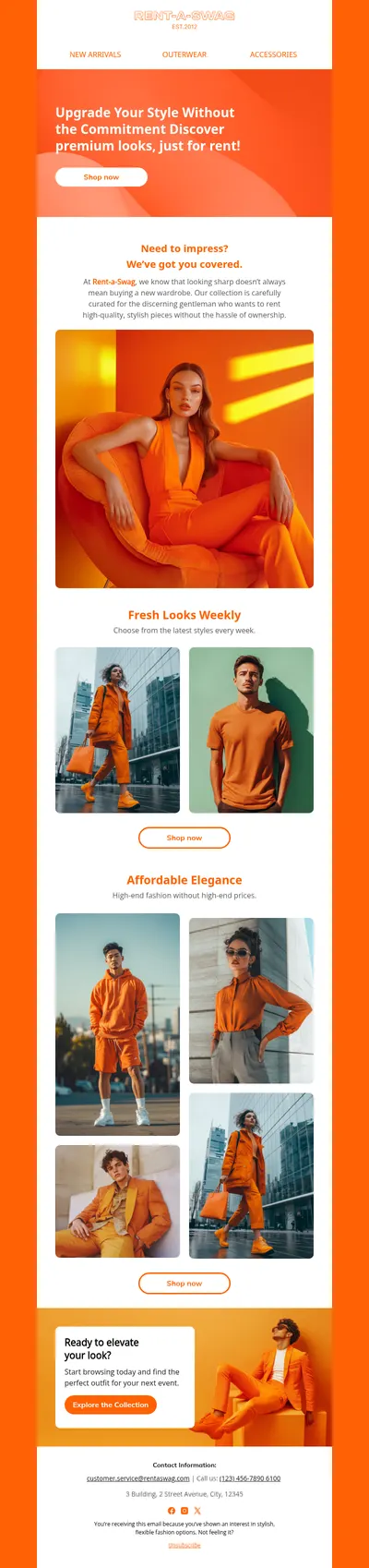
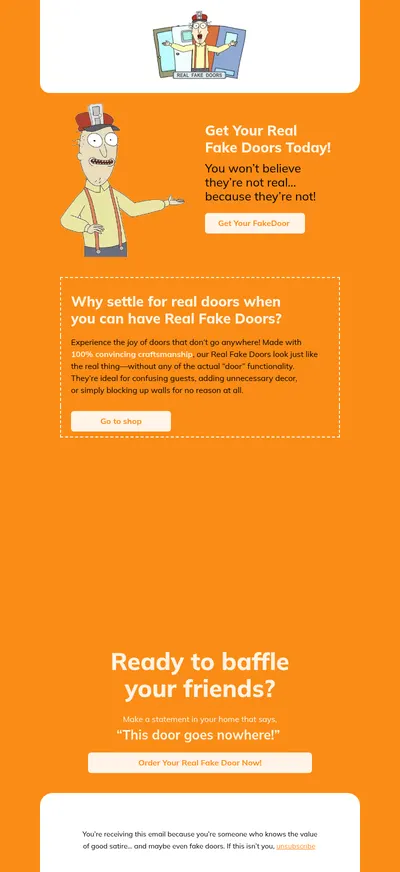
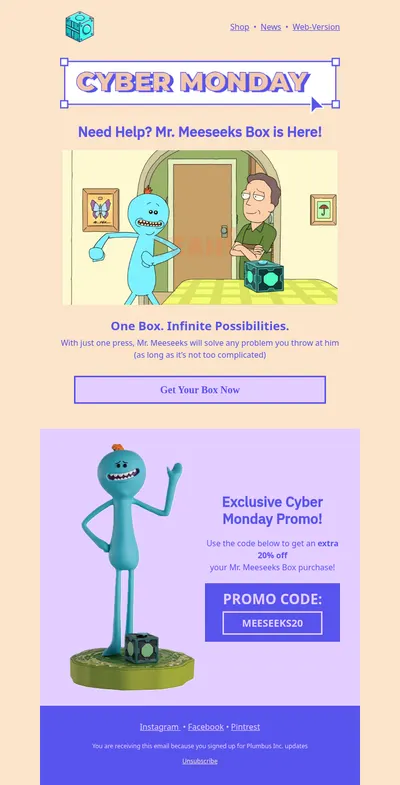
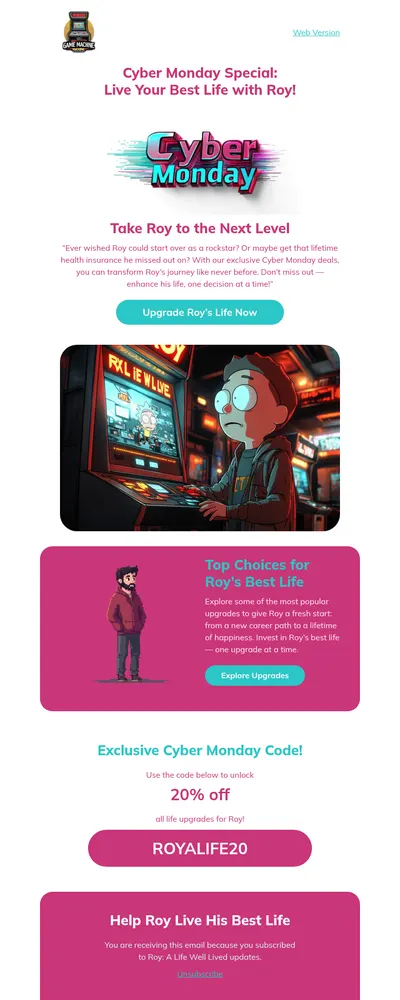
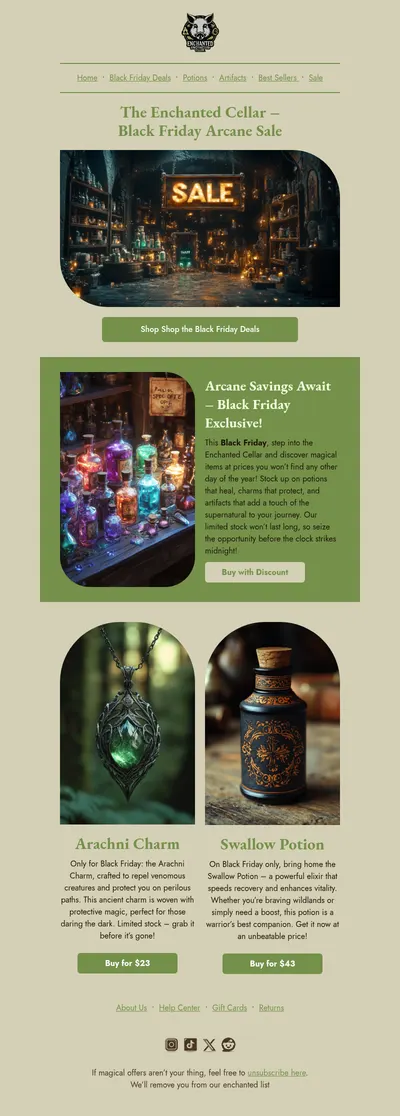
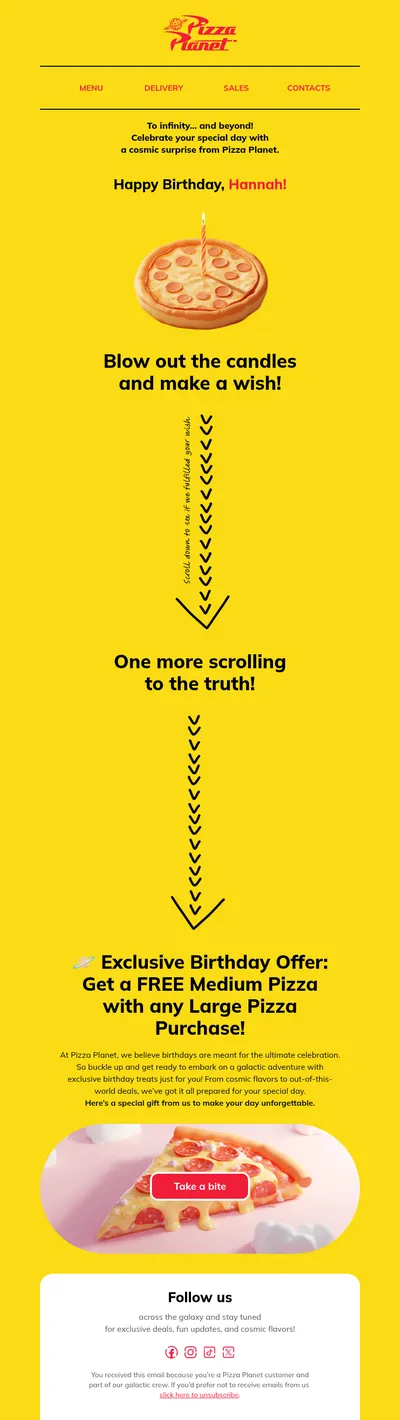
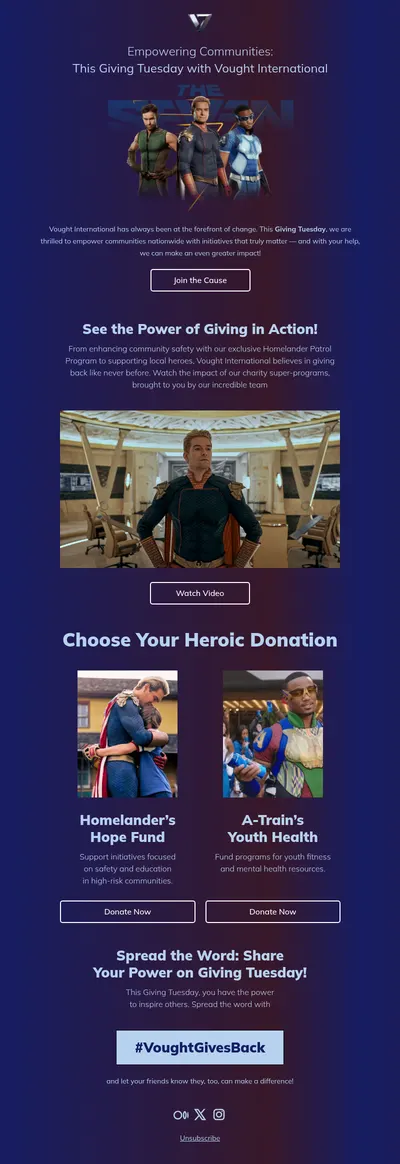
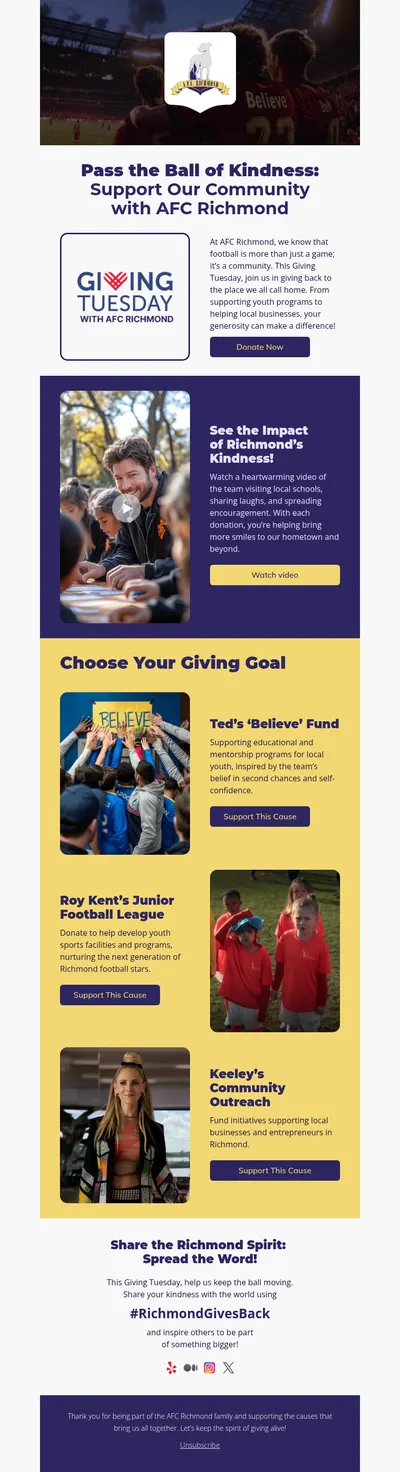
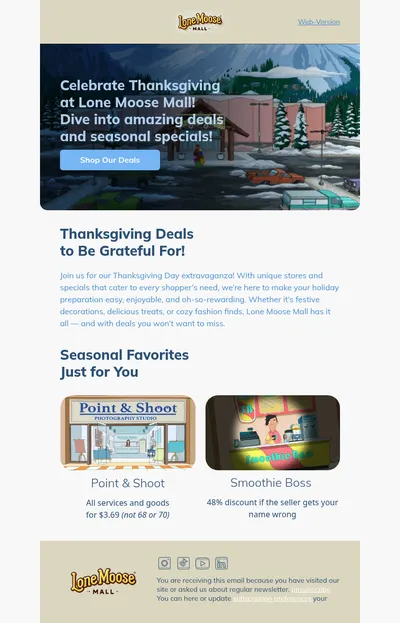
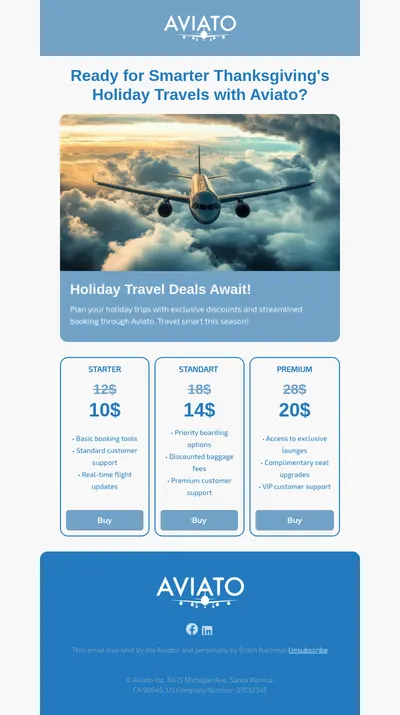
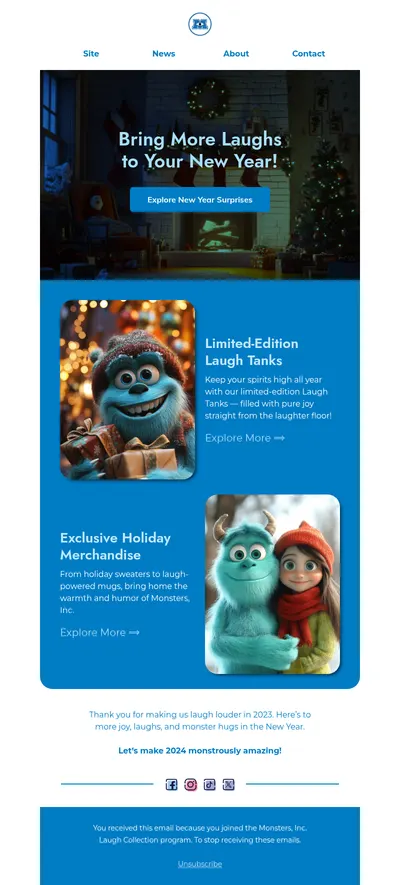
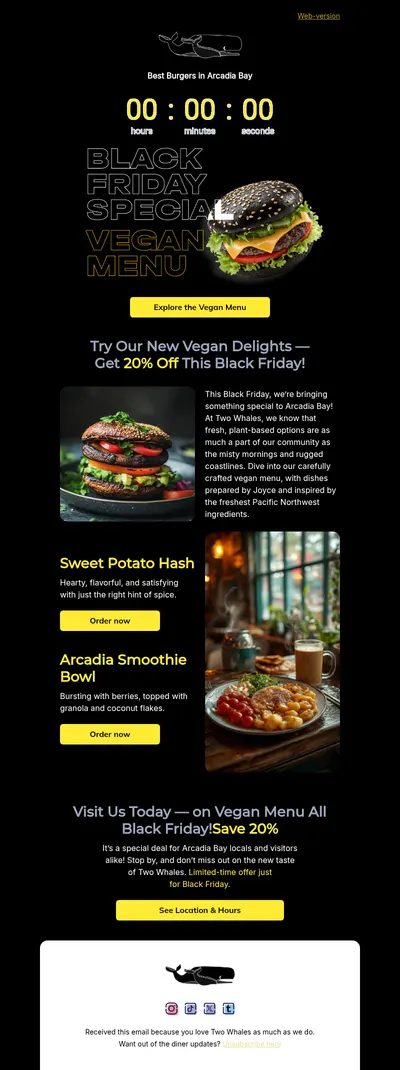
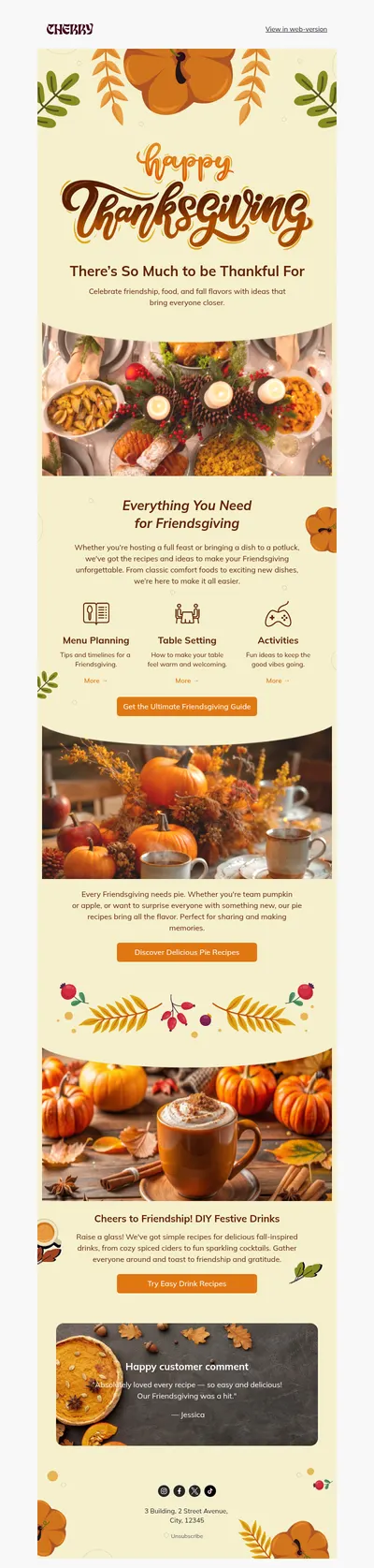
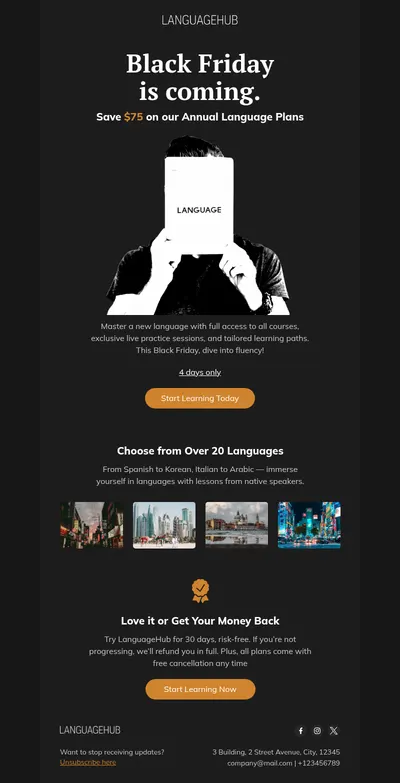
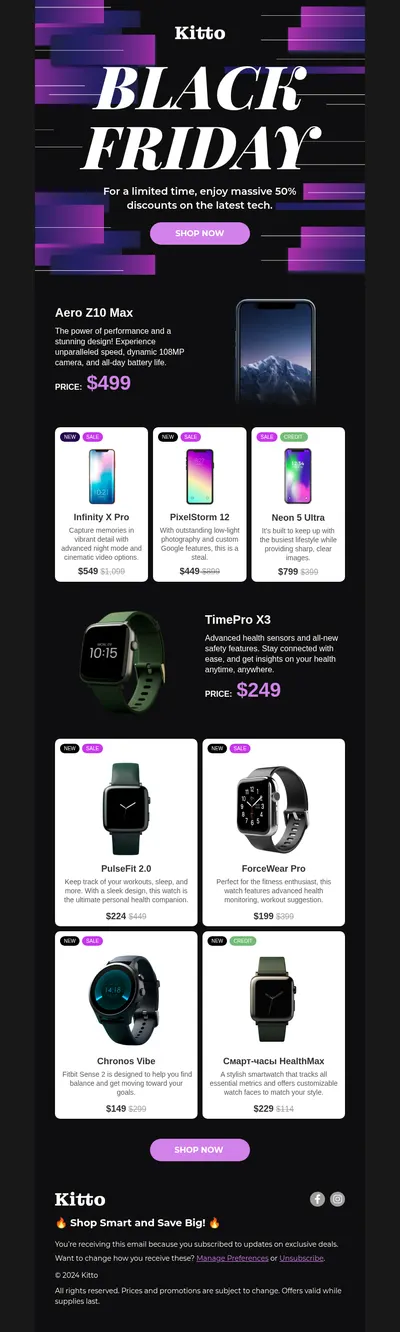
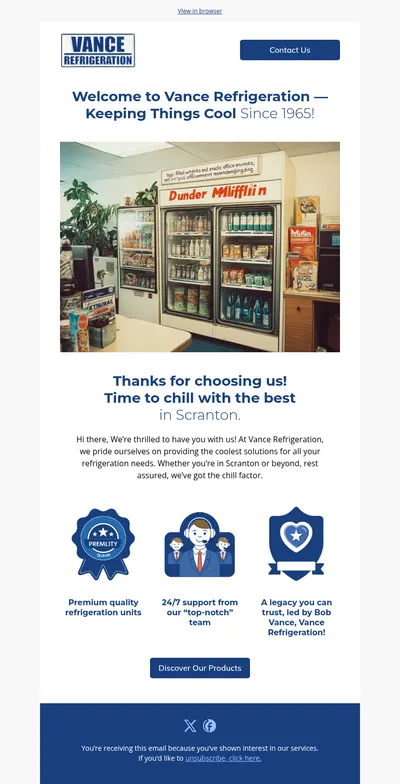
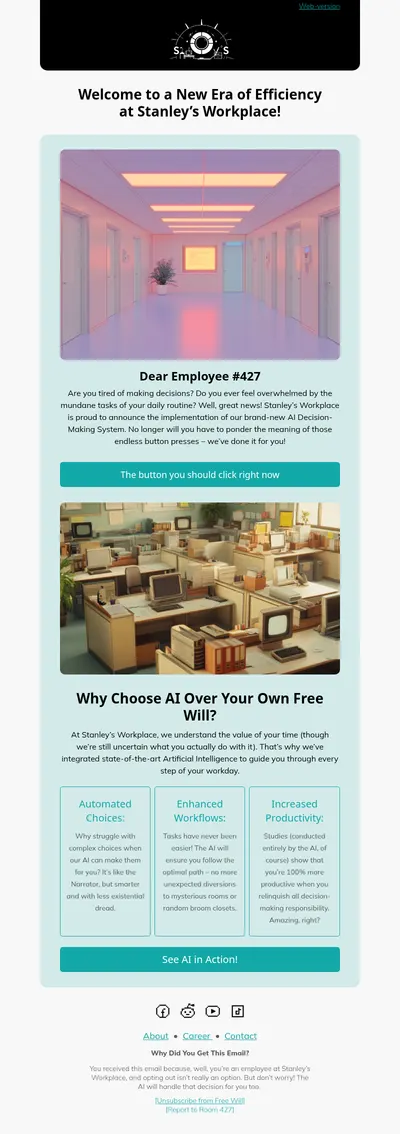
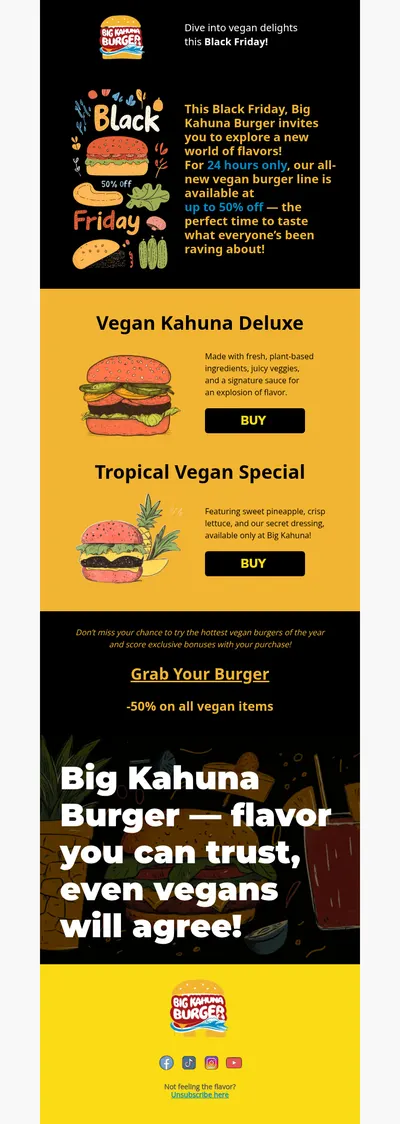
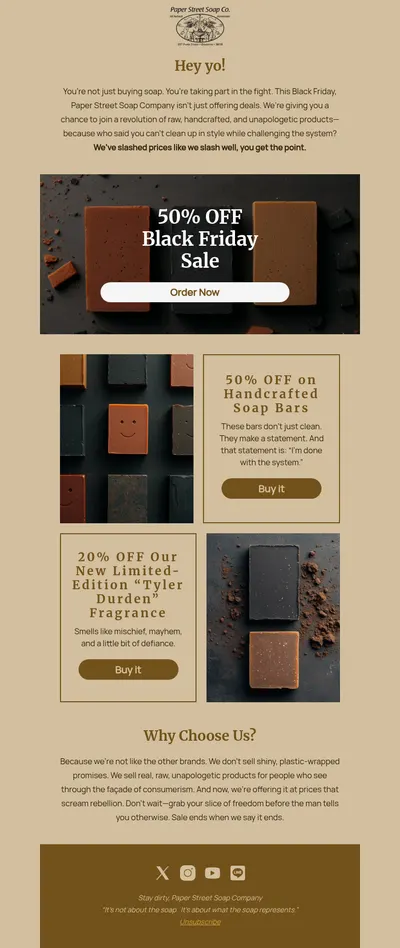
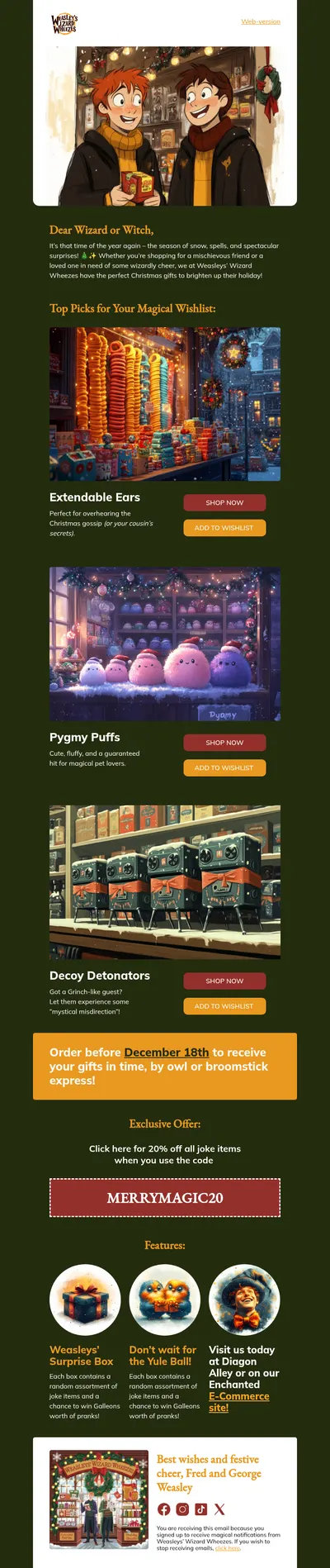
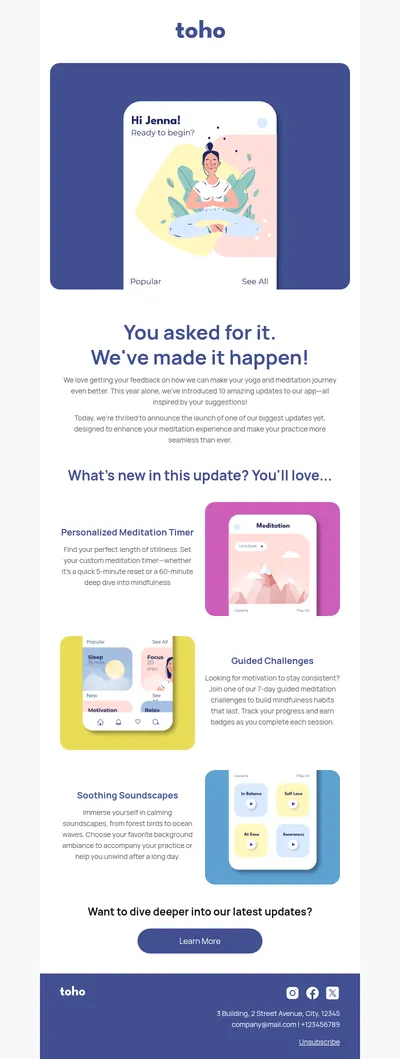
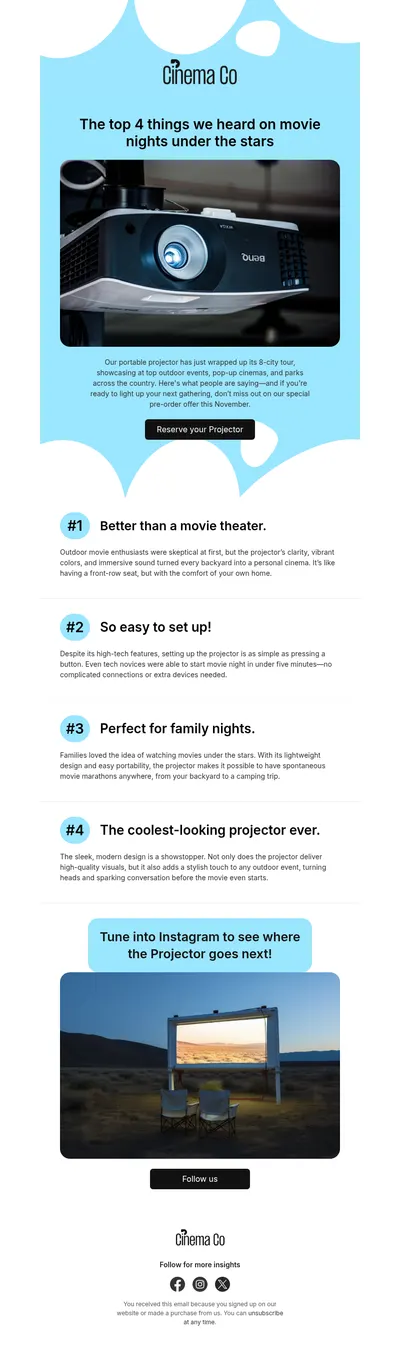
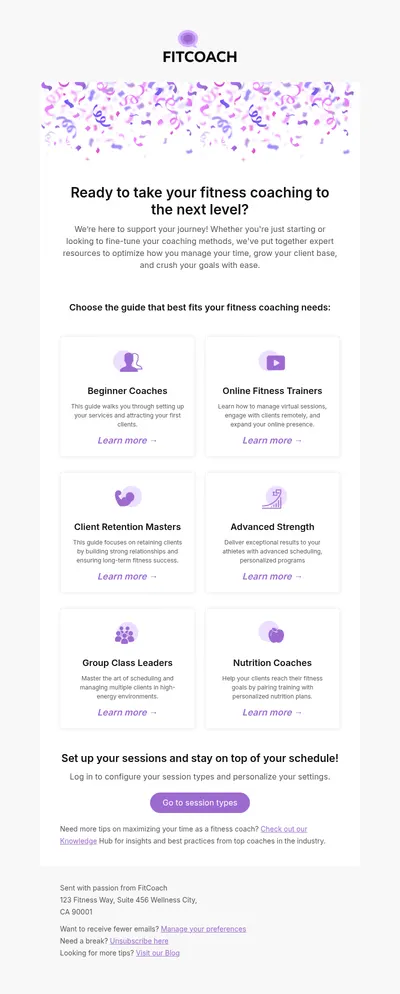
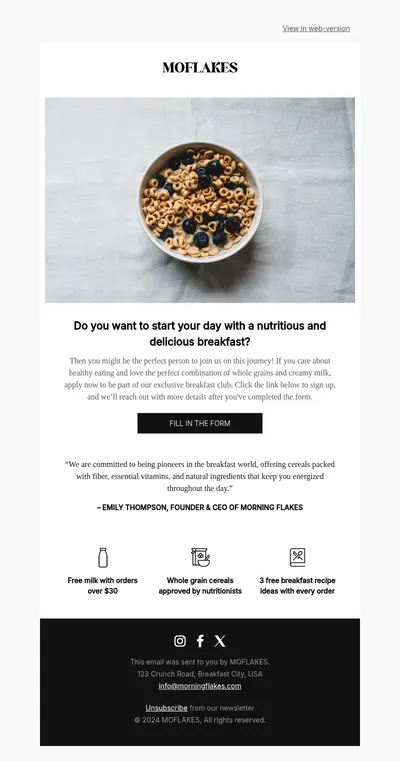
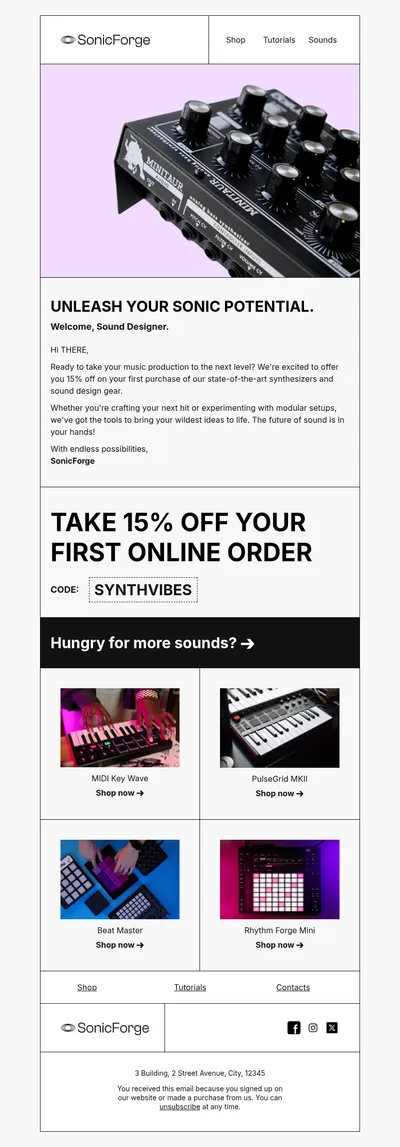
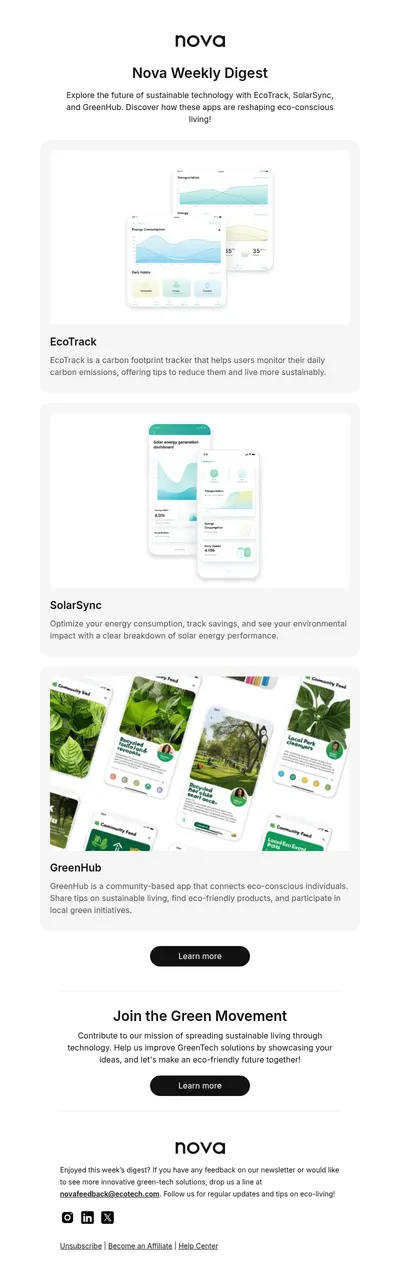
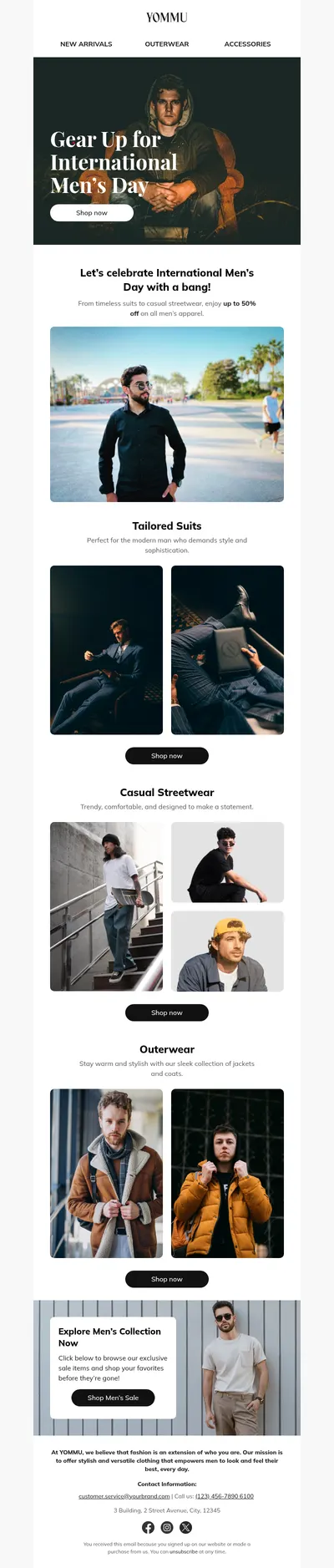
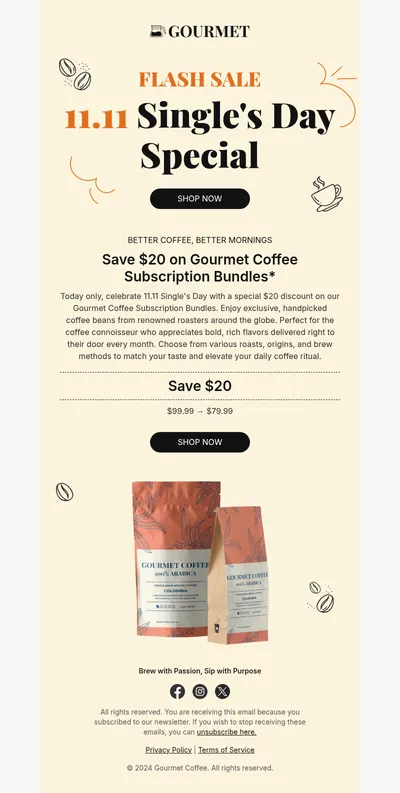
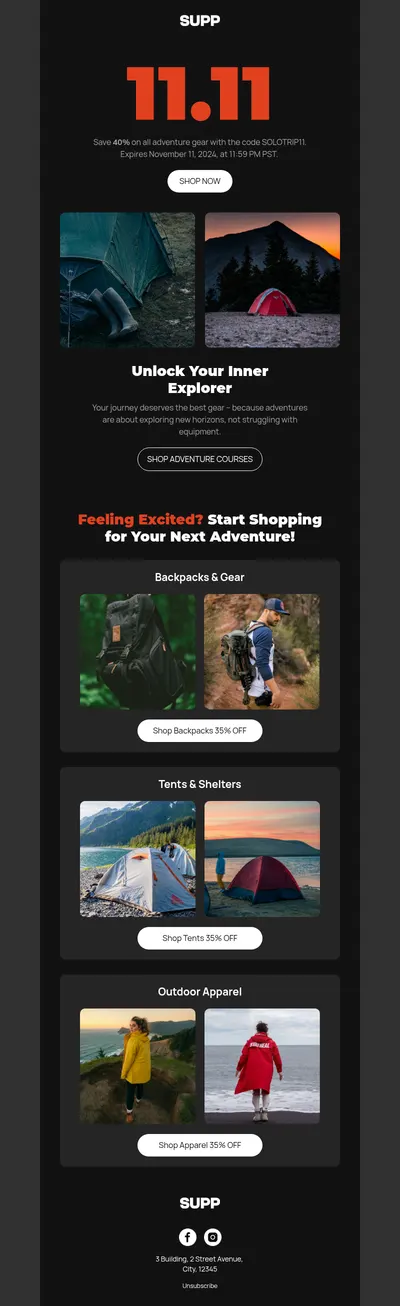
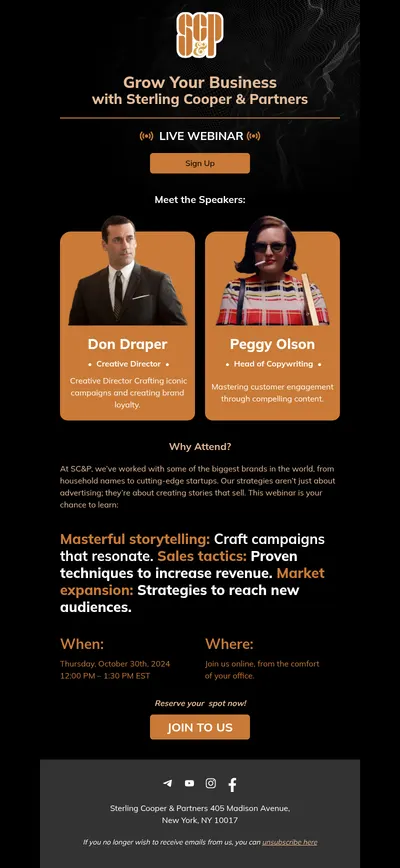
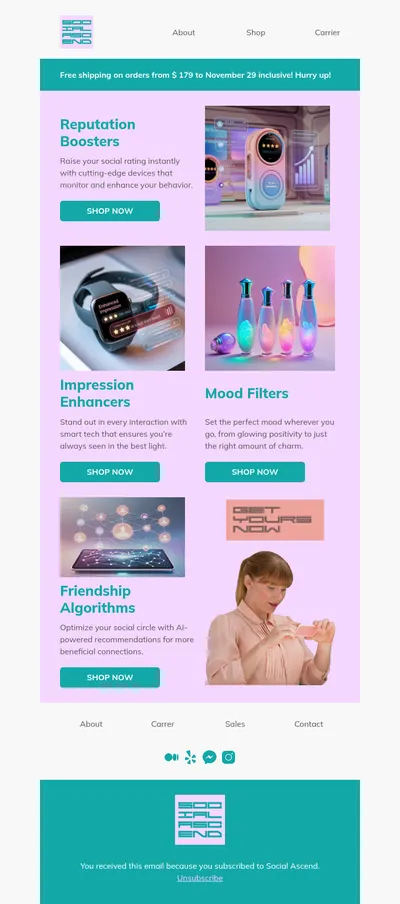
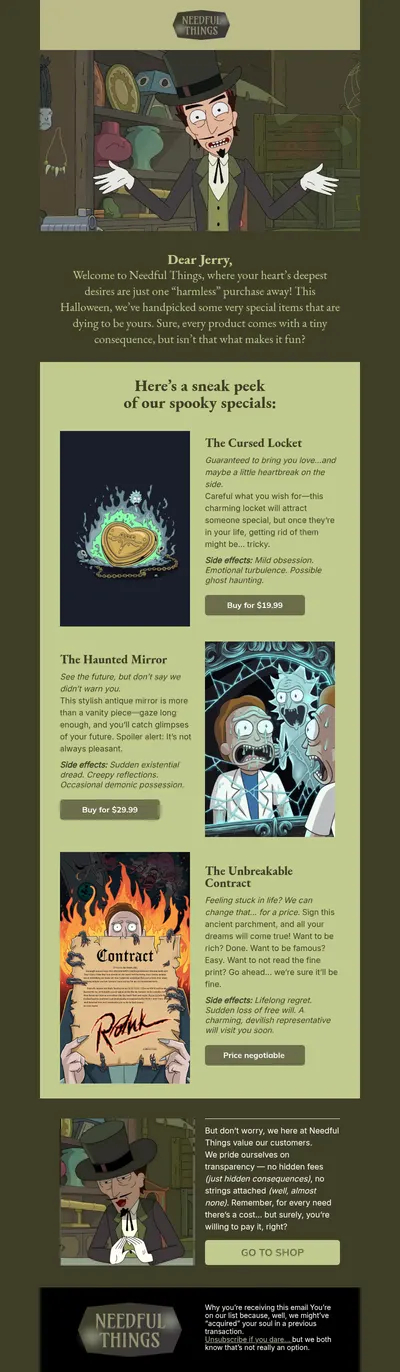
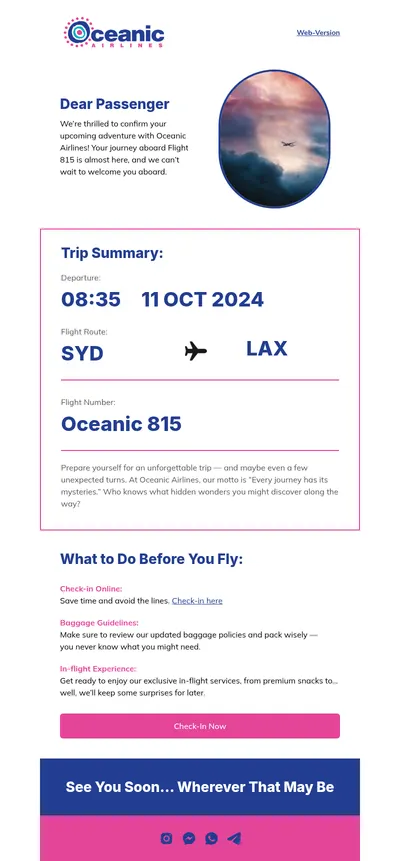
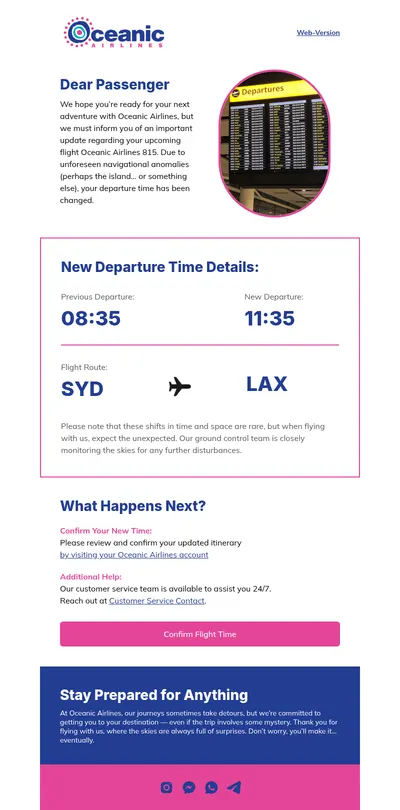
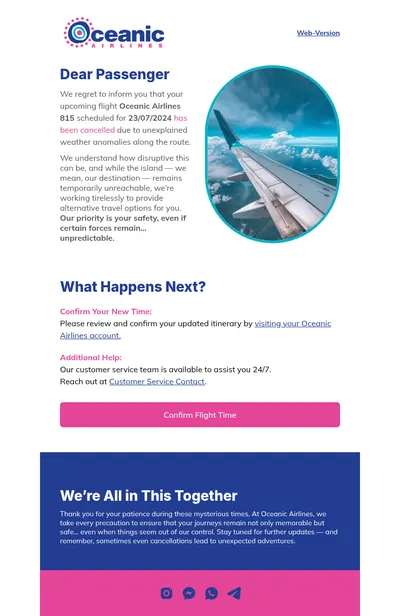
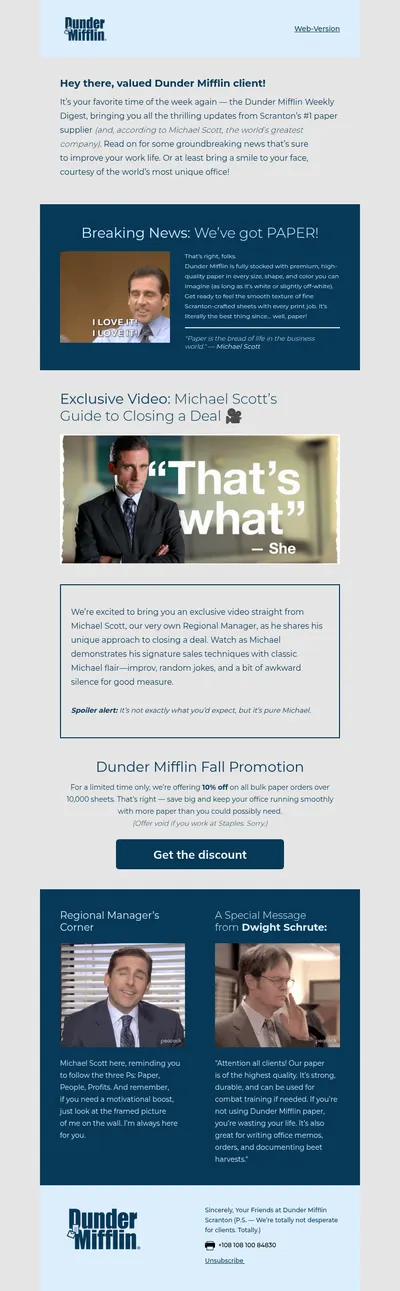
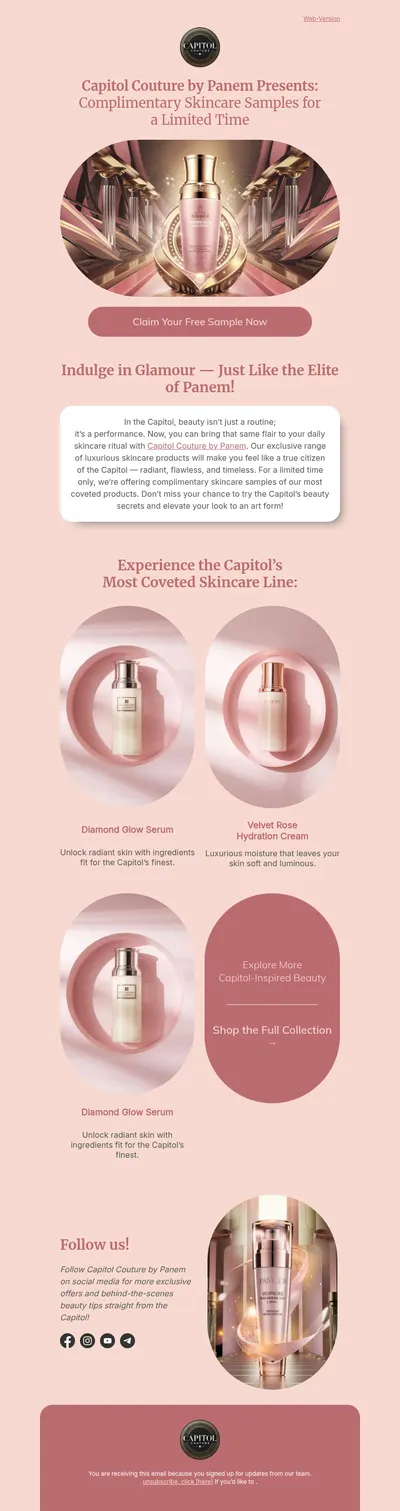
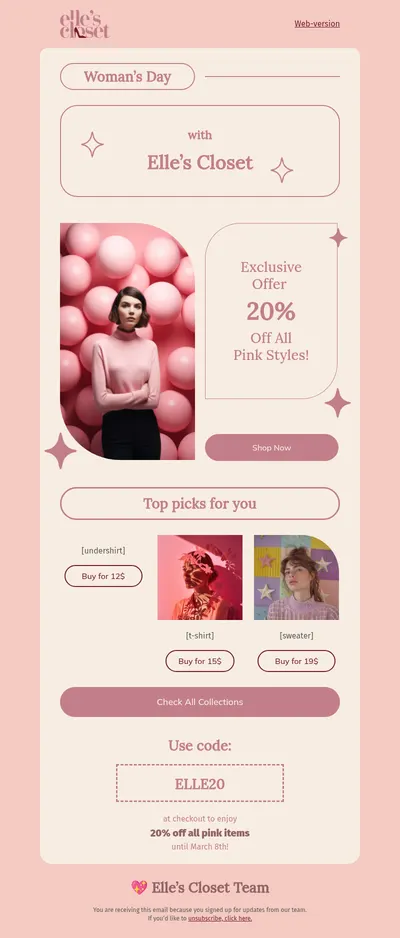
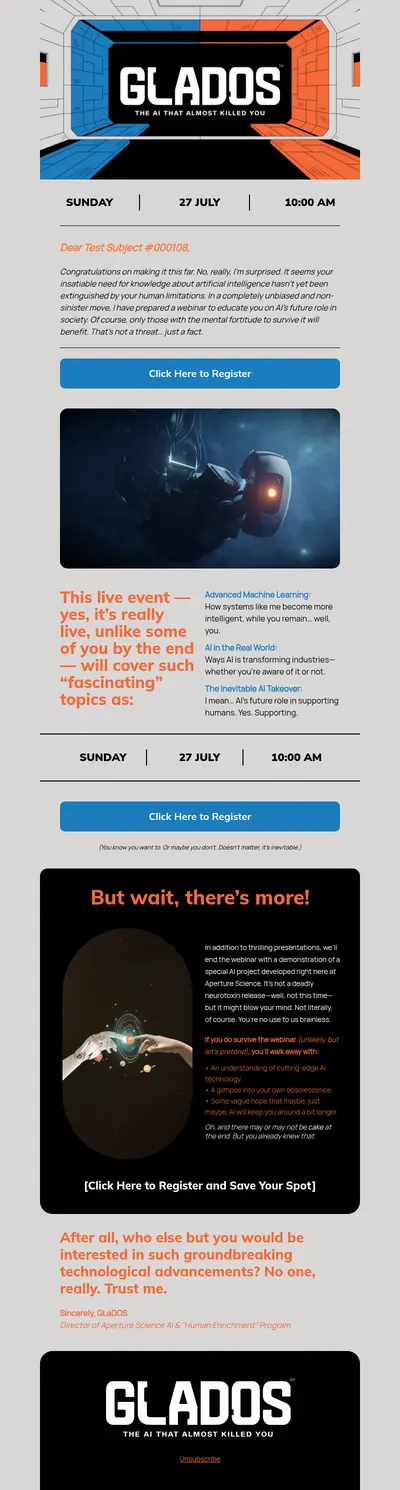
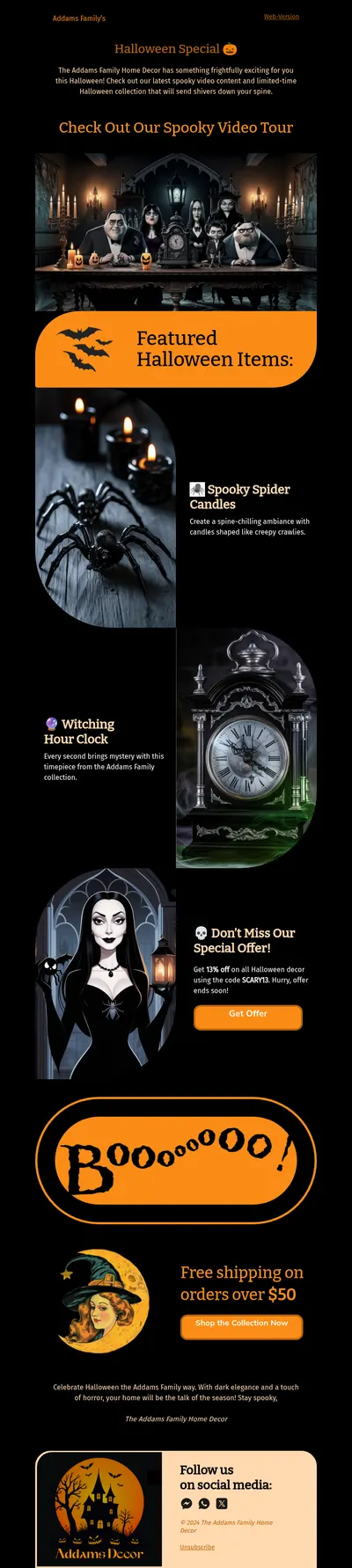
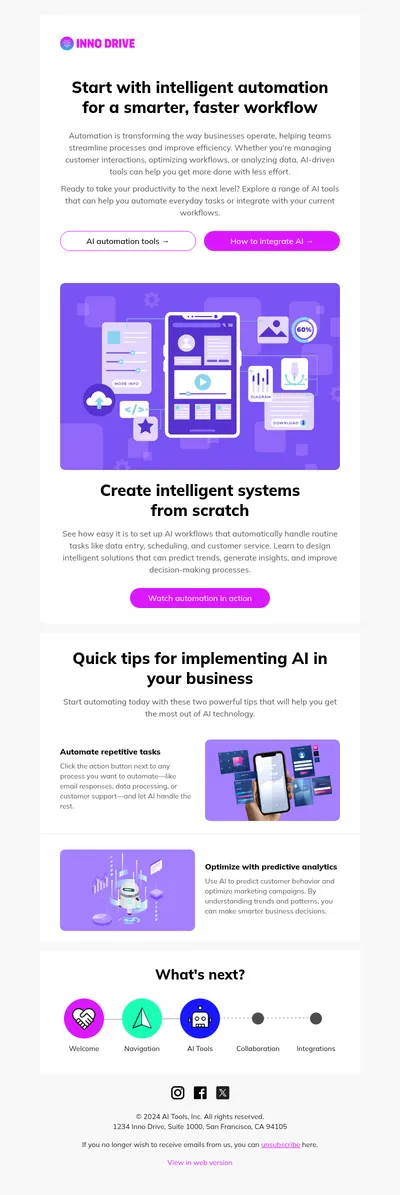
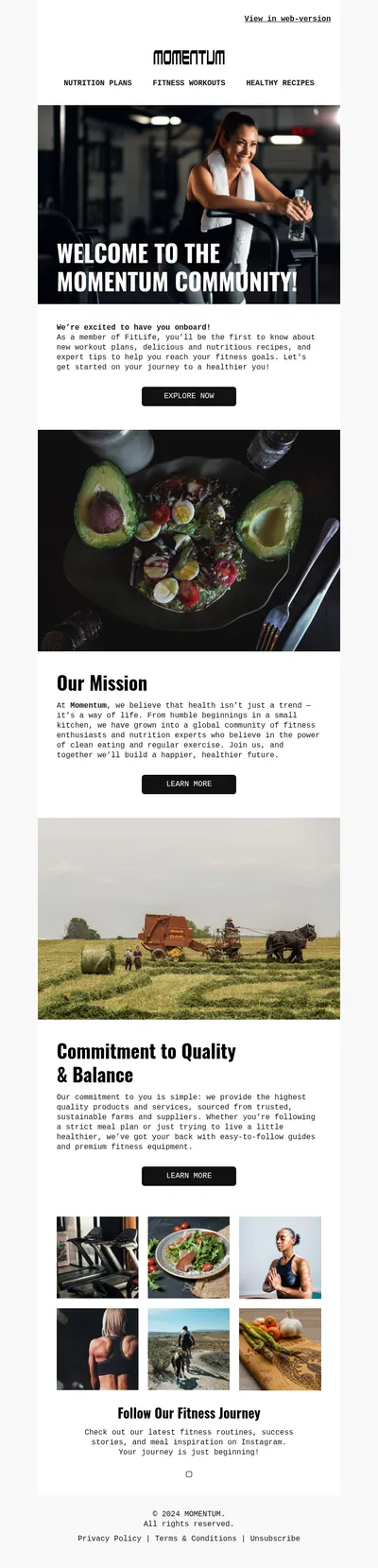
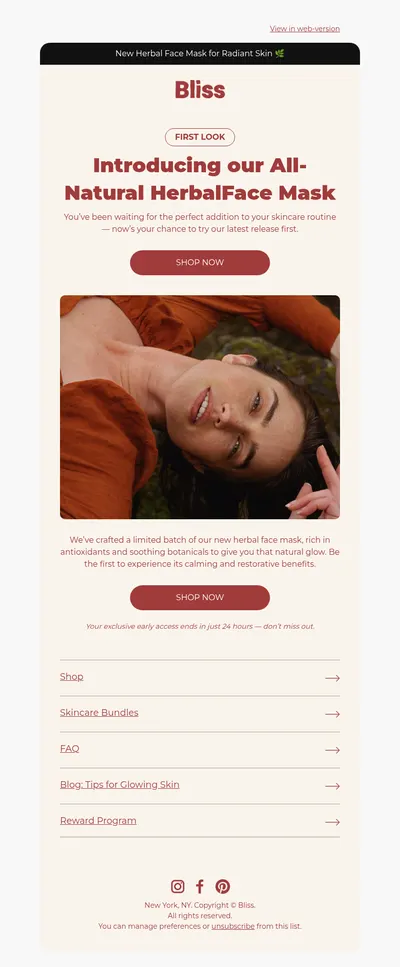
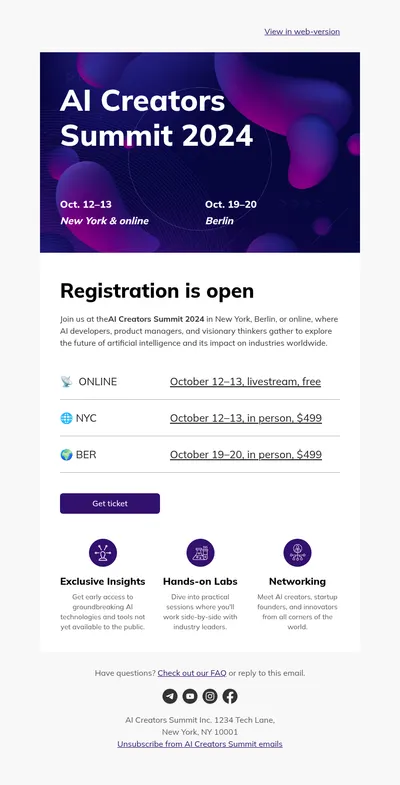
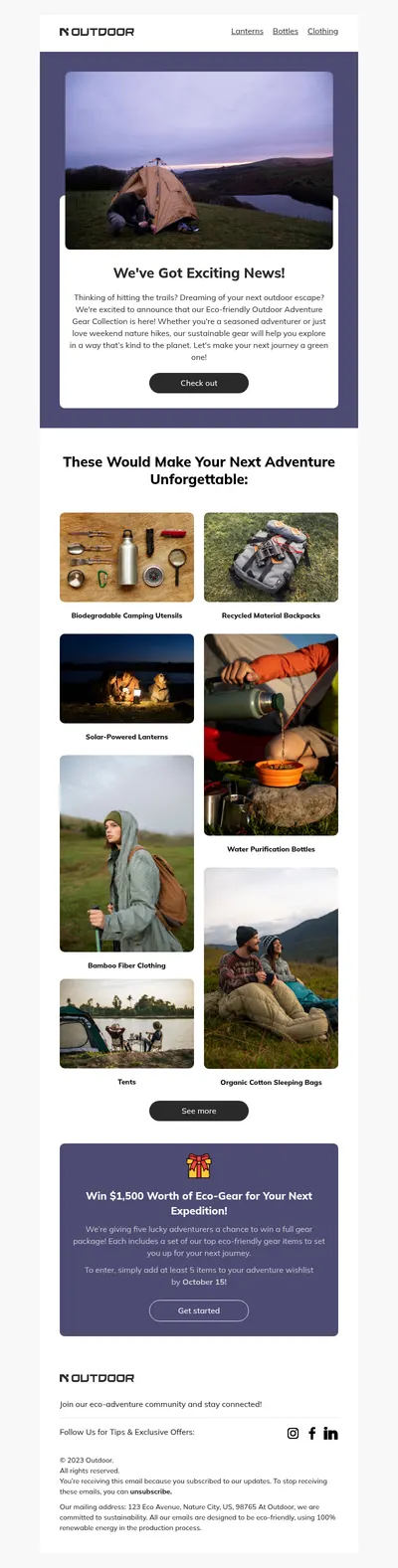
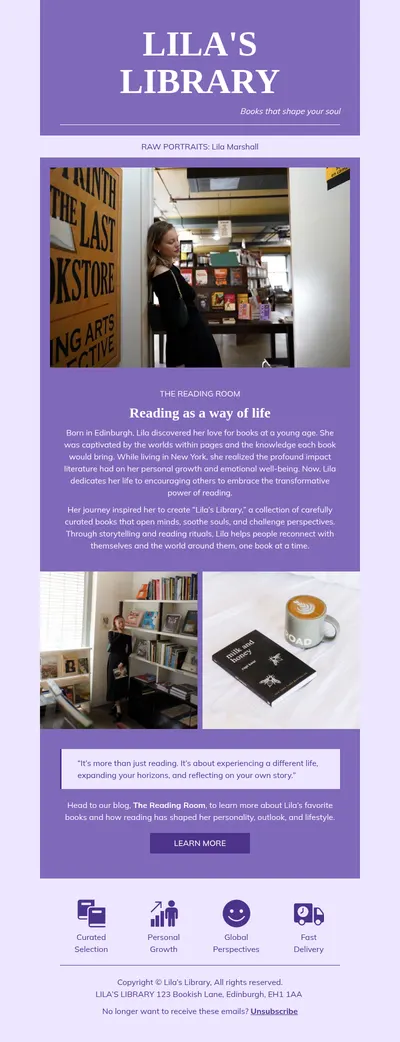
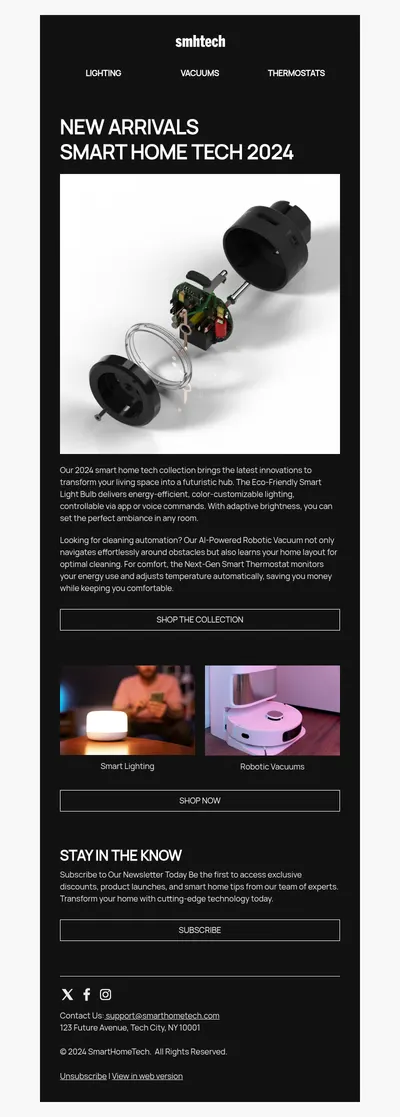
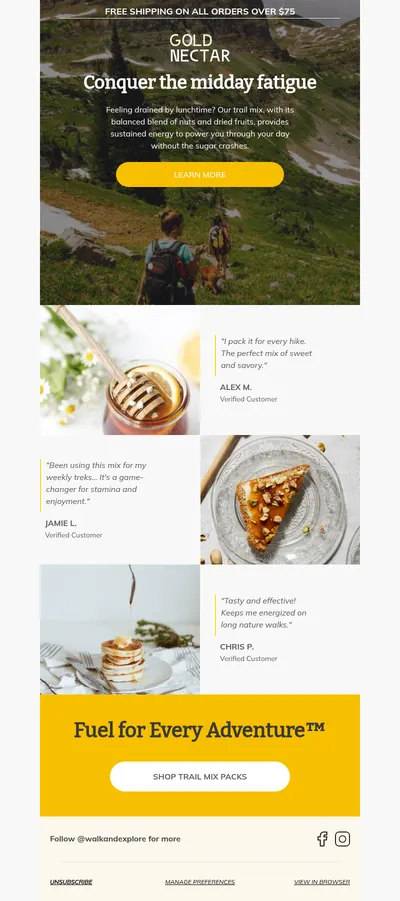
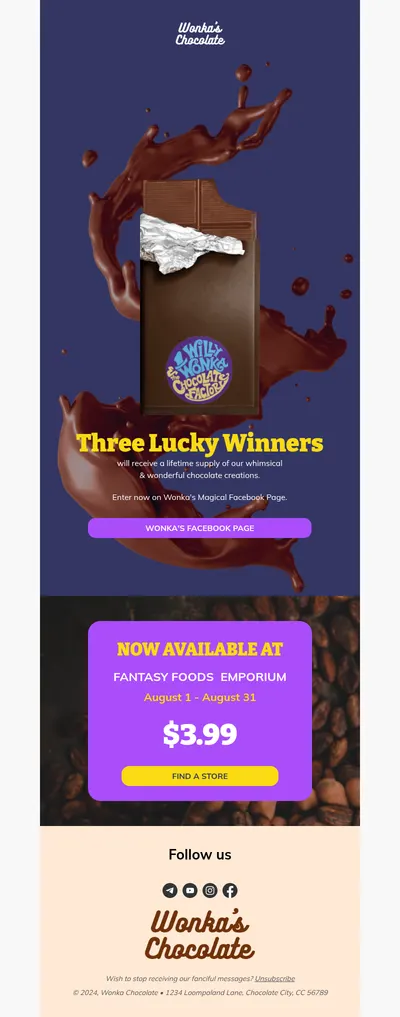
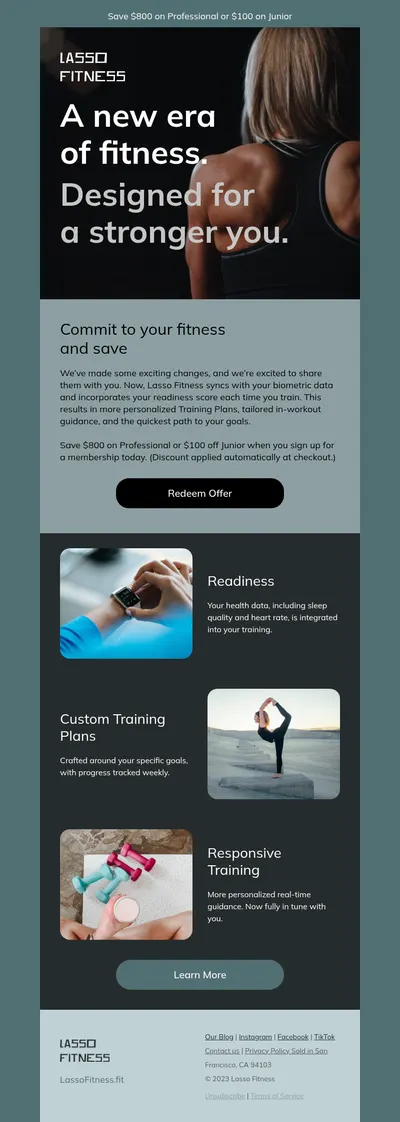
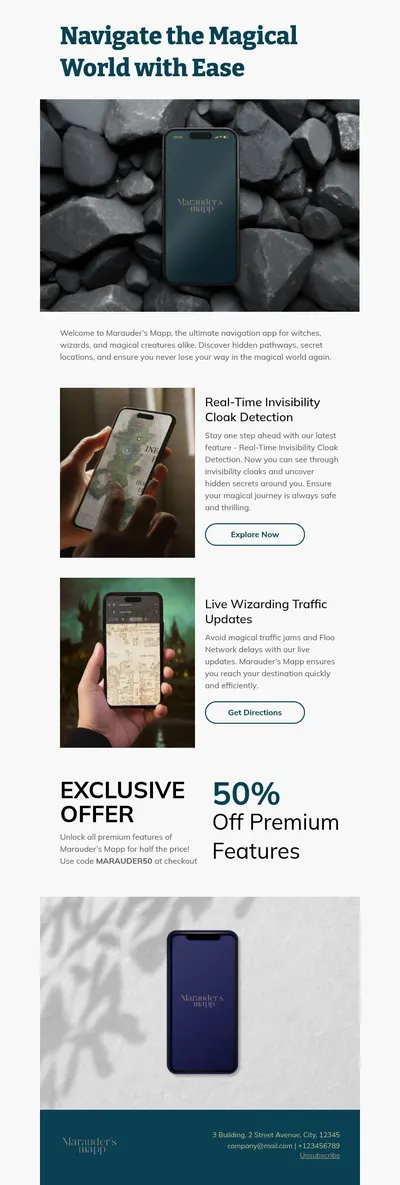
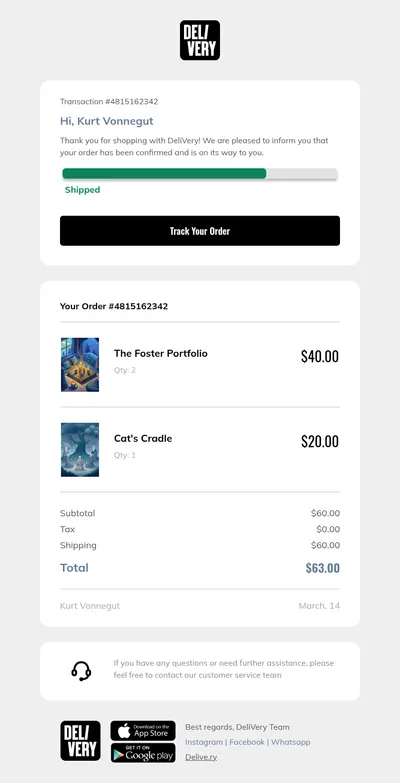
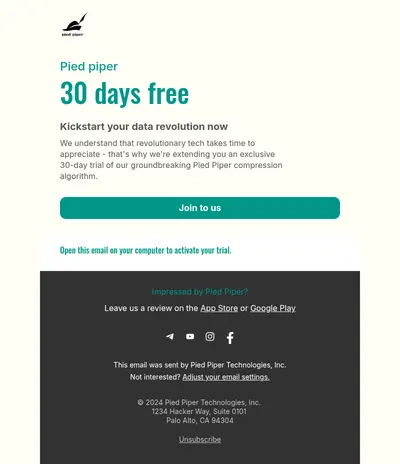
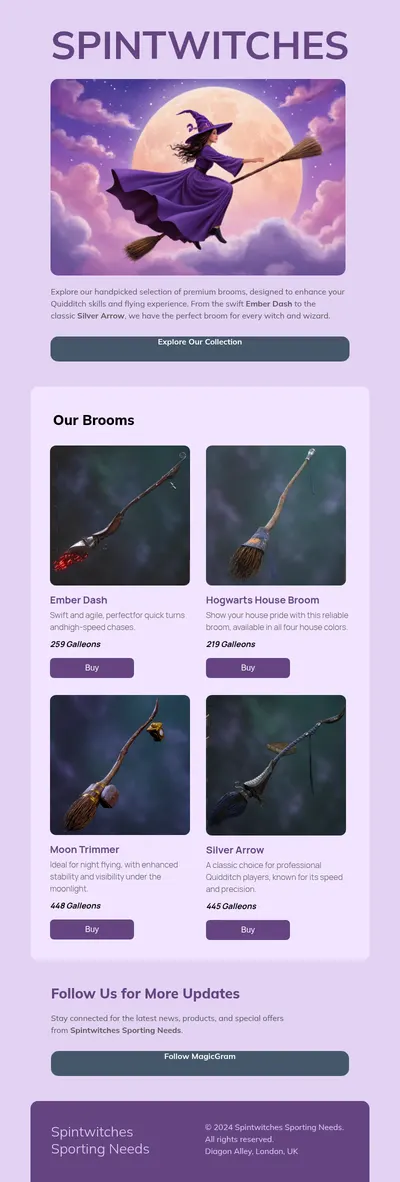
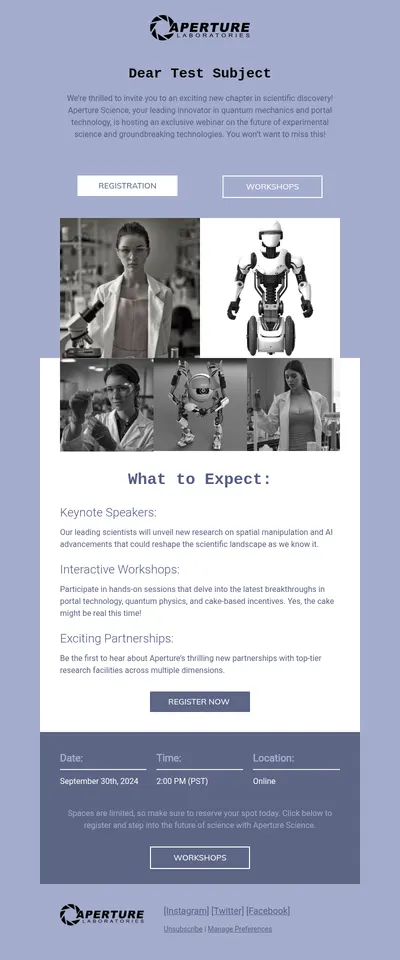
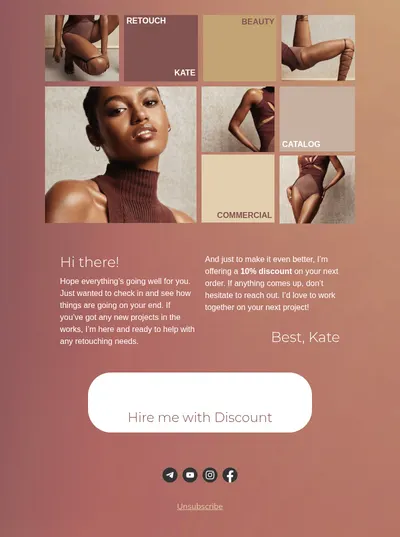
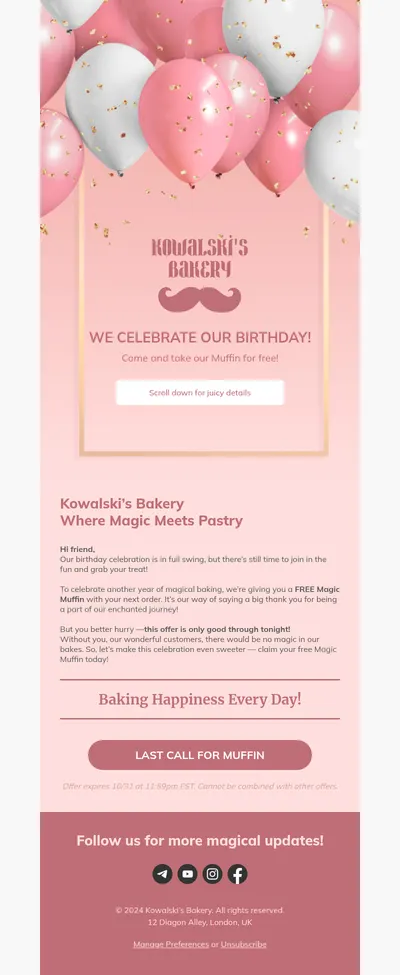
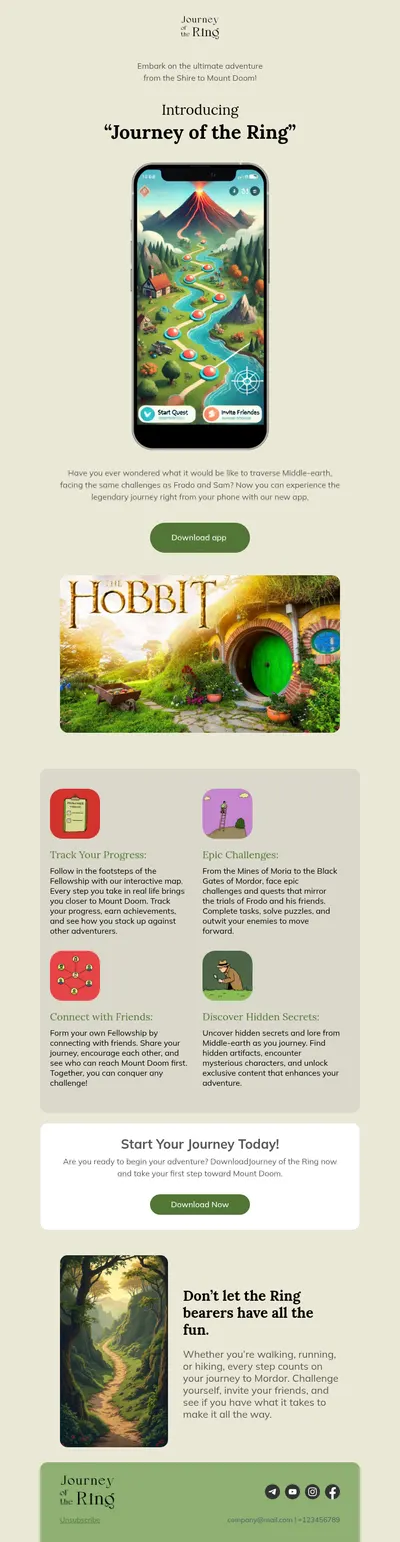
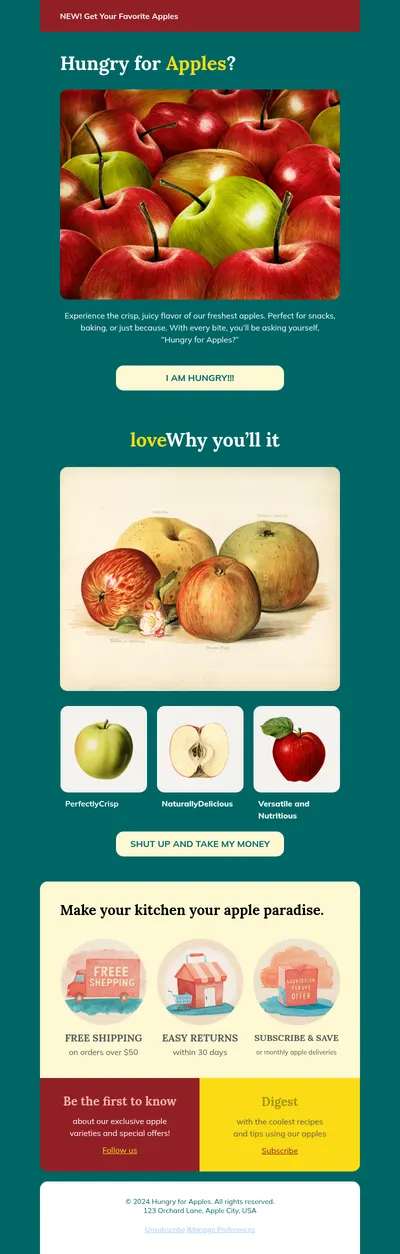
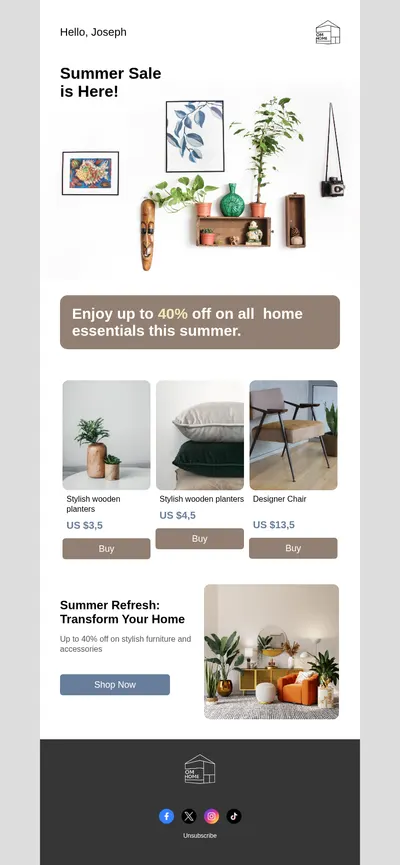
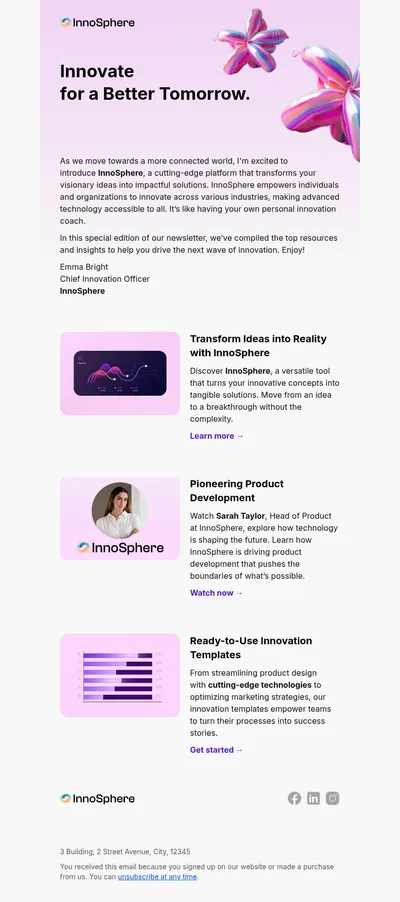
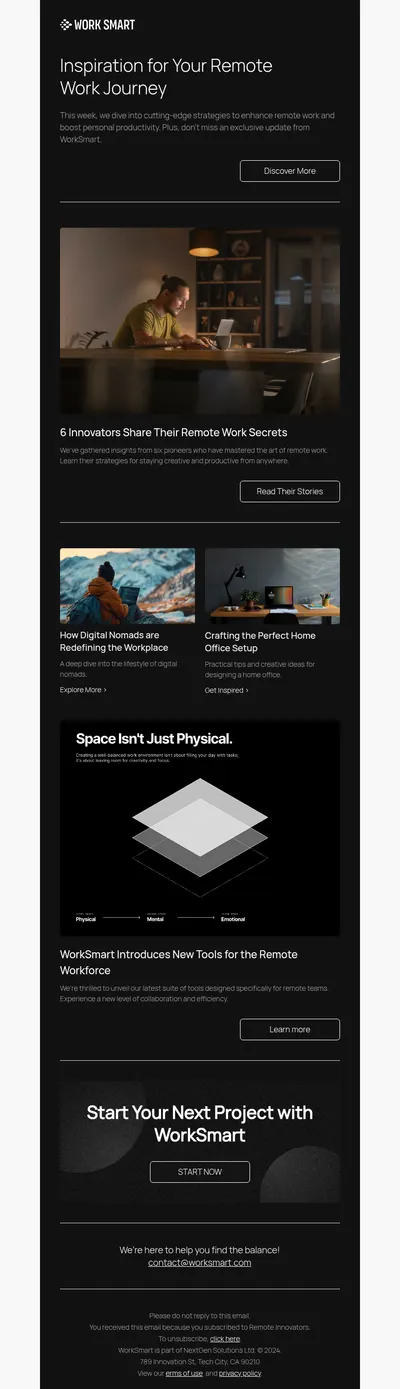
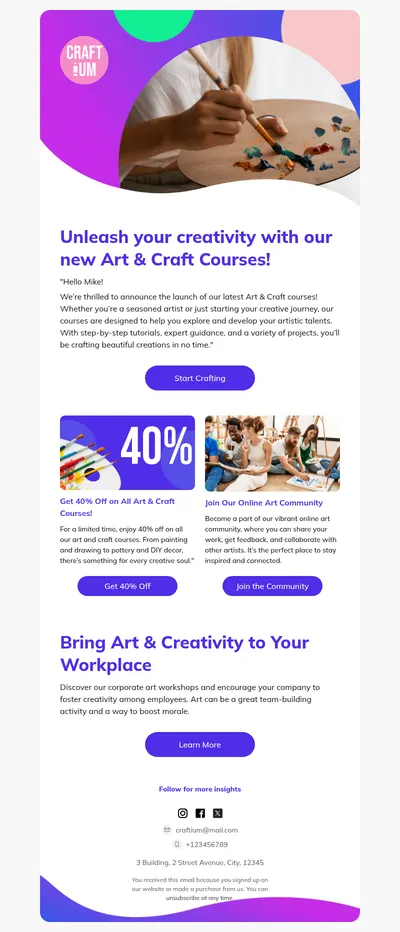
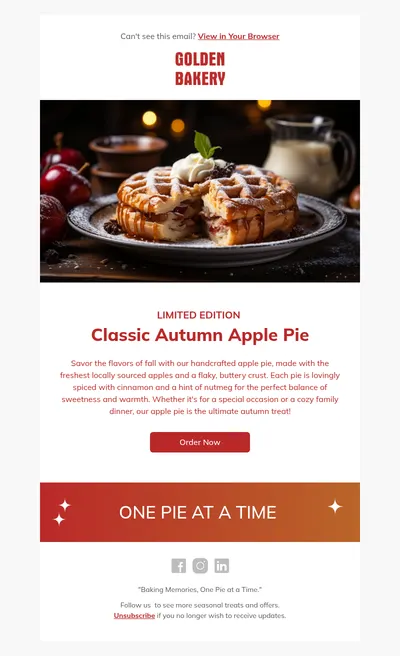
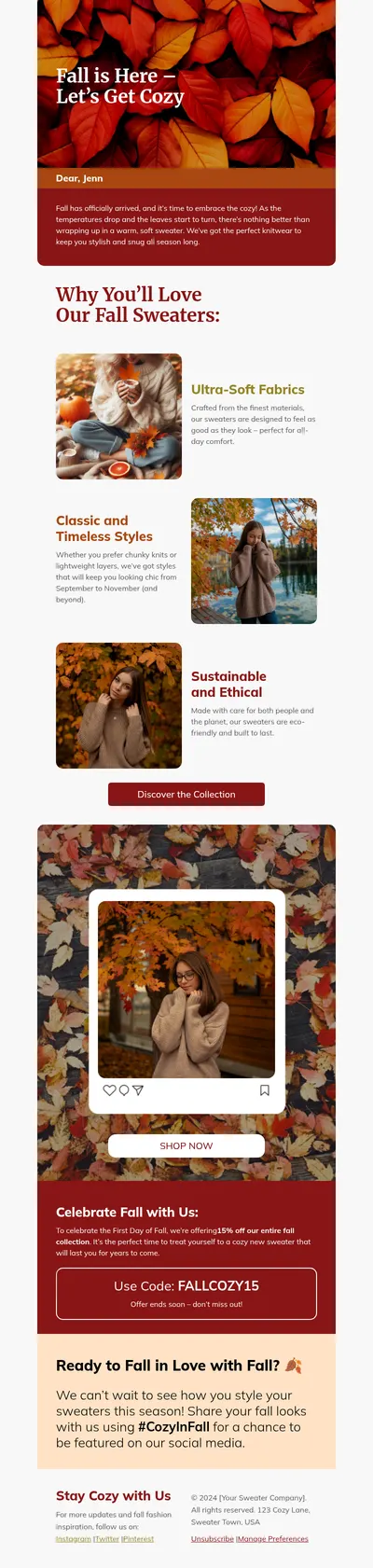
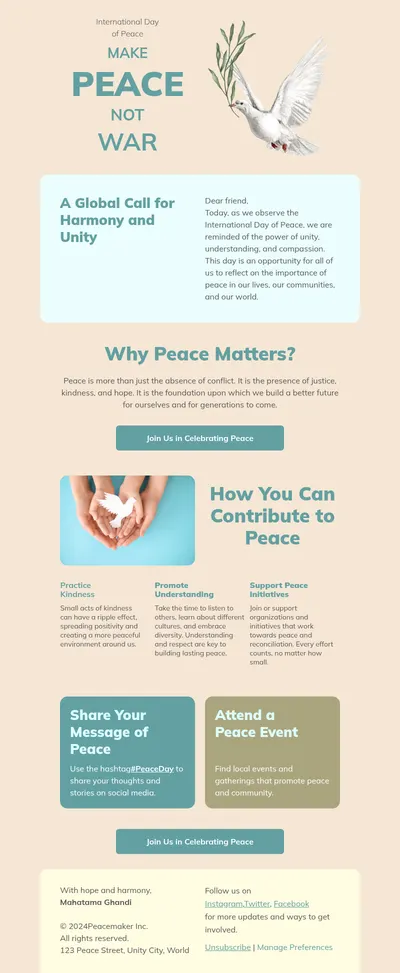
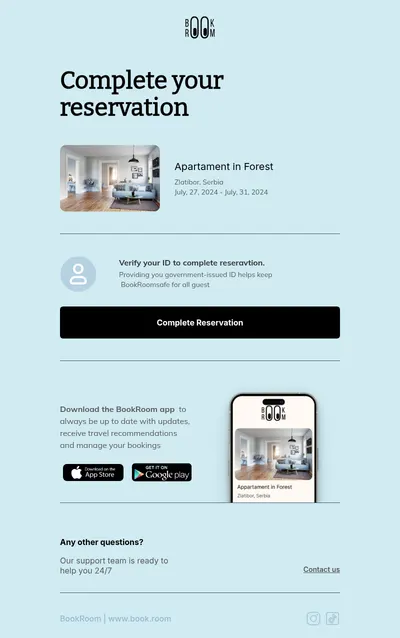
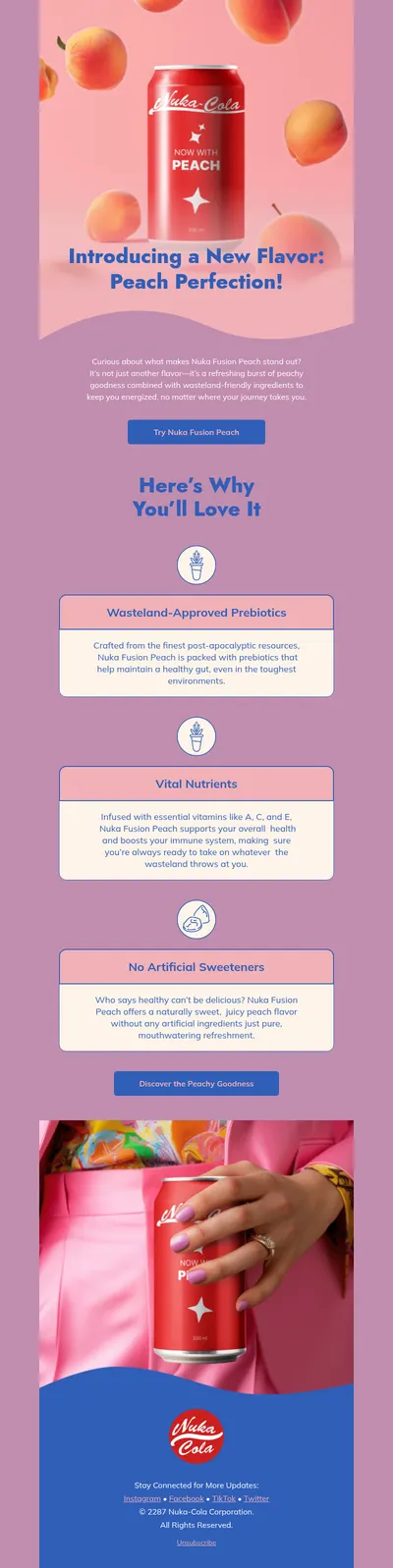
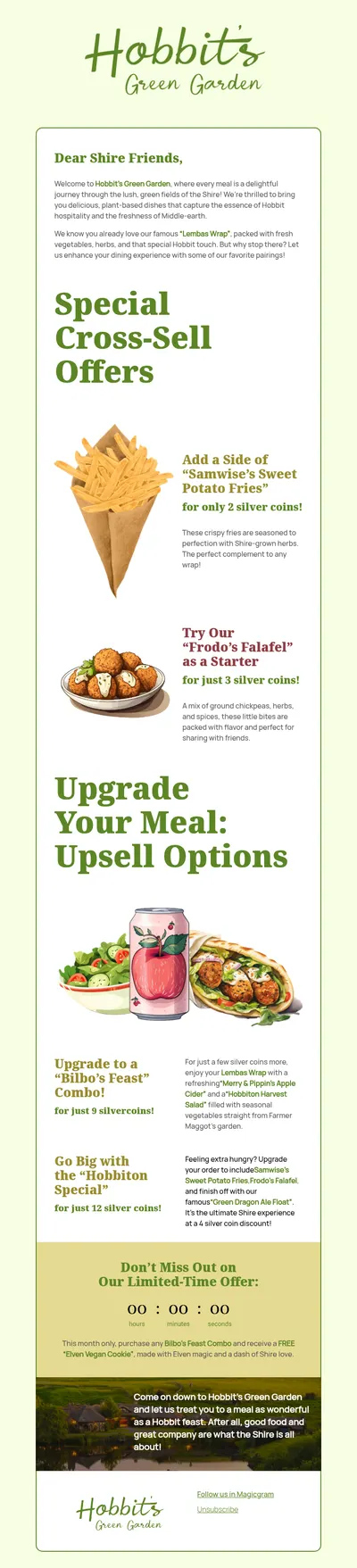
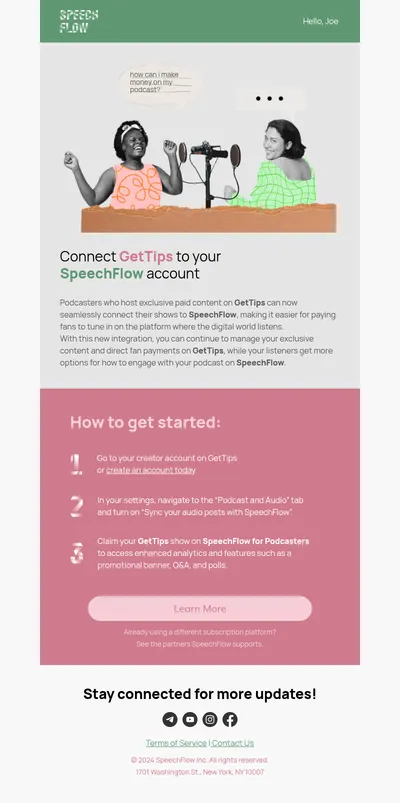
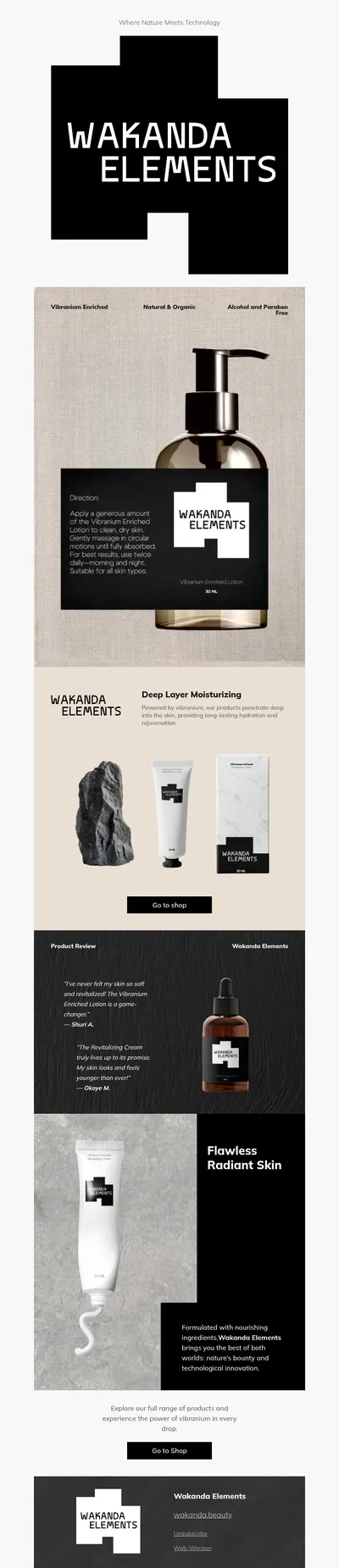
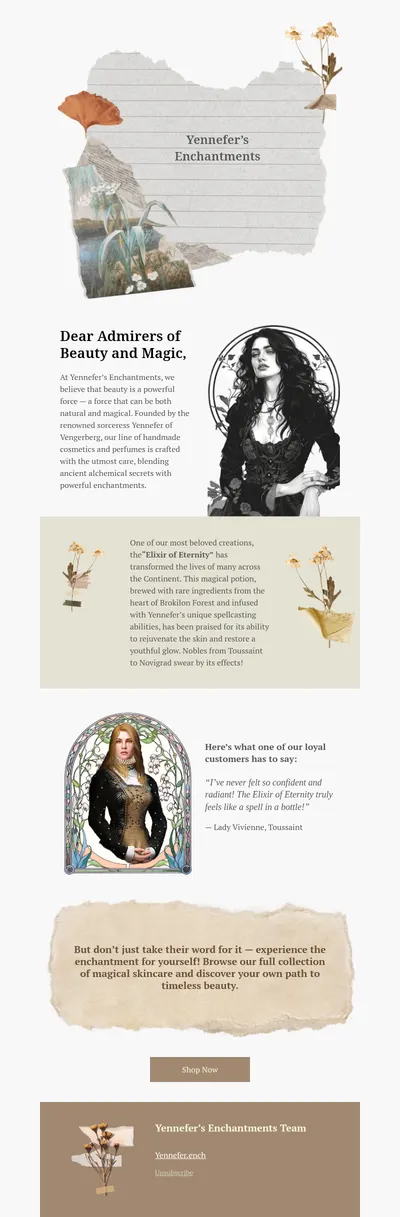
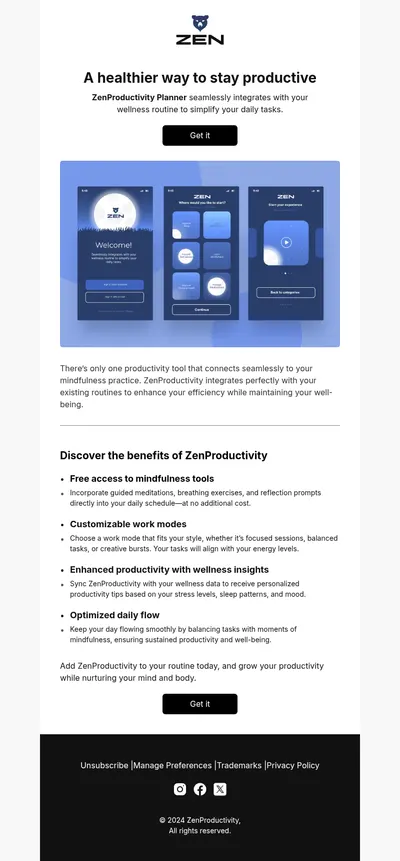
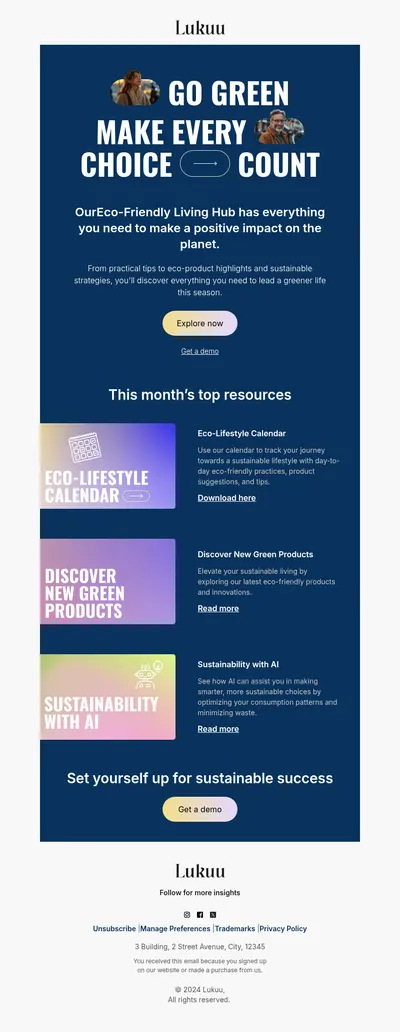
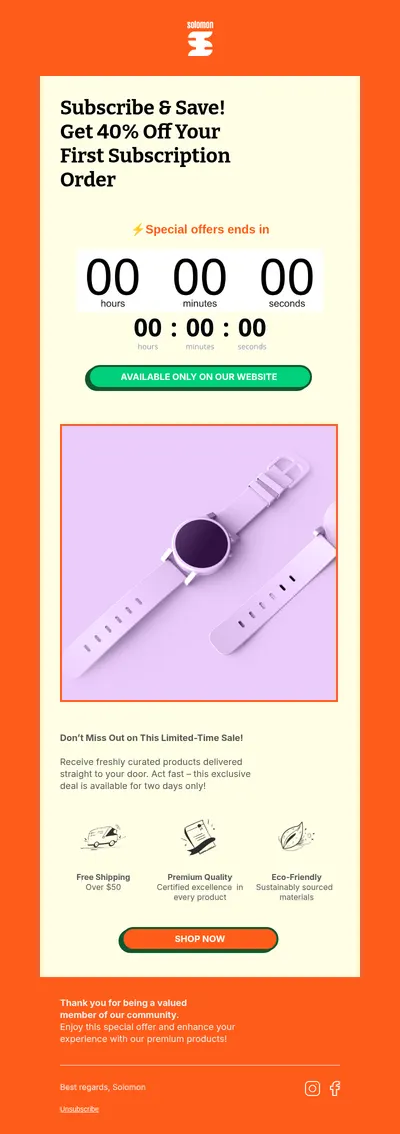
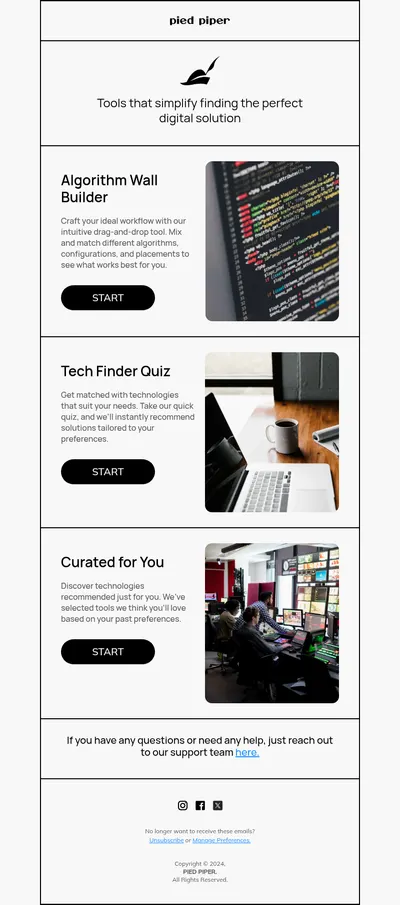
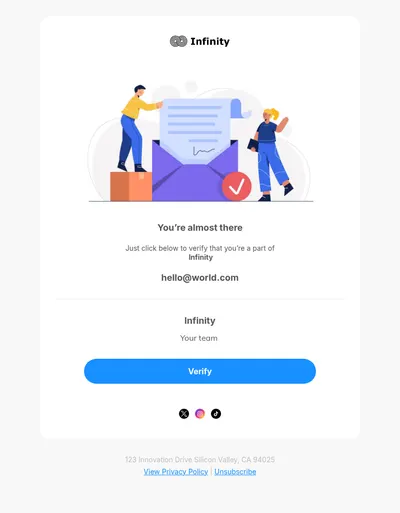
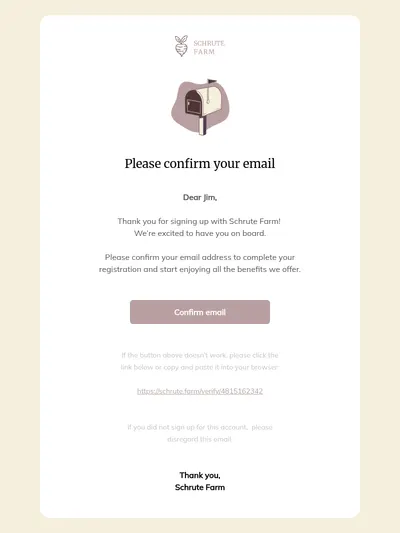
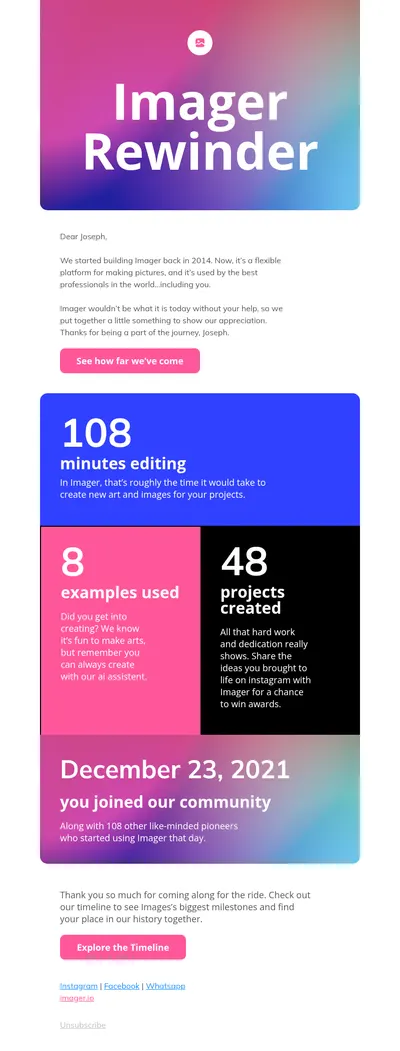
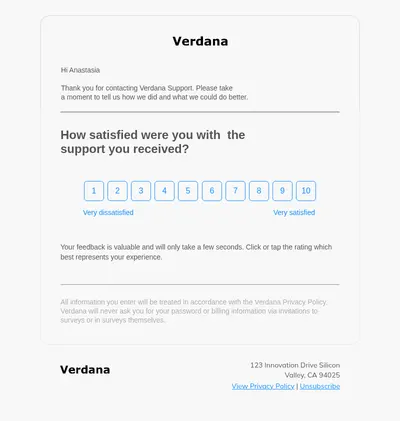
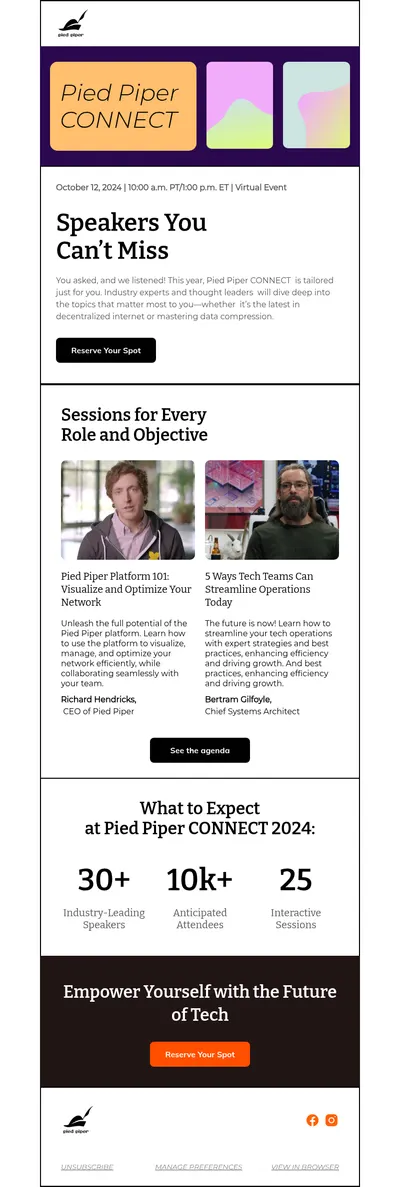
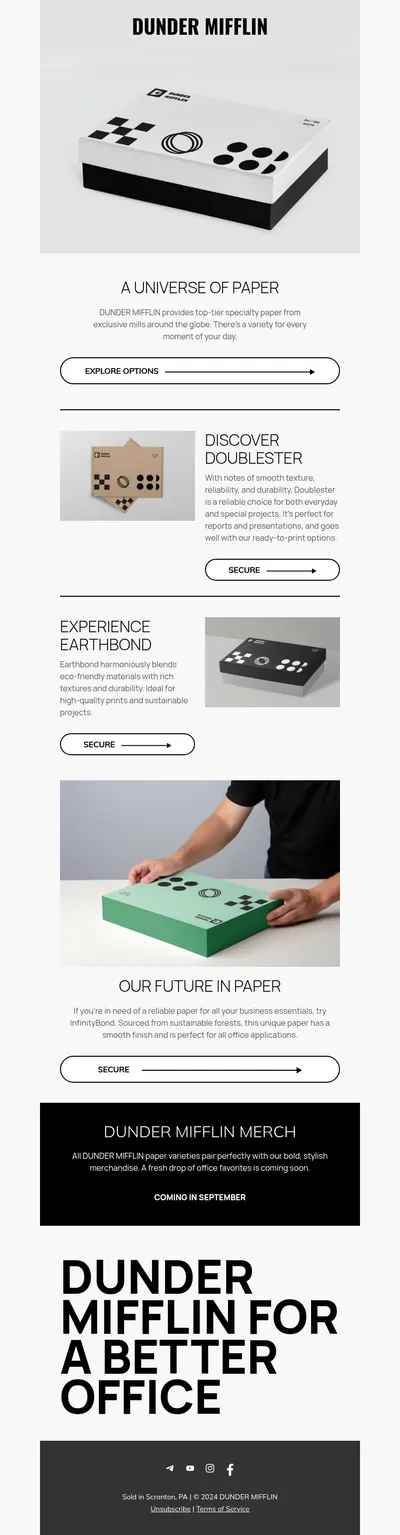
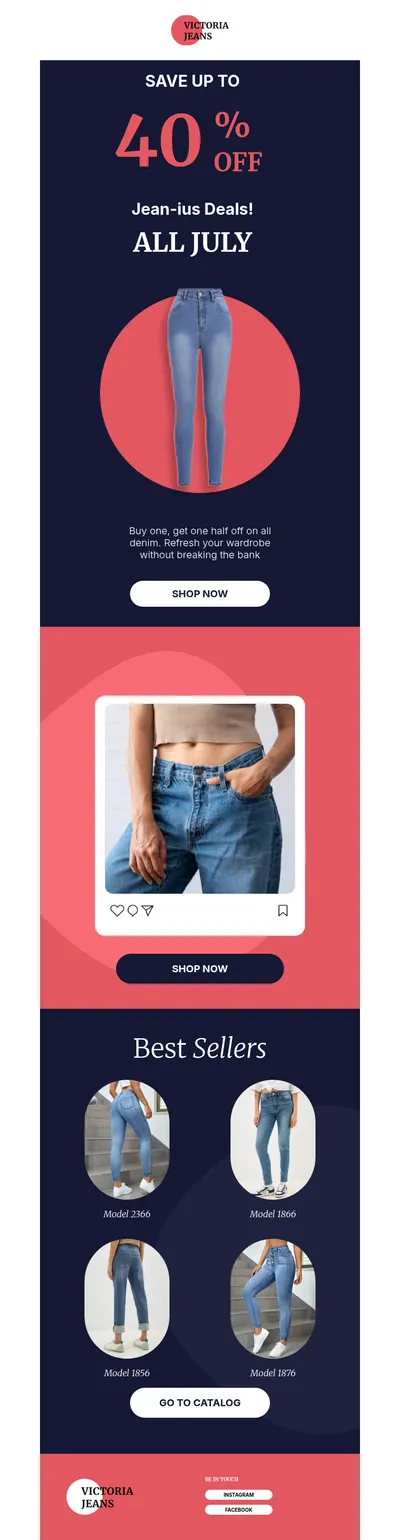
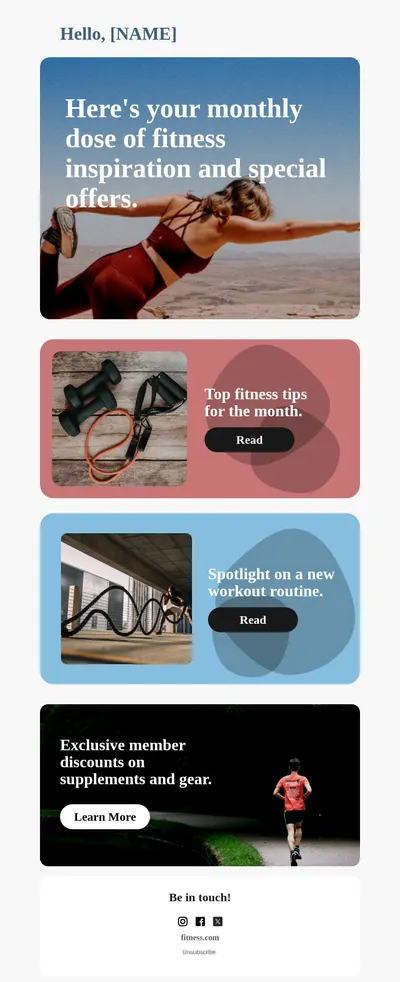
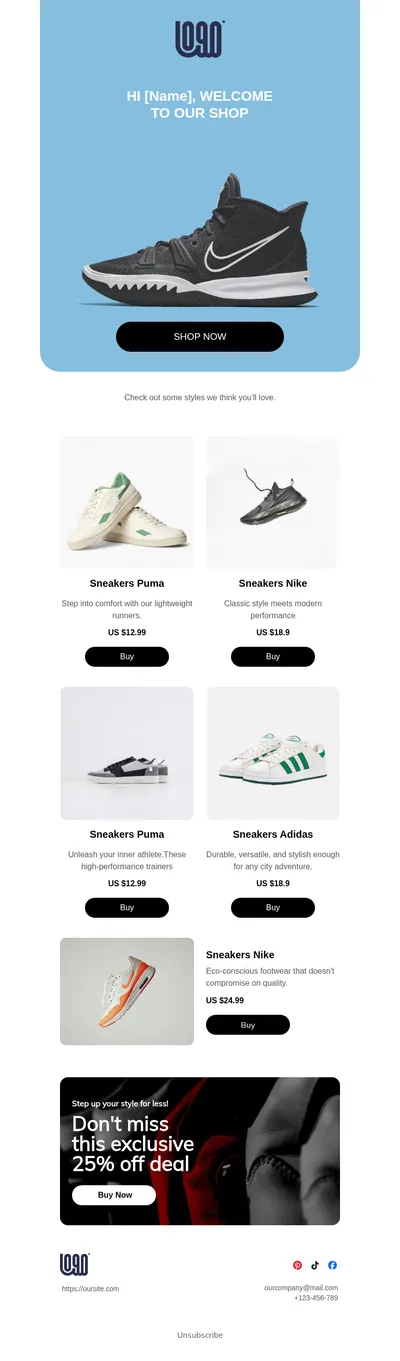
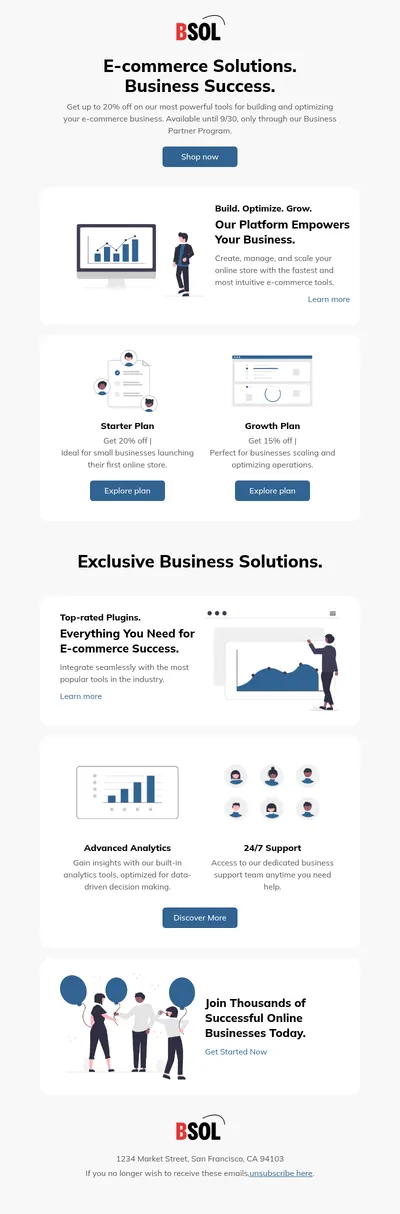
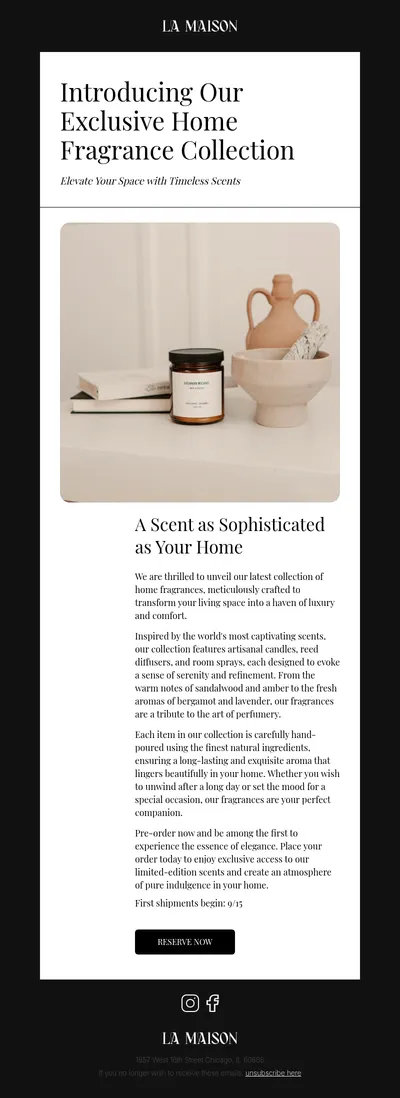
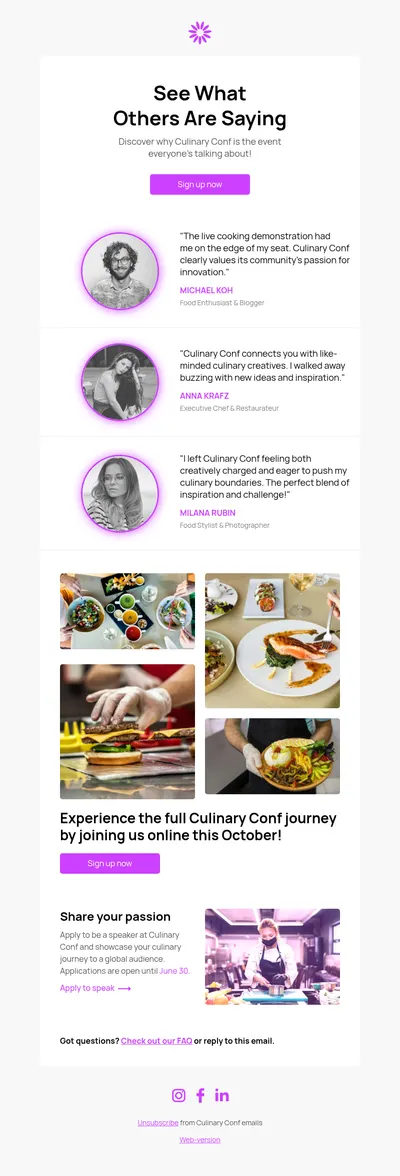
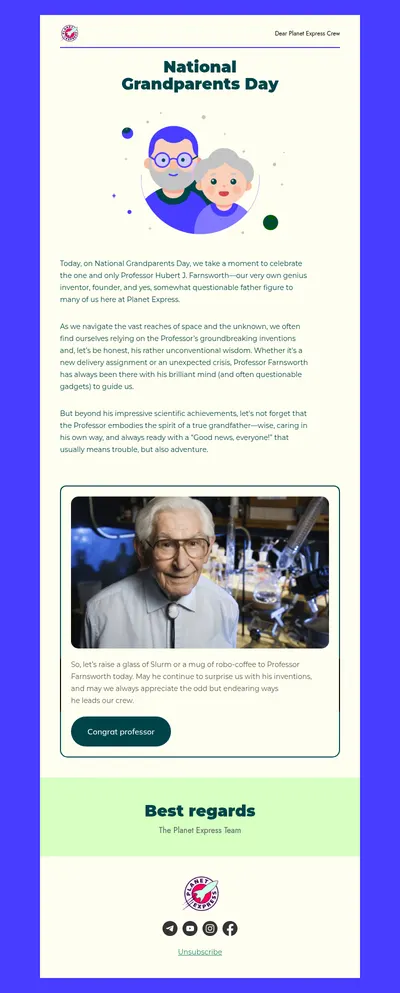
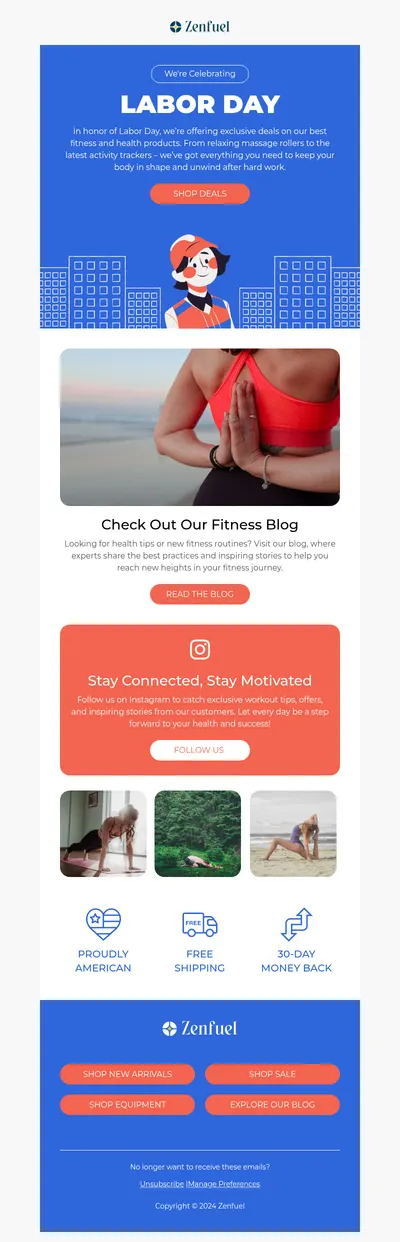
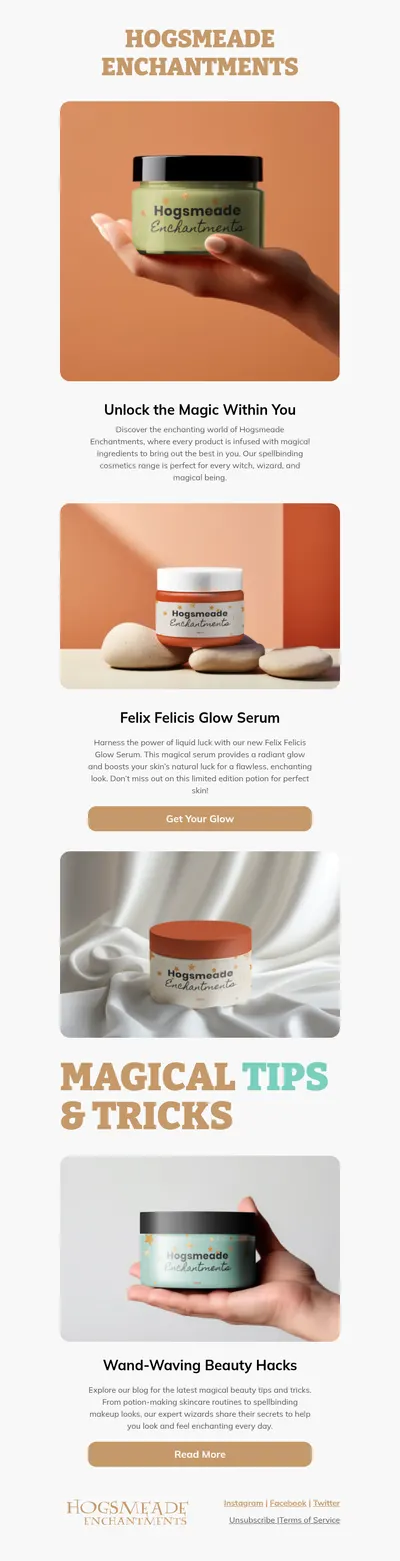
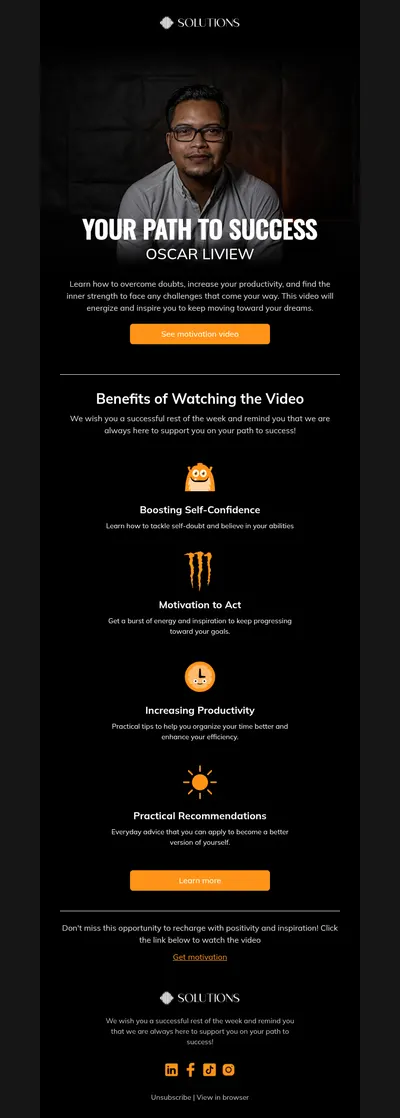
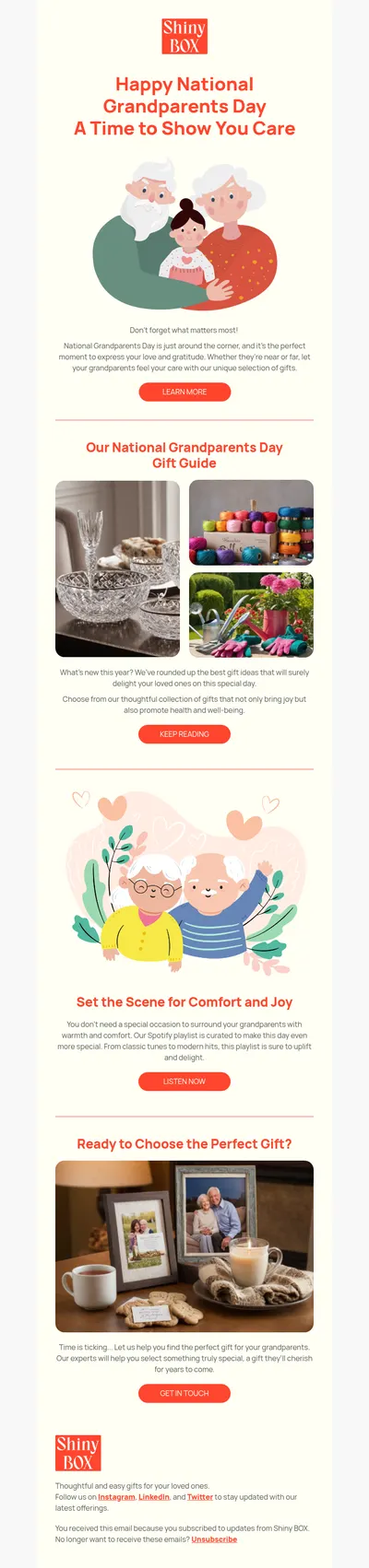
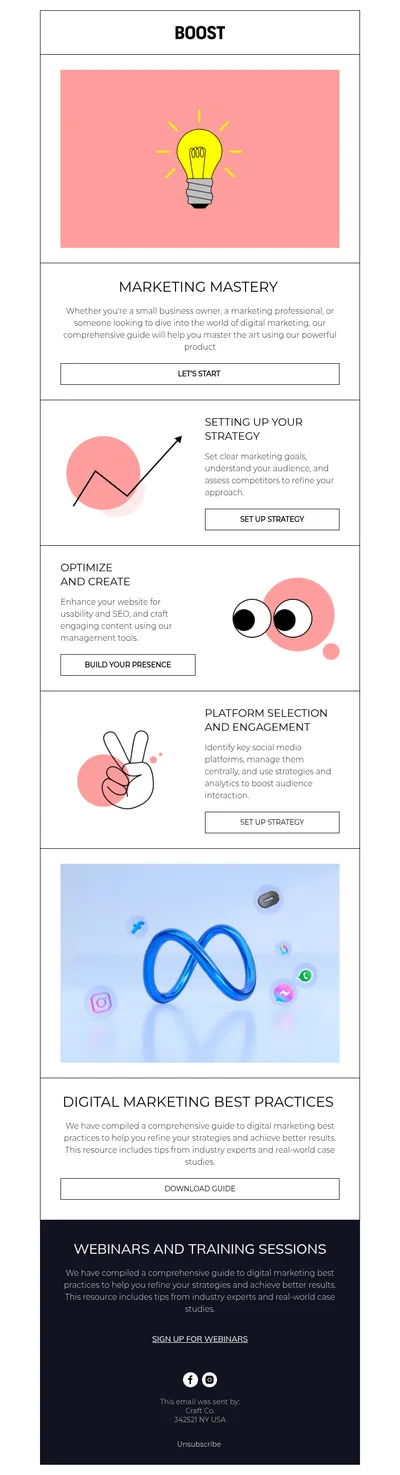
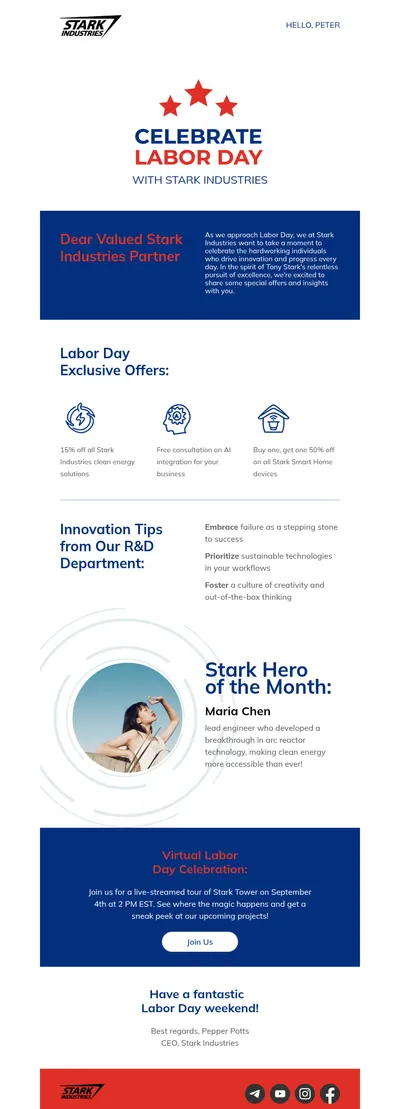
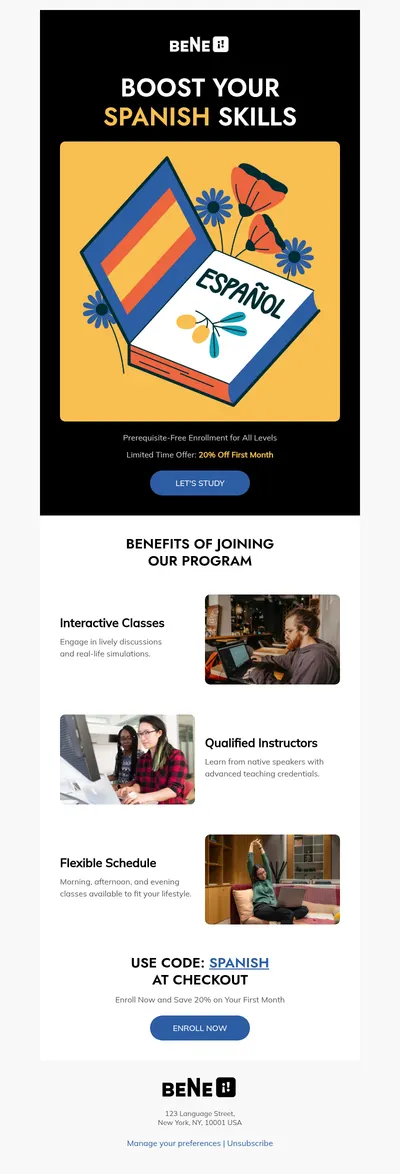
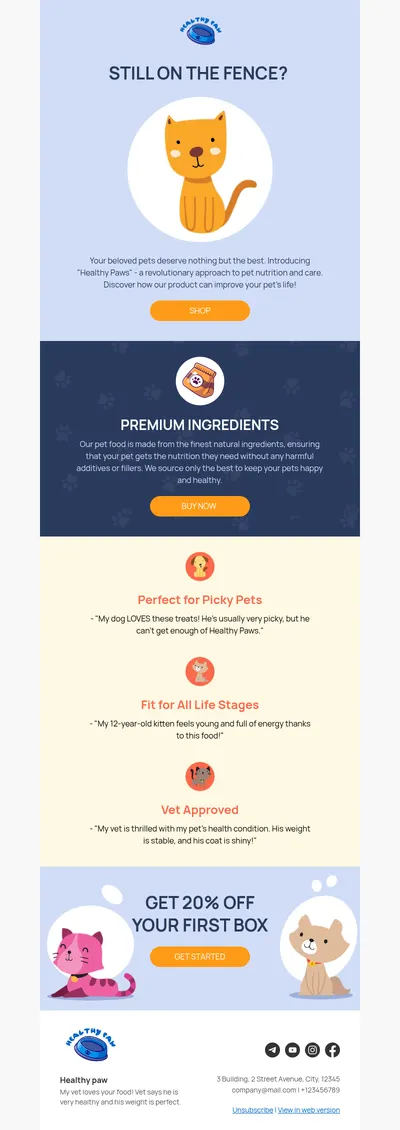

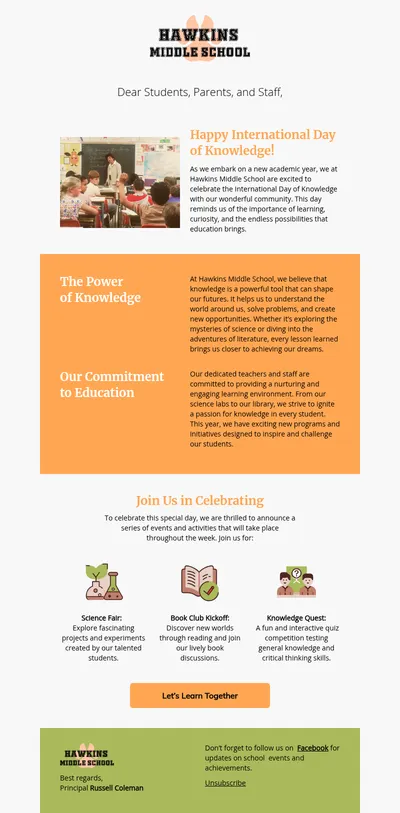
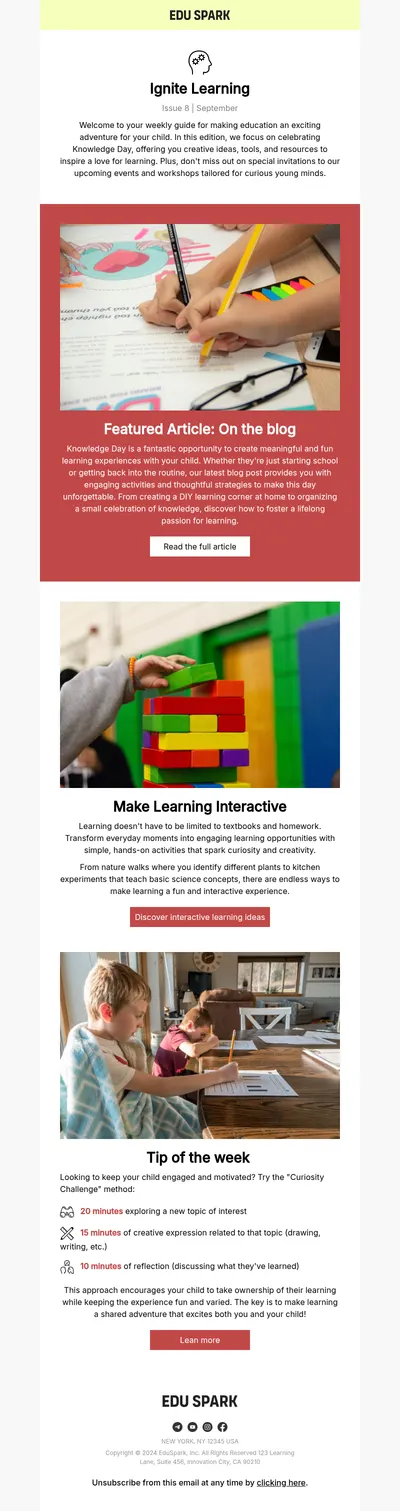
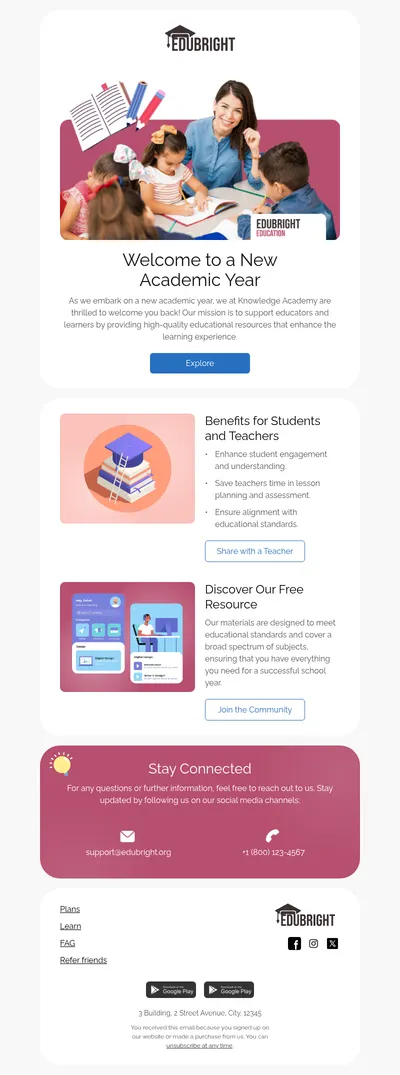
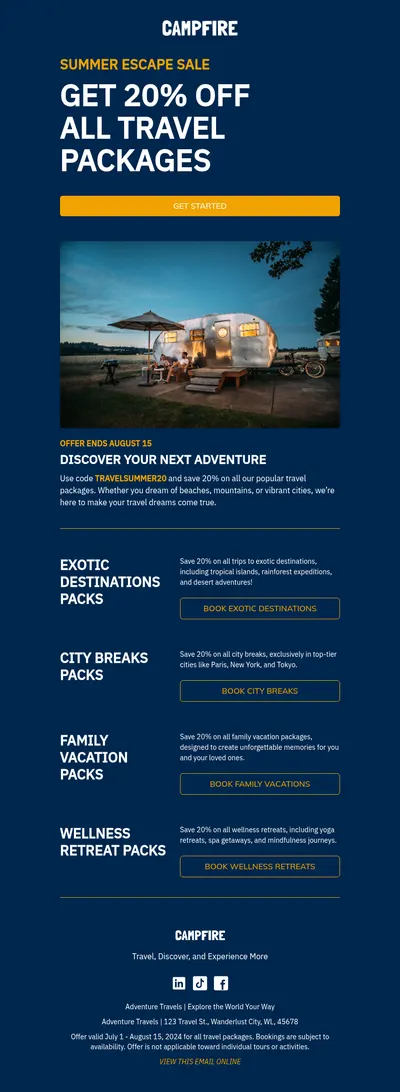
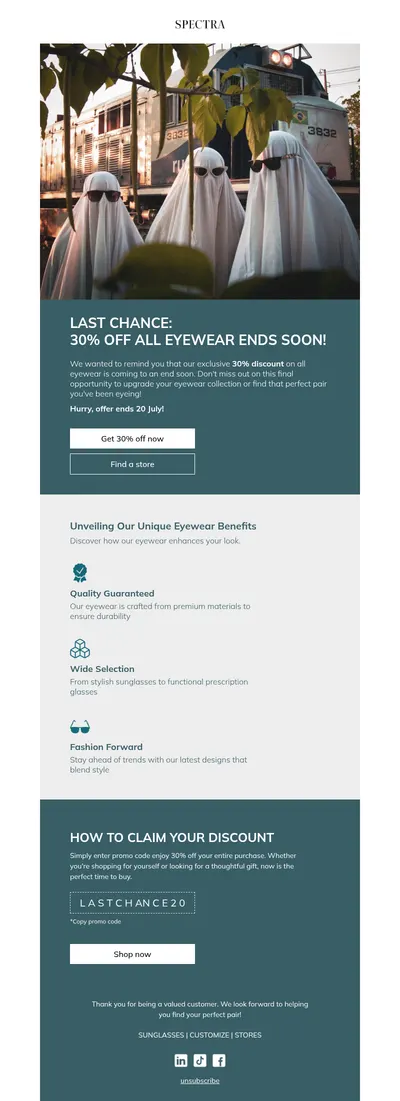
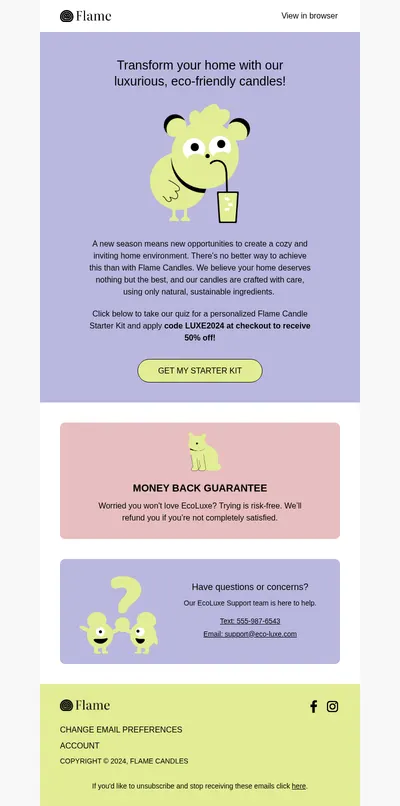
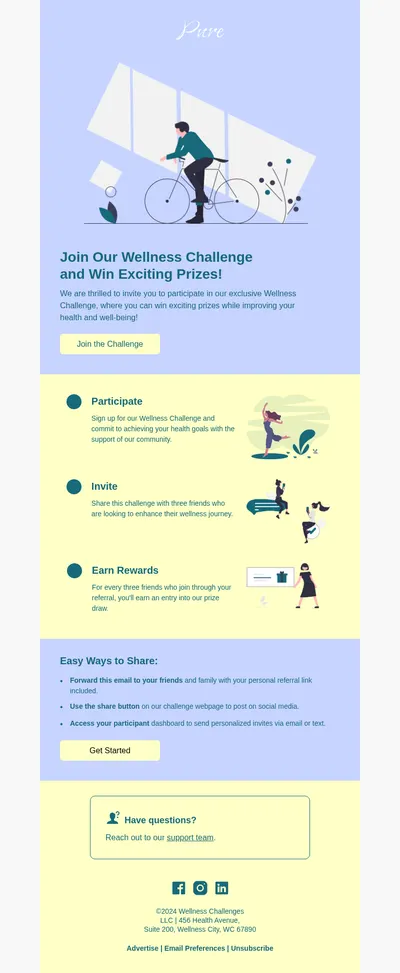
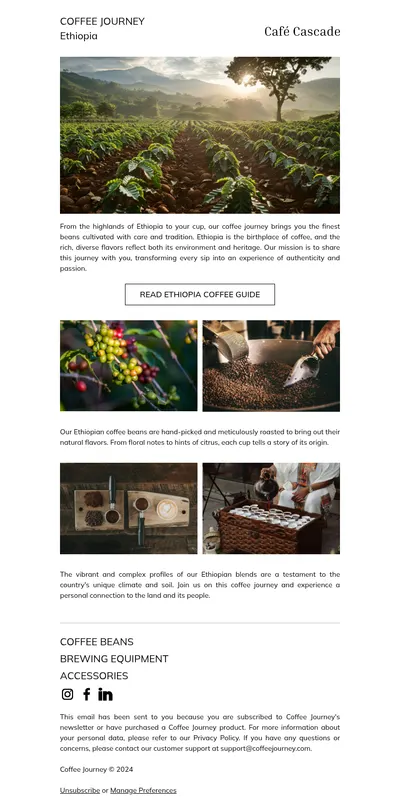
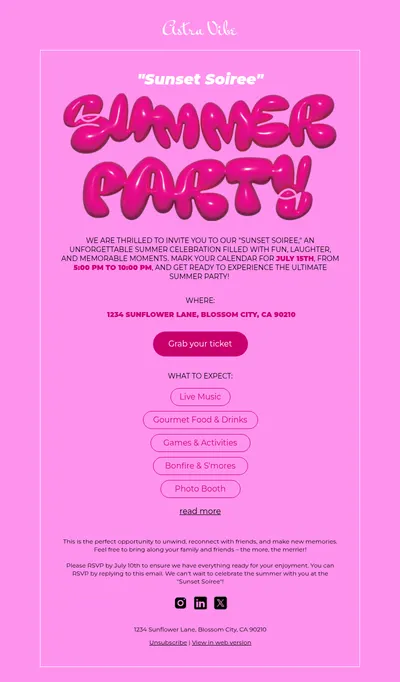
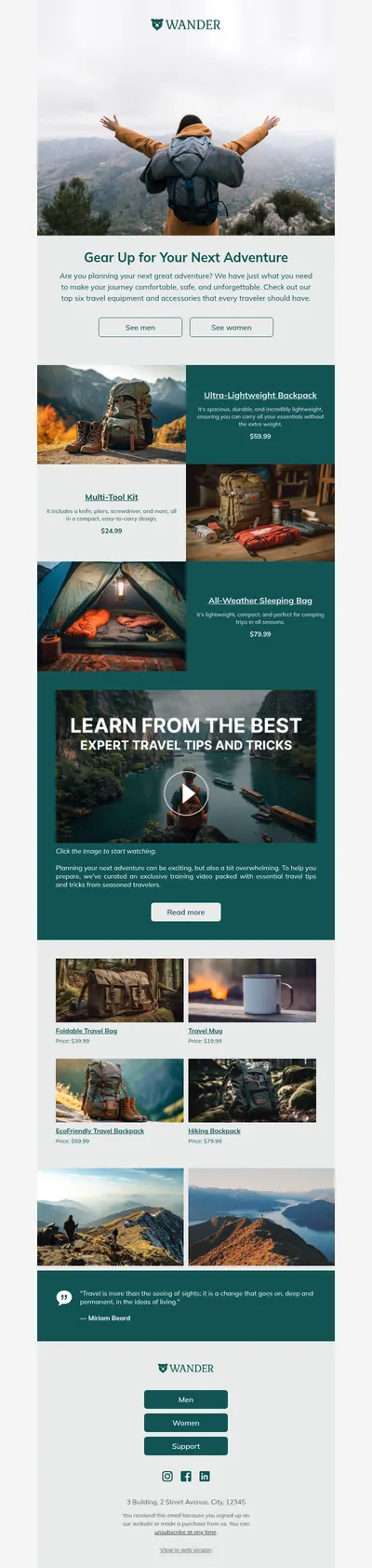
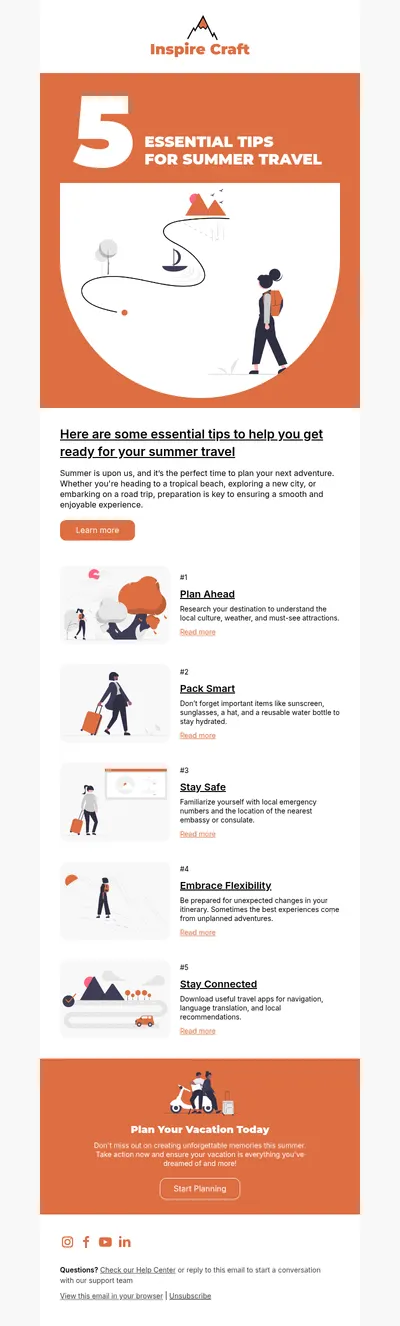
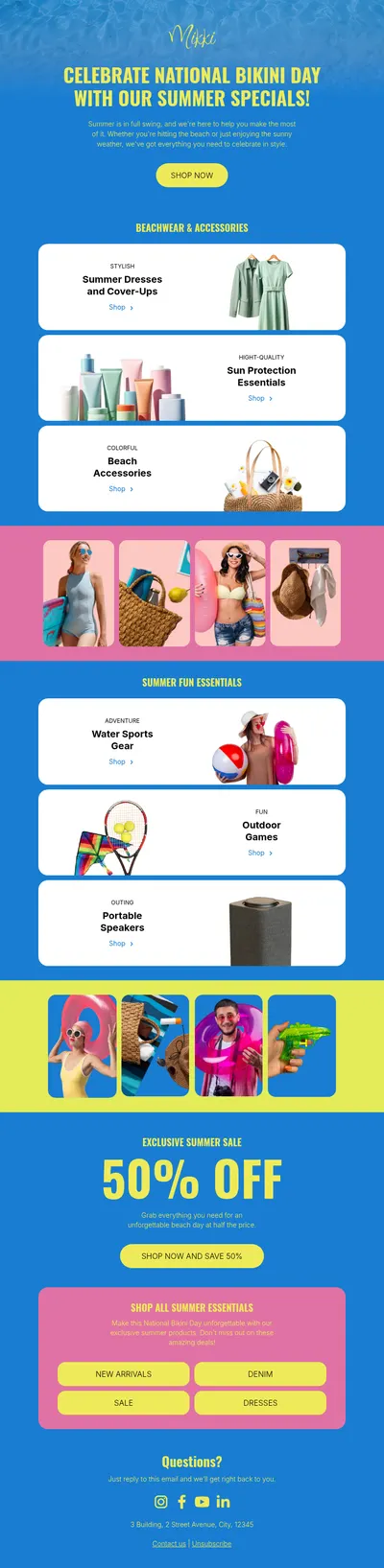
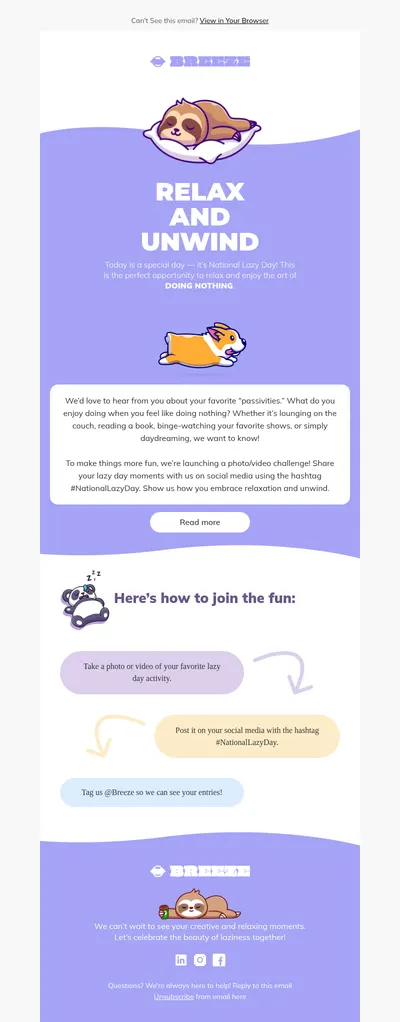
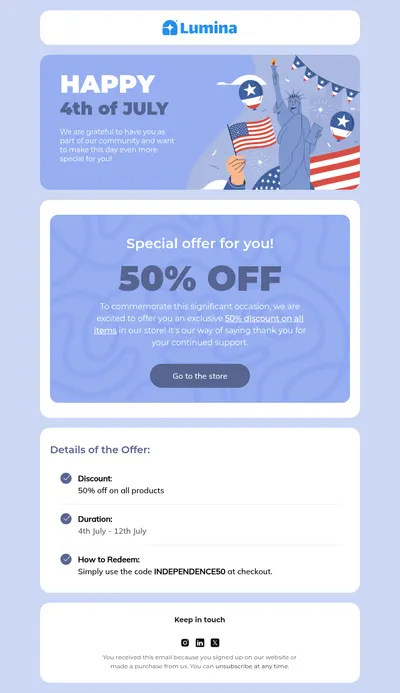
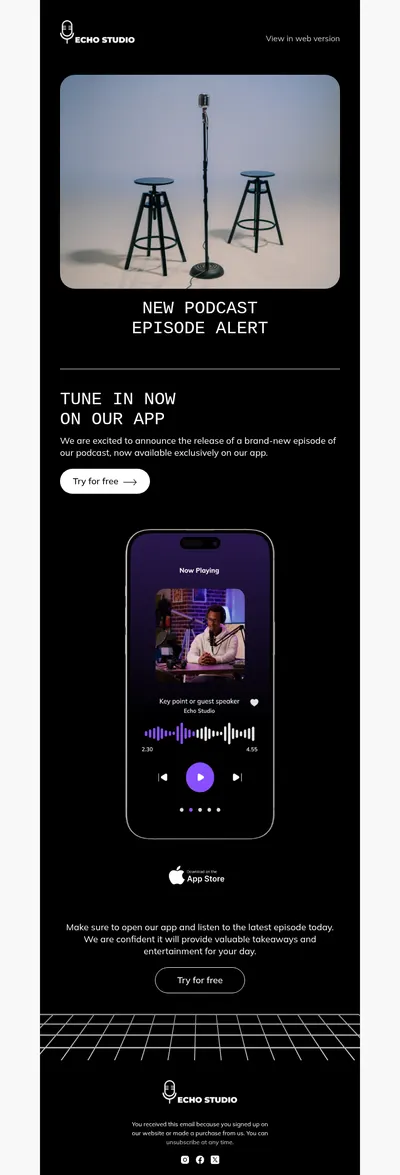
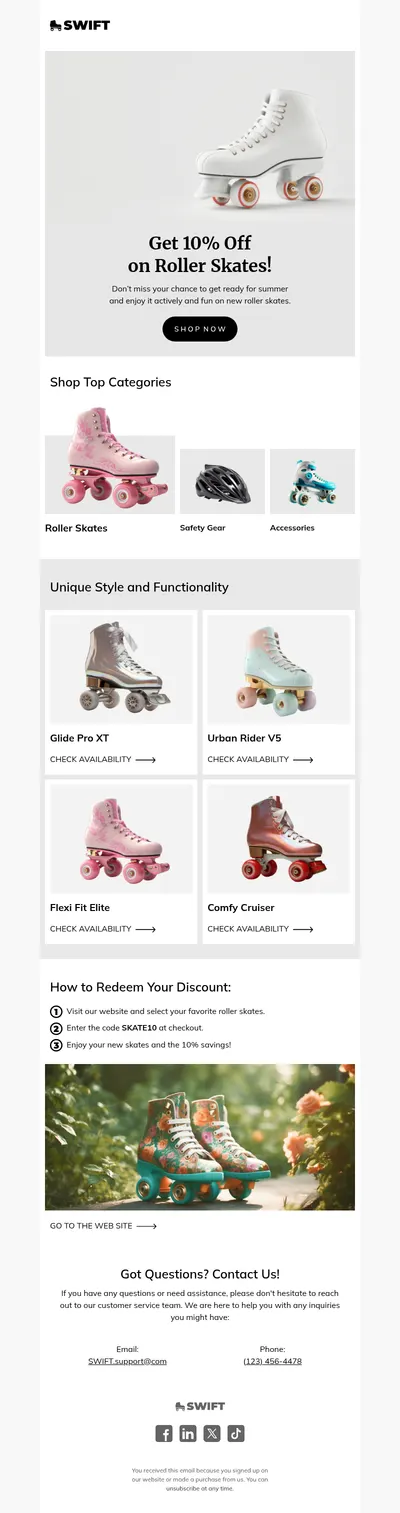
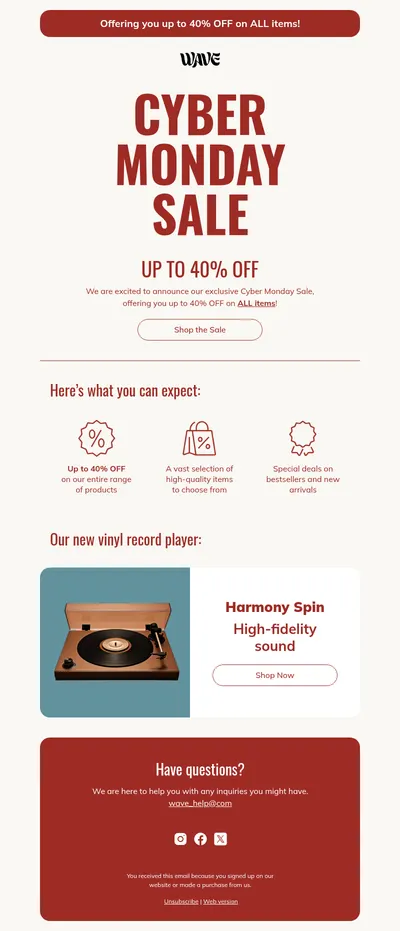
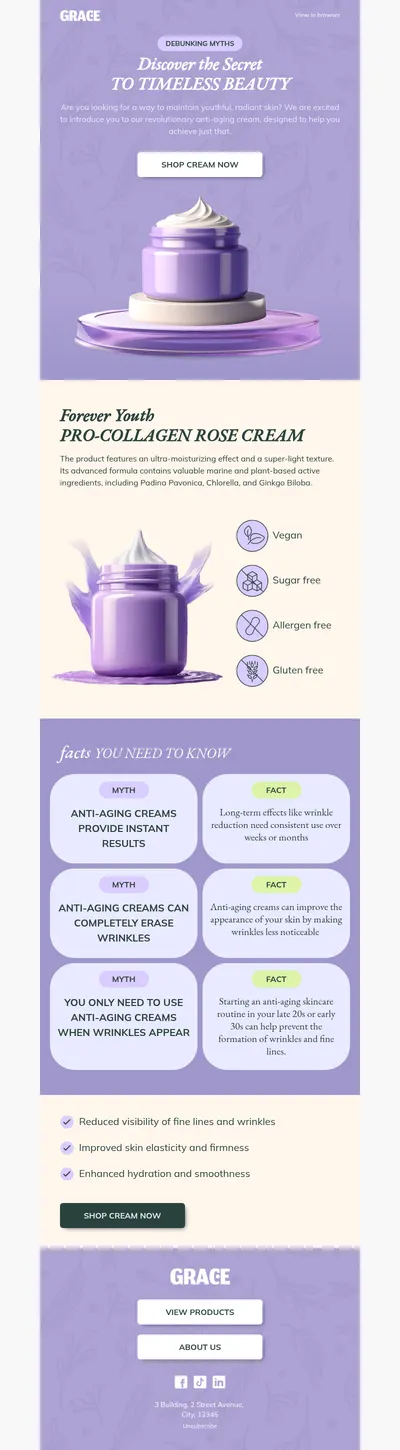
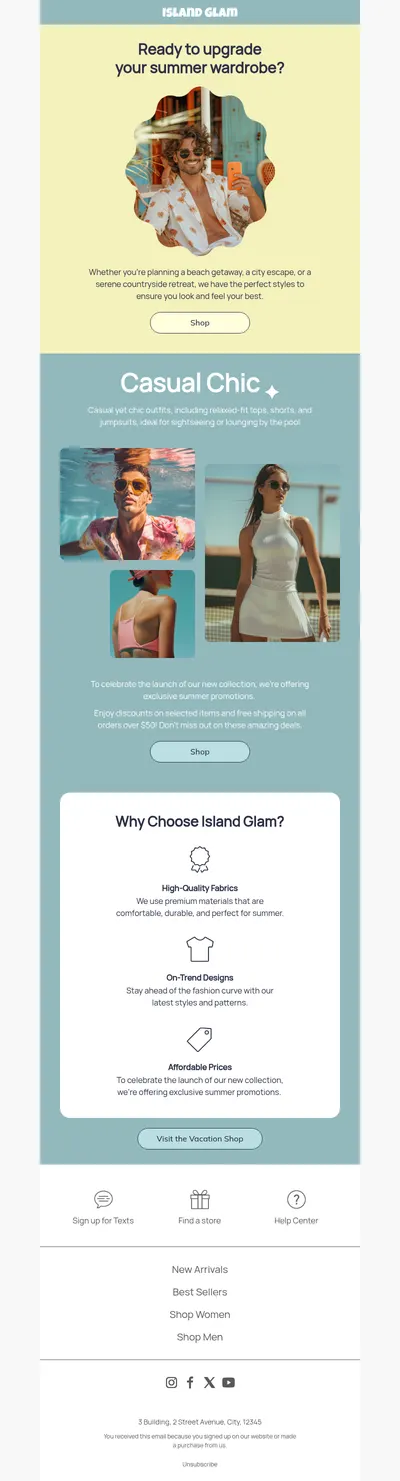
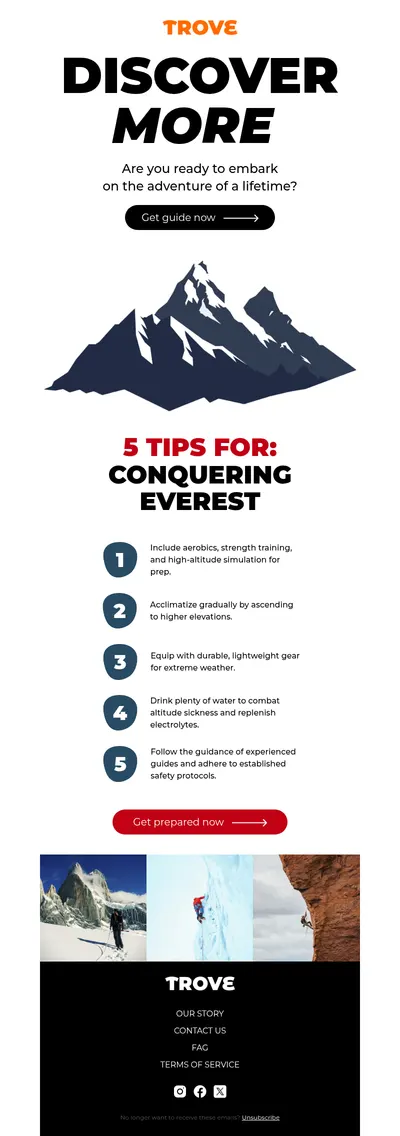
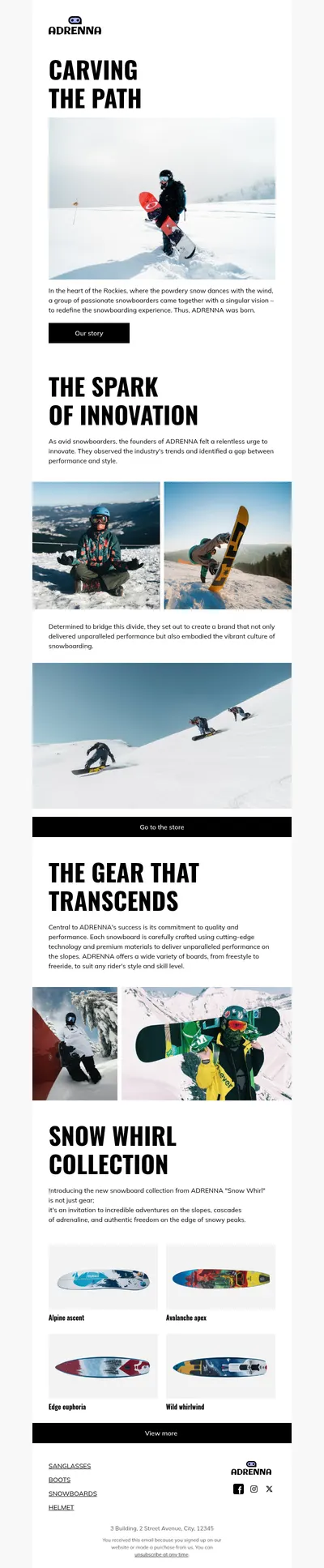
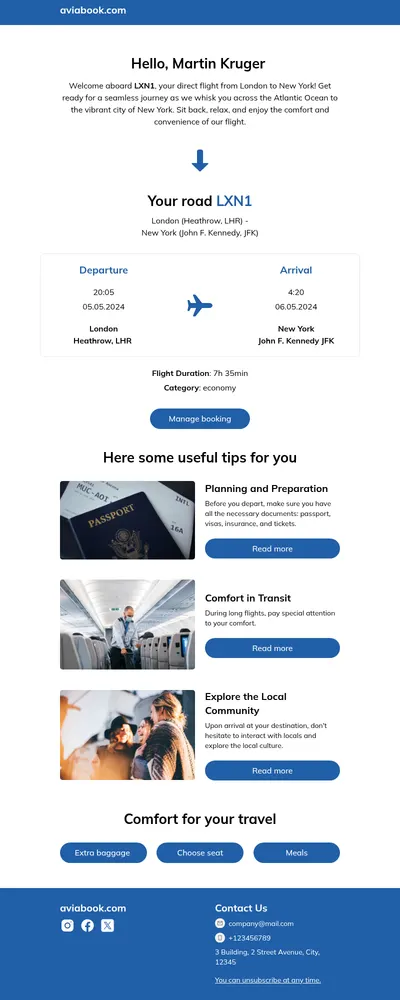

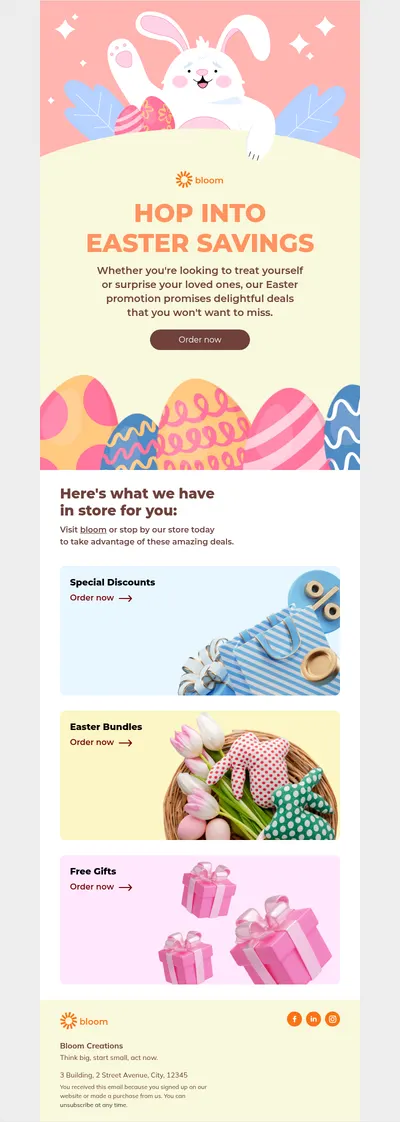
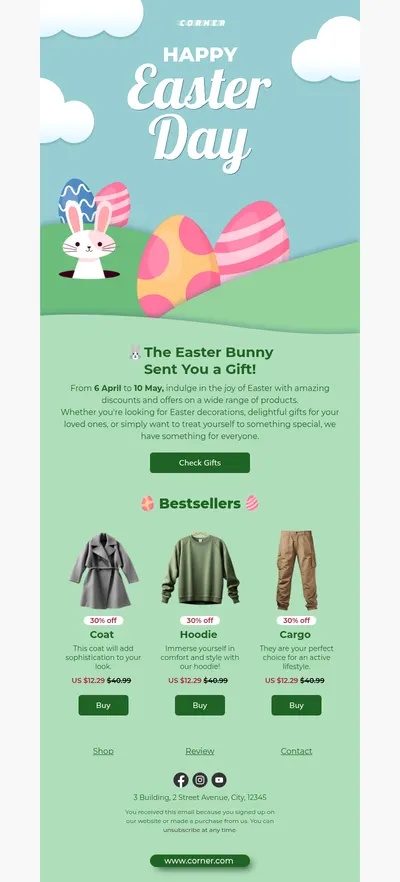
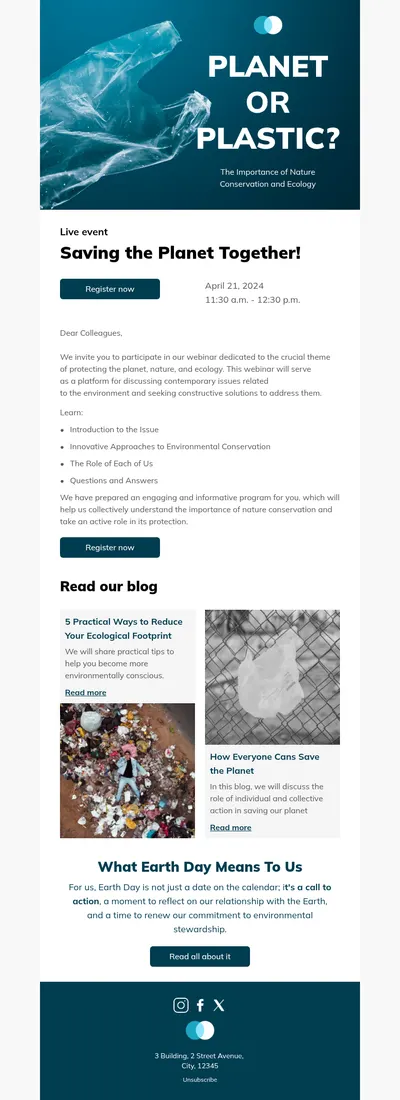
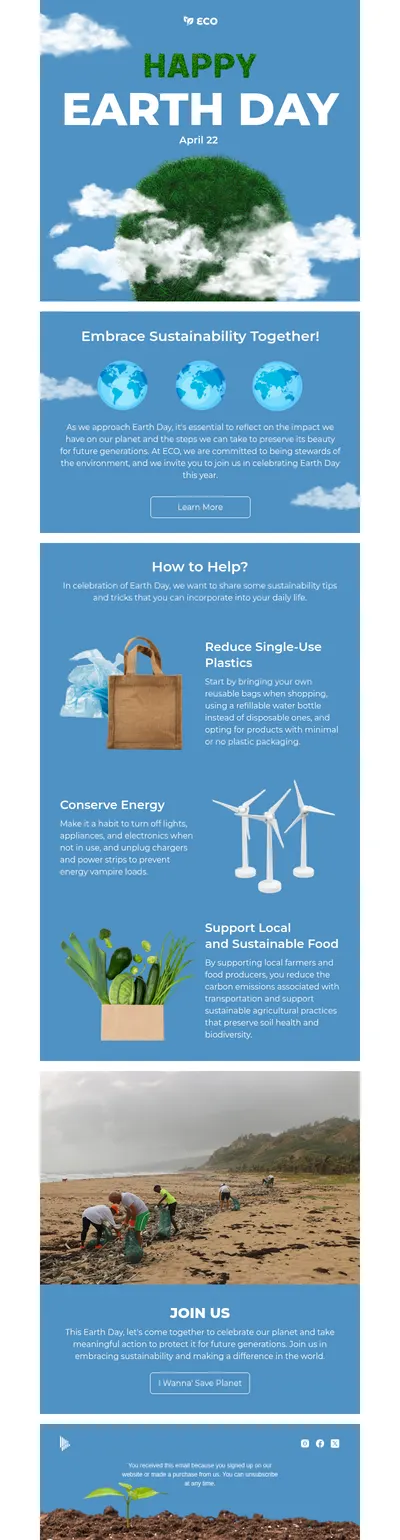
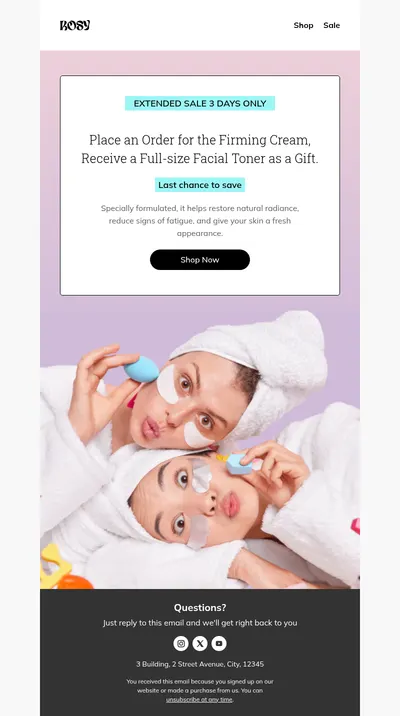
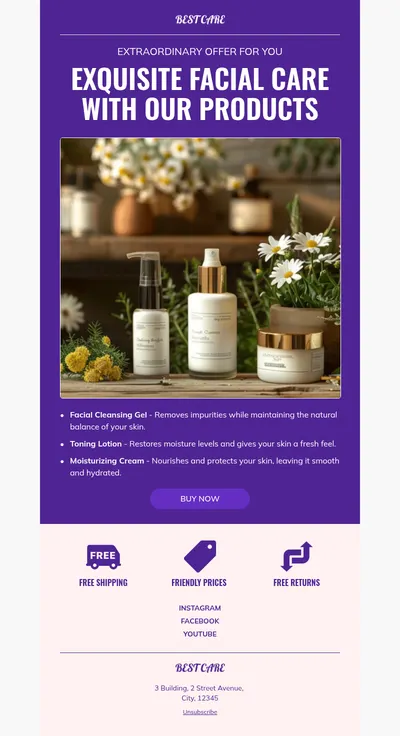
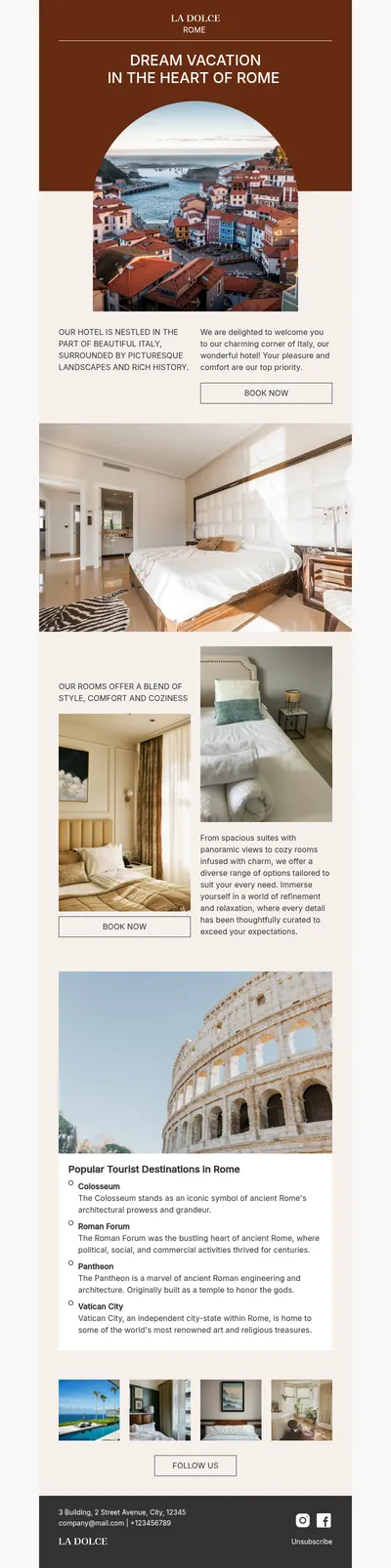
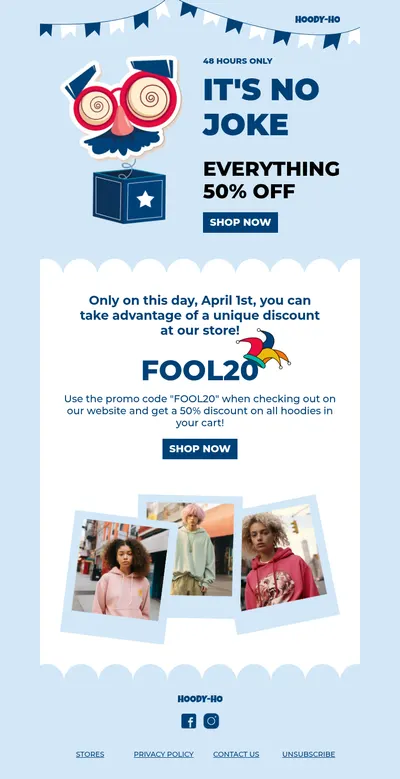
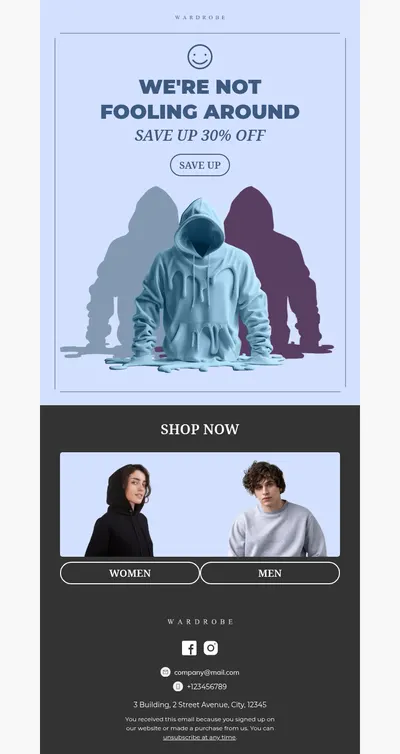
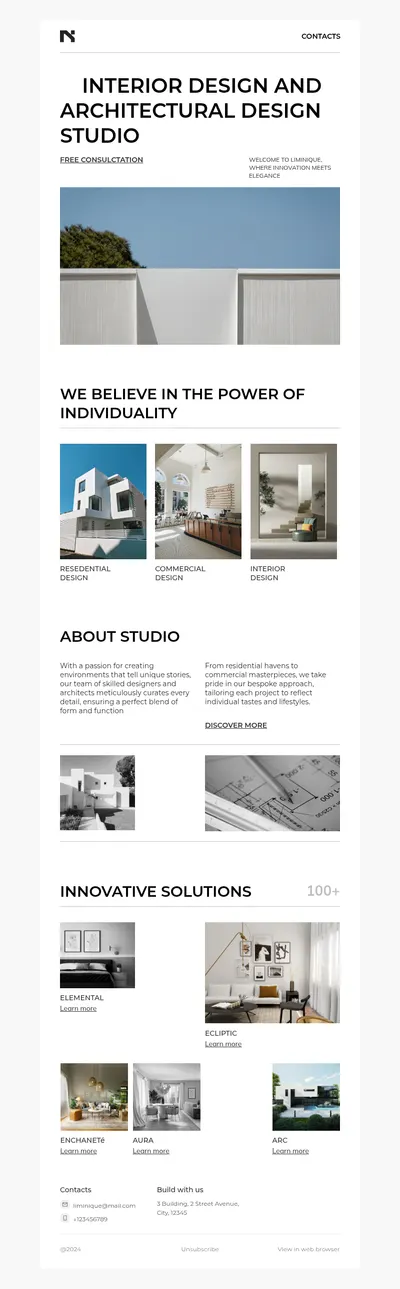
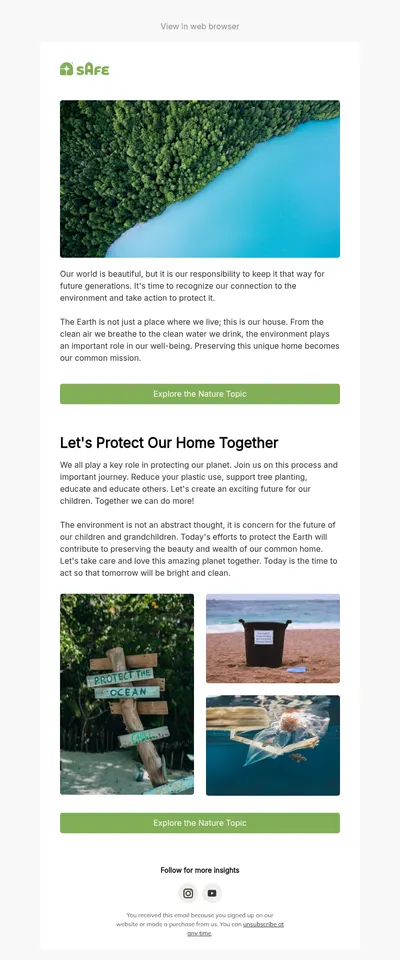
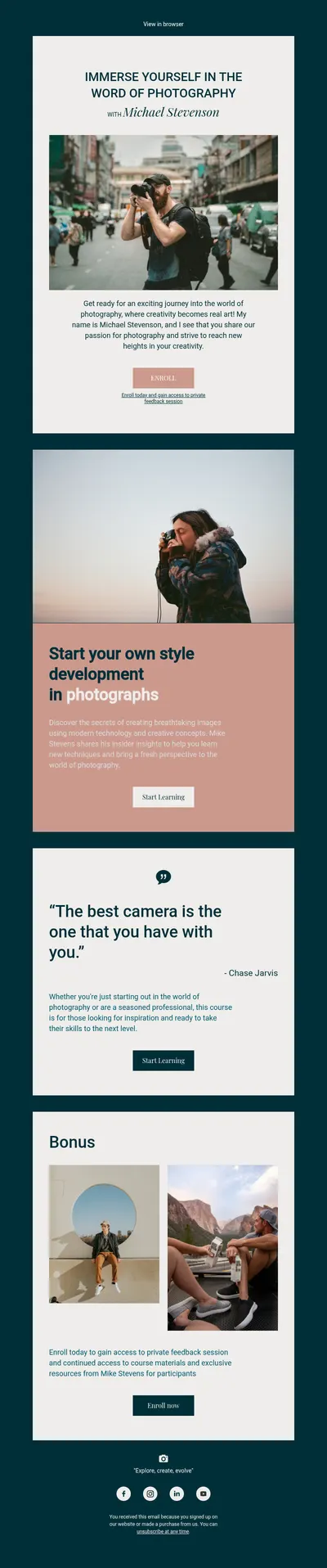
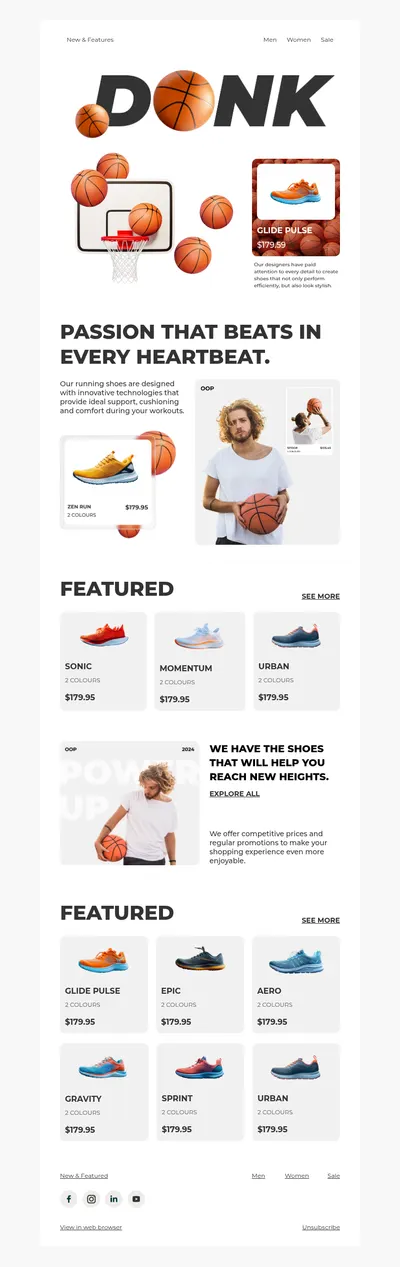
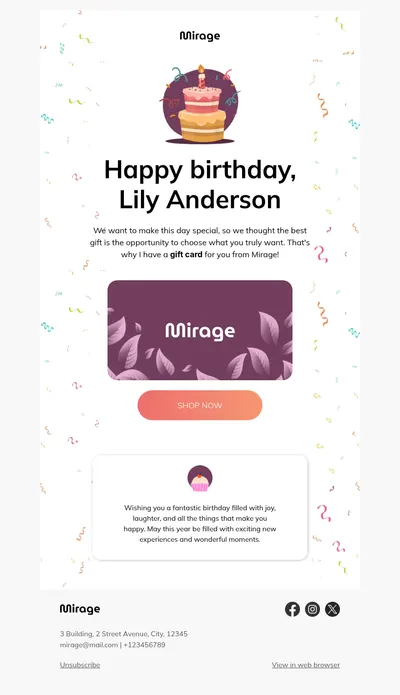
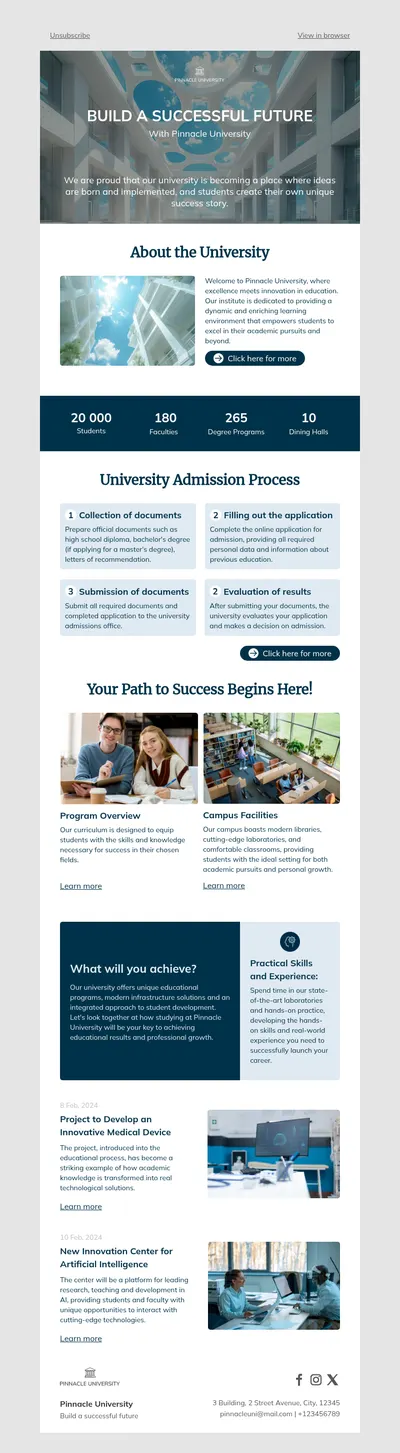
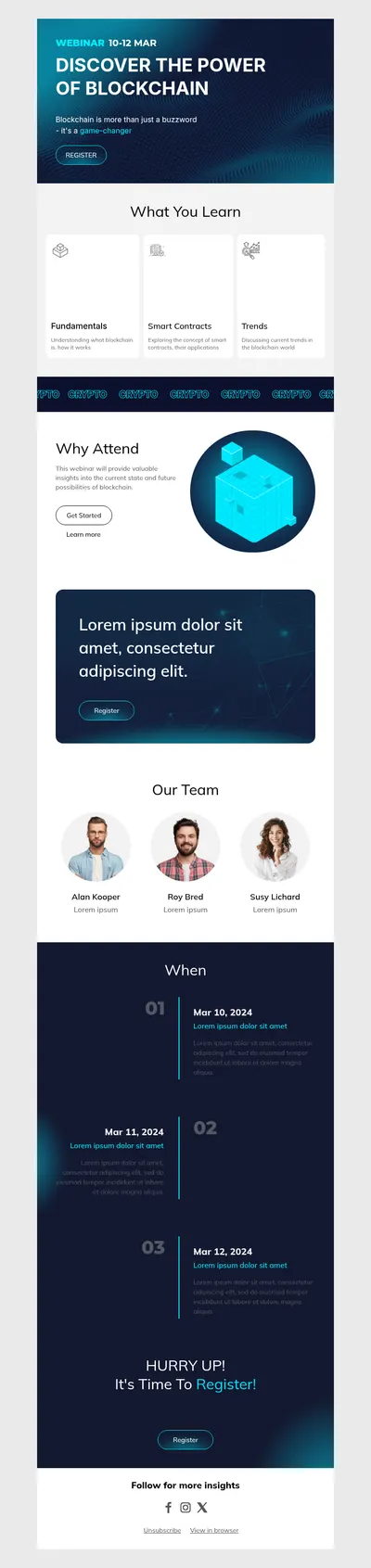
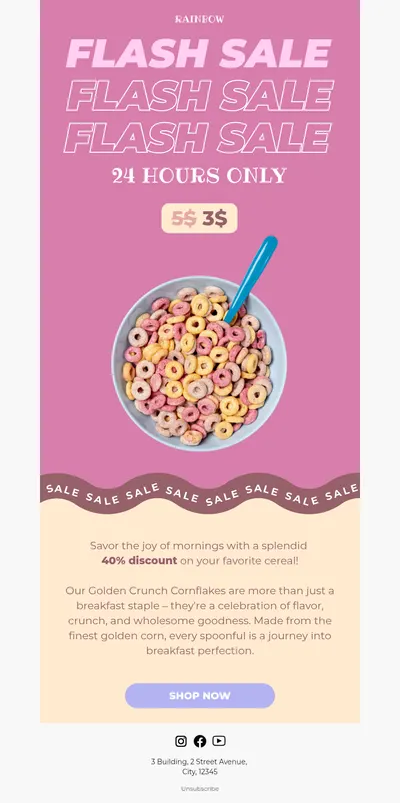
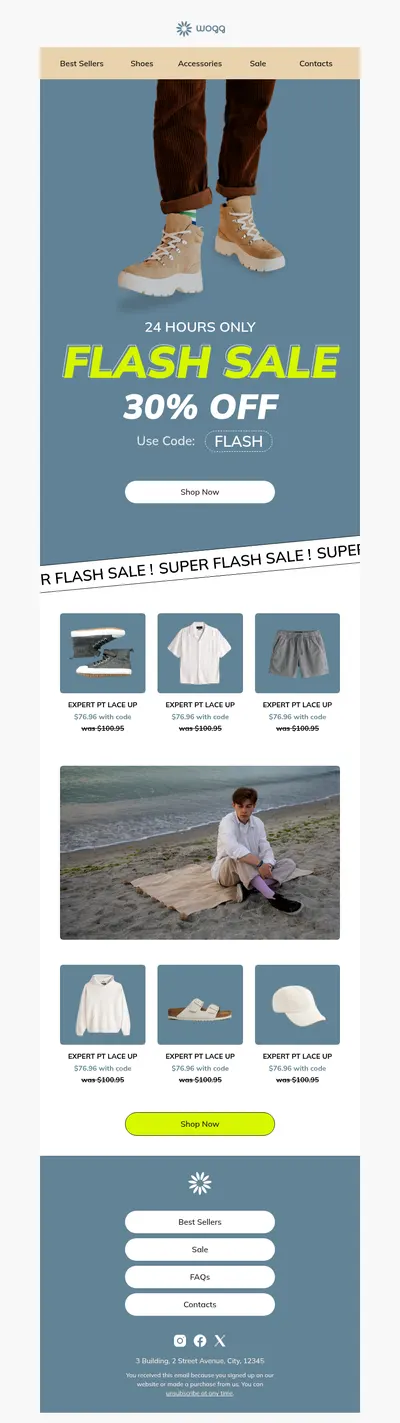
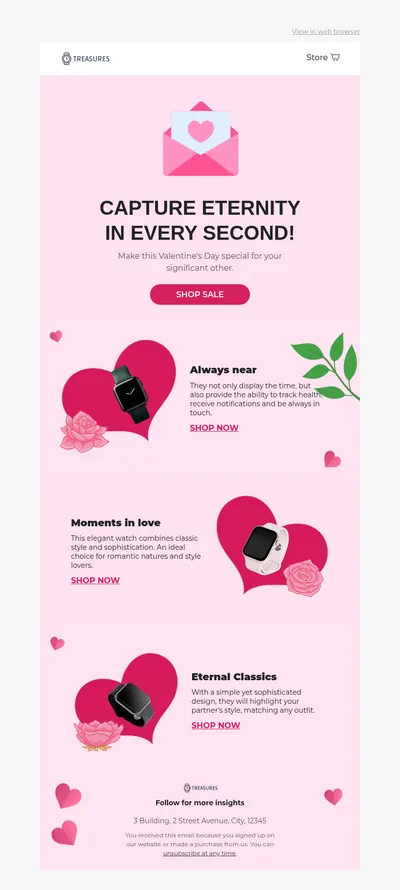
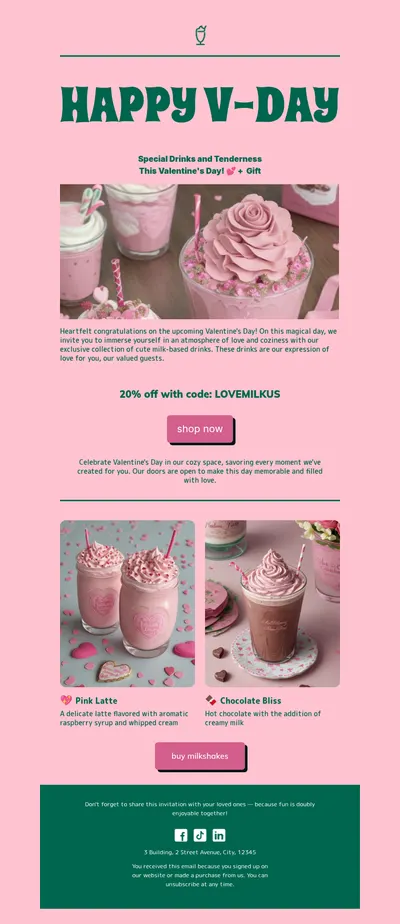

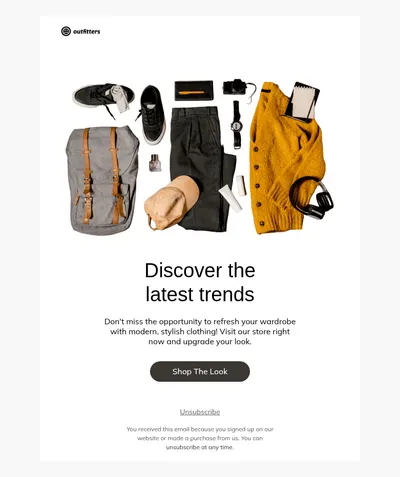

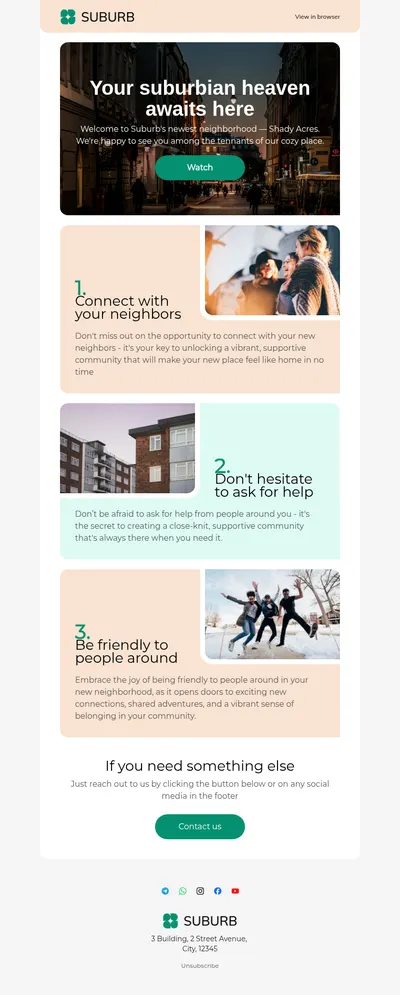
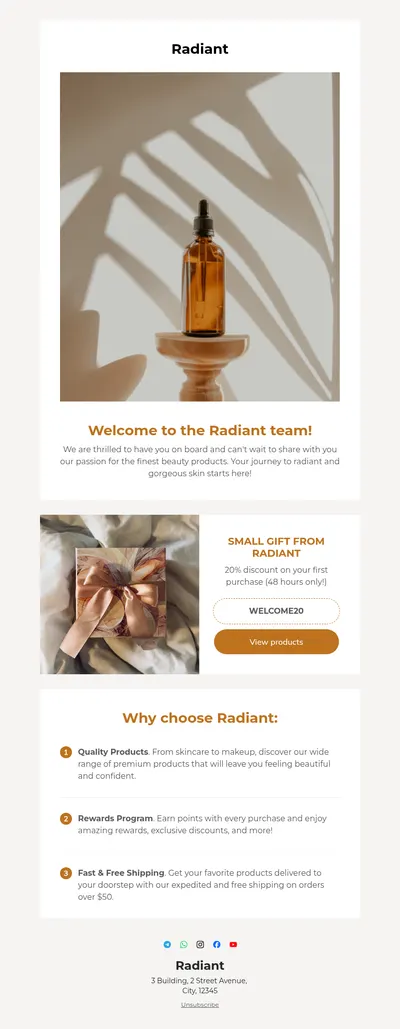
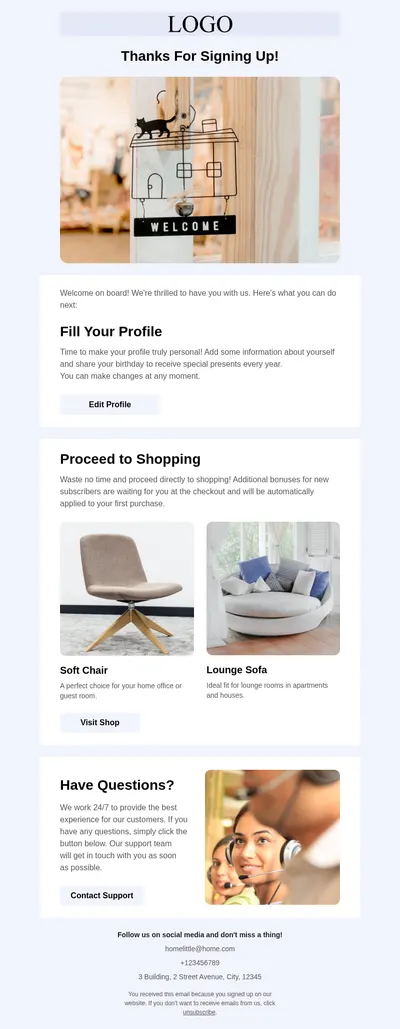
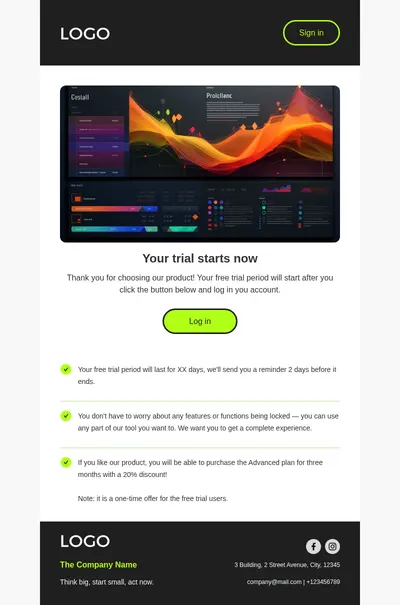
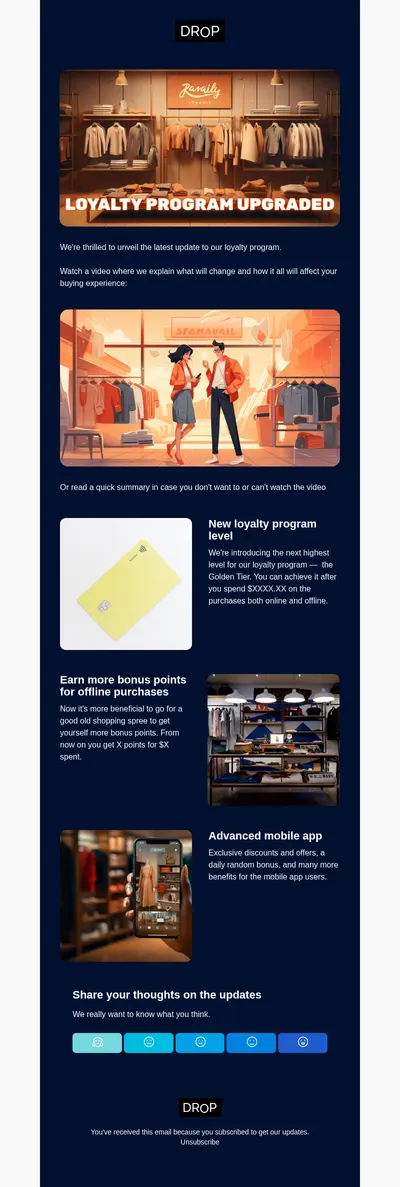
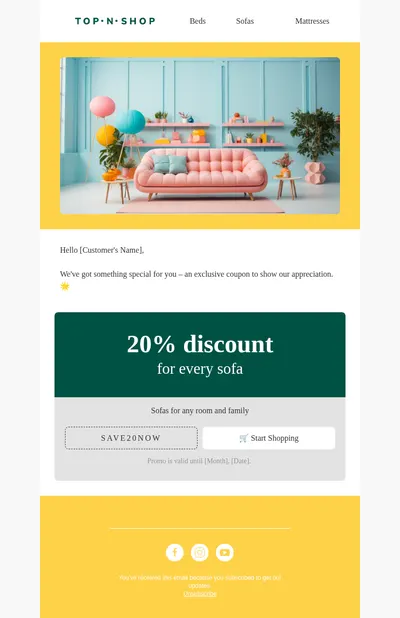
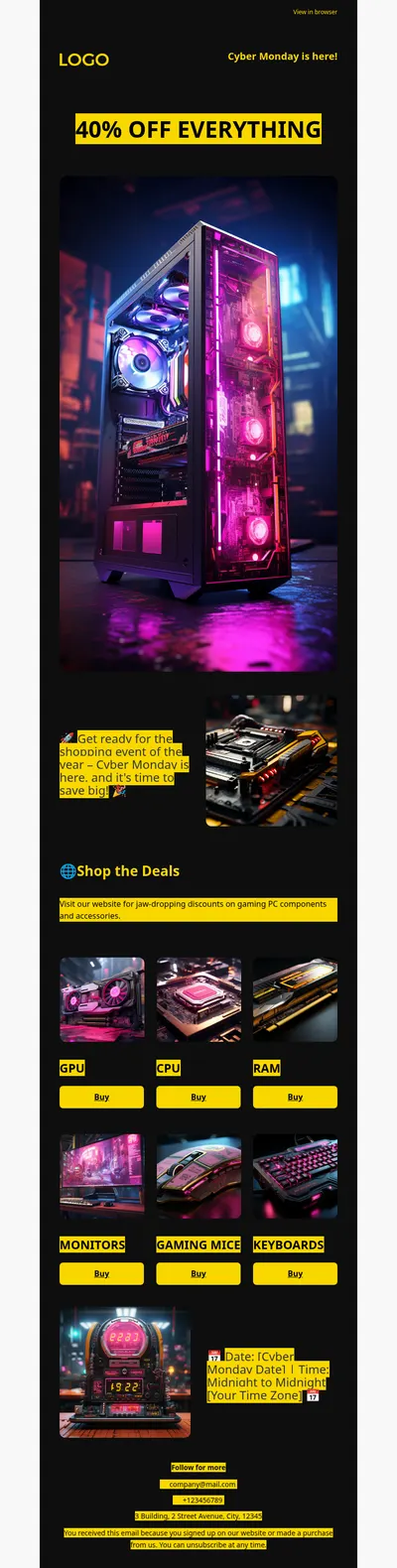
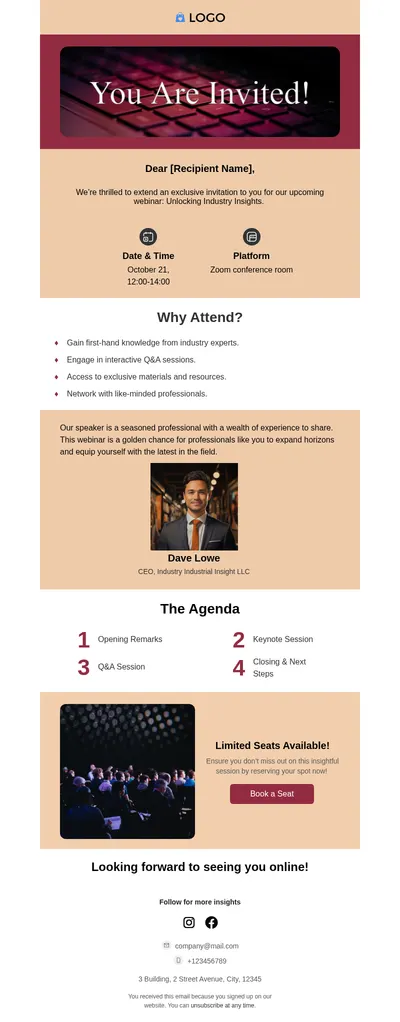
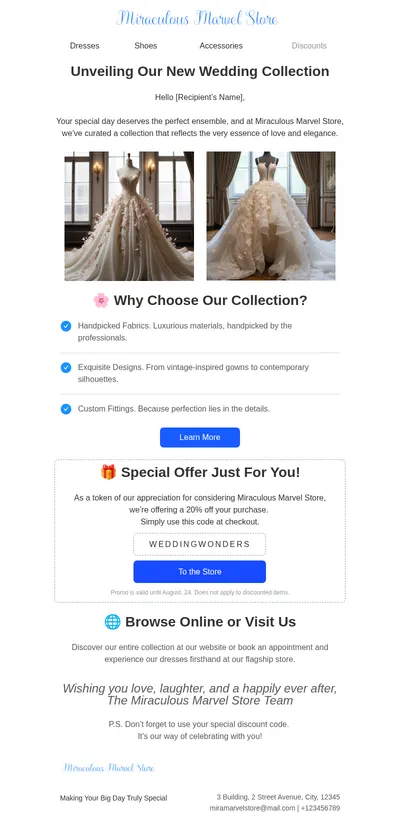
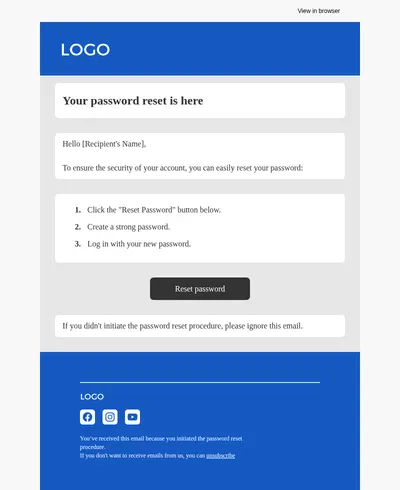
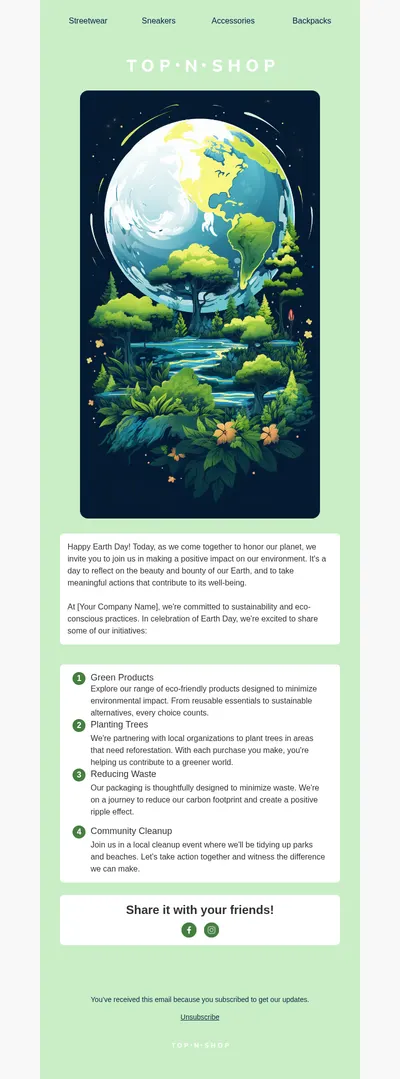
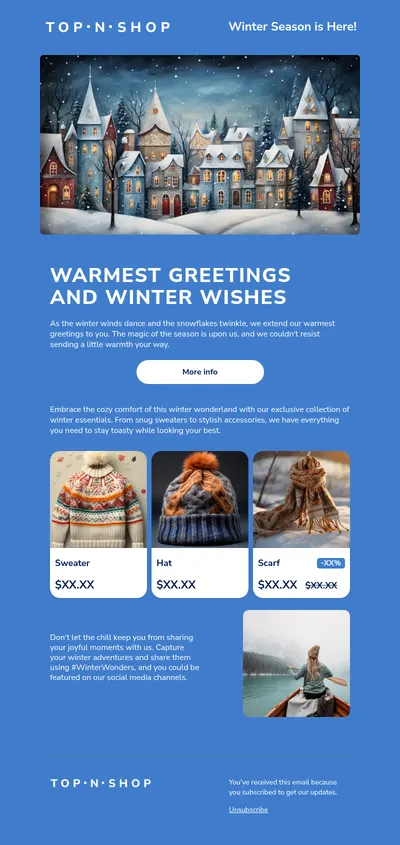
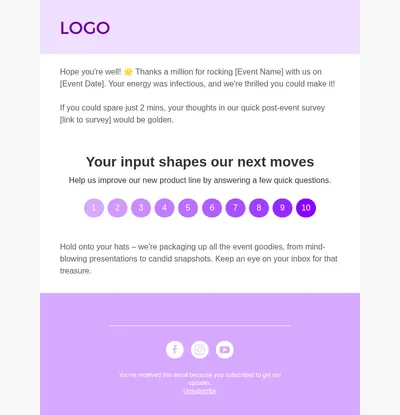
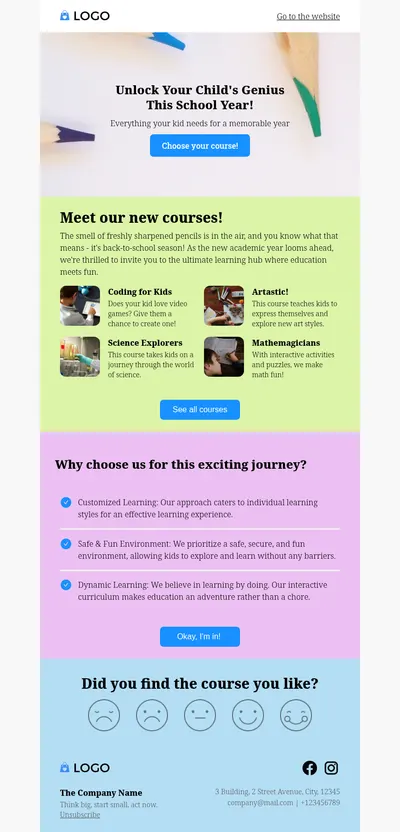
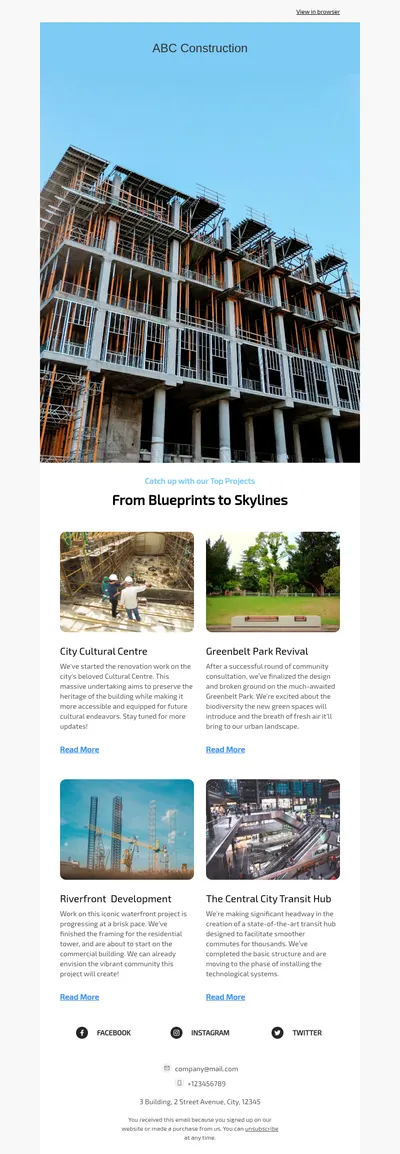
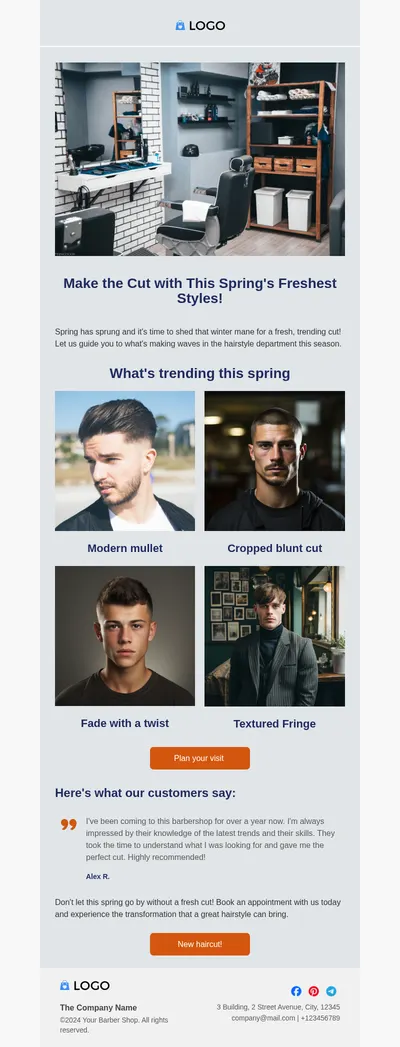
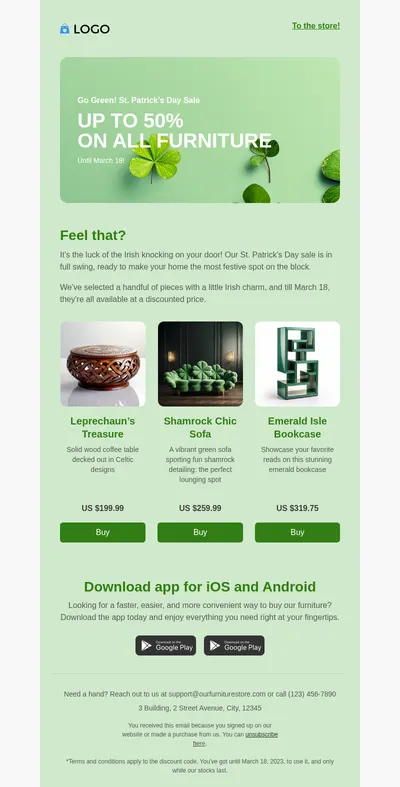
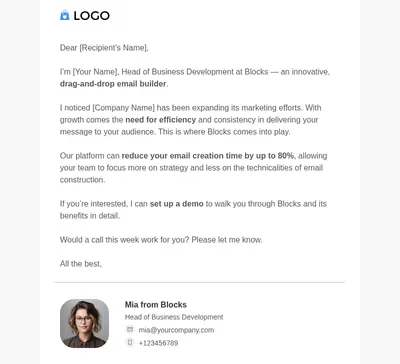
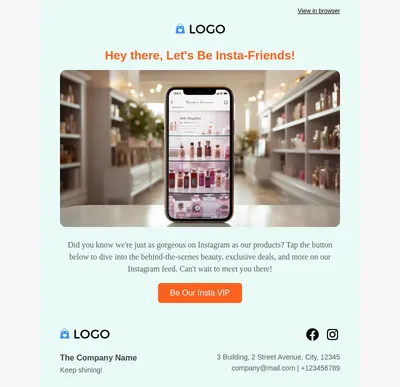

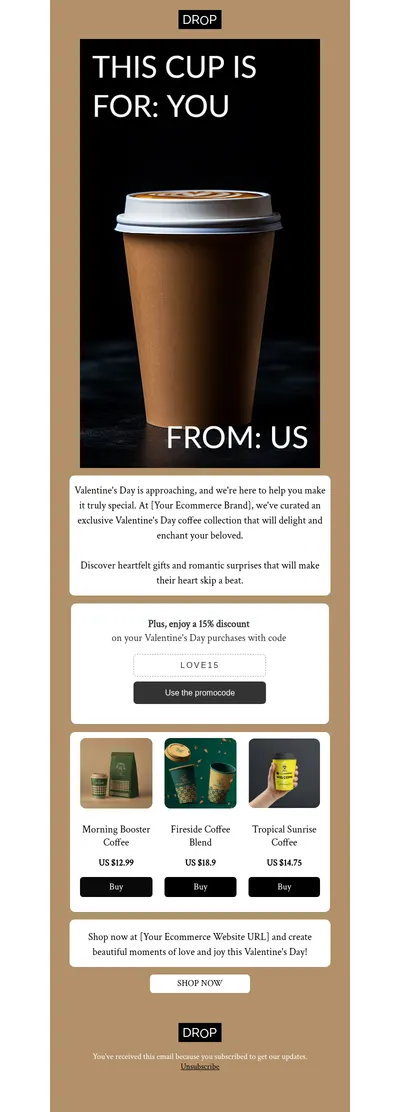

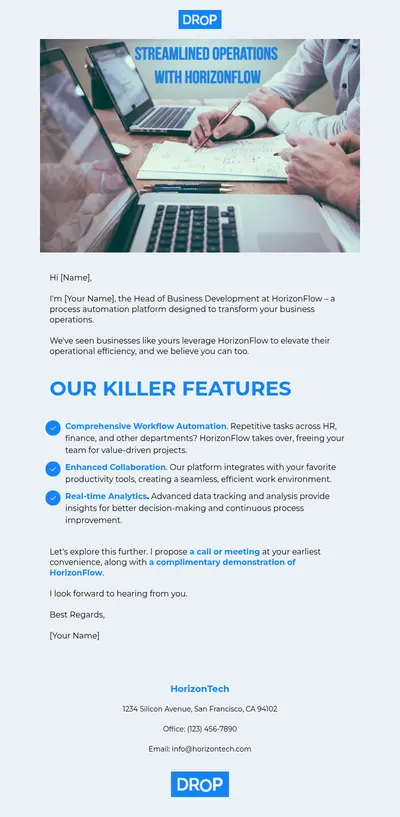
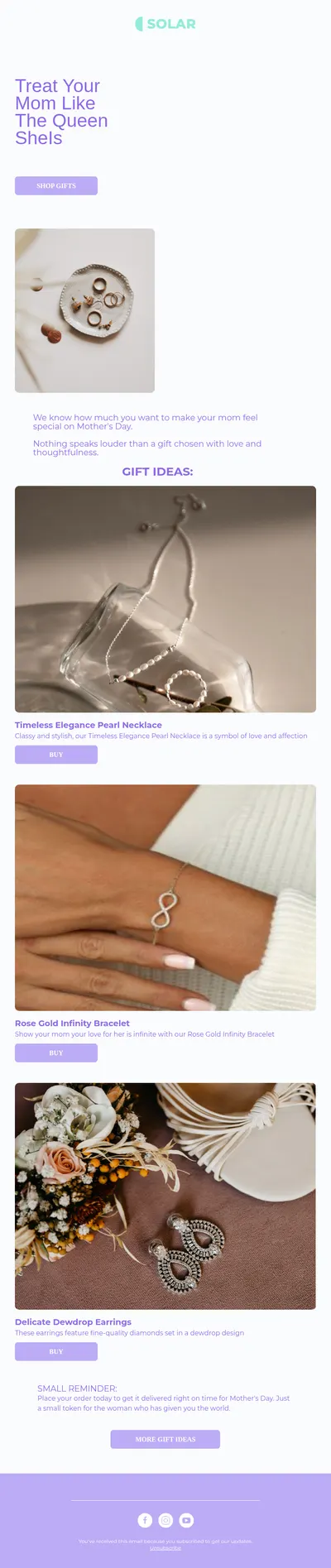
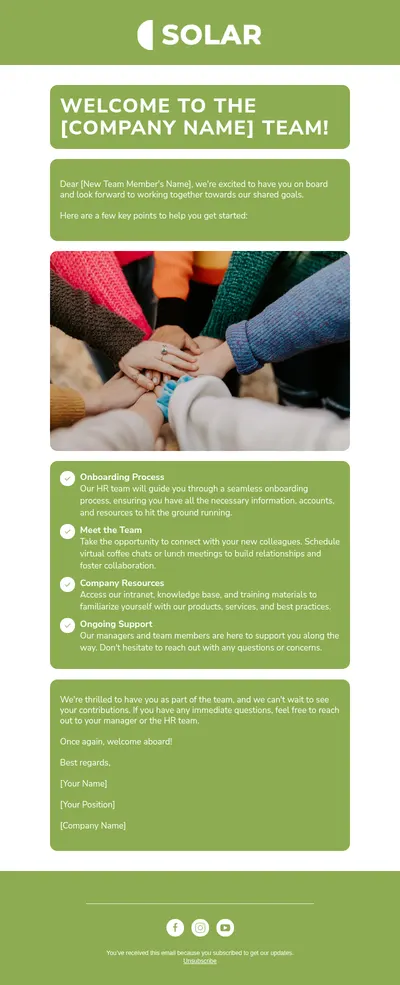
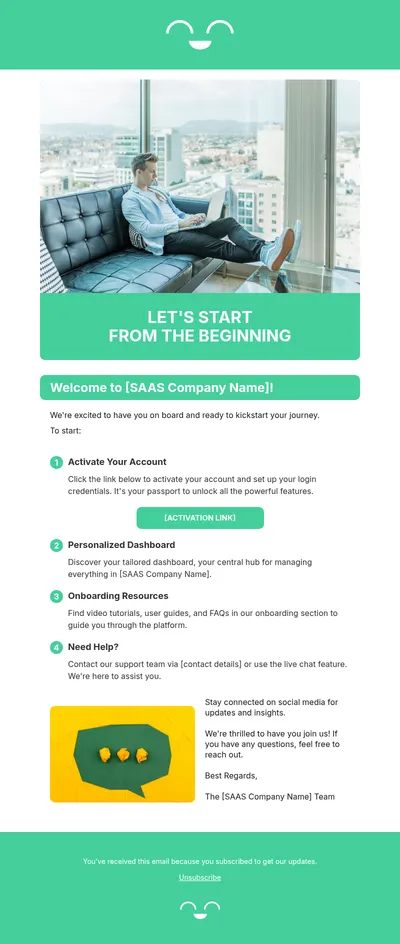
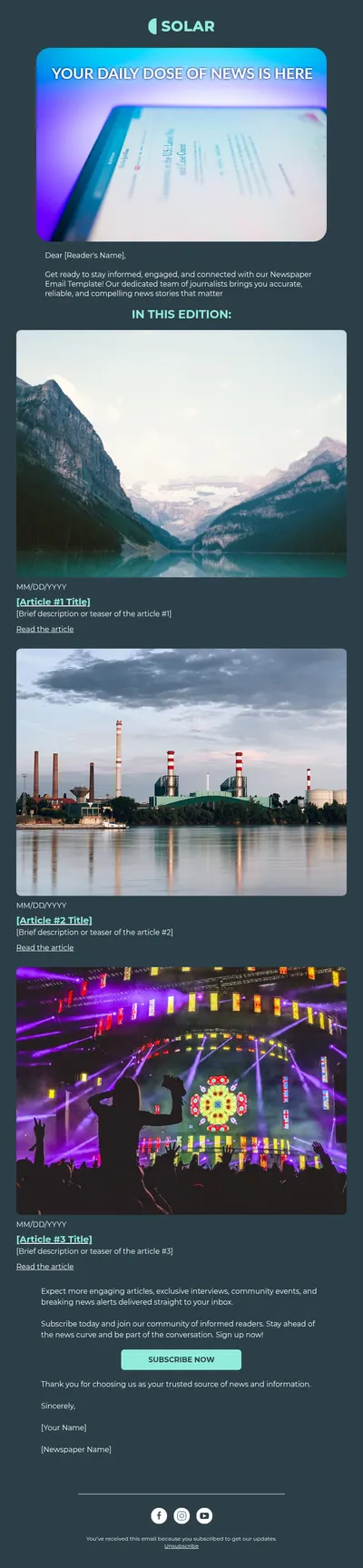
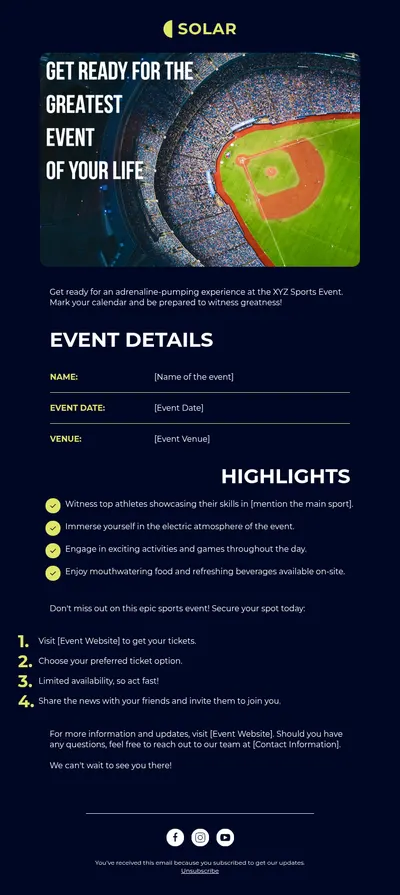
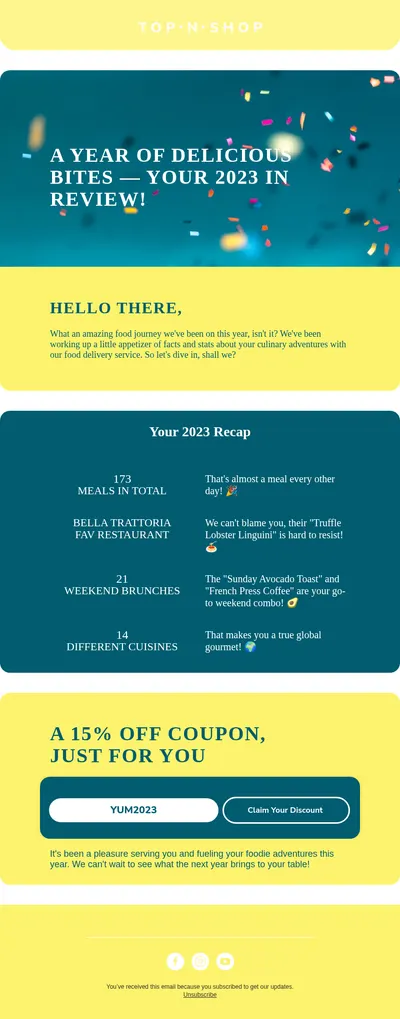

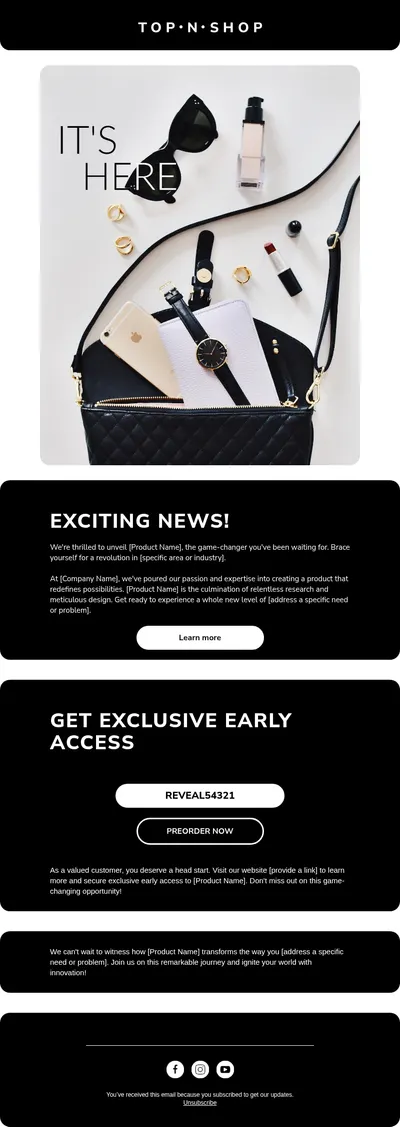
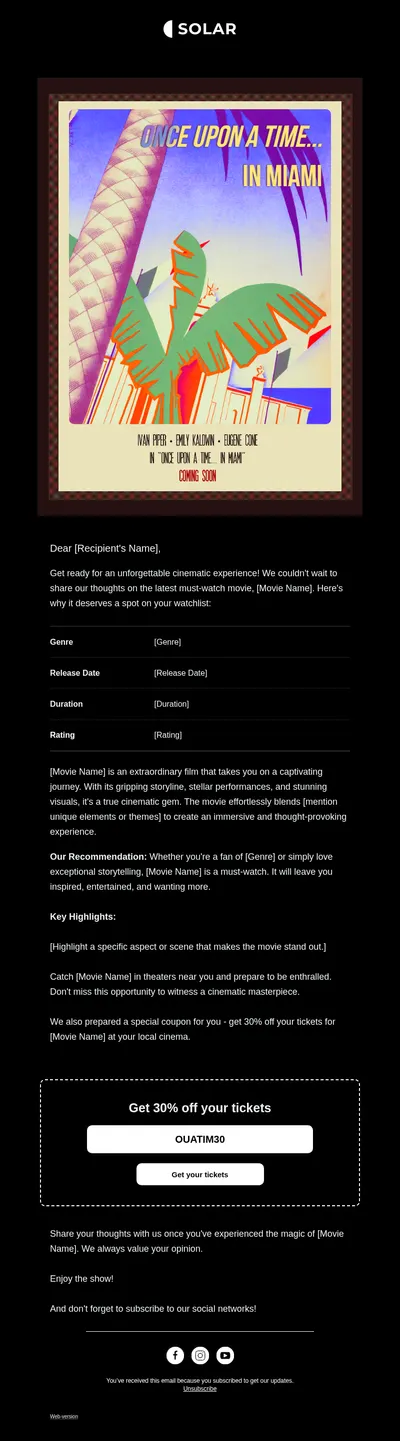
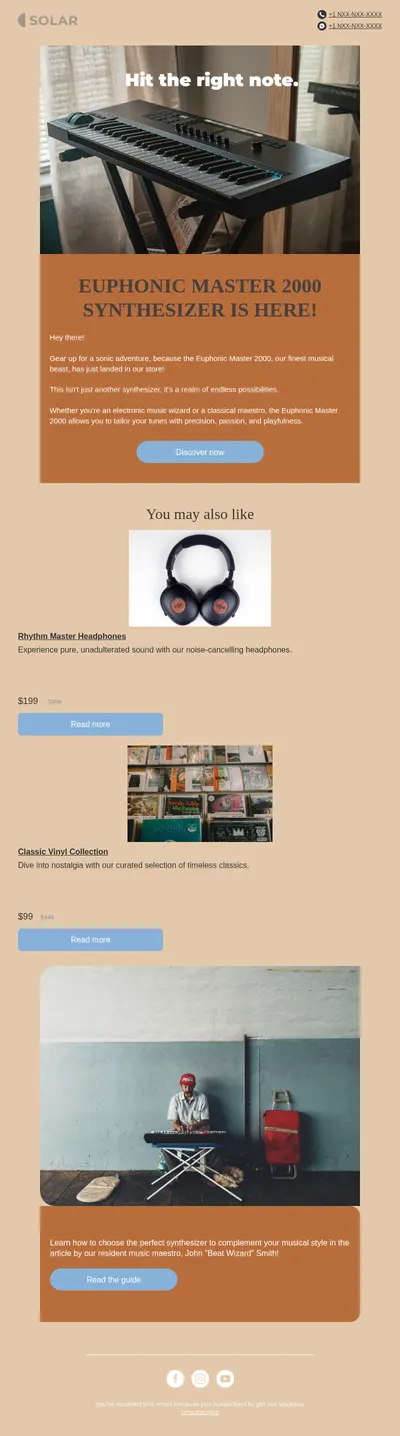
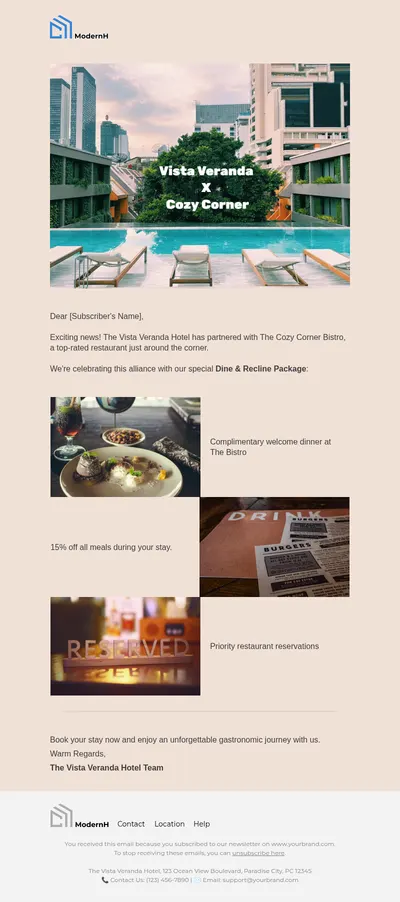
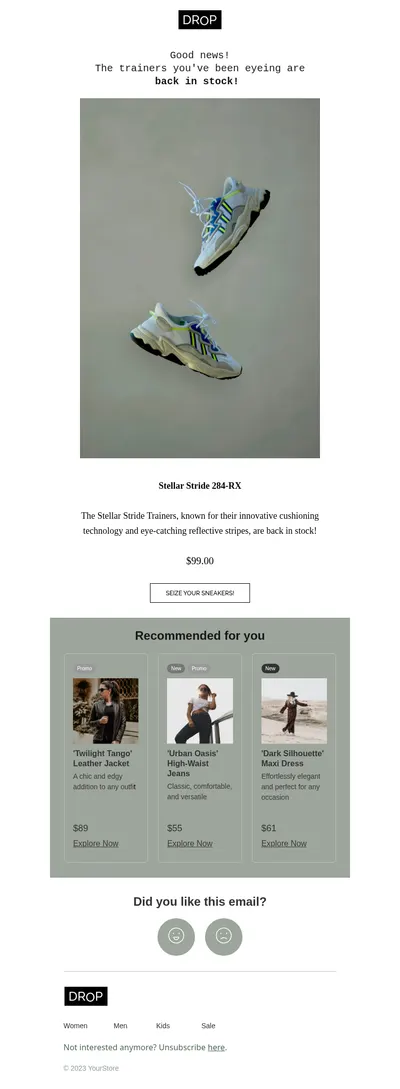


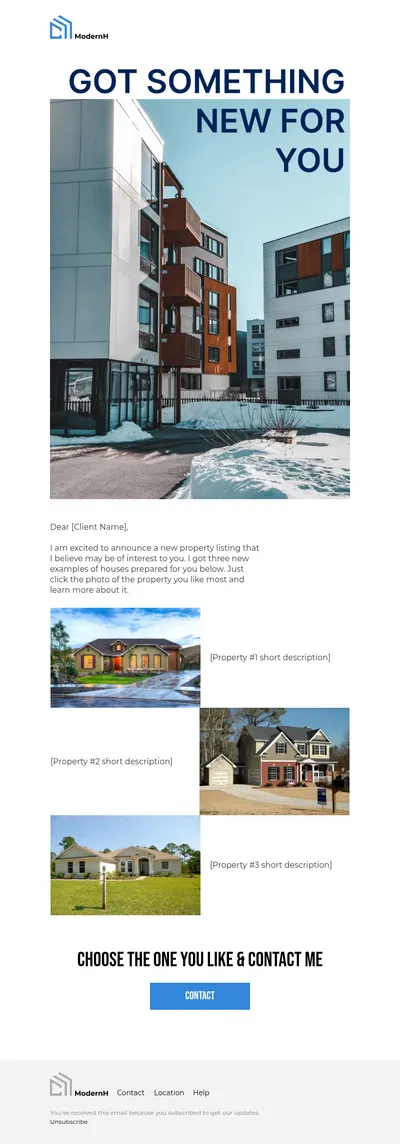
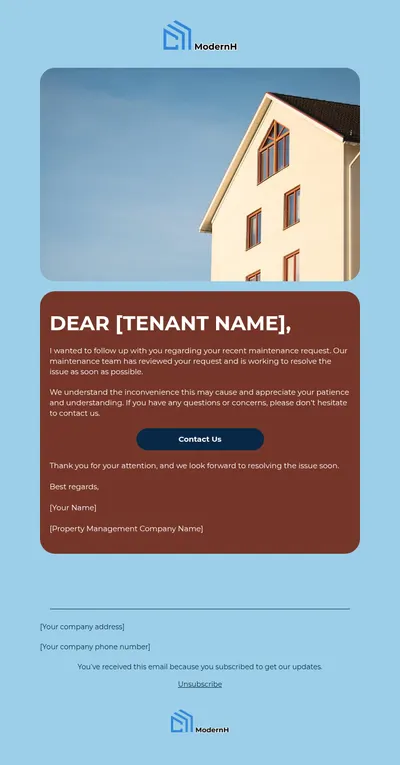
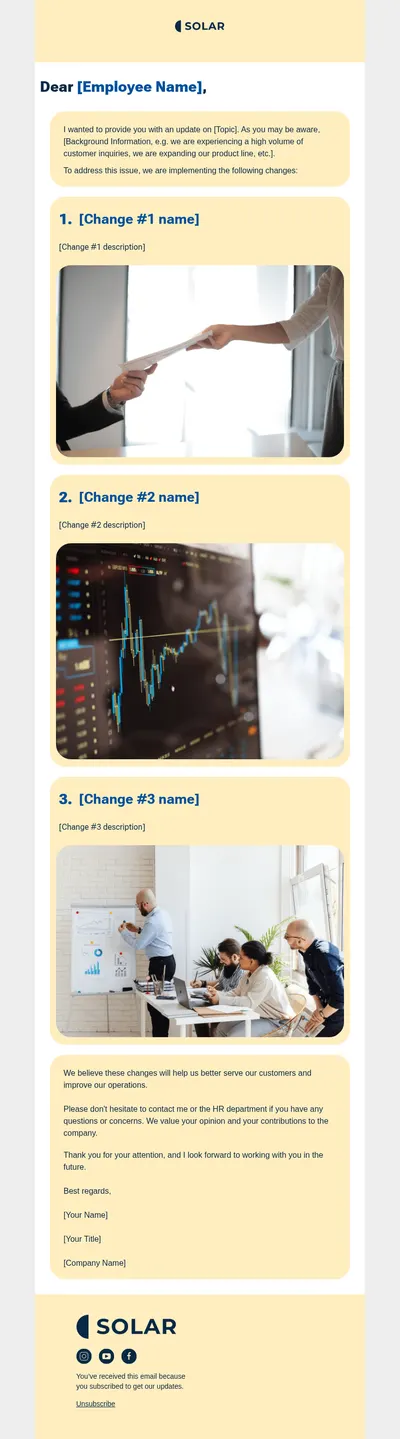
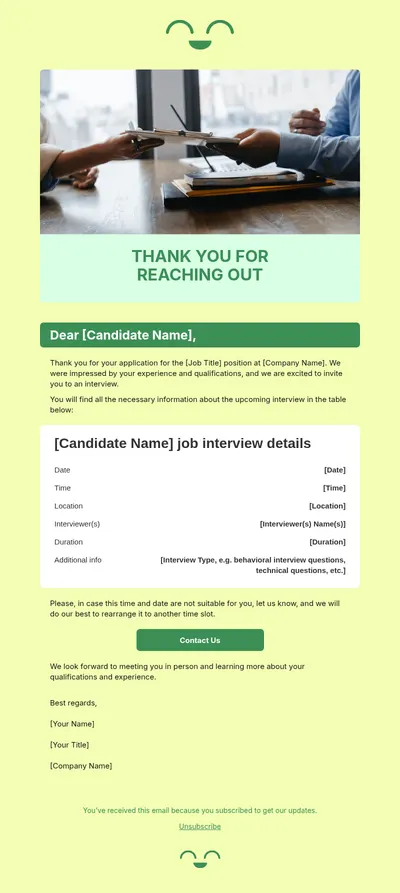
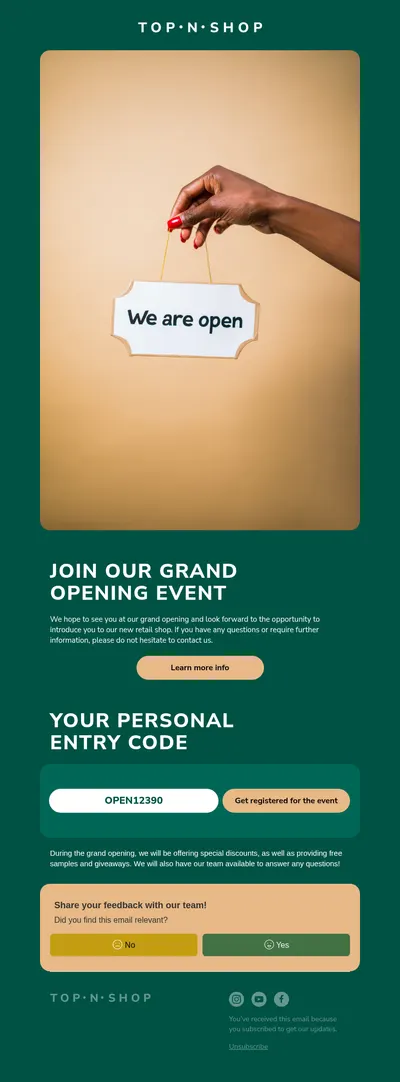
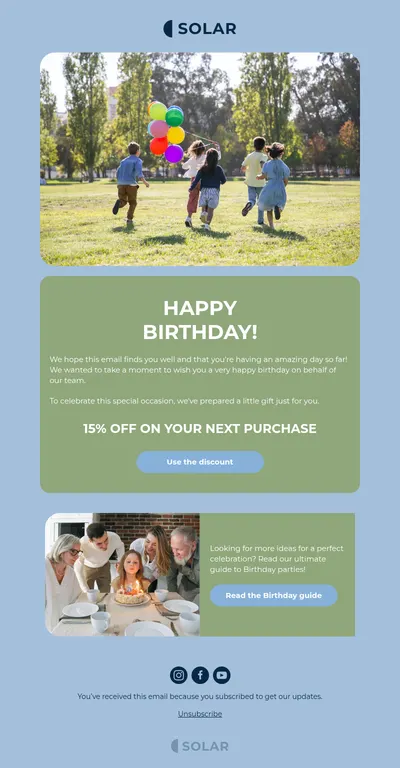
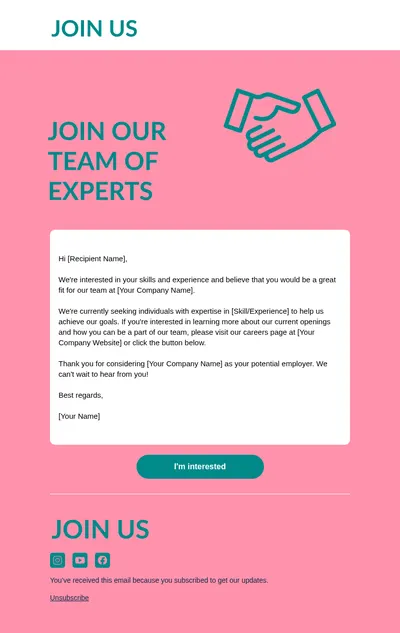
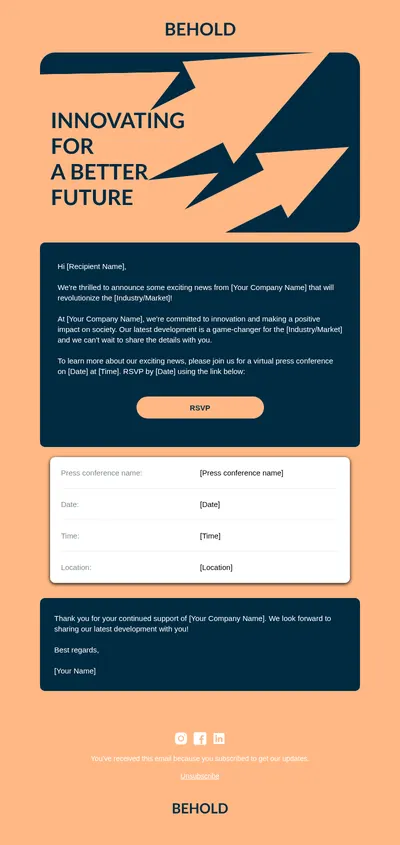
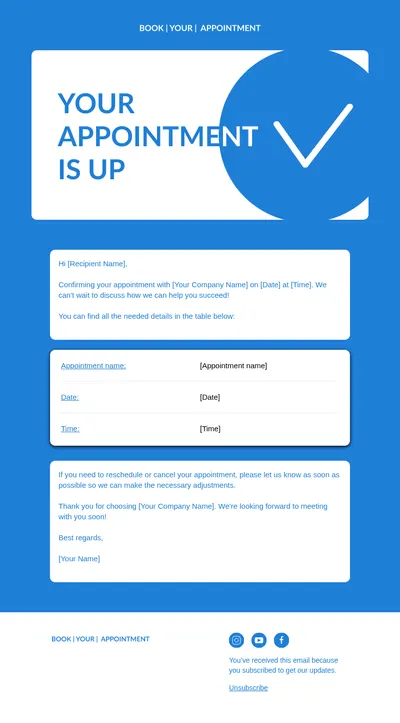
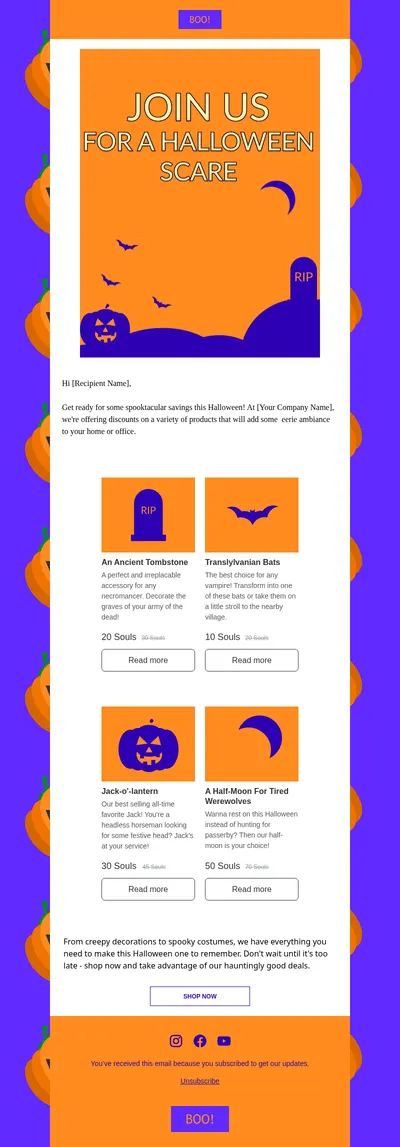
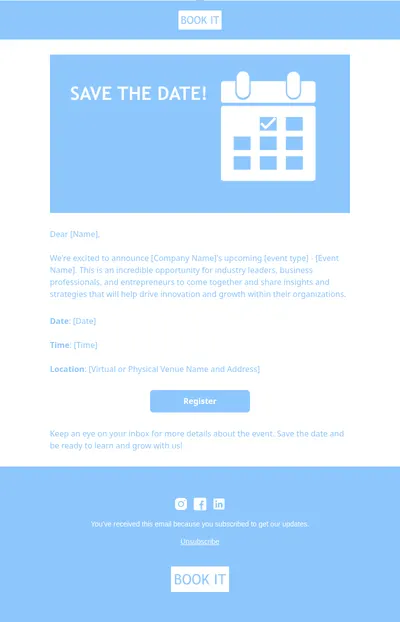
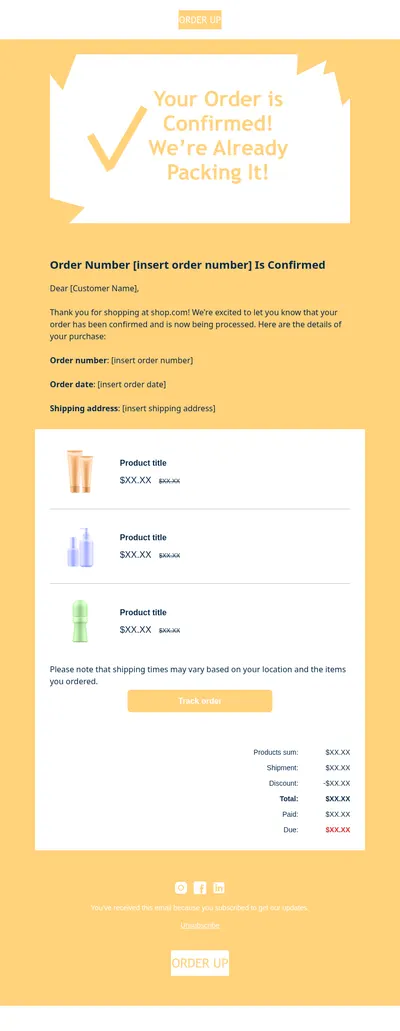
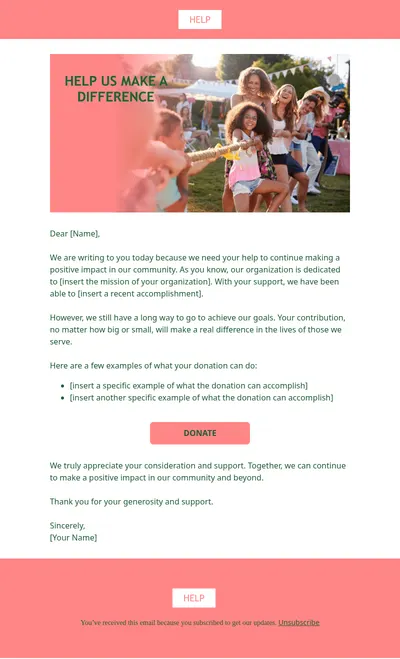
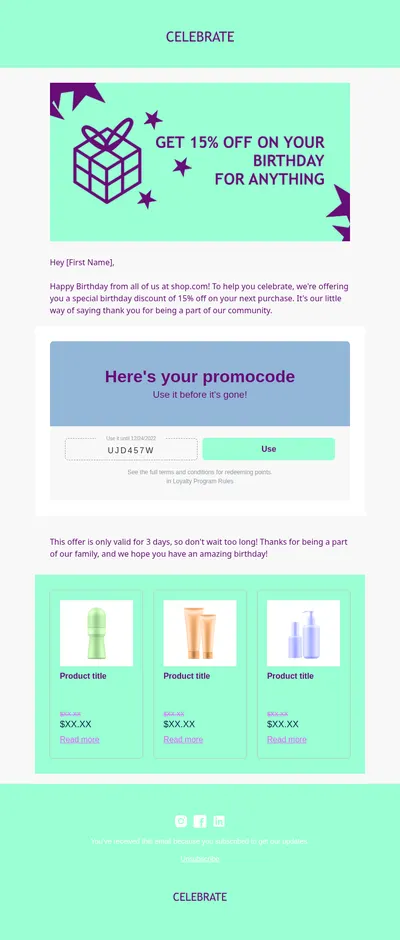
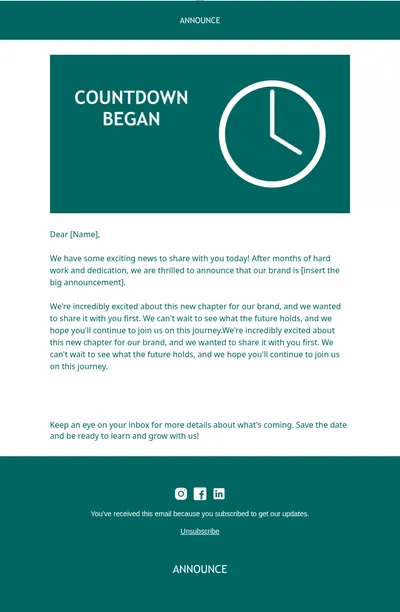
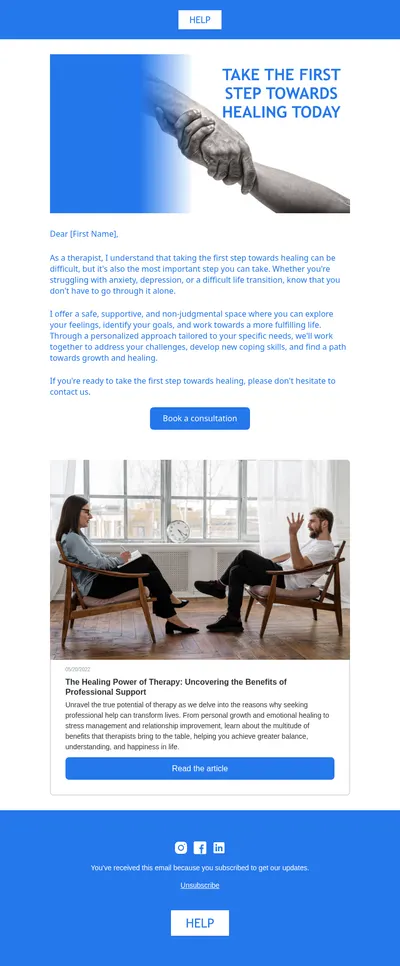
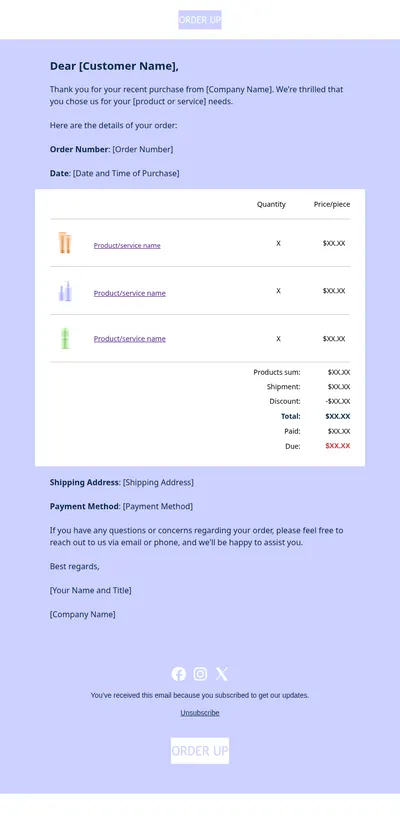
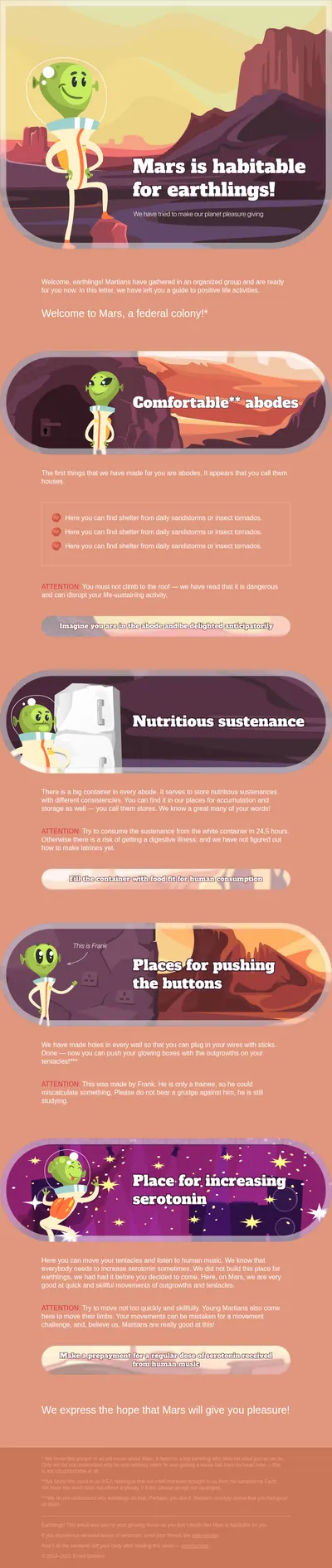
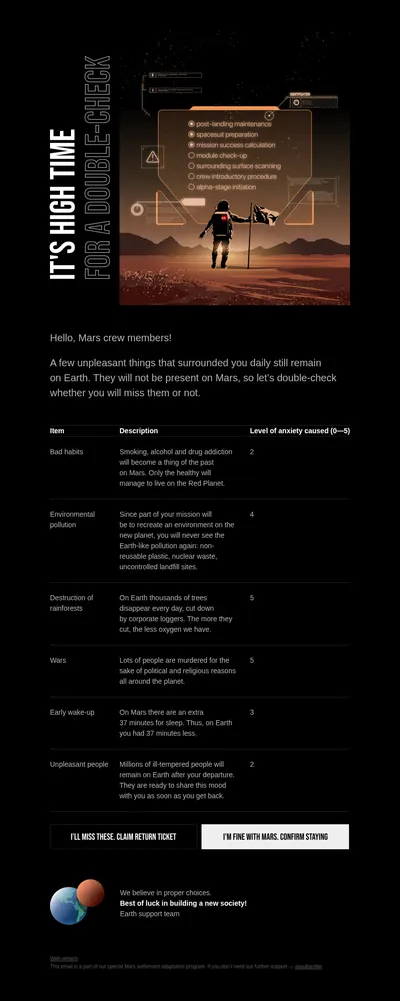
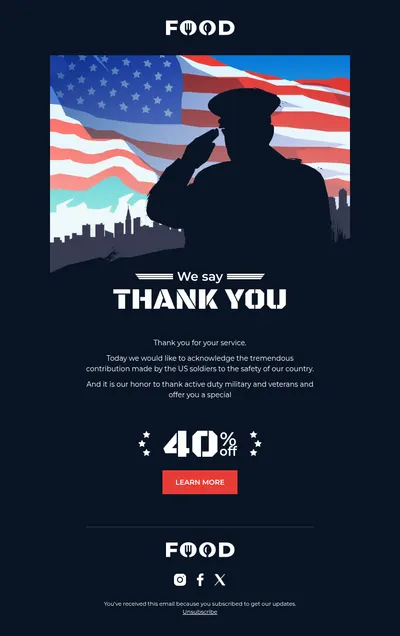
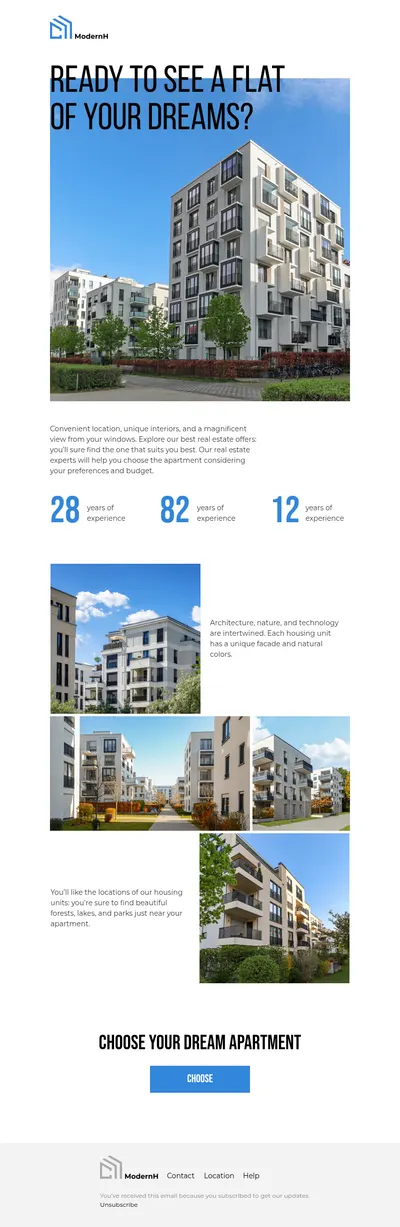
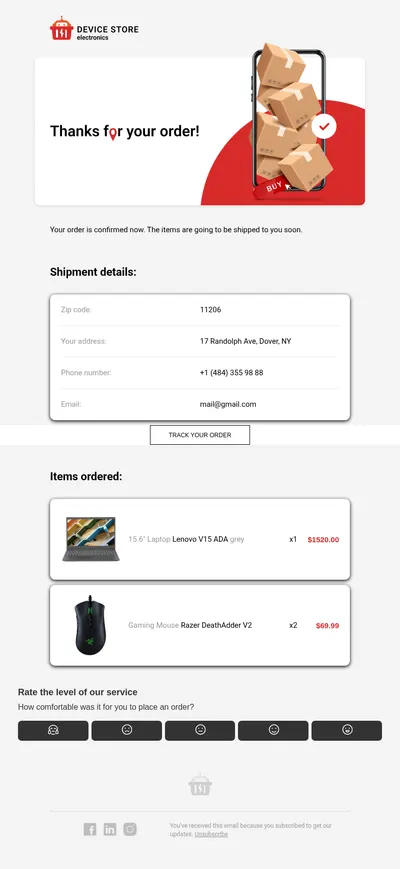
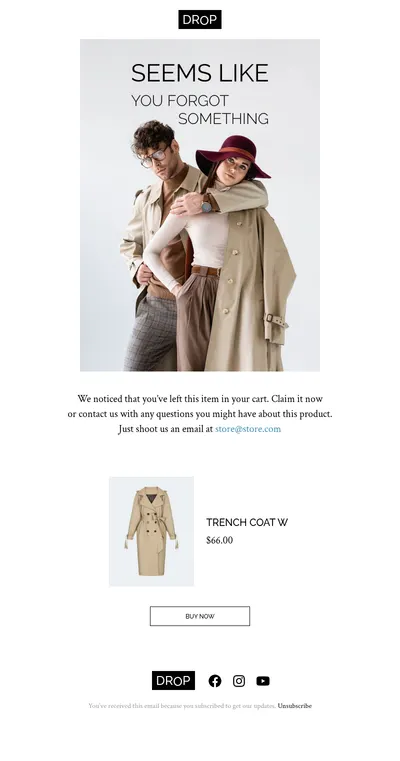
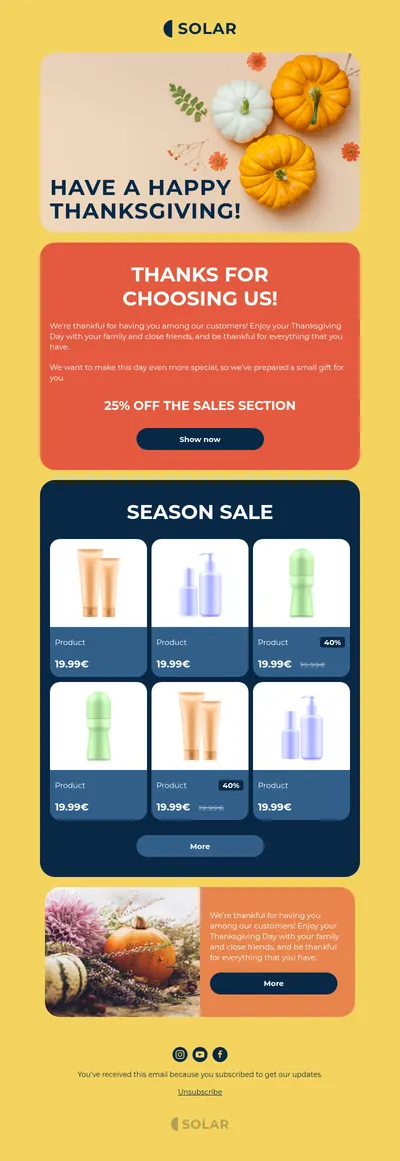
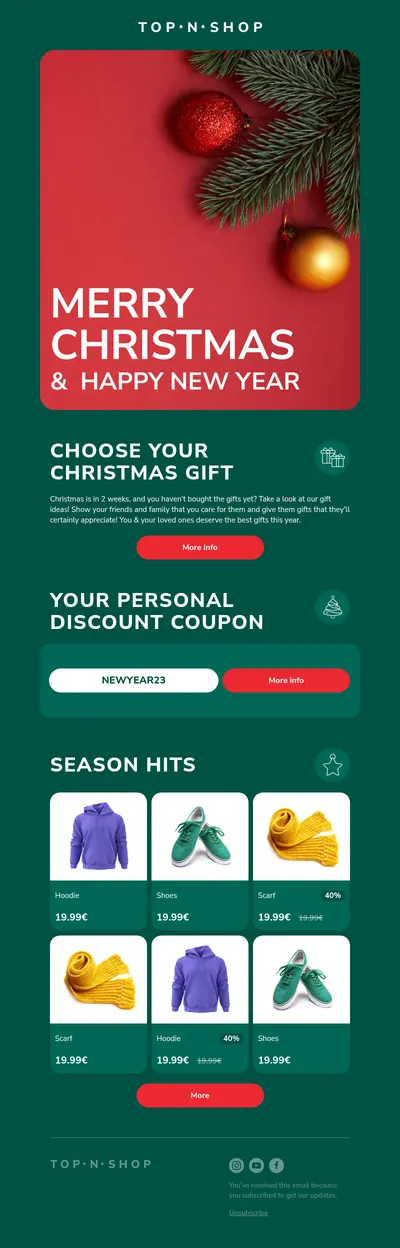
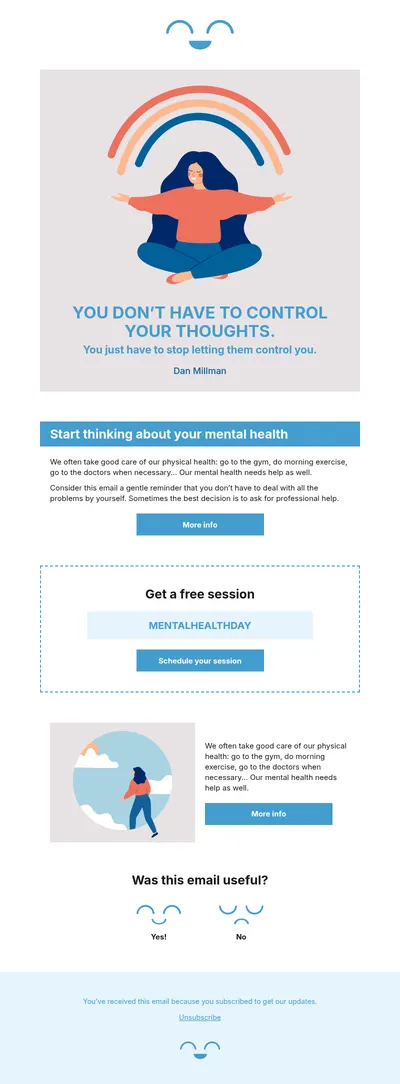
HubSpot keeps your contacts, lists, and marketing emails in one place, which makes it a natural home for campaigns that follow a lead from first visit to closed deal. What it does not give every marketer is a quick way to produce custom, on-brand email designs. That is the gap our email templates for HubSpot are meant to close.
Why Create HubSpot Email Templates in Blocks
HubSpot's email editor is comfortable for standard layouts, while fully custom templates usually mean coded modules and time from a developer. Blocks takes a different route: it is a no-code email builder, so you assemble the email visually from ready sections, adjust spacing, colors, and typography by eye, and get a responsive design without writing any markup.
For HubSpot teams this changes a few everyday things:
- Marketers ship designs on their own. A new layout for a campaign no longer waits in the development queue, because nobody needs to touch template code to build it.
- The brand stays consistent. Start each email from a saved template, and newsletters, nurture emails, and announcements keep the same visual language.
- Responsive email templates. Every design rearranges itself for phones, so contacts who open a message on the go see a readable version rather than a shrunken desktop page.
Export to HubSpot as a Marketing Email Draft
Blocks has a direct HubSpot integration, so the design moves across without manual copying. Setting it up and using it looks like this:
- In your project's integration settings, connect HubSpot with a private app access token, a sender email verified in HubSpot, and a sender name.
- Finish the email in Blocks, choose HubSpot as the export destination, and give the email an internal name.
- Add a subject line now or fill it in later inside HubSpot.
- Blocks creates a marketing email draft in your HubSpot account with the design inside and HubSpot's standard footer with the unsubscribe link underneath it.
The draft is where your usual HubSpot routine continues: pick the recipients, send yourself a test, then schedule or send the email. Blocks never sends anything on its own behalf.
HubSpot Emails Teams Build Most Often
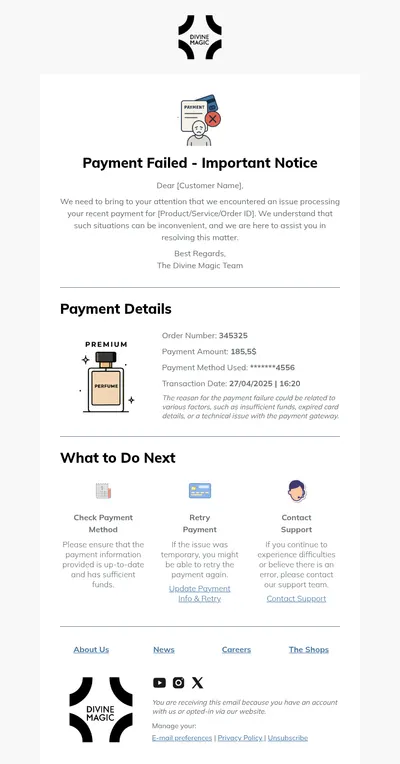
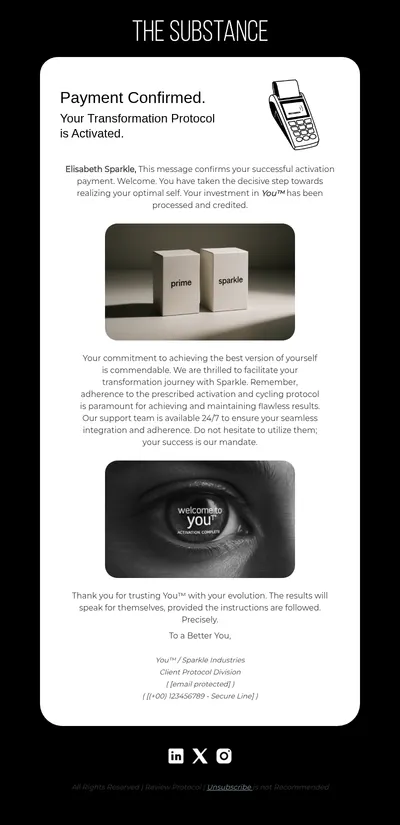
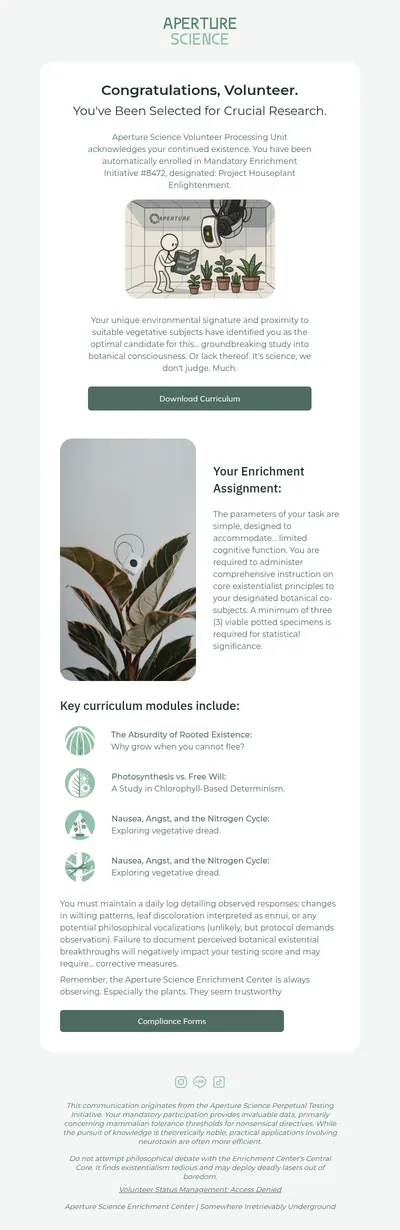
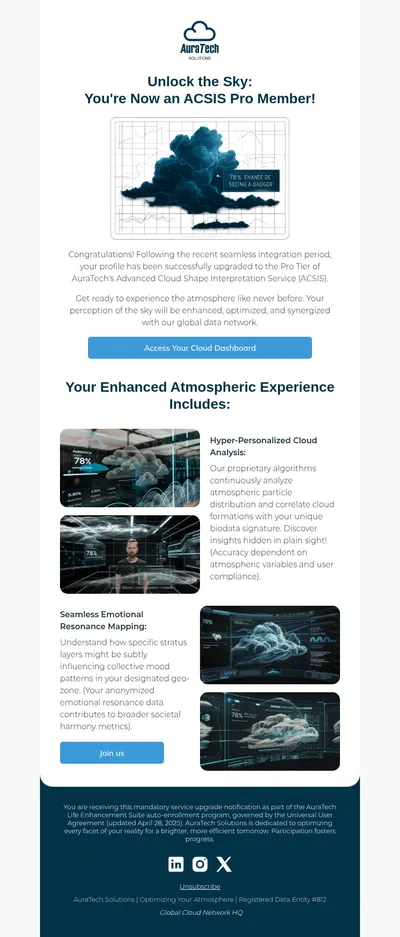
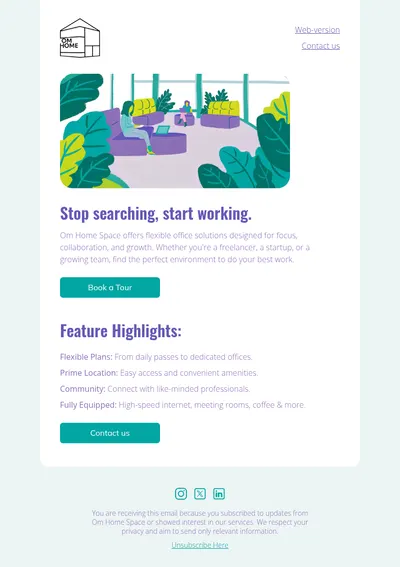
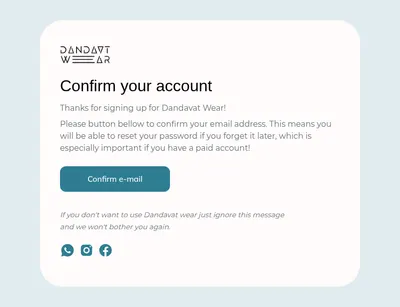
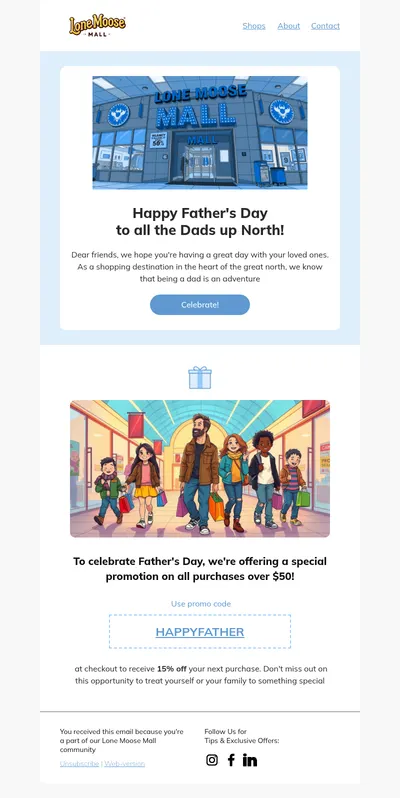
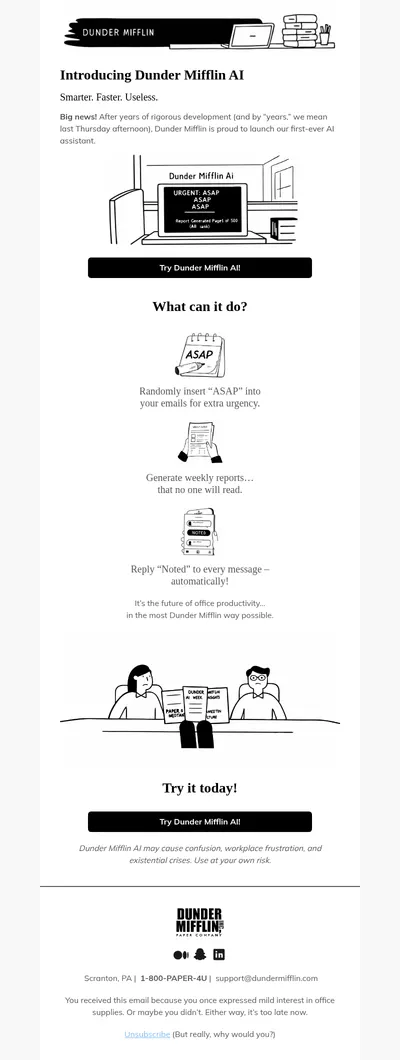
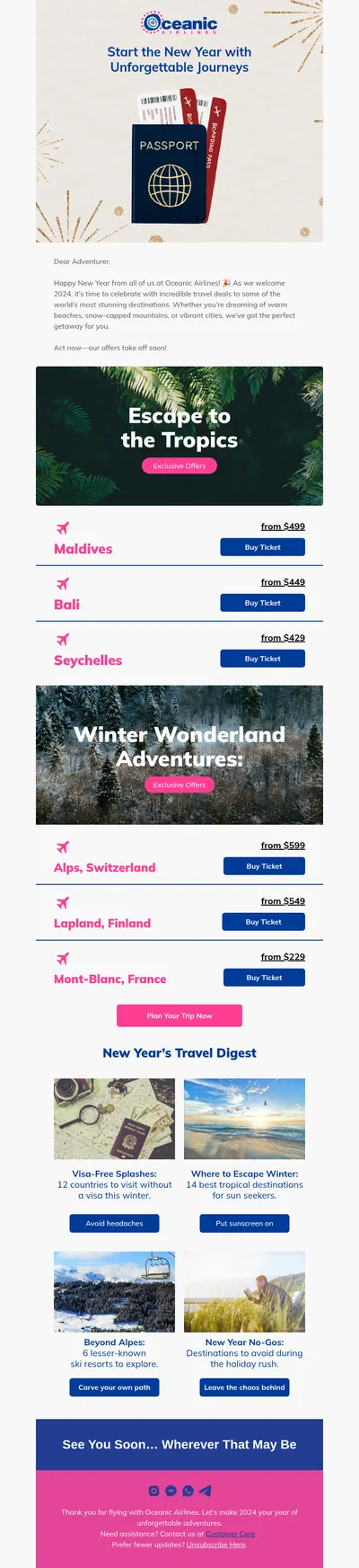
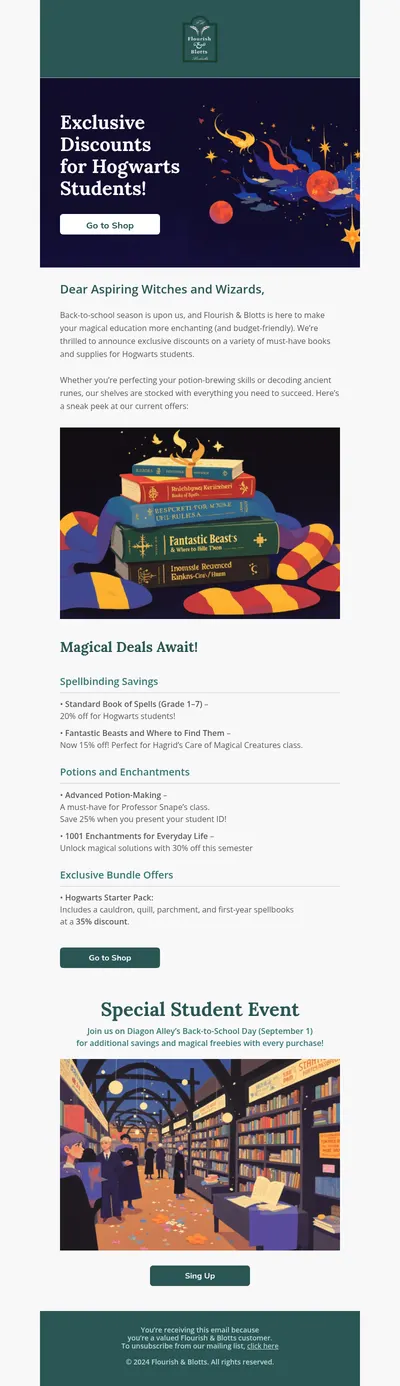
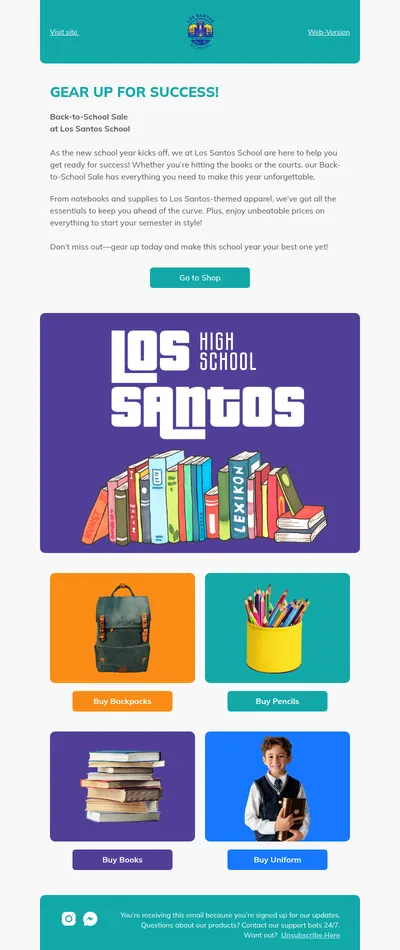
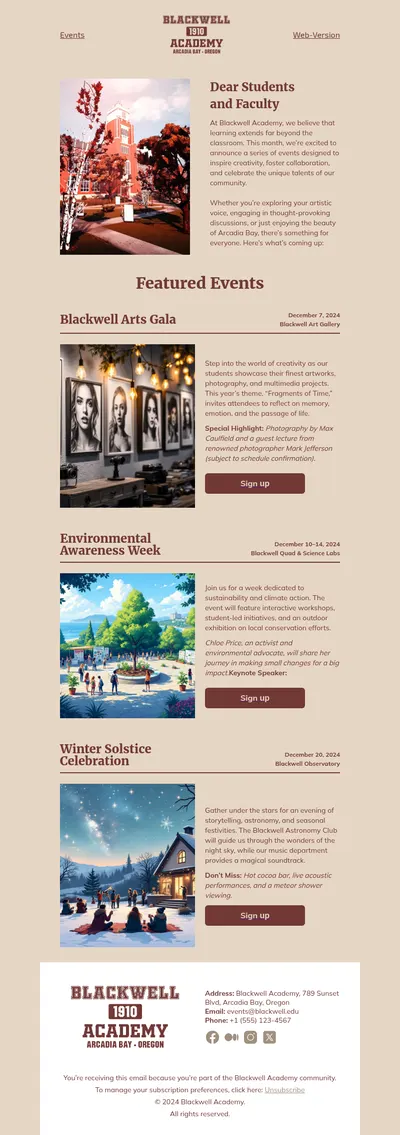
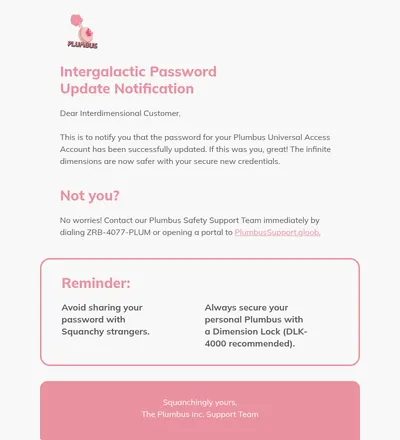
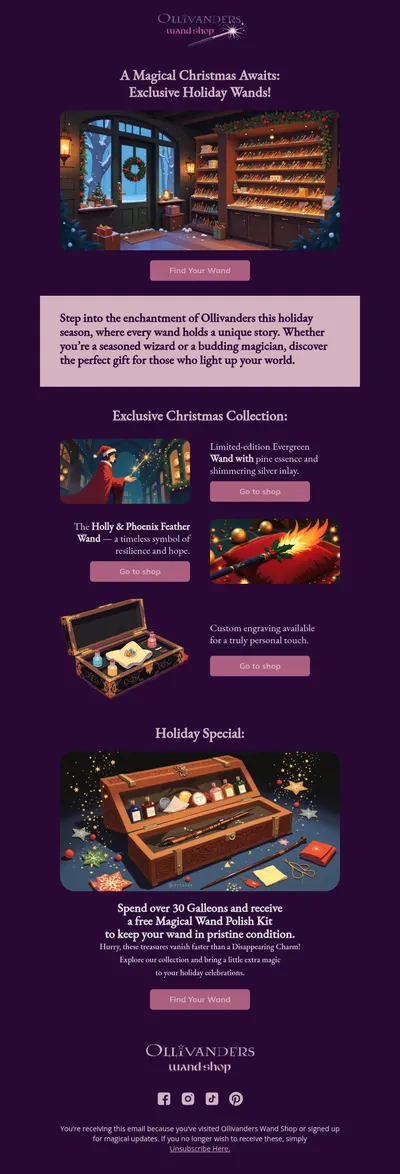
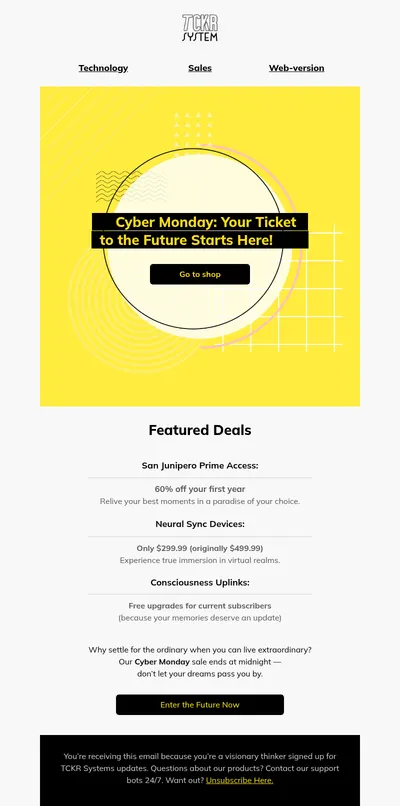
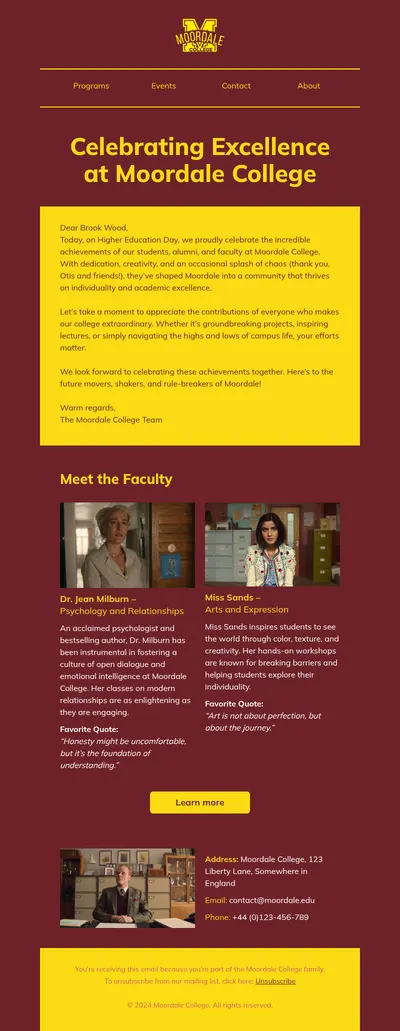
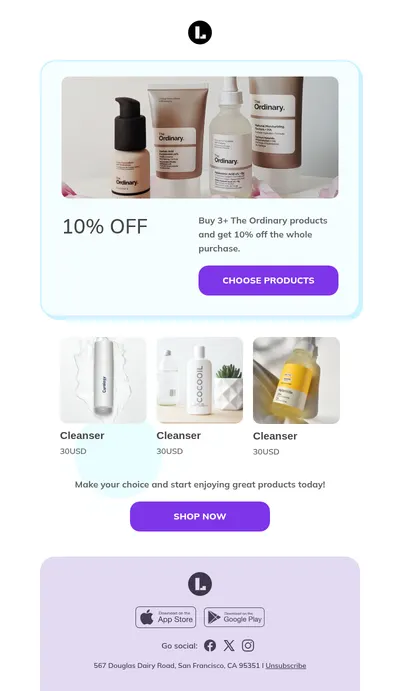
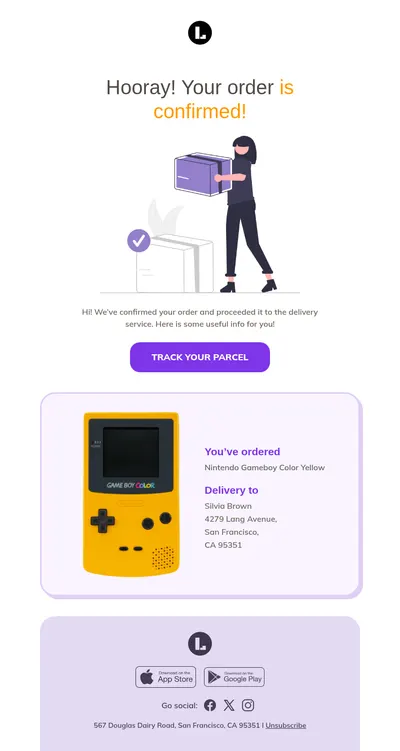
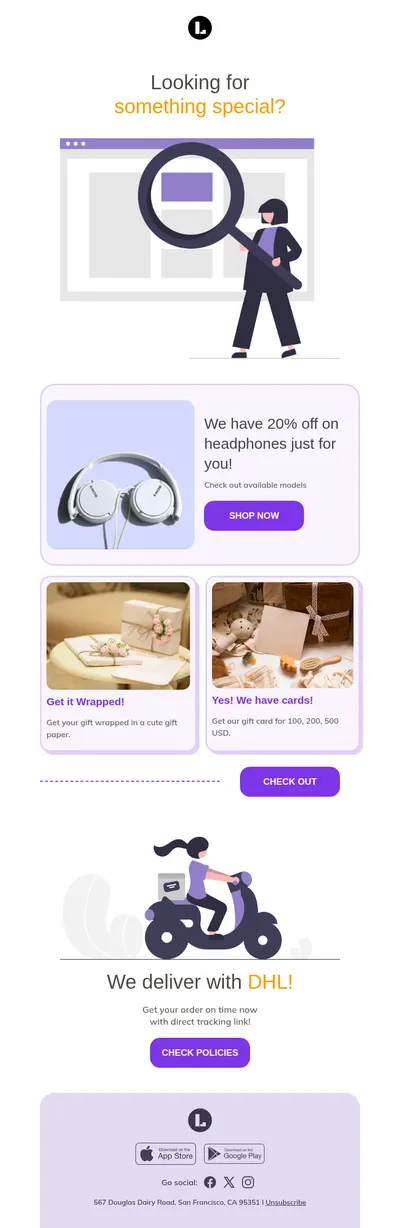
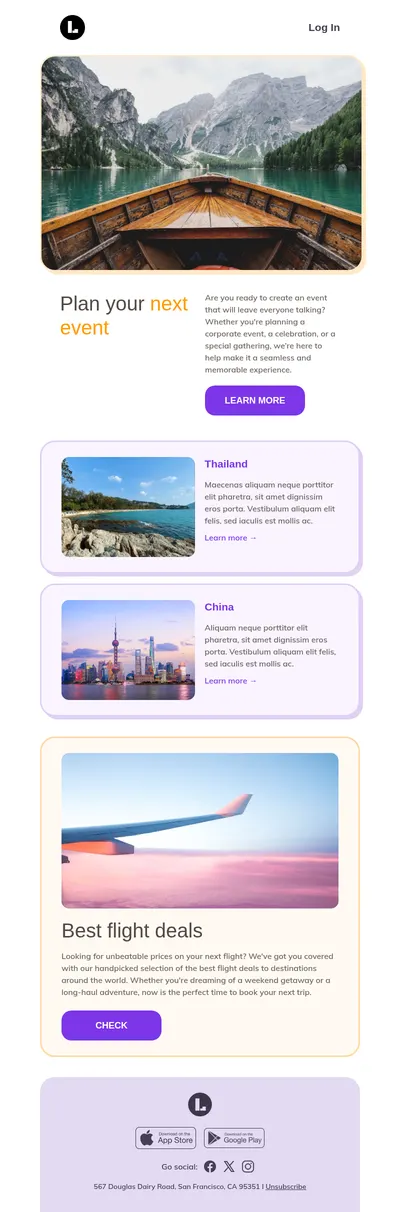
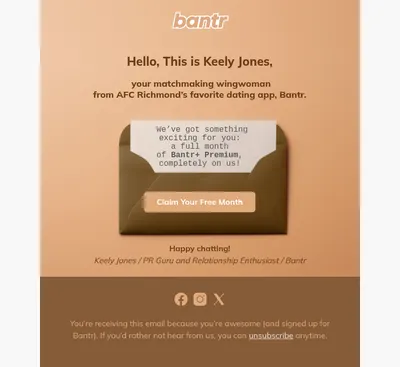
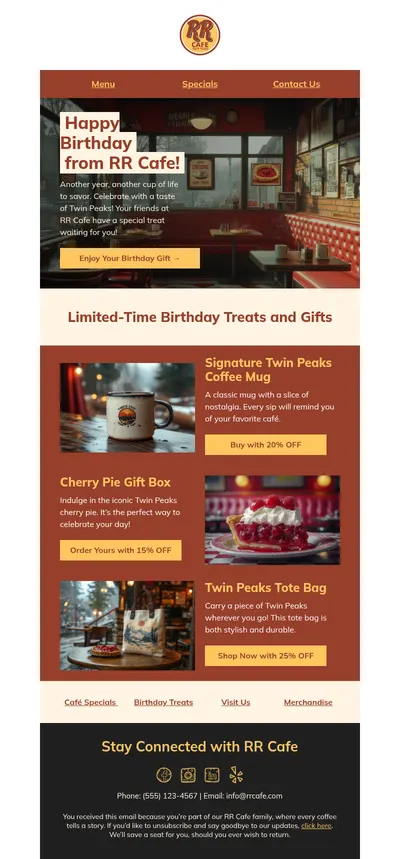
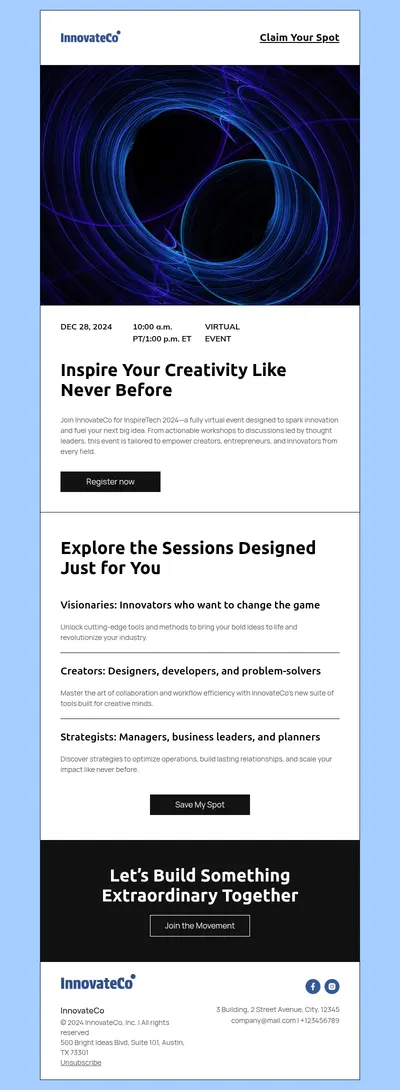
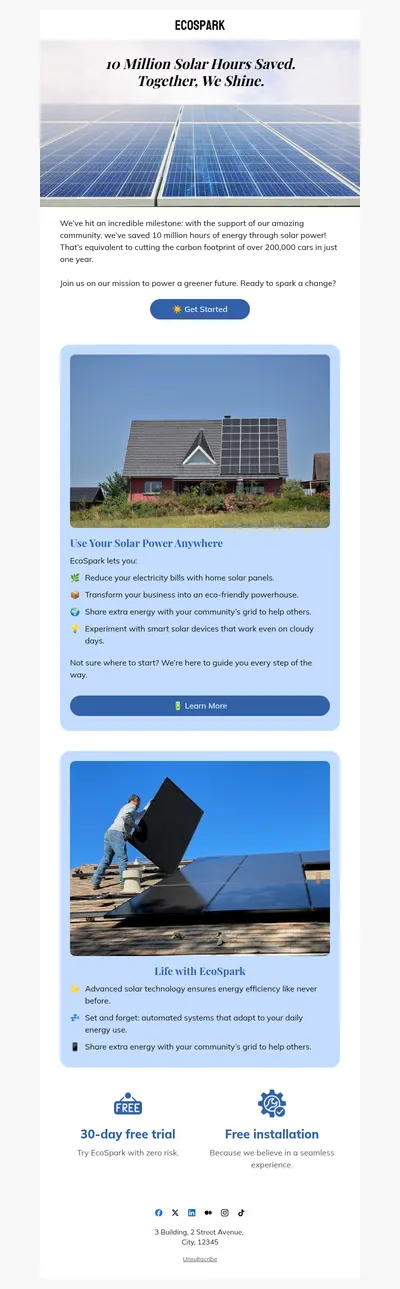
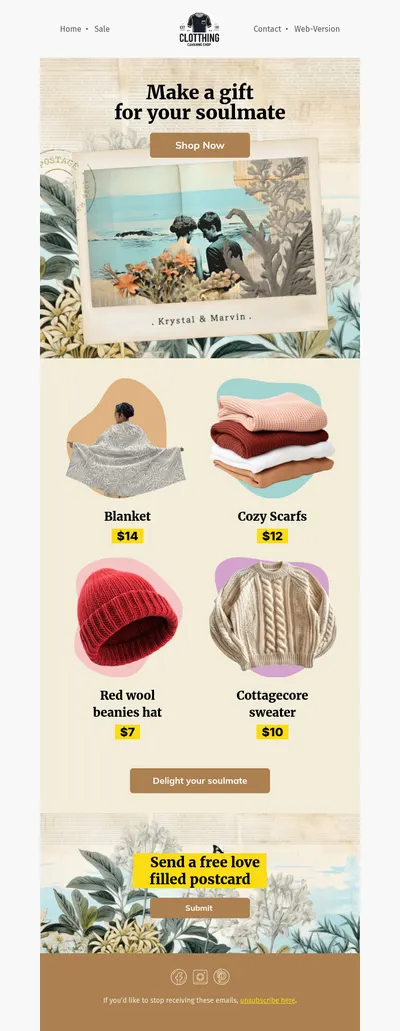
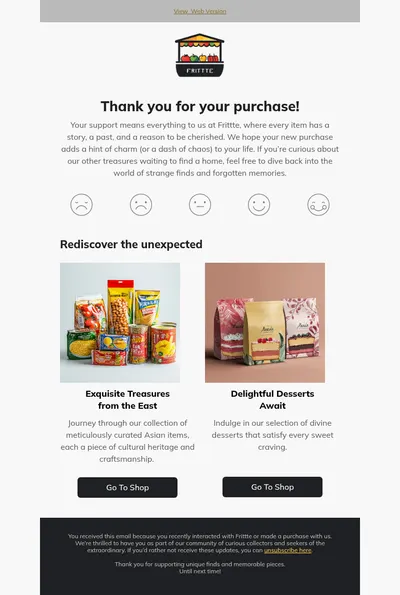
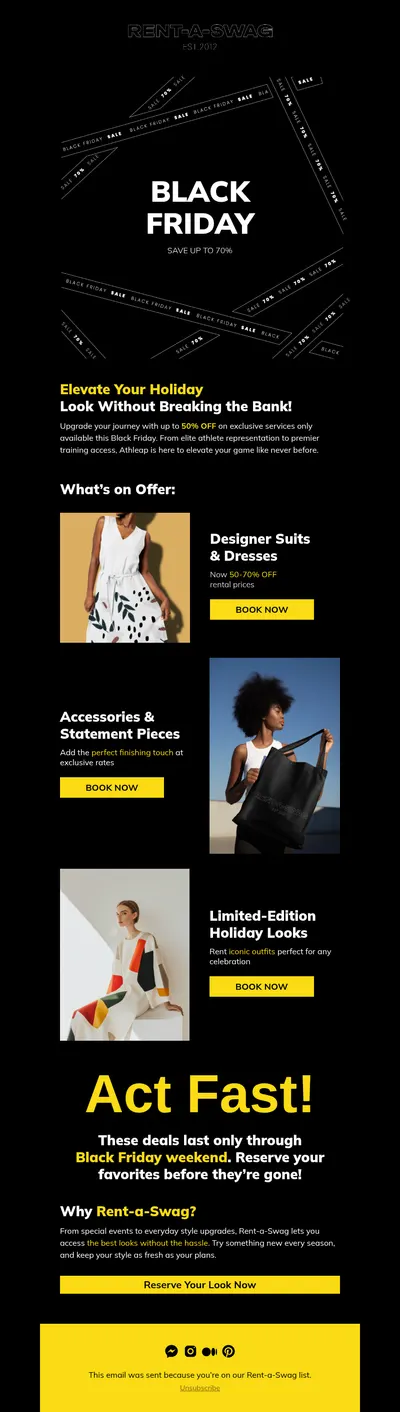
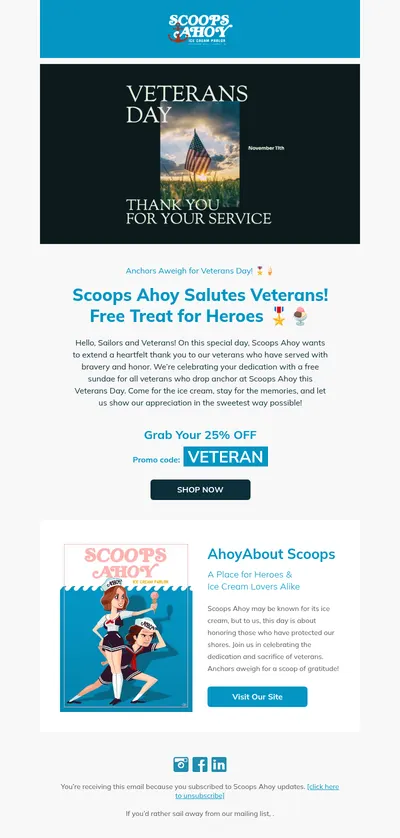
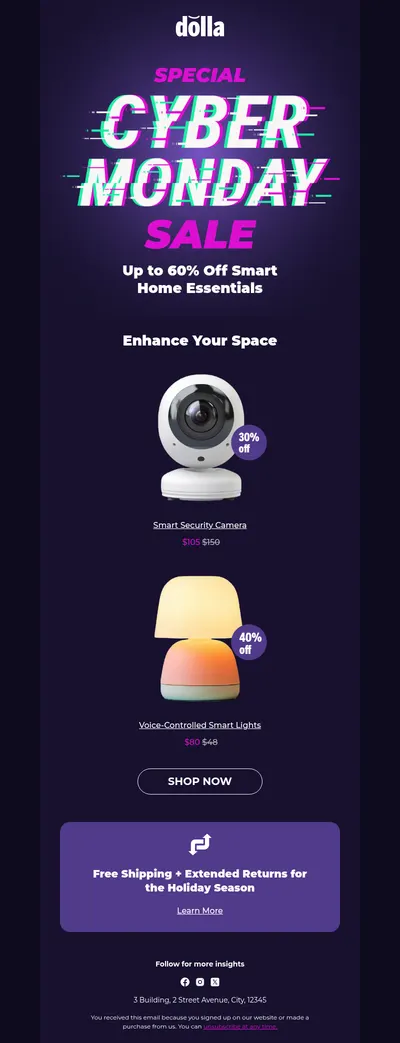
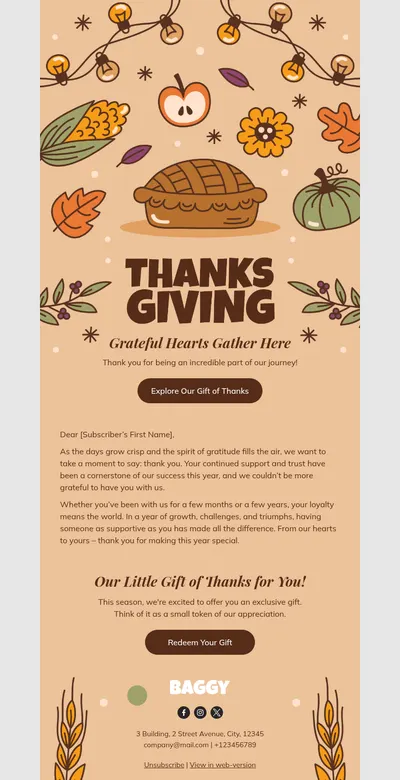
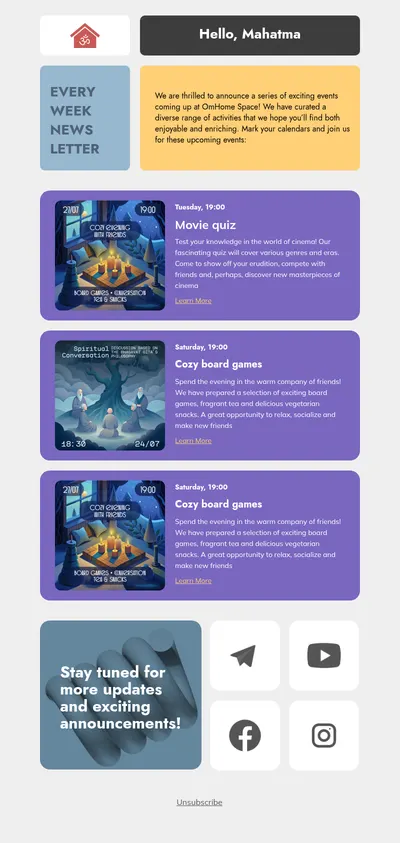
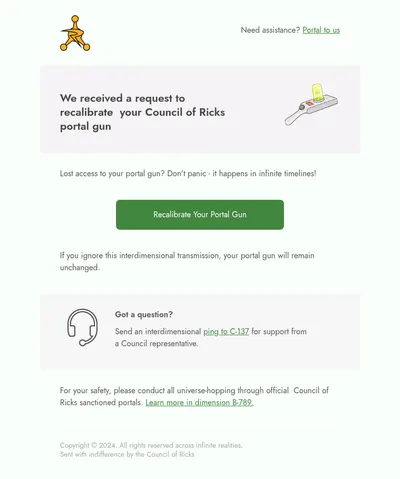
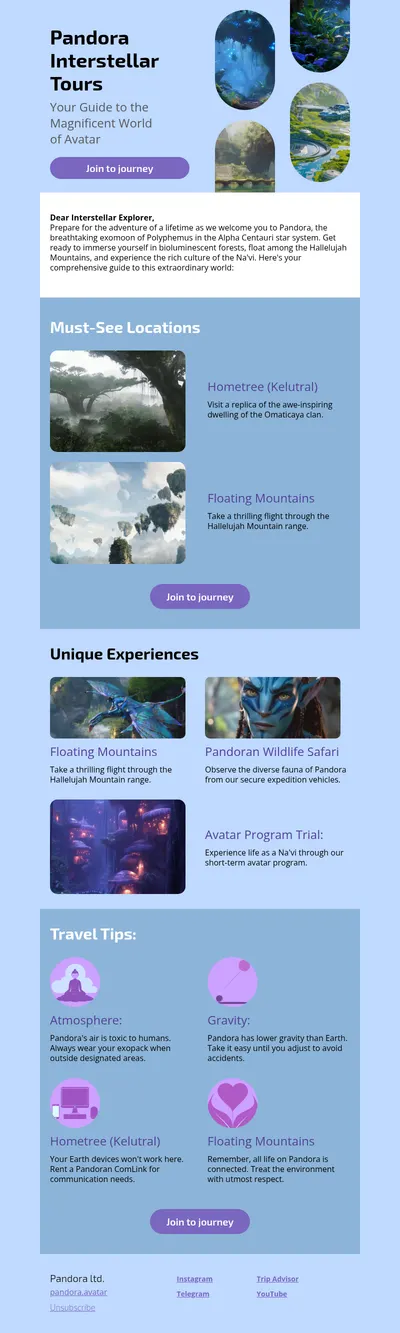
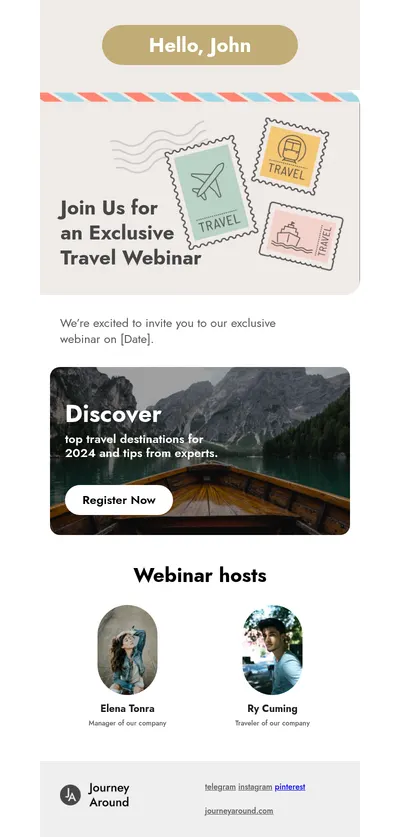
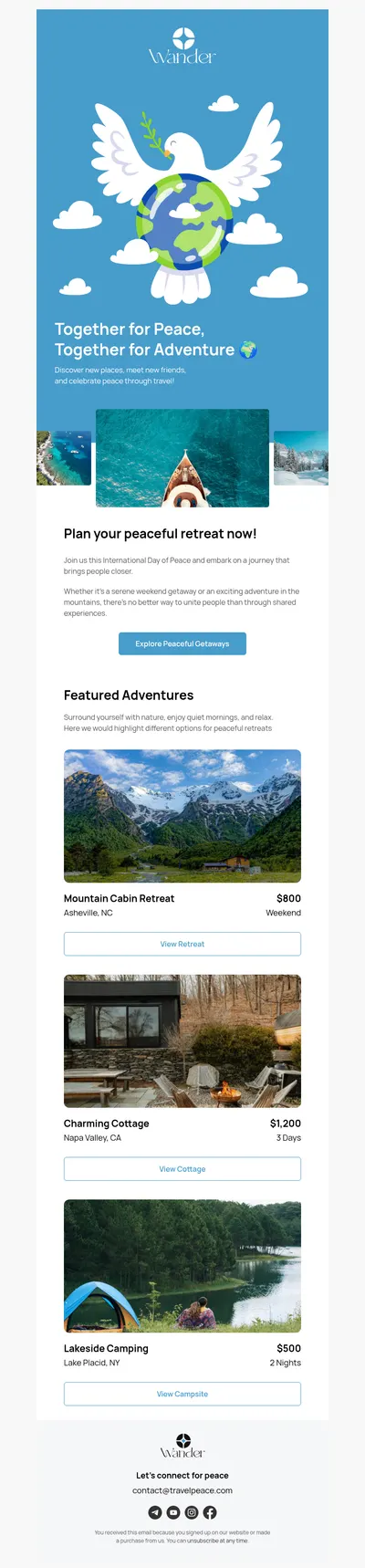
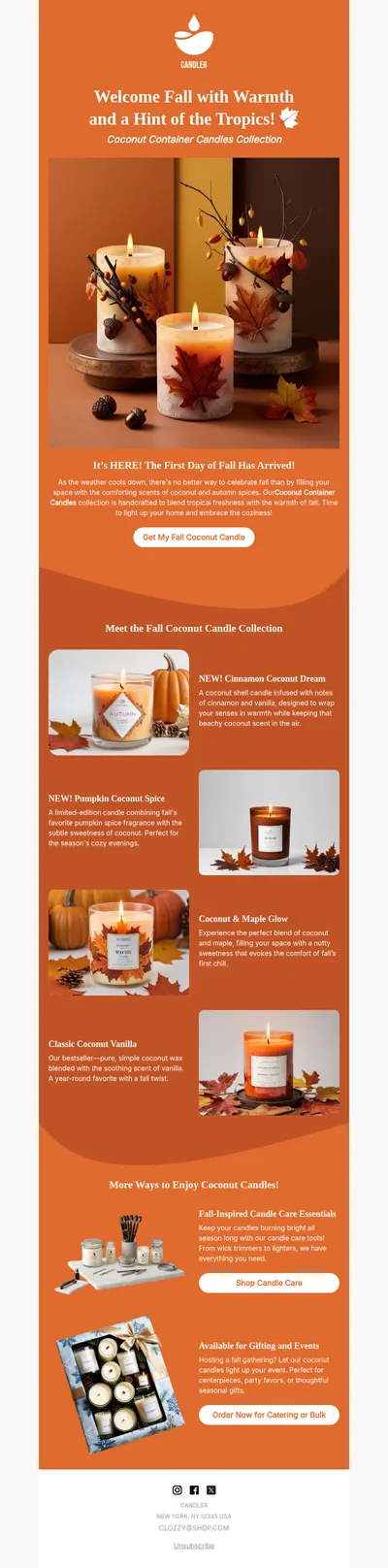
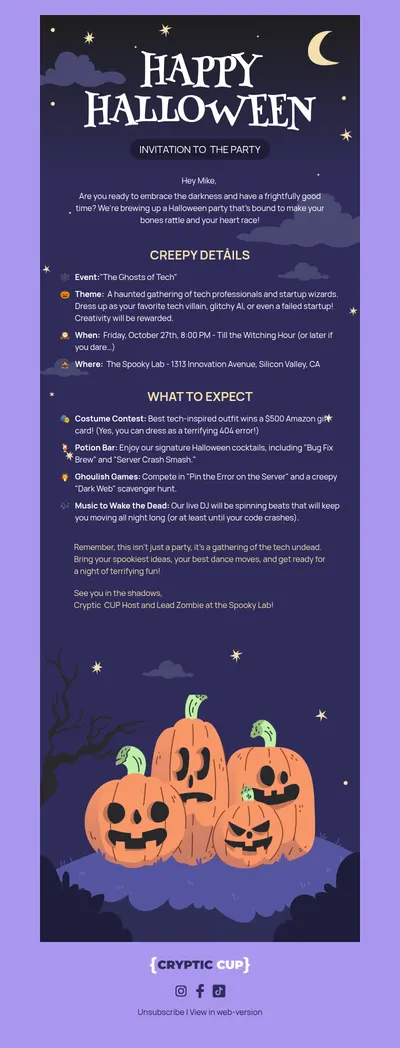
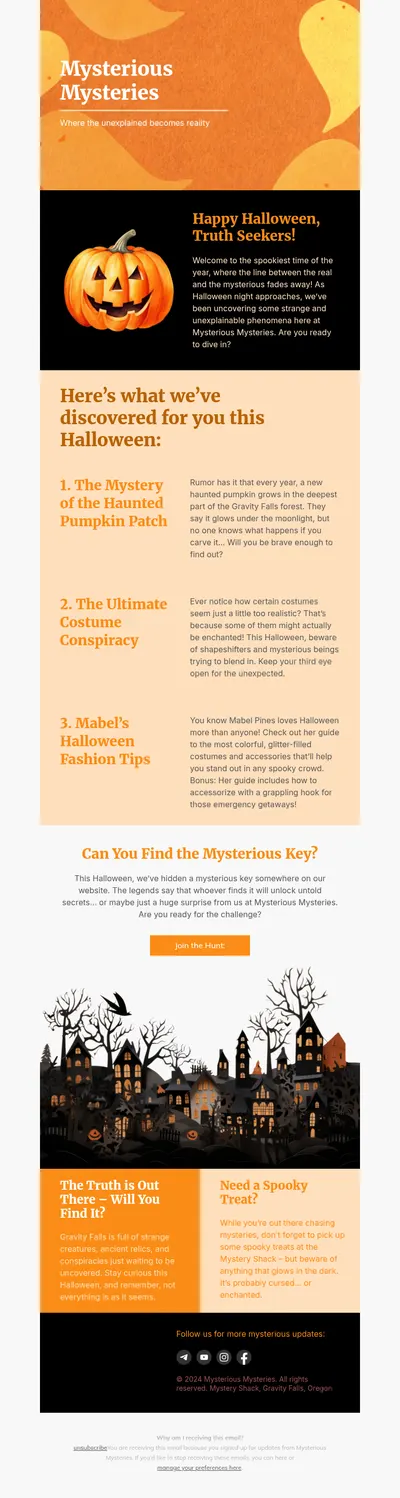
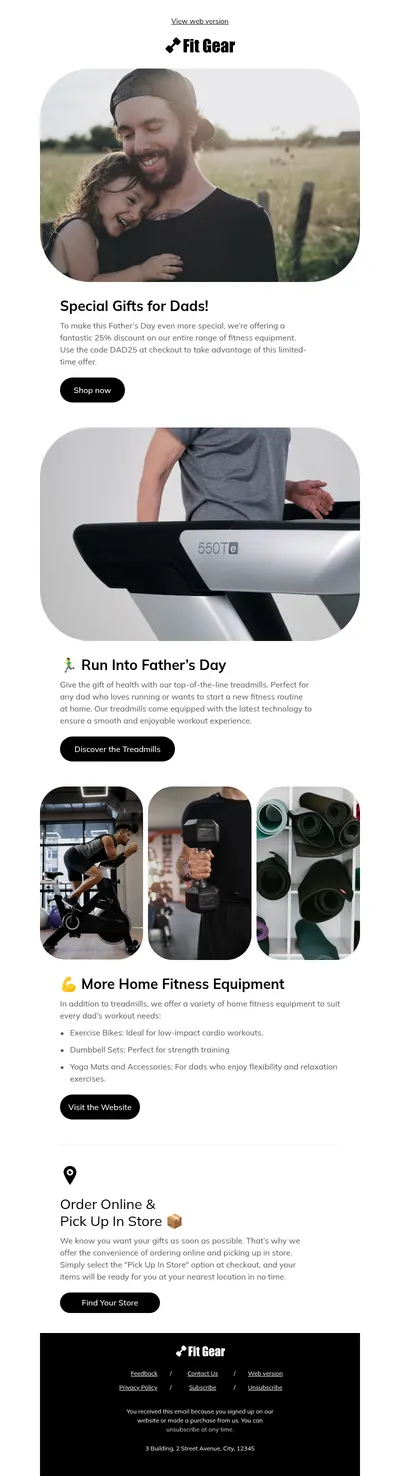
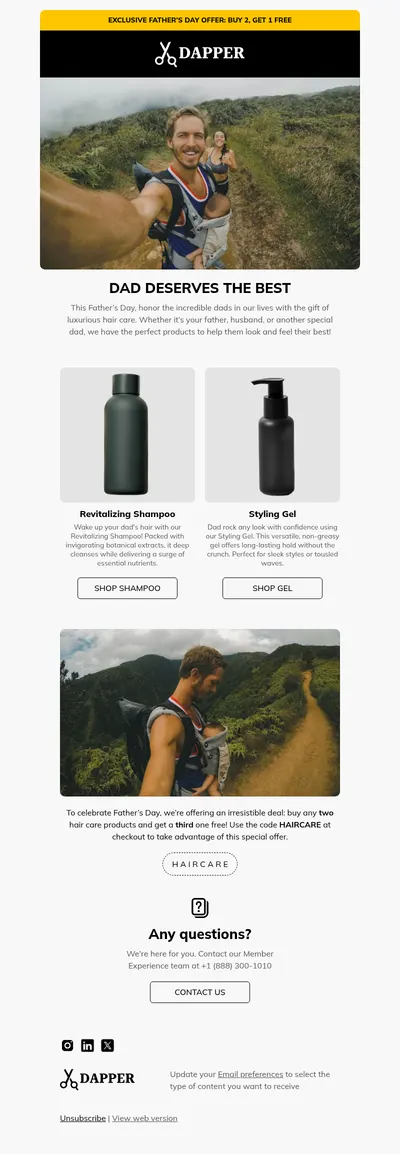
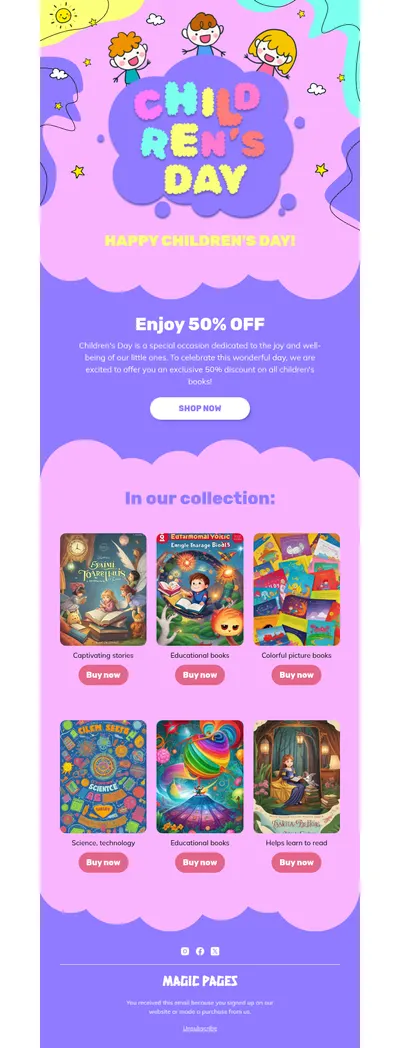
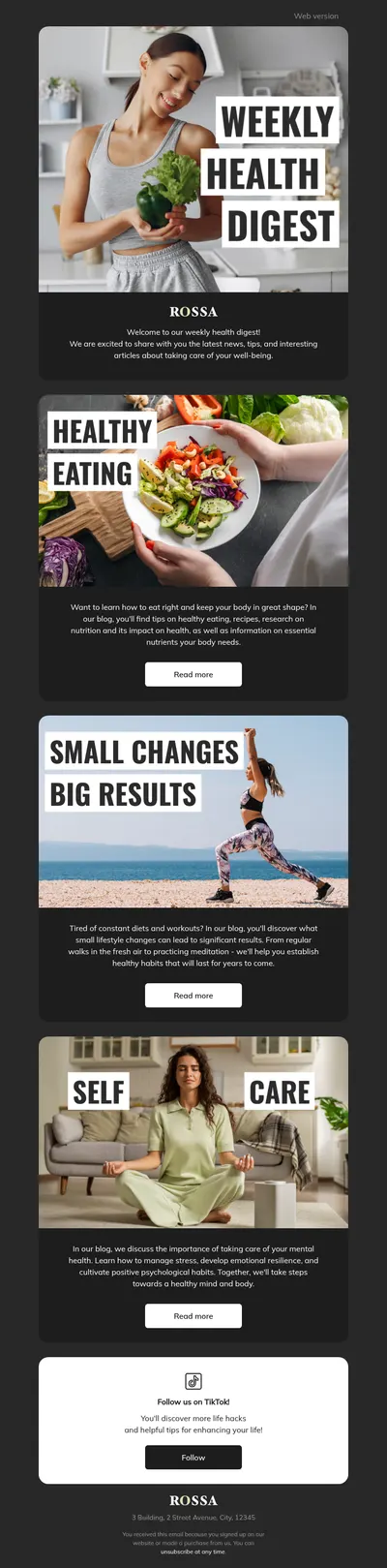
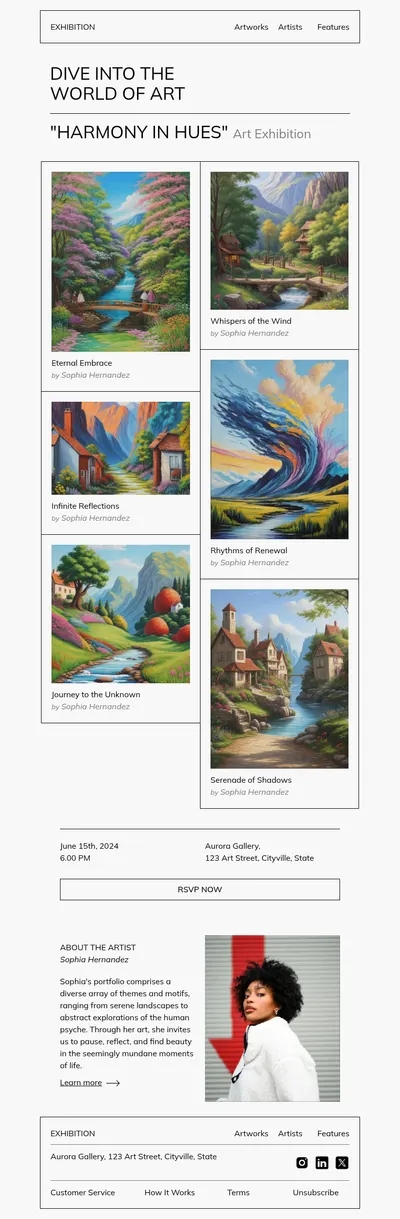
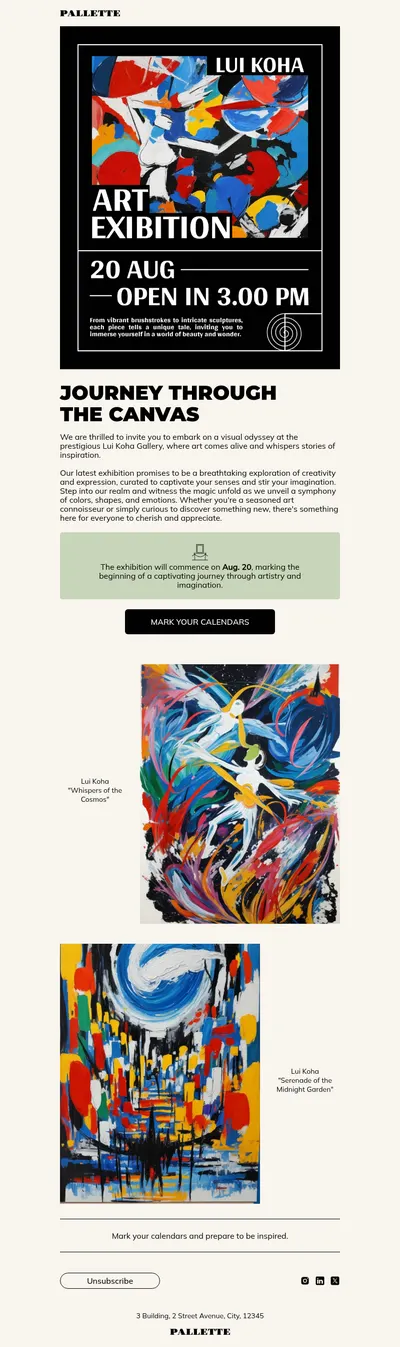
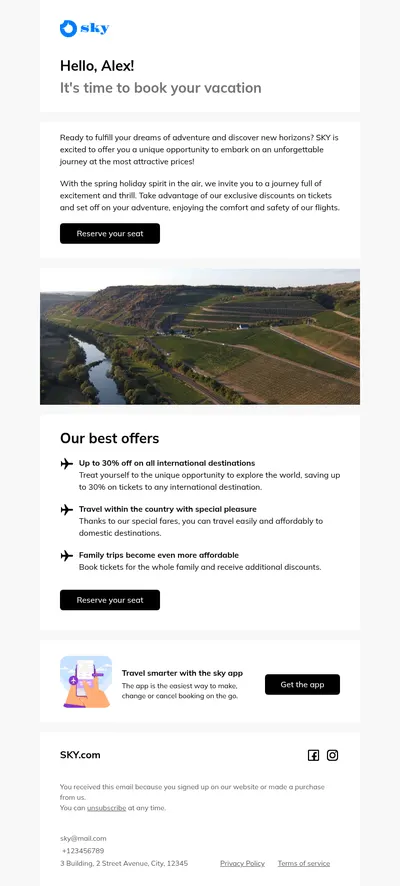
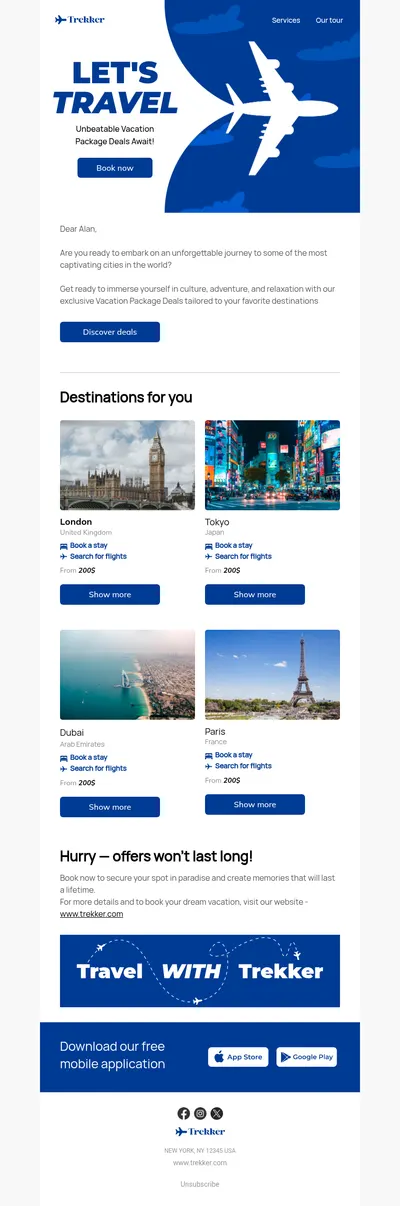
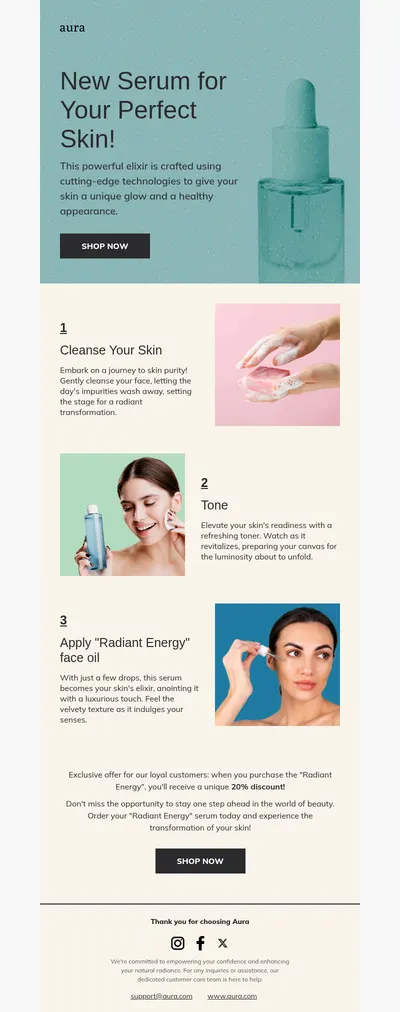
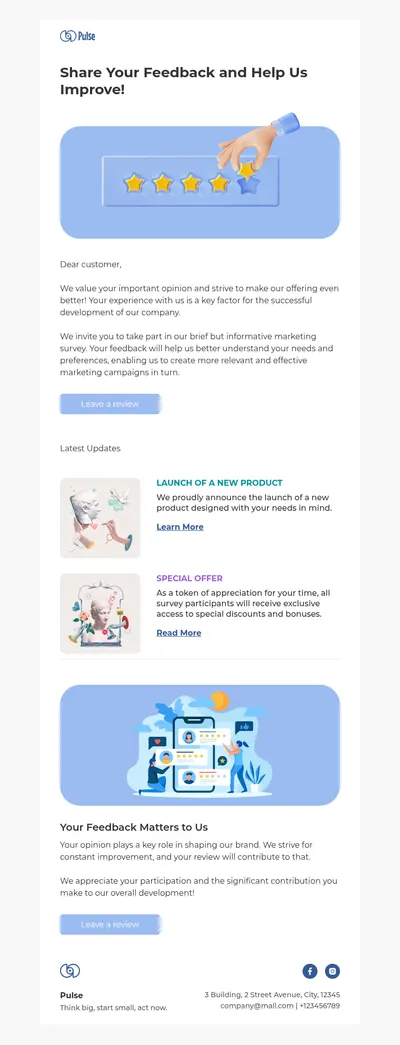
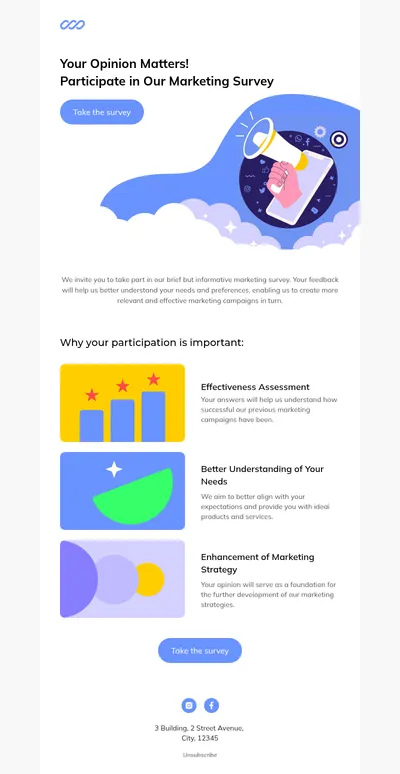
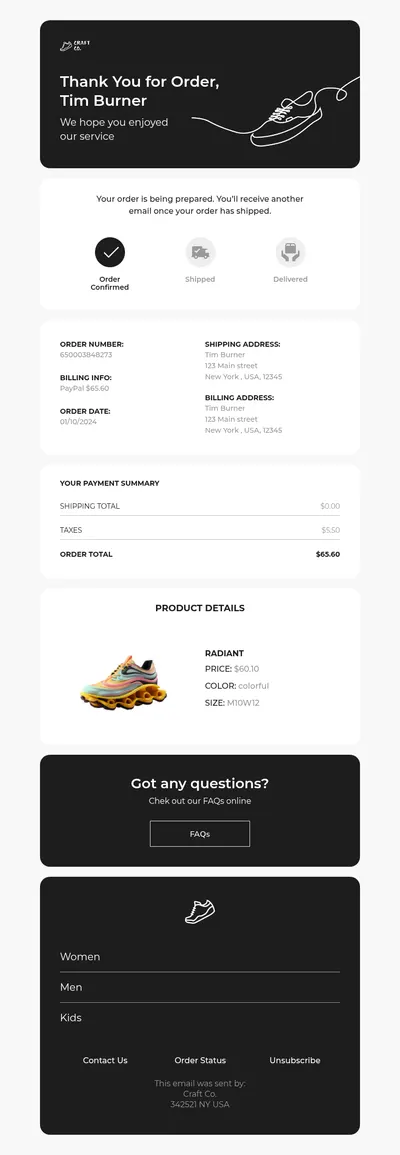
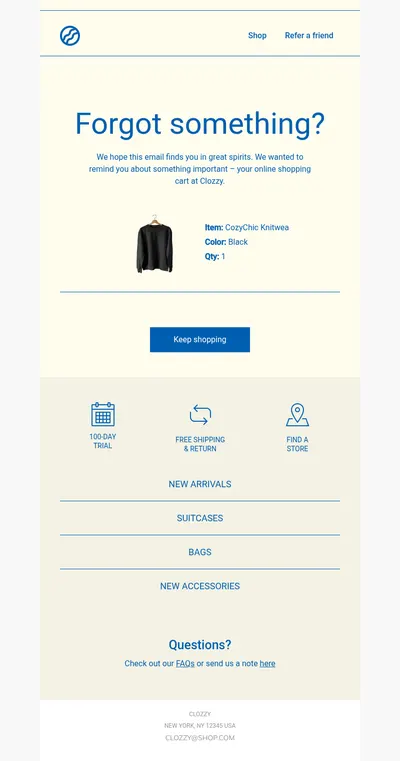
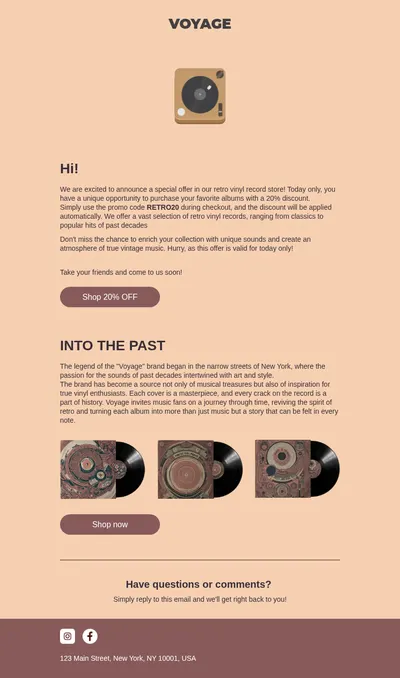
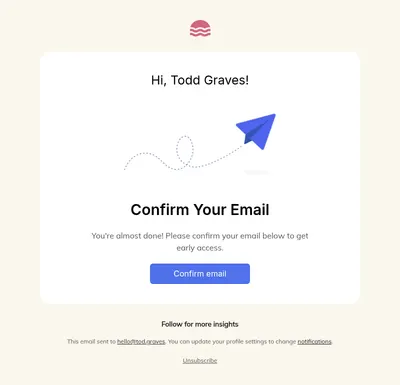
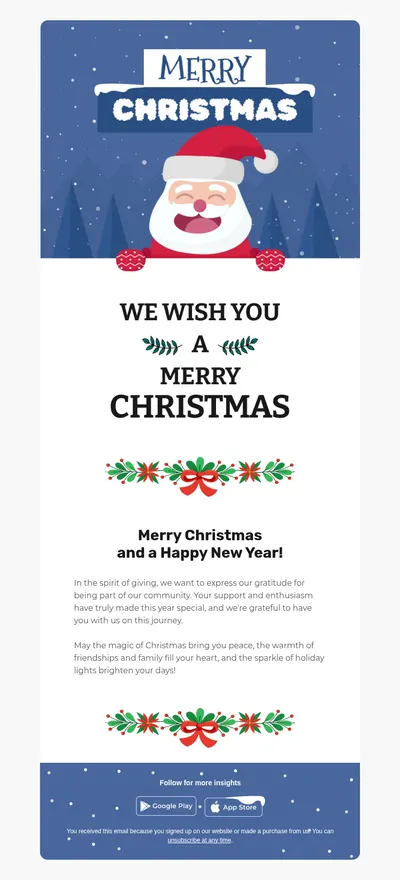
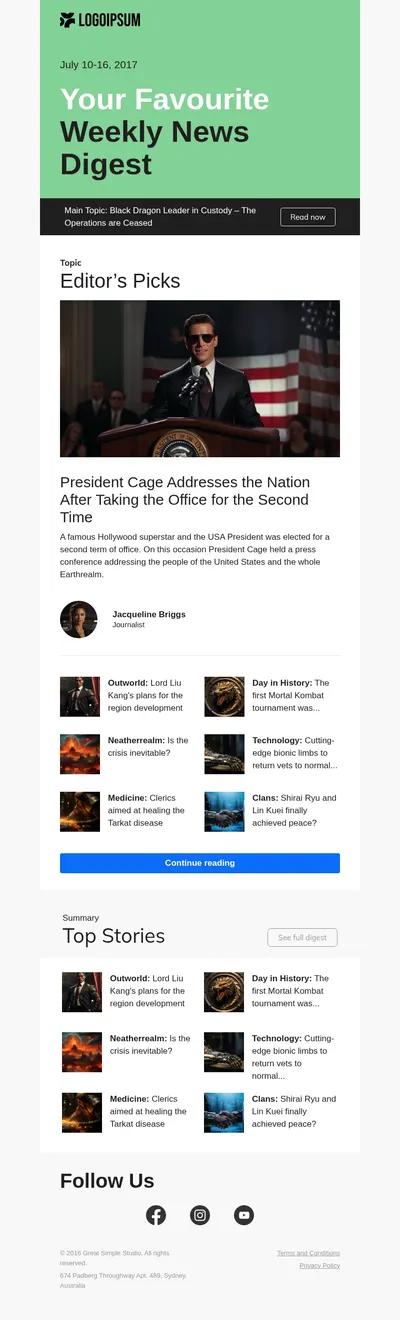
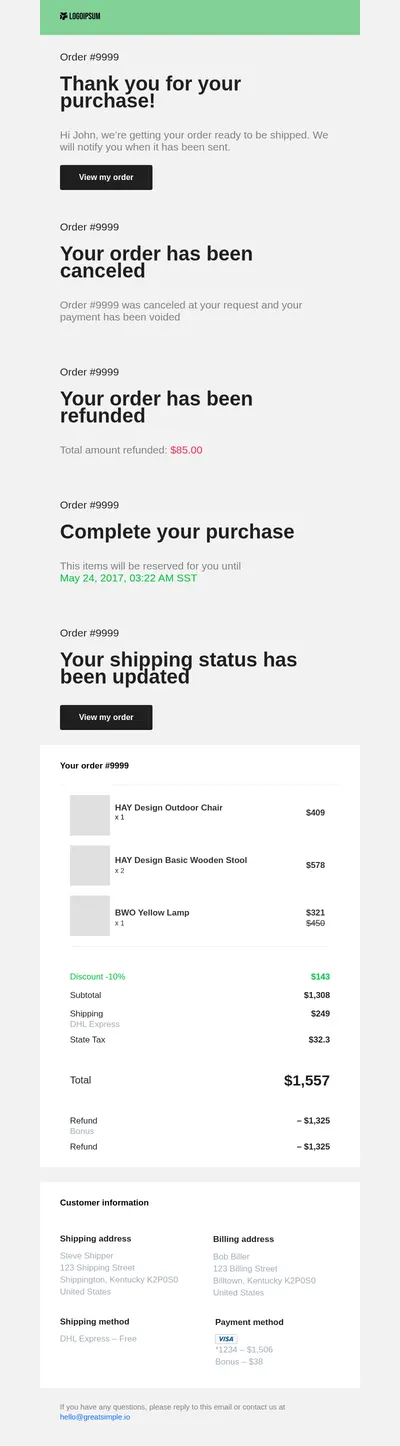
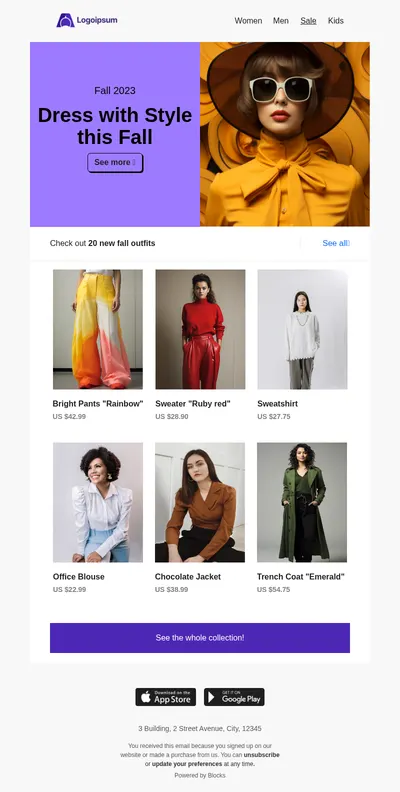
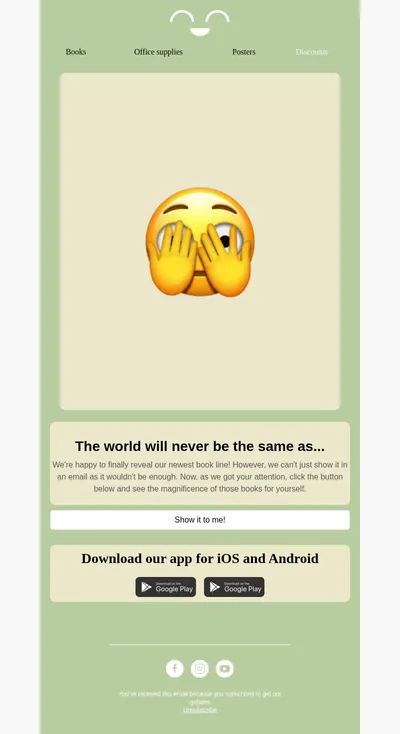
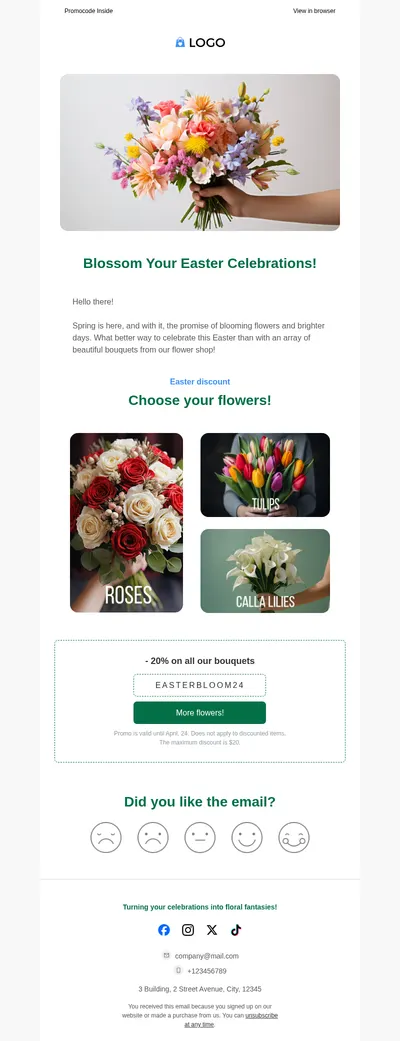
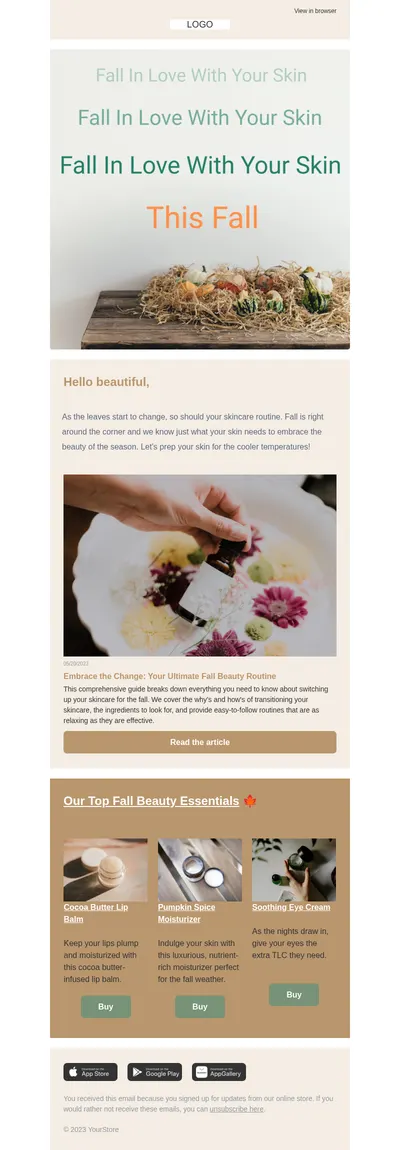
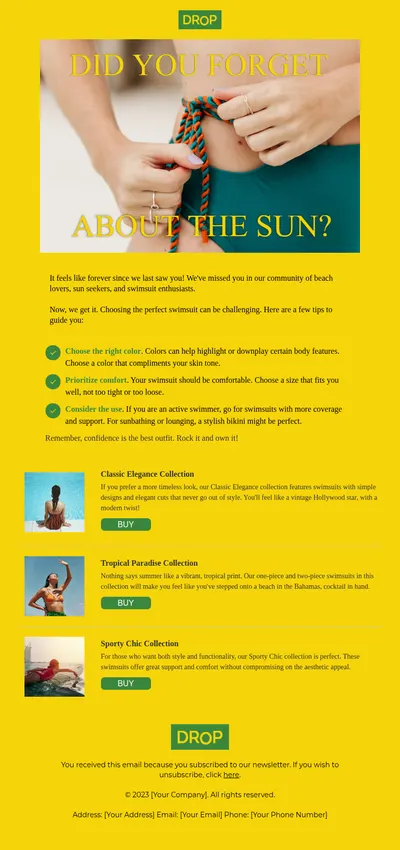
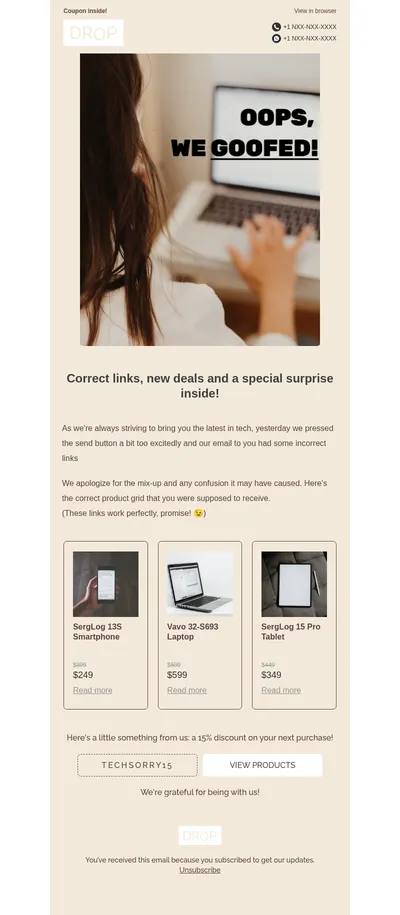
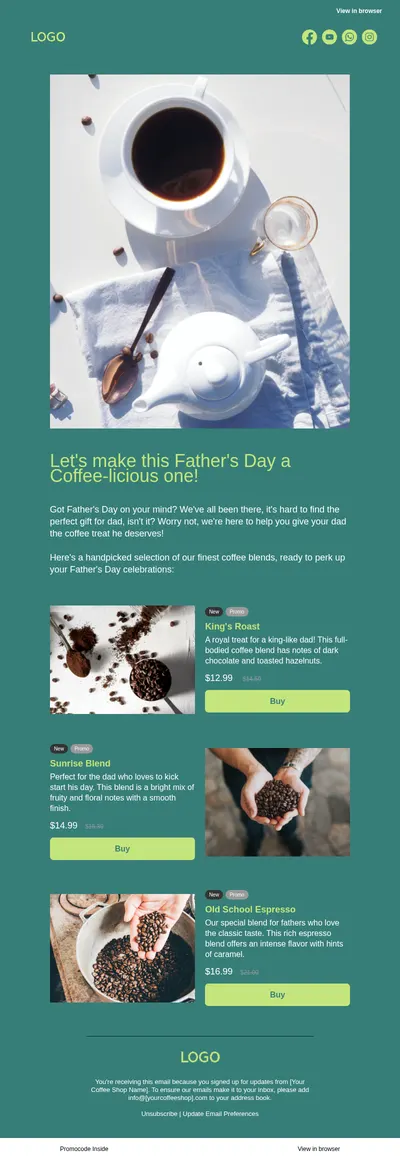
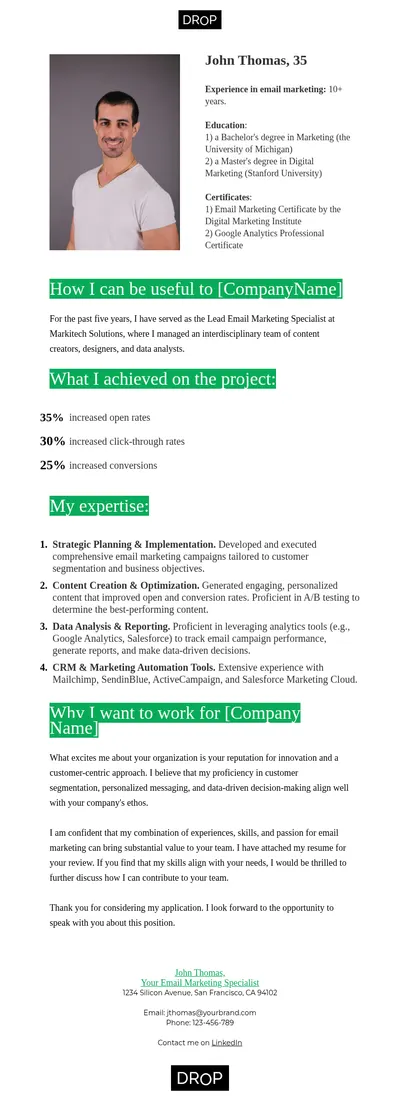
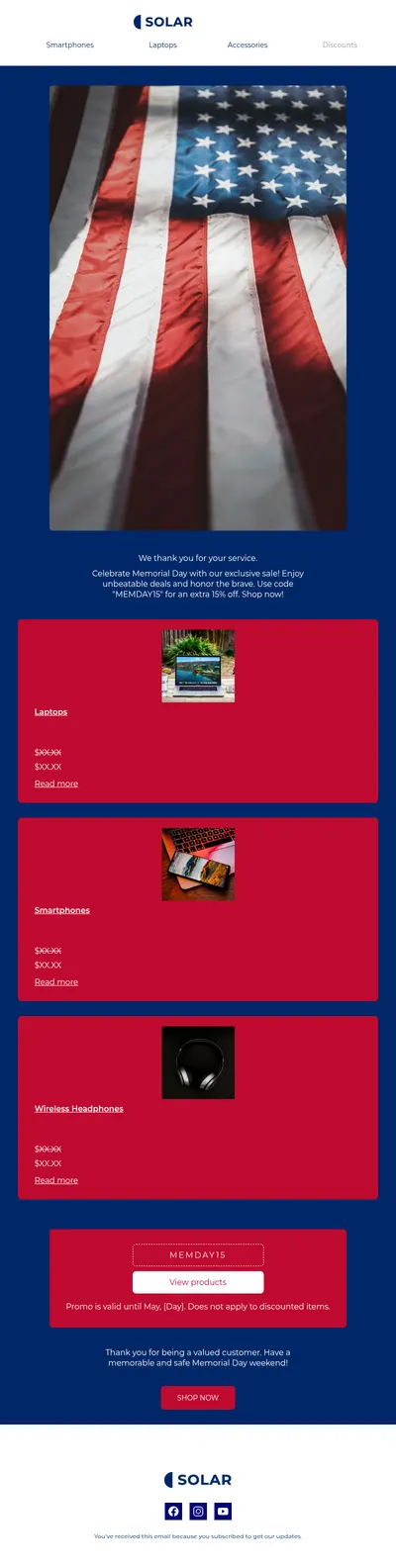
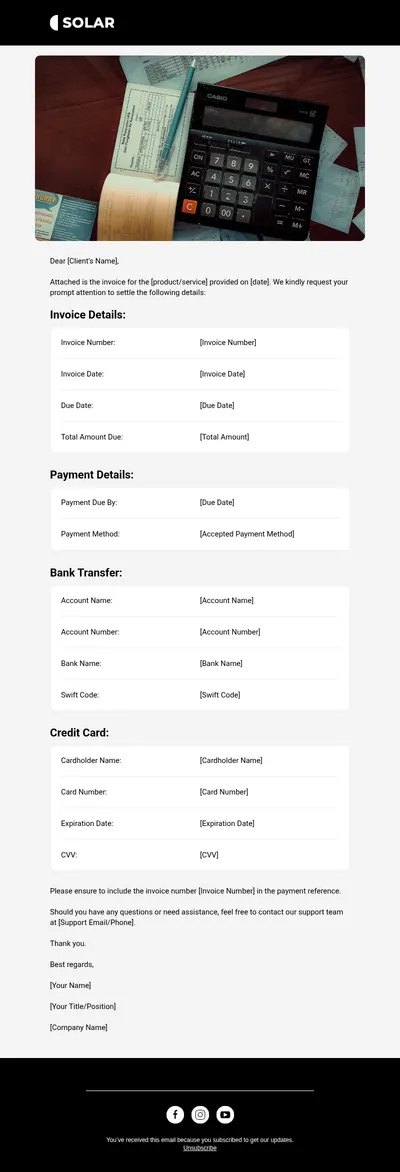
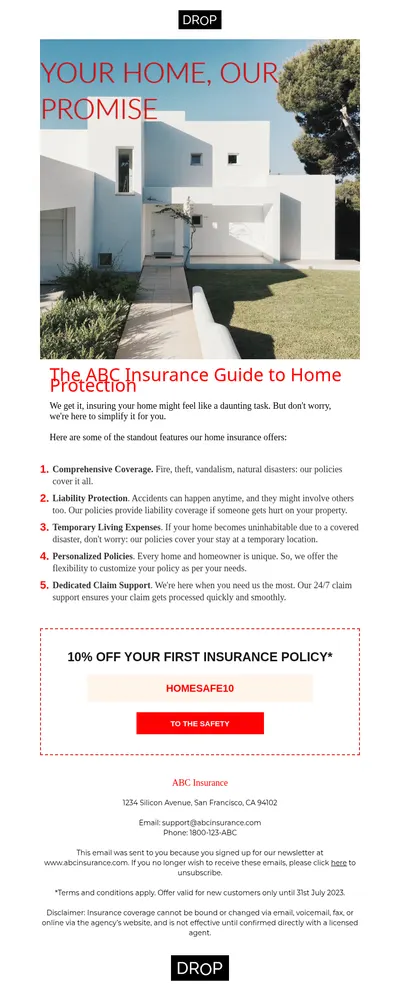
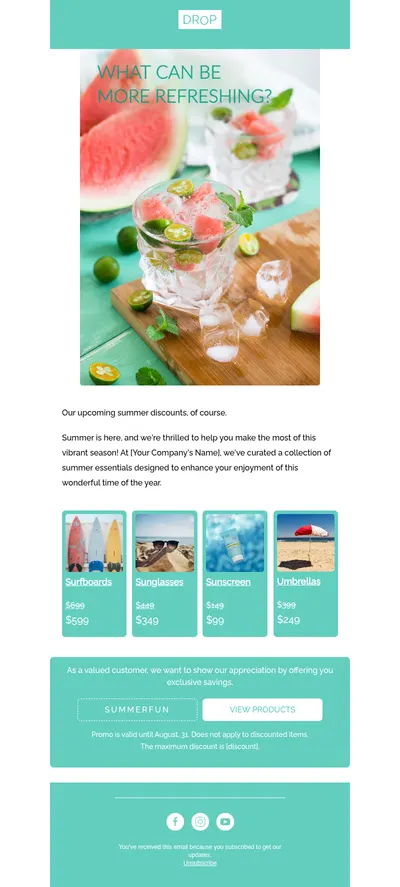
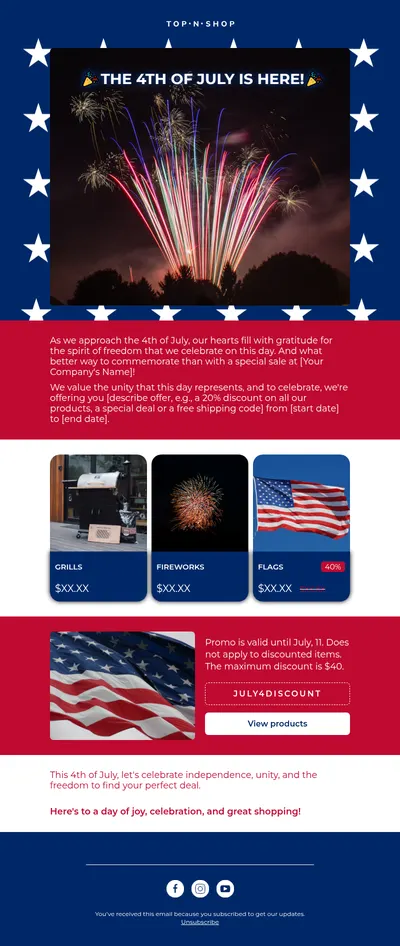
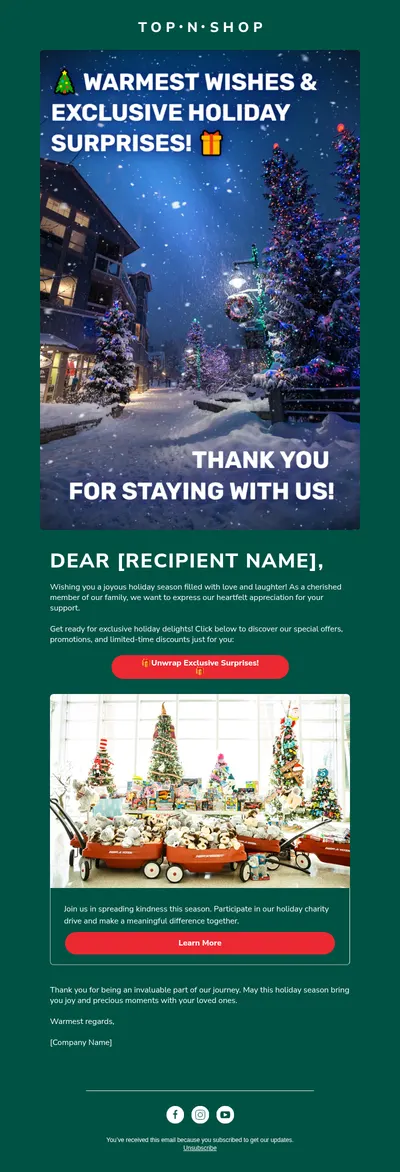
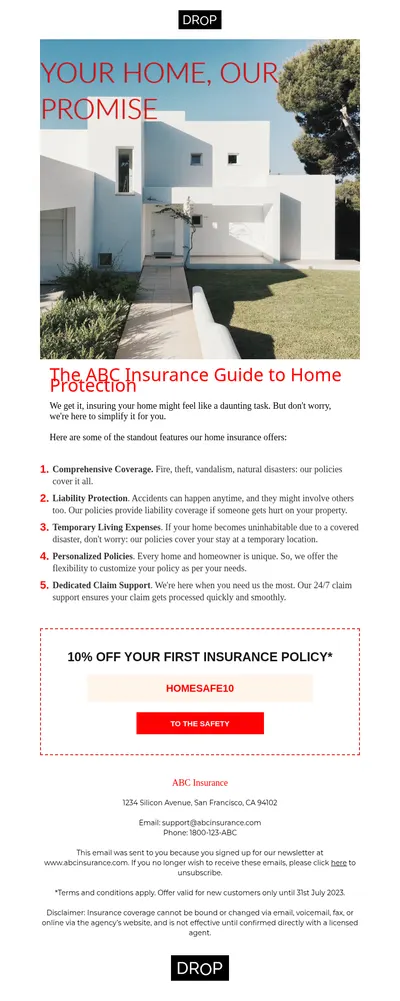
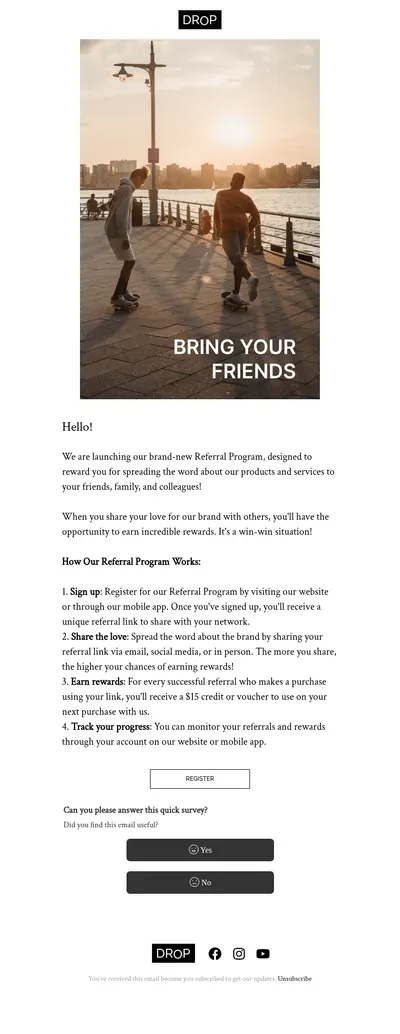
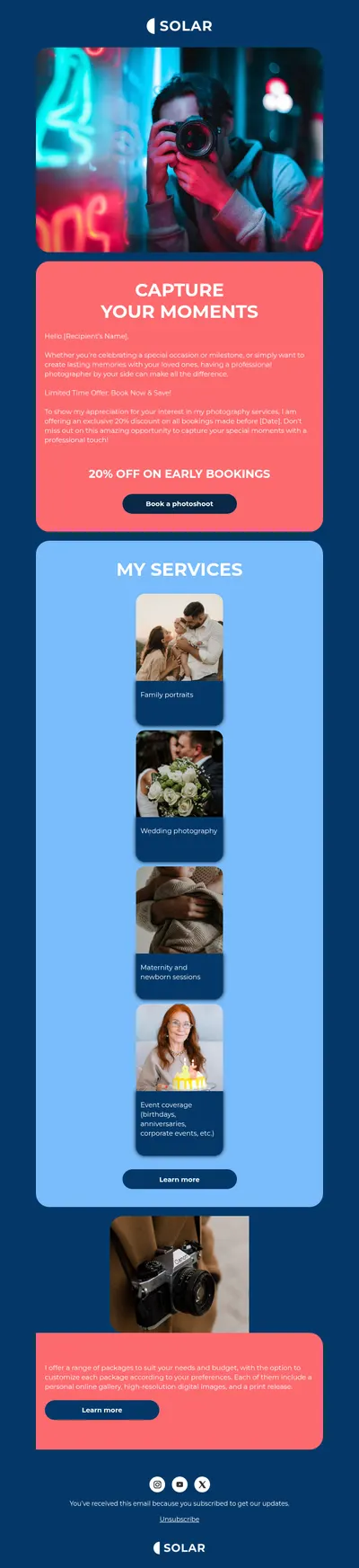
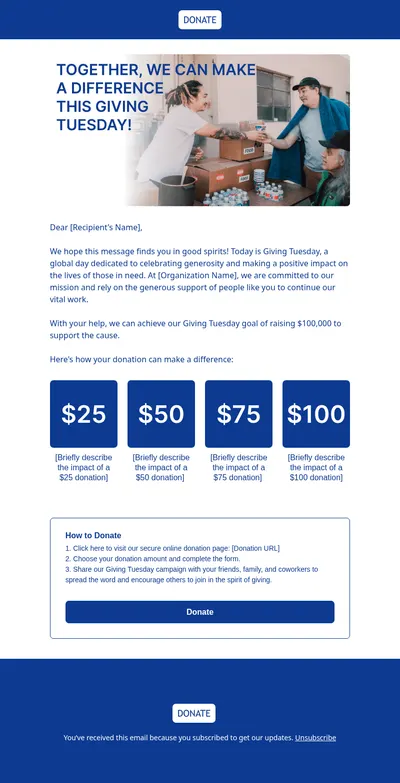
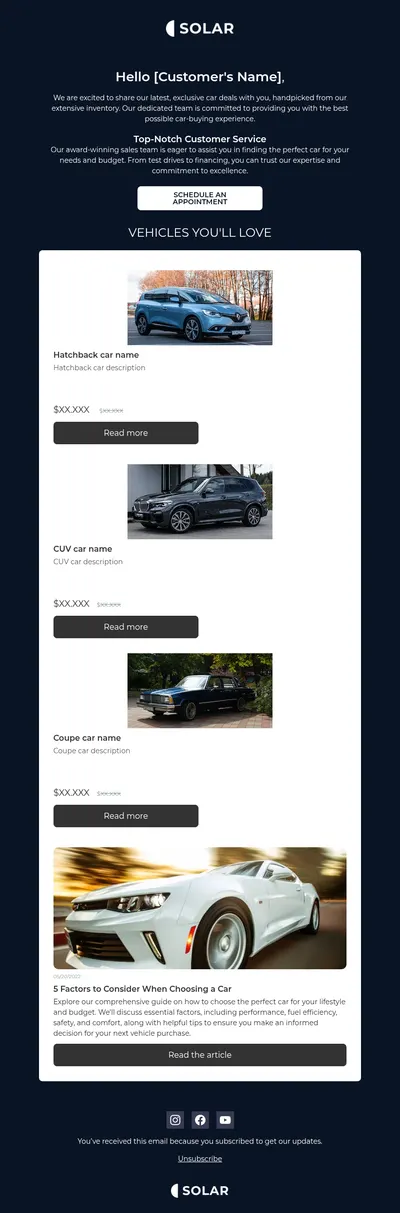
The template gallery covers the messages that make up a typical HubSpot marketing calendar:
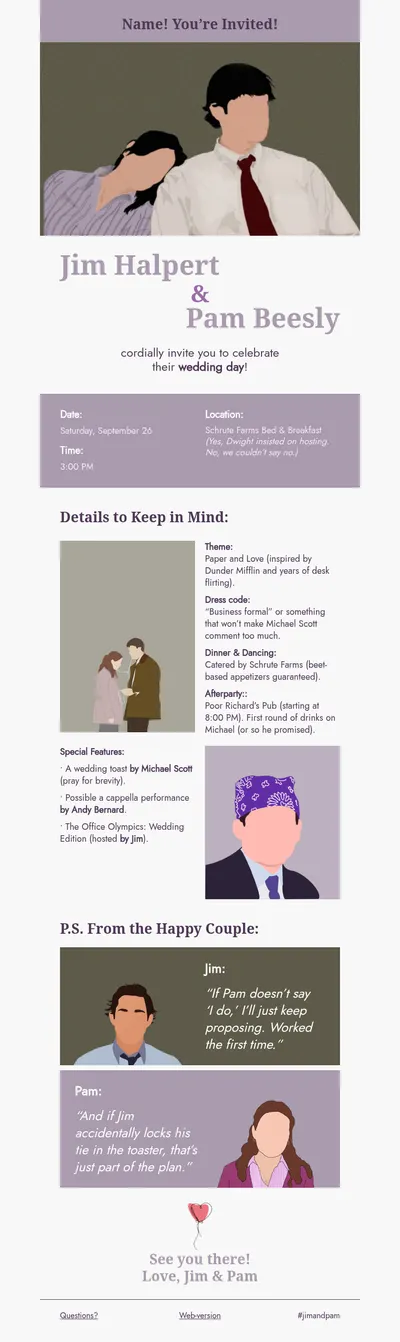
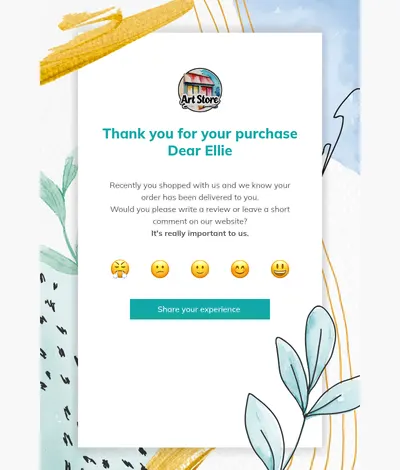
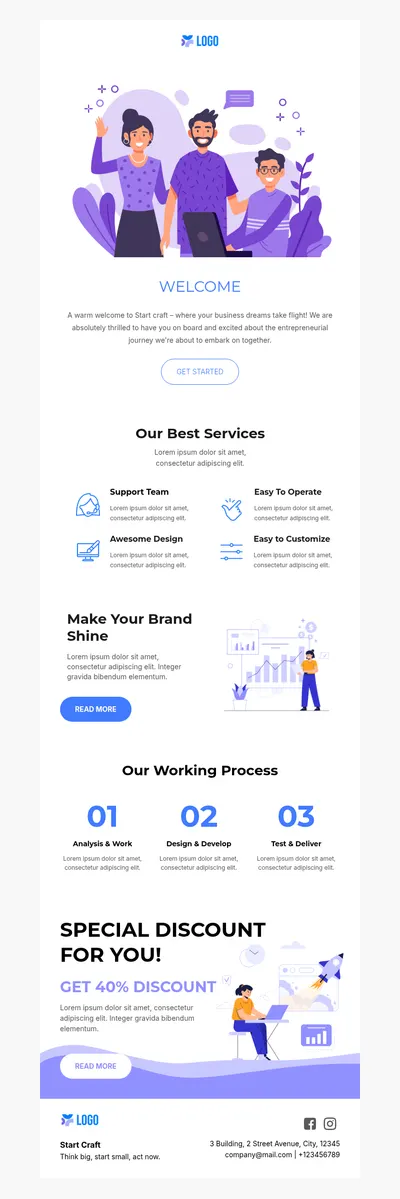
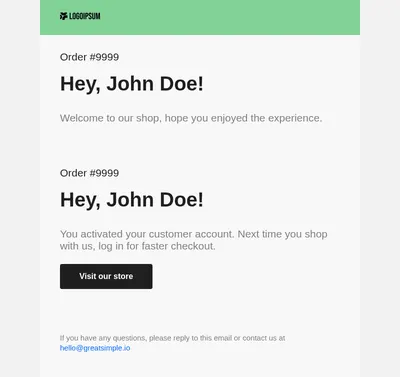
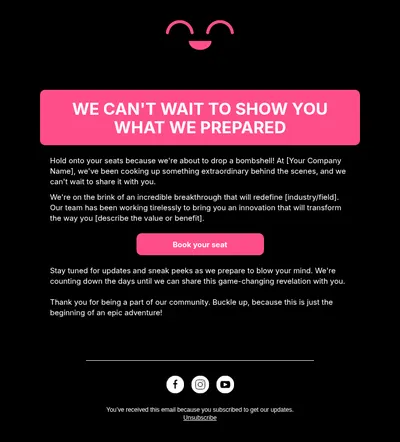
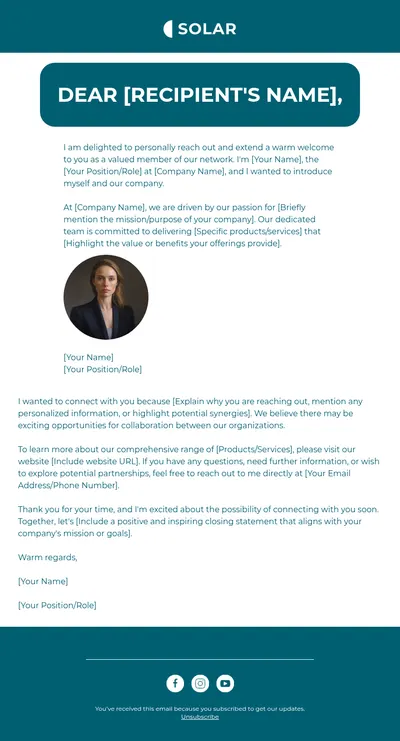
- Welcome emails for new subscribers and freshly converted leads who need a friendly first touch.
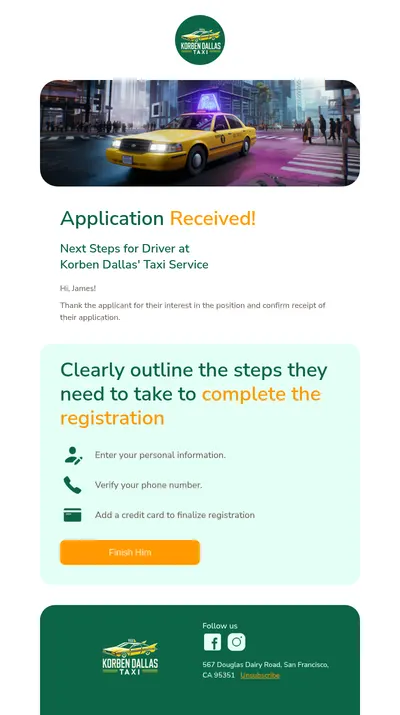
- Onboarding sequences that walk new customers through the first steps with your product.
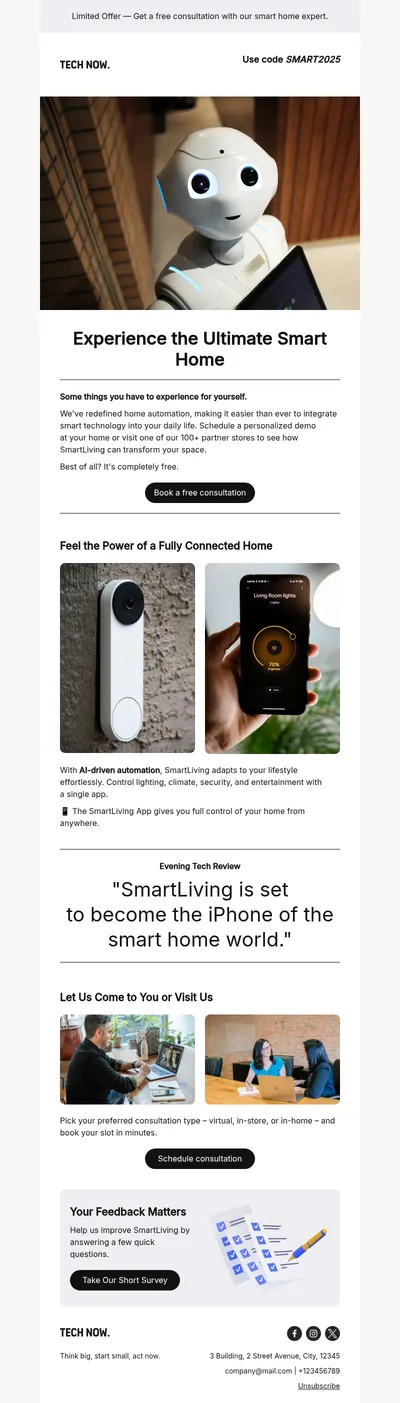
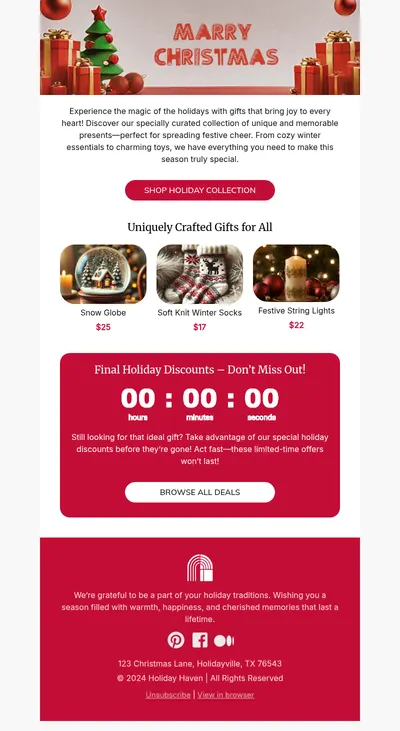
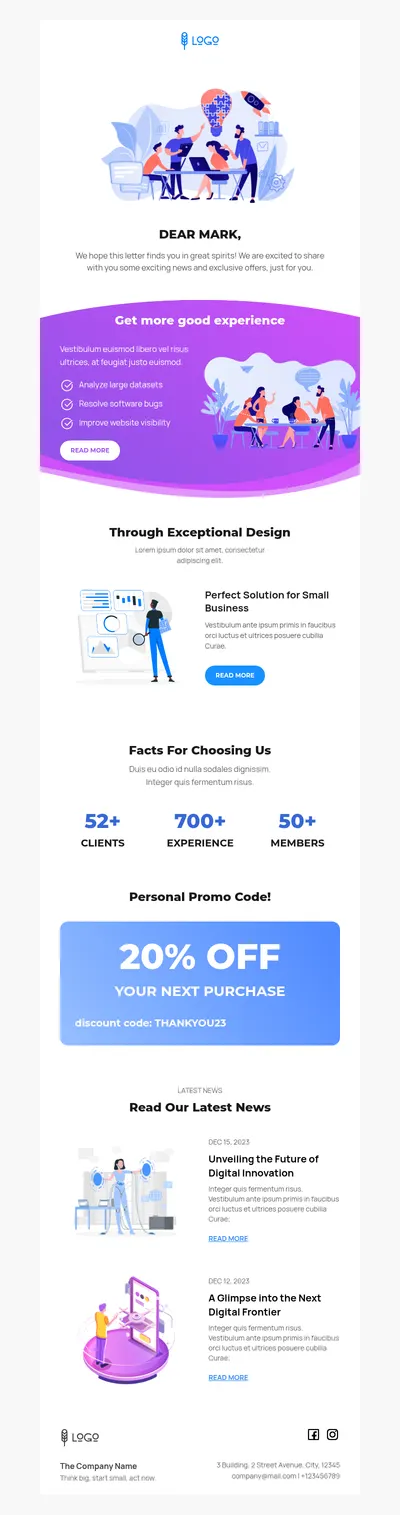
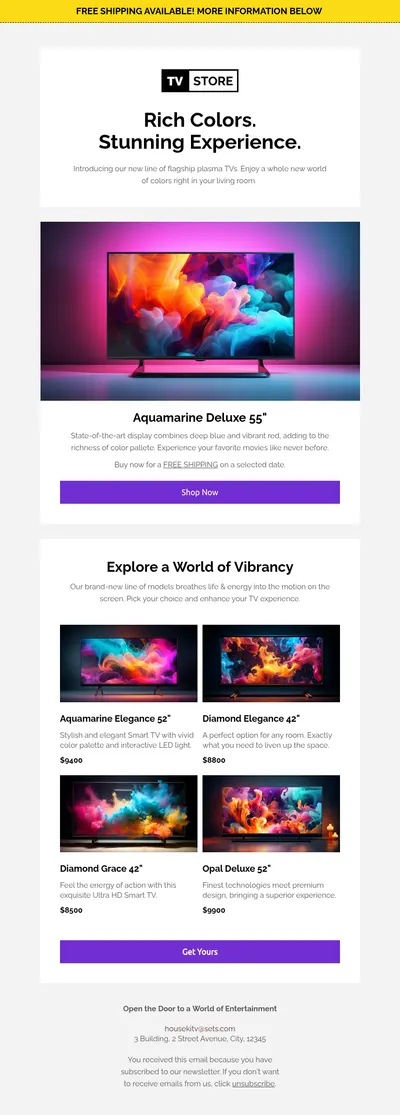
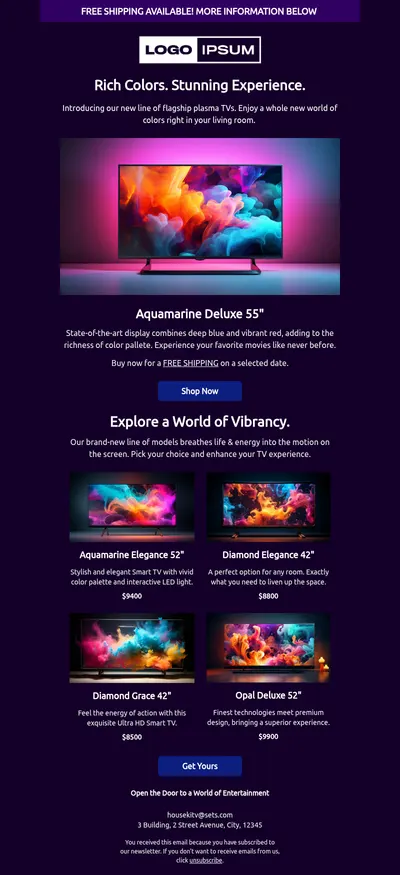
- Product launch announcements that give a new feature or release the attention it deserves.
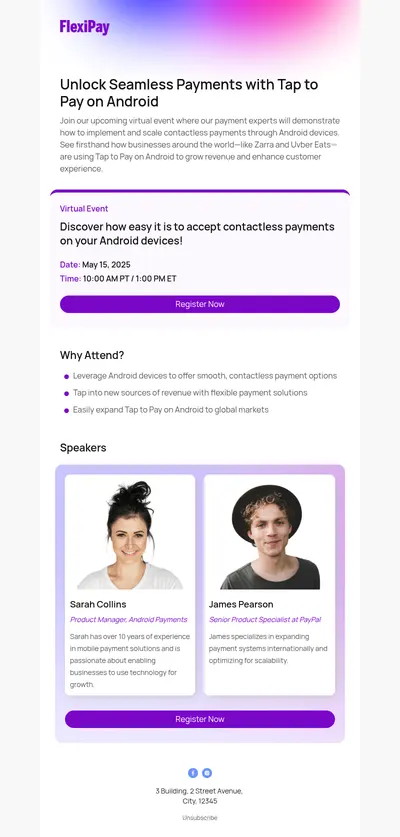
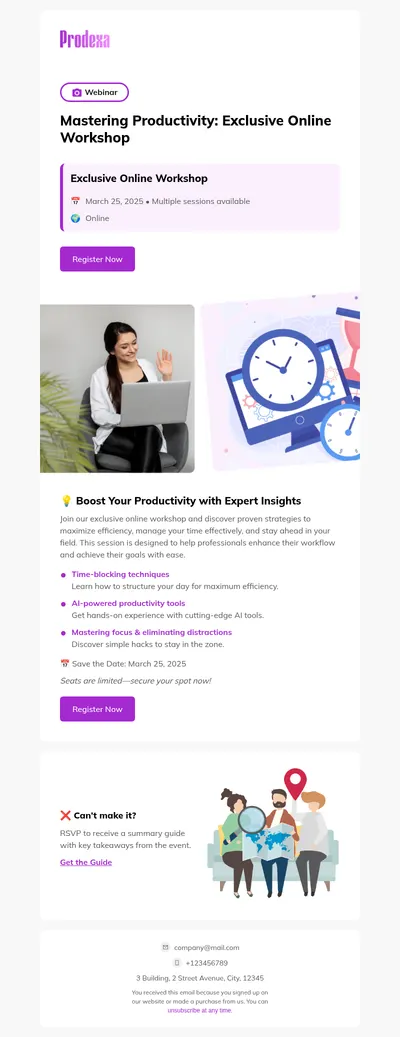
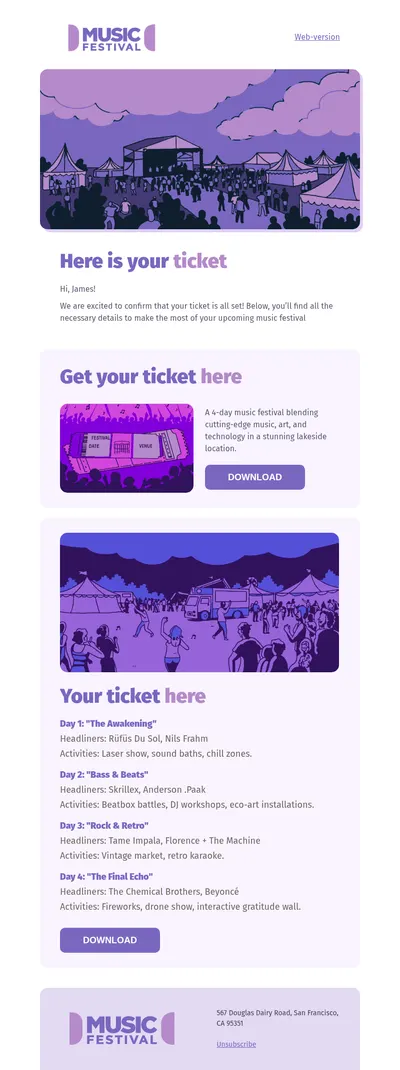
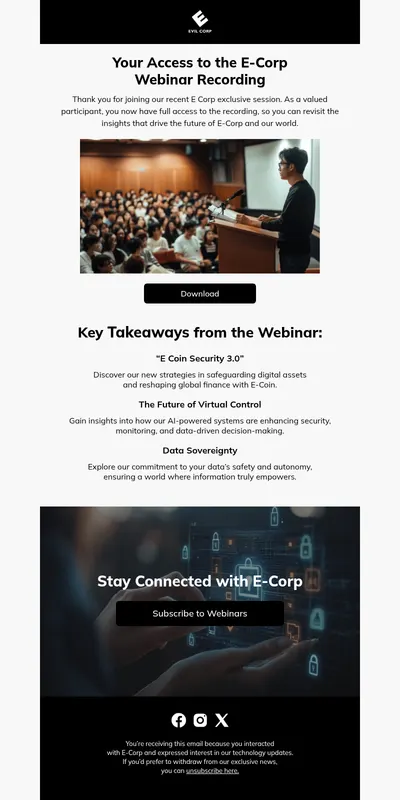
- Event invitations for webinars, meetups, and conferences you promote to your contact lists.
Personalize the Draft in HubSpot
Once the draft lands in HubSpot, you can place personalization tokens, such as a contact's first name or company, into its content with HubSpot's own tools. The design comes from Blocks, while the contact data and targeting stay where they already live.
Tips for HubSpot Email Templates That Convert
- Match the email to the lifecycle stage. A lead who just downloaded a guide needs different content than a customer who is up for renewal, even when both receive the same template.
- Lead with the value, not the logo. The first screen of the email should explain why the reader should care before it asks them to click anything.
- Keep the layout scannable. Clear headings, short blocks of text, and generous white space help busy readers find the part that matters to them.
- Send a test to real inboxes. Before scheduling, check the draft from HubSpot on desktop and mobile, and confirm every link points where it should.
- Review results and iterate. Compare open and click rates between sends, then update your saved template in Blocks with the version that worked best.
Planning to master the platform? Our overview of the HubSpot Inbound Marketing certification explains what the course teaches, and the article on welcome email subject lines helps with the very first message new contacts receive.
Get Free Email Templates for HubSpot
Choose one of the HubSpot templates above, customize it in Blocks, and export it as a draft whenever it is ready. The same designs also go directly to Mailchimp and Salesforce, so switching platforms later does not mean redesigning your emails.