Email editor
Emails in Blocks consist of blocks and elements. You can rearrange, clone, and delete all the elements. Blocks can also be saved for further use.
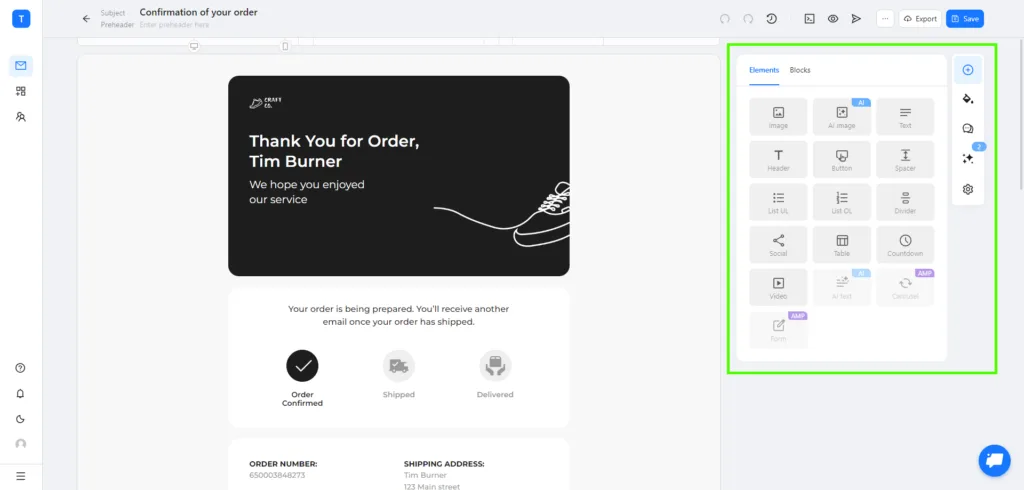
In the menu on the right, you can find the basic tools of the builder: Elements, Blocks, and icons of Build, Styles, Discuss, AI assistant, and Settings.
Elements
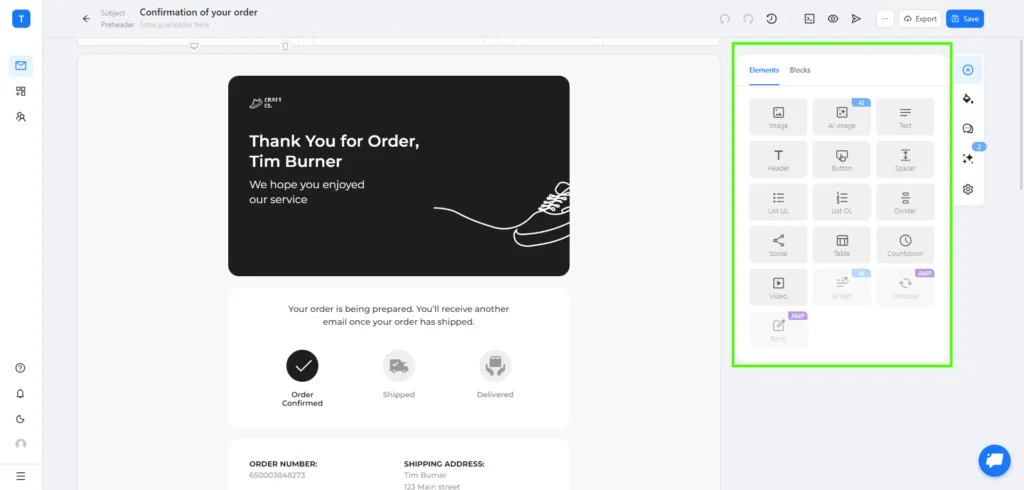
Elements are a set of tools you can insert into empty blocks. You can change the content and the look of the Elements in the visual editor on the side panel.
Blocks
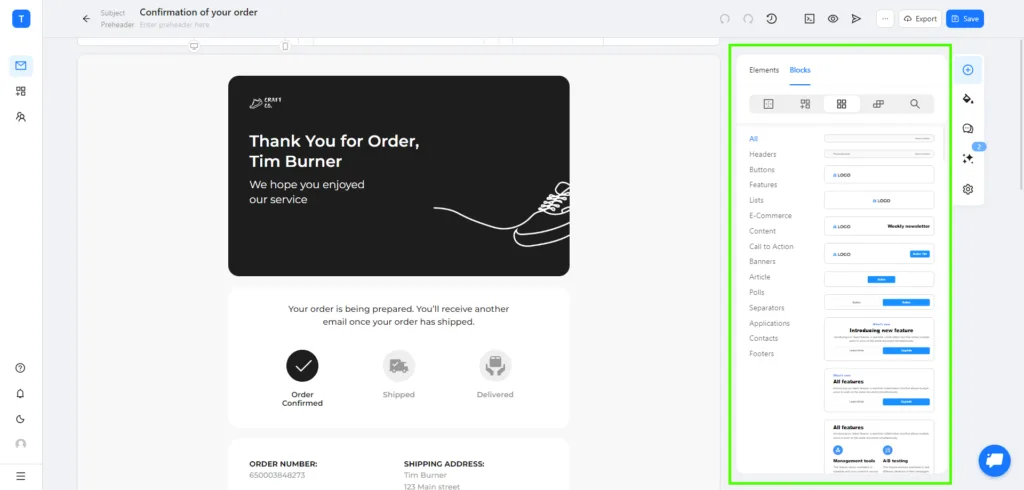
Blocks are horizontal parts of emails nearly ready to be reused. Sometimes they may require some editing here and there for a new email.
Styles
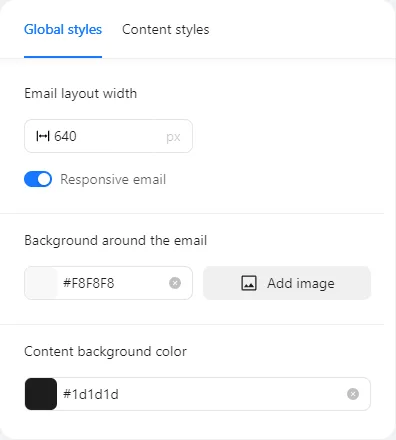
Global styles– you can set the width of your email in px in order to guarantee its correct display in various email clients. Mobile adaptivity will ensure comfortable experience on smartphones and tablets, and the background color of email and content will help you create a unique and memorable visual impression. Additionaly, you can add an image to the background, which will give you more branding & message visualization options.
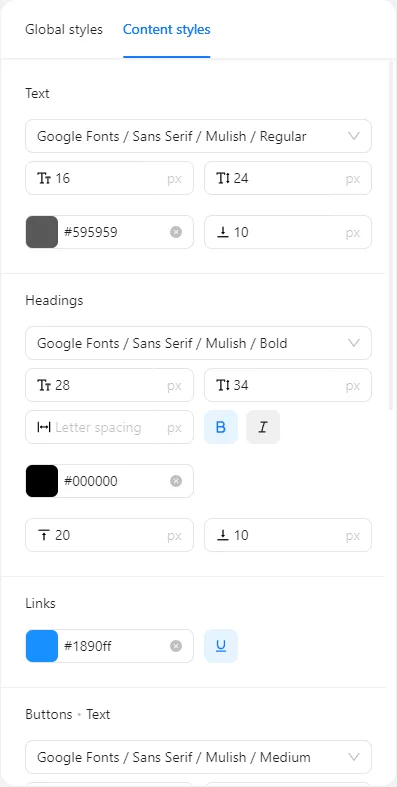
Content styles – you can precisely set the design of your emails. In this tab you can select headings and text font style, set their size to make your messages look professional and easy to read on any device. Set the text color and letter spacing to make the emails easier to read and comprehend visually.
AI assistant
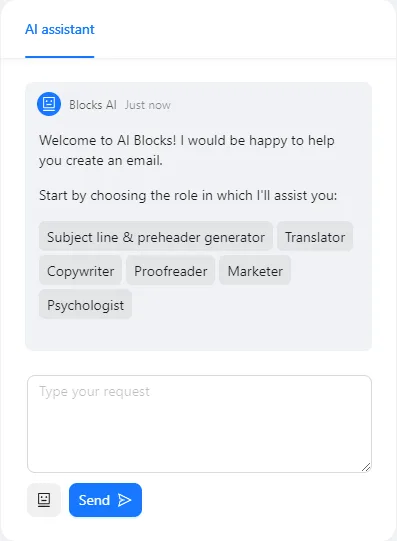
AI assistant by Blocks is developed considering the needs of marketers, enterpreneurs, and ecommerce specialists. It utilizes cutting-edge neural networks technologies. It is not only capable of automatically creating quality text content and images, but it also can create cohesive, effective, and personalized emails providing a high efficiency level and individual approach to each addressee.
Settings
Settings– here you can edit the Title of the email, add a Description and Tags.
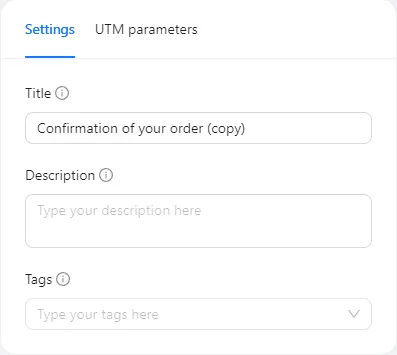
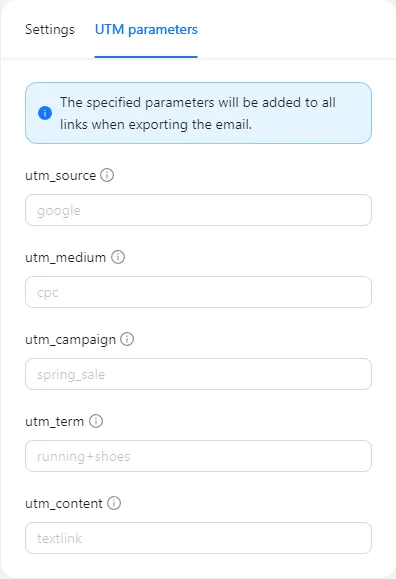
UTM parameters – you can add needed UTM tags and Blocks will add them to every link in the email automatically.